Stock Overview
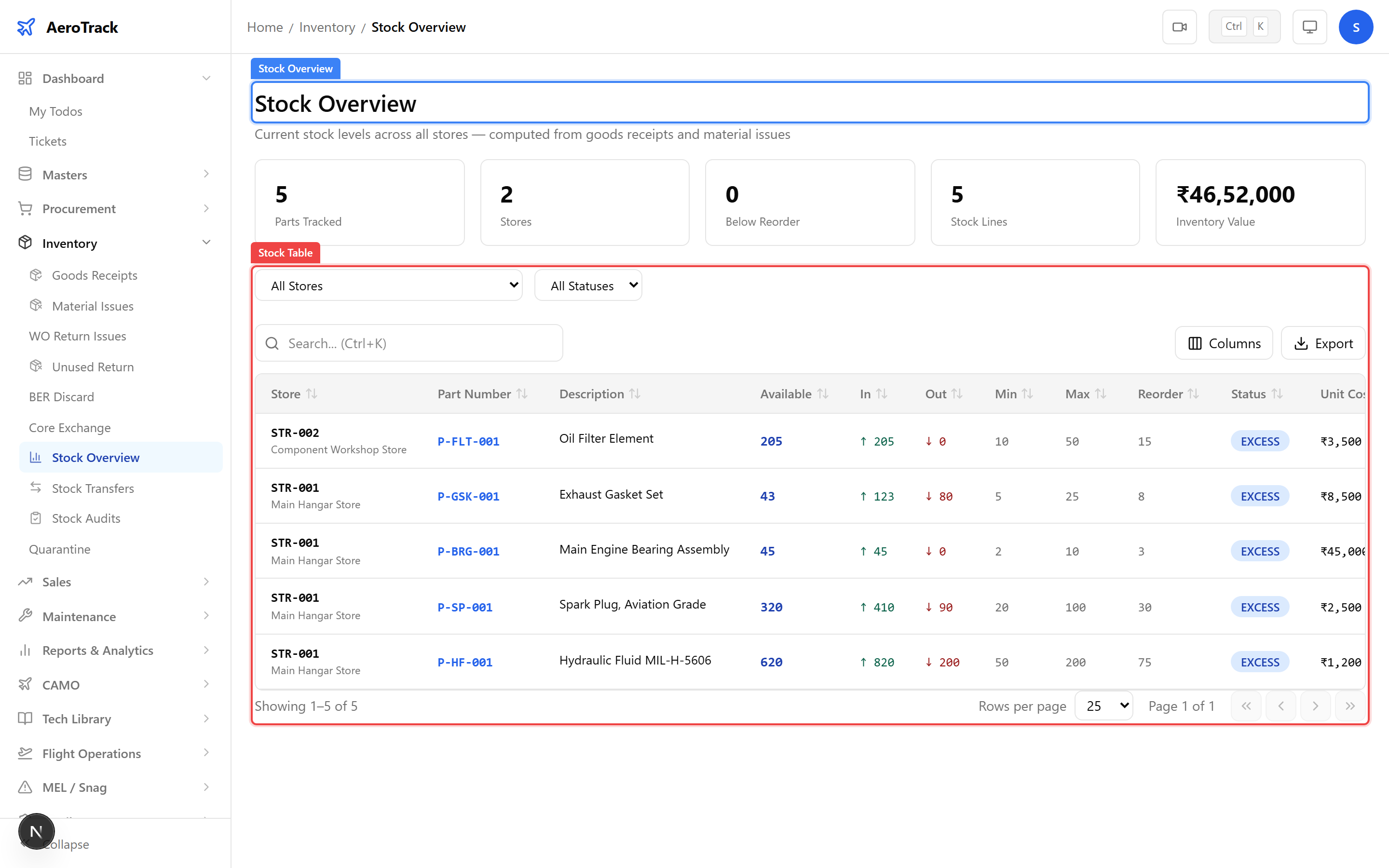
Navigate to Inventory → Stock Overview or go
to /inventory/stock. The stock overview table shows
every part across all stores with current balance, available
quantity, and stock status.
| Filter | Description |
|---|---|
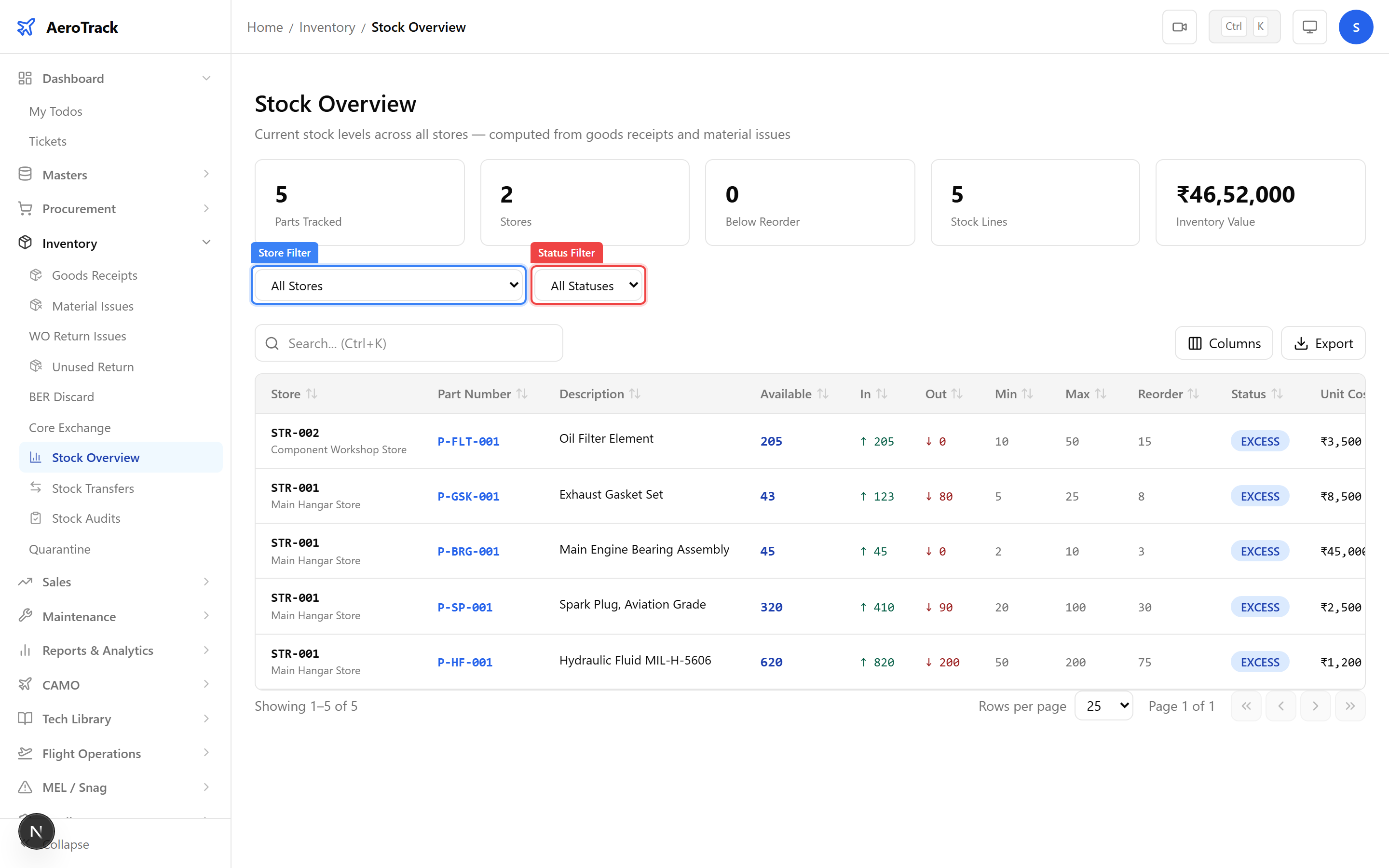
| Store | Filter by specific store location. |
| Status | Filter by stock status (In Stock, Low, Out of Stock). |
| Search | Search by part number or description. |
Click any part row to open its bin card at
/inventory/stock/{partId}/{storeId}. The bin card
shows every movement (receipt, issue, transfer, adjustment) with
running balance.
| Column | Description |
|---|---|
| Date | When the movement occurred. |
| Type | Receipt, Issue, Transfer In/Out, Adjustment. |
| Reference | GRN, Issue, Transfer, or Audit number. |
| In / Out | Quantity added or removed. |
| Balance | Running balance after the movement. |
Stock Audit
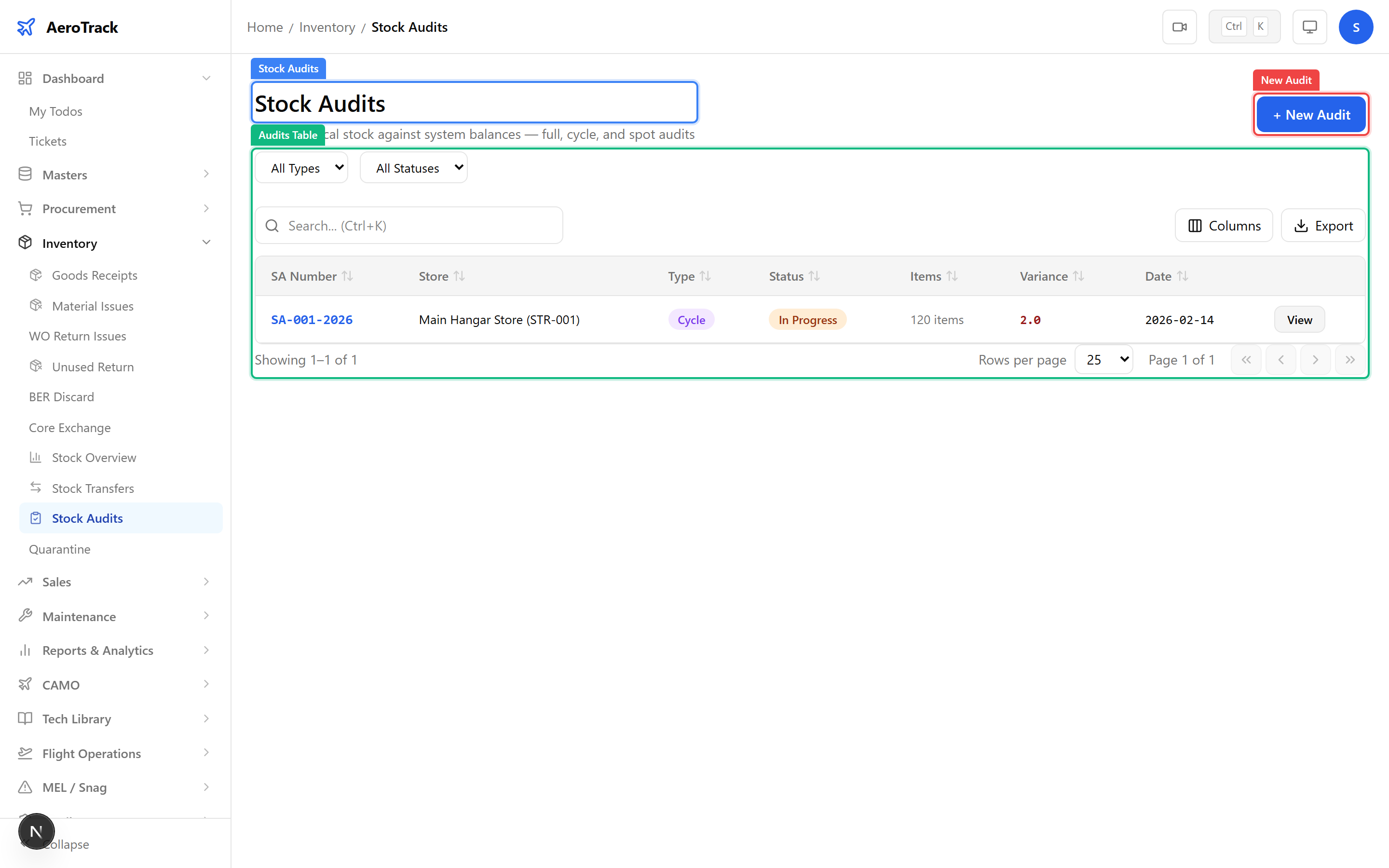
Navigate to Inventory → Stock Audits at
/inventory/audits and click + New Audit.
| Field | Required | Description |
|---|---|---|
| Store | Yes | Select the store to audit. |
| Type | Yes | Full Count, Cycle Count, or Spot Check. |
| Date | Yes | Date of the physical count. |
| Remarks | No | Notes about the audit scope or purpose. |
Open the audit detail page to see every part in the selected store. Enter the physical count for each item:
| Column | Description |
|---|---|
| Part Number | Part being counted. |
| System Qty | Current balance per AeroTrack records. |
| Counted Qty | Physical count entered by the auditor. |
| Variance | Difference (counted minus system). |
After counting, review the summary statistics:
| Metric | Description |
|---|---|
| Total Lines | Number of parts included in the audit. |
| Lines Counted | Lines where a physical count was entered. |
| Variances | Number of lines where counted differs from system. |
| Total Variance | Net variance across all counted items. |
Related Actions
| Action | Guide |
|---|---|
| Receive goods into stock | Goods Receipt Acceptance |
| Request parts for replenishment | Part Request |
| Transfer stock between stores | Stock Movements |
| Manage quarantine items | Quarantine Management |
| View store definitions | Warehouse Management |