Browse Requisitions
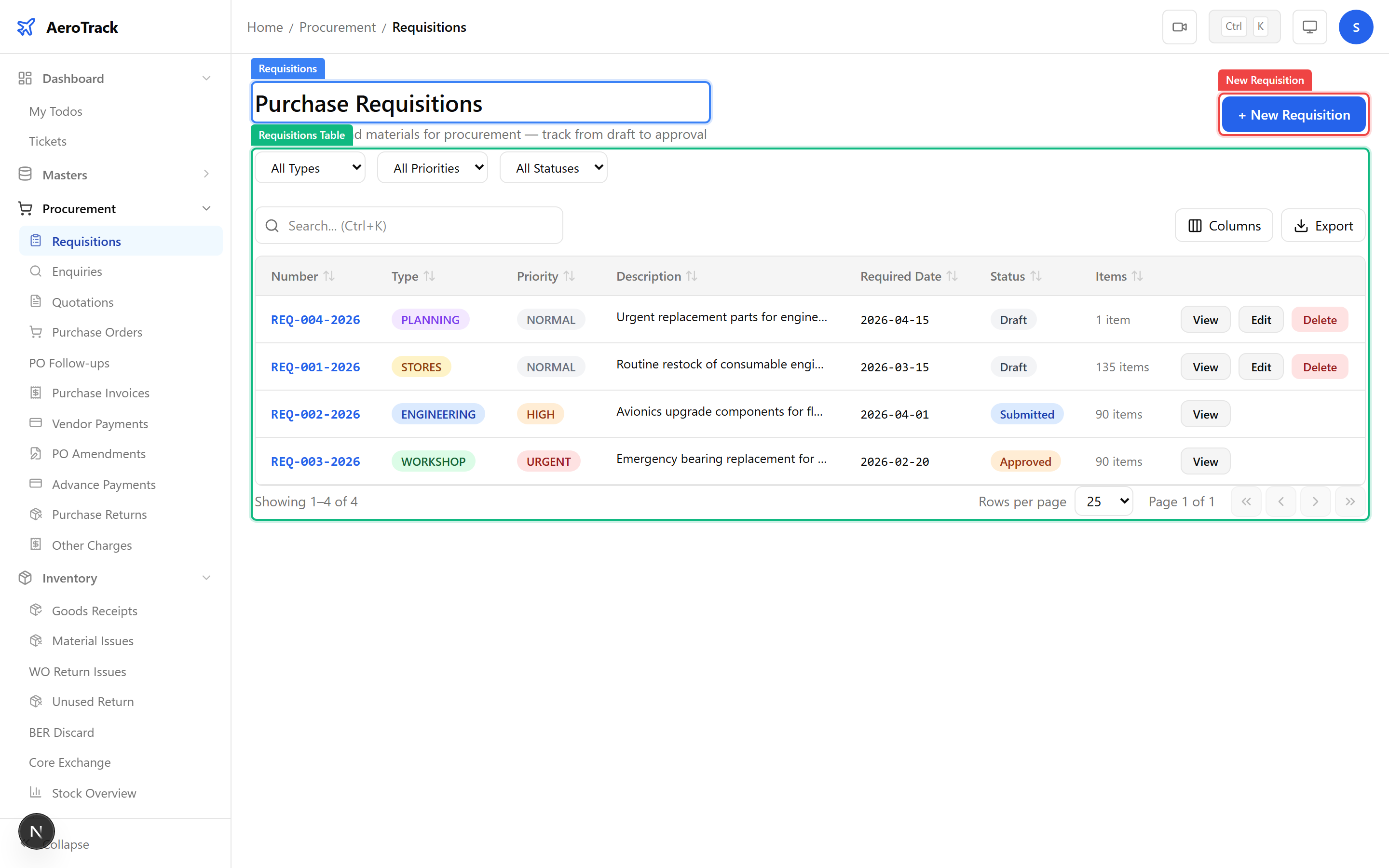
Navigate to Procurement → Requisitions or go
to /procurement/requisitions. The list shows all
purchase requests with their number, type, priority, status, and
total value.
| Filter | Description |
|---|---|
| Type | Purchase, Repair, Exchange, or Loan. |
| Priority | Normal, Urgent, or AOG. |
| Status | Draft, Submitted, Approved, Converted, or Cancelled. |
Create a Requisition
Click + New Requisition to open the form at
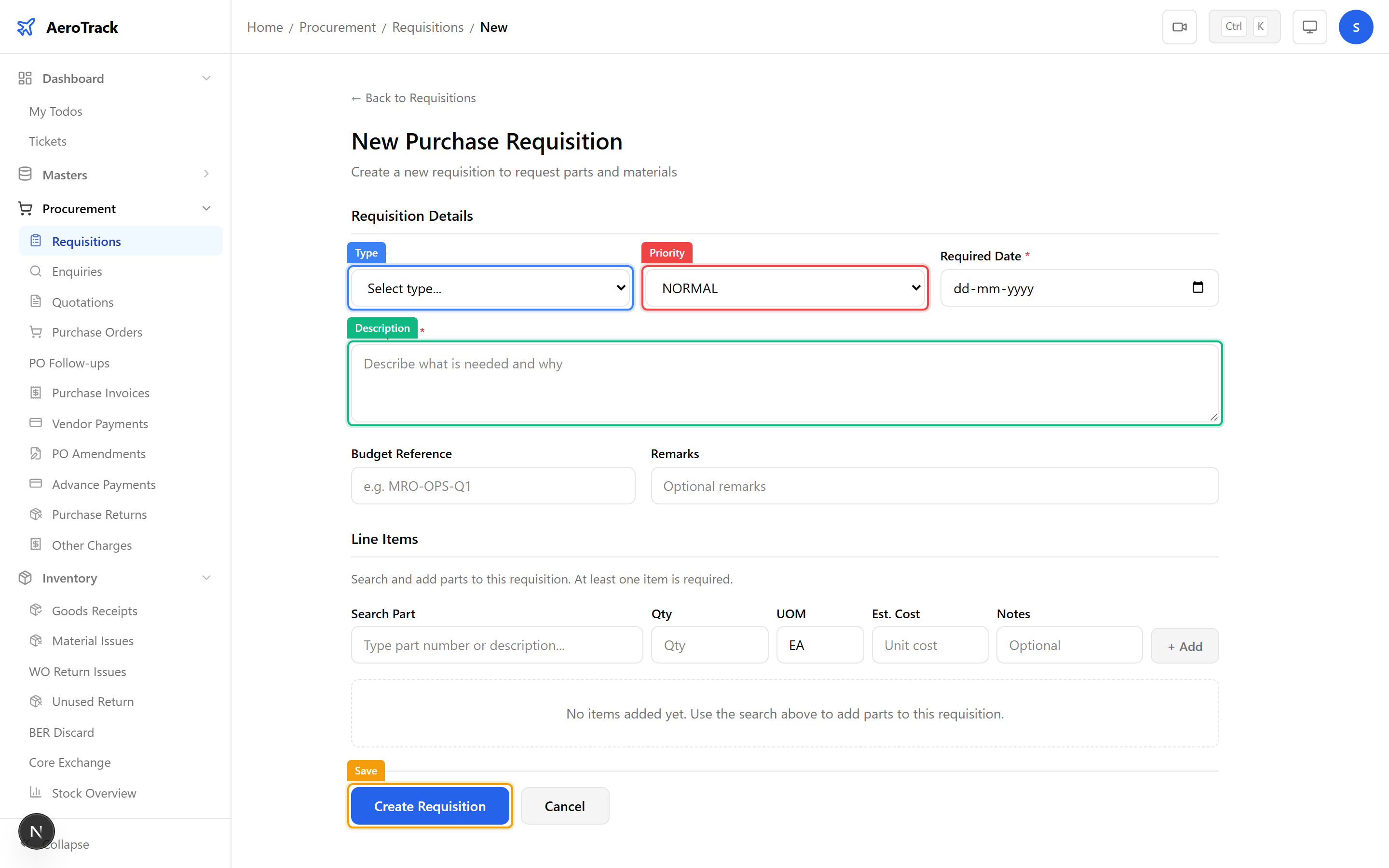
/procurement/requisitions/new. Fill in the header:
| Field | Required | Description |
|---|---|---|
| Type | Yes | Purchase, Repair, Exchange, or Loan. |
| Priority | Yes | Normal, Urgent, or AOG. |
| Required Date | No | Date by which the parts are needed. |
| Description | No | Purpose or reason for the request. |
| Budget | No | Estimated budget for the request. |
| Remarks | No | Additional notes. |
Use the Part Search field to find parts from the master catalogue. Select a part to add it as a line item:
| Field | Description |
|---|---|
| Part Search | Typeahead search by part number or name. |
| Quantity | Number of units required. |
| UoM | Unit of measure (auto-filled from part master). |
| Estimated Cost | Per-unit cost estimate. |
| Notes | Line-level notes (e.g. serial number preference). |
Click Add Item to add the line. Repeat for each part needed. The Running Total updates as you add lines.
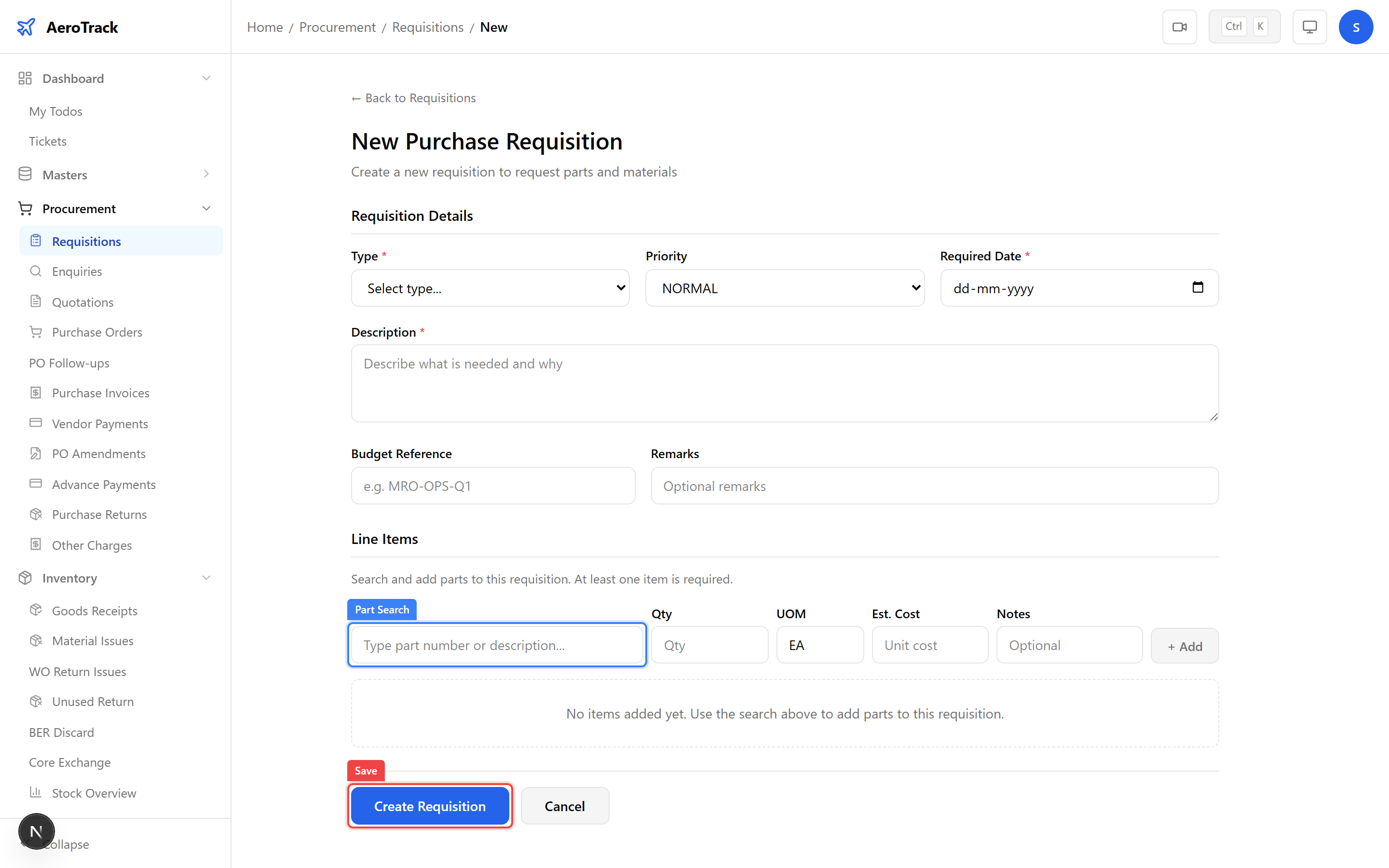
Click Save to create the requisition in Draft status. From the detail page, advance the workflow:
| Action | Effect |
|---|---|
| Submit | Sends to approver. Status changes to Submitted. |
| Edit | Modify header or line items (only in Draft/Submitted). |
| Cancel | Cancels the requisition. |
Approval Workflow
| Status | Who | Next |
|---|---|---|
| Draft | Requester | Submit → Submitted |
| Submitted | Requester | Approve → Approved |
| Approved | Manager / Admin | Convert to PO → Converted |
| Converted | System | Auto-set when PO is created. |
| Cancelled | Any stage | Terminal state. |
| Action | Guide |
|---|---|
| Convert to purchase order | Purchase Orders |
| Receive ordered goods | Goods Receipt Acceptance |
| Check current stock levels | Stock Check |
| Browse parts catalogue | Parts Catalogue |
| Manage suppliers | Supplier Management |