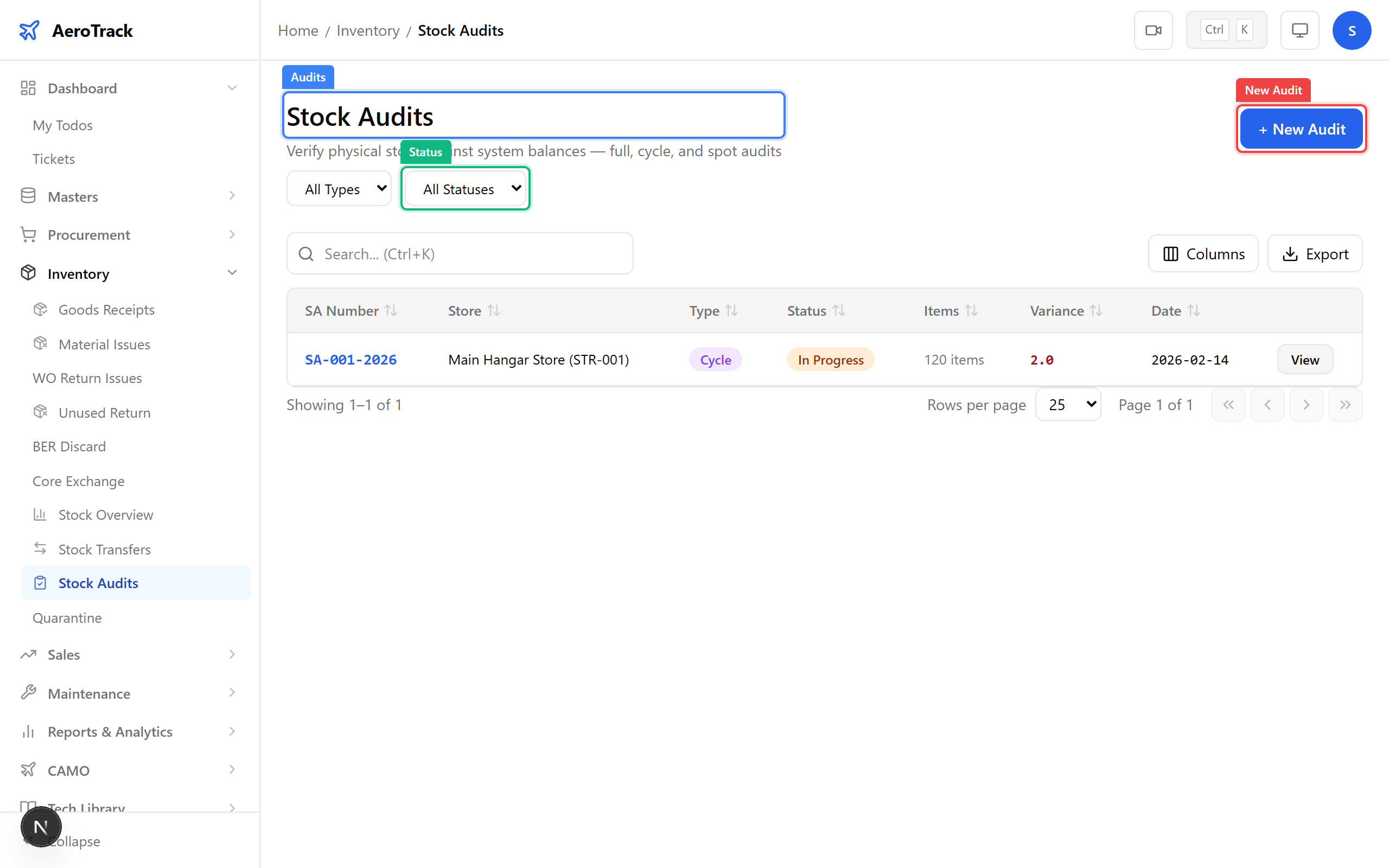
Stock Overview
Navigate to Inventory → Stock Overview in the
sidebar. The page loads at /inventory/stock showing
current stock levels for every part across all stores.
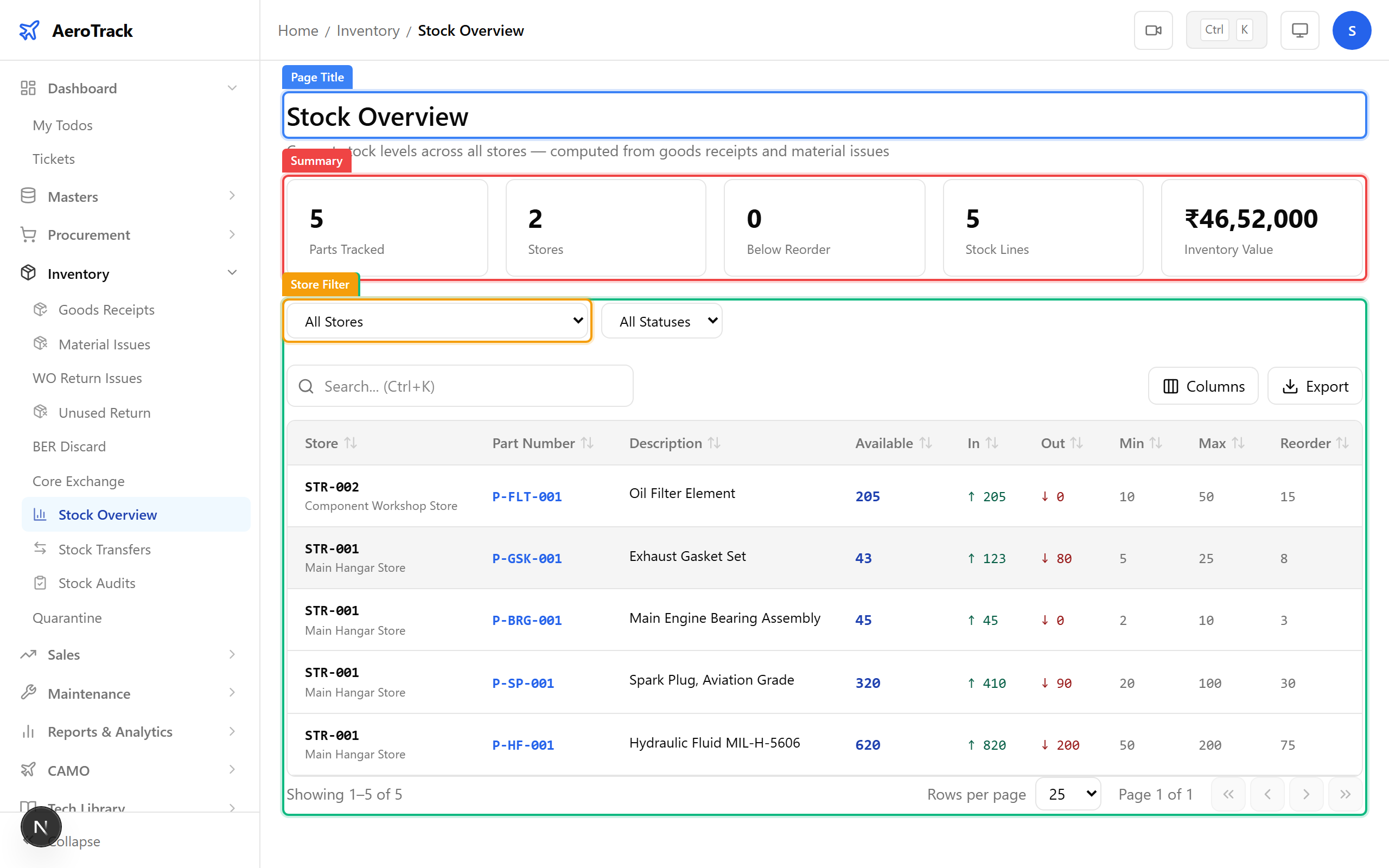
Use the Store and Status filters to narrow the view. Each row shows the part number, description, store, current balance, and stock status (OK, Low, Critical).
Click any row in the stock overview to open the movement history for
that part in that store. The detail page at
/inventory/stock/{partId}/{storeId} shows:
| Column | Meaning |
|---|---|
| Date | When the movement occurred. |
| Type | Receipt, Issue, Transfer In, Transfer Out, Adjustment, etc. |
| Reference | Document number (GR, MI, ST, or Audit that triggered the movement). |
| Qty In | Quantity added to stock. |
| Qty Out | Quantity removed from stock. |
| Balance | Running balance after this movement. |
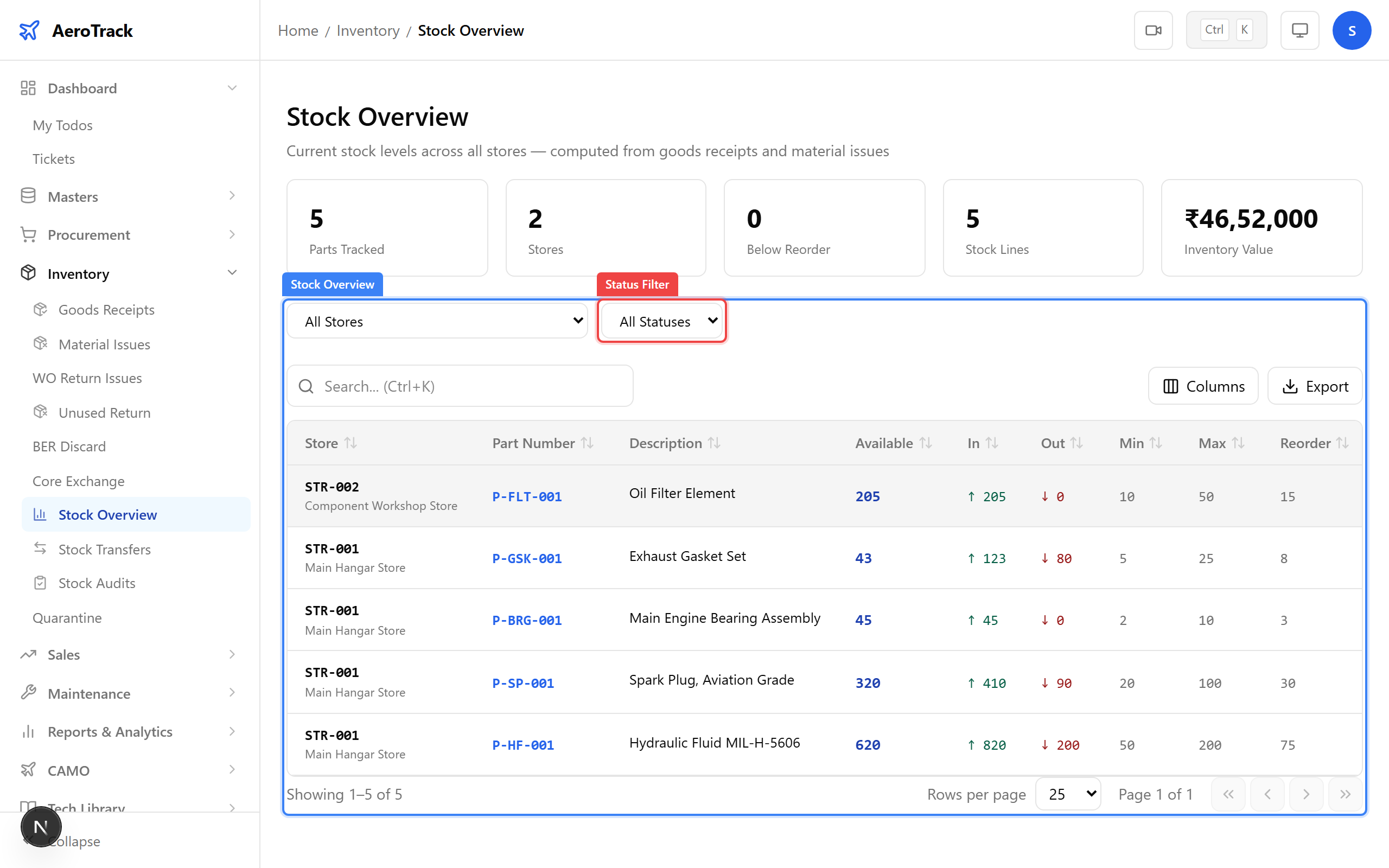
Stock Transfers
Navigate to Inventory → Stock Transfers. The
list at /inventory/transfers shows all inter-store
transfer requests. Filter by Reason or
Status.
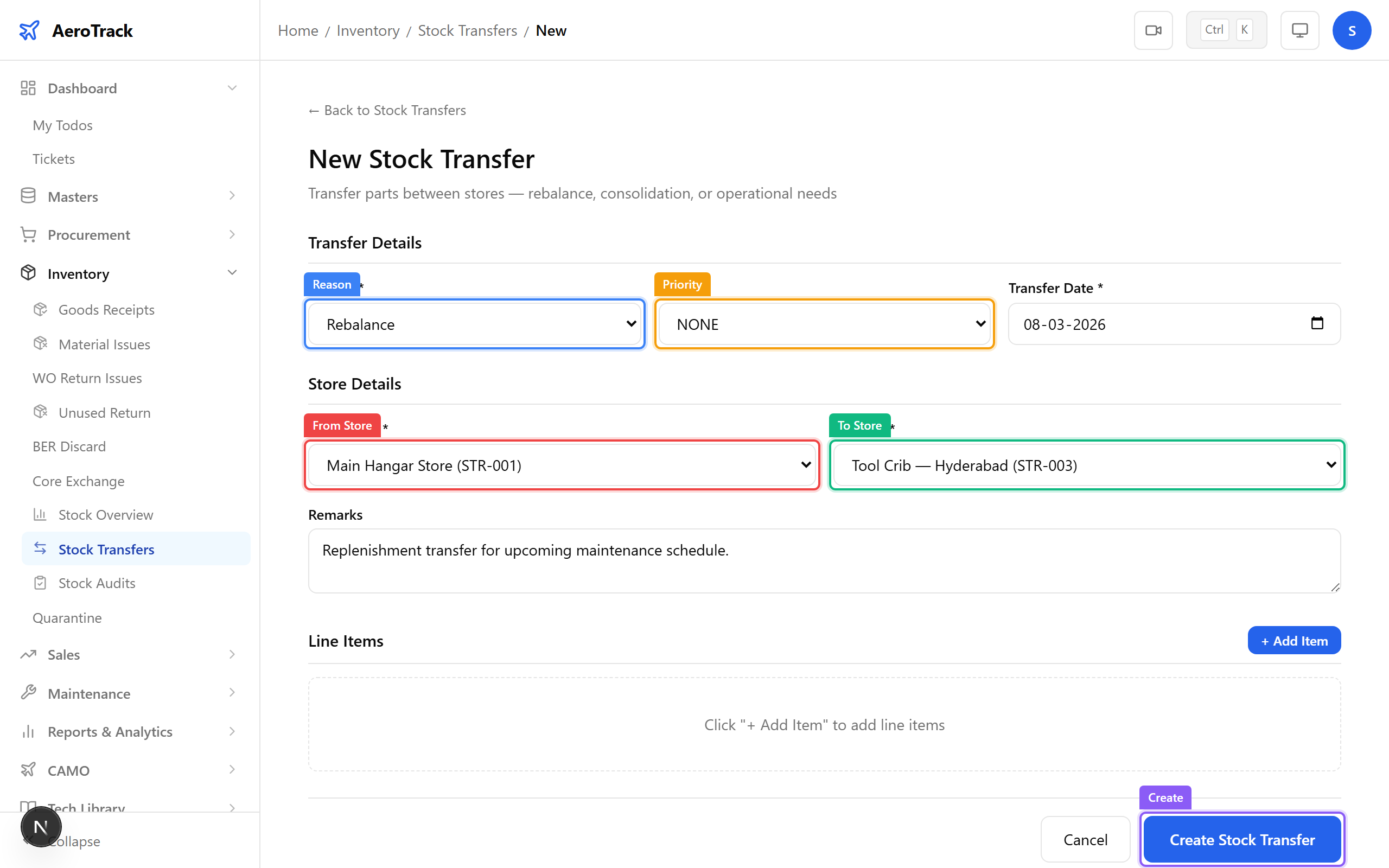
Click + New Transfer to open the form at
/inventory/transfers/new.
| Field | Required | Notes |
|---|---|---|
| Reason * | Yes | Why the transfer is needed (Replenishment, Consolidation, etc.). |
| Priority | No | Low, Medium, High, or Critical. |
| Transfer Date | Auto | Defaults to today. |
| From Store * | Yes | Source store. |
| To Store * | Yes | Destination store. |
| Remarks | No | Internal notes. |
Add line items with parts and quantities, then click Create.
| Status | Meaning |
|---|---|
| Initiated | Transfer created. Stock reserved at source. |
| In Transit | Items physically dispatched. Awaiting receipt confirmation. |
| Received | Items received at destination. Stock balances updated. |
| Cancelled | Transfer aborted. Reserved stock released. |
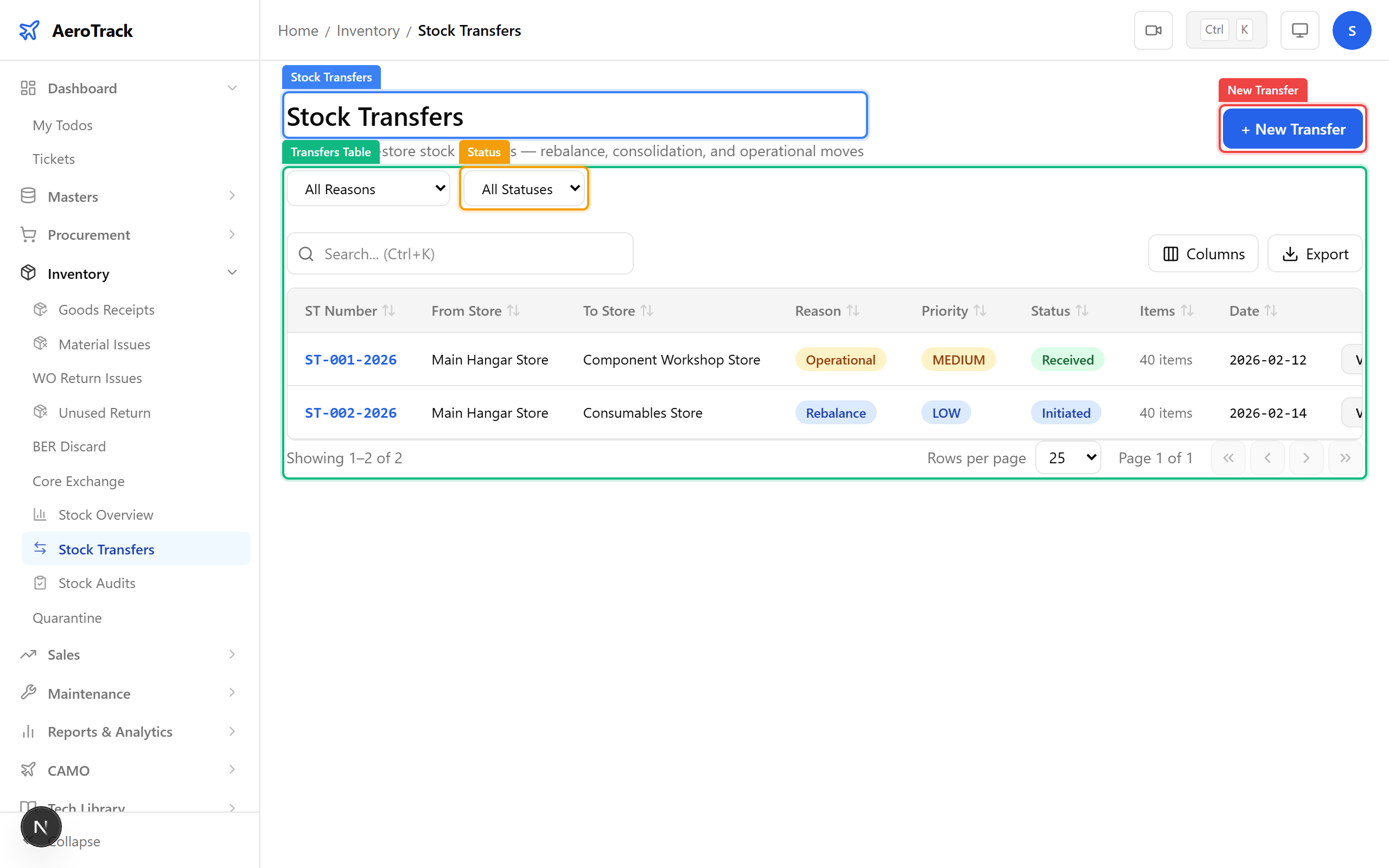
Stock Audits
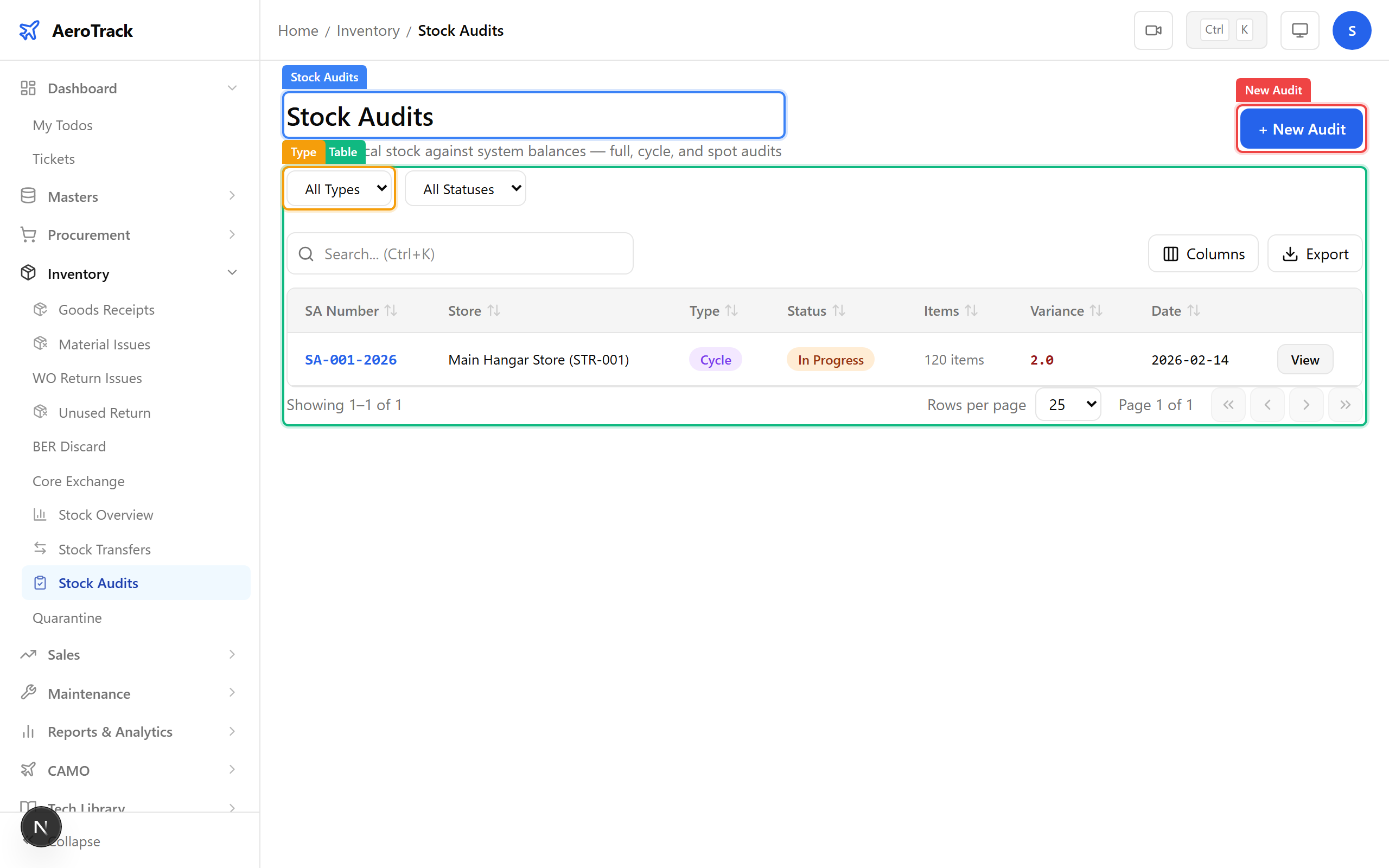
Navigate to Inventory → Stock Audits. The list
at /inventory/audits shows all physical count
records. Filter by Type (Full, Partial, Cycle Count)
or Status.
| Field | Required | Notes |
|---|---|---|
| Store * | Yes | Which store to audit. |
| Audit Type * | Yes | Full, Partial, or Cycle Count. |
| Date | Auto | Date of the physical count. |
| Remarks | No | Notes about scope or discrepancies. |
Click Create to save the audit in Draft status.
The audit detail page shows the summary statistics: total items counted, items with variance, and total variance amount. The lines table compares system quantity vs. physical count for each part.