Browse Flight Logs
1
Open Log Book
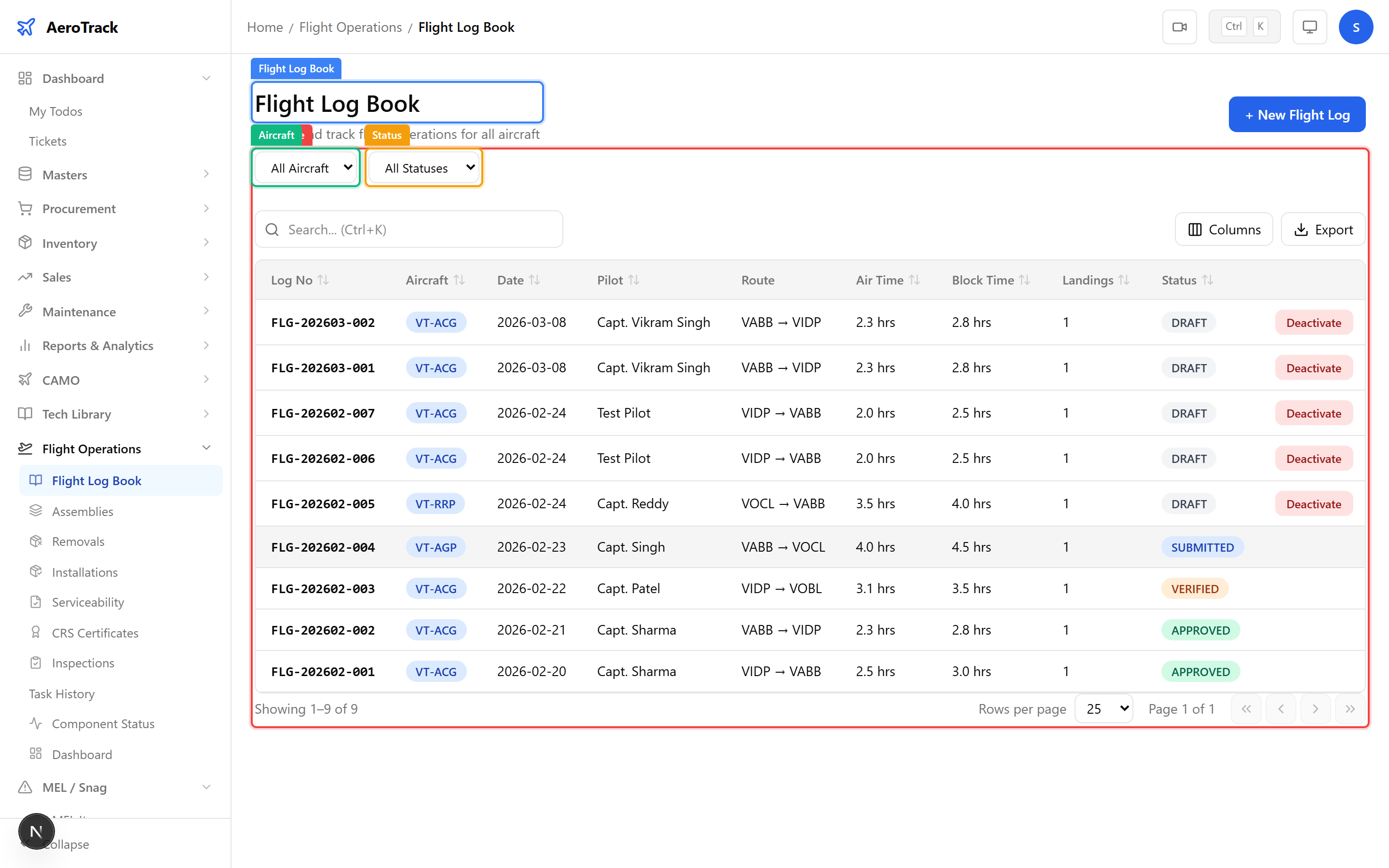
Navigate to Flight Operations → Flight Log Book
or go to /flight-ops/log-book. The log table shows
all recorded flights with their reference number, aircraft,
route, times, and workflow status.
2
Filter & Columns
| Filter | Description |
|---|---|
| Aircraft | Filter by specific aircraft registration. |
| Status | DRAFT, SUBMITTED, VERIFIED, APPROVED, AMENDED, or CANCELLED. |
| Column | Description |
|---|---|
| Log No | Auto-generated reference (FLG-YYYYMM-NNN). |
| Aircraft | Registration mark (blue badge). |
| Date | Flight date. |
| Pilot | Pilot in Command name. |
| Route | Departure → Arrival (ICAO codes). |
| Air Time | Takeoff to landing duration. |
| Block Time | Blocks off to blocks on duration. |
| Landings | Total landing count. |
| Status | Current workflow state. |
Create a Flight Log
3
Flight Info
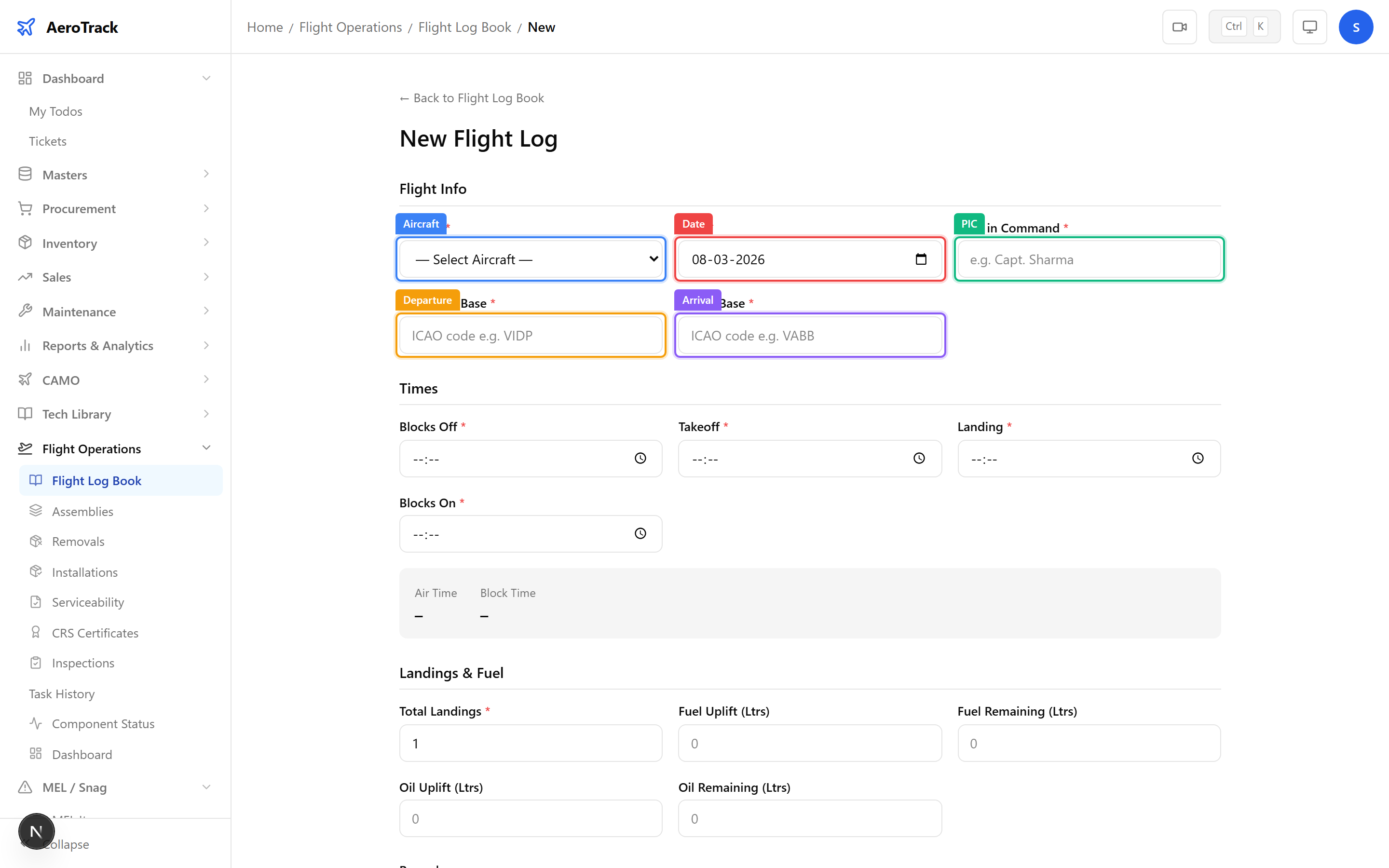
Click + New Flight Log to open the form at
/flight-ops/log-book/new. Fill in the flight
identification fields:
| Field | Required | Description |
|---|---|---|
| Aircraft | Yes | Select the aircraft from active fleet. |
| Date | Yes | Date of the flight (YYYY-MM-DD). |
| Pilot in Command | Yes | Name of PIC (e.g. “Capt. Sharma”). |
| Departure Base | Yes | ICAO code of departure airport (auto-uppercased). |
| Arrival Base | Yes | ICAO code of arrival airport. |
4
Times & Durations
Enter the four time events in HH:MM format. AeroTrack auto-calculates Air Time and Block Time in real time:
| Time Event | Description |
|---|---|
| Blocks Off | Time the aircraft leaves the gate/stand. |
| Takeoff | Wheels-off time. |
| Landing | Wheels-on time. |
| Blocks On | Time the aircraft arrives at the gate/stand. |
| Calculated Field | Formula |
|---|---|
| Air Time | Landing − Takeoff |
| Block Time | Blocks On − Blocks Off |
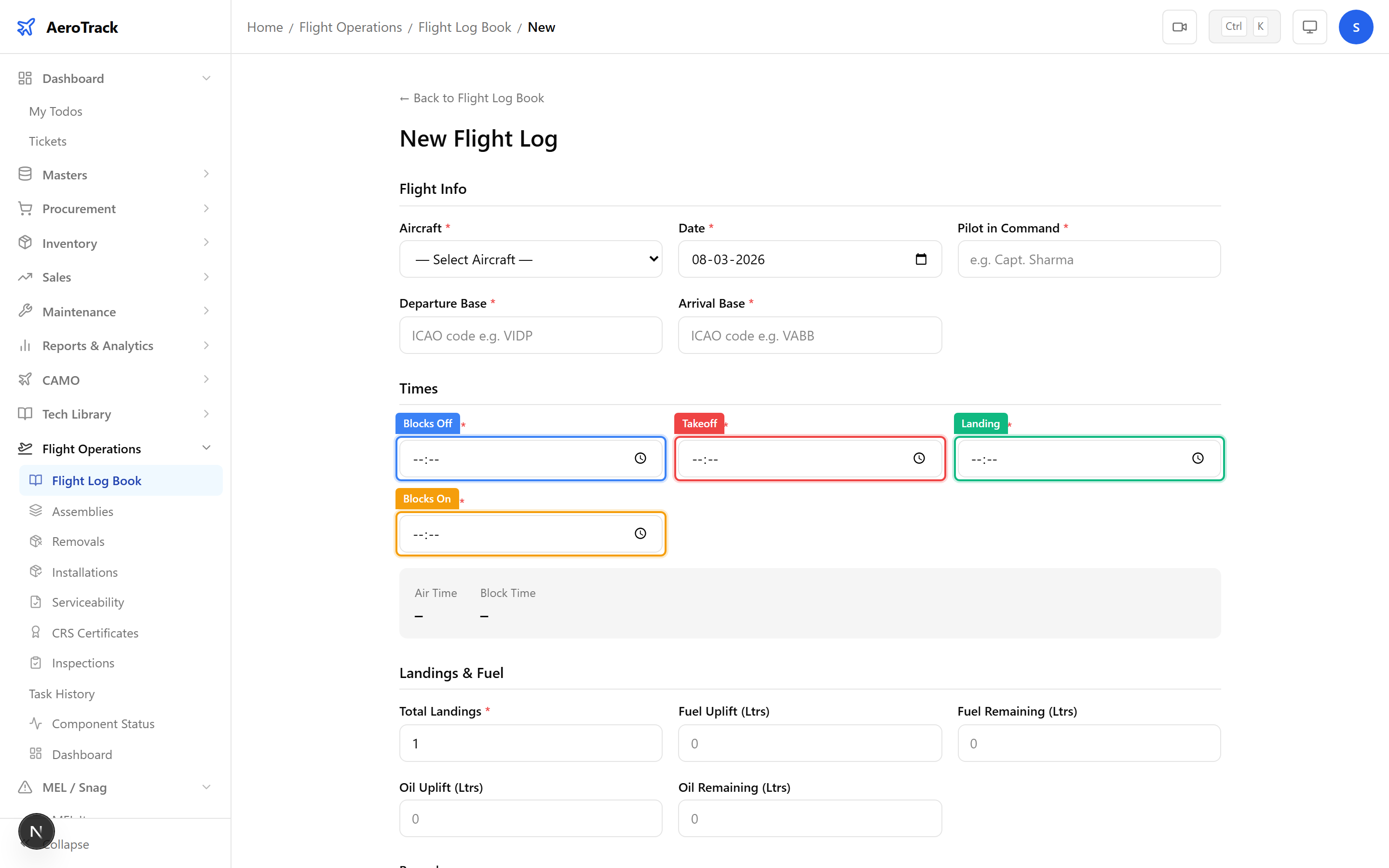
Times must follow the sequence: Blocks Off ≤ Takeoff ≤ Landing ≤ Blocks On. Midnight crossings (e.g. 23:50 → 00:30) are handled automatically. Maximum flight duration is 18 hours.
5
Landings & Fuel
Record landing count and fuel/oil quantities:
| Field | Required | Description |
|---|---|---|
| Total Landings | Yes | Number of landings (minimum 1). |
| Fuel Uplift (Ltrs) | No | Fuel loaded before departure. |
| Fuel Remaining (Ltrs) | No | Fuel remaining after arrival. |
| Oil Uplift (Ltrs) | No | Oil added before departure. |
| Oil Remaining (Ltrs) | No | Oil remaining after arrival. |
| Remarks | No | Additional notes about the flight. |
Fuel and oil fields are optional but recommended for consumption tracking. View fuel summaries in the Fuel & Oil Register and the Fleet Analytics charts.
Approval Workflow
6
Workflow Steps
| Status | Meaning | Next |
|---|---|---|
| Draft | Log created, can be edited. | Submit → Submitted |
| Submitted | Sent for verification. | Verify → Verified |
| Verified | Data checked by operations. | Approve → Approved |
| Approved | Finalised — aircraft hours/cycles updated. | Amend (if correction needed) |
| Amended | Correction applied. Terminal. | — |
| Cancelled | Log voided. Terminal. | — |
When a flight log is Approved, AeroTrack automatically updates the aircraft’s total hours (adding Air Time) and total cycles (adding Total Landings). It also updates the hours and cycles of all installed components. This is irreversible — verify all times and quantities before approval.
7
Cross-Links
| Action | Guide |
|---|---|
| View pilot duty log | Pilot Duty Log |
| View utilisation report | Utilisation Report |
| Track fuel consumption | Fuel & Oil Tracking |
| Report a defect (snag) | Defect Report |
| View flight operations dashboard | Utilisation Report |