Create a Goods Receipt
Navigate to Inventory → Goods Receipts or go
to /inventory/receipts. The goods receipts list shows
all GRNs with their type, status, and linked PO reference.
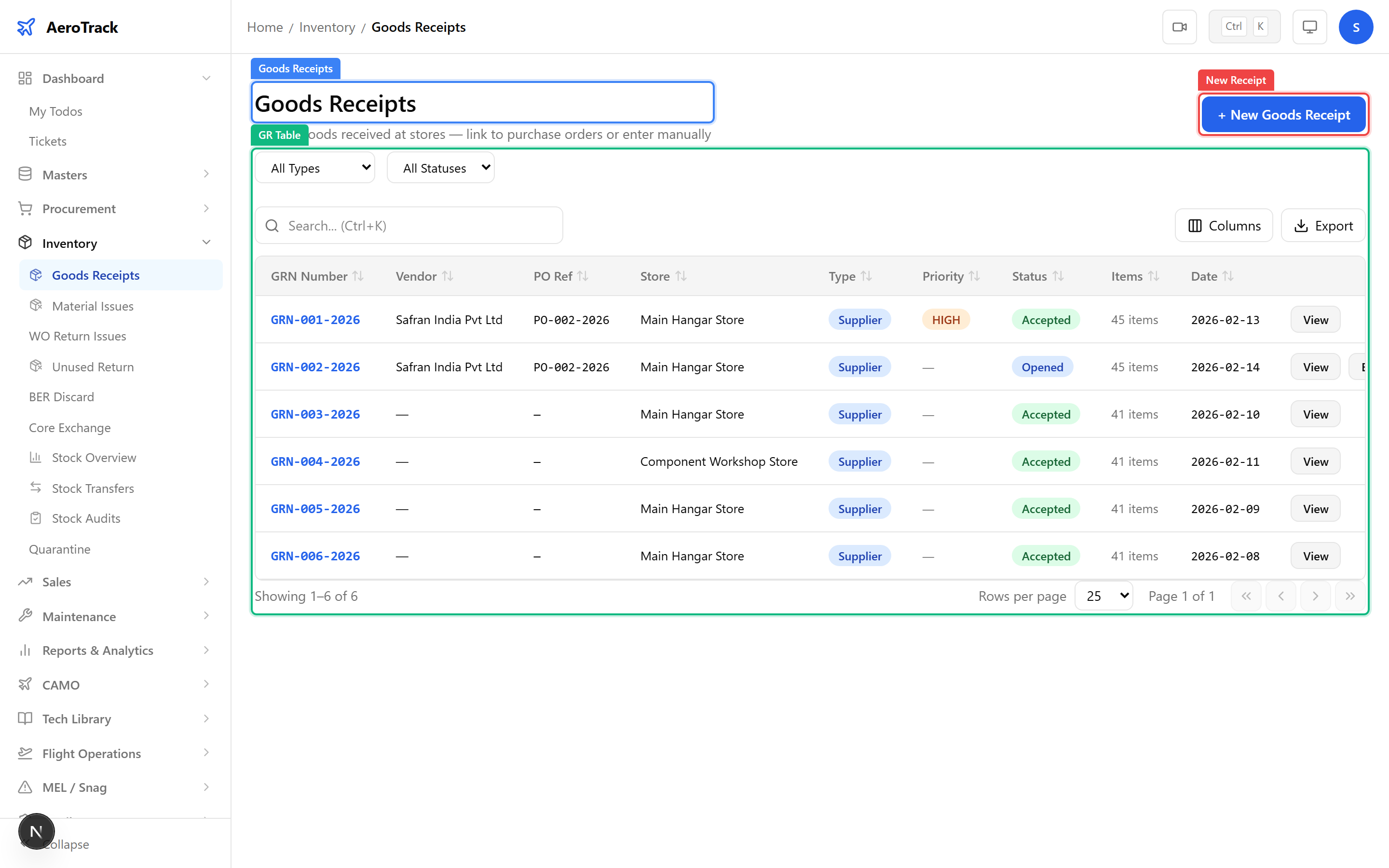
Click + New Receipt to open the form at
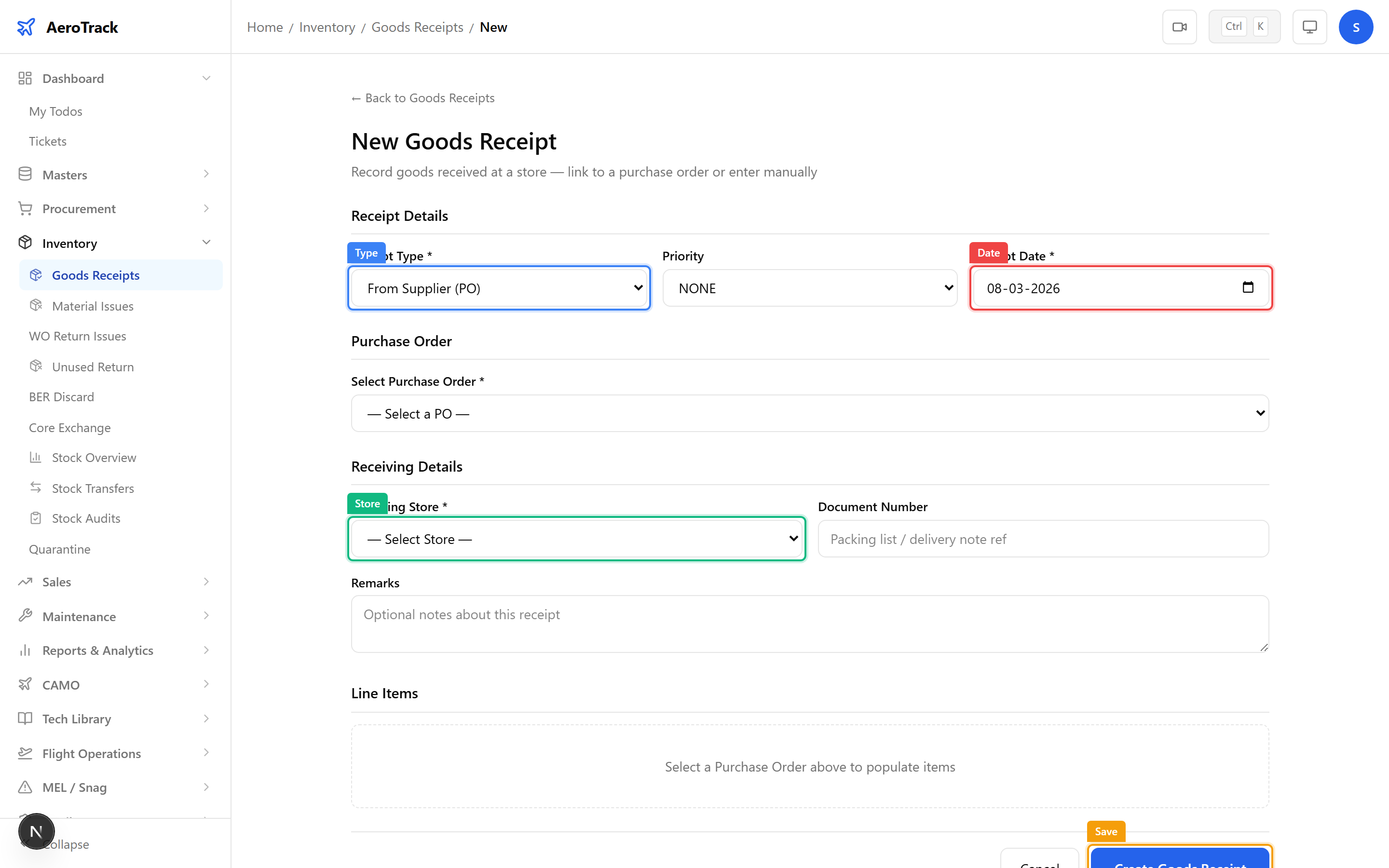
/inventory/receipts/new. Fill in the header and
line items:
| Field | Required | Description |
|---|---|---|
| Receipt Type | Yes | PO Receipt, Direct Receipt, Return, or Transfer. |
| Priority | No | Normal, Urgent, or AOG. |
| Receipt Date | Yes | Date goods were received at the facility. |
| Purchase Order | No | Link to a PO (auto-fills line items from PO lines). |
| Store | Yes | Destination store for received goods. |
| Document Number | No | Supplier delivery note or challan number. |
| Remarks | No | Additional notes about the delivery. |
Inspect & Accept
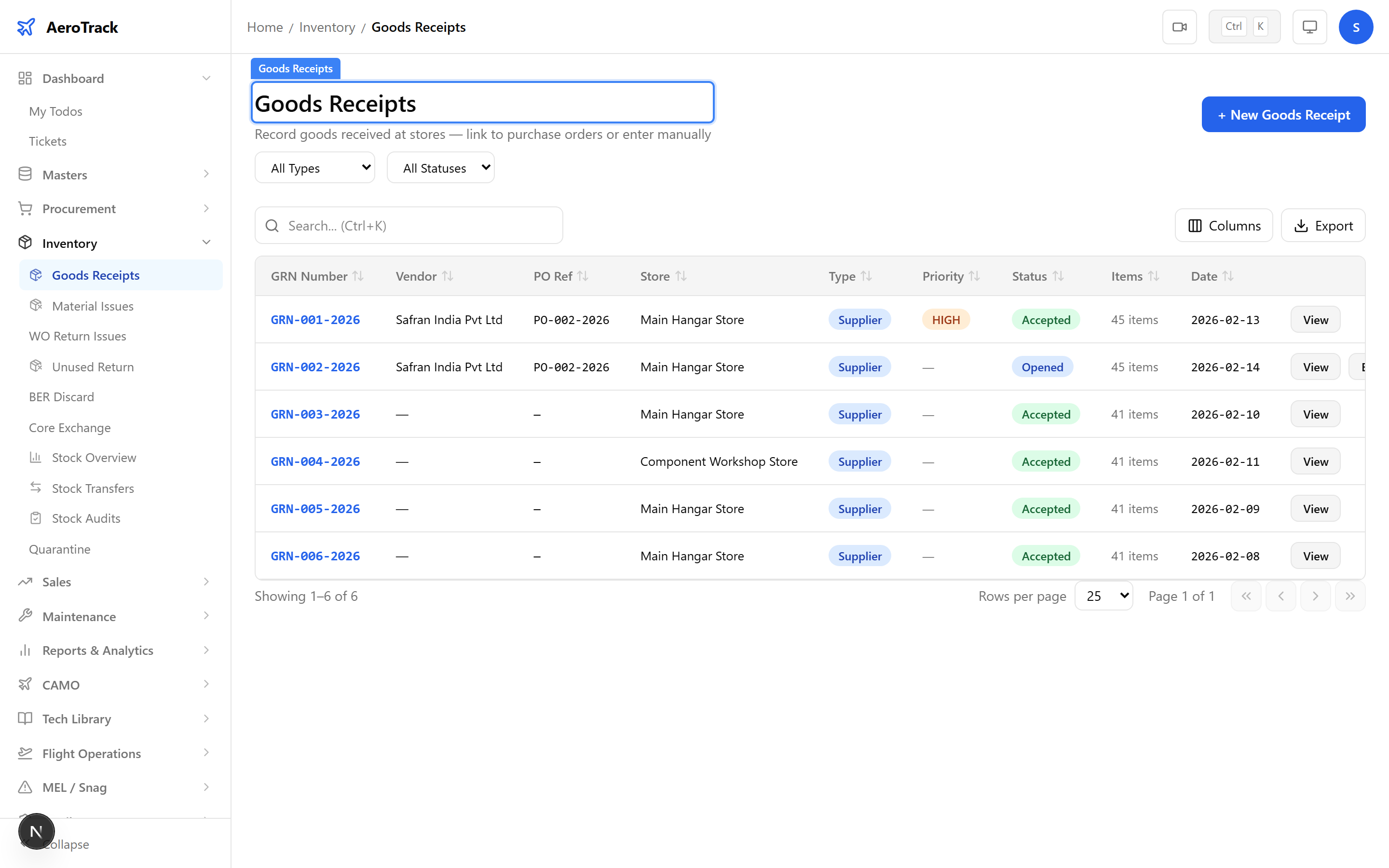
Click any GRN row to open the detail page at
/inventory/receipts/{id}. The detail page shows
the receipt header, line items with inspection controls, and
certificate upload areas.
For each line item, record the inspection results:
| Field | Description |
|---|---|
| Accepted Qty | Quantity that passed inspection and is fit for use. |
| Rejected Qty | Quantity that failed inspection. |
| Condition | Serviceable, Unserviceable, or Requires Test. |
| Quarantine Reason | If rejected or suspect, the reason for quarantine. |
For each line item, upload the accompanying part certificates using the Upload button. Supported certificate types:
| Certificate | When Required |
|---|---|
| EASA Form 1 | Parts from EASA-approved organisations. |
| FAA 8130-3 | Parts from FAA-approved sources. |
| Certificate of Conformity (CoC) | Standard parts and consumables. |
| Test Report | Parts requiring functional testing. |
| Batch Certificate | Consumables received in bulk. |
Complete & Quarantine
After inspecting all line items, click Confirm Inspection to advance the GRN from Opened to Inspected, and then to Accepted.
| GR Status | Meaning |
|---|---|
| Opened | GRN created, goods physically received. |
| Inspected | All line items inspected with accept/reject counts. |
| Accepted | Accepted items added to store stock balance. |
| Cancelled | GRN voided — no stock impact. |
| Action | Guide |
|---|---|
| Create a purchase order | Purchase Orders |
| View part certificates | Part Certificates |
| Manage quarantine items | Quarantine Management |
| Check stock levels | Stock Check |
| Raise a purchase request | Part Request |