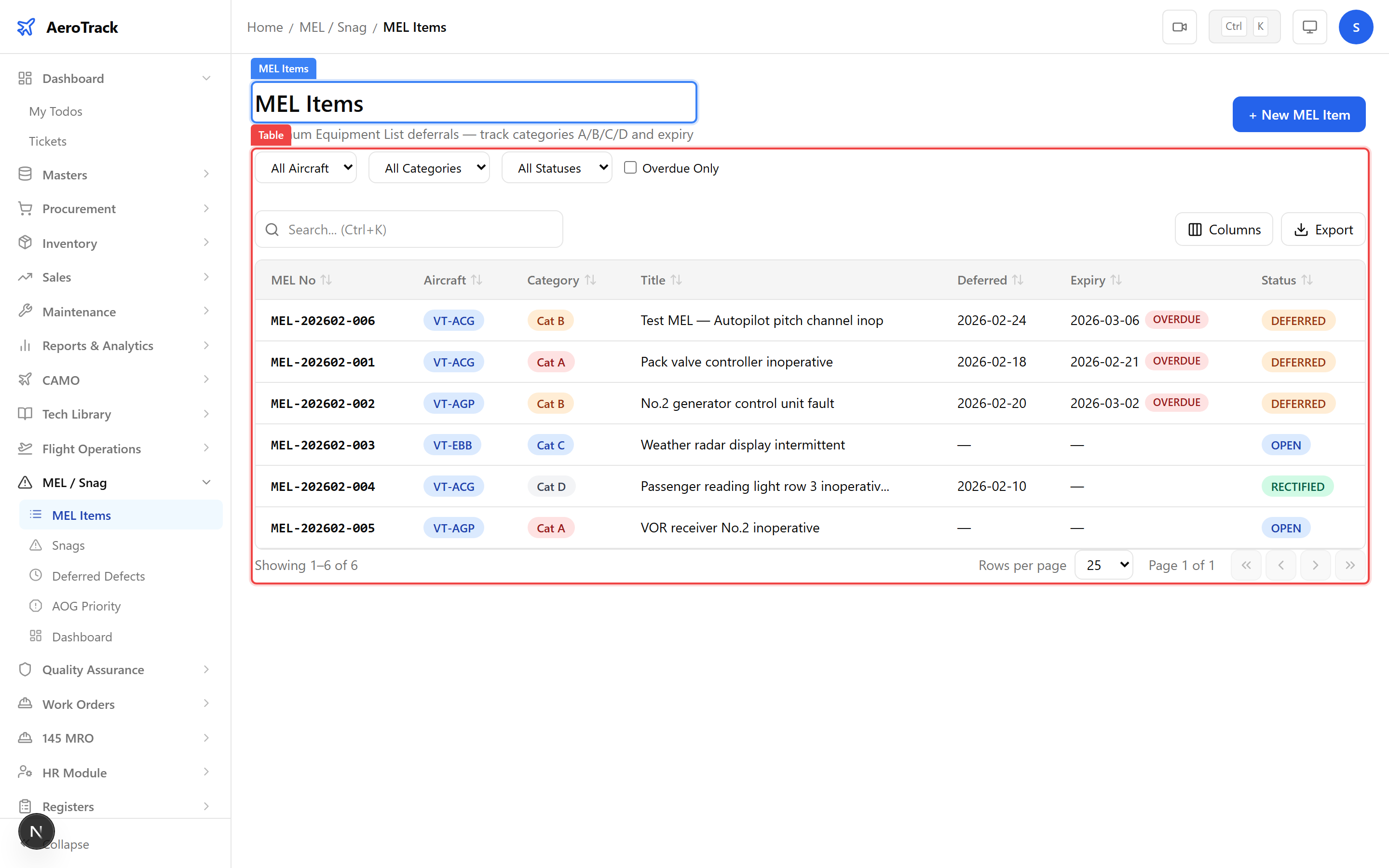
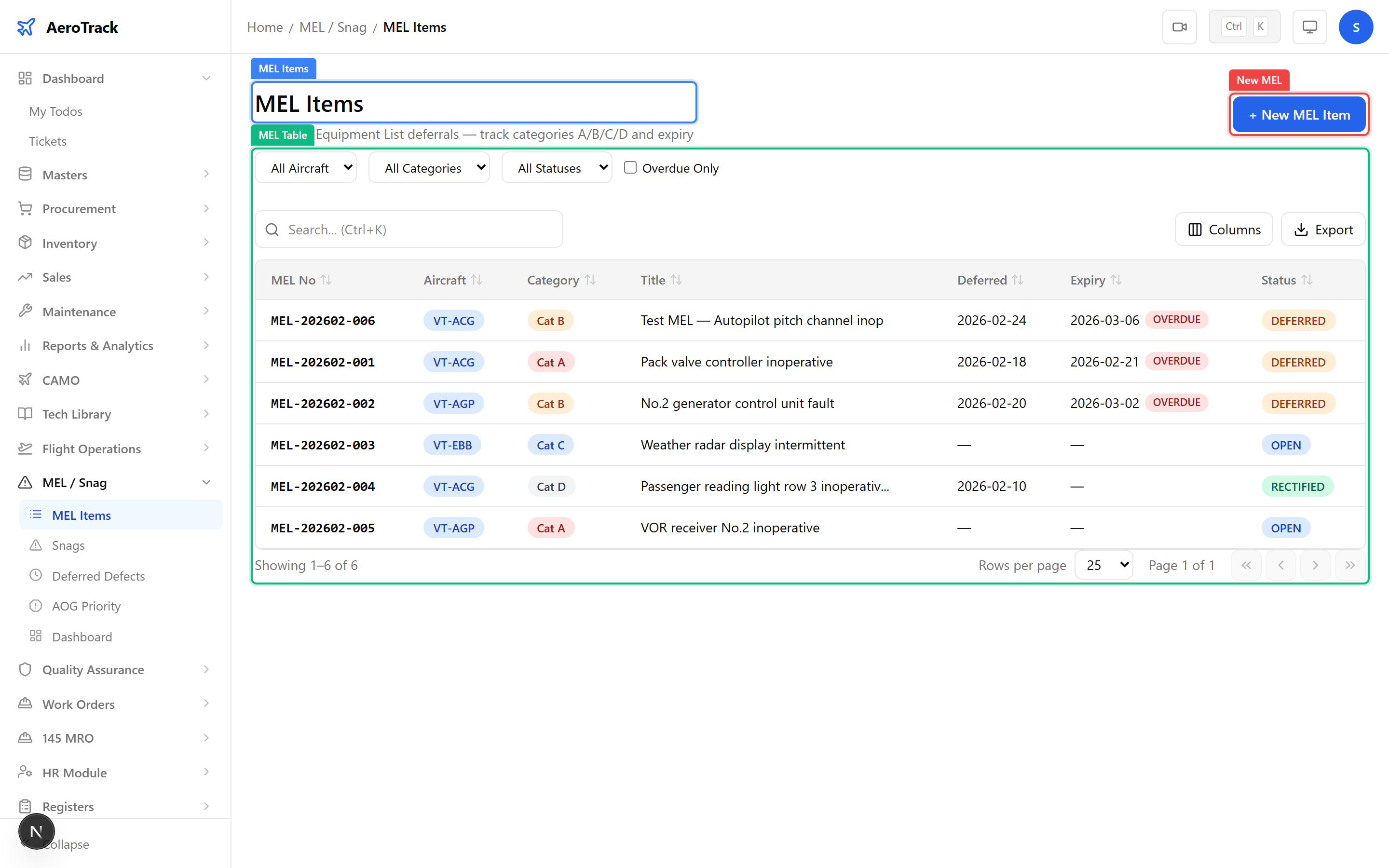
Click + New MEL Item to open the form at
/mel-snag/mel/new. Fill in the MEL details:
| Field | Required | Description |
|---|
| Aircraft | Yes | Select the affected aircraft. |
| ATA Chapter | No | Link to the relevant ATA system chapter. |
| MEL Category | Yes | A, B, C, or D — determines deferral deadline. |
| Title | Yes | Brief description of the inoperative item. |
| Description | Yes | Full details of the deficiency and conditions. |
| Reported By | No | Name of the person reporting the item. |
| Remarks | No | Additional notes or operational considerations. |
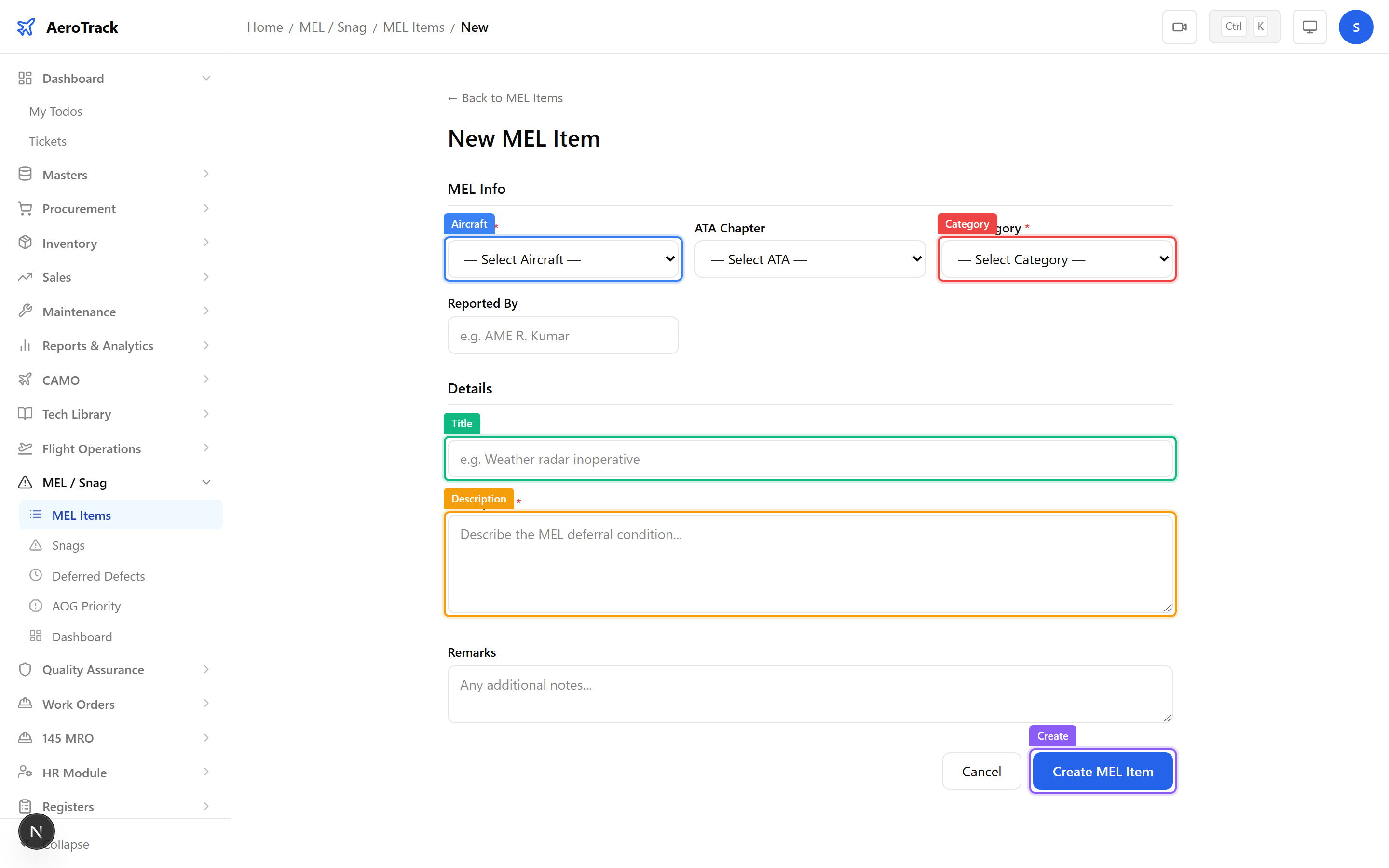
When you select an aircraft, AeroTrack displays the current airframe hours and cycles as a snapshot. These values are recorded against the MEL item for reference.
The MEL category determines the maximum deferral period
before the item must be rectified:
| Category | Deferral Period | Meaning |
|---|
| A | 3 calendar days | Shortest deferral — must be rectified within 3 days of deferral. |
| B | 10 calendar days | Must be rectified within 10 days of deferral. |
| C | 120 calendar days | Extended deferral — must be rectified within 120 days. |
| D | No limit | No fixed deadline — rectify at next scheduled maintenance. |
When a MEL item is transitioned to DEFERRED status, AeroTrack automatically computes the expiry date based on the category. Category D items have no expiry deadline. Overdue items are flagged prominently across the dashboard and deferred view.
Click Create MEL Item to save. The item is
created in OPEN status. From the detail page, use
workflow buttons to advance the lifecycle:
| Action | Effect |
|---|
| Defer | Status → DEFERRED. Auto-computes expiry date from category. |
| Rectify | Status → RECTIFIED. Records rectification date and person. |
| Cancel | Status → CANCELLED. Item withdrawn. |