Flag an AOG Snag
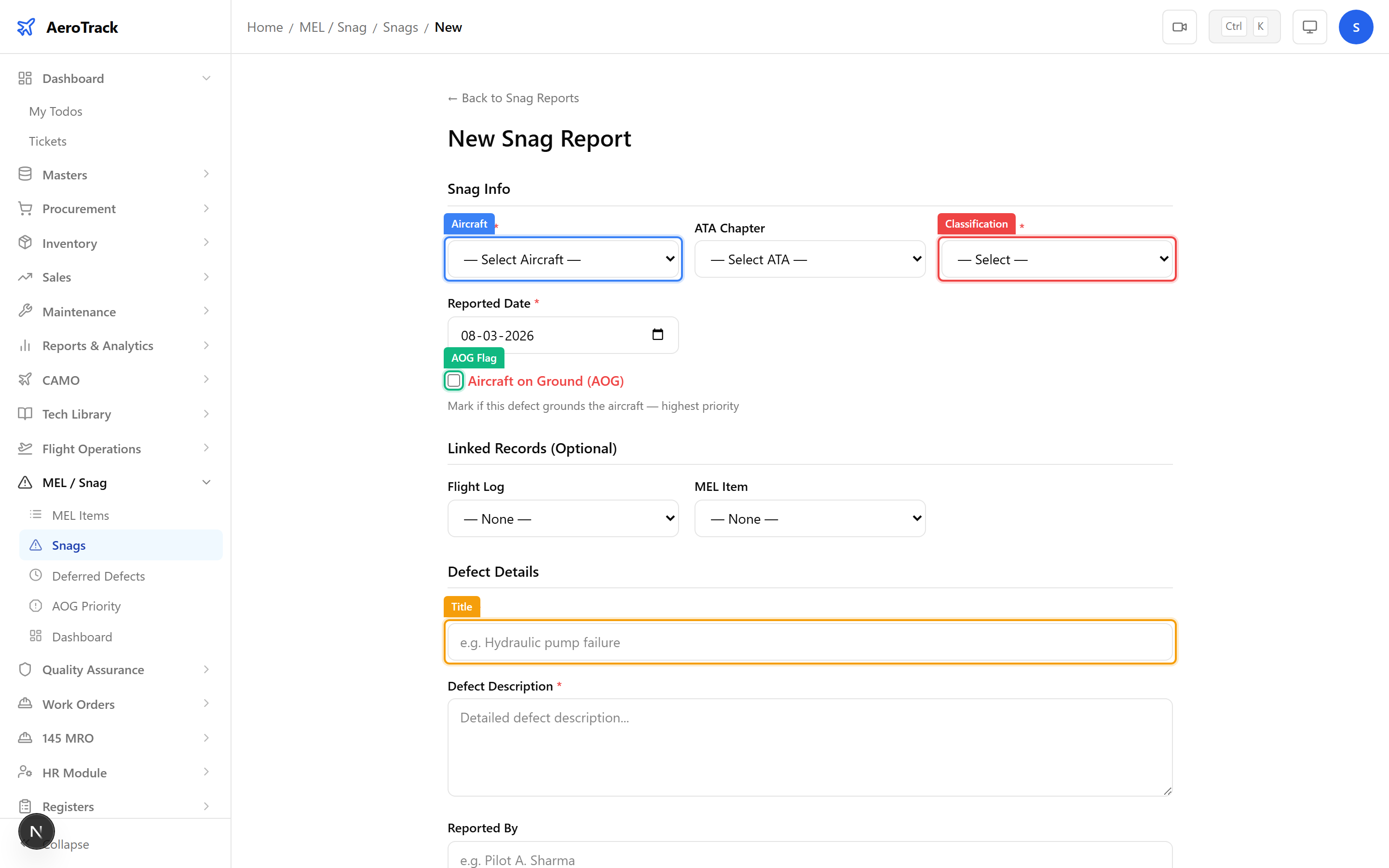
Navigate to MEL / Snag → Snags and click
+ New Snag Report to open the form at
/mel-snag/snags/new. In the Snag Info section,
tick the Aircraft on Ground (AOG) checkbox.
| Field | Required | Description |
|---|---|---|
| Aircraft | Yes | Select the grounded aircraft. |
| Classification | Yes | Major or Minor defect. |
| Aircraft on Ground (AOG) | No | Tick to flag as AOG — highest priority. |
| Title | Yes | Brief description of the grounding defect. |
| Defect Description | Yes | Full details of the defect found. |
| ATA Chapter | No | Relevant ATA system chapter. |
| Reported Date | Yes | Date the defect was discovered. |
Once created, AOG snags display a red AOG badge across the application:
| Location | AOG Indicator |
|---|---|
| Snag Detail Page | Red AOG badge next to the snag number. |
| Snag List Table | Red AOG badge in the row. |
| AOG Priority View | Red-bordered card with AOG badge. |
| Dashboard | “AOG Aircraft” KPI card count. |
/mel-snag/aog until they are closed or cancelled.Monitor AOG Status
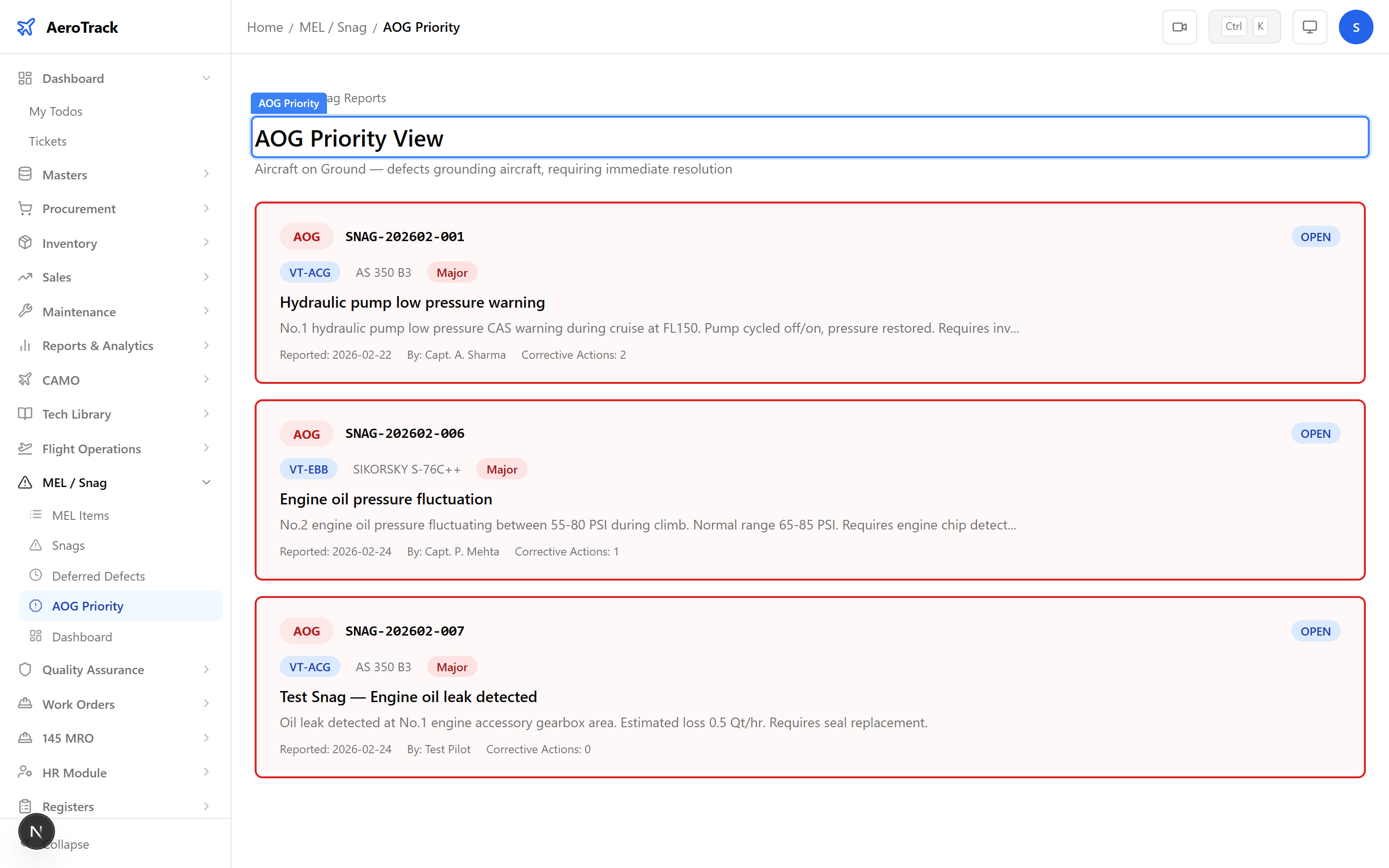
Navigate to MEL / Snag → AOG Priority or
go to /mel-snag/aog. This dedicated view shows
only active AOG snags (status not Closed or Cancelled).
| Card Field | Description |
|---|---|
| Snag Number | Monospace reference with red AOG badge. |
| Aircraft | Registration mark (blue badge) and model. |
| Classification | Major or Minor badge. |
| Title | Defect description (truncated at 120 chars). |
| Reported | Date reported and by whom. |
| Corrective Actions | Count of linked actions. |
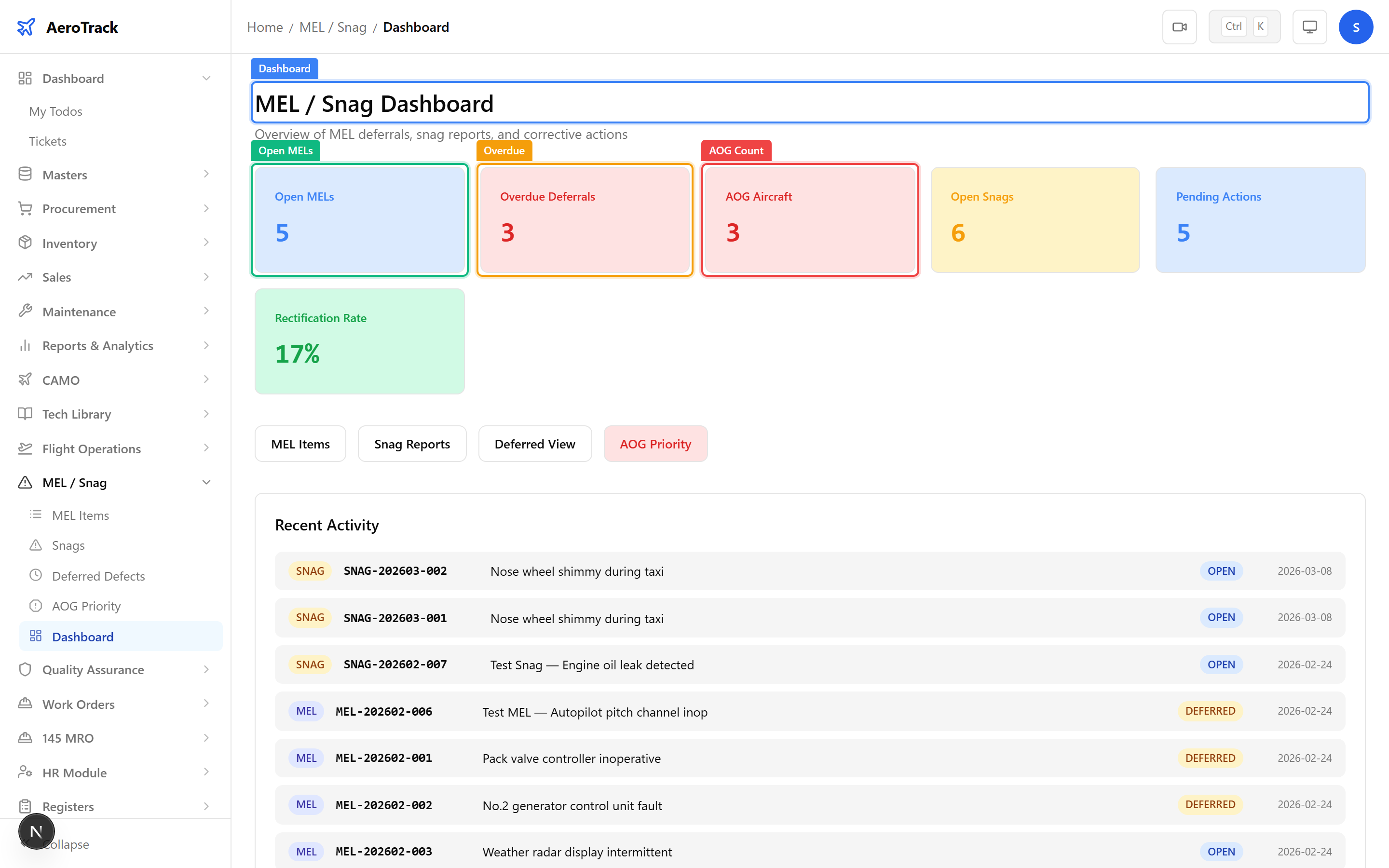
The MEL / Snag Dashboard at
/mel-snag/dashboard shows six KPI cards:
| KPI | Description |
|---|---|
| Open MELs | Count of MEL items with status OPEN. |
| Overdue Deferrals | Deferred MELs past their expiry date. |
| AOG Aircraft | Number of aircraft currently grounded by AOG snags. |
| Open Snags | Count of snag reports with status OPEN. |
| Pending Actions | Corrective actions in OPEN or IN_PROGRESS status. |
| Rectification Rate | Percentage of MELs/snags rectified vs. total. |
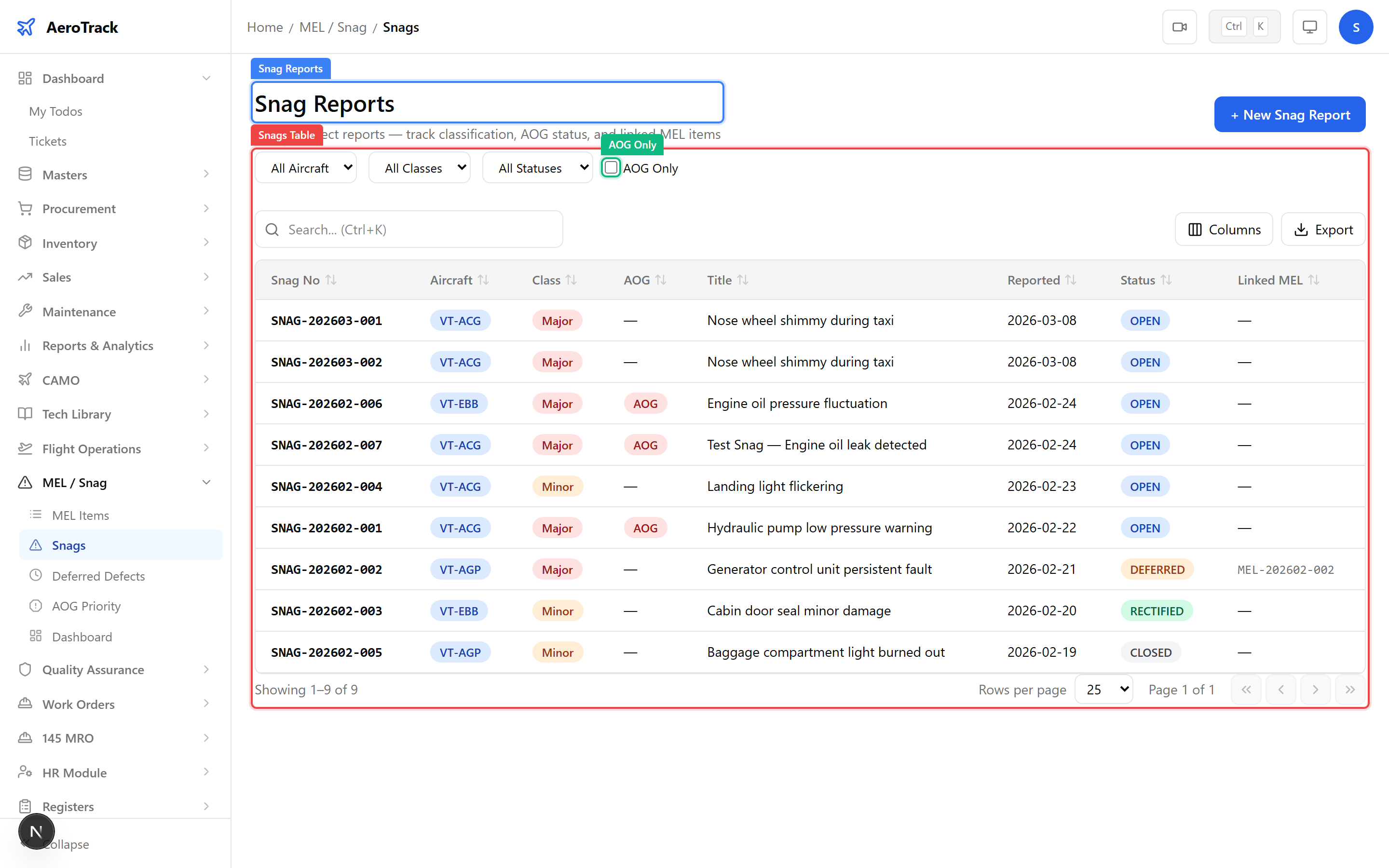
On the main snag list at /mel-snag/snags, use
the AOG Only checkbox to filter the table
to show only AOG-flagged snag reports.
| Filter | Description |
|---|---|
| Aircraft | Filter by specific aircraft. |
| Classification | Major or Minor. |
| Status | OPEN, DEFERRED, RECTIFIED, CLOSED, or CANCELLED. |
| AOG Only | Show only Aircraft on Ground snags. |
Resolve AOG
Open the AOG snag detail page and add corrective actions to track the repair work:
| Field | Description |
|---|---|
| Action Type | Investigation, Repair, Replacement, Adjustment, or Inspection. |
| Description | What corrective work is being performed. |
| Assigned To | Engineer or team responsible. |
| Target Date | Expected completion date. |
| Action Status | Meaning | Next |
|---|---|---|
| Open | Action created, not started. | Start → In Progress |
| In Progress | Work underway. | Complete → Completed |
| Completed | Work finished. | Verify → Verified |
| Verified | QA verified. Terminal. | — |
| Action | Guide |
|---|---|
| Create a snag report | Defect Report |
| Manage MEL deferrals | MEL Items |
| Defer or rectify a snag | Defer & Rectify |
| View deferred defects | Defer & Rectify |
| Create a work order for repair | Create Work Order |