Browse Snags
Navigate to MEL/Snag → Snags. The list at
/mel-snag/snags shows all snag reports with aircraft,
ATA chapter, classification, title, status, and an
AOG badge for aircraft-on-ground items.
Click any row to open the snag detail. Click + New Snag to log a new defect.
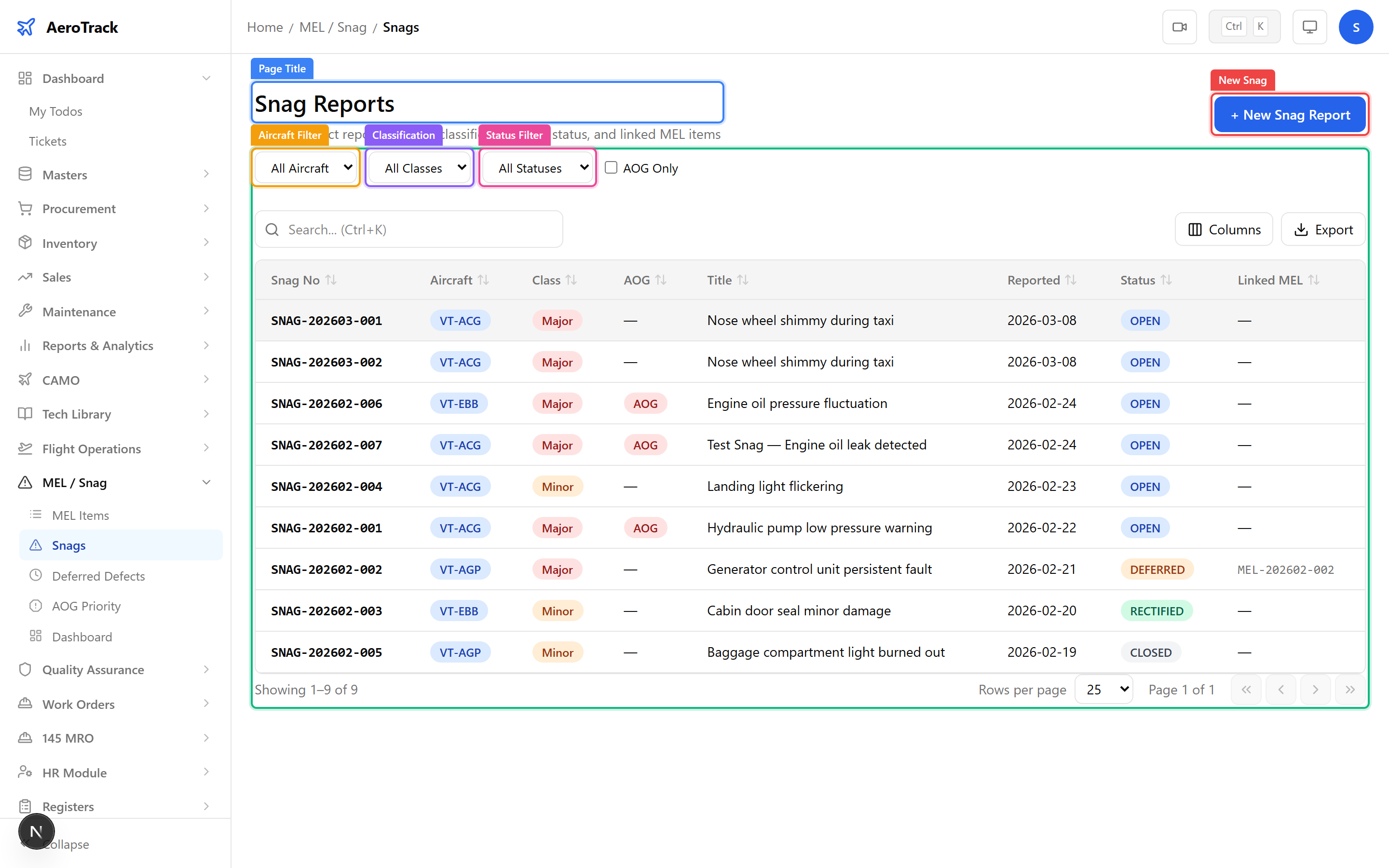
Use the Aircraft, Classification (Major, Minor, Observation), and Status filters. Toggle AOG Only to show only aircraft-on-ground snags that need immediate attention.
Log a Snag
Click + New Snag or navigate to
/mel-snag/snags/new.
| Field | Required | Notes |
|---|---|---|
| Aircraft * | Yes | The aircraft where the defect was found. |
| ATA Chapter | No | ATA system chapter for classification. |
| Classification * | Yes | Major, Minor, or Observation. |
| Reported Date * | Yes | When the defect was discovered. |
| AOG | No | Check if the aircraft is grounded due to this defect. |
| Flight Log | No | Link to the flight log where the snag was reported (if applicable). |
| MEL Item | No | Link to an existing MEL deferral (if related). |
| Title * | Yes | Short description of the defect. |
| Defect Description * | Yes | Detailed narrative of the defect, location, and symptoms. |
| Reported By | No | Person who identified the snag. |
| Remarks | No | Additional notes or reference numbers. |
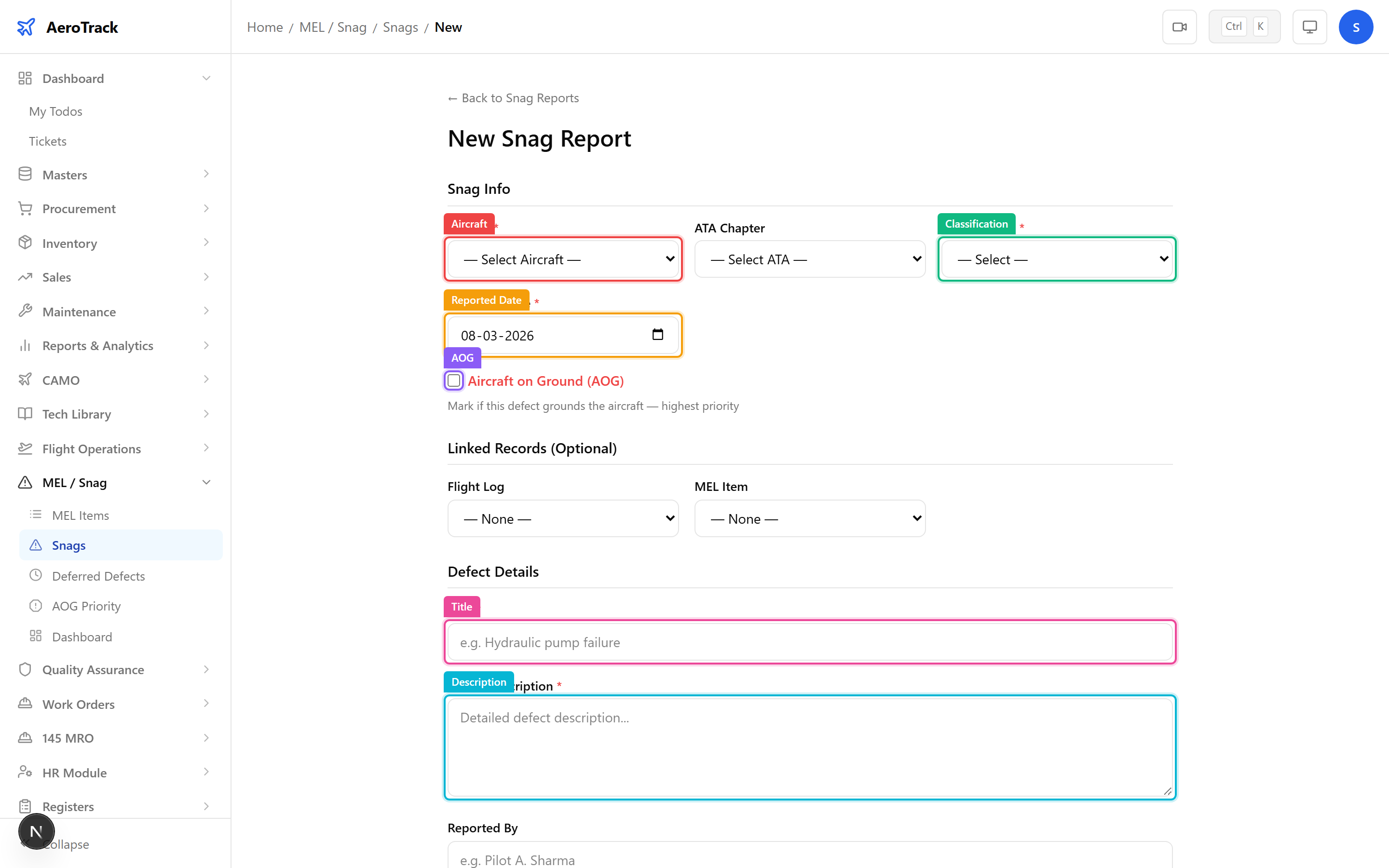
Click Create to log the snag in Open status. See Defer & Rectify for how to transition snags through investigation and resolution.
Snag Detail & Workflow
The snag detail page shows the full defect narrative, AOG status, linked flight log and MEL item, a Corrective Actions section, and workflow buttons.
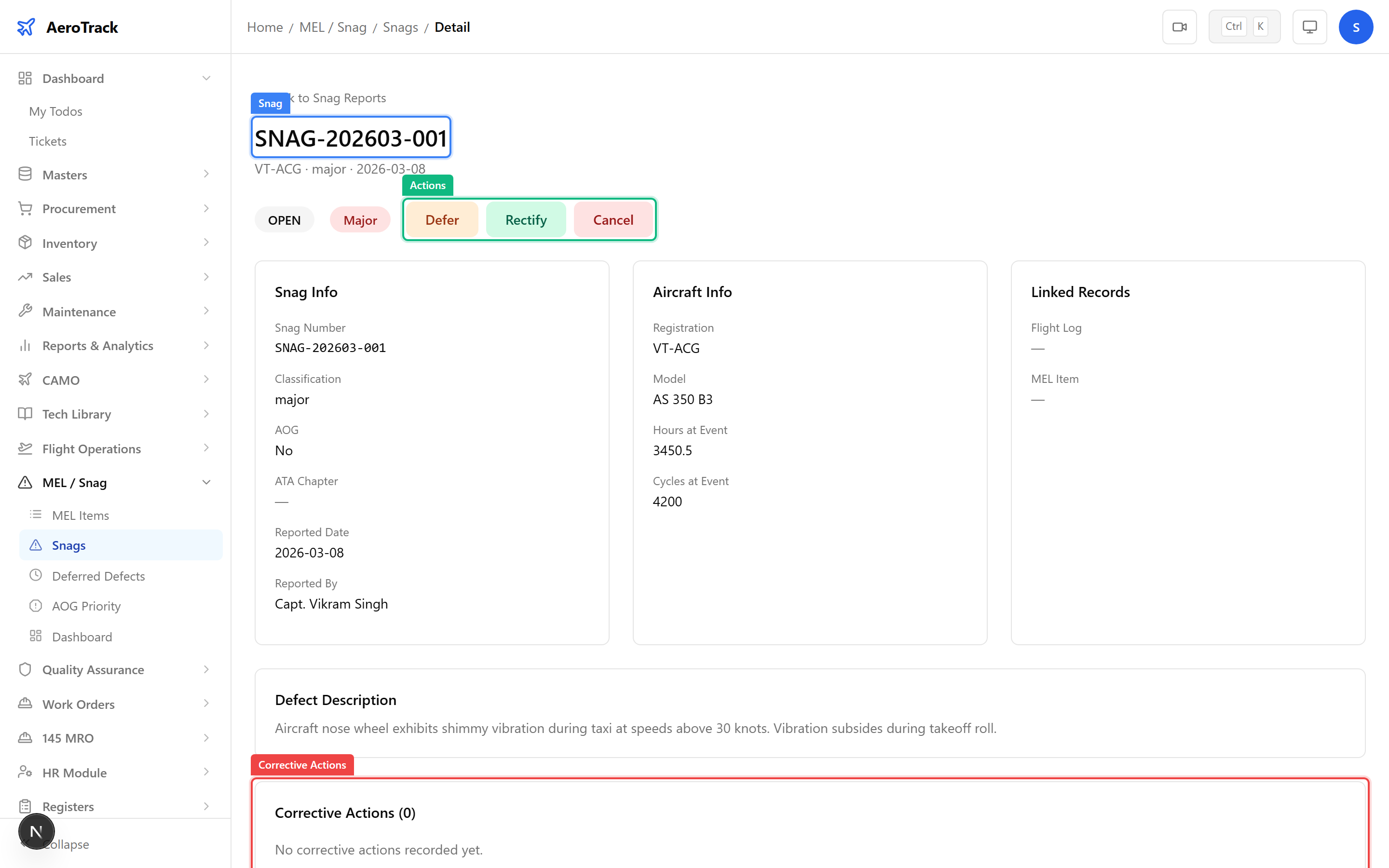
| Status | Meaning | Next Action |
|---|---|---|
| Open | Snag reported. Awaiting investigation. | Begin investigation. |
| Investigating | Root cause analysis underway. | Complete repair and rectify. |
| Deferred | Snag deferred under MEL conditions. | Rectify before deadline. See Defer & Rectify. |
| Rectified | Defect repaired. | Close the snag. |
| Closed | Resolved. Read-only. | — |
| Cancelled | Withdrawn (e.g. false alarm). | — |