Inspection Matrix
Navigate to Flight Ops → Inspections or go
directly to /flight-ops/inspections. The inspections
matrix shows every active inspection schedule across all aircraft
in a single view.
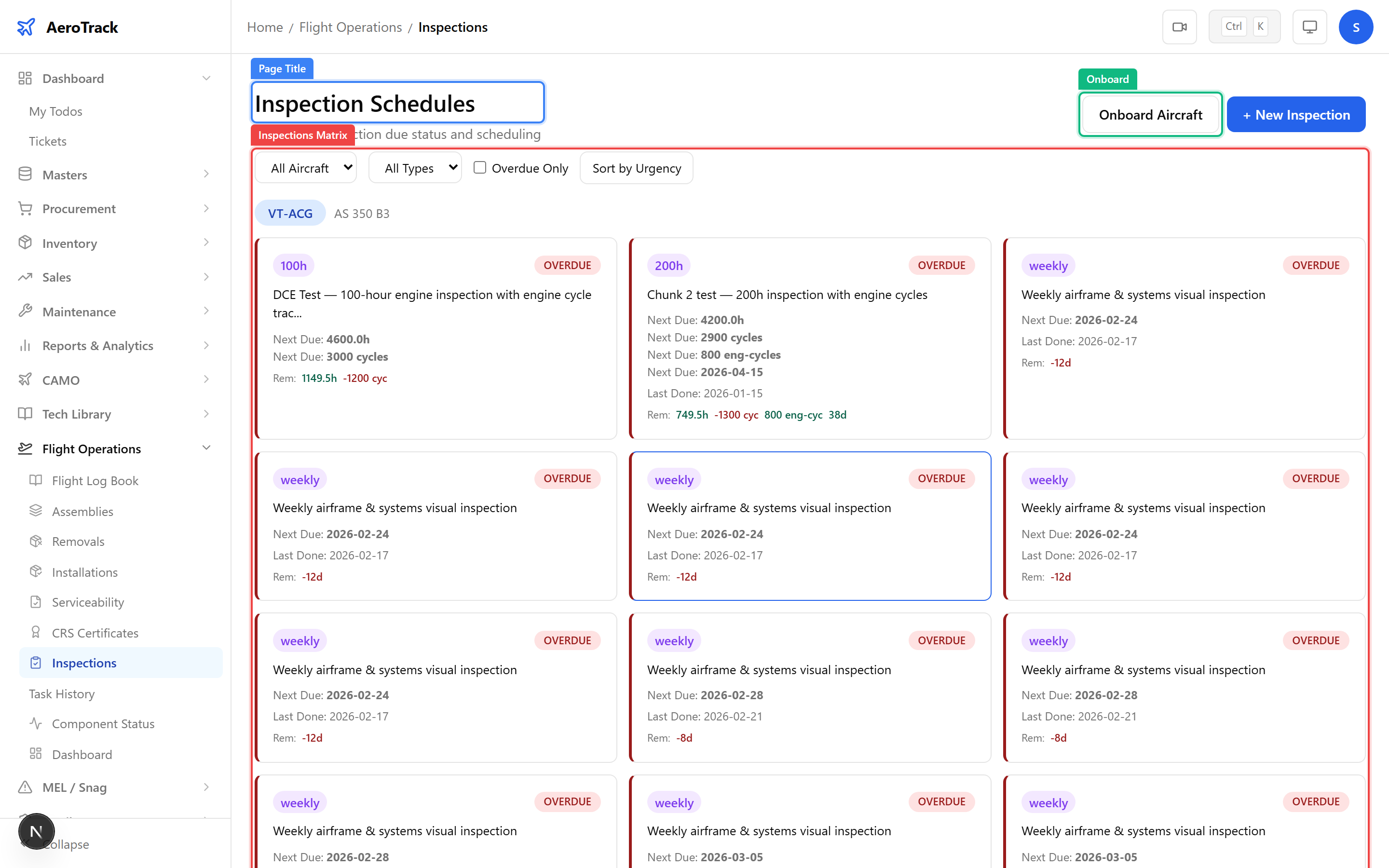
| Status | Colour | Meaning |
|---|---|---|
| OVERDUE | Red | Inspection is past its due threshold on at least one dimension (hours, cycles, or days). |
| COMING DUE | Amber | Inspection is approaching its due threshold — plan maintenance soon. |
| OK | Green | Inspection has sufficient margin remaining. |
| NOT STARTED | Grey | No last-done data recorded — inspection has never been performed. |
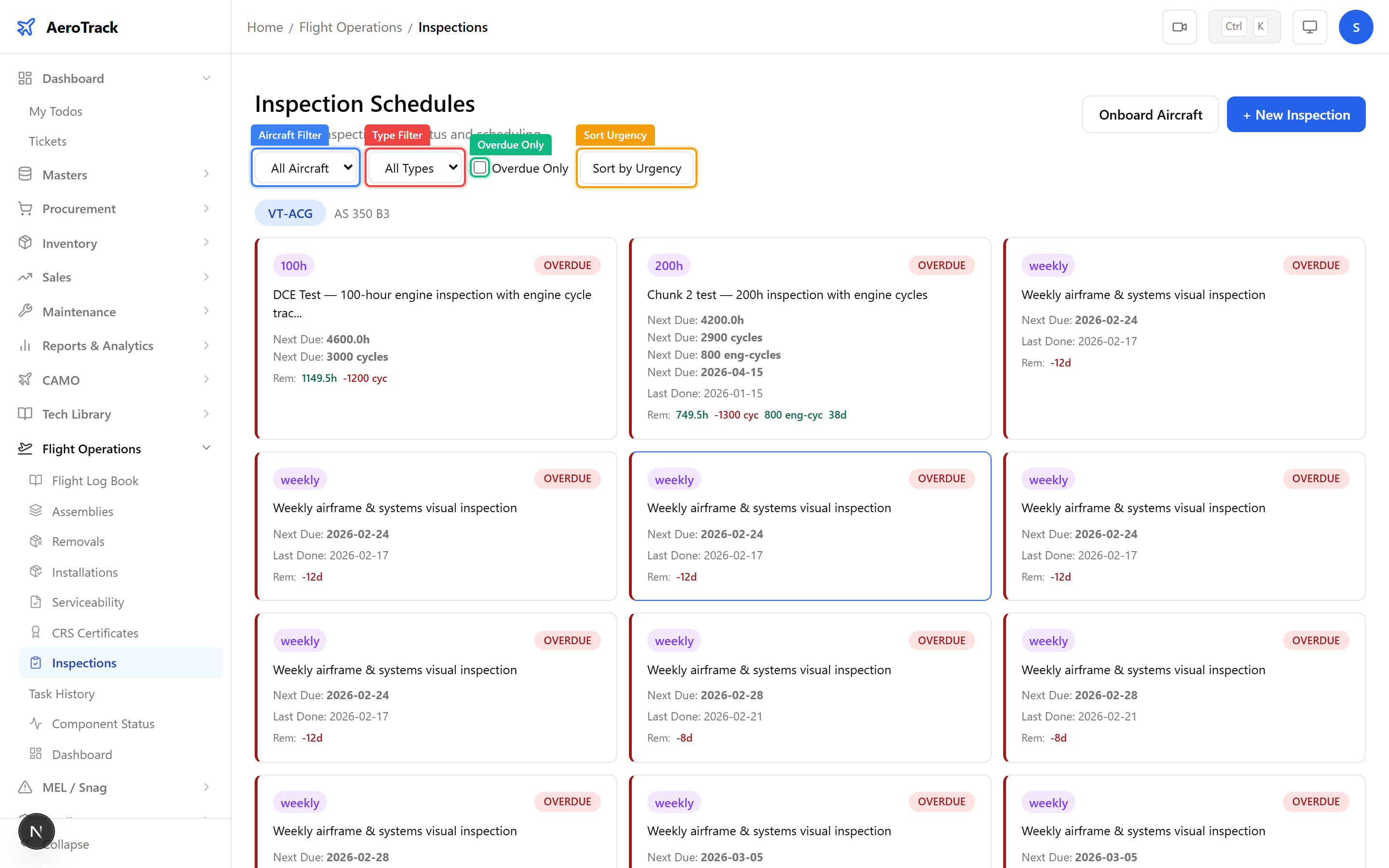
Use the filter controls at the top of the matrix to narrow the view:
| Filter | Description |
|---|---|
| Aircraft | Filter by specific aircraft registration. |
| Type | Filter by inspection type (A-Check, C-Check, Engine, Landing Gear, etc.). |
| Overdue Only | Toggle to show only overdue inspections. |
| Sort by Urgency | Toggle to sort inspections by most urgent first. |
Create an Inspection
Click the + New Inspection button to open the
form at /flight-ops/inspections/new. Fill in:
| Field | Required | Description |
|---|---|---|
| Aircraft | Yes | Select the aircraft this inspection applies to. |
| ATA Chapter | No | Optionally link to an ATA system chapter. |
| Inspection Type | Yes | Select: A-Check, C-Check, Engine Overhaul, Landing Gear, Line Check, etc. |
| Description | No | Brief description of the inspection task. |
| Performed By | No | Name of the engineer or organisation performing the inspection. |
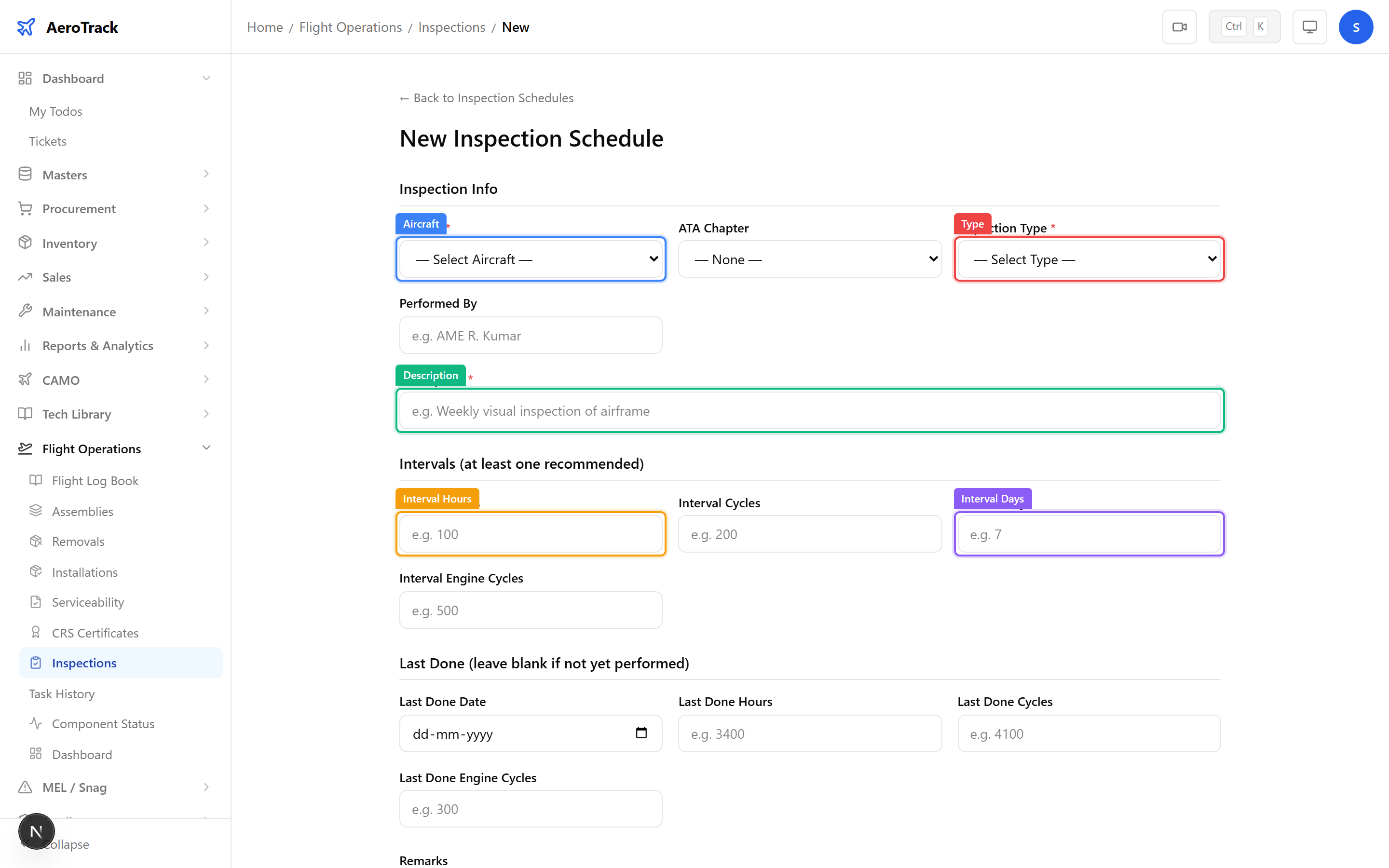
Scroll down to set the repeat interval and last-done baseline:
| Field | Description |
|---|---|
| Interval Hours | Repeat interval in flight hours (e.g. 600). |
| Interval Cycles | Repeat interval in landing cycles. |
| Interval Days | Repeat interval in calendar days. |
| Interval Engine Cycles | Repeat interval in engine cycles (for engine-specific checks). |
| Last Done Date | Date the inspection was last performed. |
| Last Done Hours | Aircraft hours at last performance. |
| Last Done Cycles | Aircraft cycles at last performance. |
Click Save to create the inspection. It will appear in the matrix immediately with a calculated due status.
Onboarding & Bulk Actions
Click the Onboard Aircraft button to launch the
onboarding wizard at /flight-ops/inspections/onboard.
The wizard allows you to set up a complete inspection baseline for
a newly registered aircraft in one step.
See Aircraft Onboarding Wizard for the full step-by-step guide.
| Action | Guide |
|---|---|
| View inspection details & mark done | Inspection Detail |
| Inspection due report with KPIs | Inspection Due Report |
| Full baseline setup | Onboarding Wizard |
| Completed inspection history | Task History |
| Create work orders for due items | Create Work Order |