View Task History
Navigate to Flight Operations → Task History
in the sidebar. The page loads at /flight-ops/task-history.
Initially the page shows a prompt to select an aircraft. Use the aircraft dropdown to load task history entries.
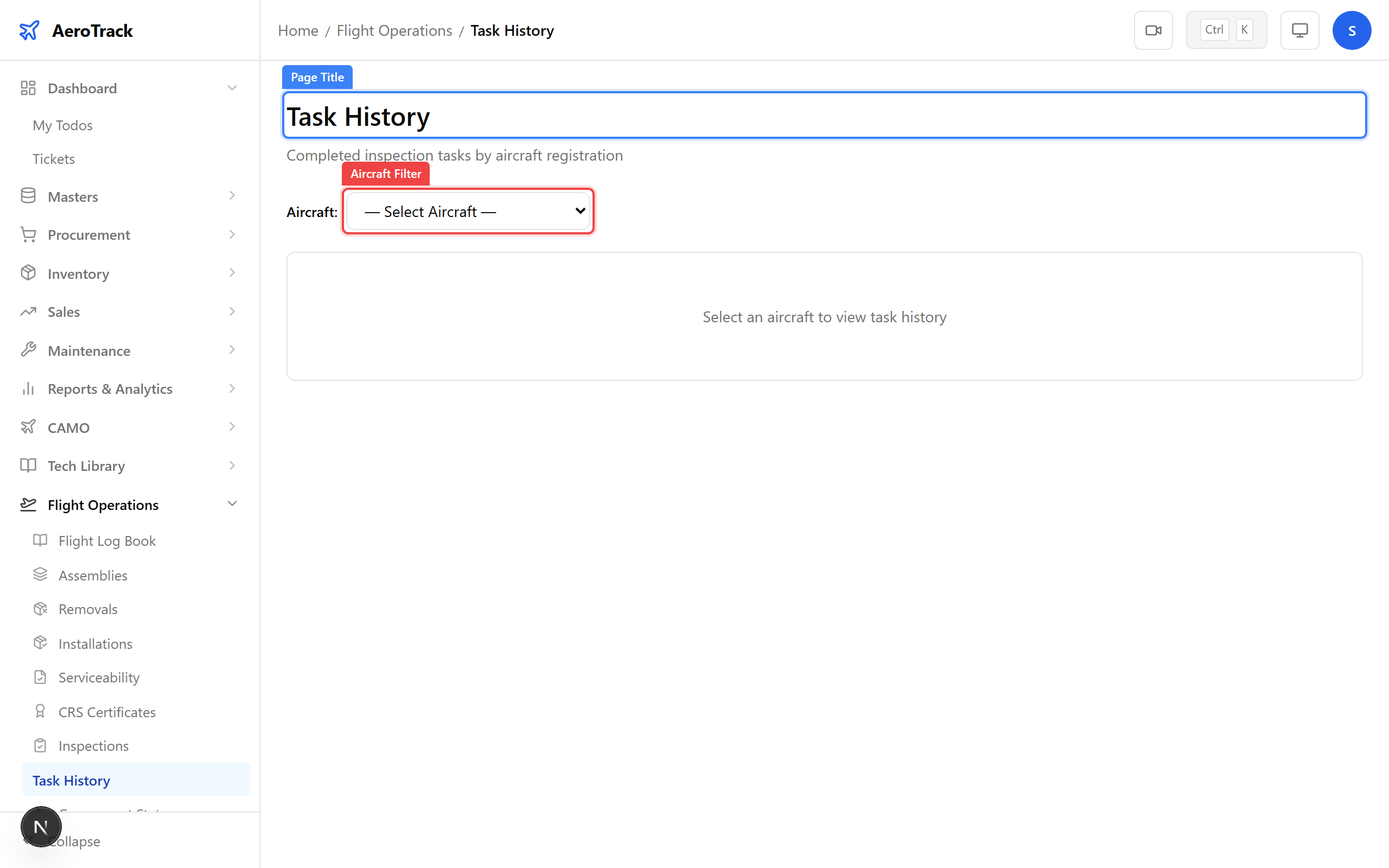
Use the Aircraft dropdown to select a specific aircraft by registration number. The table populates with all completed inspection tasks for that aircraft, ordered by completion date (newest first).
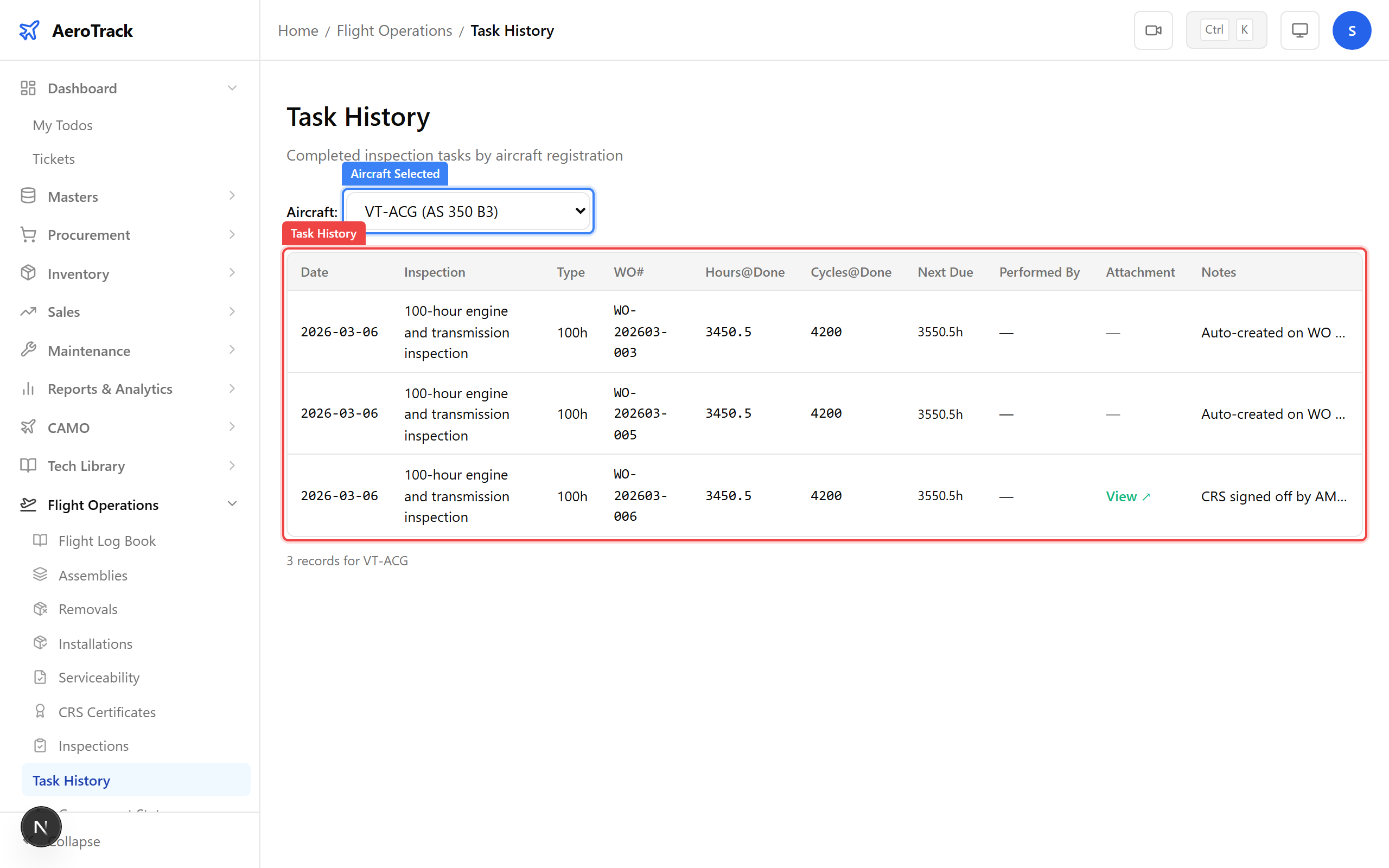
Each row represents a completed inspection task:
| Column | Meaning |
|---|---|
| Type | Inspection type (e.g. daily, 100h, annual, special). |
| Description | Description of the inspection task performed. |
| WO Number | The work order under which the task was completed, if any. |
| Completed At | Date the task was completed. |
| Hours | Aircraft hours at the time of completion. |
| Cycles | Aircraft cycles at the time of completion. |
| Next Due Hours | Recalculated next-due hours (completed hours + interval). |
| Next Due Cycles | Recalculated next-due cycles. |
| Next Due Date | Recalculated next-due date. |
| Performed By | Name of the person who performed the task. |
| Notes | Any notes recorded at completion. |
Use the Data
When a work order is closed in the 145 MRO module, the system automatically creates a task history entry and recalculates the inspection schedule’s next-due values:
- Next Due Hours = completed hours + interval hours
- Next Due Cycles = completed cycles + interval cycles
- Next Due Date = completed date + interval days
Use this page to verify that recalculations are correct after a work order closure.
If a task history entry has a WO Number, you can navigate to the work order detail page to see the full context: which jobs were performed, who signed off, what defects were found, and the closure notes.