Browse Inspections
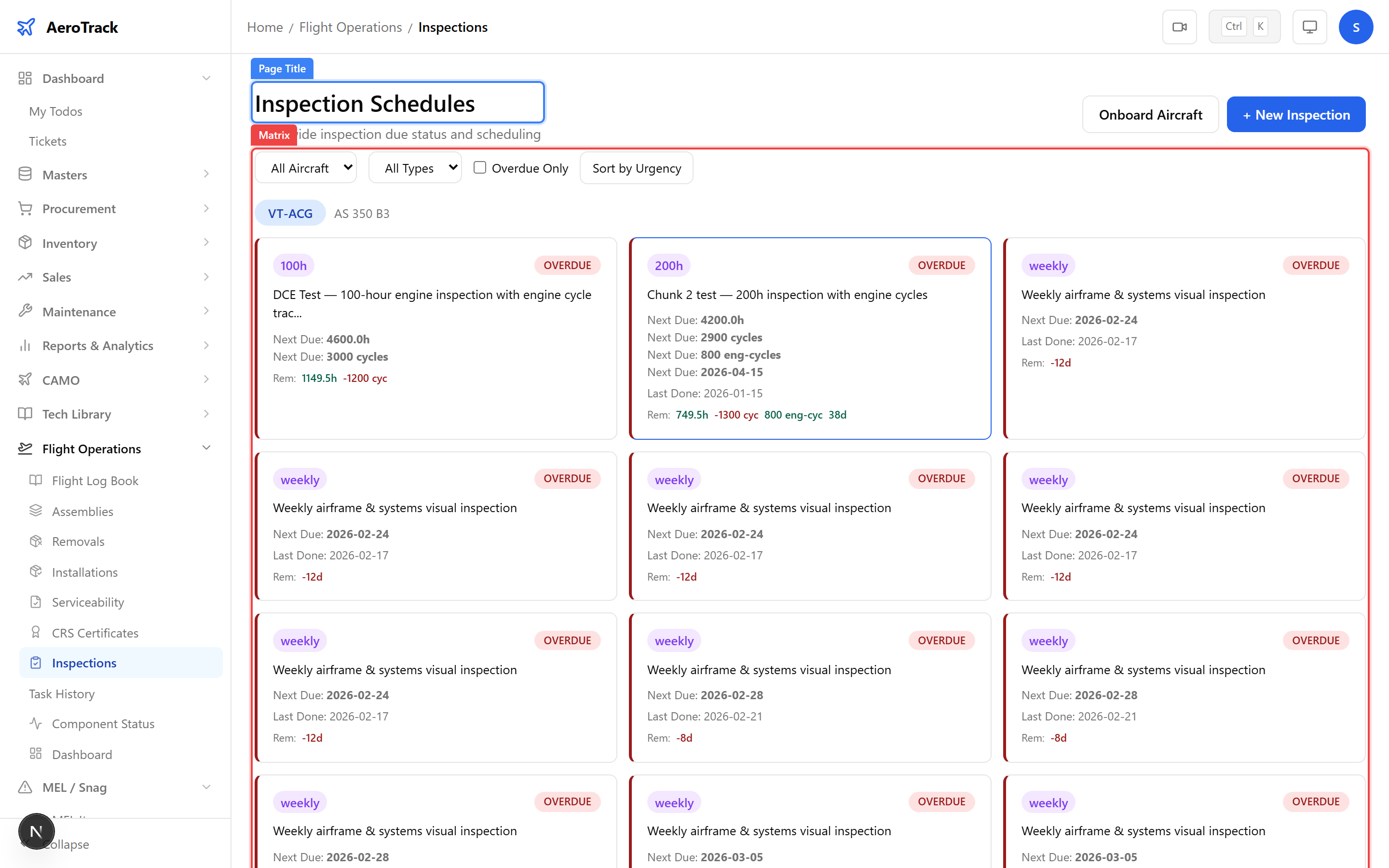
Navigate to Flight Ops → Inspections. The
matrix at /flight-ops/inspections shows all scheduled
inspections per aircraft with their type, interval, last-done
values, next-due values, and due status (OK, Coming Due, Overdue).
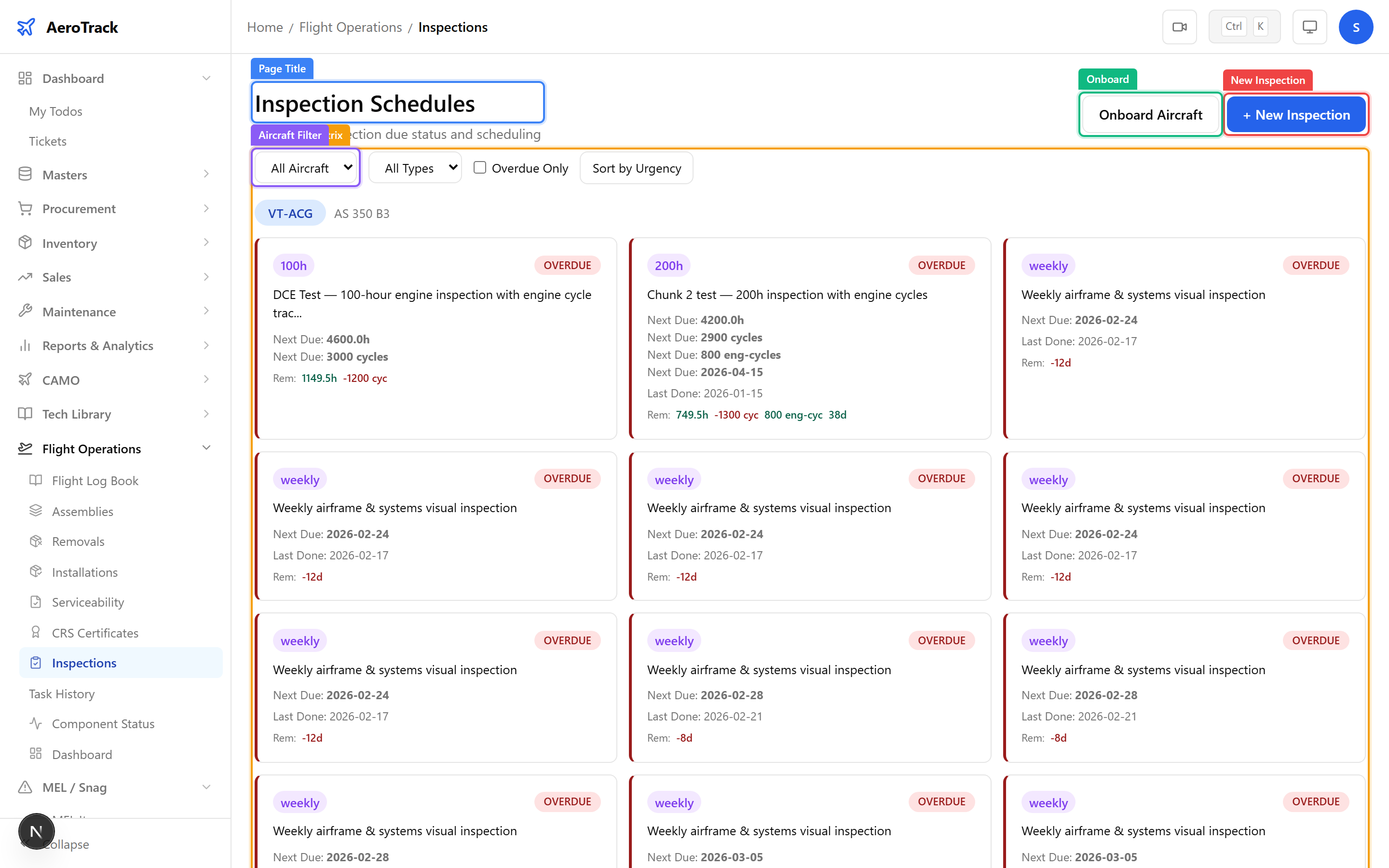
Use the Aircraft and Type filters to narrow results. Toggle Overdue Only to see just overdue inspections. Click Sort by Urgency to prioritise the most urgent items first.
Create an Inspection
Click + New Inspection or navigate to
/flight-ops/inspections/new.
| Field | Required | Notes |
|---|---|---|
| Aircraft * | Yes | Select the aircraft this inspection applies to. |
| ATA Chapter | No | ATA system chapter for categorisation. |
| Inspection Type * | Yes | A-Check, C-Check, Engine Overhaul, Landing Gear, etc. |
| Description | No | What the inspection covers. |
| Interval — Hours | No | Flight-hour interval between inspections. |
| Interval — Cycles | No | Flight-cycle interval. |
| Interval — Days | No | Calendar-day interval. |
| Last Done — Date | No | When the inspection was last performed. |
| Last Done — Hours | No | Aircraft hours at last performance. |
| Last Done — Cycles | No | Aircraft cycles at last performance. |
| Performed By | No | Engineer who performed the last inspection. |
| Remarks | No | Additional notes. |
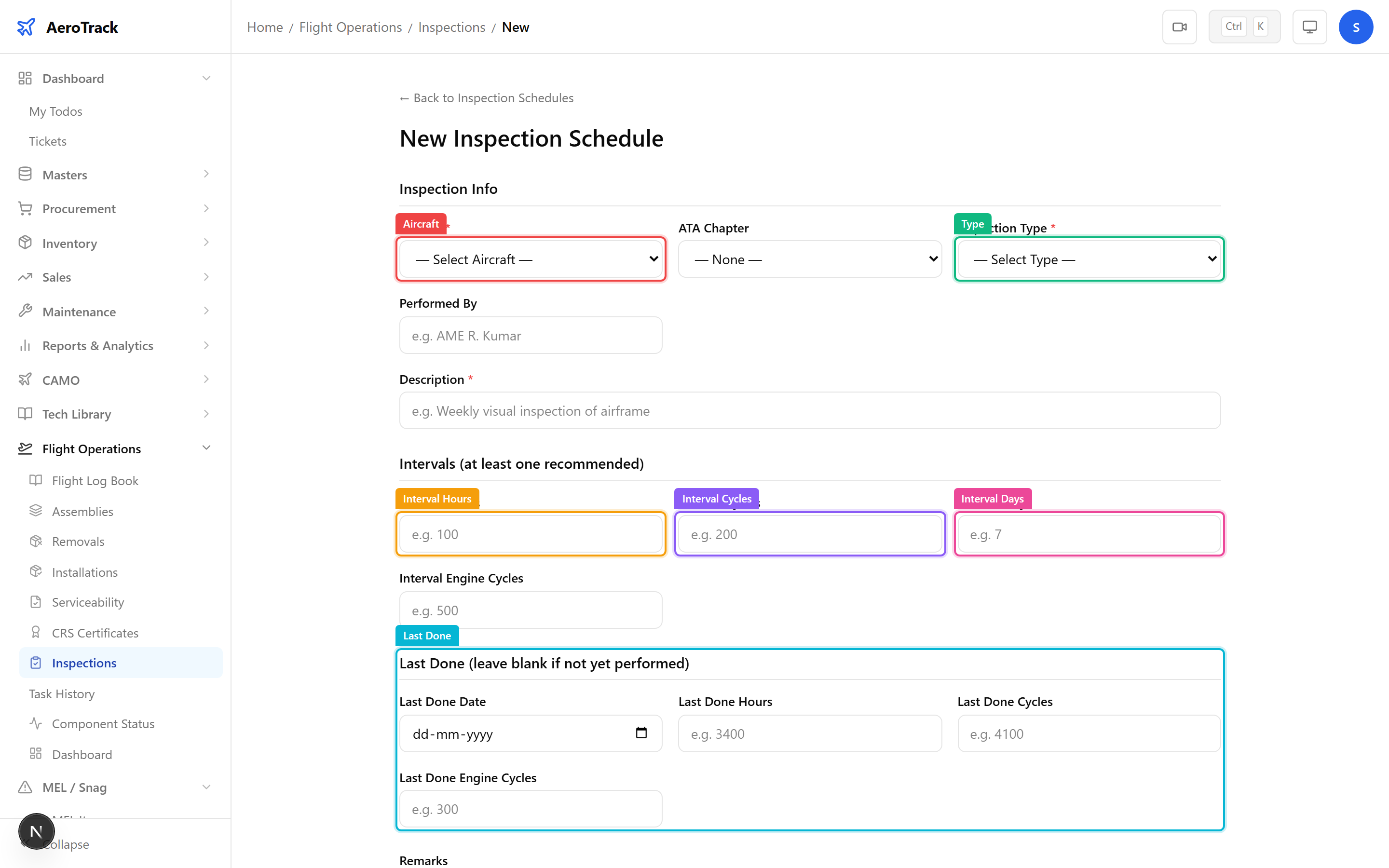
Click Create to save. The inspection appears in the matrix with its calculated due status.
Mark as Done
Click an inspection row to open the detail page. Fill in the Mark as Done form with:
| Field | Notes |
|---|---|
| Done Date | Date the inspection was completed. |
| Done Hours | Aircraft total hours at completion. |
| Done Cycles | Aircraft total cycles at completion. |
| Performed By | Engineer who performed the inspection. |
Click Mark as Done. The system updates the last-done baseline and recalculates the next-due values automatically.
Admin Actions
admin Admins can edit the last-done baseline fields on any inspection (to correct data entry errors) and deactivate inspections that are no longer applicable.
Deactivated inspections are hidden from the matrix by default but remain in the database for audit trail purposes.
For new aircraft, use the Onboarding Wizard to create all inspections at once. The wizard lets you copy from an existing aircraft or build from scratch, apply baseline values in bulk, and confirm before creating.