Navigate to Work Orders → Internal and open the work order for VT-ACG’s heavy component overhaul. The detail page shows the scope, assigned aircraft, and a Send to 145 transition button.
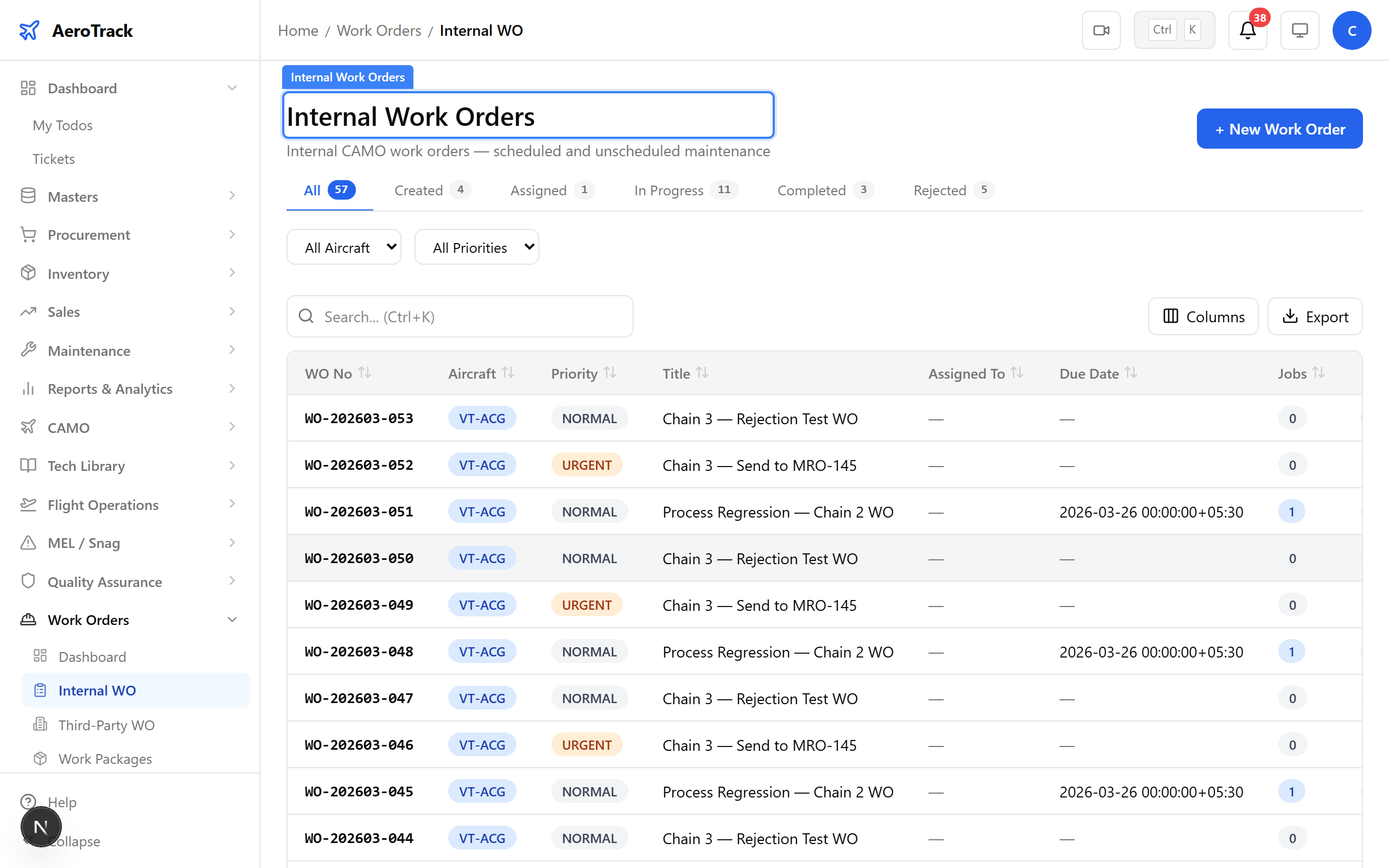
▲ Internal work order ready to be dispatched to the Part-145 shop.
Click Send to 145. The status changes to RECEIVED_145 — the work order is now visible in the MRO-145 module inbox. A wo_received notification is sent to the MRO engineer.
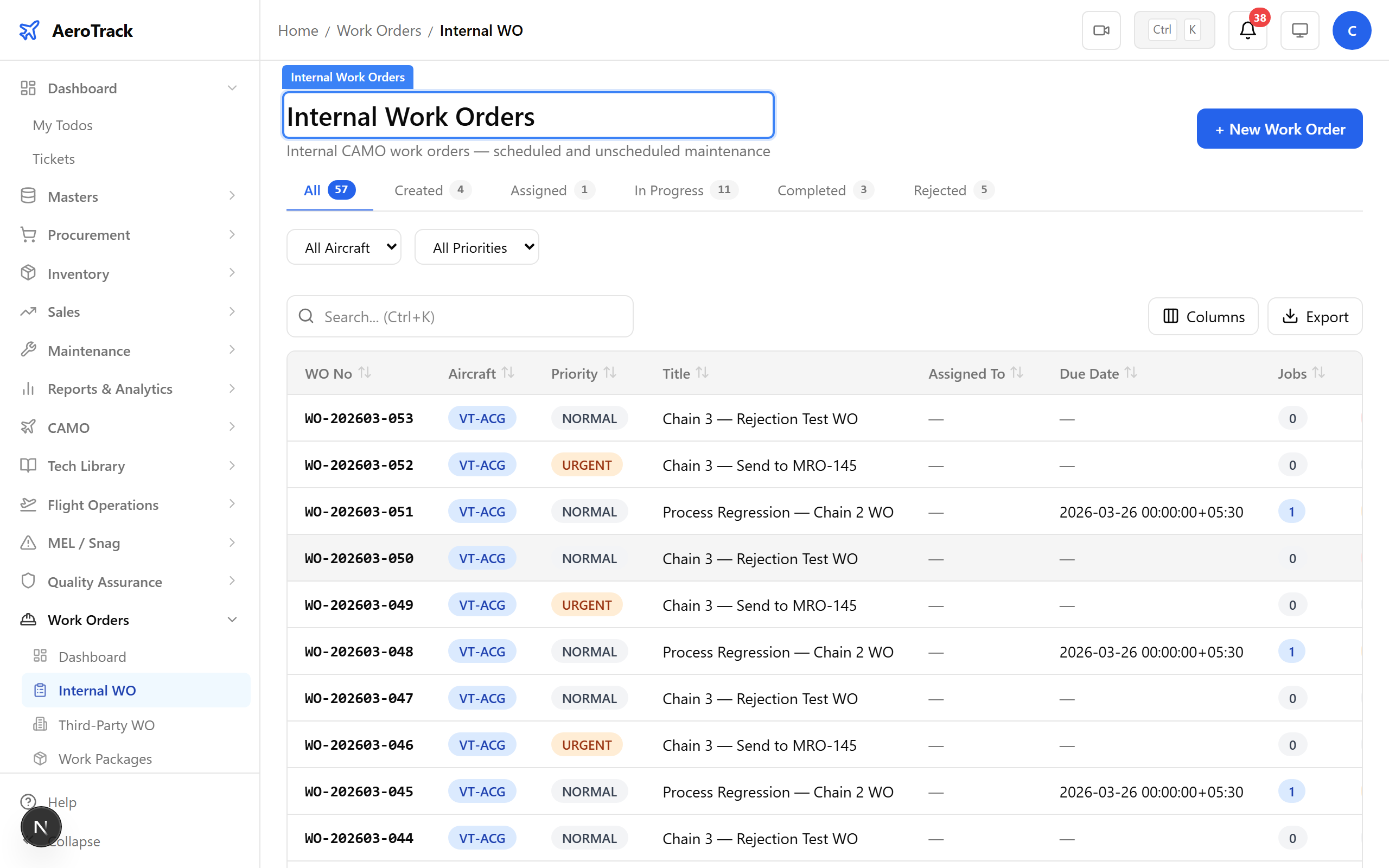
▲ Work order dispatched — the MRO shop will see it in their inbox.
Log out of the CAMO account and log in as mro@aerotrack.local. The MRO engineer has access to the MRO-145 module for managing received work orders.
The MRO-145 landing page shows module cards for the inbox, active work orders, task cards, sign-off queue, and dashboard. This is the MRO engineer’s home base.
▲ MRO-145 module — inbox, active WOs, task cards, and sign-off in one place.
Navigate to MRO-145 → Dashboard. Summary cards show received work orders, active jobs, pending sign-offs, and overdue items. Red counts need immediate attention.
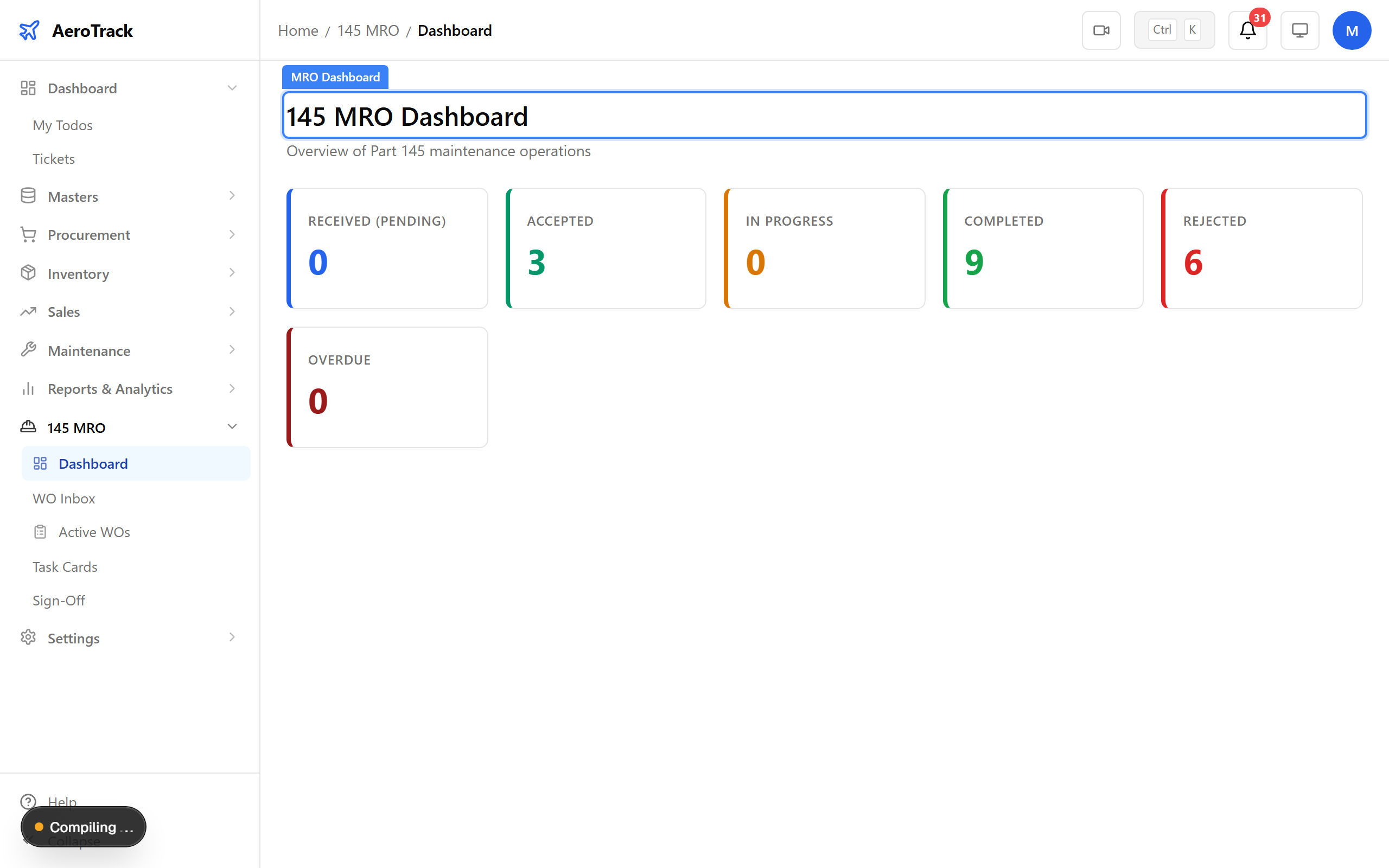
▲ MRO dashboard — workload overview at a glance.
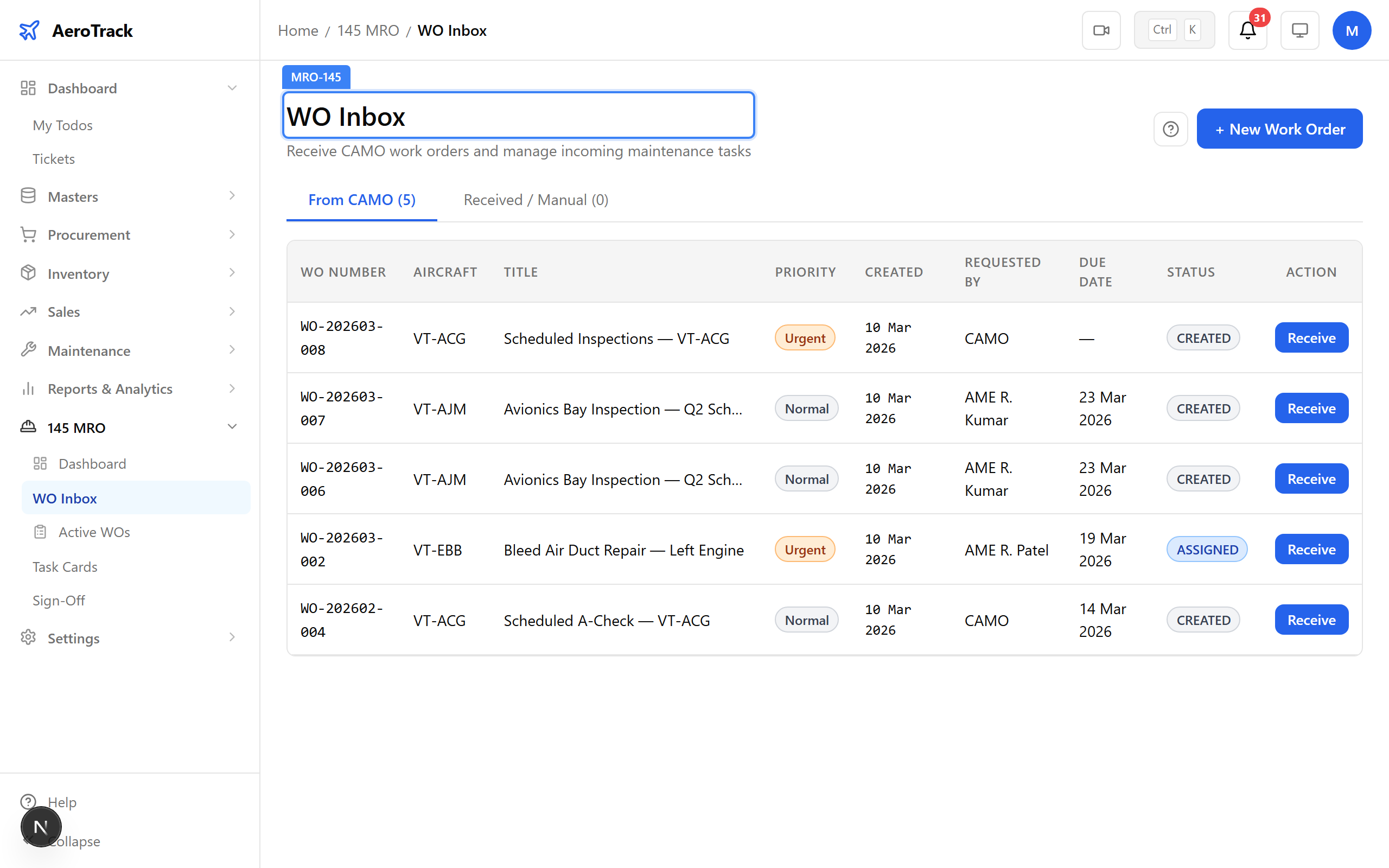
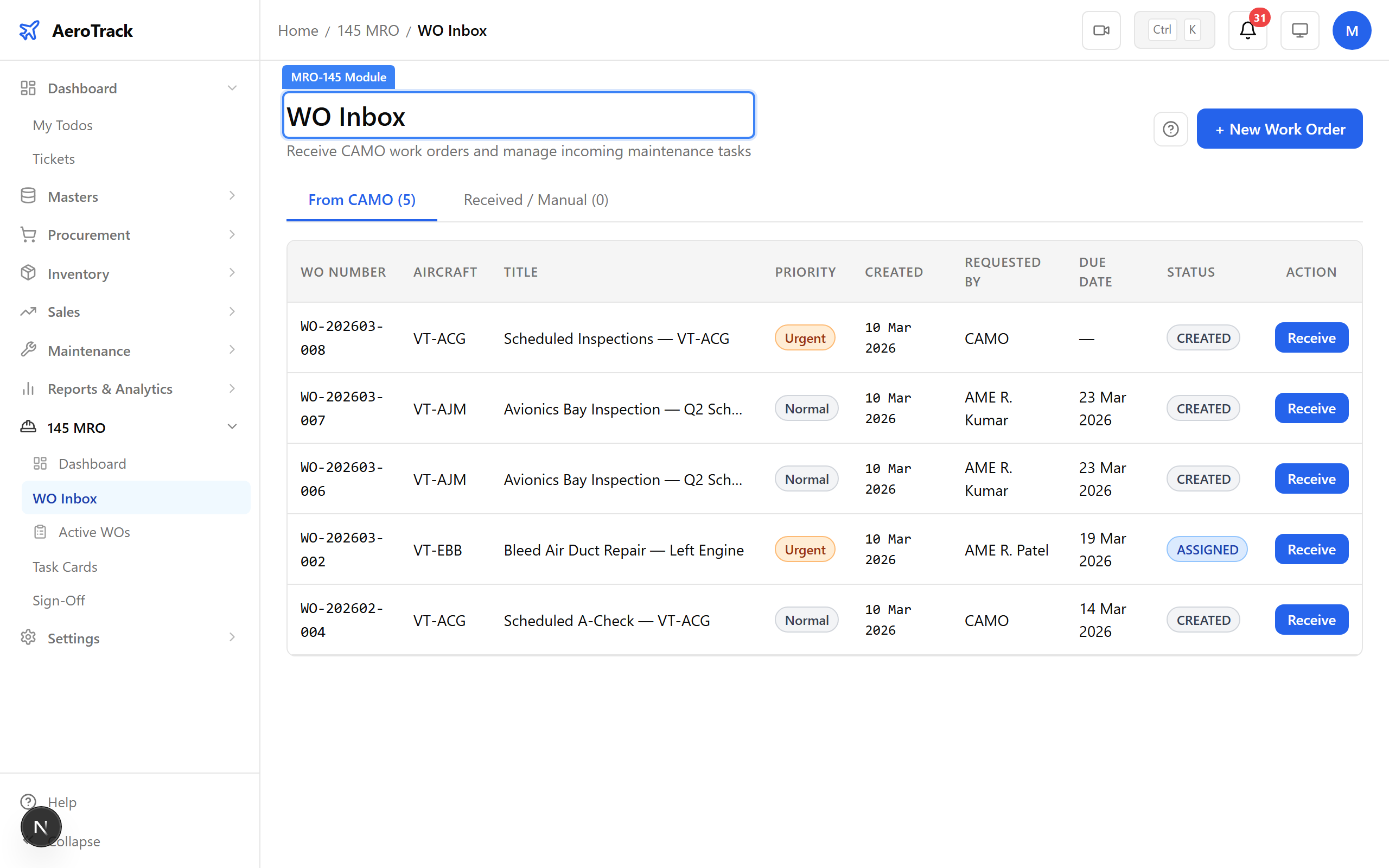
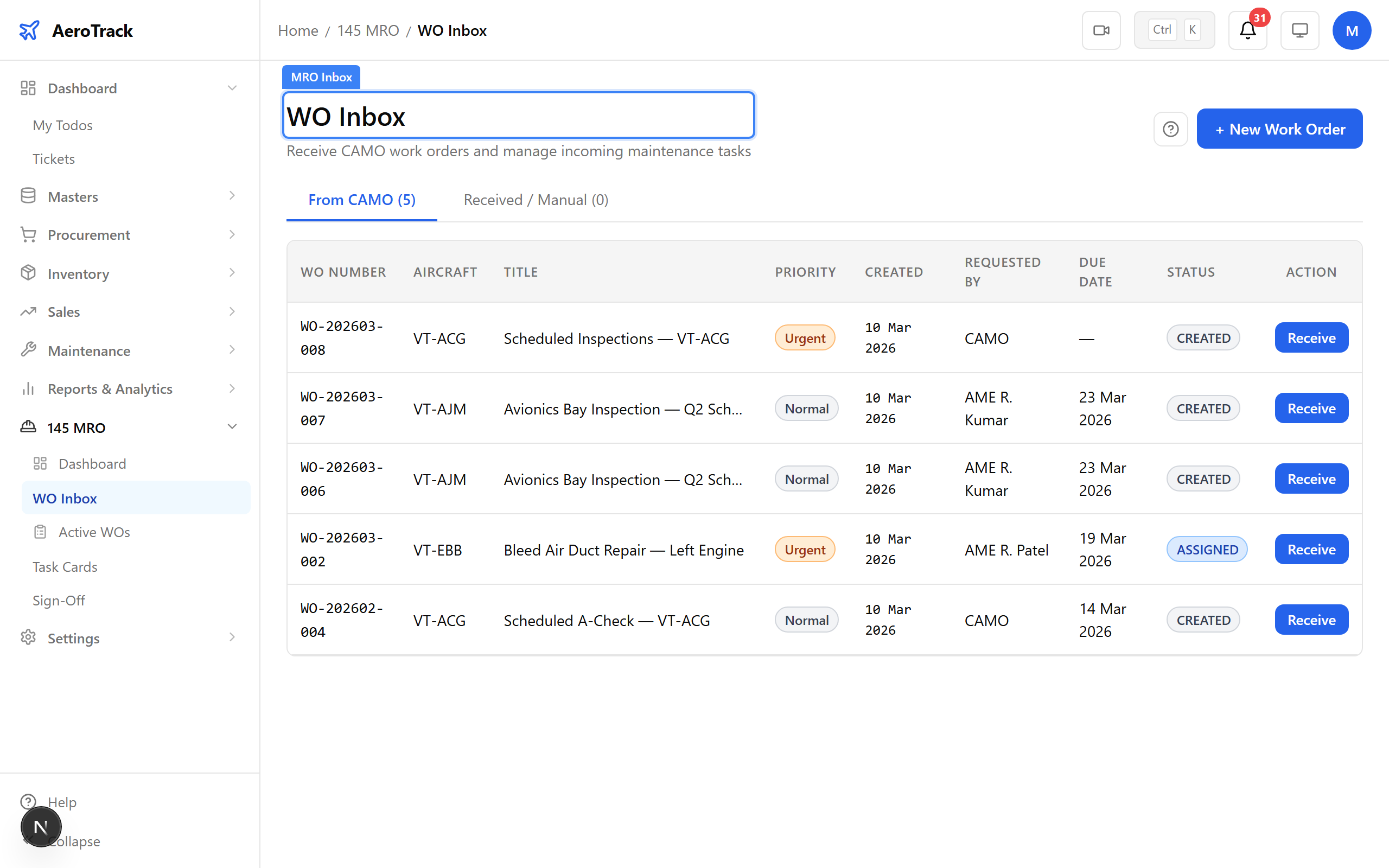
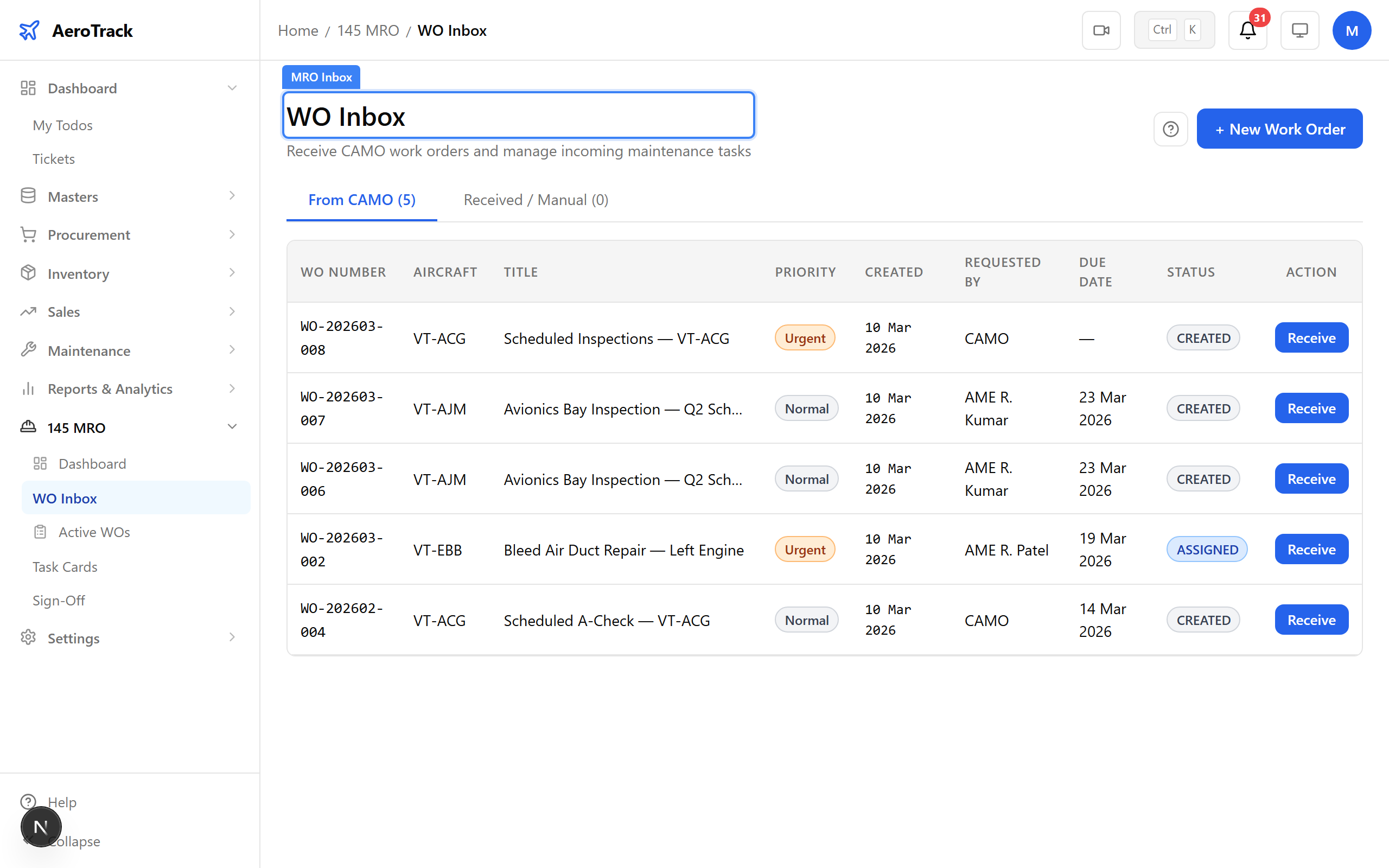
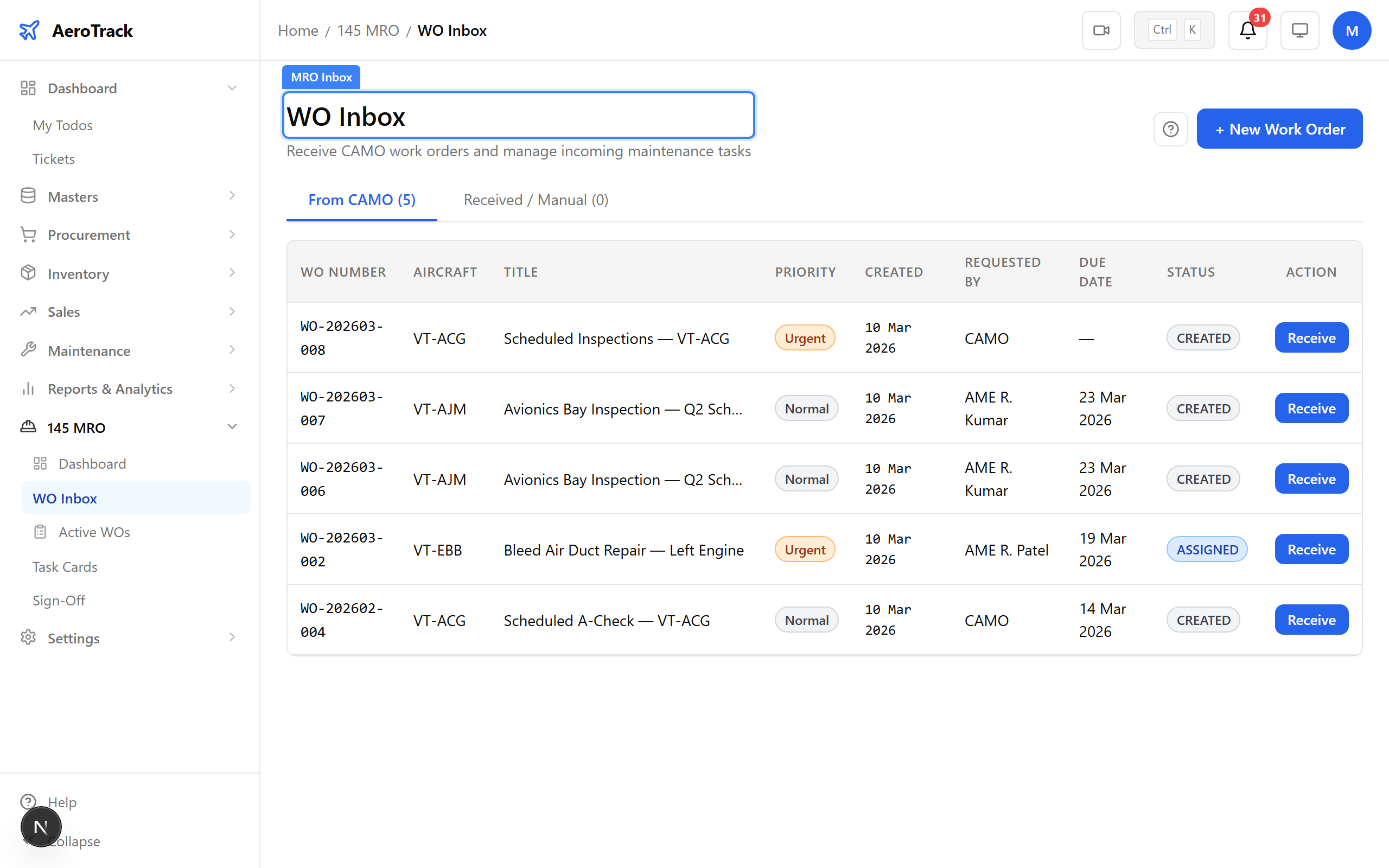
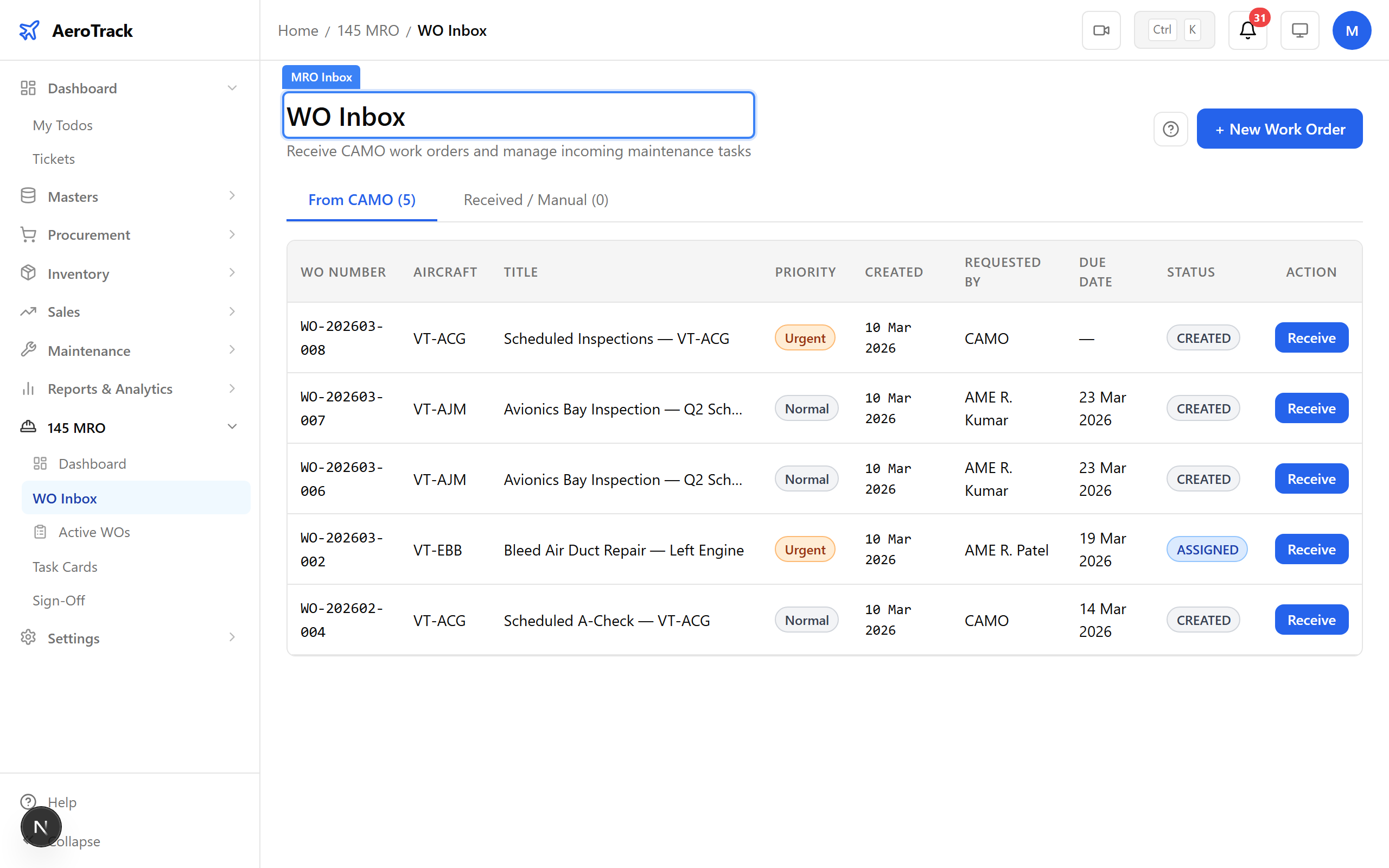
Navigate to MRO-145 → Inbox. All work orders dispatched from CAMO land here with a RECEIVED status. The table shows the WO number, aircraft, scope, and date received.
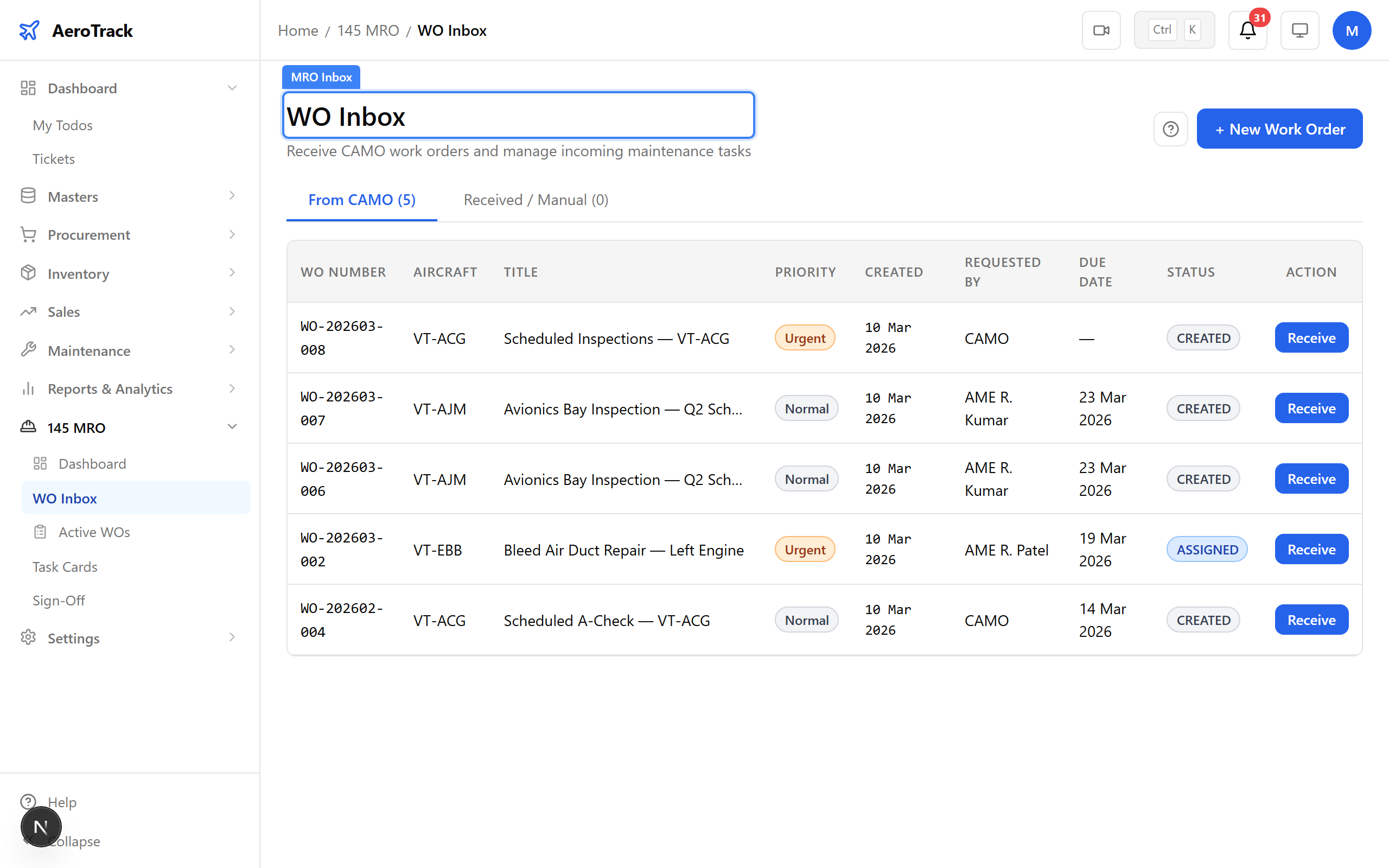
▲ MRO inbox — work orders waiting to be accepted or rejected.
Check the notification bell. When a CAMO engineer dispatches a work order, the system sends a wo_received notification to the MRO engineer. The notification links directly to the work order detail page.
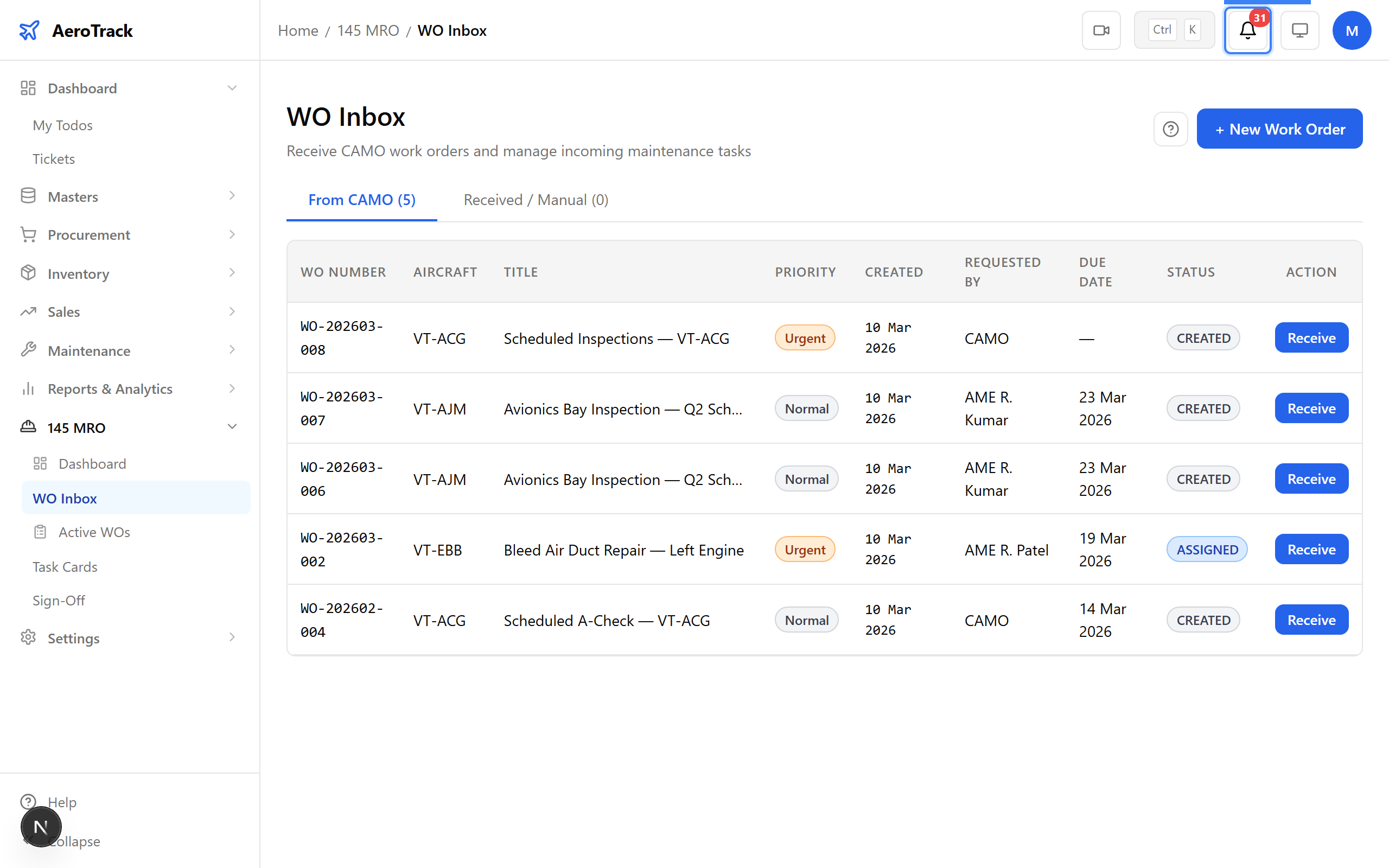
▲ MRO engineer notified of the newly received work order.
Open the received work order from the inbox. The detail page shows the full scope, aircraft details, and CAMO instructions. The Accept and Reject buttons are available for RECEIVED work orders.
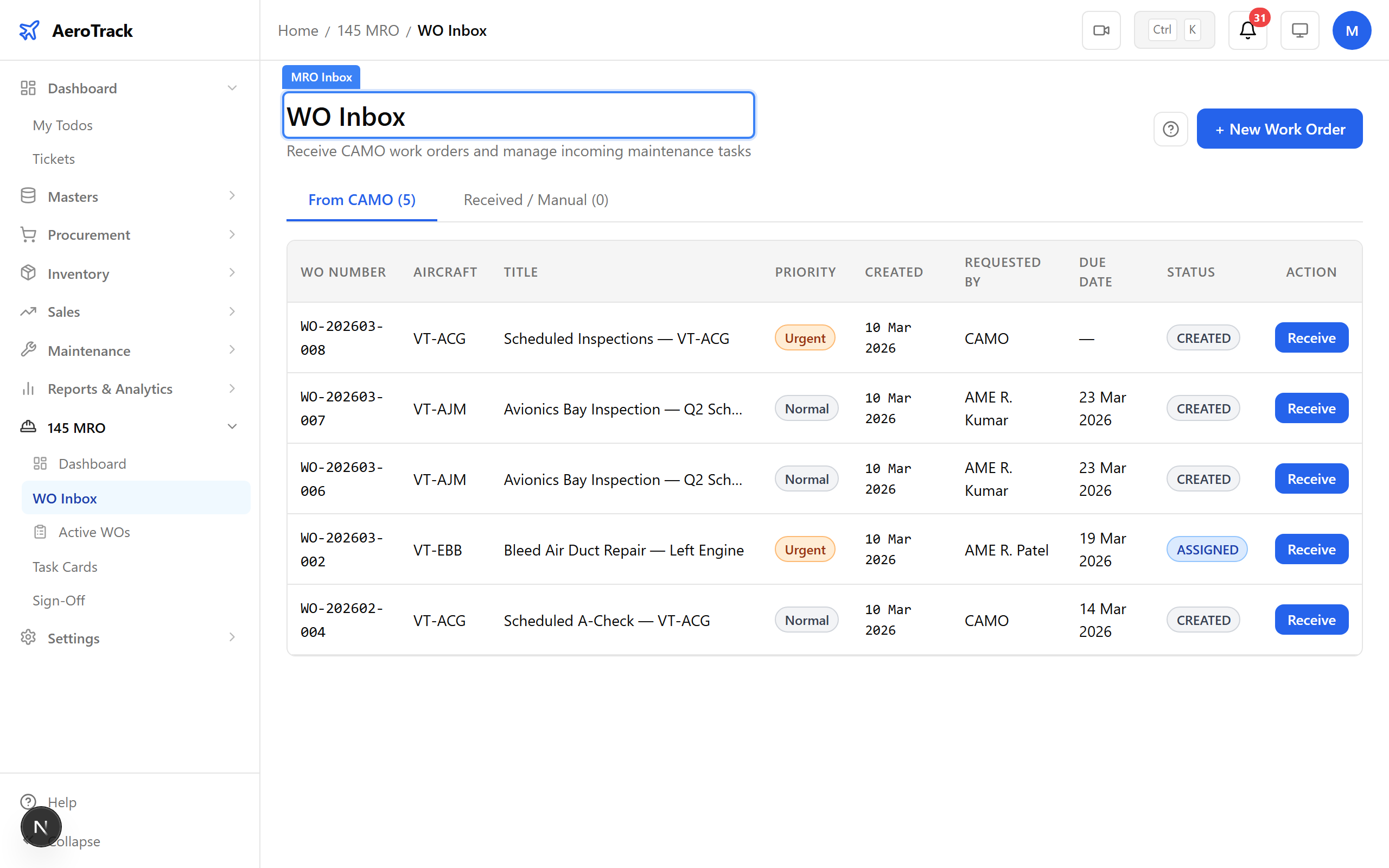
▲ MRO work order detail — review scope before accepting.
Click Accept. The status changes to ACCEPTED. The MRO shop has committed to performing the work. The work order now moves from the inbox to the active queue.
▲ Work order accepted — the MRO shop commits to the work.
Click Start Planning. The status transitions to PLANNING. During this phase, the MRO engineer assigns technicians, schedules hangar time, and creates task cards for each job step.
▲ Planning phase — assign resources, create task cards, schedule the work.
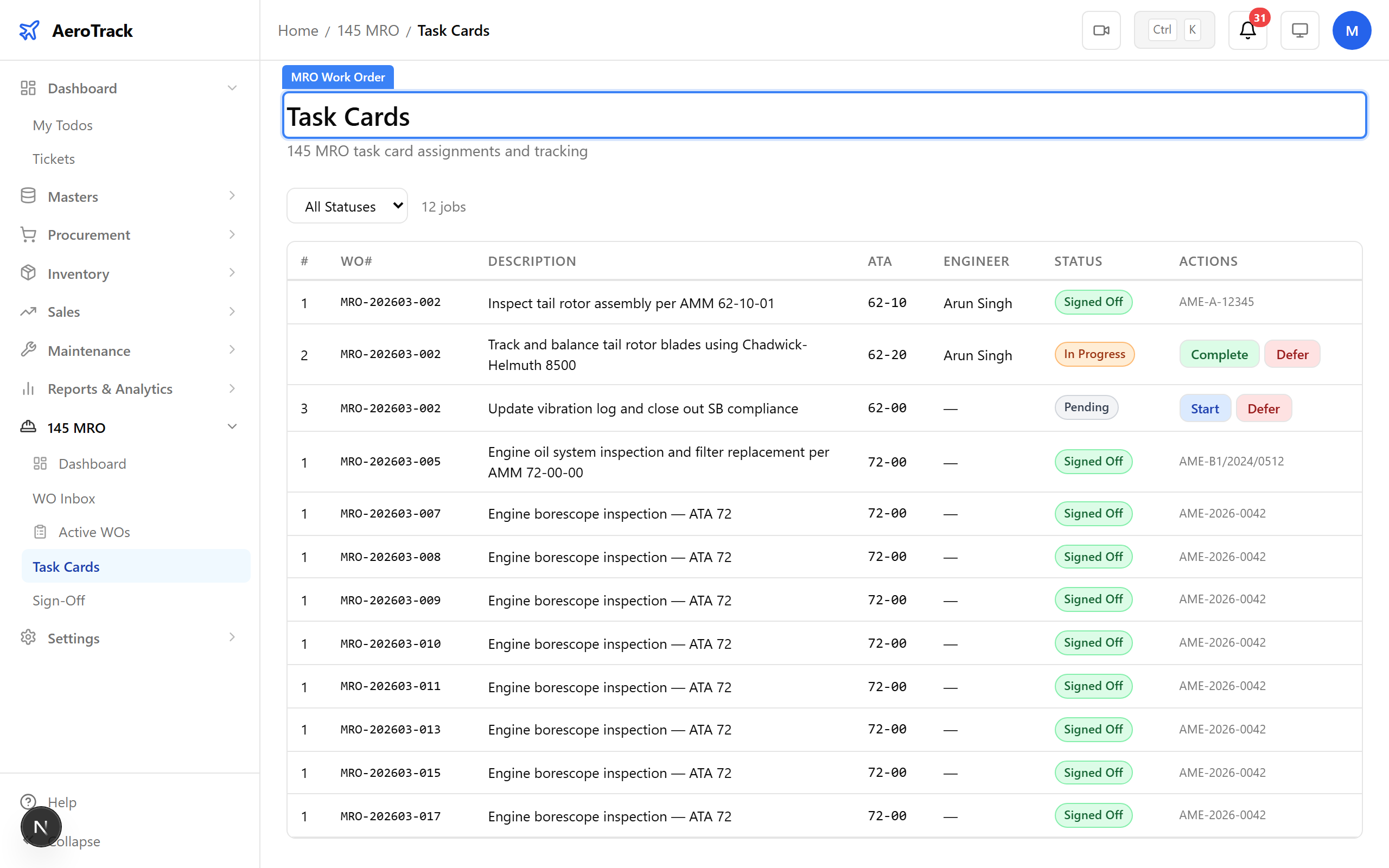
Navigate to MRO-145 → Task Cards. Task cards break down the work order into individual jobs — each with its own procedure, tools required, and sign-off requirements. Technicians work through cards sequentially.
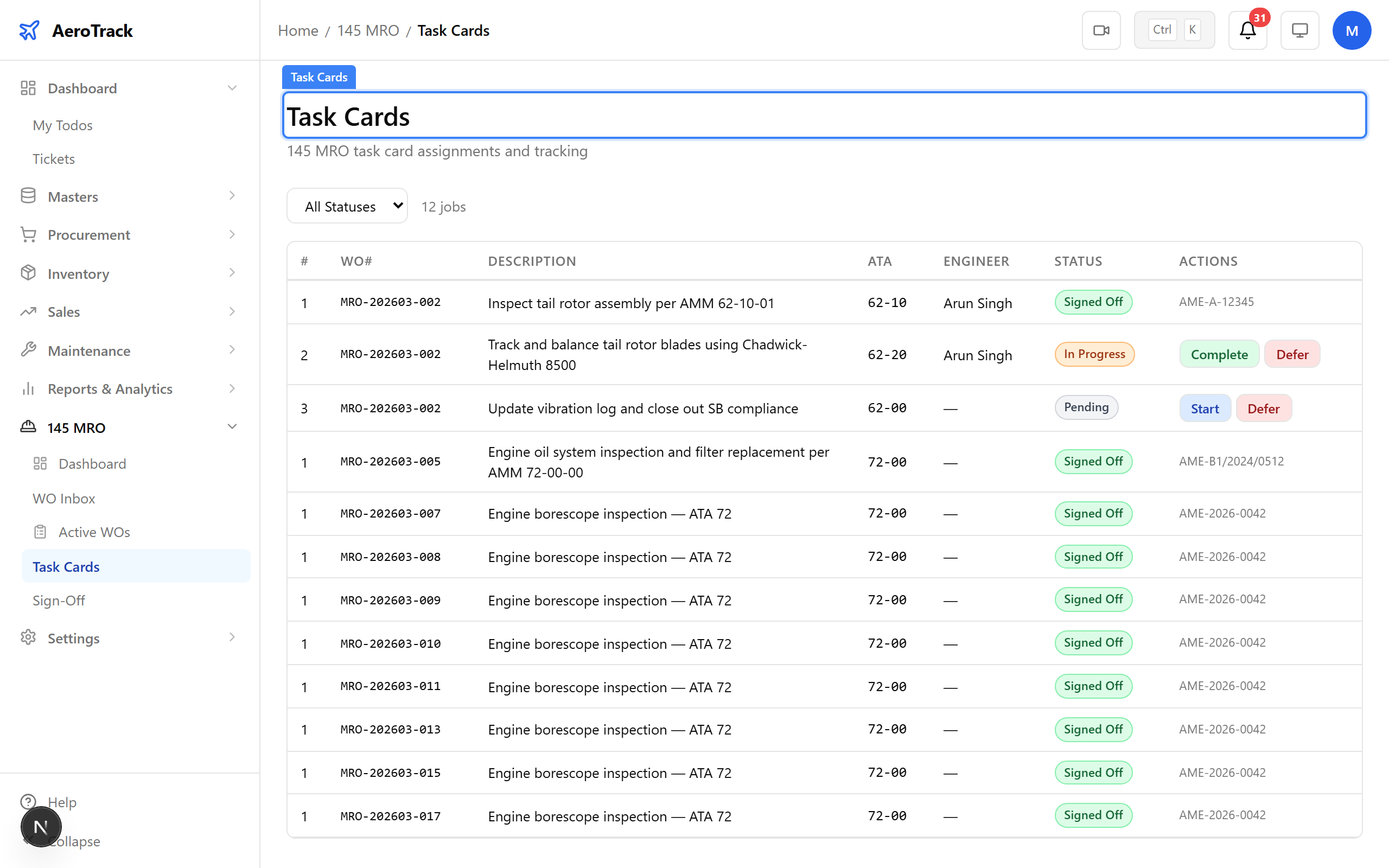
▲ Task cards — each job step tracked individually.
Return to the work order and click Start. The status transitions to IN_PROGRESS. The technicians are actively performing the maintenance tasks defined in the task cards.
▲ Work in progress — technicians executing the overhaul.
When all tasks are complete, click Sign Off. The quality inspector reviews the completed work against the task card requirements. This is a critical airworthiness gate — no work order can be released without quality sign-off.
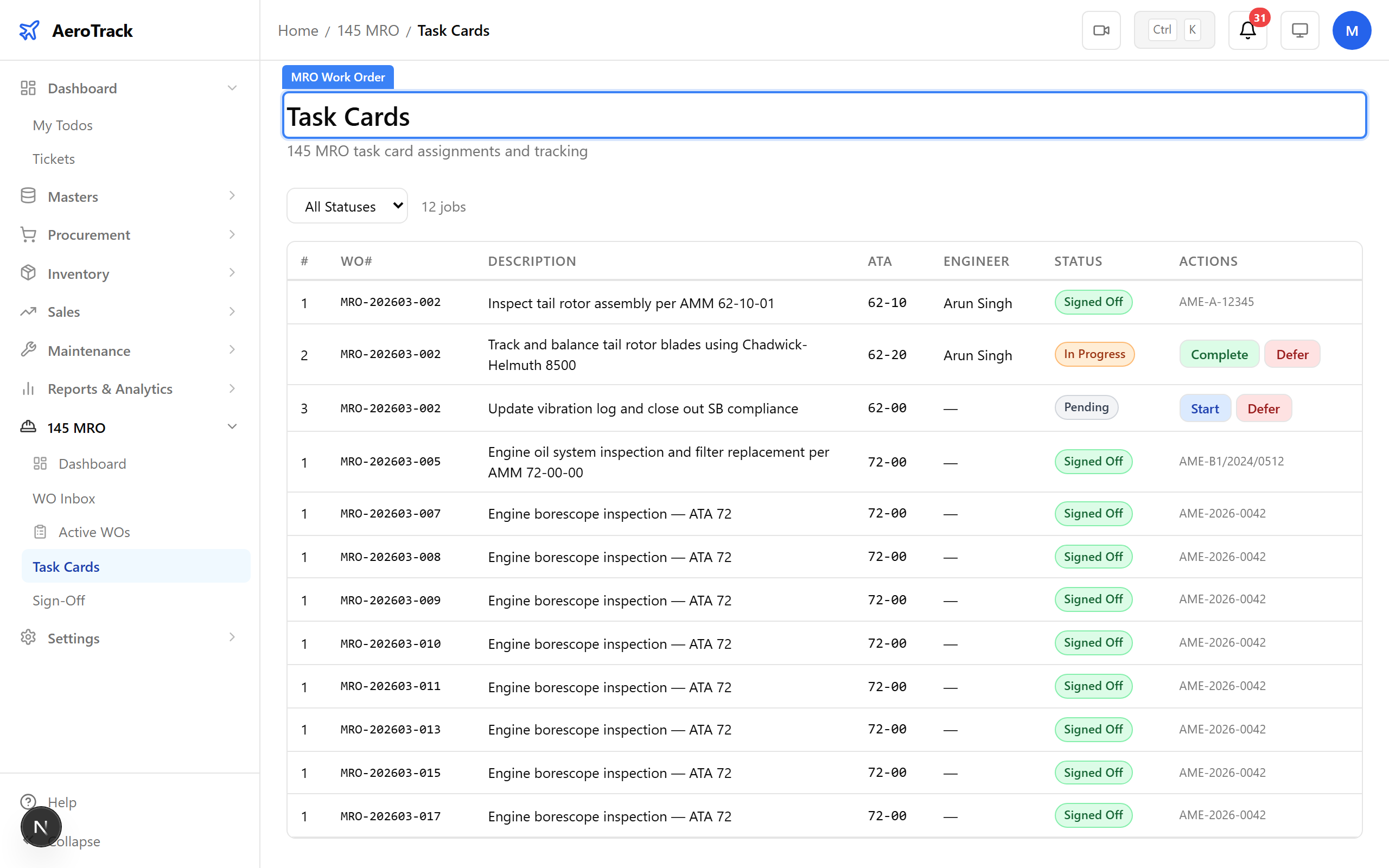
▲ Quality sign-off — the airworthiness gate before release.
After sign-off, click Complete. The status changes to COMPLETED. A wo_completed notification is sent to the CAMO engineer, signalling that the aircraft component is ready for return.
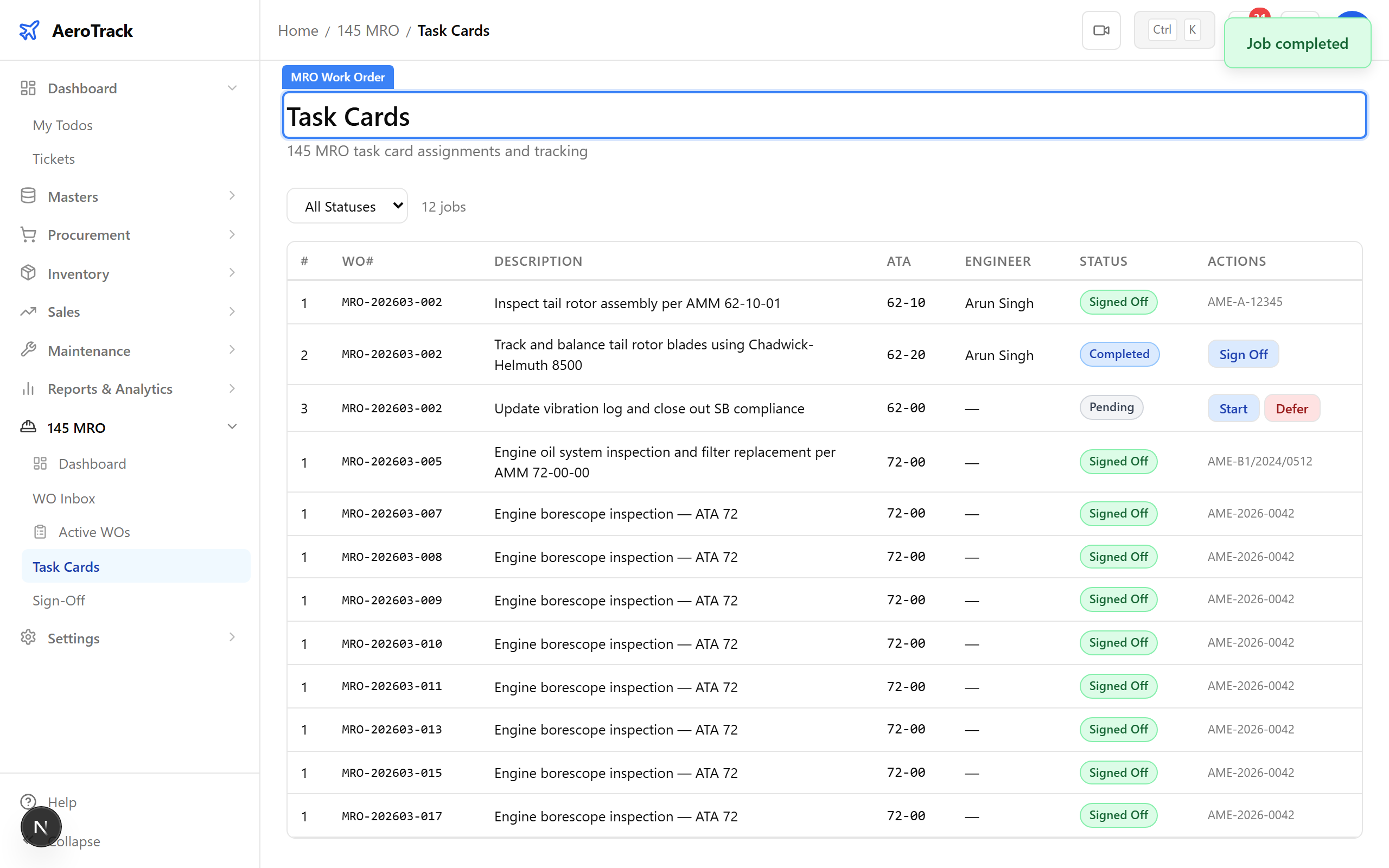
▲ Work order completed — CAMO notified for final review.
Open a second received work order. If the scope is unclear or documentation is insufficient, click Reject. A dialog prompts for a rejection reason — this is sent back to the CAMO engineer as a wo_rejected notification.
▲ Rejecting a work order — insufficient documentation requires resubmission.
After submitting the rejection reason, the work order status changes to REJECTED. The CAMO engineer must address the issue and re-dispatch or cancel the work order.
▲ Work order rejected — returned to CAMO with documented reason.
Log out of the MRO account and log back in as camo@aerotrack.local. The CAMO engineer reviews completed work orders and closes them after verifying the release documentation.
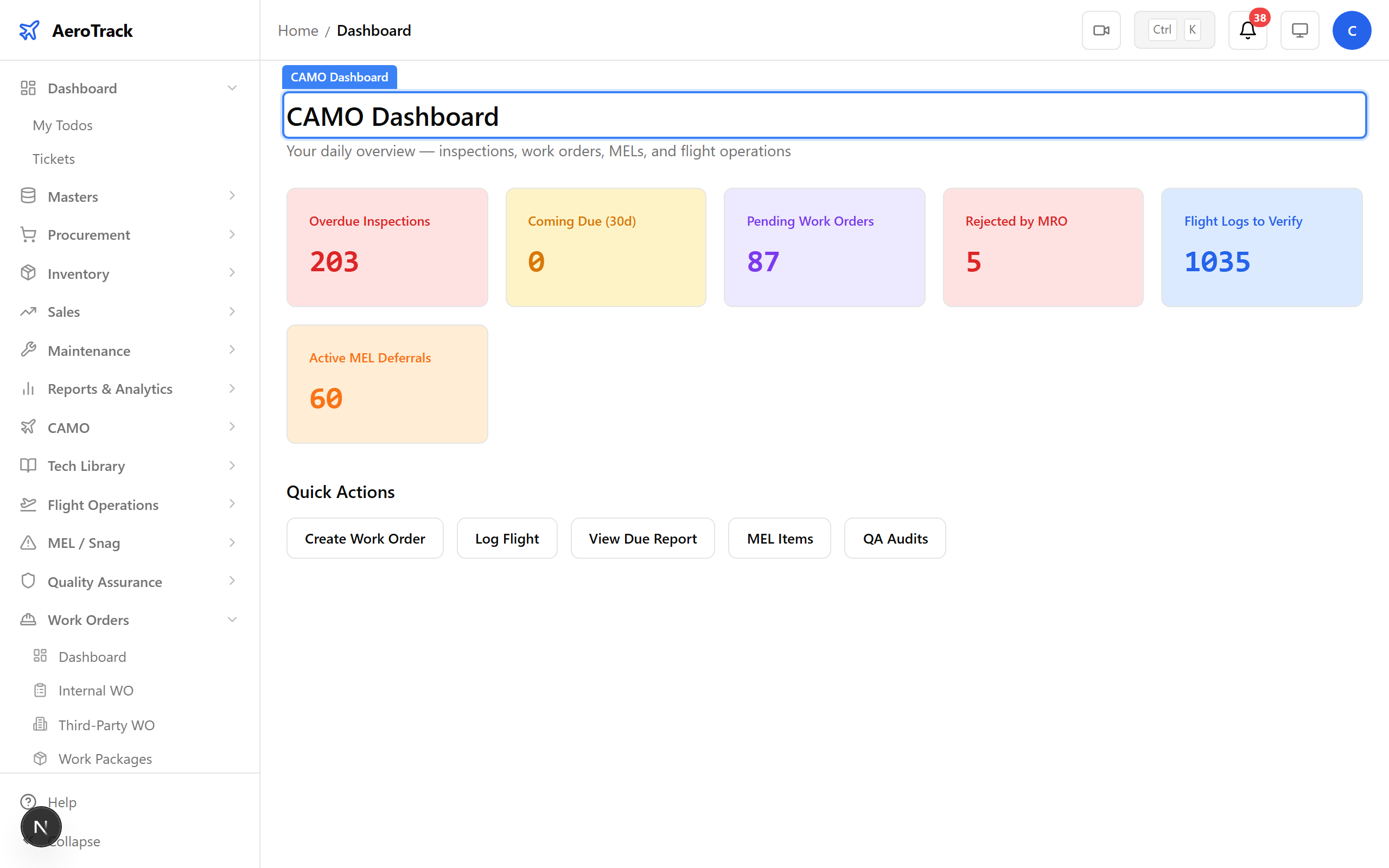
Check the notification bell. The wo_completed notification confirms that the MRO shop has finished the work and signed off on quality. The notification links directly to the work order.
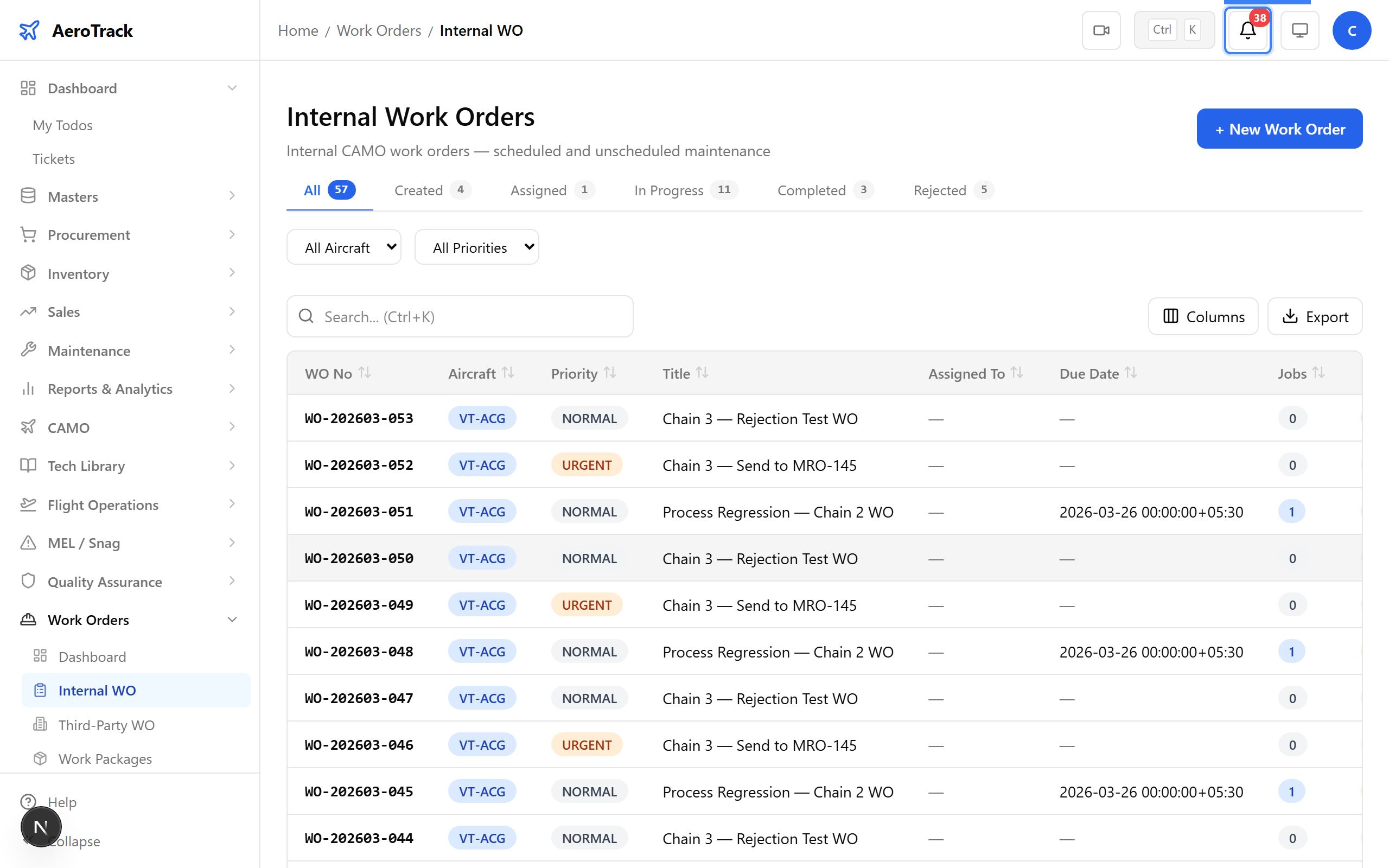
▲ CAMO notified that the MRO work is complete.
Open the work order. The detail page now shows COMPLETED status with the MRO’s sign-off data. Review the completed task cards, defect reports, and release certificates before closing.
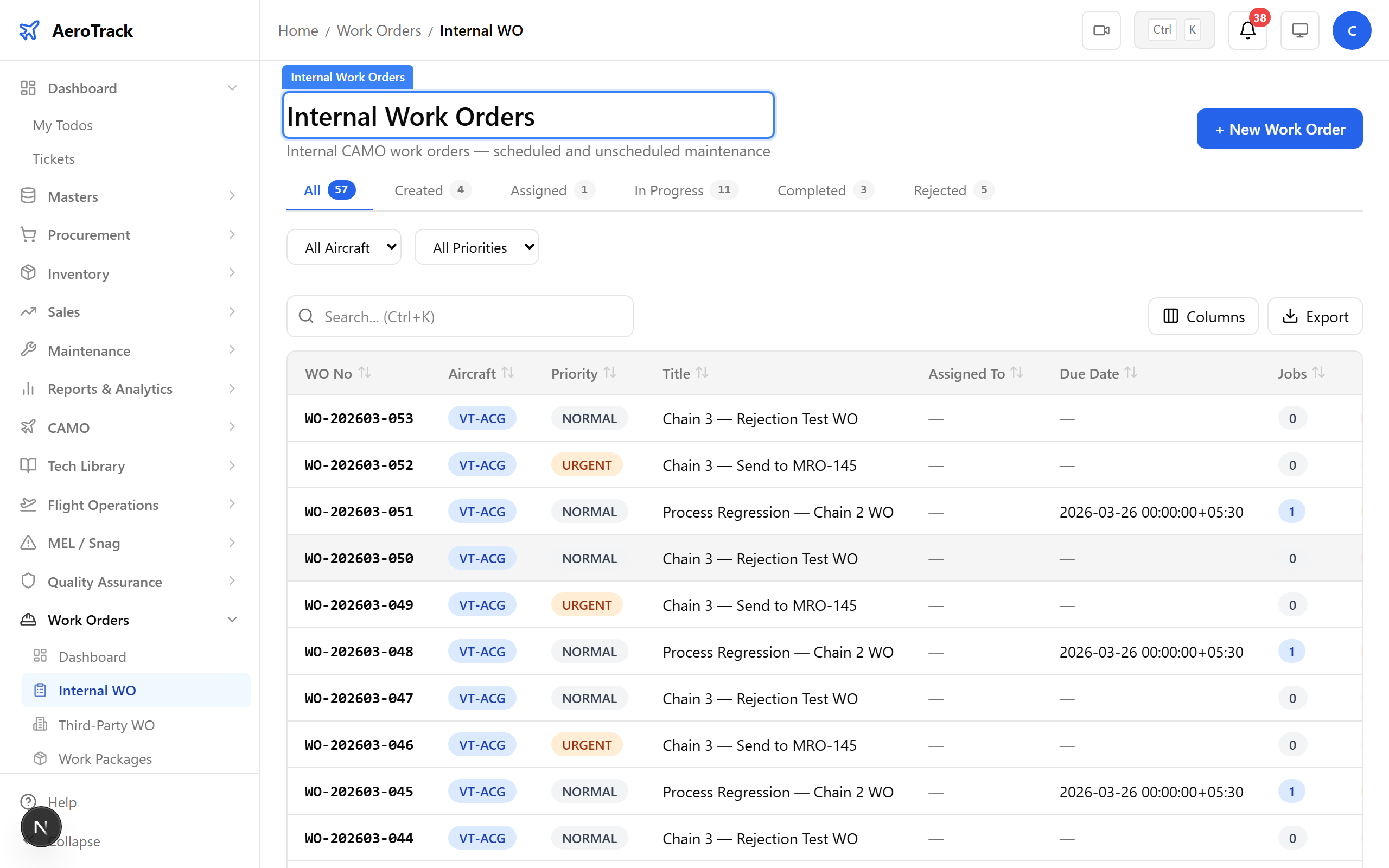
▲ Reviewing the completed work — verify release documentation before closure.
Click Close. This is the final step in the cross-role workflow. The CAMO engineer confirms that the MRO work meets airworthiness requirements and the component can be returned to service.
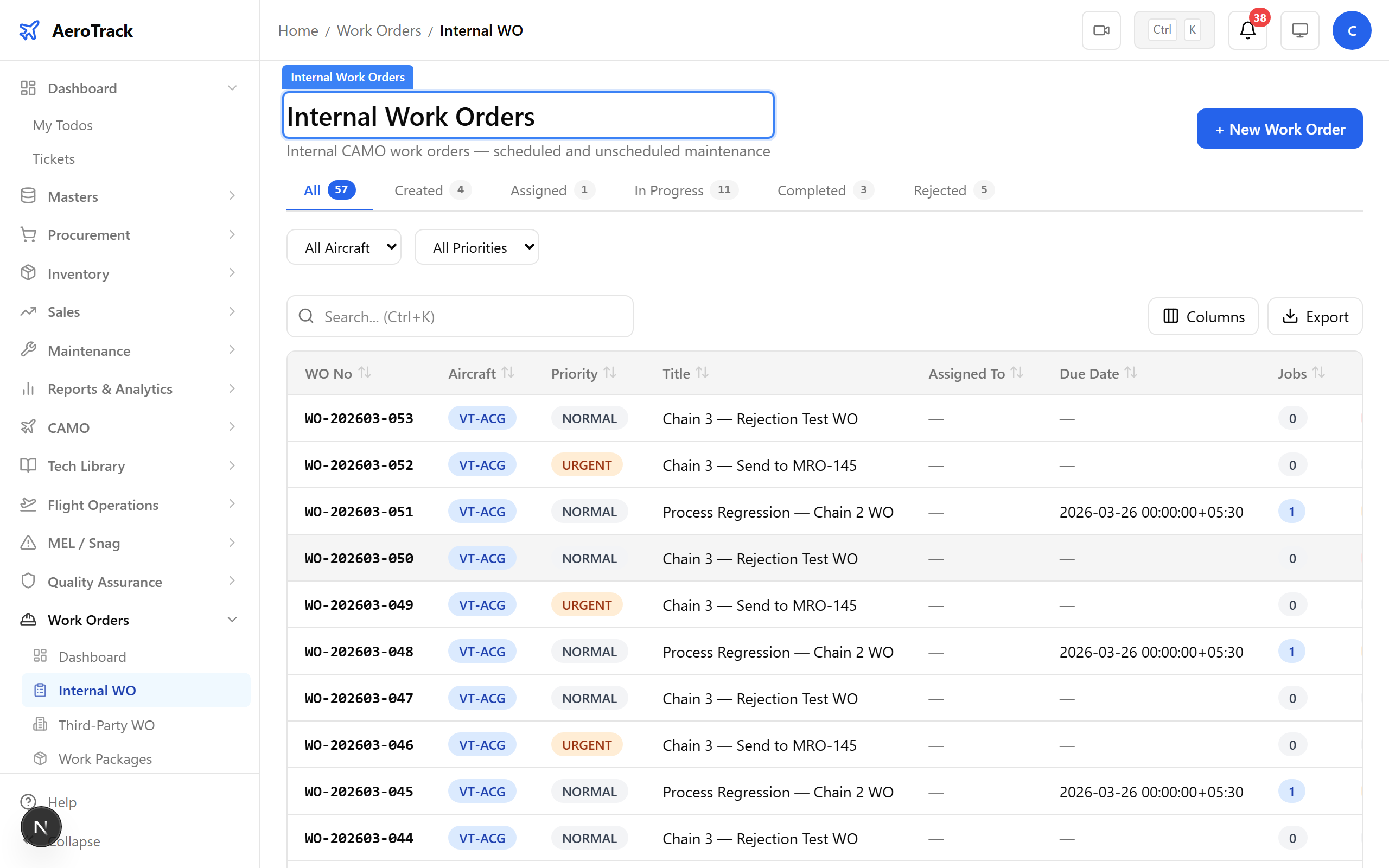
▲ Final closure — CAMO confirms airworthiness and closes the work order.
The work order status changes to CLOSED. The full cross-role lifecycle is complete: CAMO dispatches → MRO receives → accepts → plans → executes → signs off → CAMO reviews → closes. All documentation is archived.
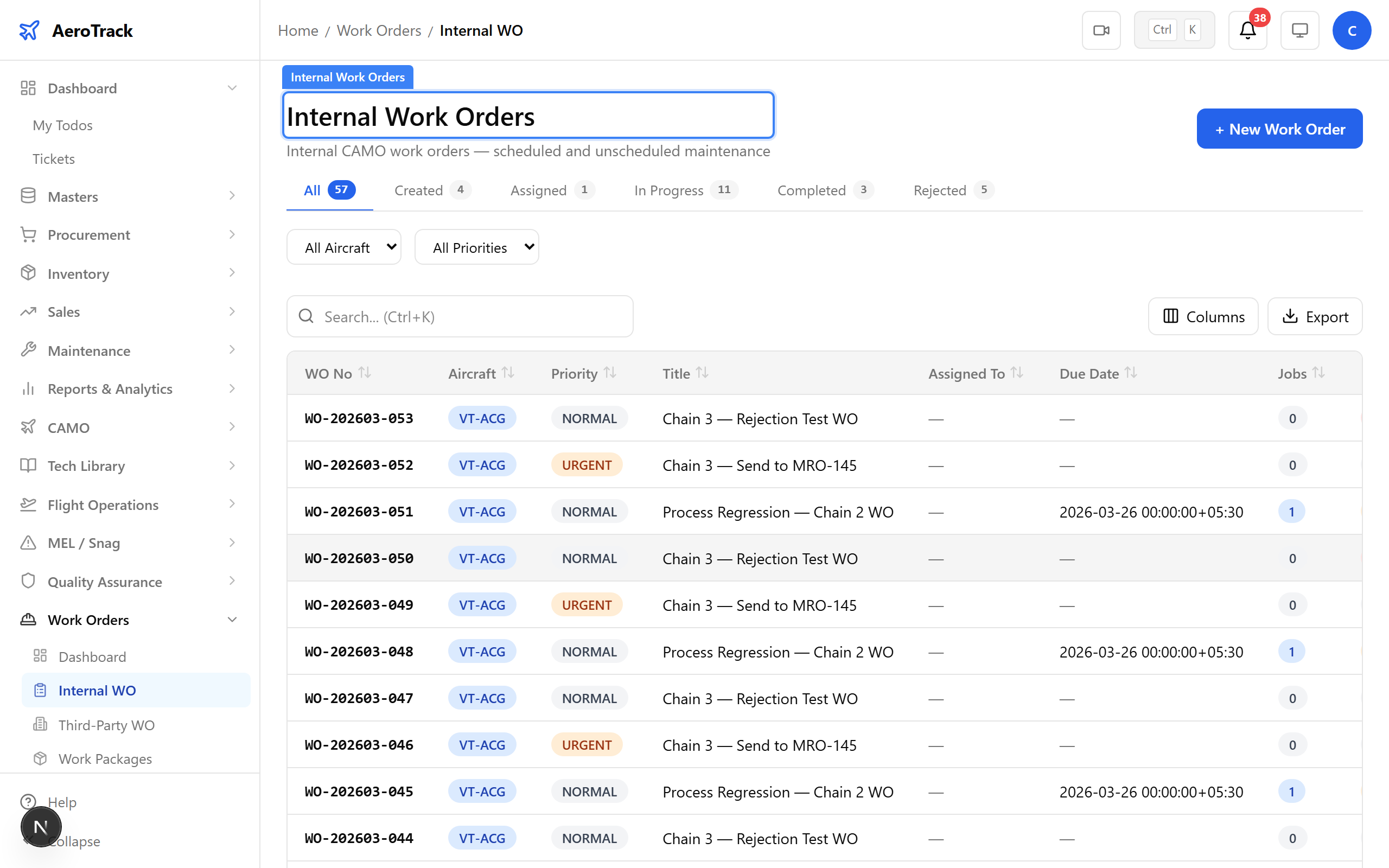
▲ Work order closed — full cross-role lifecycle complete.
Navigate to MRO-145 → Active. This view shows all work orders currently being worked on by the MRO shop — filtered to ACCEPTED, PLANNING, and IN_PROGRESS statuses. Completed and closed orders drop off this list.
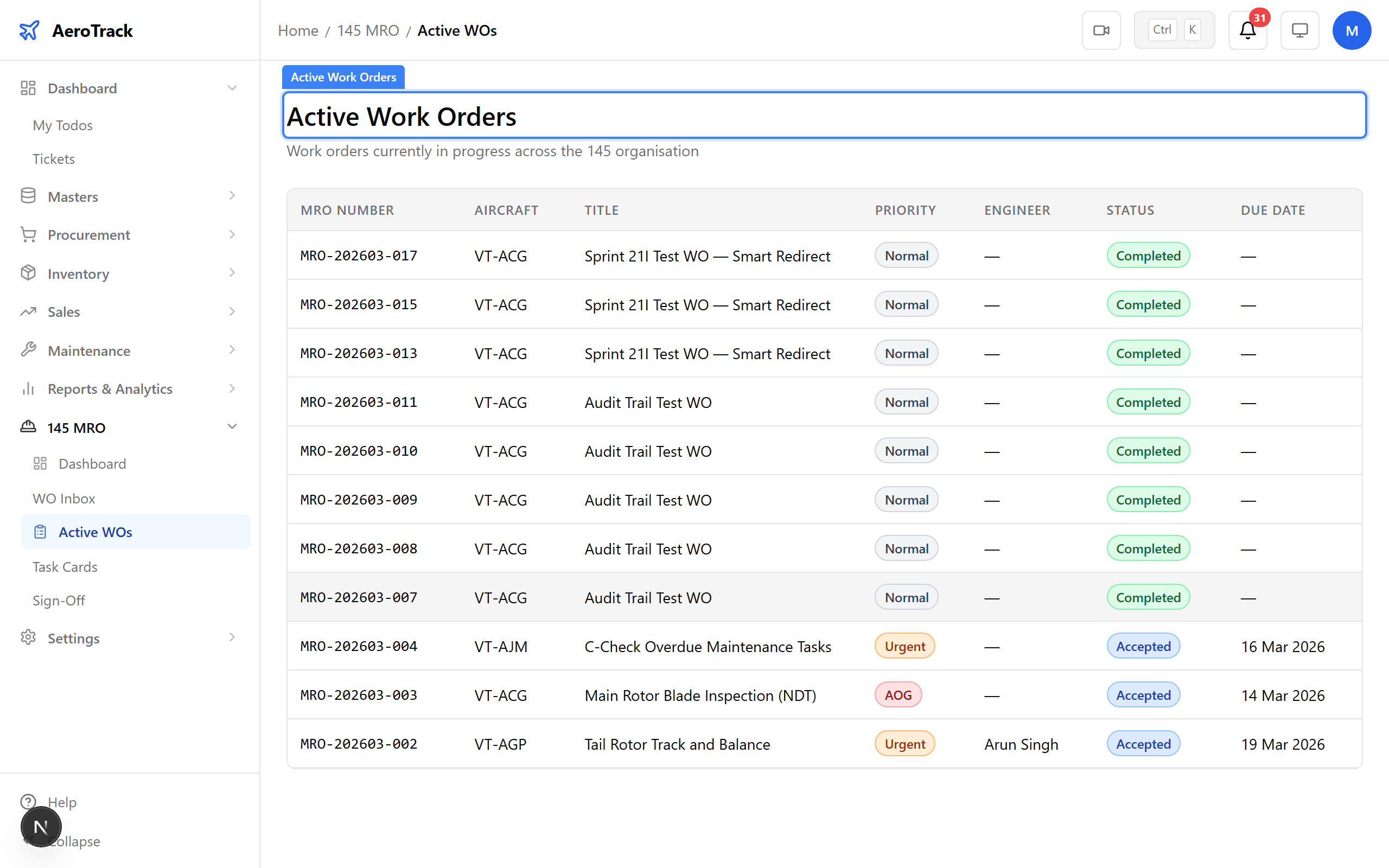
▲ Active work orders — the MRO shop’s current workload.