Navigate to Procurement in the sidebar. The landing page shows module cards for every procurement sub-module — Requisitions, Enquiries, Quotations, Purchase Orders, Invoices, Returns, Advances, Amendments, Follow-ups, and Payments.
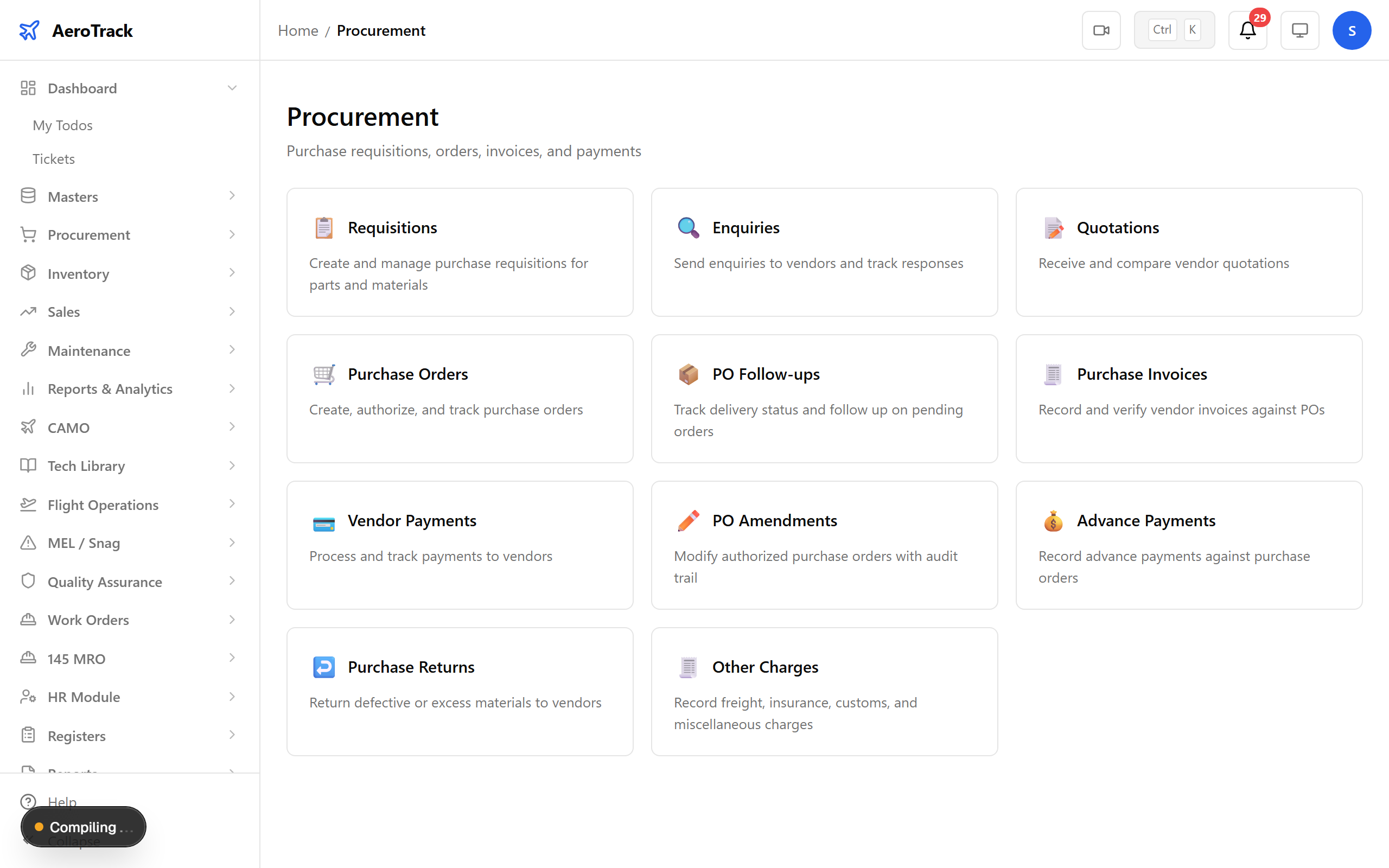
▲ Procurement hub — one card per transaction type, mirroring the full procure-to-pay chain.
Navigate to Procurement → Requisitions. All purchase requisitions appear here — filter by type, priority, or status. Each row shows the requisition number, description, priority, and current workflow state.
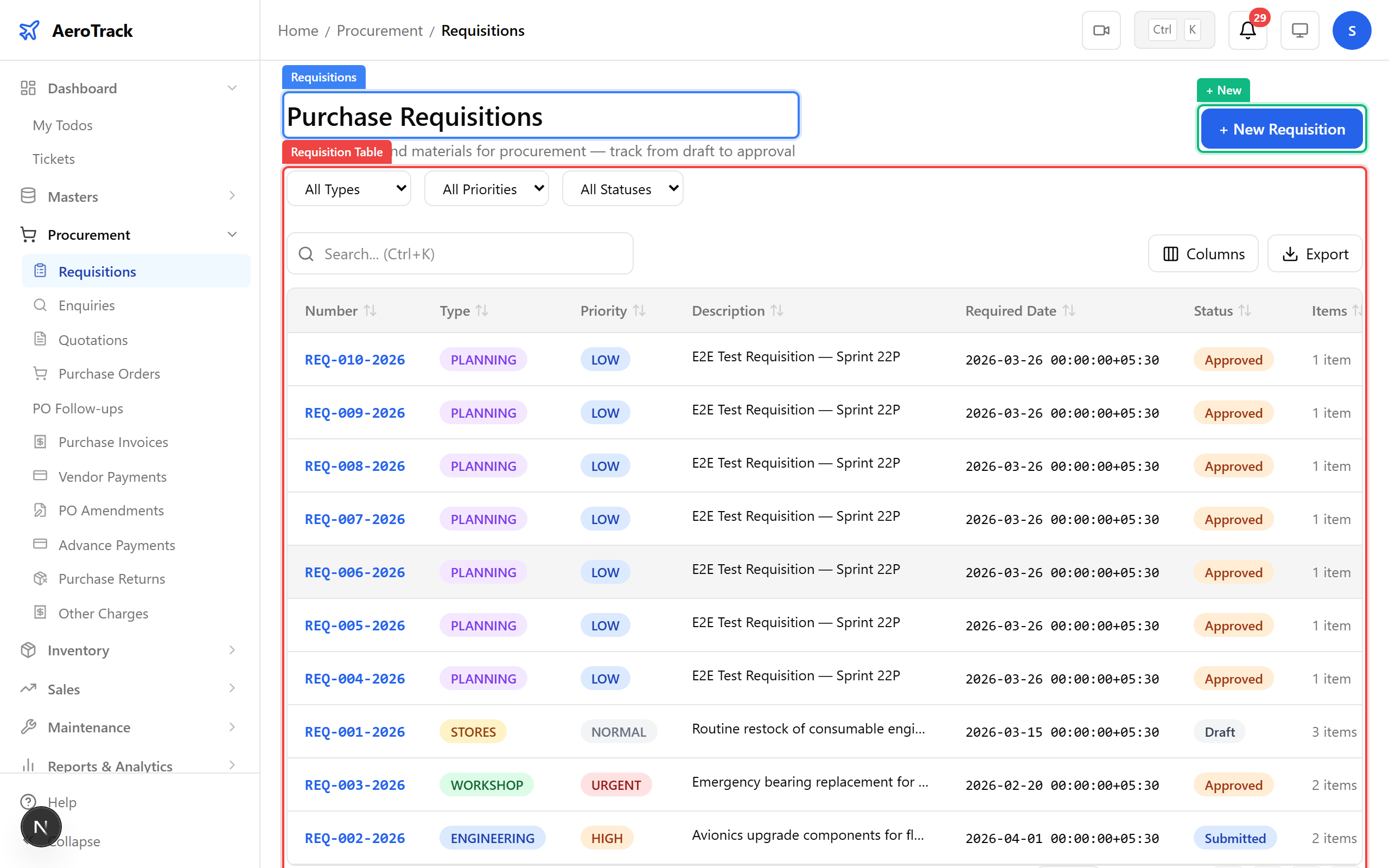
▲ Purchase requisitions — the starting point of every procurement need.
Click + New. VT-ACG needs a main rotor gearbox bearing. Fill in the requisition details and add line items with part, quantity, and estimated cost.
| Field | Purpose |
|---|---|
| Type | Standard or emergency requisition |
| Priority | Normal / Urgent / Critical — drives approval speed |
| Required Date | When the part must arrive on site |
| Description | Explain why the part is needed (links to aircraft/WO) |
| Budget | Estimated total cost for approval routing |
| Part Search | Search the Part Master to add line items |
| Quantity / UoM / Cost | How many, unit of measure, and unit price |
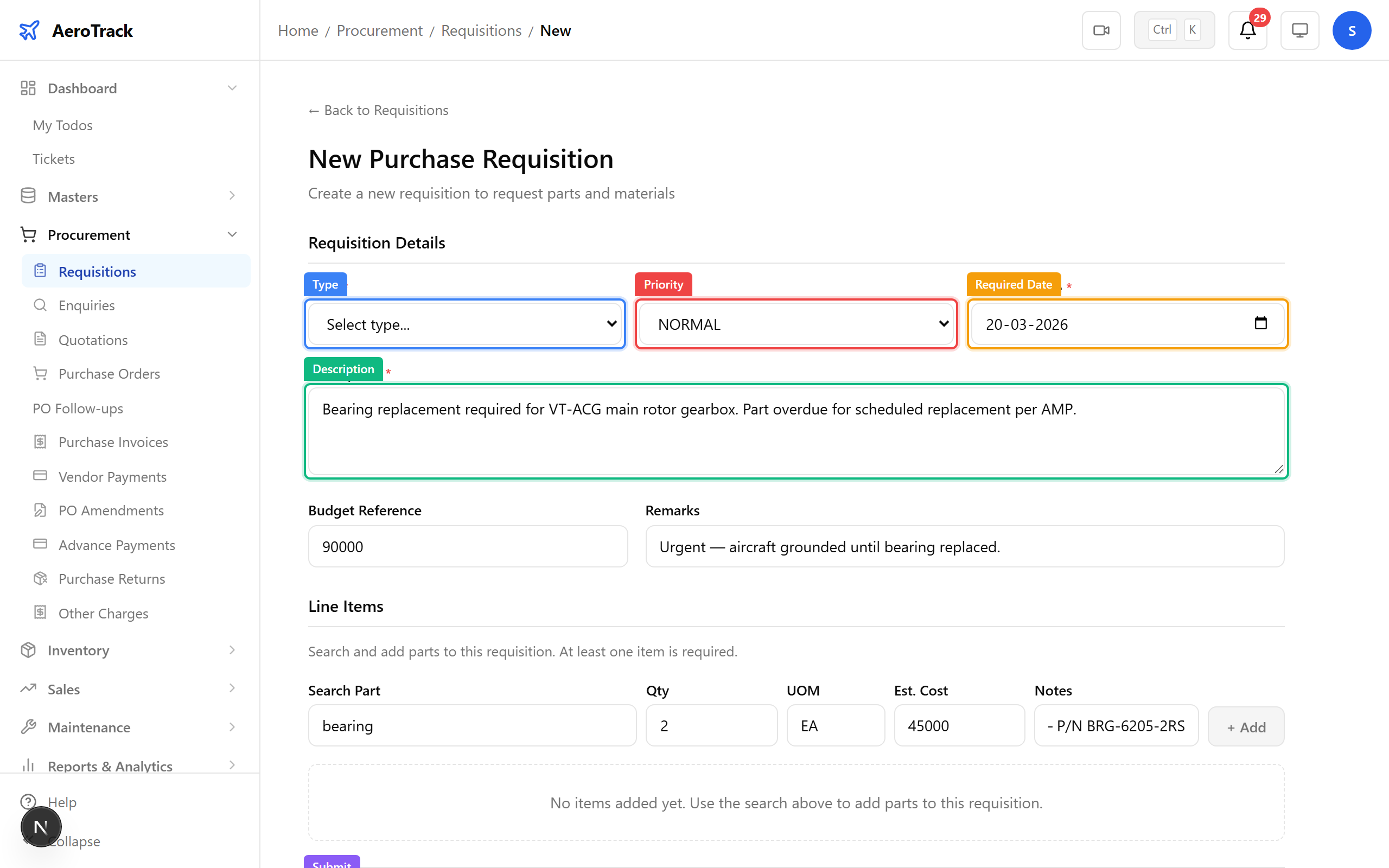
▲ Raising a requisition for 2× gearbox bearings — urgent priority, ₹90,000 budget.
After saving, the detail page shows the requisition number, status (DRAFT), line items, and total. The workflow bar shows the path: DRAFT → SUBMITTED → APPROVED → CONVERTED.
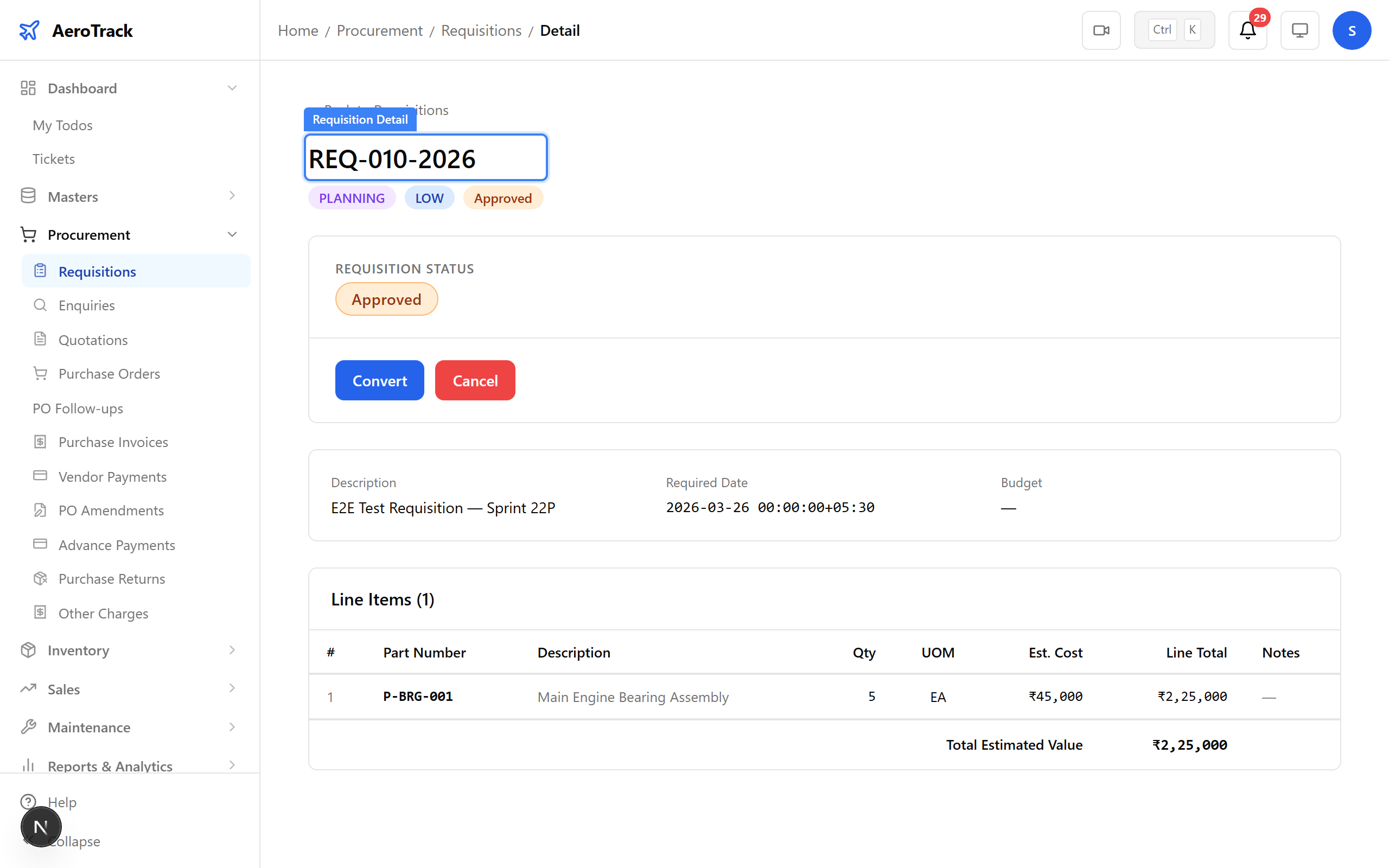
▲ Requisition saved — ready for submission and approval.
Once submitted and approved, the requisition status changes to APPROVED. This unlocks the next step — raising enquiries to vendors. The approved total becomes the procurement budget ceiling.
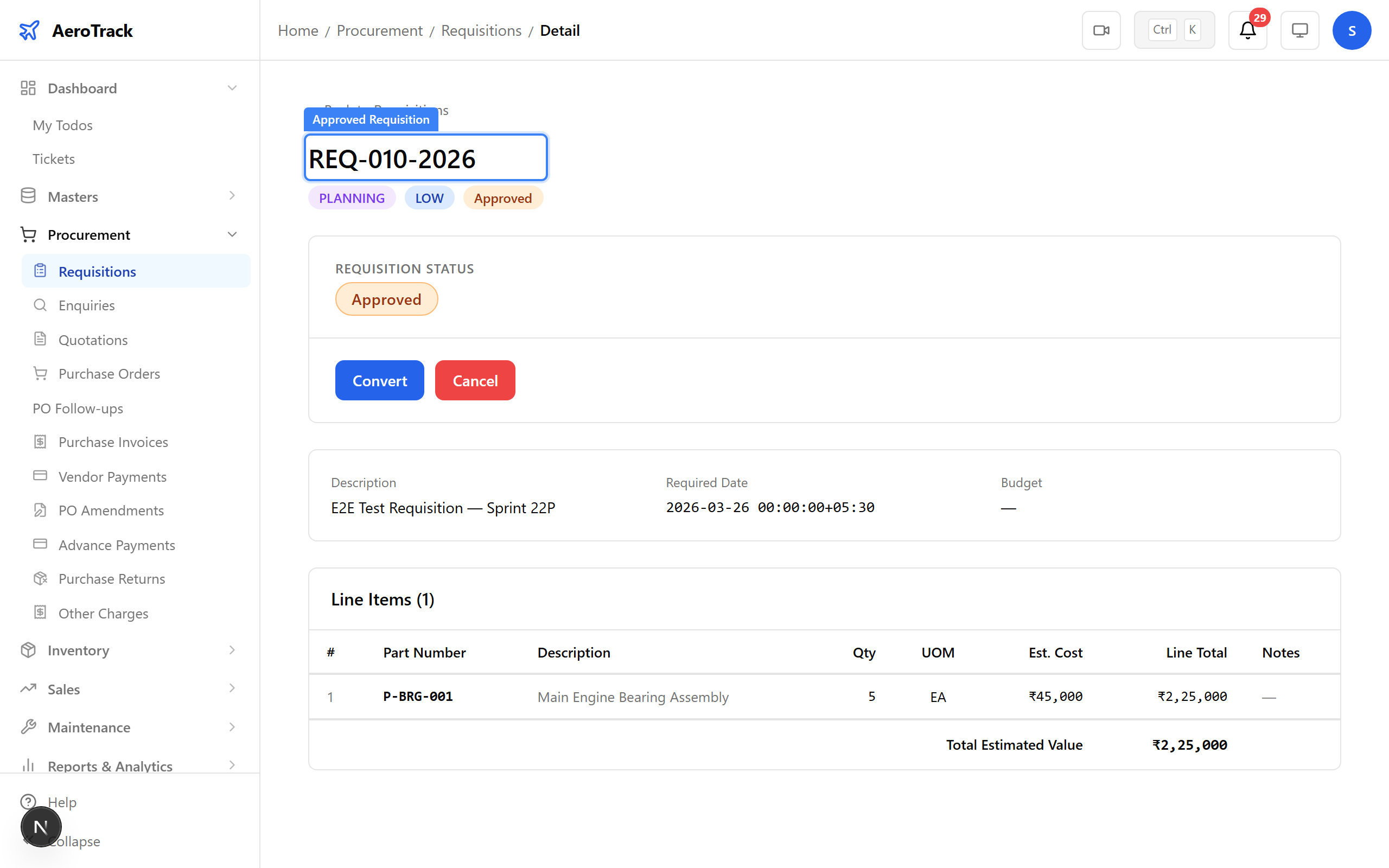
▲ Approved requisition — budget authorized, ready for sourcing.
Navigate to Procurement → Enquiries. Enquiries (Request for Quotation) are sent to vendors asking them to quote against your part requirements. Filter by type, priority, or status.
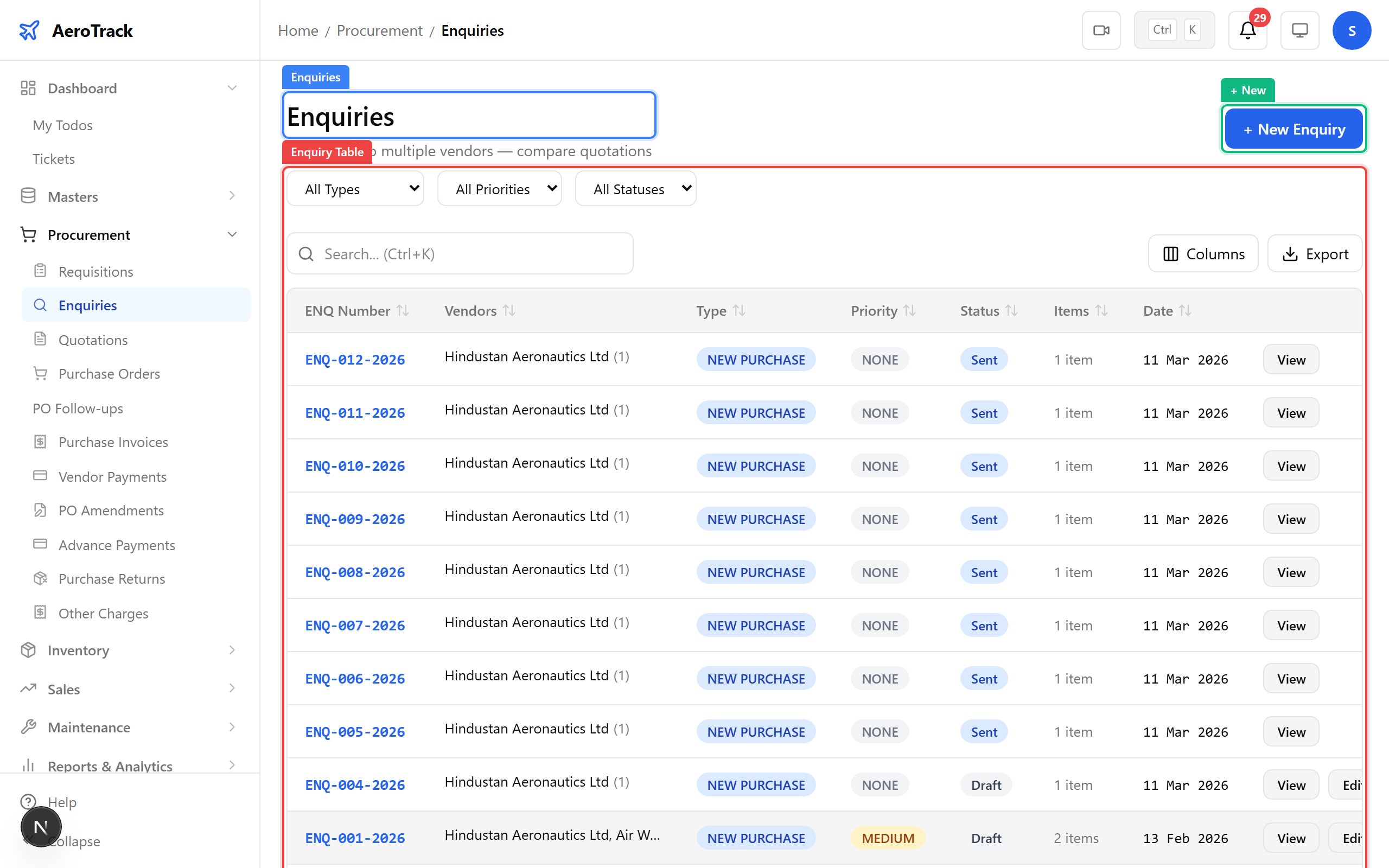
▲ All enquiries sent to vendors — track who has quoted and who hasn’t.
Click + New. Select the enquiry type, priority, and currency. Check the vendors you want to send the RFQ to (multiple vendors can be selected). Add the required parts with quantities.
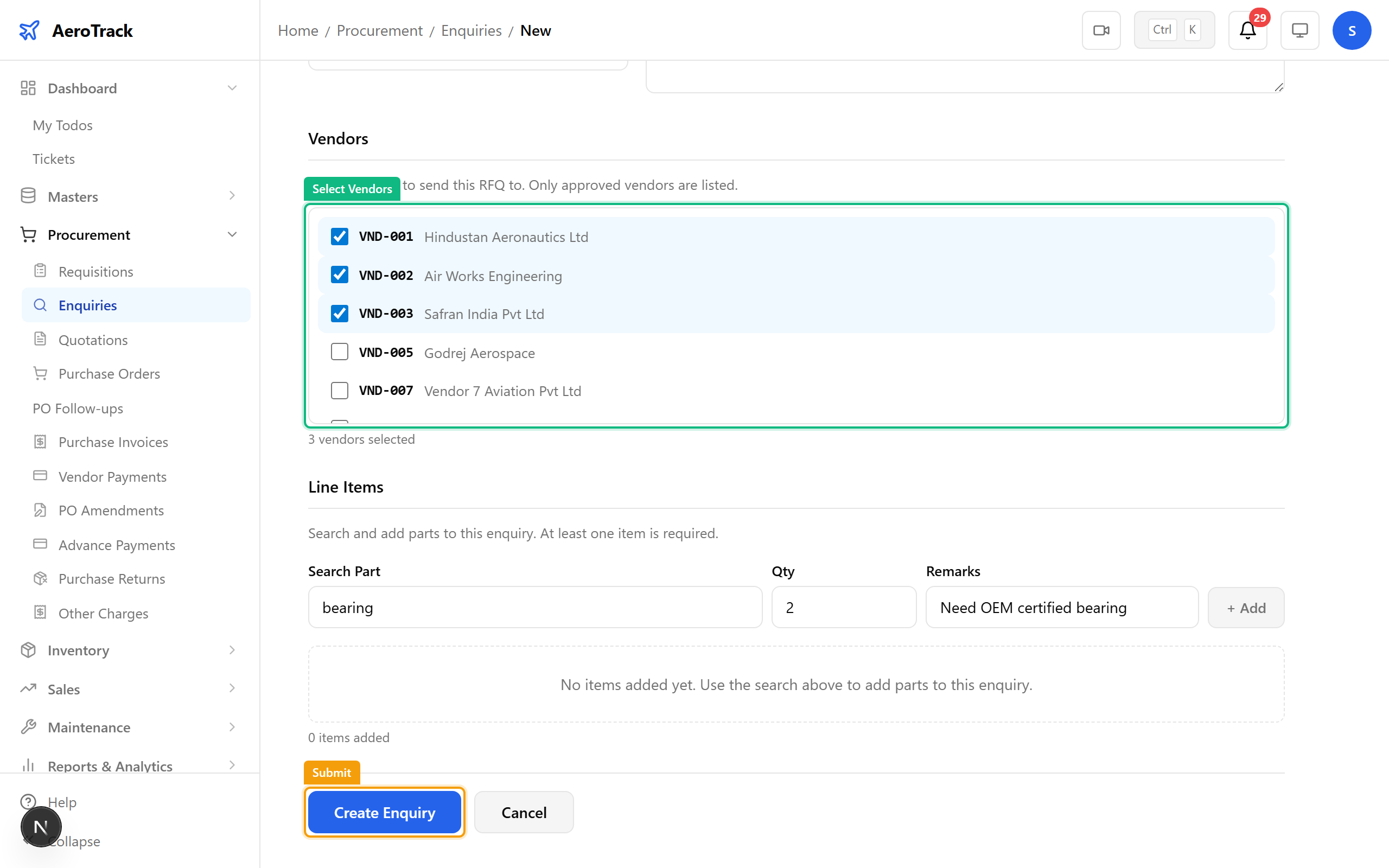
▲ Sending an RFQ to three vendors for the gearbox bearing.
The enquiry detail page shows which vendors were contacted, line items requested, and the current workflow state (DRAFT → SENT → CLOSED). Once sent, vendors receive the RFQ and can submit quotations.
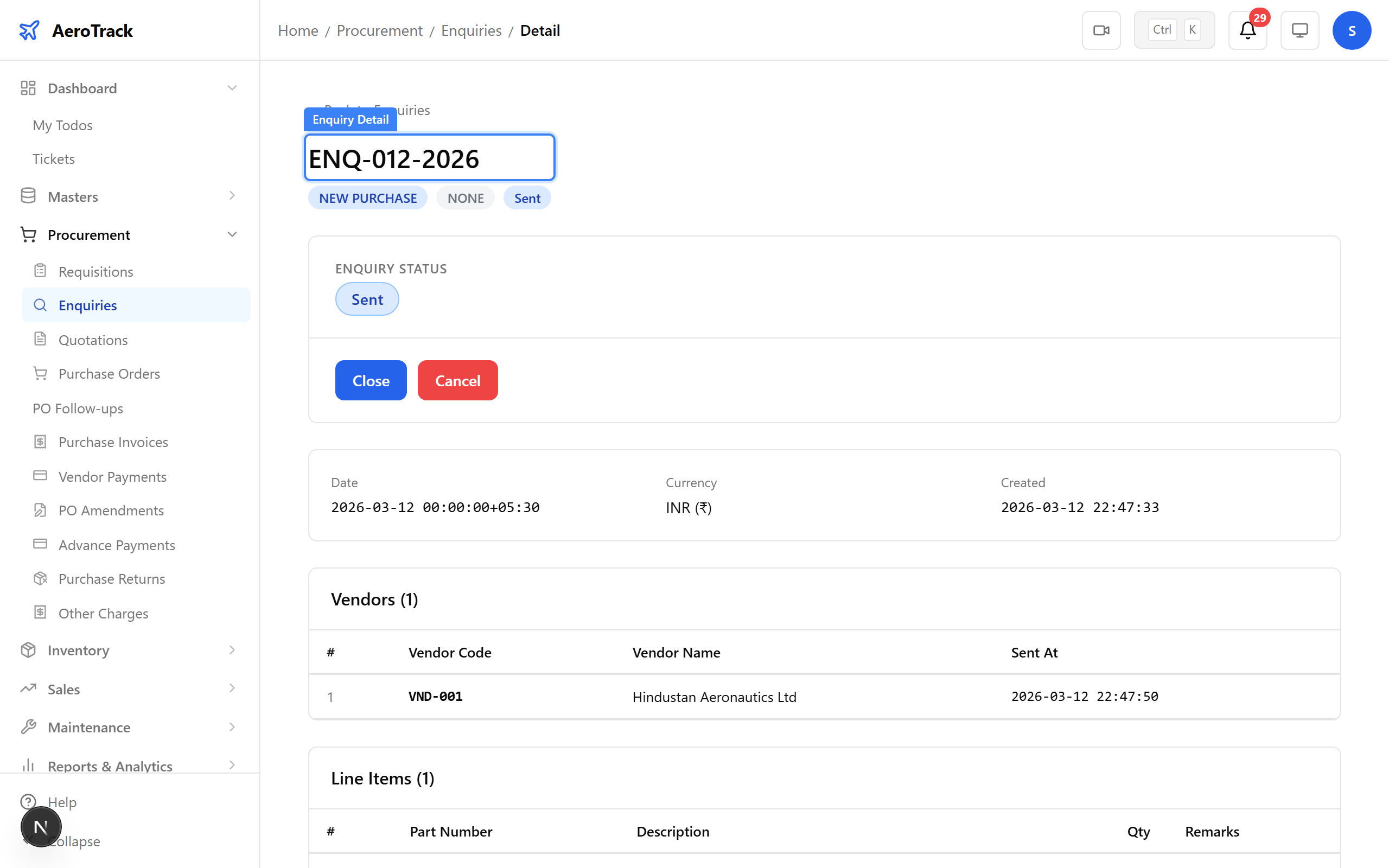
▲ Enquiry detail — vendors contacted, items listed, awaiting quotes.
Navigate to Procurement → Quotations. Vendor quotations are recorded here. Each quotation links back to the enquiry it was raised against.
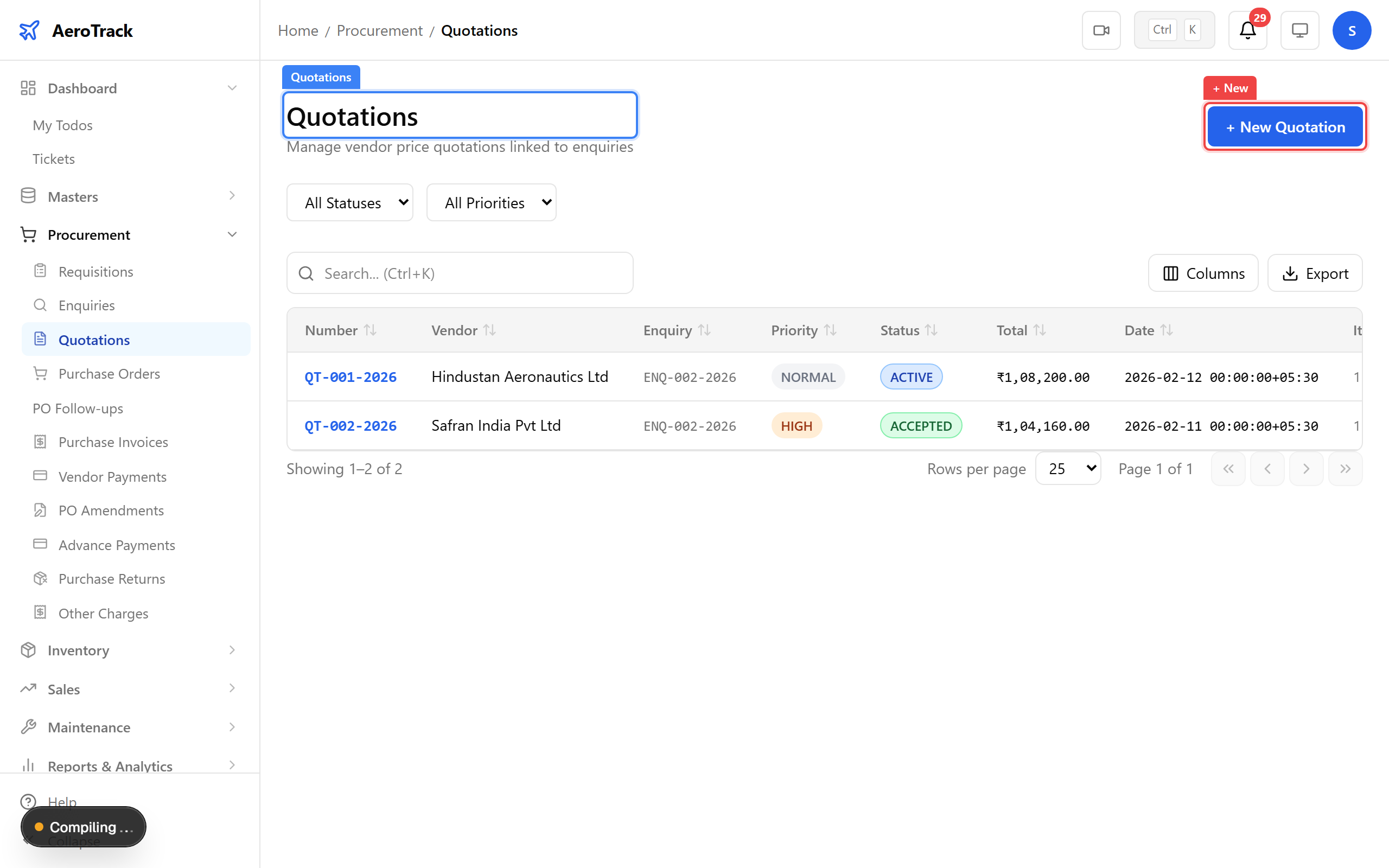
▲ Compare vendor quotations side by side.
Click + New. Link the quotation to an enquiry and select the vendor. Fill in the quoted date, validity period, delivery terms, payment terms, and line item prices.
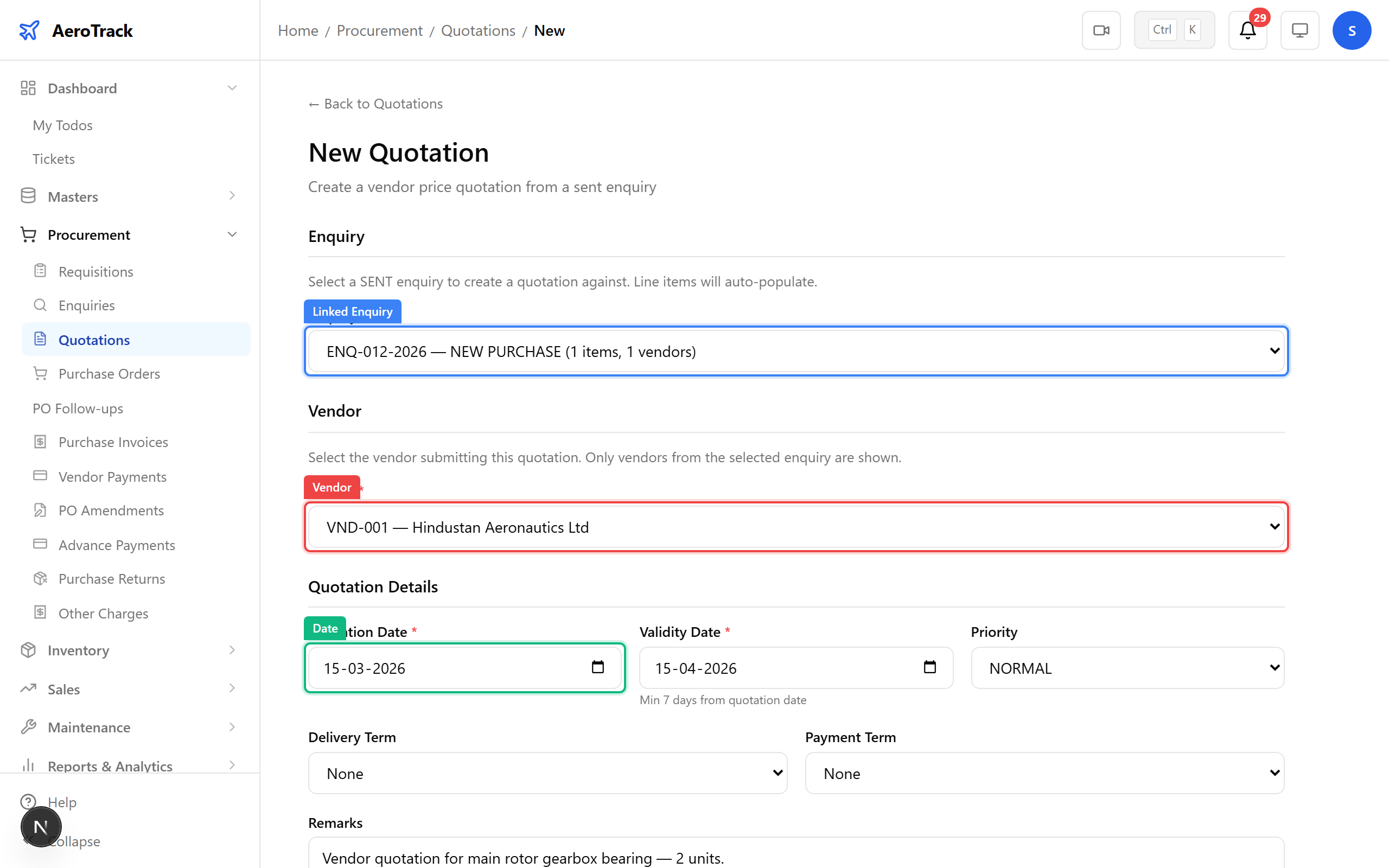
▲ Recording HAL’s quotation — linked to the bearing enquiry.
The quotation detail shows the vendor, line items with unit prices, subtotal, tax, shipping, and grand total. Quotation workflow: ACTIVE → ACCEPTED → CONVERTED (to PO). You can also track amendments to the original quote.
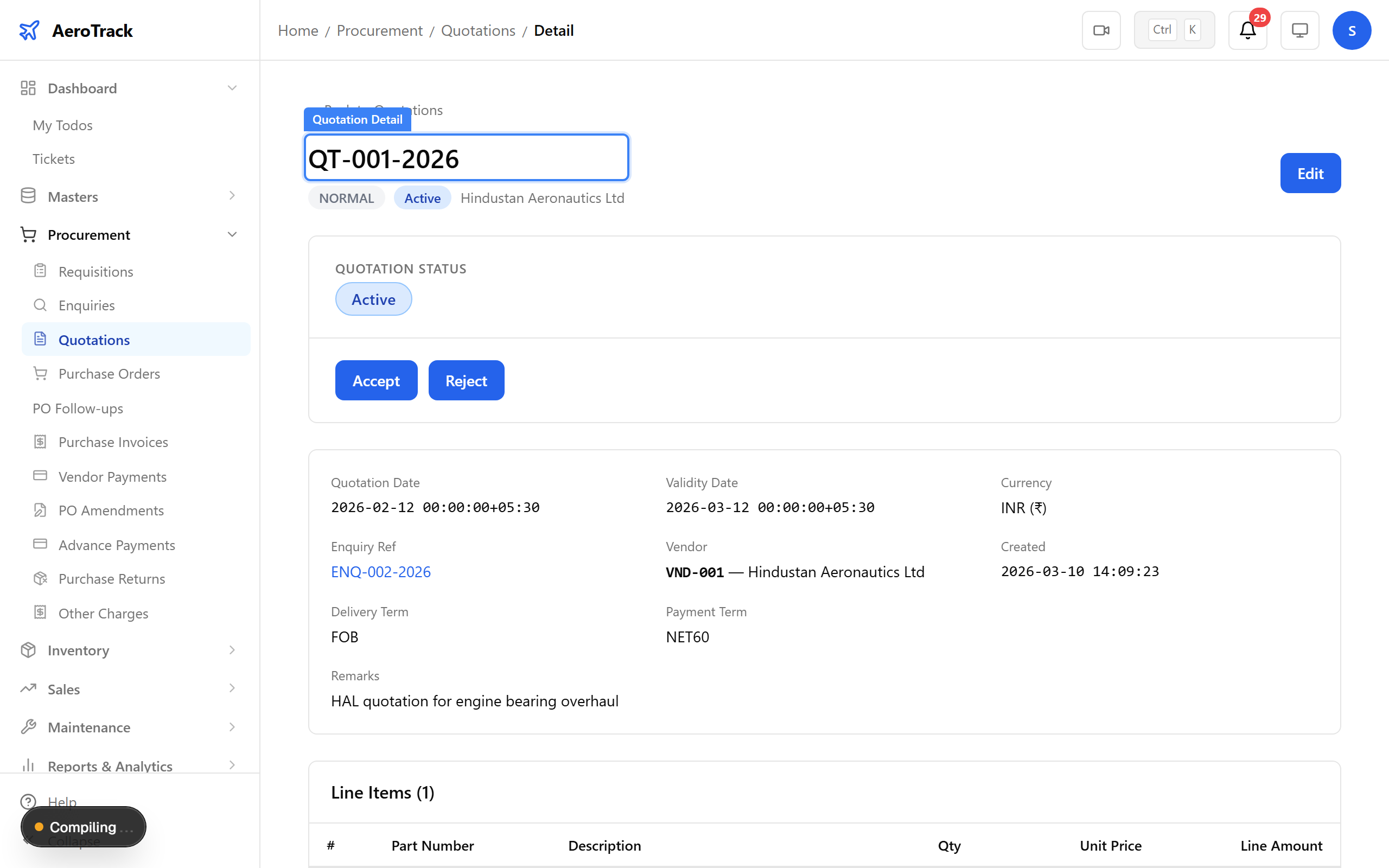
▲ Quotation detail — line items, totals, and amendment history.
Navigate to Procurement → Purchase Orders. The PO list shows all orders with their vendor, total amount, and workflow status. Filter by type or priority.
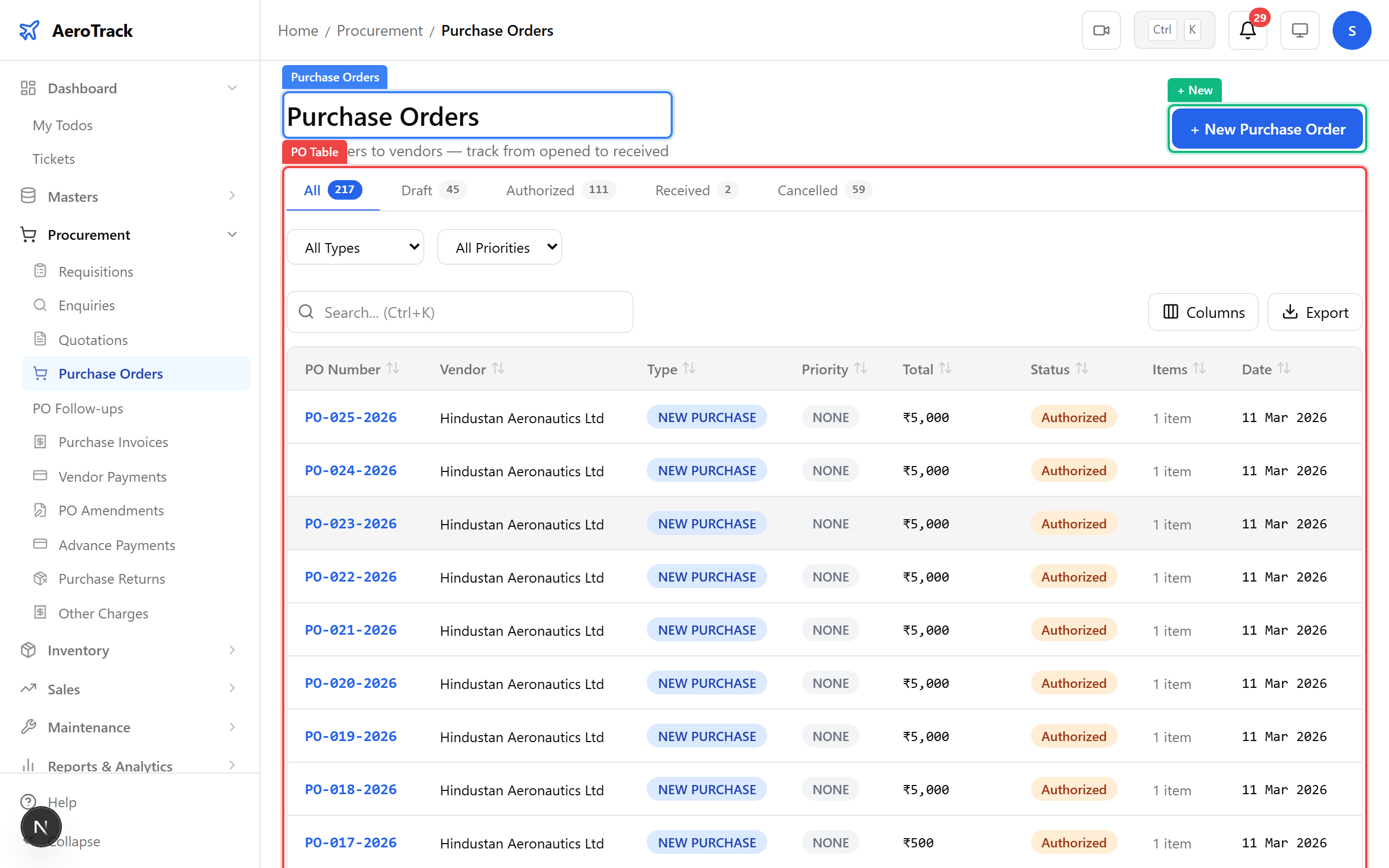
▲ All purchase orders — from draft to received.
Click + New PO. Select the vendor (HAL), currency, delivery timeline, and add line items with quantity and unit price.
| Field | Purpose |
|---|---|
| Type | Standard / Blanket / Rate contract |
| Priority | Normal / Urgent / Critical — affects follow-up cadence |
| Vendor | Search & select from the Vendor Master |
| Currency | INR / USD / EUR — exchange rate auto-applied |
| Delivery Days | Expected delivery lead time in days |
| Part Search | Search the Part Master to add line items |
| Quantity / Price | Order quantity and agreed unit price |
| Remarks | Delivery instructions, special conditions |
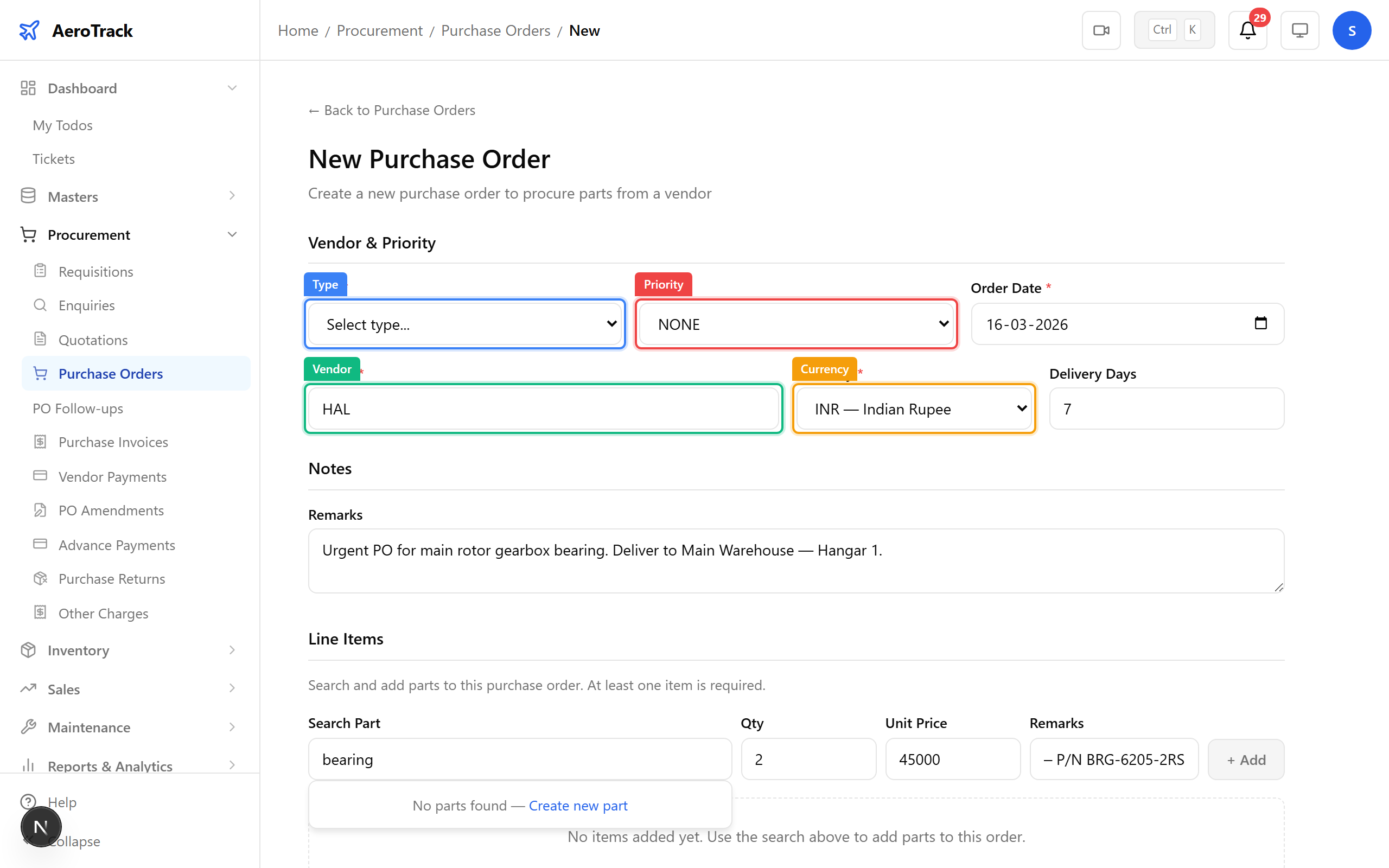
▲ Creating a PO to HAL for 2× gearbox bearings — ₹45,000 each, 7-day delivery.
After saving, the PO detail page shows the full order with line items, grand total, and an OPENED status. The workflow path: OPENED → AUTHORIZED → RECEIVED. From here you can create follow-ups, amendments, and attach other charges.
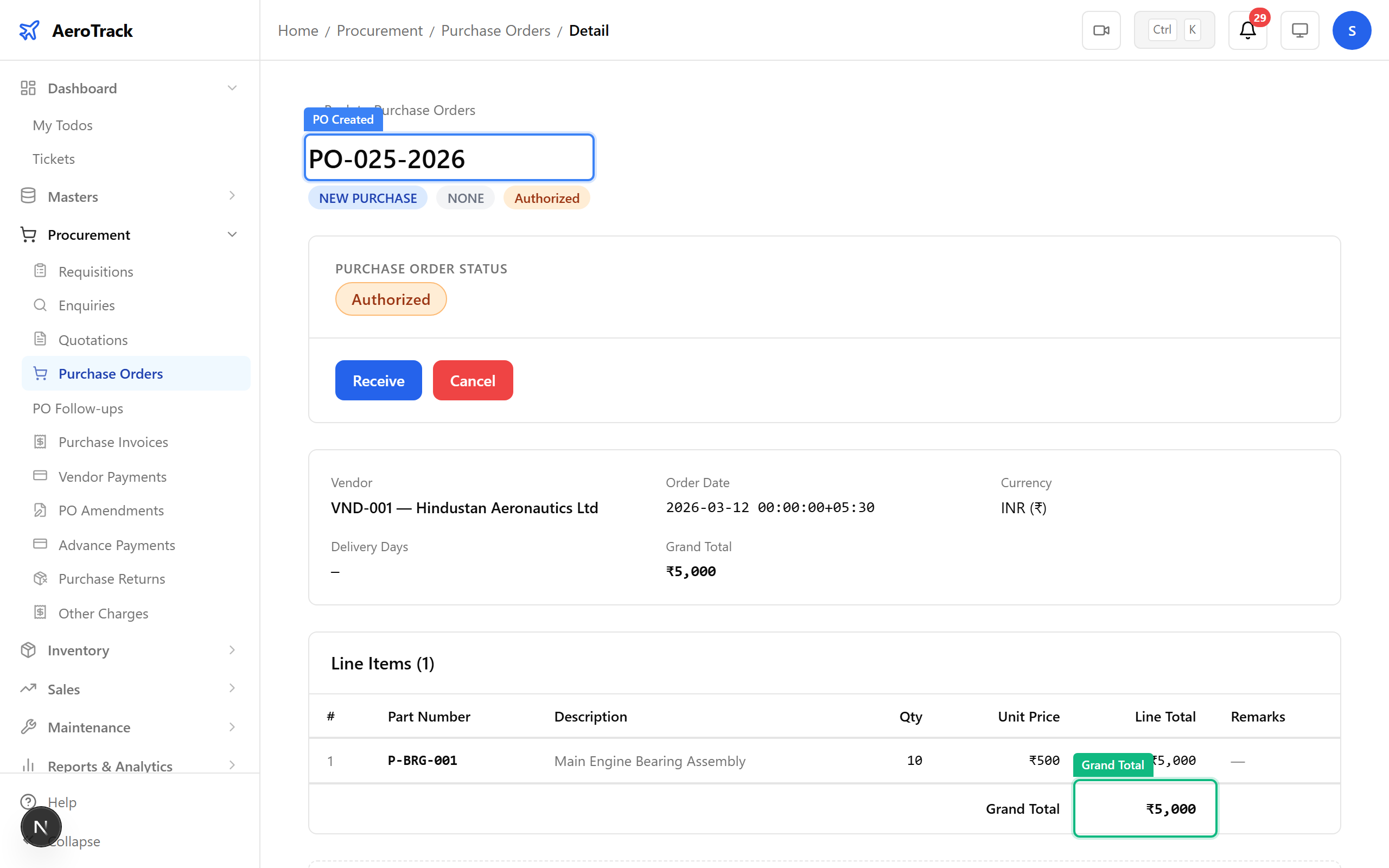
▲ PO created — line items, grand total, and workflow actions.
After management approval, the PO transitions to AUTHORIZED. The PO can now be sent to the vendor. The transition summary shows who authorized and when.
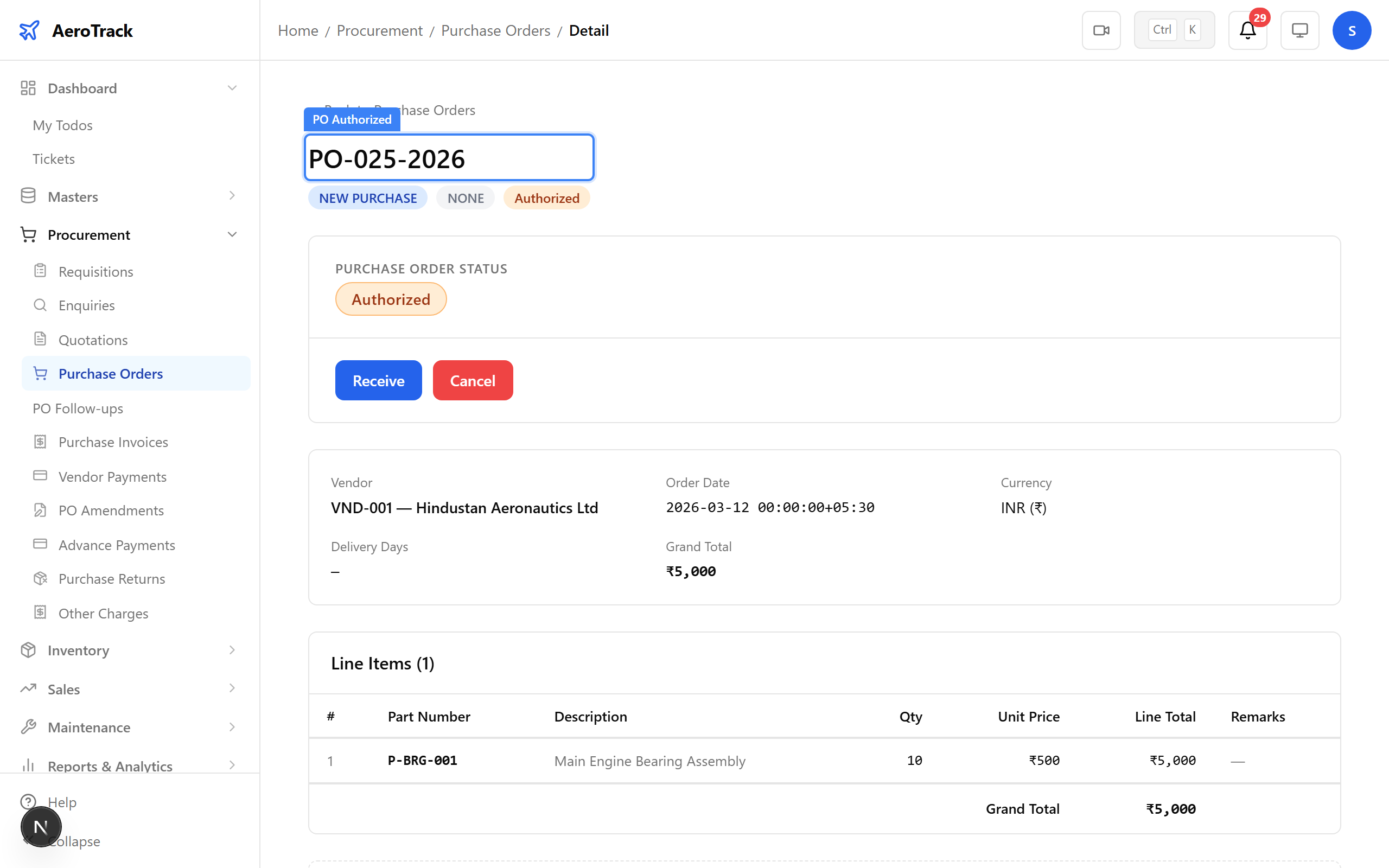
▲ PO authorized — ready to send to vendor for fulfillment.
When the vendor delivers the parts and the goods receipt is completed, the PO moves to RECEIVED. The grand total is confirmed, and the PO is ready for invoice matching.
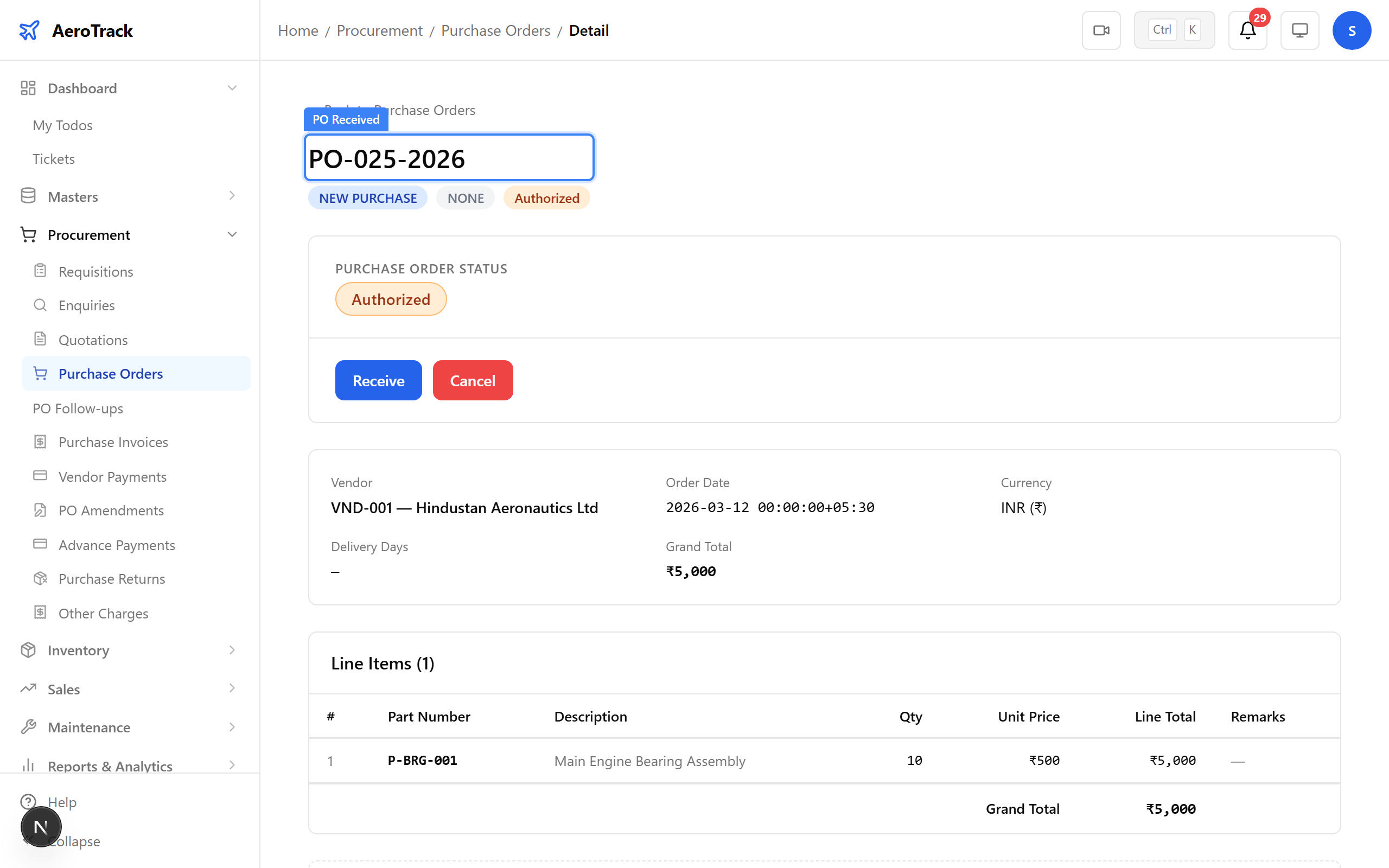
▲ PO received — parts delivered, ready for invoicing.
Navigate to Procurement → Invoices. Purchase invoices are matched against POs using three-way matching (PO, GRN, Invoice). Filter by status or match status.
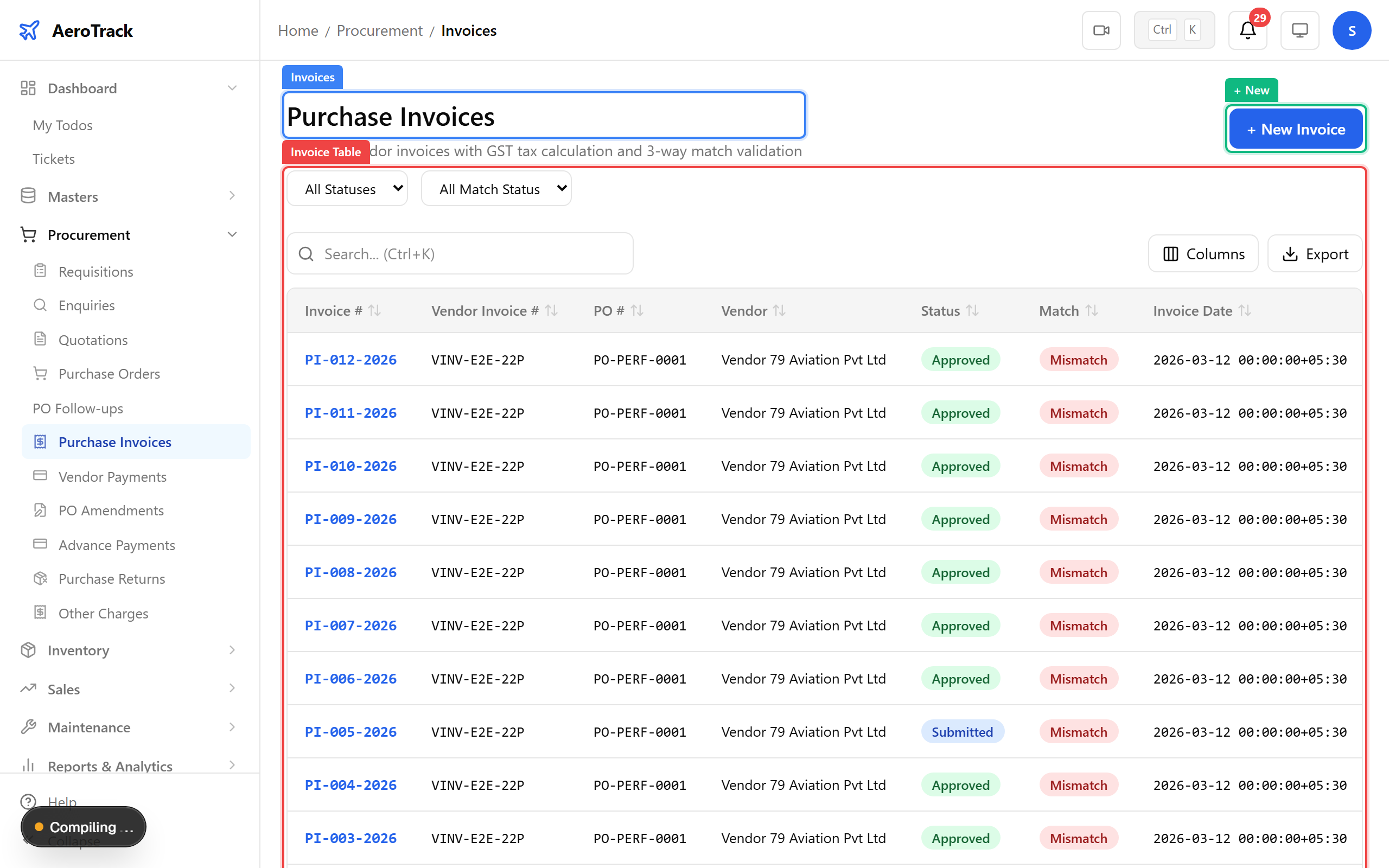
▲ Purchase invoices — three-way match status at a glance.
Click + New. Select the PO to invoice against — line items auto-populate from the PO. Enter the vendor’s invoice number, dates, and verify the tax summary.
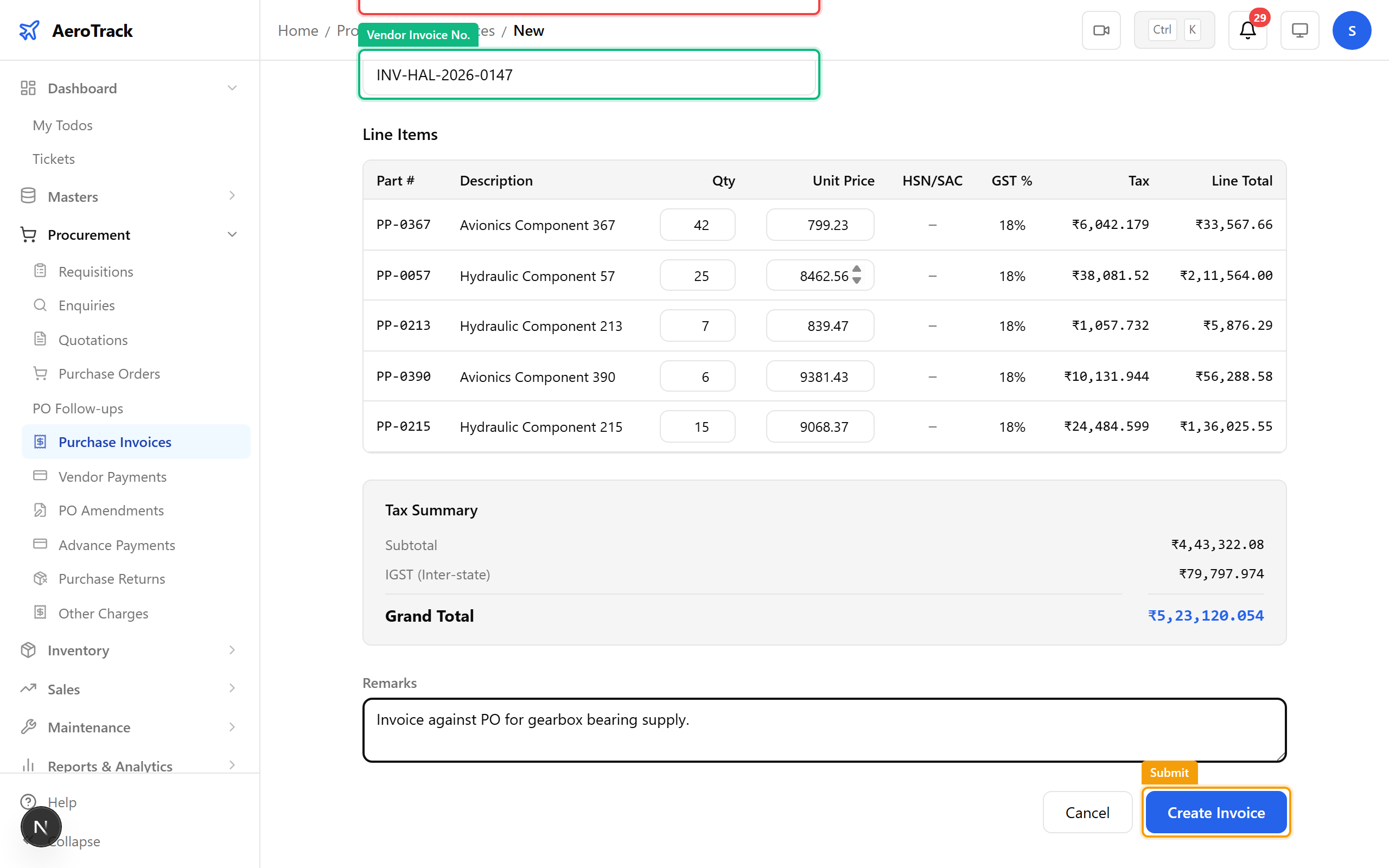
▲ Creating an invoice against the bearing PO — items and amounts pulled from the PO.
The invoice detail shows the invoice number, vendor, line items, tax summary, grand total, and three-way match status. The workflow: DRAFT → SUBMITTED → APPROVED → PAID. A payment section tracks partial and full payments.
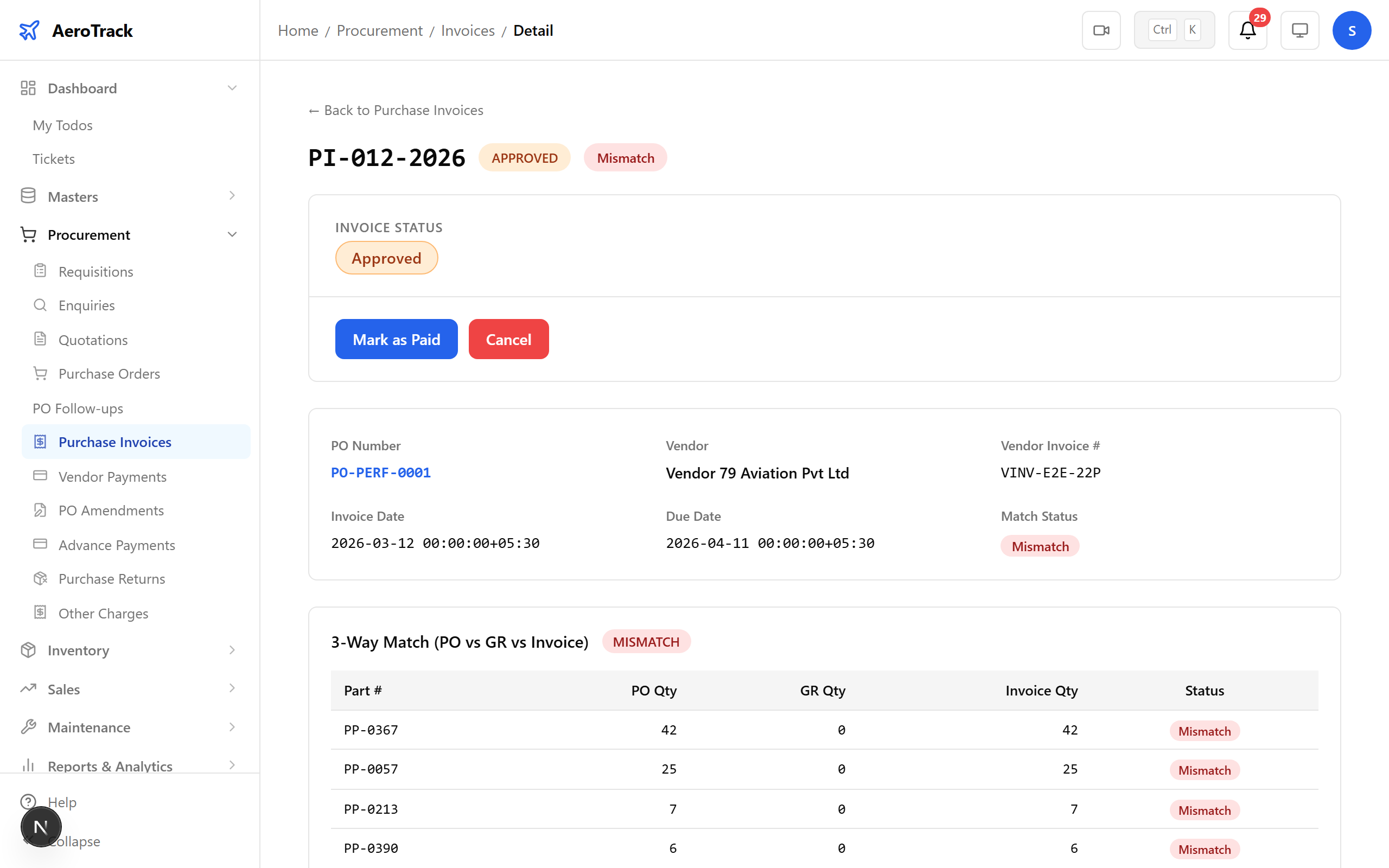
▲ Invoice detail — line items, tax, grand total, and payment tracking.
Navigate to Procurement → Returns. If received parts are defective or incorrect, a purchase return is raised against the goods receipt.
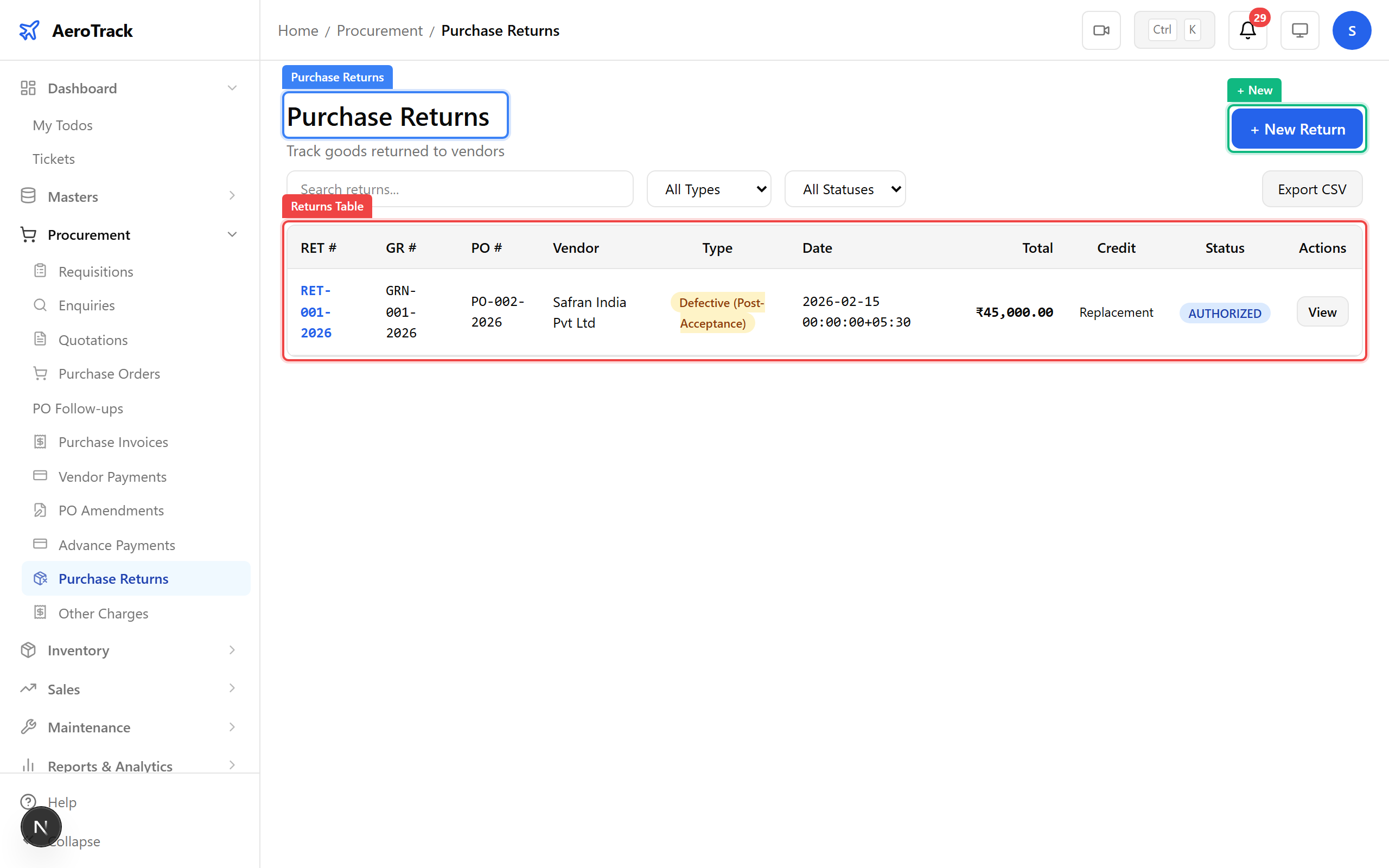
▲ Purchase returns — track defective and incorrect part returns to vendors.
Click + New. Select the goods receipt, specify the return type (defective / incorrect / excess), reason, and whether credit is expected. Items auto-populate from the GR.
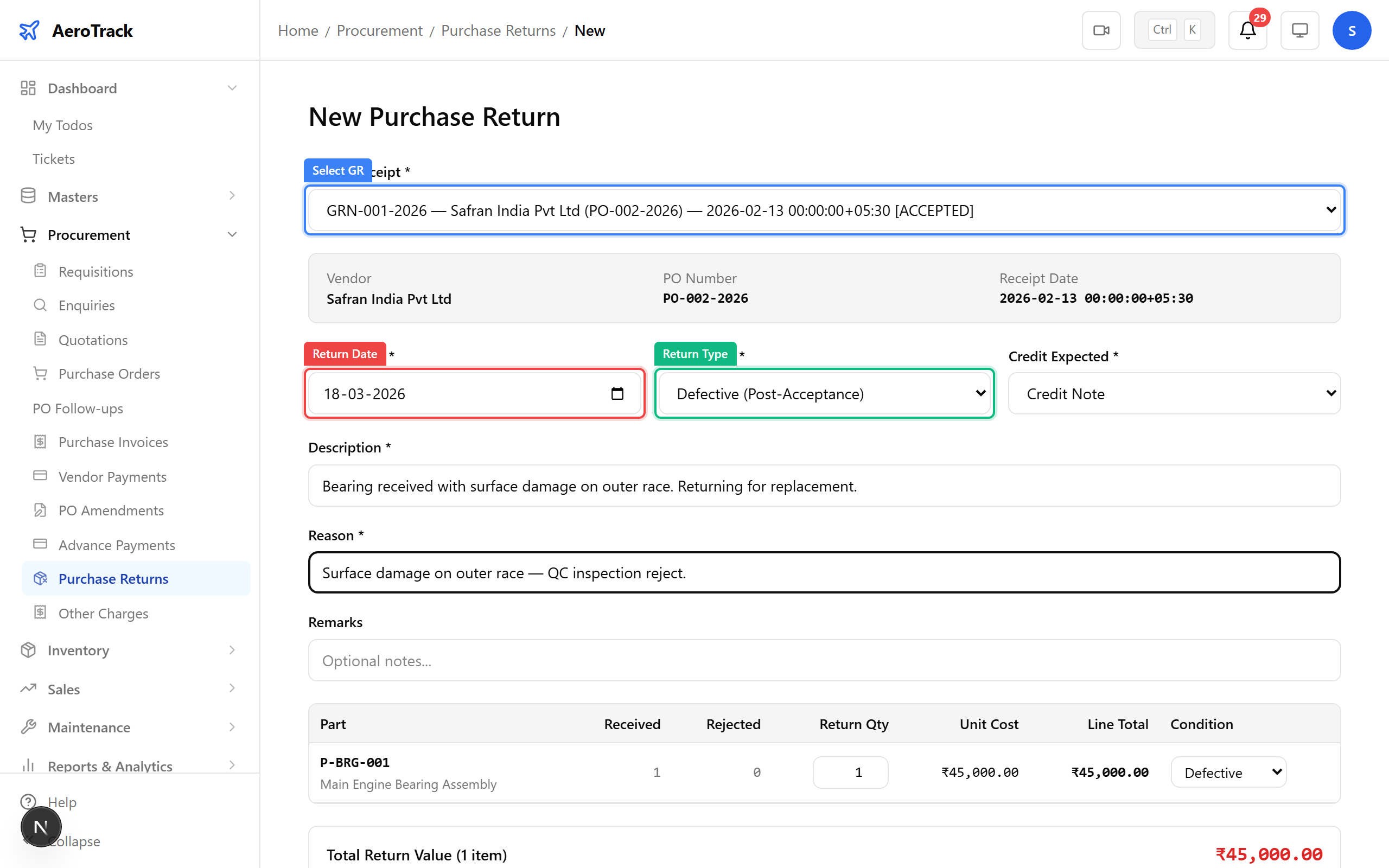
▲ Returning a bearing with surface damage — linked to the original goods receipt.
The return detail shows the return number, linked PO and vendor, return type, reason, and status badge. The workflow: DRAFT → AUTHORIZED → DISPATCHED → COMPLETED.
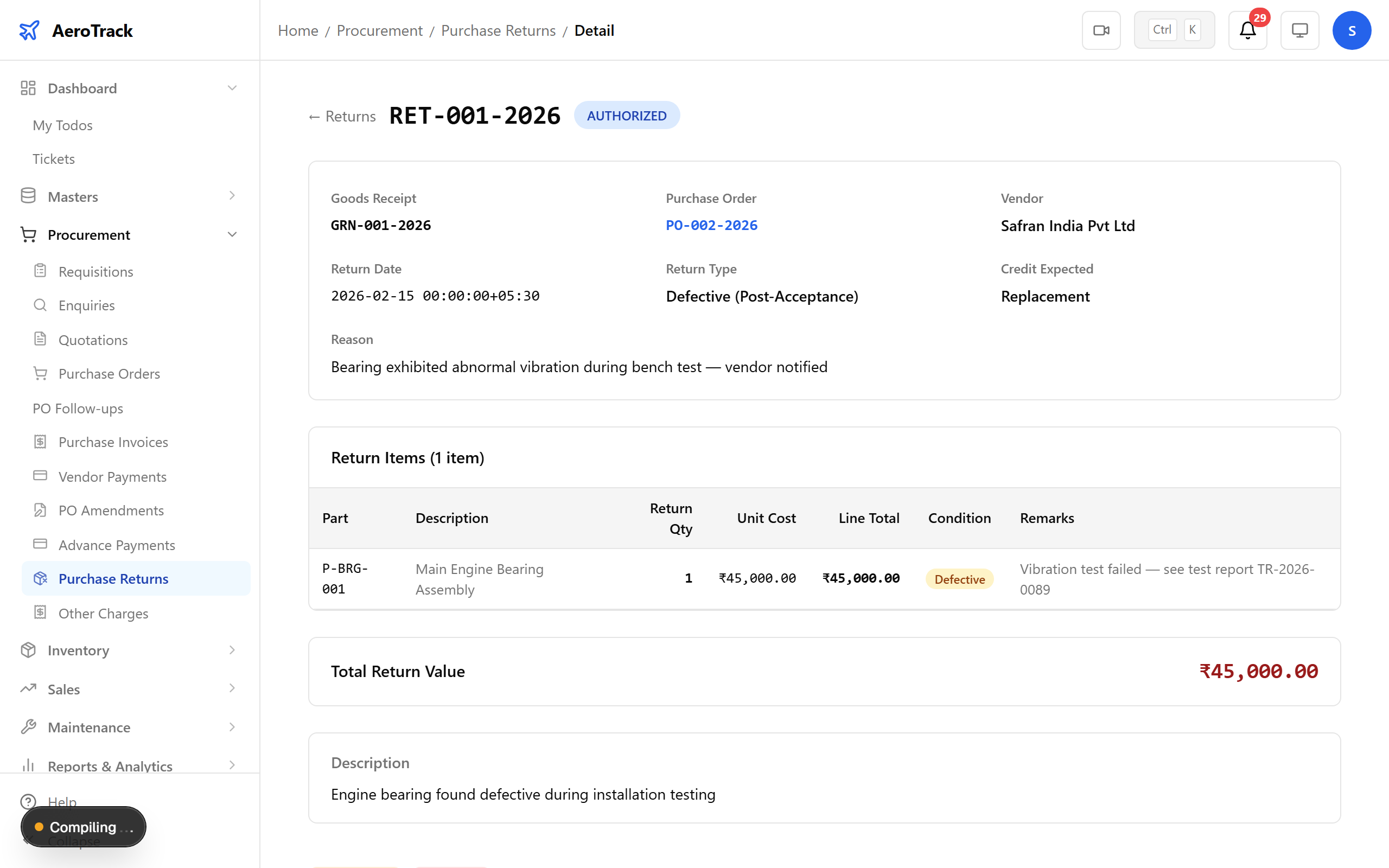
▲ Return detail — status, vendor, reason, and dispatch tracking.
Navigate to Procurement → Advance Payments. Vendor advances track prepayments that are later applied against invoices. Each advance shows utilization progress.
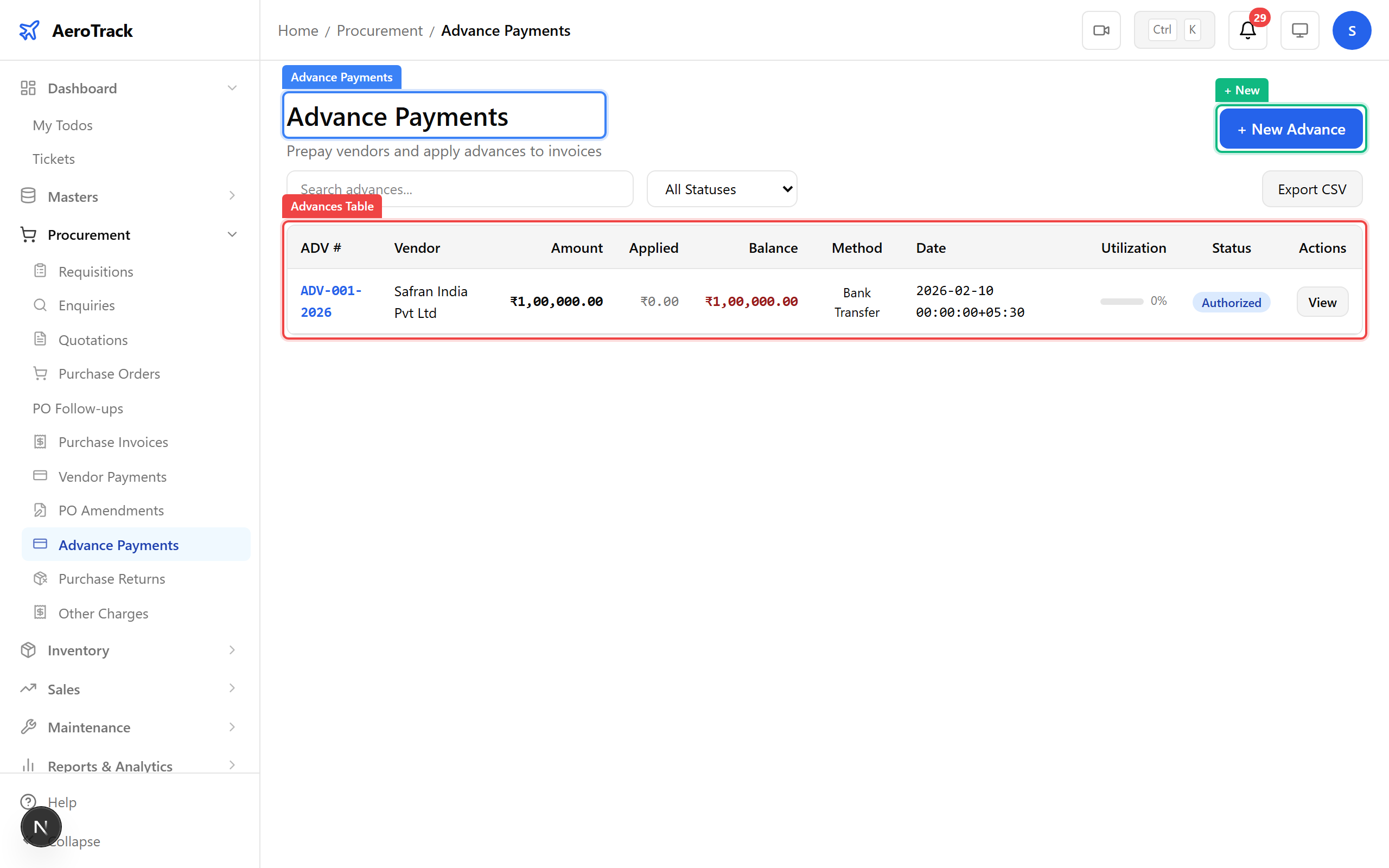
▲ Vendor advances — track prepayments and utilization.
Click + New. Select the vendor, enter the advance amount, payment date, method (bank transfer / cheque / cash), and a transaction reference. Add a description explaining the advance purpose.
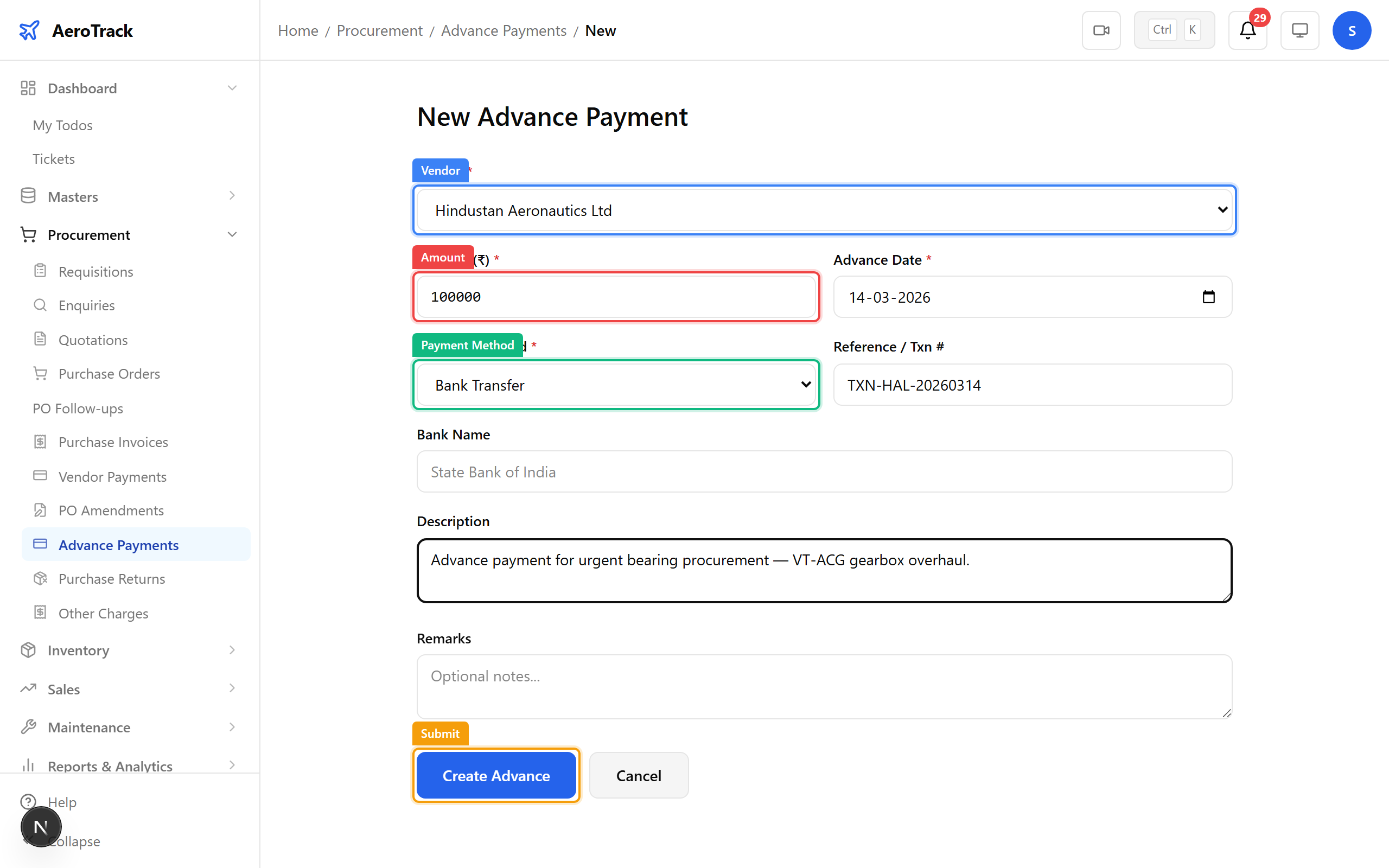
▲ Issuing a ₹1,00,000 advance to HAL for the urgent bearing order.
The advance detail shows the advance number, vendor, amount, balance, utilization progress bar, and status badge. The workflow: DRAFT → AUTHORIZED → PARTIALLY_APPLIED → FULLY_APPLIED. You can apply the advance against invoices directly from this page.
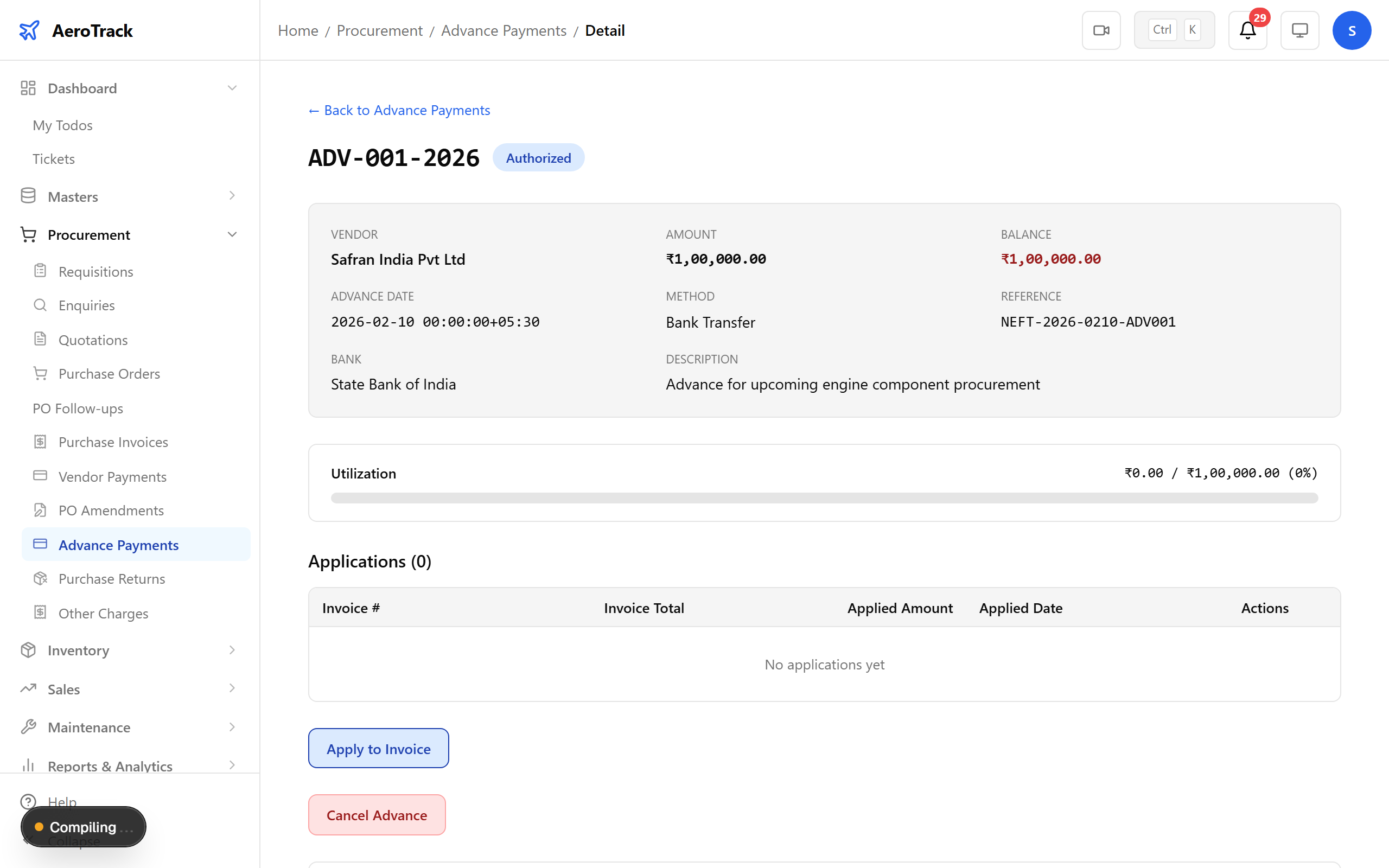
▲ Advance detail — authorized, with utilization tracking and invoice application.
Navigate to Procurement → Payments → Aging. The aging report shows outstanding vendor balances bucketed by age (0–30, 31–60, 61–90, 90+ days). Use this to prioritize vendor payments and avoid overdue situations.
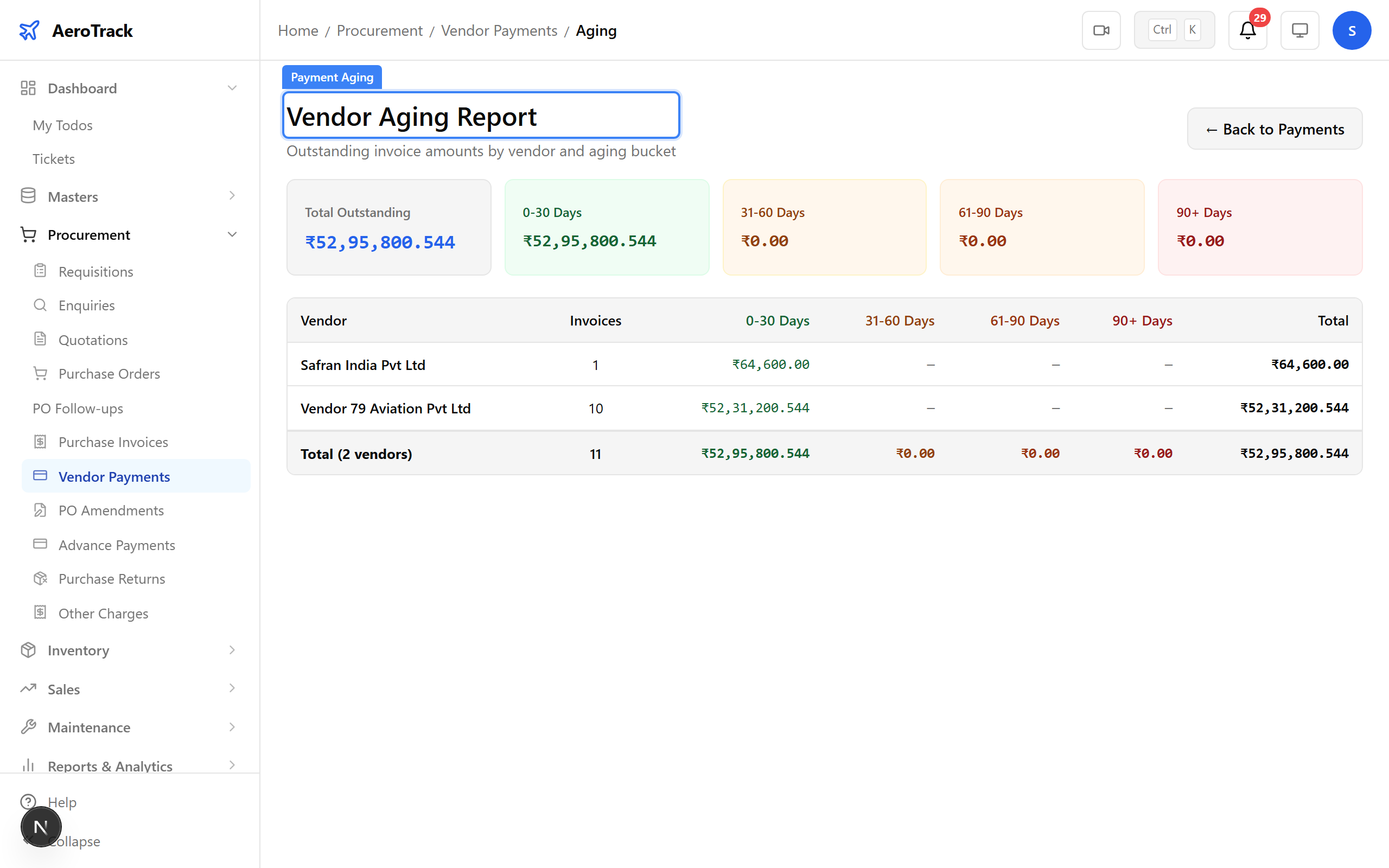
▲ Payment aging — vendor balances by age bucket.
Navigate to Reports. AeroTrack offers 39+ report types covering procurement, inventory, sales, and operations. Key procurement reports include Order History, Part Purchase Statement, Requisition Item Status, and GRN Summary.
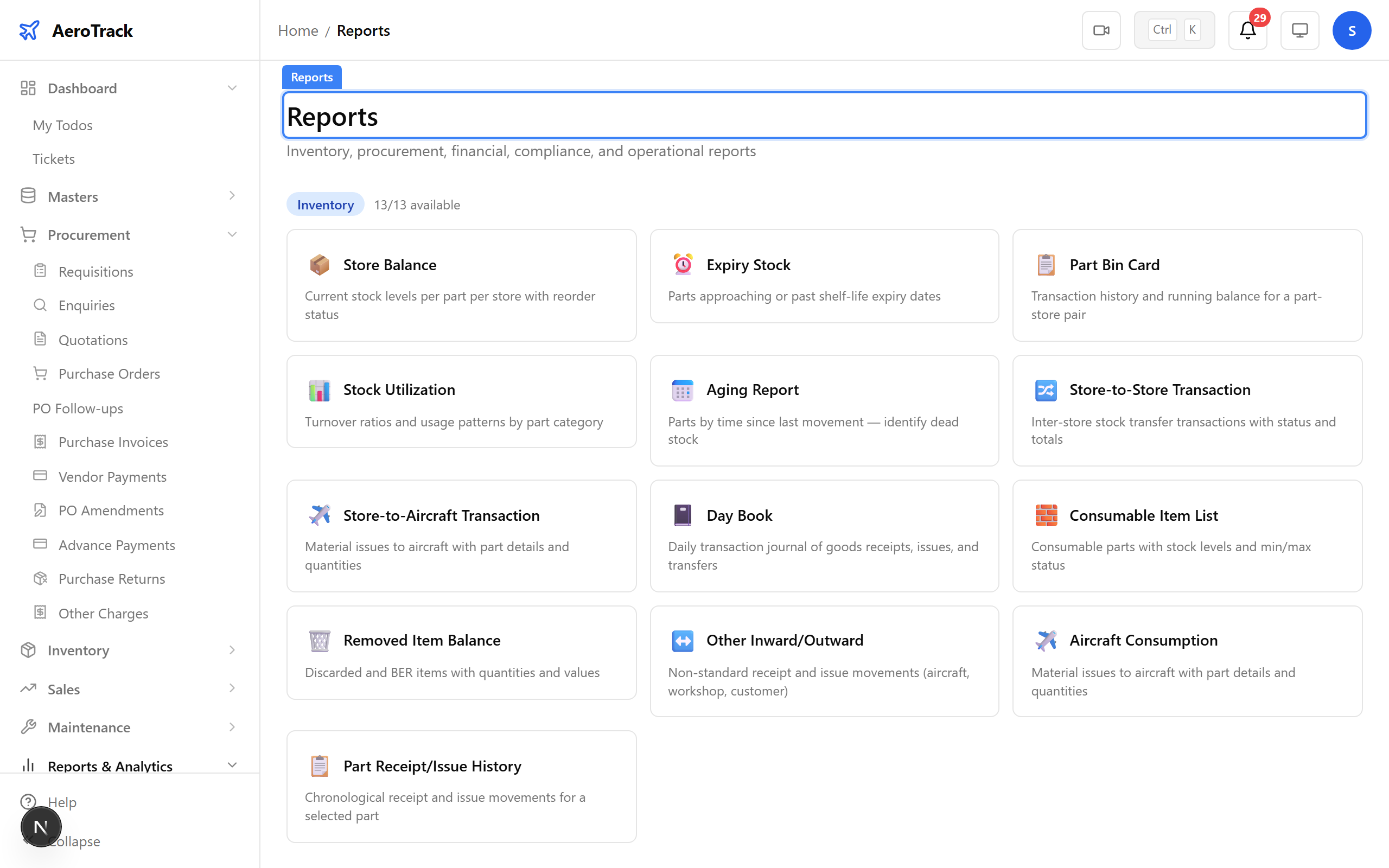
▲ Reports index — 39+ built-in reports across all modules.
The full procurement chain is complete: Requisition → Enquiry → Quotation → Purchase Order → Invoice → Payment. Each step feeds the next, with full audit trail and three-way matching for financial control.
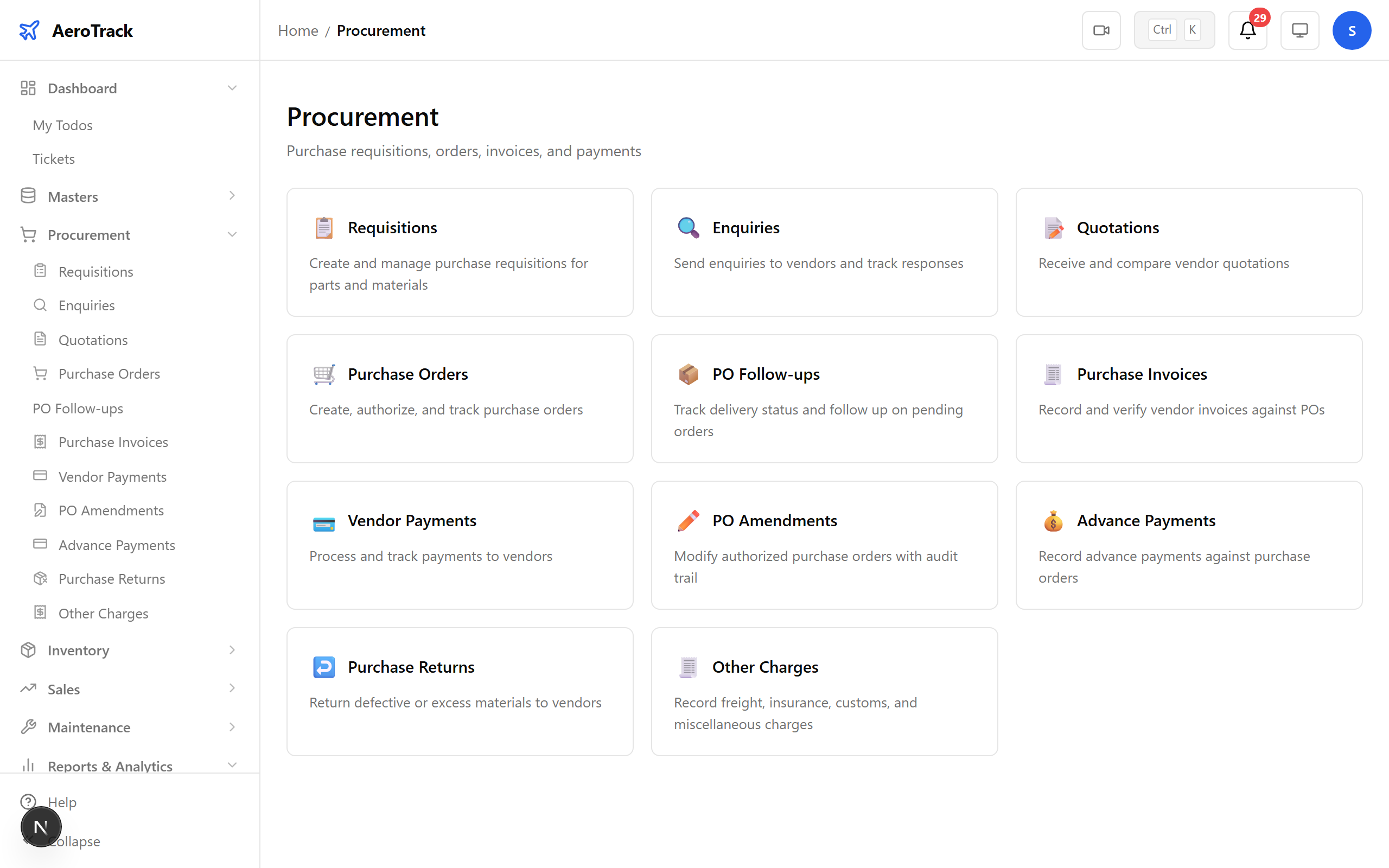
▲ The complete procure-to-pay chain — from need to delivery.