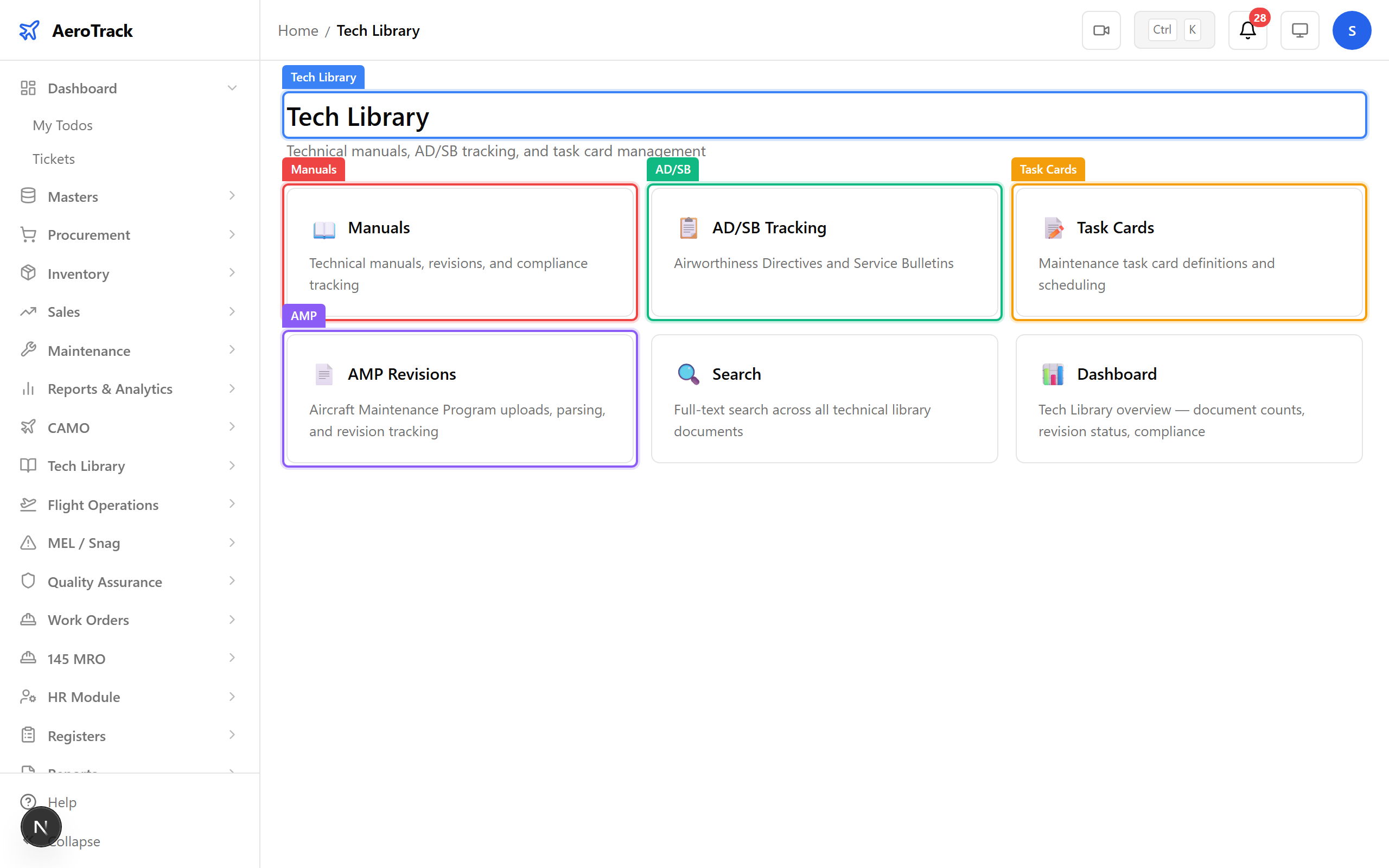
Navigate to Tech Library in the sidebar. The landing page gives you quick-access cards to every sub-module: Manuals, AD/SB, Task Cards, AMP, Search, and Dashboard.
The dashboard shows KPI cards: total manuals, manuals due for revision, open ADs requiring compliance, and active task cards. This is your daily health check for documentation currency.
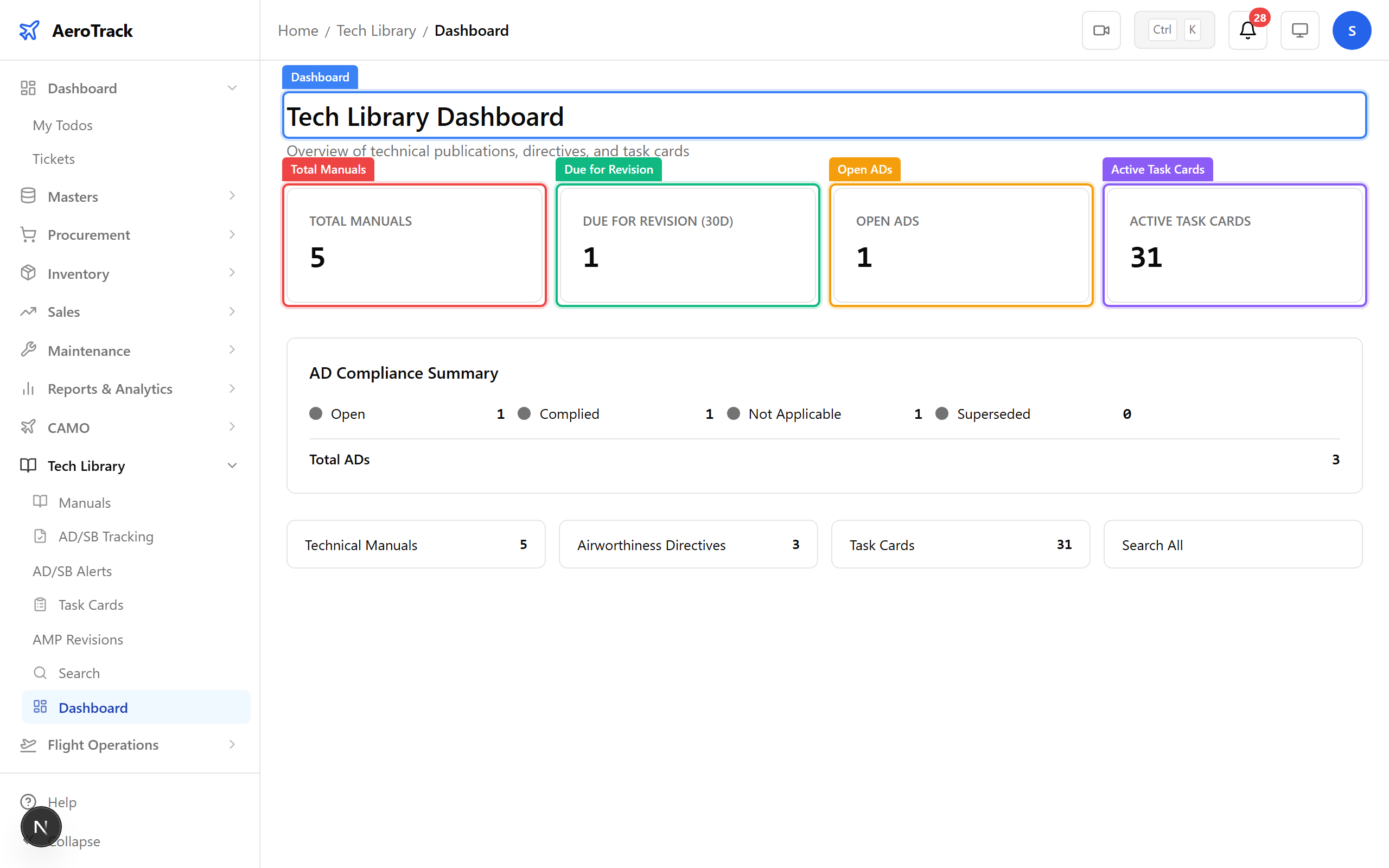
▲ The library dashboard flags manuals needing revision and ADs requiring compliance action.
Click Search to find anything across the entire library — manuals, task cards, ADs, and AMP entries. Type a keyword (e.g. "engine") and results appear instantly.
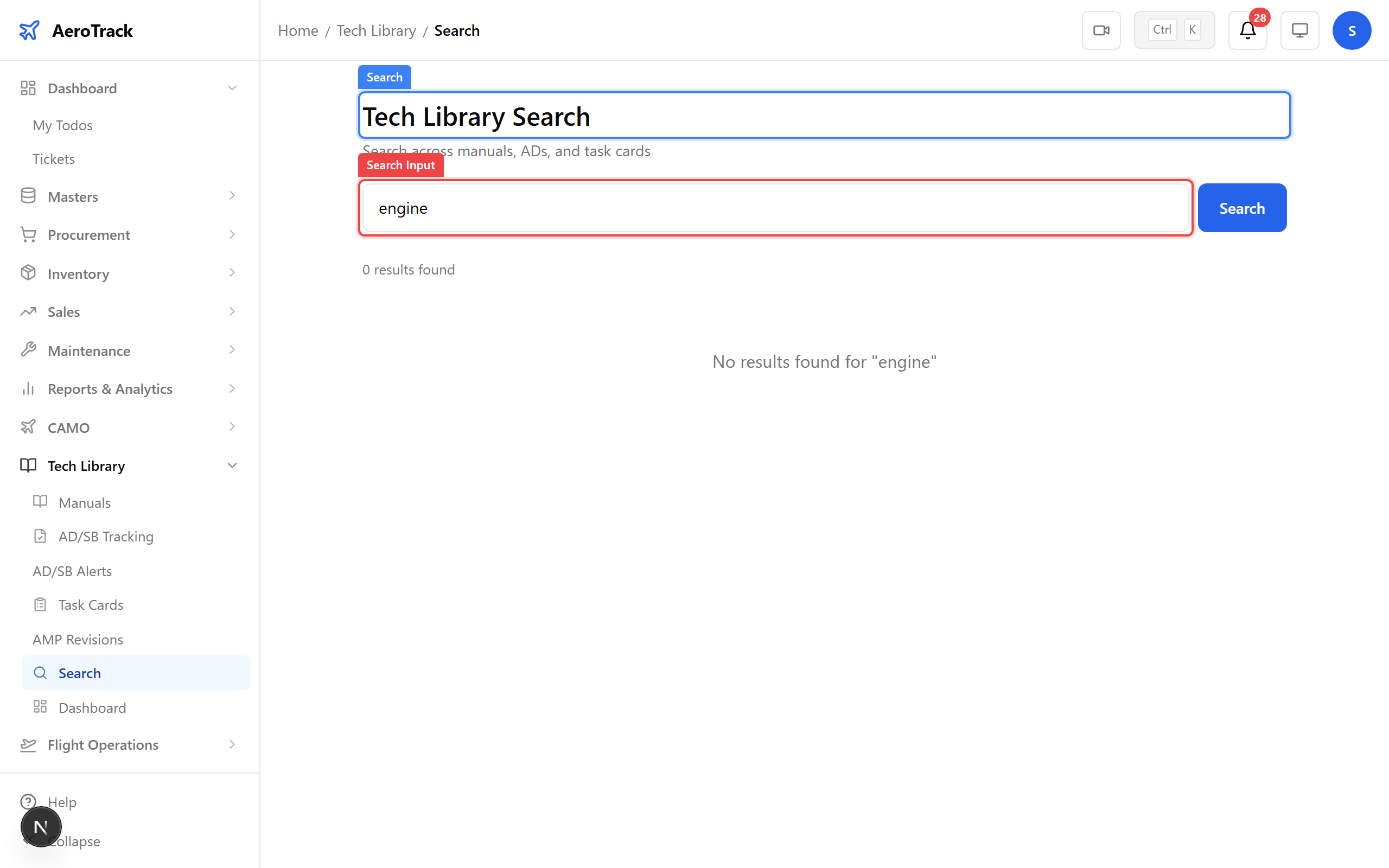
▲ Cross-library search finds manuals, task cards, and ADs in one place.
Navigate to Tech Library → Manuals. This is your catalogue of all technical publications — AMMs, IPCs, SRMs, CMMs, and wiring diagrams. Status badges show which manuals are current and which need revision.
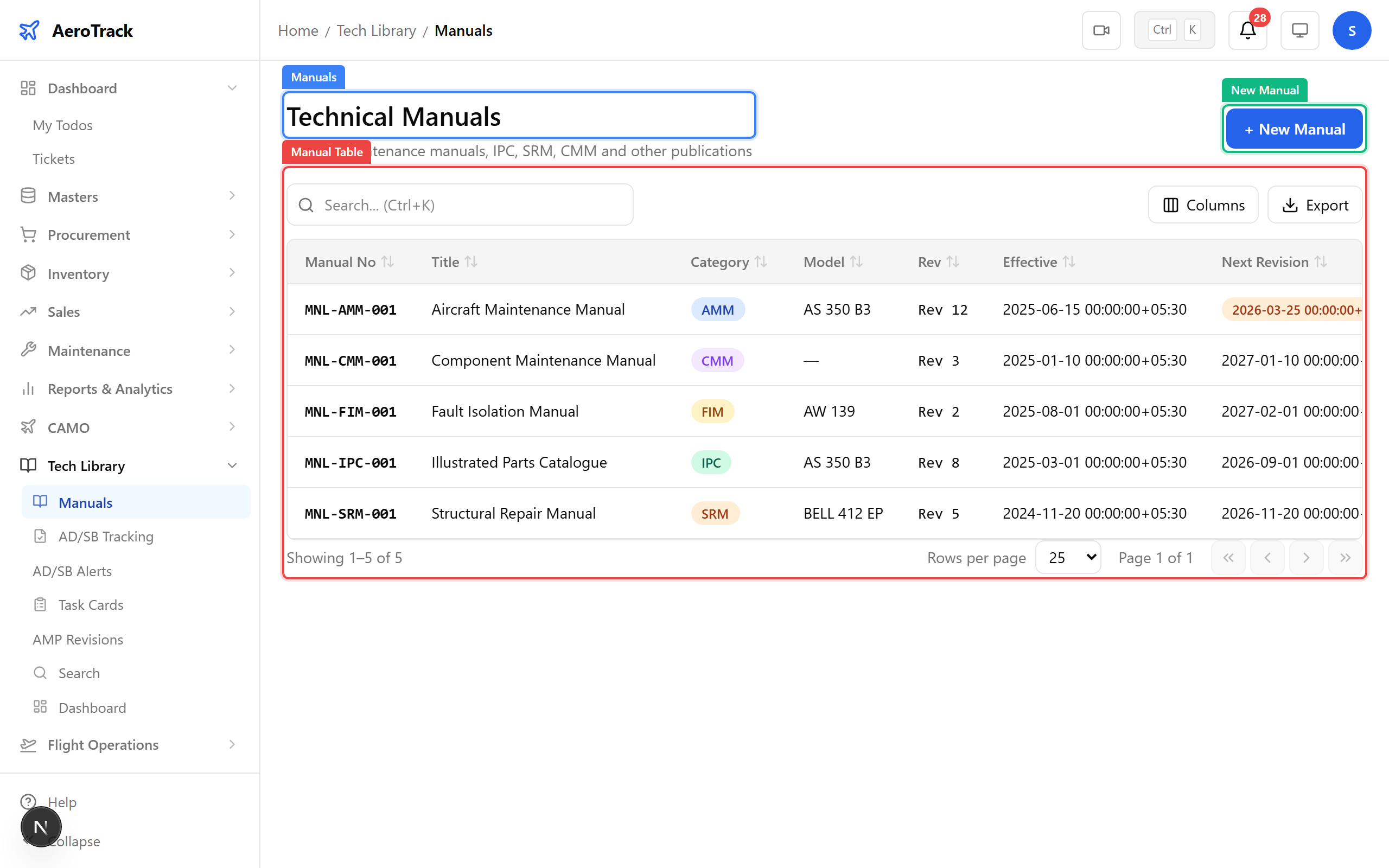
Click New Manual. The manual type determines how tasks reference it — AMM is the primary maintenance reference, IPC for parts lookup, SRM for structural repairs.
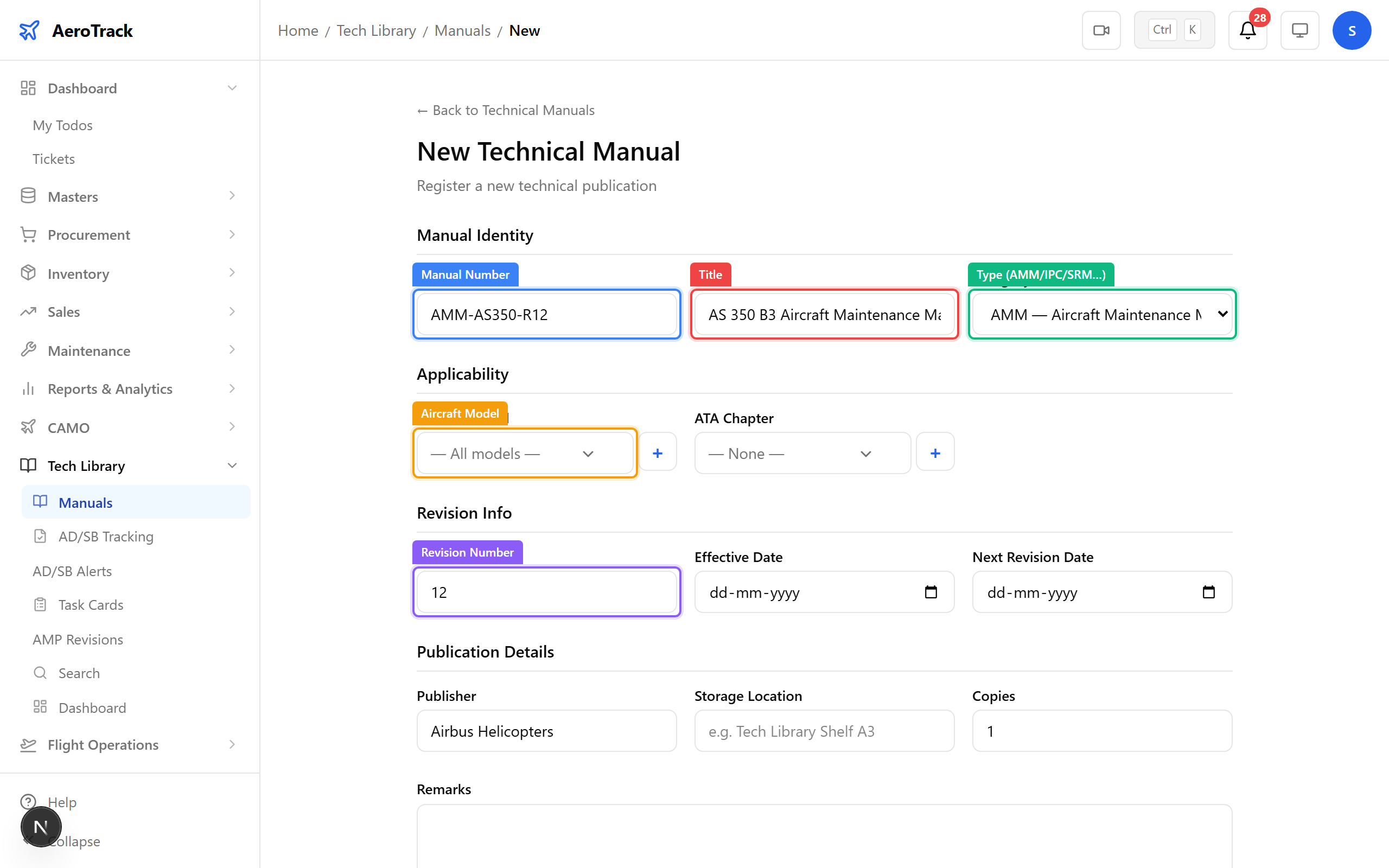
▲ The manual type determines how tasks reference it. AMM is the primary maintenance reference.
| Field | Purpose |
|---|---|
| Manual Number | Unique document reference (e.g. AMM-AS350-R12) |
| Title | Full title of the publication |
| Category | AMM / IPC / SRM / CMM / FIM / WDM / Other |
| Aircraft Model | Links the manual to a specific aircraft type |
| ATA Chapter | Associates the manual with an ATA system chapter |
| Revision Number | Current revision — track changes over time |
| Effective Date | When this revision became effective |
| Next Revision Date | Triggers a reminder when revision is due |
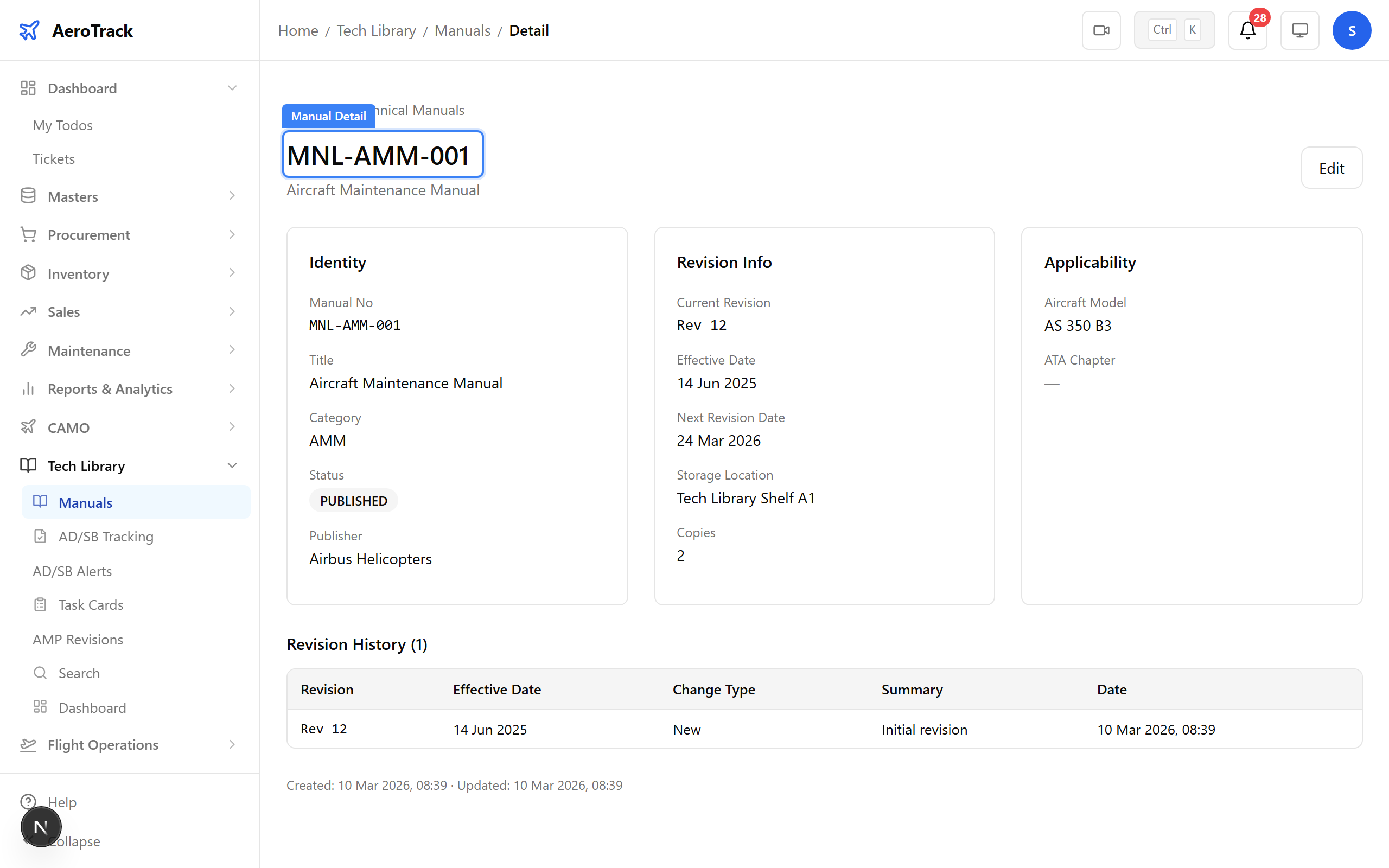
Click any manual to see its full detail — document identity, revision history, applicable aircraft model, ATA chapter, and status. This is the reference page for auditors checking documentation currency.
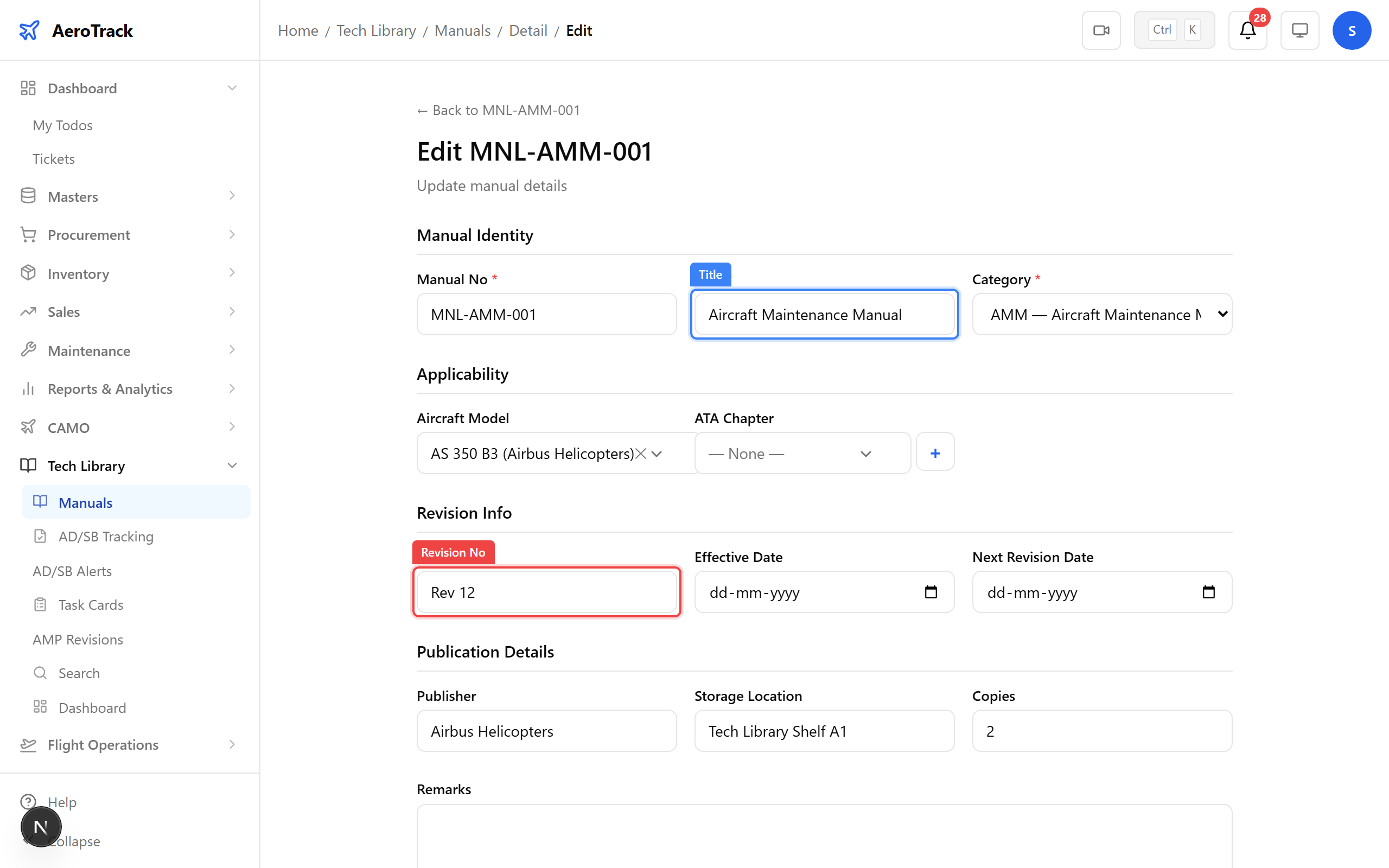
From the detail page, click Edit to update the revision number, effective date, or next revision date. Revision changes are audit-logged.
Navigate to Tech Library → AMP. The AMP (Approved Maintenance Program) defines what inspections and tasks apply to each aircraft model. Each revision is tracked separately.
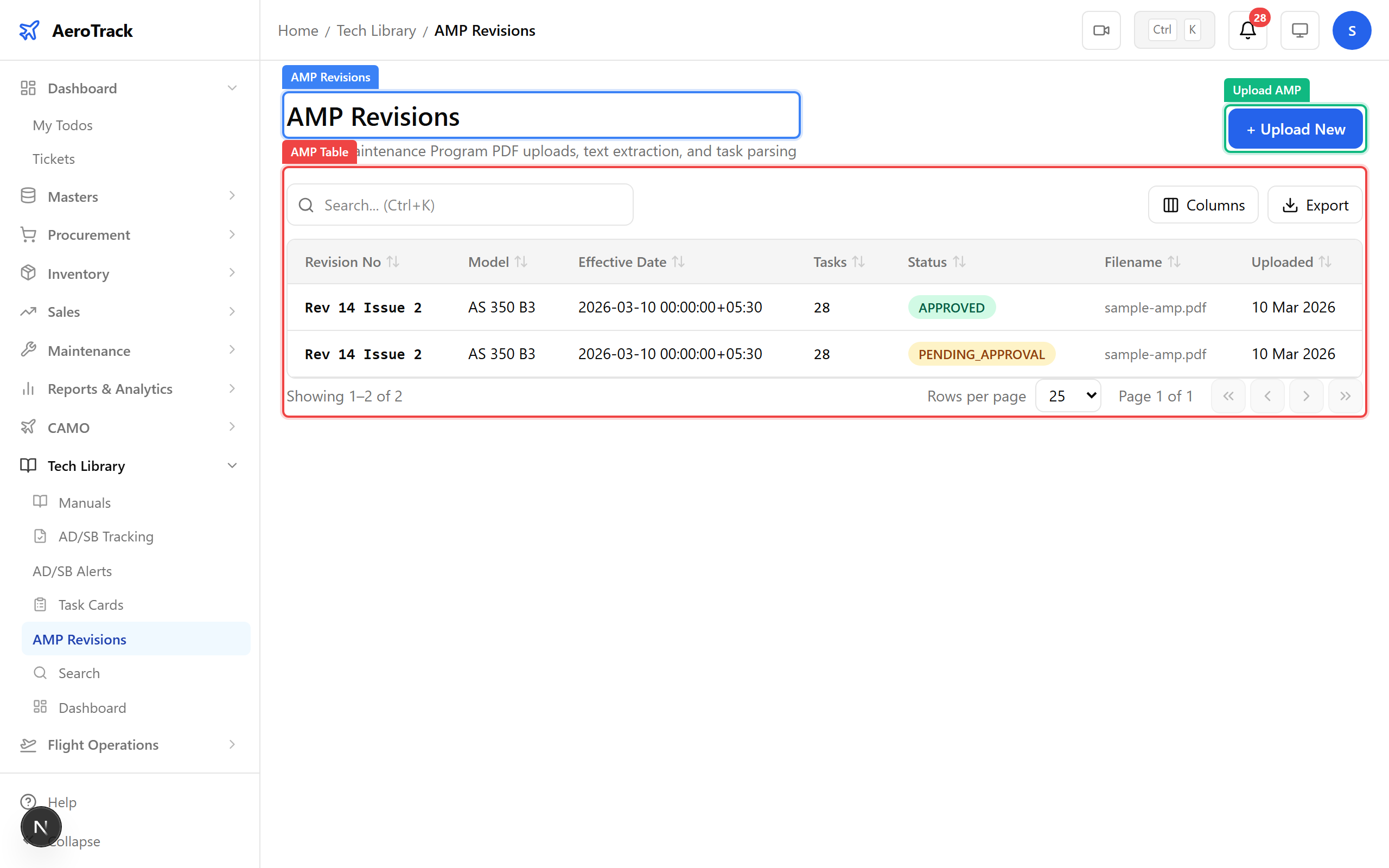
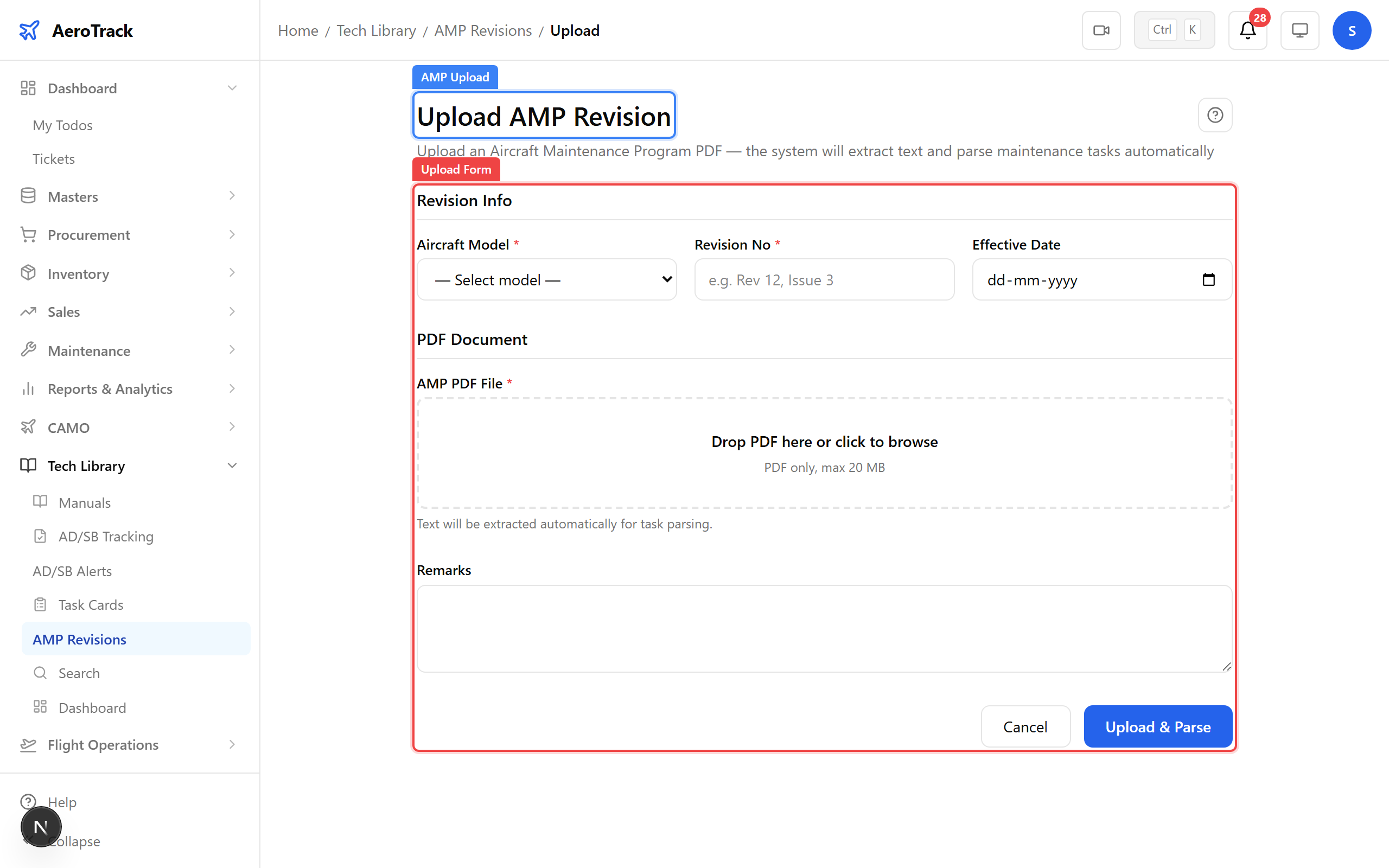
Click Upload AMP. Select the aircraft model, enter the revision number and effective date, then drag-and-drop the AMP PDF. The system parses it and detects changes from the previous revision.
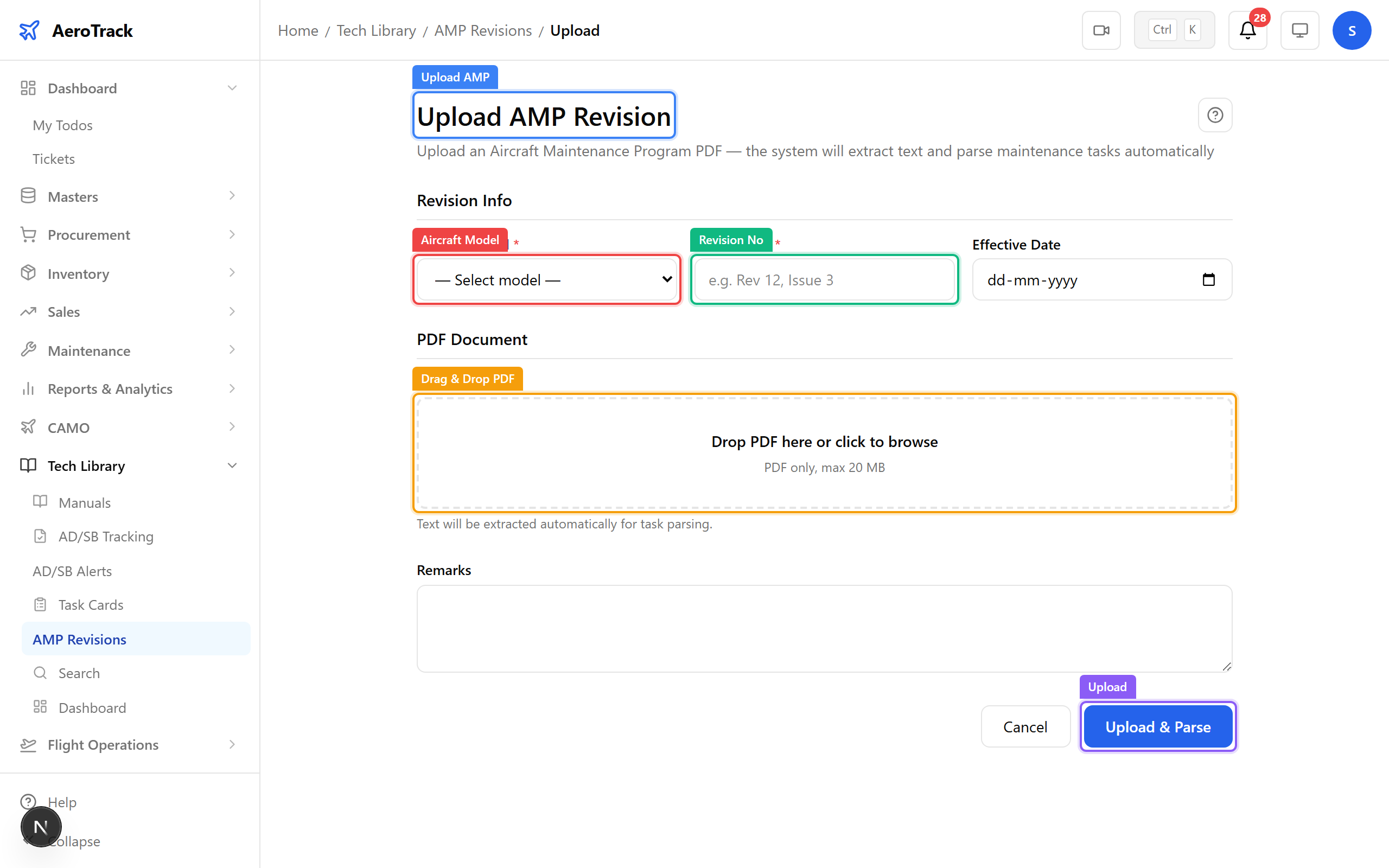
▲ Upload the AMP PDF here. The system parses it and detects changes from the previous revision.
Open a revision to see the diff view — what changed between this revision and the previous one. New tasks are highlighted in green, modified intervals in amber, and removed tasks in red. Use the Approve or Reject buttons to action the revision.
▲ The diff view highlights what changed between revisions — new tasks added, intervals modified, tasks removed.
Navigate to Tech Library → AD/SB. Airworthiness Directives are regulatory mandates from DGCA, FAA, or EASA. Service Bulletins come from manufacturers. Both are tracked here with compliance status per aircraft.
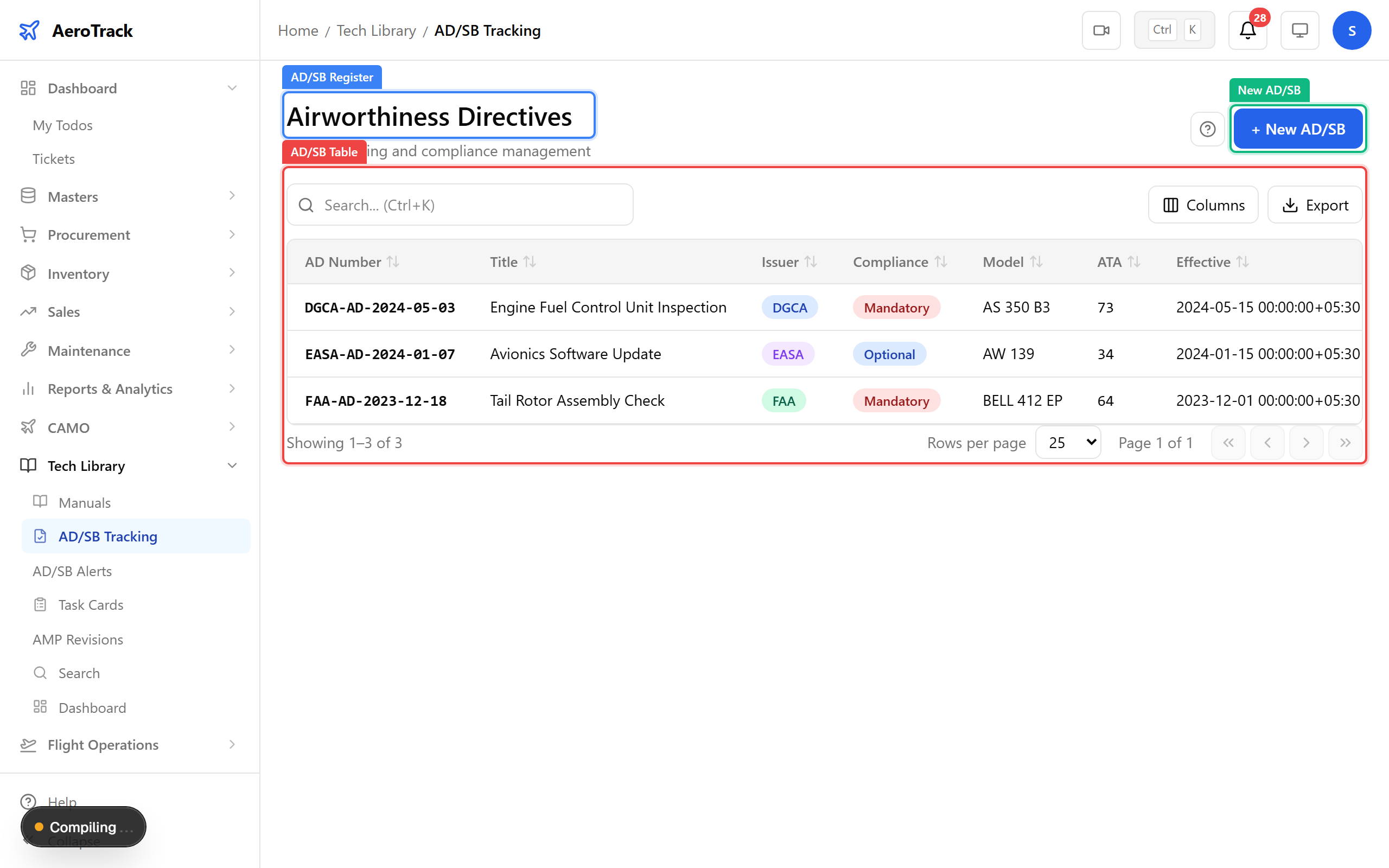
▲ Red compliance status means action required. These are regulatory mandates — not optional.
Click New AD/SB. Enter the directive number, issuing authority, compliance type, and link it to specific aircraft so compliance is tracked per tail number.
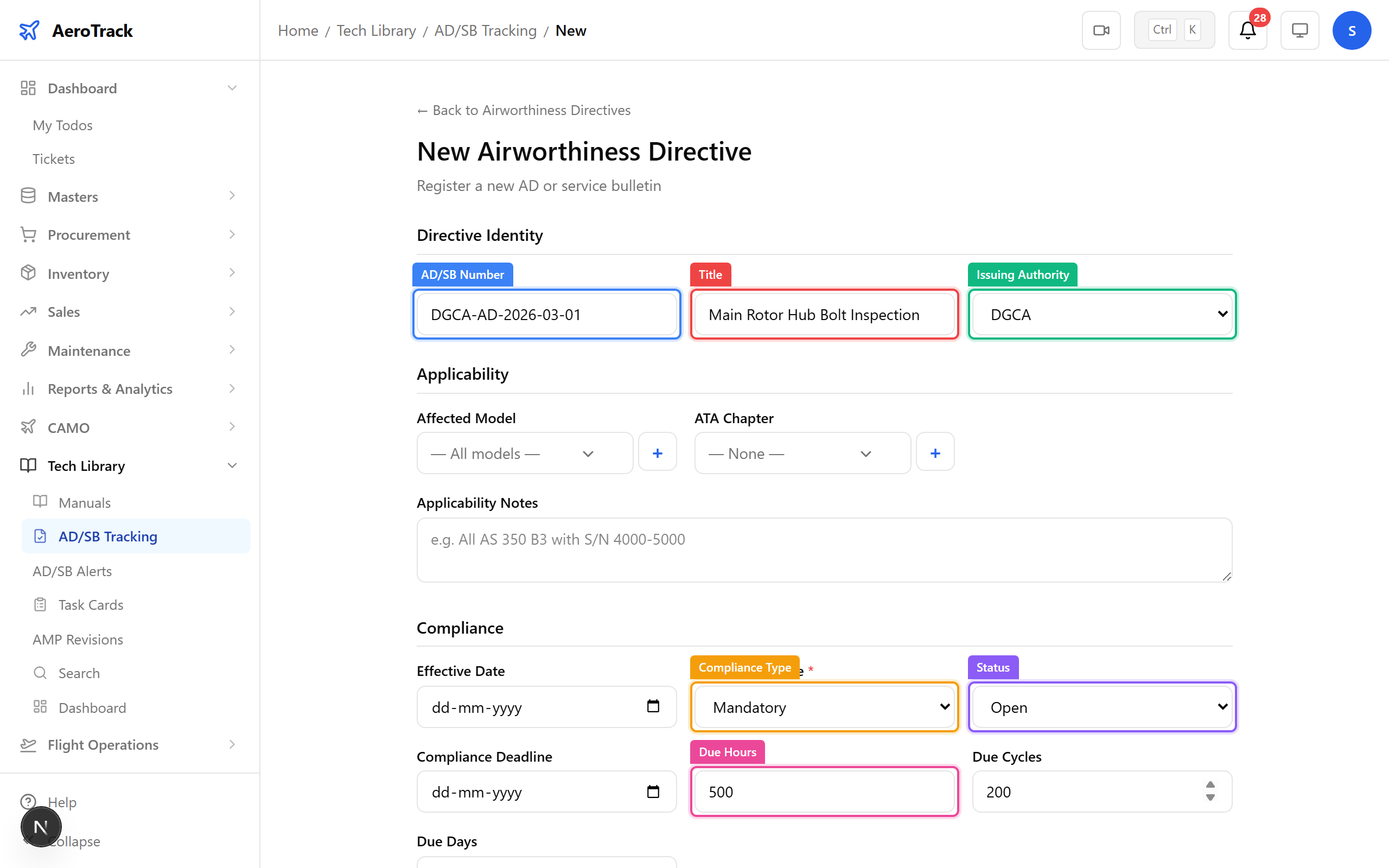
▲ Link the AD to specific aircraft registrations so compliance is tracked per tail number.
| Field | Purpose |
|---|---|
| AD/SB Number | Official directive reference (e.g. DGCA-AD-2026-03-01) |
| Title | Description of the required action |
| Issuing Authority | DGCA / FAA / EASA / OEM |
| Compliance Type | Mandatory or Optional |
| Status | Open / Complied / Not Applicable / Superseded |
| Due Hours / Cycles / Days | Compliance deadline in airframe time or calendar |
| Affected Model | Which aircraft type this applies to |
| Source URL | Link to the official directive document |
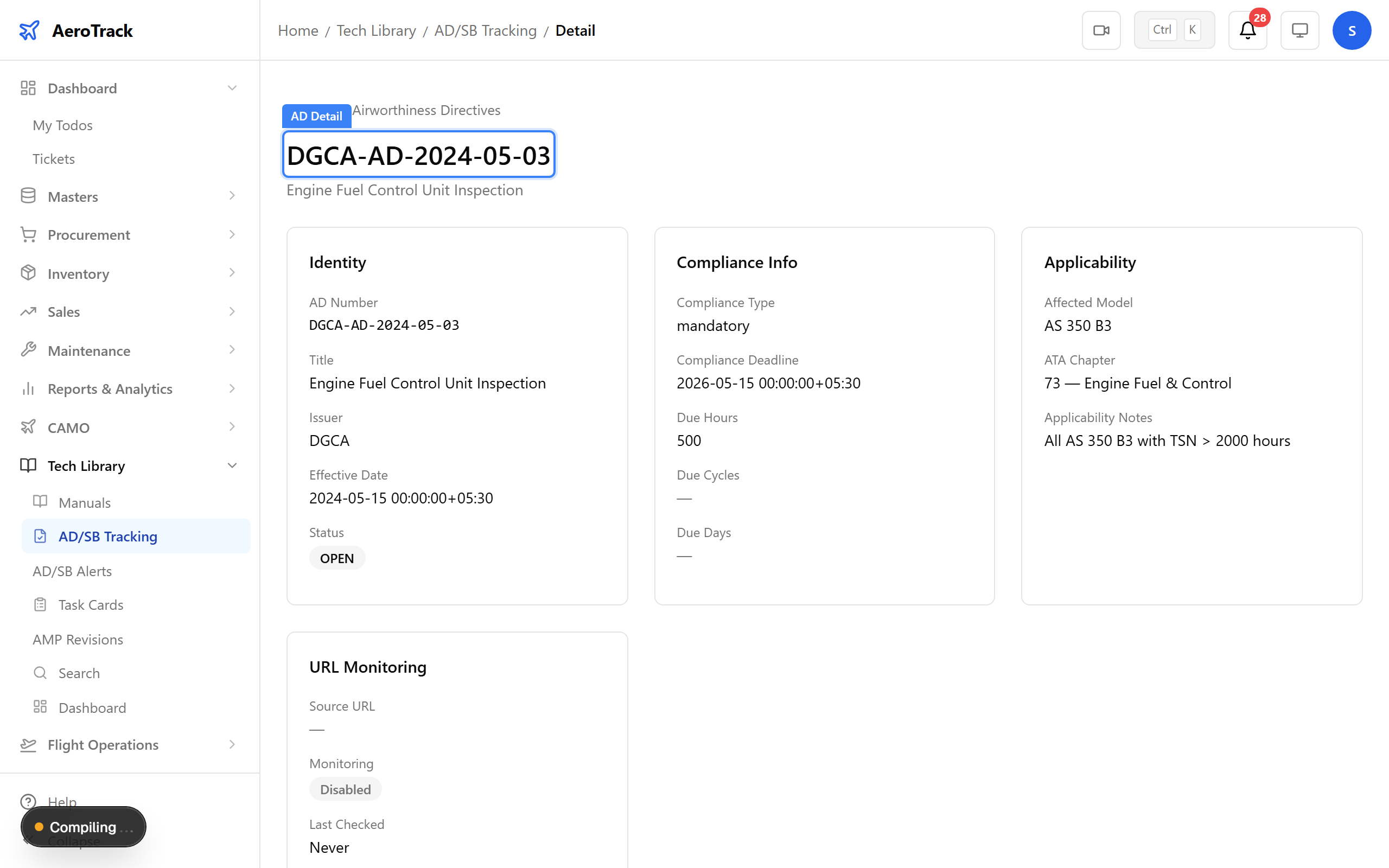
Click any AD/SB to see its full detail — compliance tracking fields, linked aircraft, action history, and the source URL. The compliance status shows at a glance whether action is still needed.
Navigate to AD/SB → Notifications. The system monitors for new ADs from regulatory authorities and alerts you here. Click Run Check to trigger a manual check. Critical alerts need immediate attention.
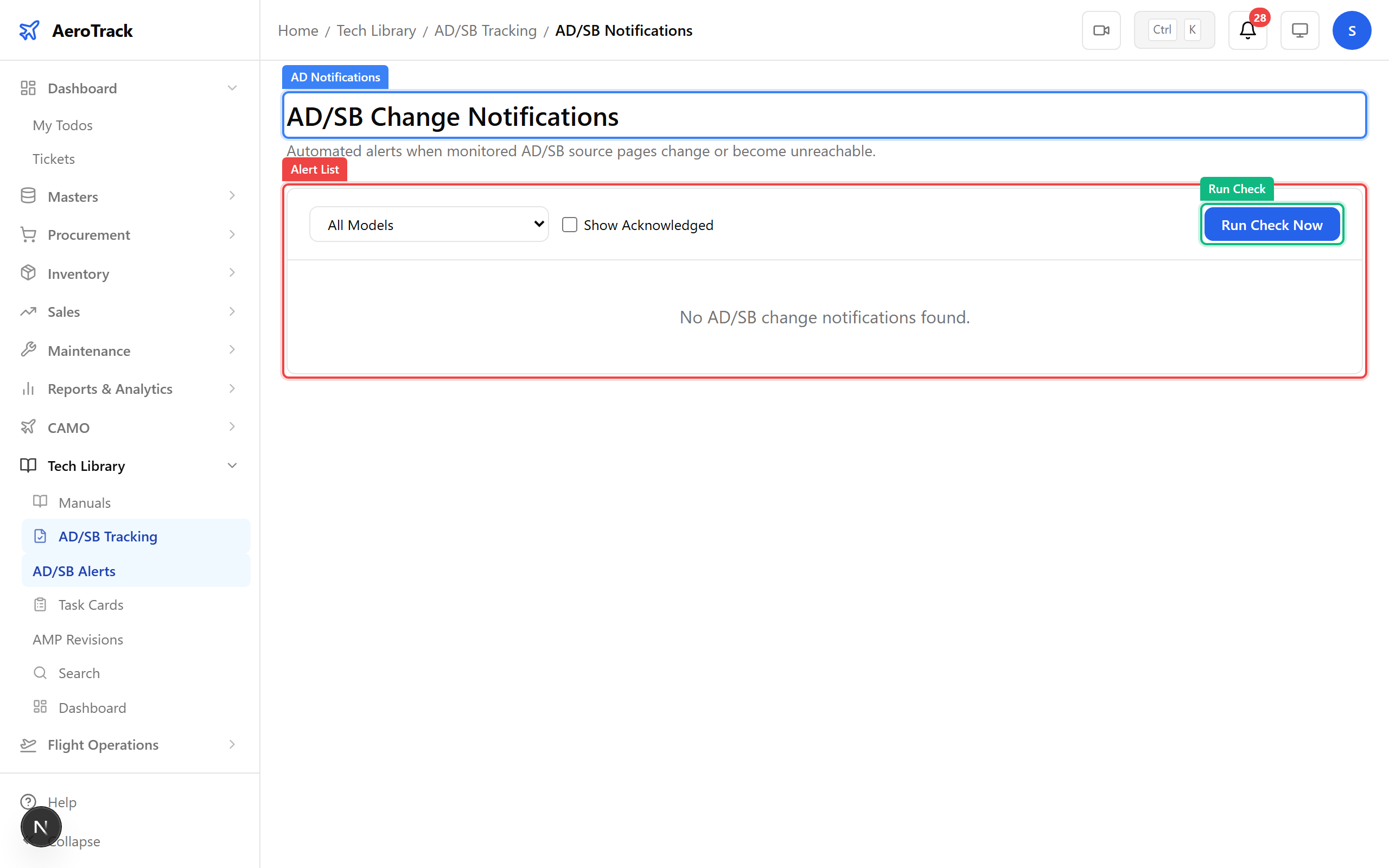
▲ The system monitors for new ADs from regulatory authorities and alerts you here.
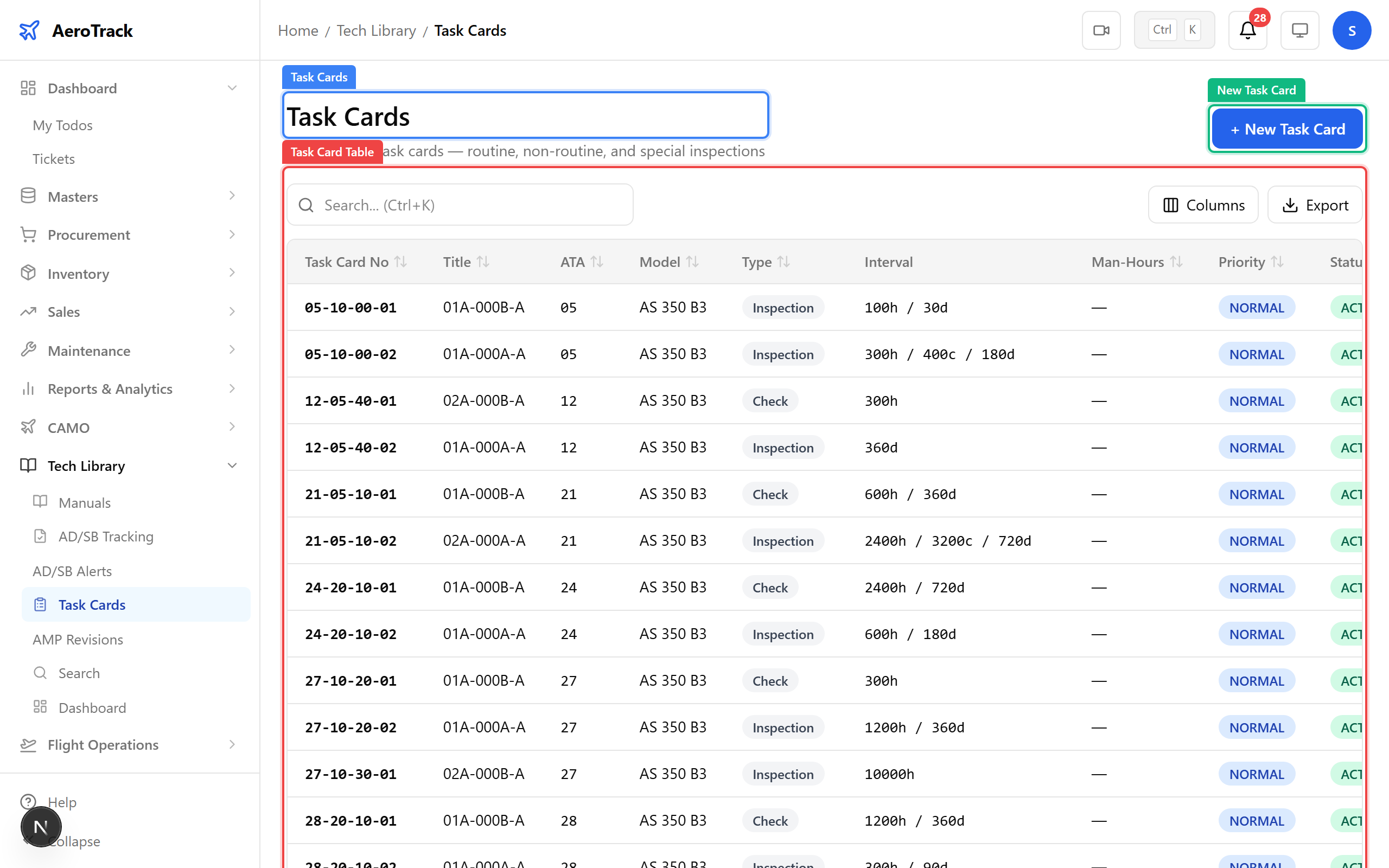
Navigate to Tech Library → Task Cards. Task cards define WHAT maintenance to do and HOW OFTEN. They come in three types: routine (scheduled), non-routine (on-condition), and special (one-time or campaign).
Click New Task Card. Define the task number, type, ATA chapter, intervals, and priority. Task cards become inspection schedule items when linked to an aircraft.
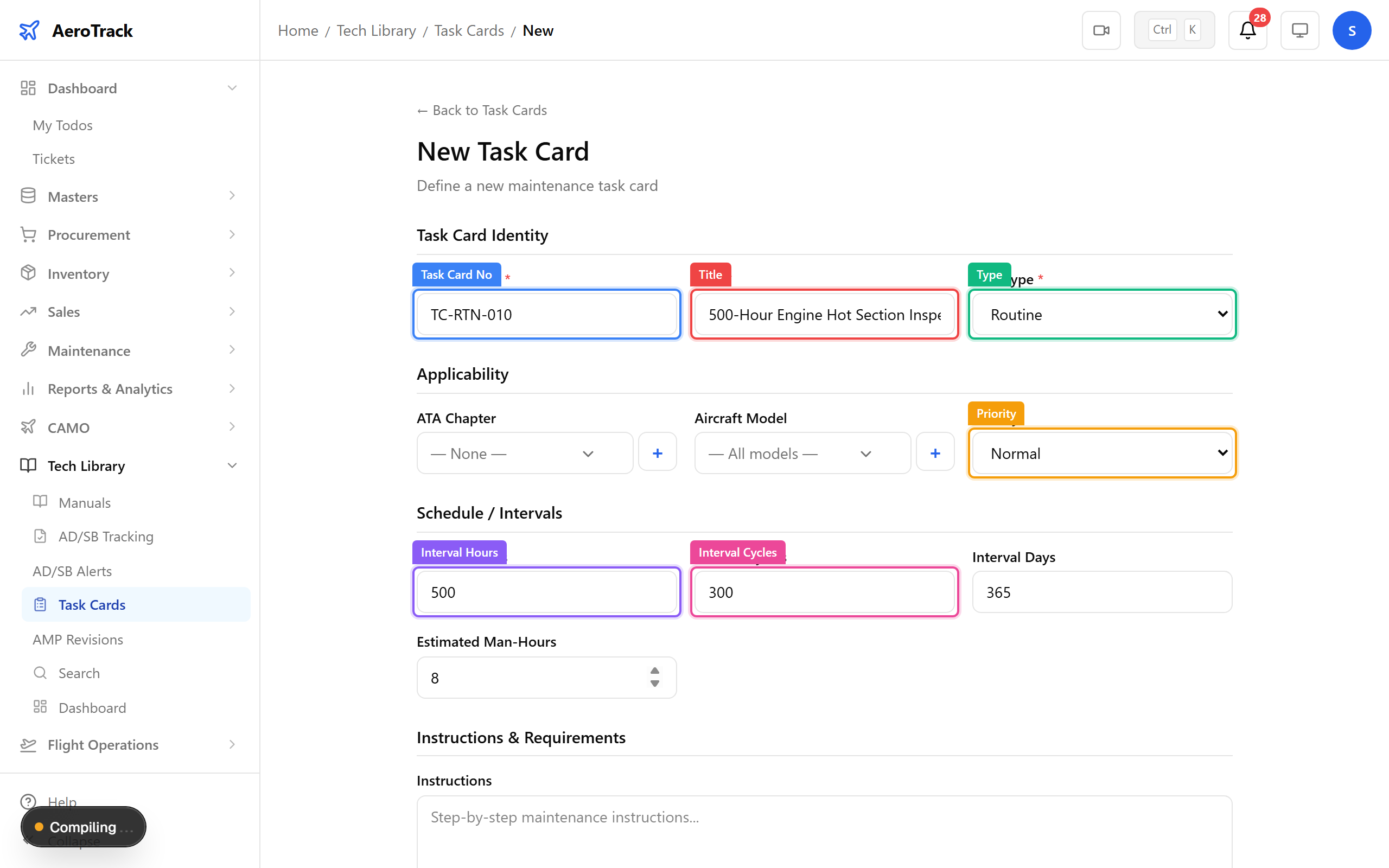
▲ Task cards define WHAT maintenance to do and HOW OFTEN. They become inspection schedule items when linked to an aircraft.
| Field | Purpose |
|---|---|
| Task Card No | Unique reference (e.g. TC-RTN-001) |
| Title | What the task involves |
| Task Type | Routine / Non-routine / Special |
| ATA Chapter | System category (e.g. 72 = Engine) |
| Aircraft Model | Which fleet type this applies to |
| Priority | Normal / Urgent / AOG |
| Interval Hours | Repeat every N flight hours |
| Interval Cycles | Repeat every N landings |
| Interval Days | Calendar interval (e.g. 365 = annual) |
| Est. Man-Hours | Labour planning estimate |
Click any task card to see its full detail — intervals, linked inspections, applicable aircraft, and the instructions that engineers follow during maintenance.
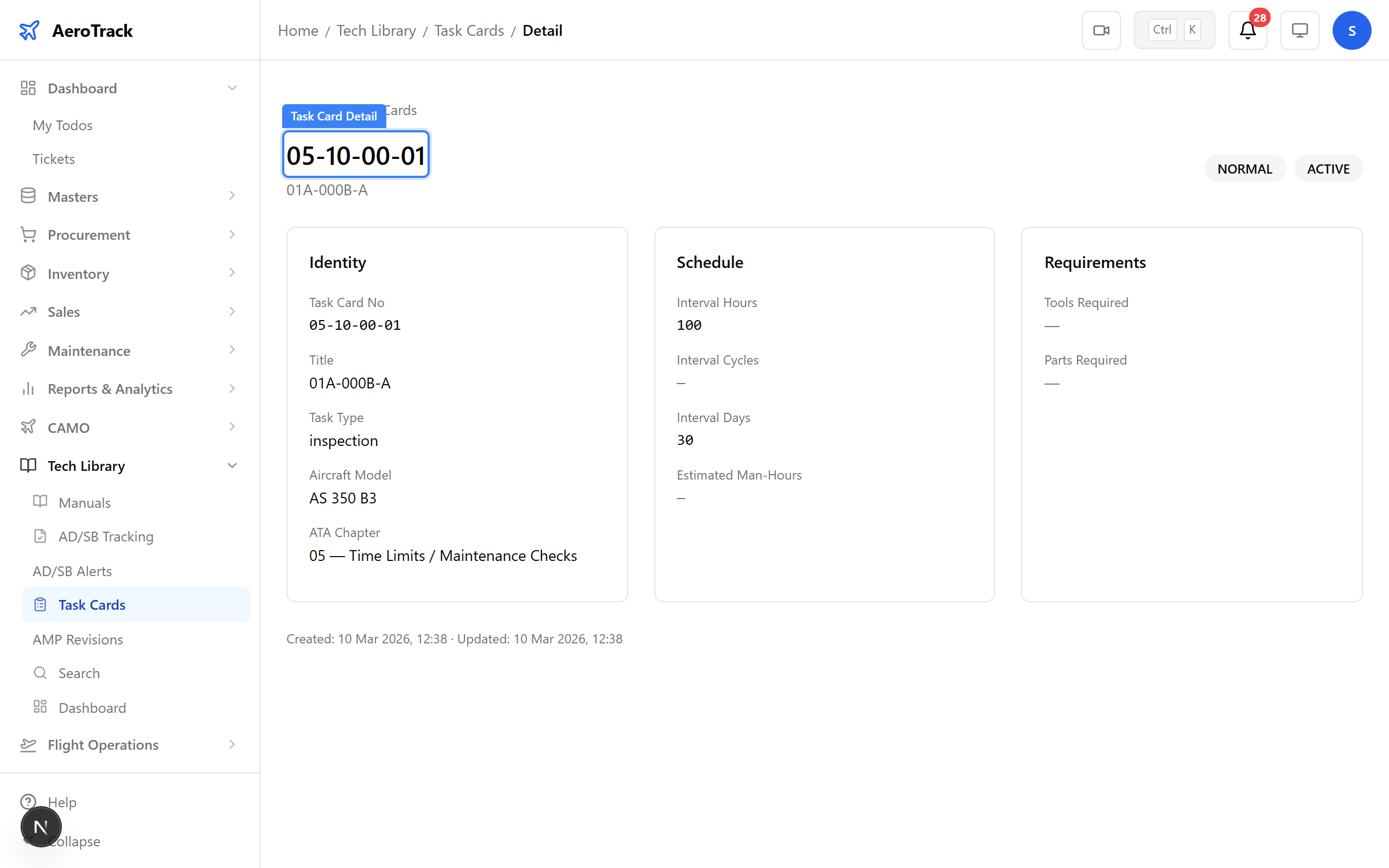
The instructions section is what the engineer follows during maintenance. The tools and parts lists specify what they'll need before starting. This is the core of each task card — get it right and the maintenance quality follows.
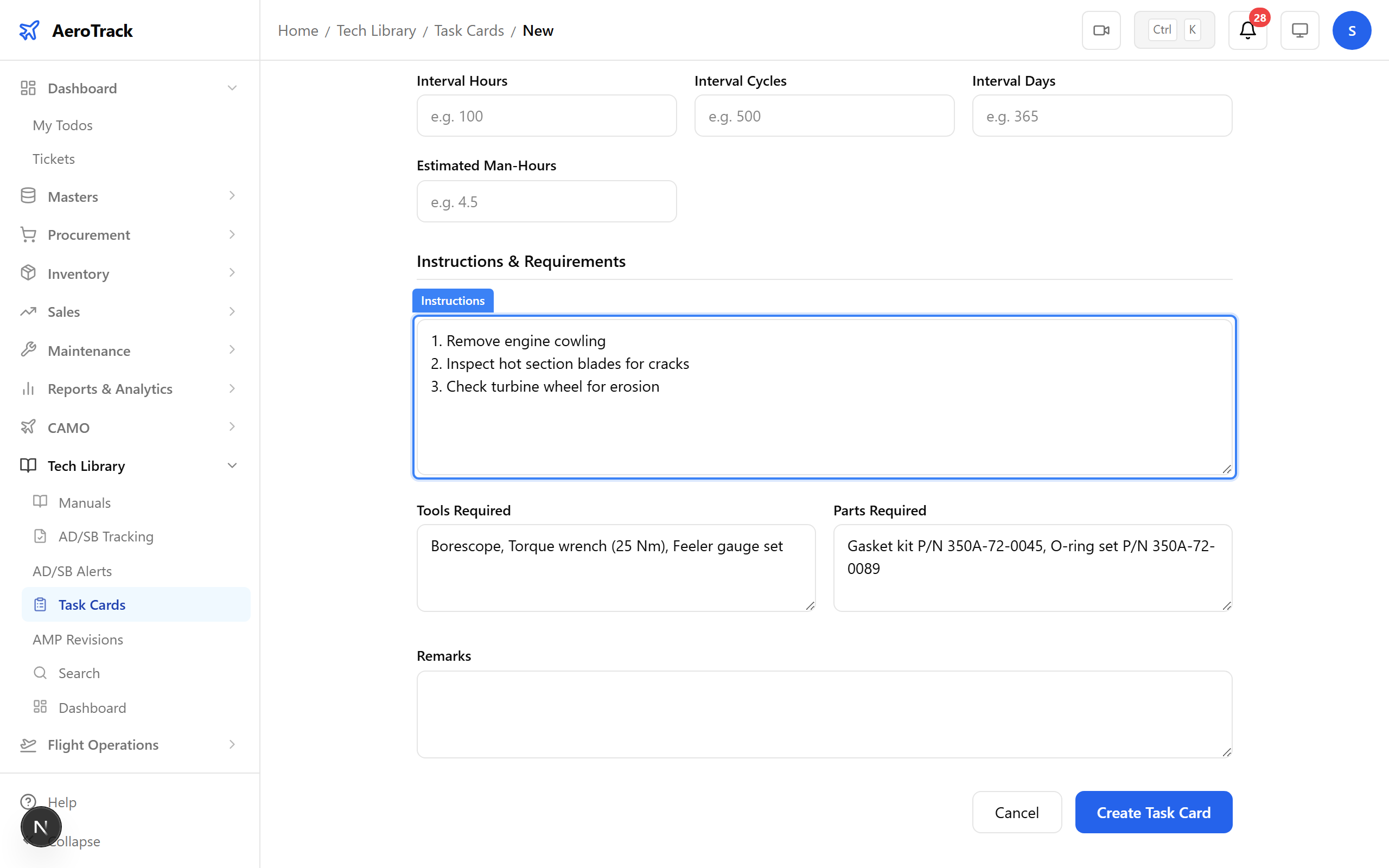
▲ The instructions section is what the engineer follows during maintenance. Tools and parts list what they'll need.