Navigate to Flight Operations in the sidebar. The landing page gives you quick access to log books, assemblies, removals, installations, serviceability, CRS, inspections, and component status.
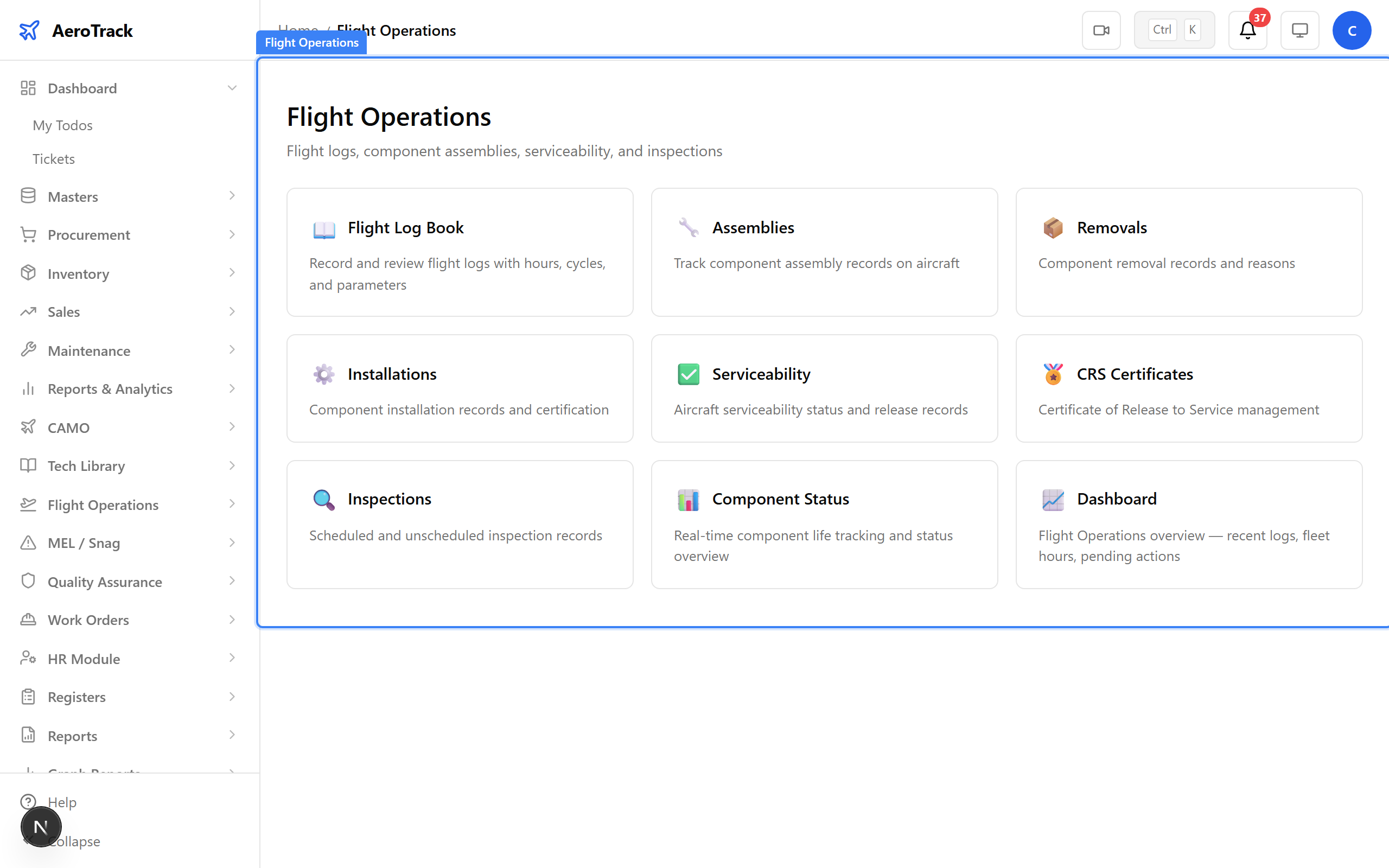
▲ The Flight Operations module — your hub for log books, components, and airworthiness.
Navigate to Flight Ops → Log Book. All flight logs are listed with status indicators — Draft (grey), Submitted (blue), Verified (amber), Approved (green).
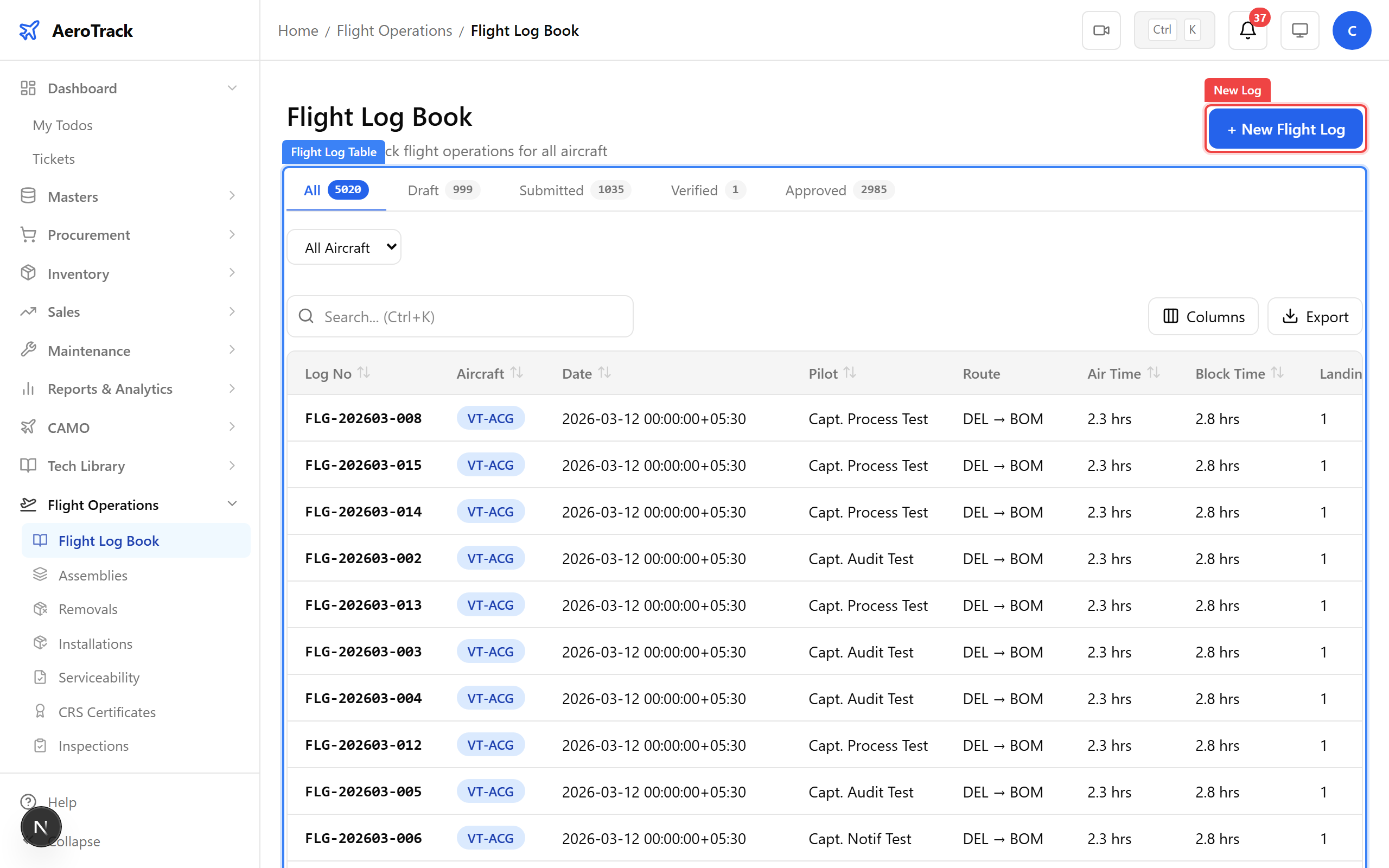
▲ All flight logs listed with status indicators. Click New to create a new entry.
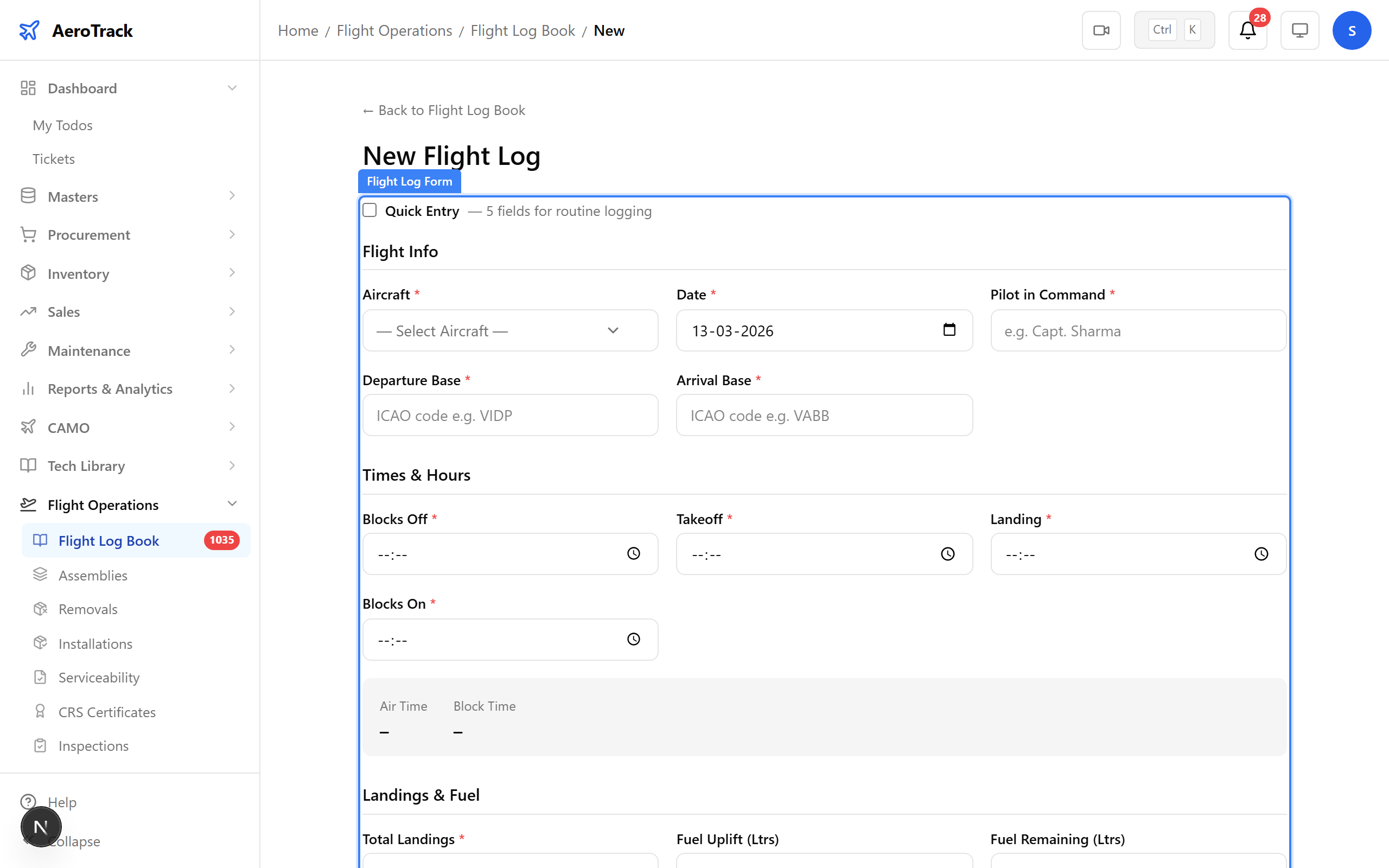
Click New Log. The form captures all flight data for VT-ACG's return from Delhi to Mumbai.
| Field | Purpose |
|---|---|
| Aircraft | Select the aircraft (VT-ACG) |
| Log Date | Date of the flight |
| Departure / Arrival | Origin and destination airports |
| Blocks Off / On | Chock-to-chock times (movement start/end) |
| Takeoff / Landing Time | Actual flight times (airborne start/end) |
| Total Landings | Number of landings (counts as cycles) |
| Fuel Uplift / Remaining | Fuel tracking in litres |
| Remarks | Pilot notes, defects, observations |
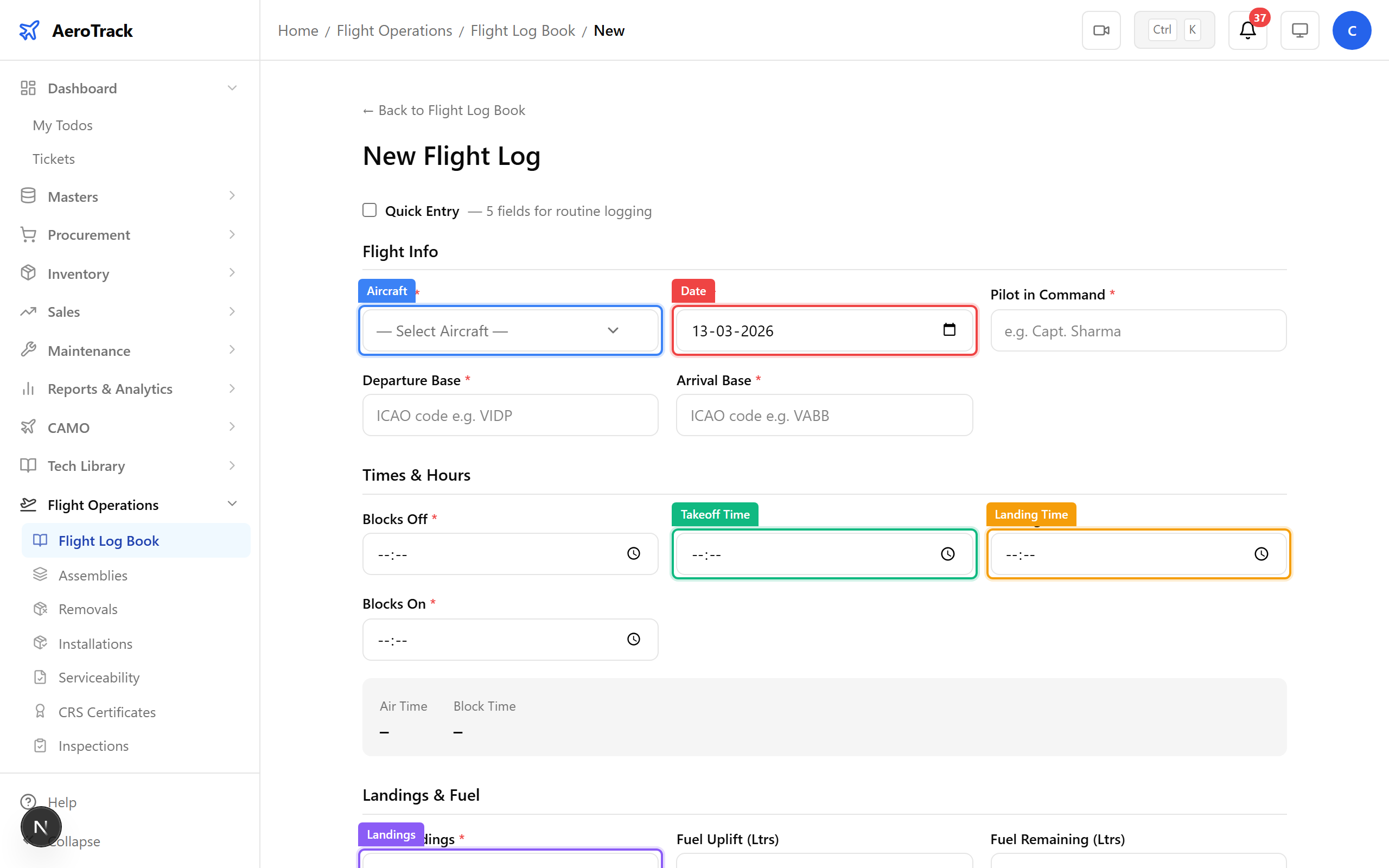
▲ The flight log form — capturing VT-ACG's return flight.
All fields filled for VT-ACG's flight from Delhi (DEL) to Mumbai (BOM). The system calculates flight hours from takeoff/landing times automatically.
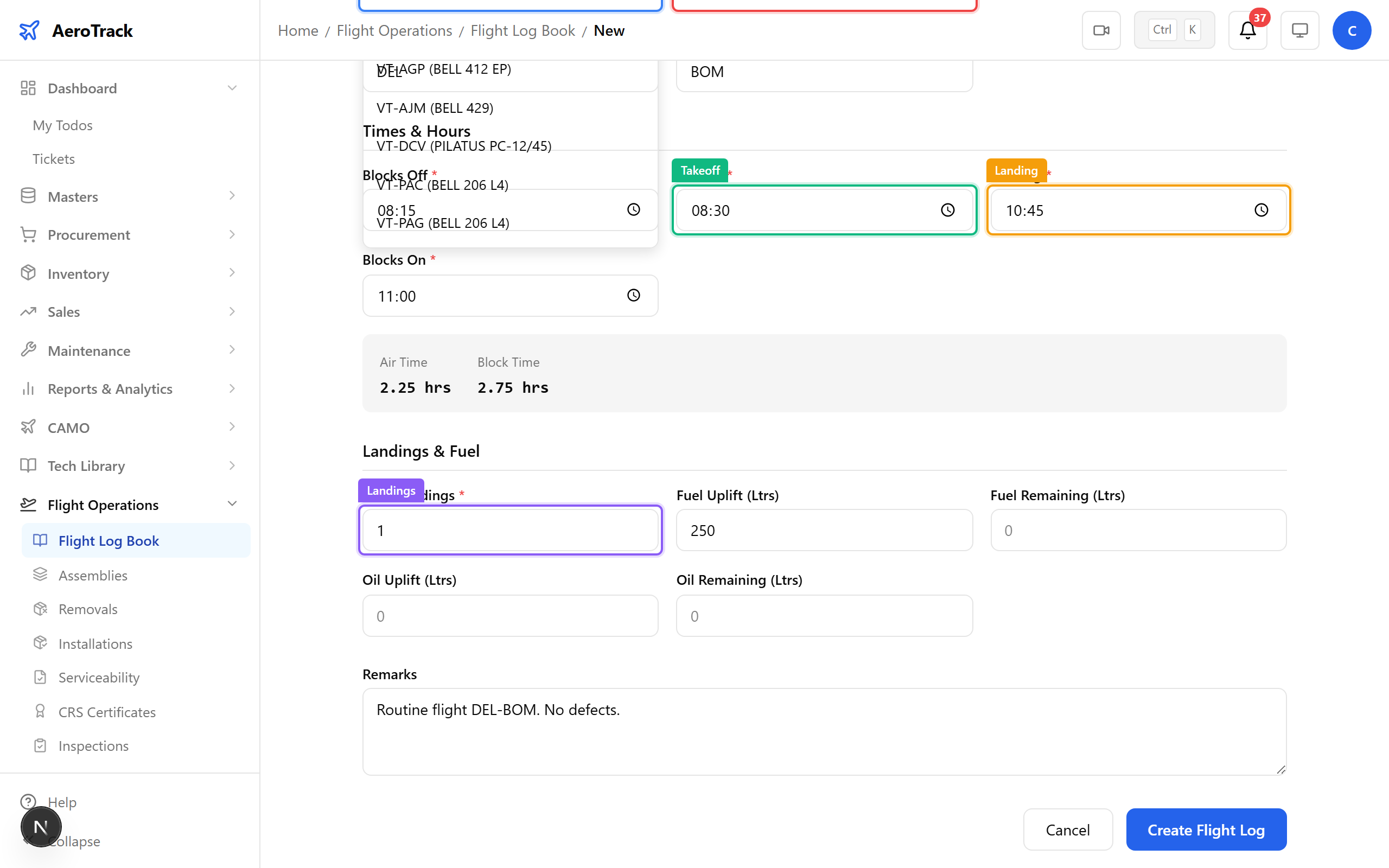
▲ Completed entry for VT-ACG's flight from DEL to BOM.
After saving, the log appears on its detail page with status DRAFT. Draft logs can still be edited.
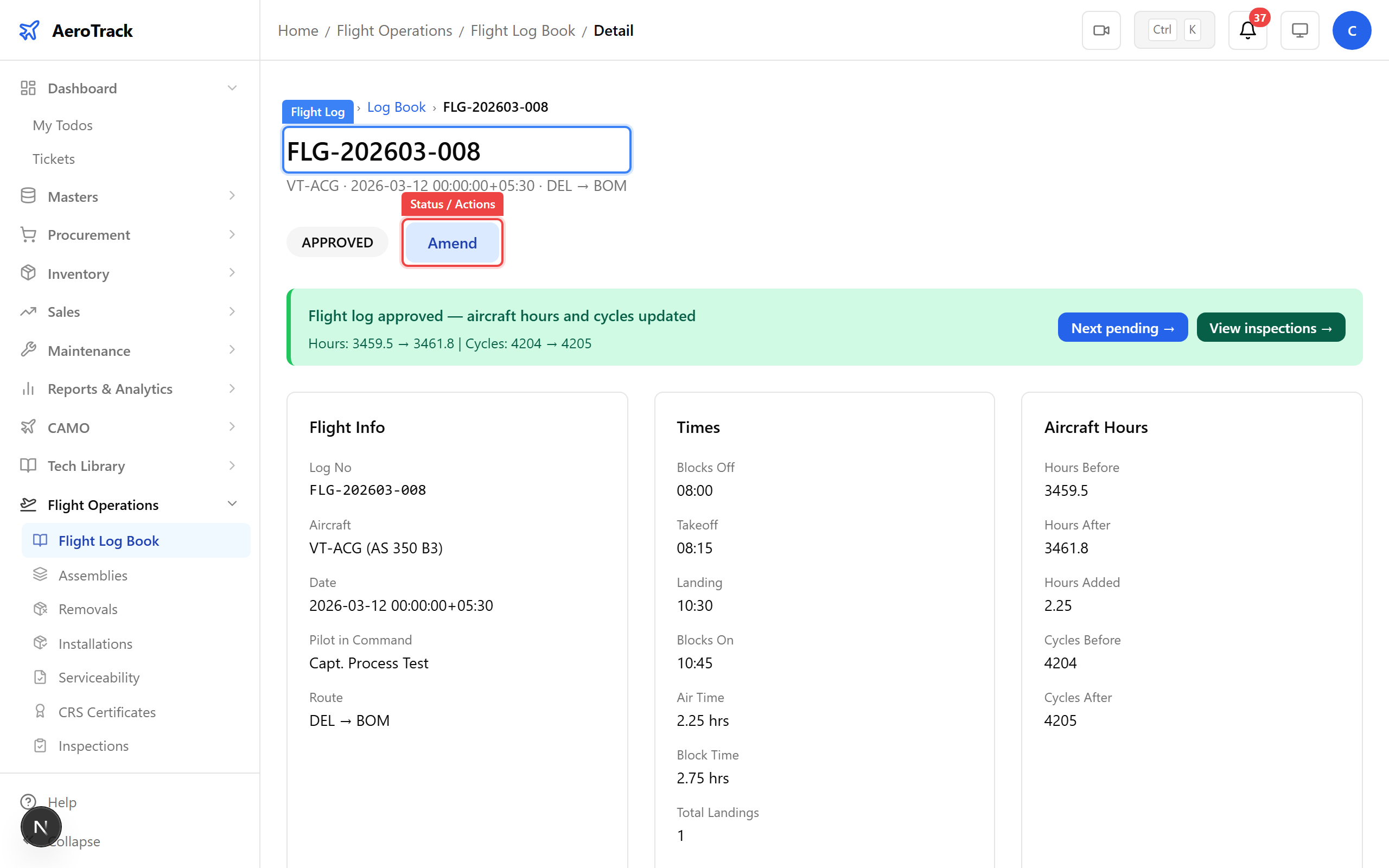
▲ Log saved as Draft — needs submission for review.
Click Submit to send the log for verification. This locks the log from further editing and triggers the verification workflow.
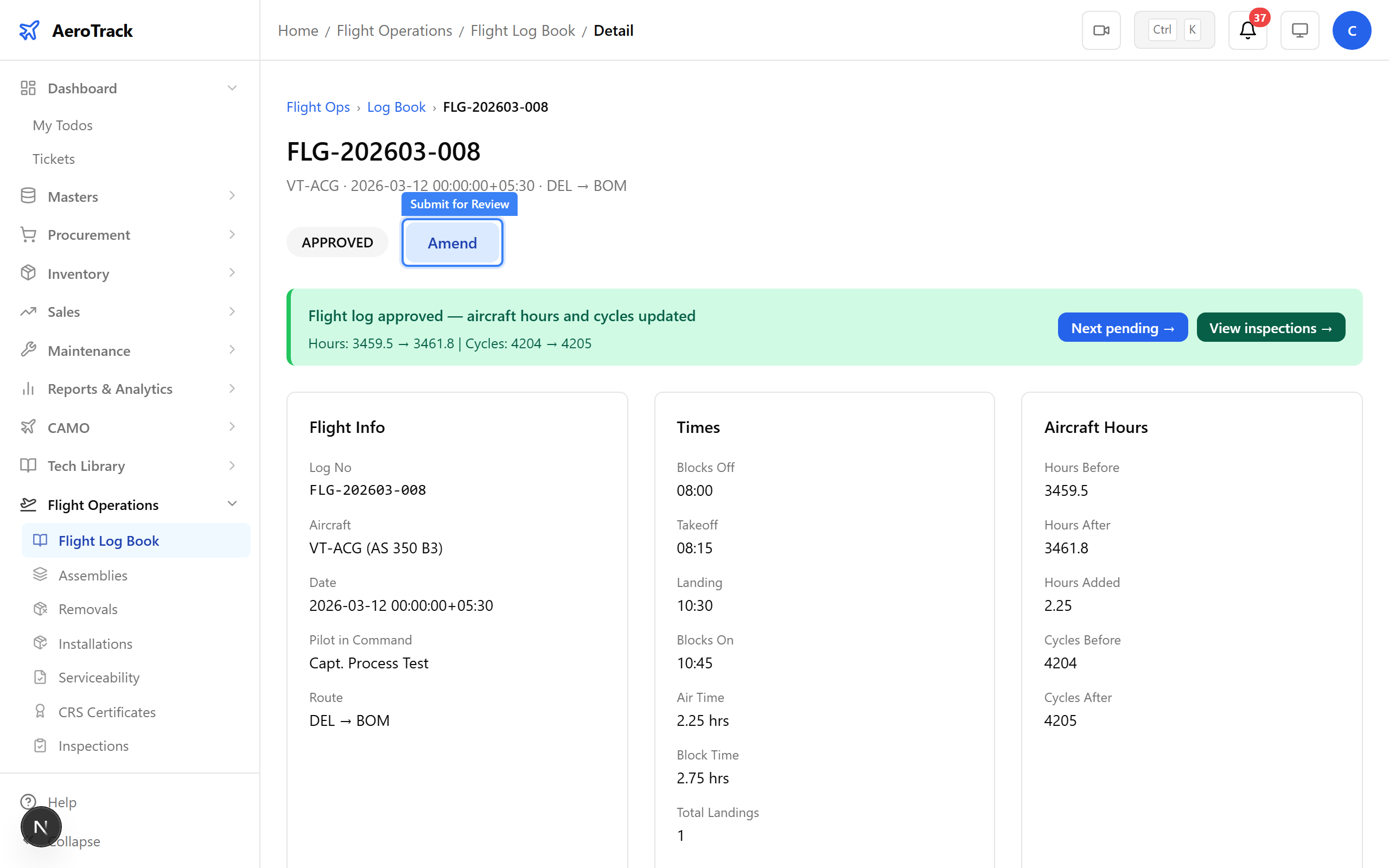
▲ Submitting the log triggers the verification workflow.
Status changes to SUBMITTED. The log is now in the verification queue, waiting for an admin or senior engineer to review the data.
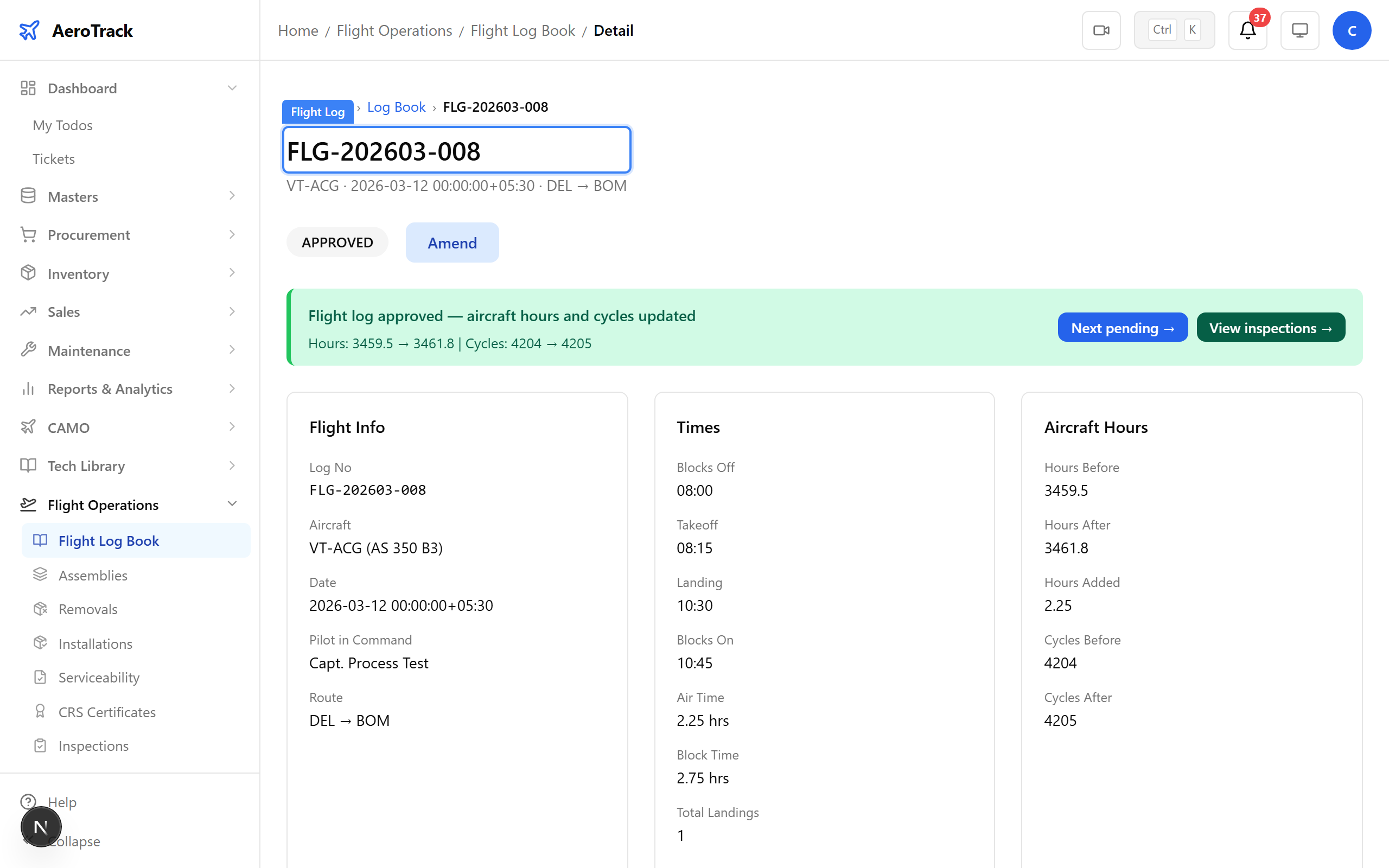
▲ Status changes to Submitted — waiting for verification.
After logging in as admin, the notification bell shows pending items including submitted flight logs awaiting review.
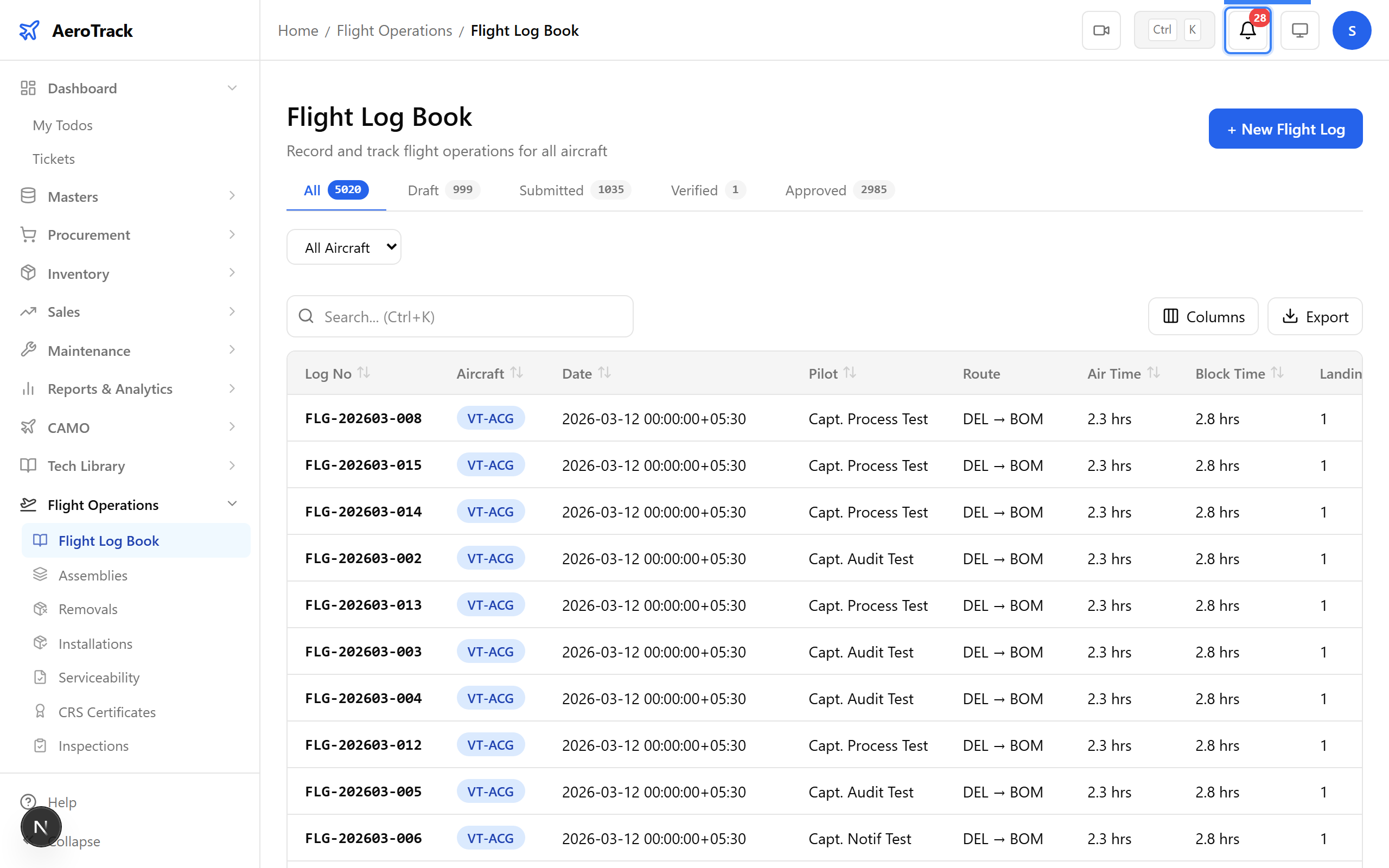
▲ Admin sees a pending notification for the submitted flight log.
Navigate to the submitted flight log. Click Verify to confirm the flight data is accurate — times, landings, fuel figures all match the pilot's report.
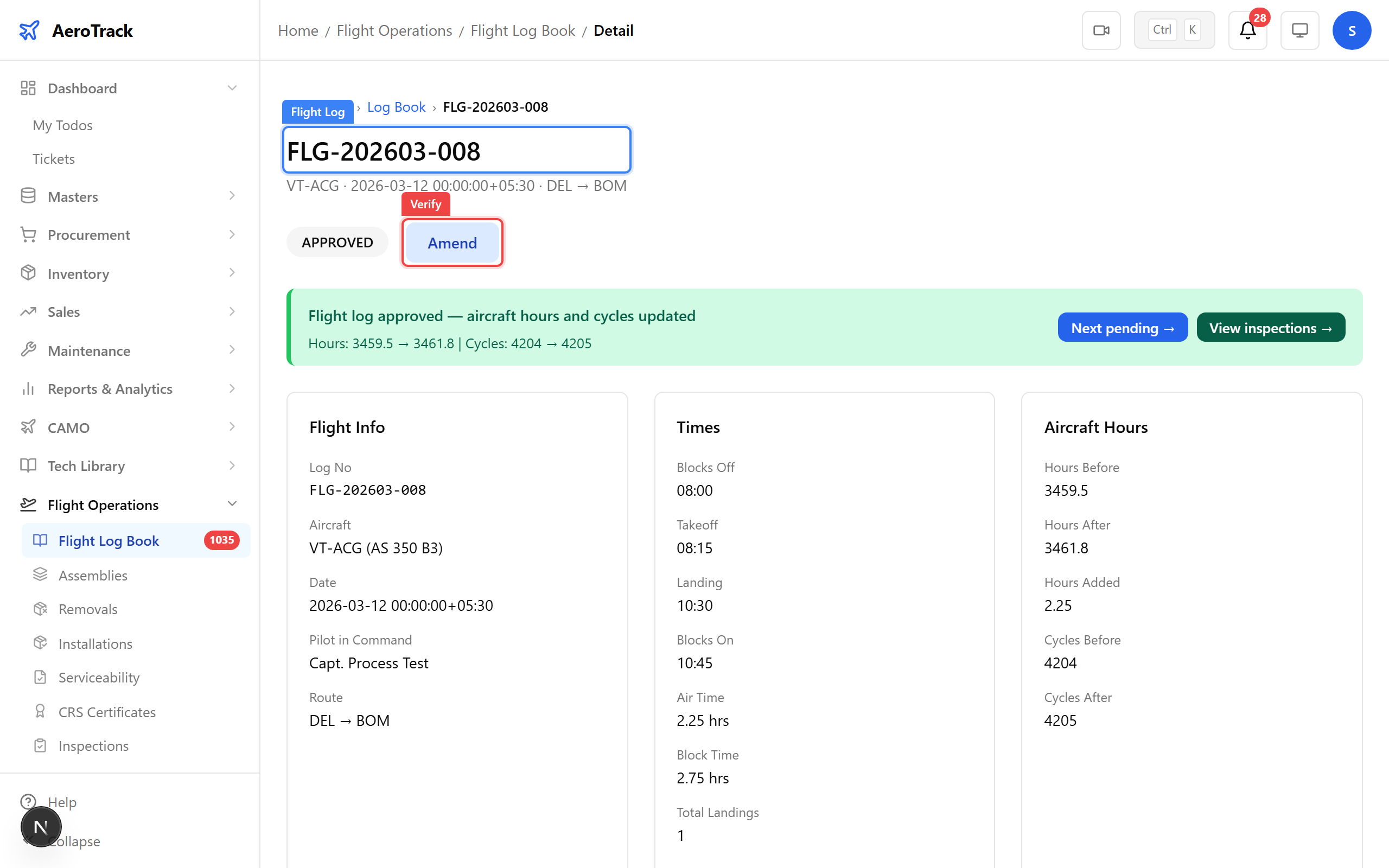
▲ Admin verifies the flight data is accurate.
Status changes to VERIFIED. One step from final approval. The data has been checked but hours haven't been committed to the aircraft record yet.
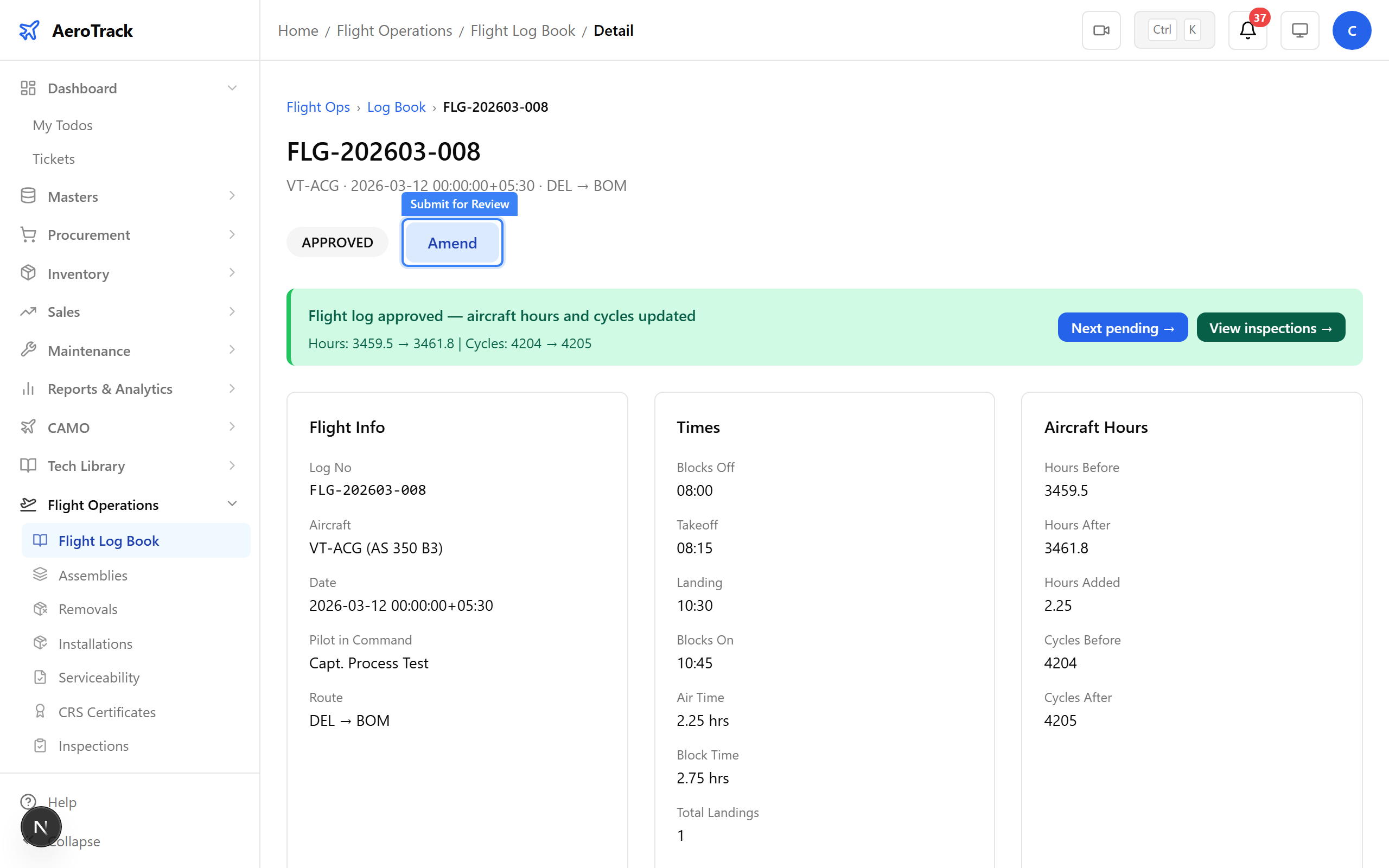
▲ Verified — one step from final approval.
Click Approve to finalise the log. This is the point of no return — approval commits the flight hours and cycles to the aircraft record.
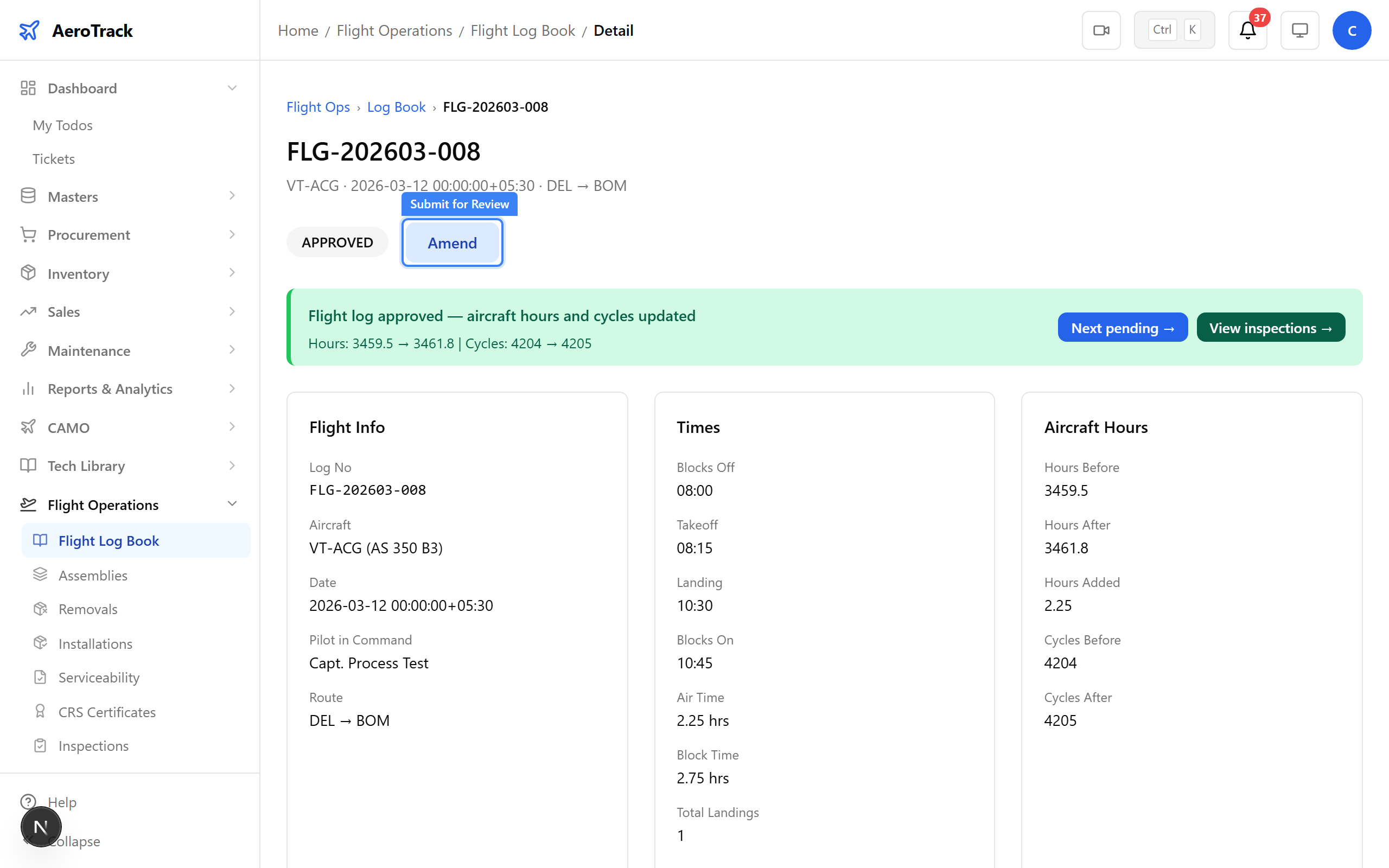
▲ Final approval locks the log and updates aircraft hours.
Status changes to APPROVED. Aircraft hours and cycles are now updated system-wide. Inspection remaining counters recalculate automatically.
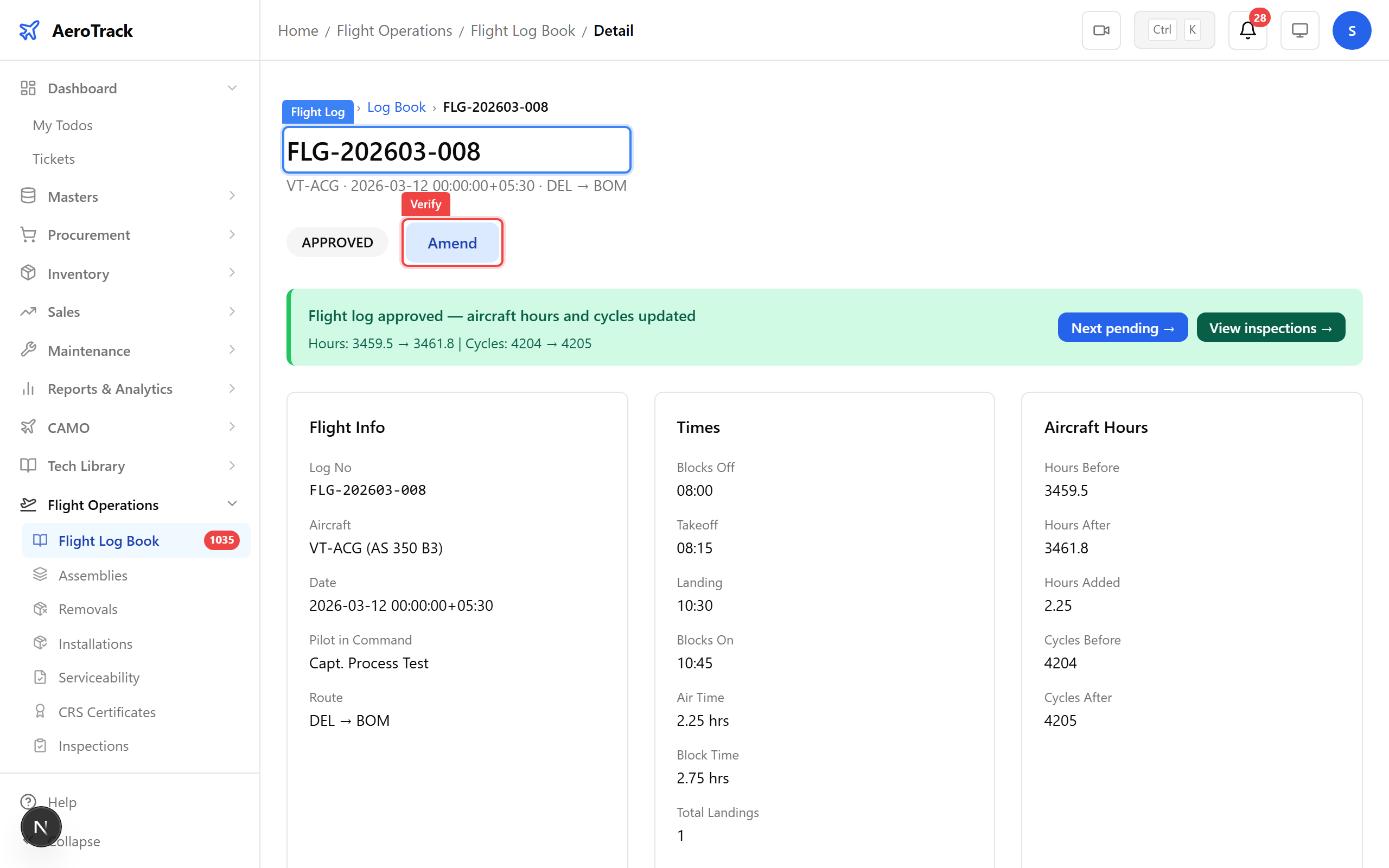
▲ Approved — aircraft hours and cycles are now updated in the system.
Draft logs can be edited before submission. Navigate to a draft log and click Edit to modify times, landings, or fuel data.
▲ Draft logs can be edited before submission.
Navigate to Flight Ops → Assemblies. This shows every component assembly installed across your fleet — engines, propellers, avionics units, landing gear.
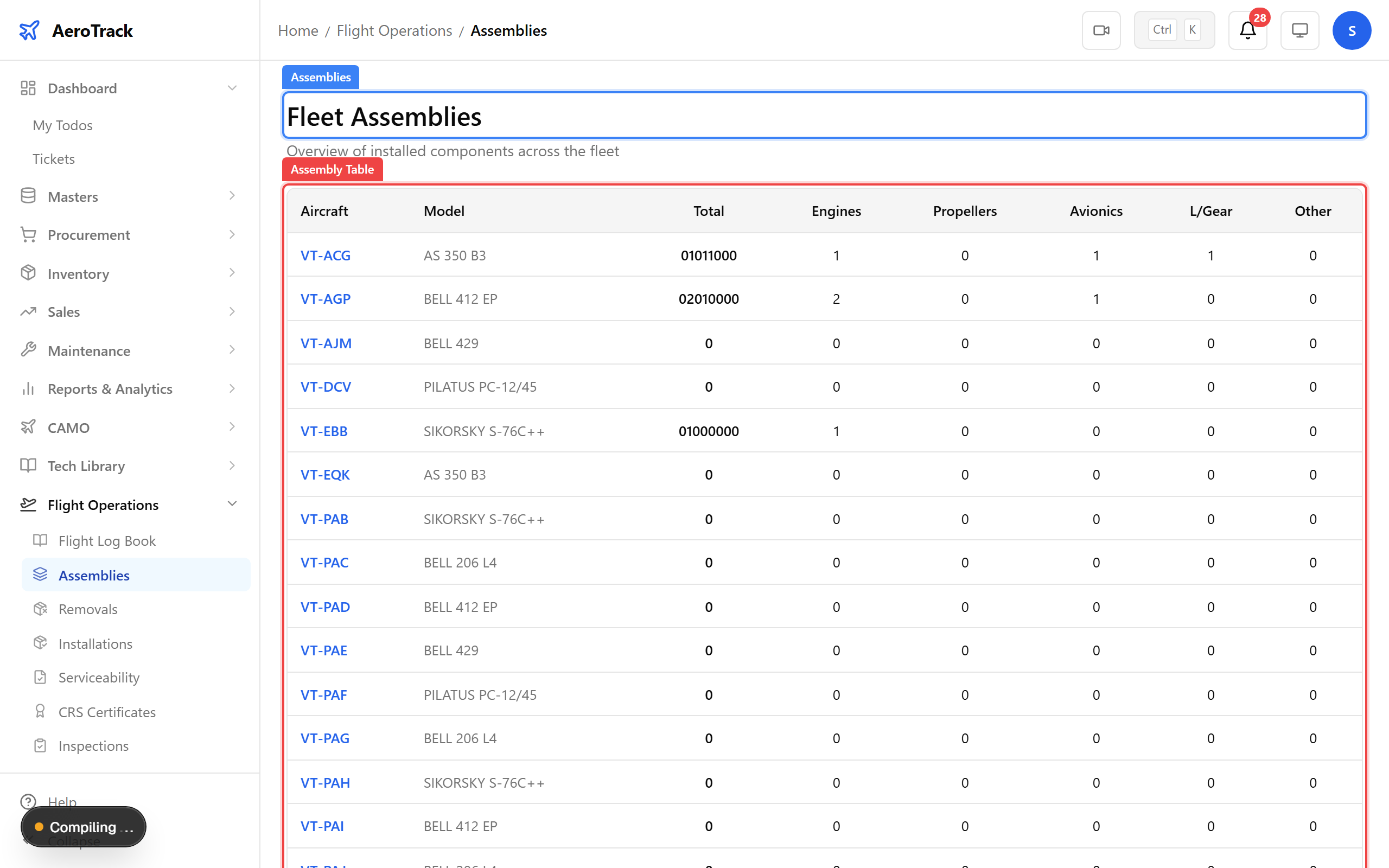
▲ Track every component assembly on your aircraft.
Navigate to Flight Ops → Removals. Every time a component comes off an aircraft, it's recorded here with the reason, date, and aircraft hours at removal.
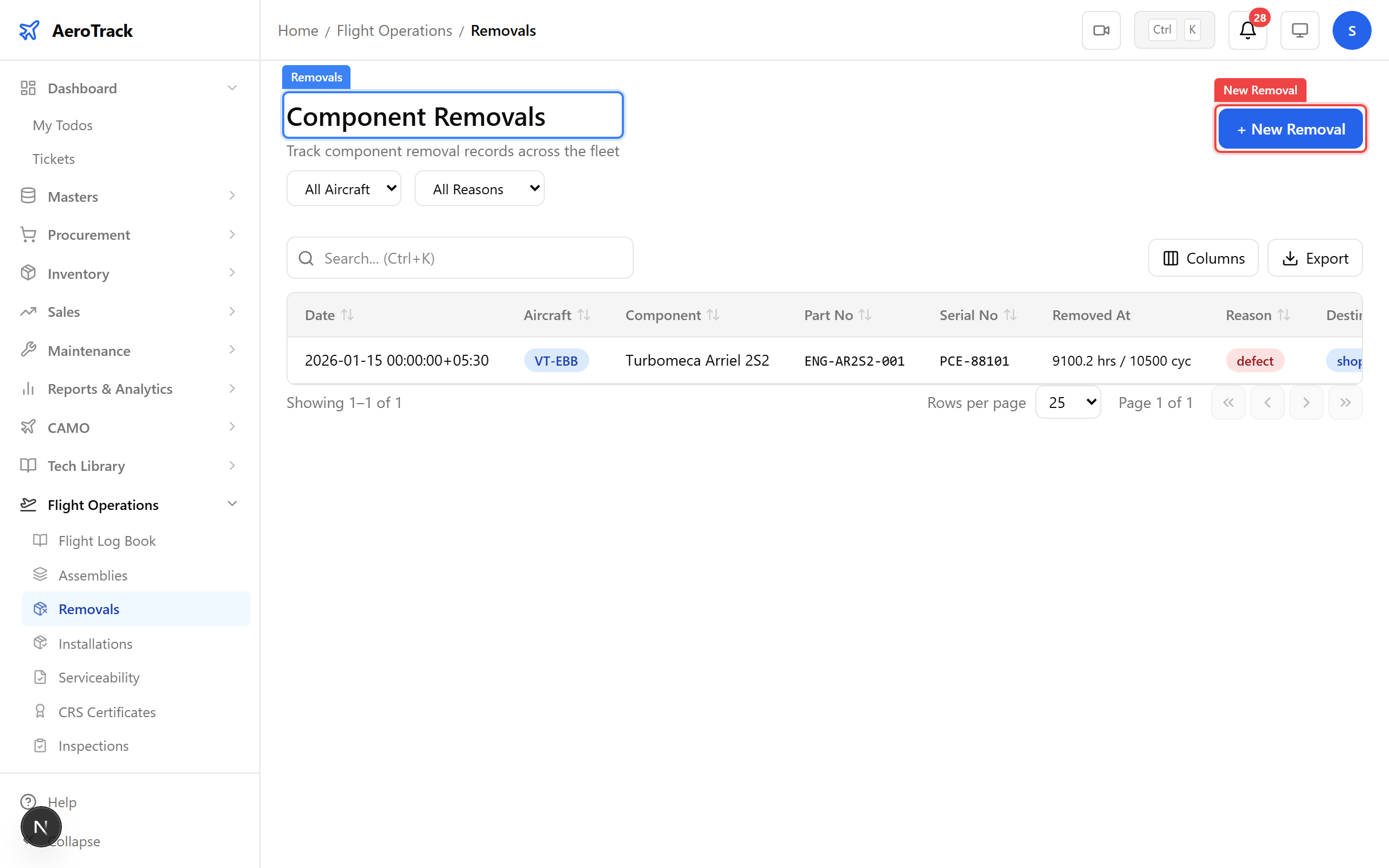
▲ Component removals — tracking what comes off the aircraft.
Click New Removal. Select the aircraft and component, enter the removal reason, date, and aircraft hours at removal for full traceability.
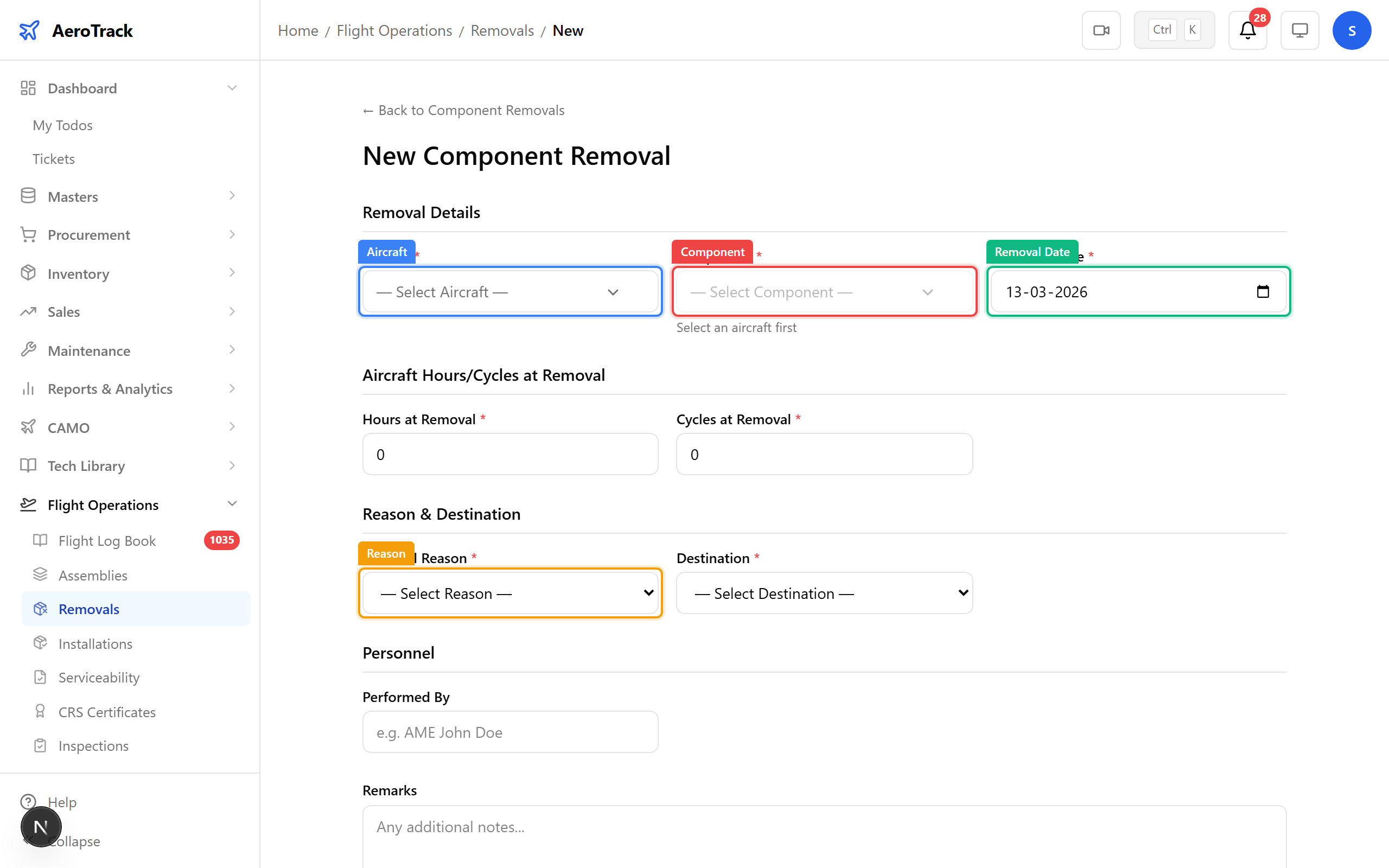
| Field | Purpose |
|---|---|
| Aircraft | Which aircraft the component is on |
| Component | Part being removed (filtered to installed components) |
| Removal Date | When the removal was performed |
| Hours/Cycles at Removal | Aircraft time when removed — for life tracking |
| Removal Reason | Why: scheduled overhaul, defect, life limit, upgrade |
| Destination | Where the component goes: workshop, scrap, store |
▲ Recording a component removal with full traceability.
Navigate to Flight Ops → Installations. The reverse of removals — when a component goes back on an aircraft (new or overhauled), it's recorded here.
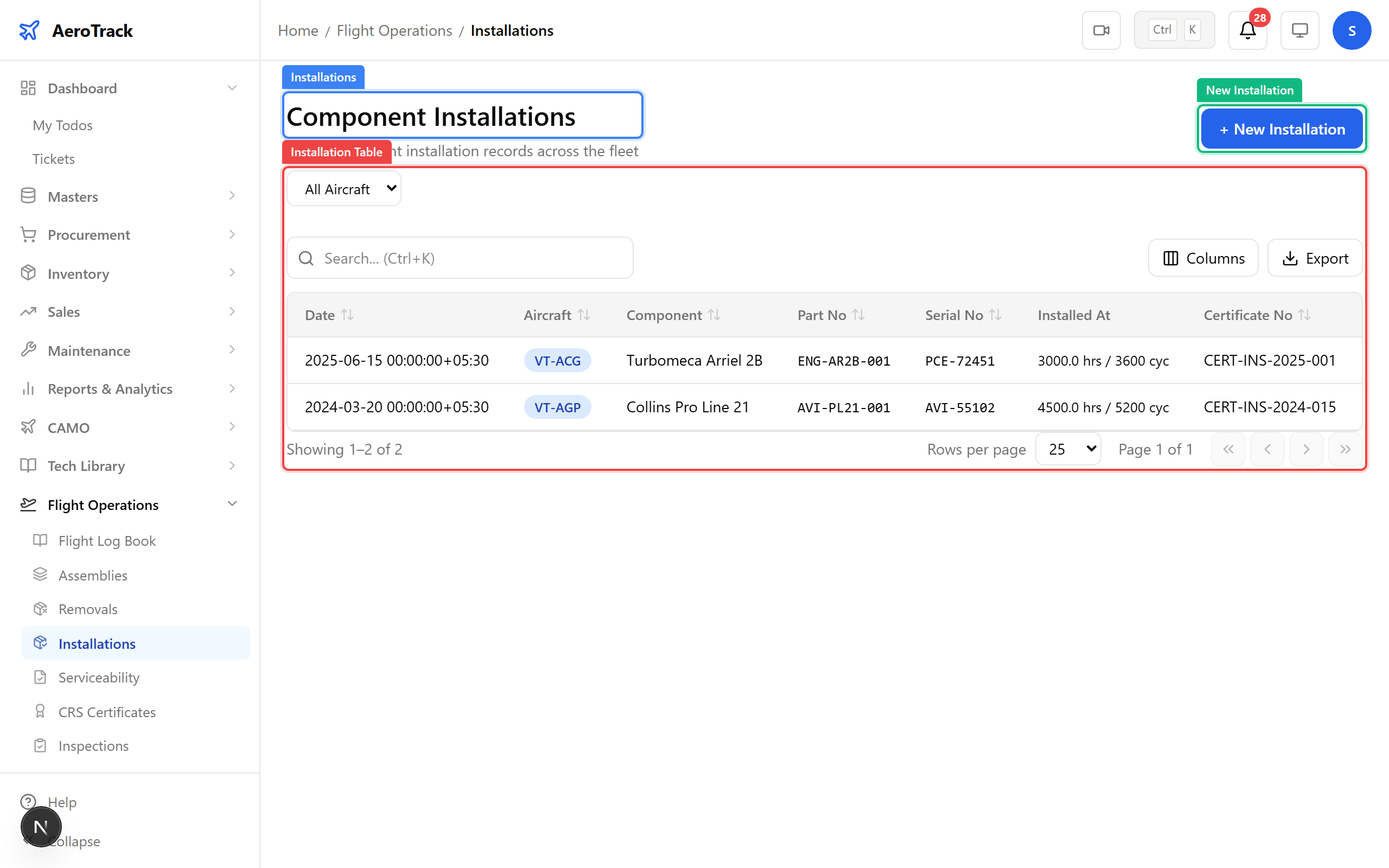
▲ Installations — what goes back on.
Navigate to Flight Ops → Serviceability. Serviceability records document maintenance performed and confirm components are fit for continued flight.
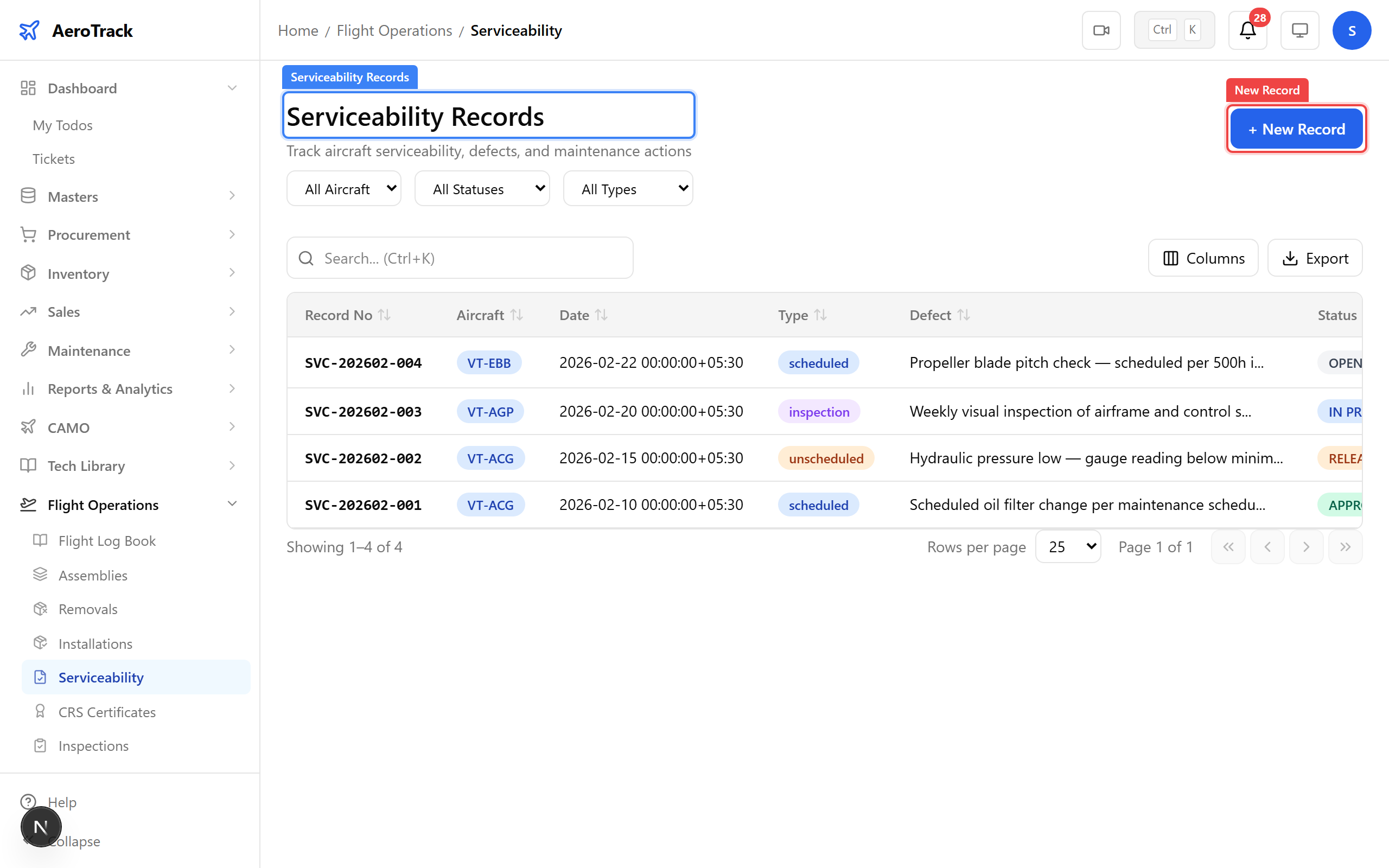
▲ Serviceability records ensure components are fit for flight.
Navigate to Flight Ops → CRS. The Certificate of Release to Service is the final sign-off that an aircraft is airworthy after maintenance.
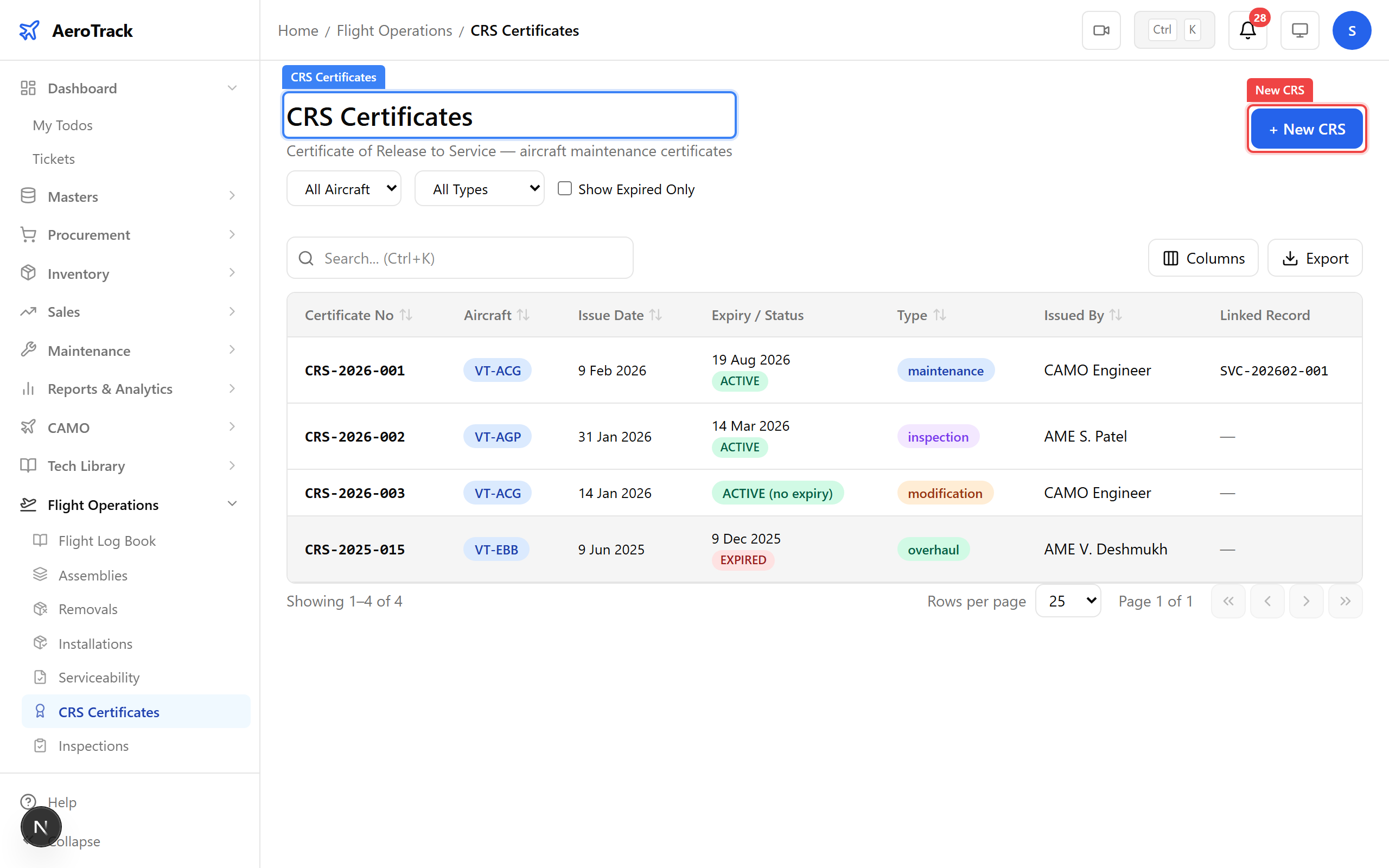
▲ CRS certificates — the final sign-off that an aircraft is airworthy.
Click New CRS. Select the aircraft, certificate type, work description, and the issuing engineer. Only authorised engineers can issue CRS certificates.
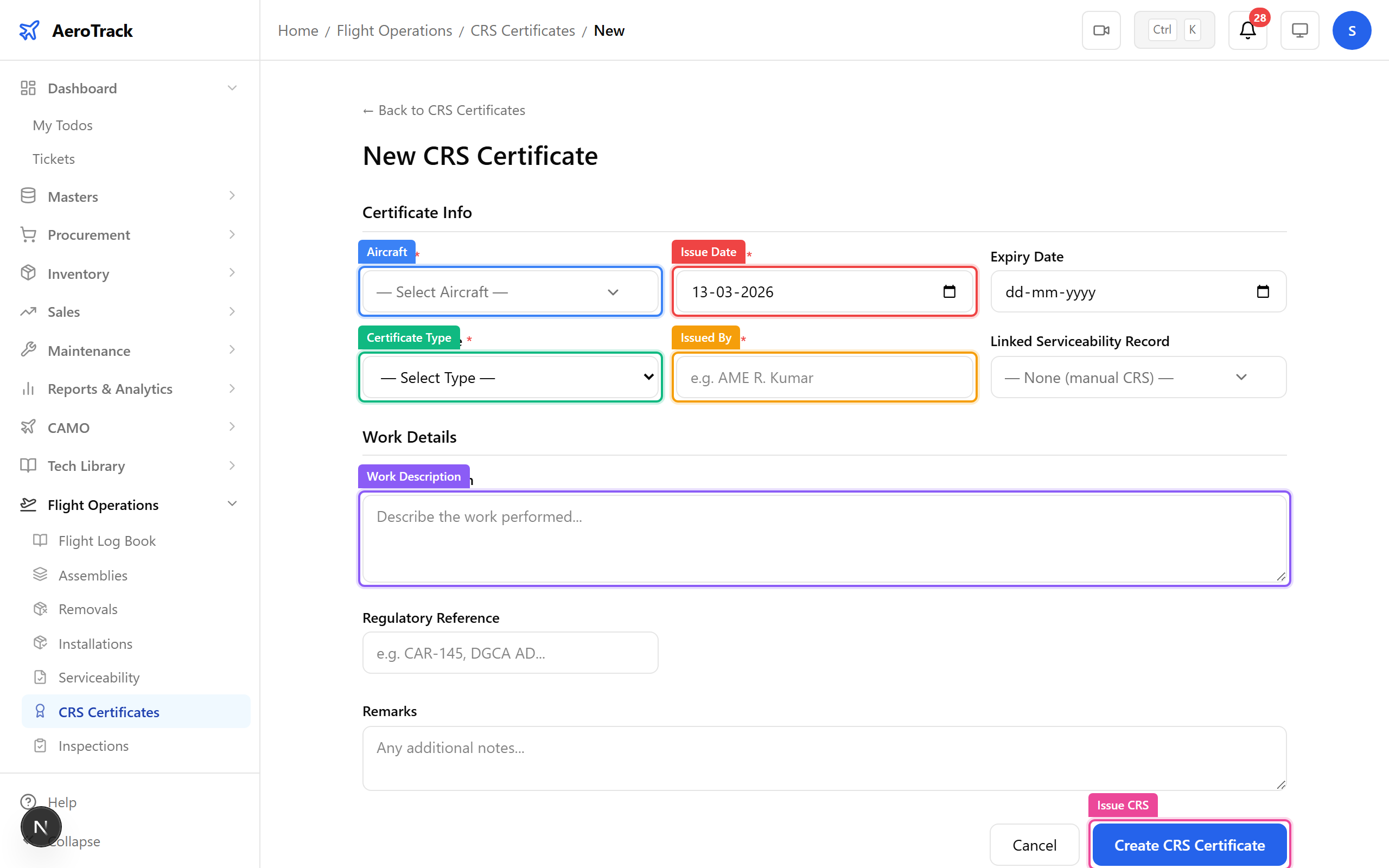
| Field | Purpose |
|---|---|
| Aircraft | Which aircraft is being released |
| Certificate Type | Maintenance / Modification / Inspection / Other |
| Issue Date | When the certificate is issued |
| Expiry Date | Certificate validity (if applicable) |
| Issued By | Authorised certifying engineer |
| Work Description | What maintenance was performed |
| Regulatory Reference | Applicable DGCA/CAR regulation |
Navigate to Flight Ops → Task History. Every completed inspection, maintenance action, and component change across your fleet is logged here. Filter by aircraft to see the full compliance timeline for any tail number.
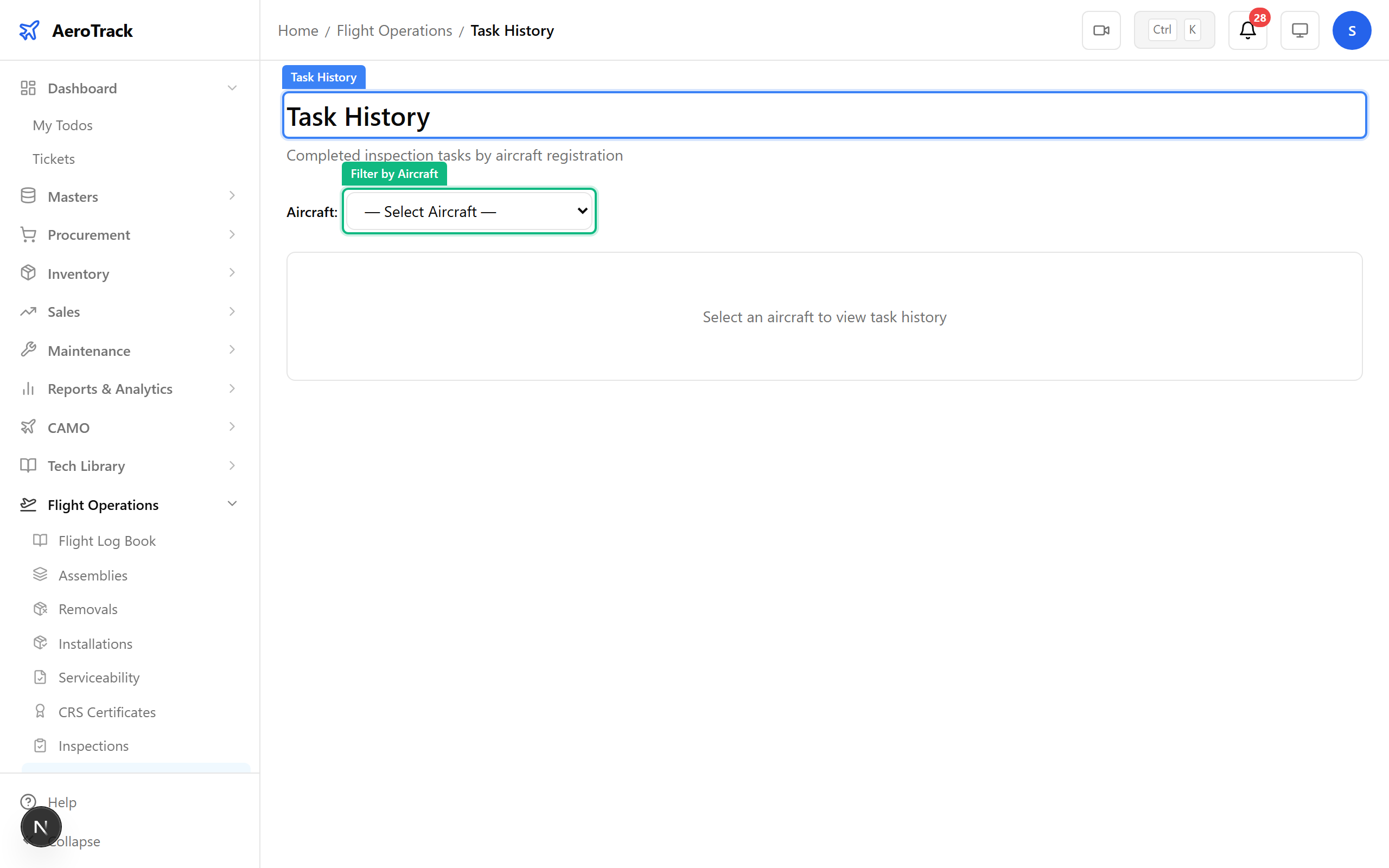
▲ Complete task history — every maintenance action across your fleet.