Browse Returns
1Open Returns List
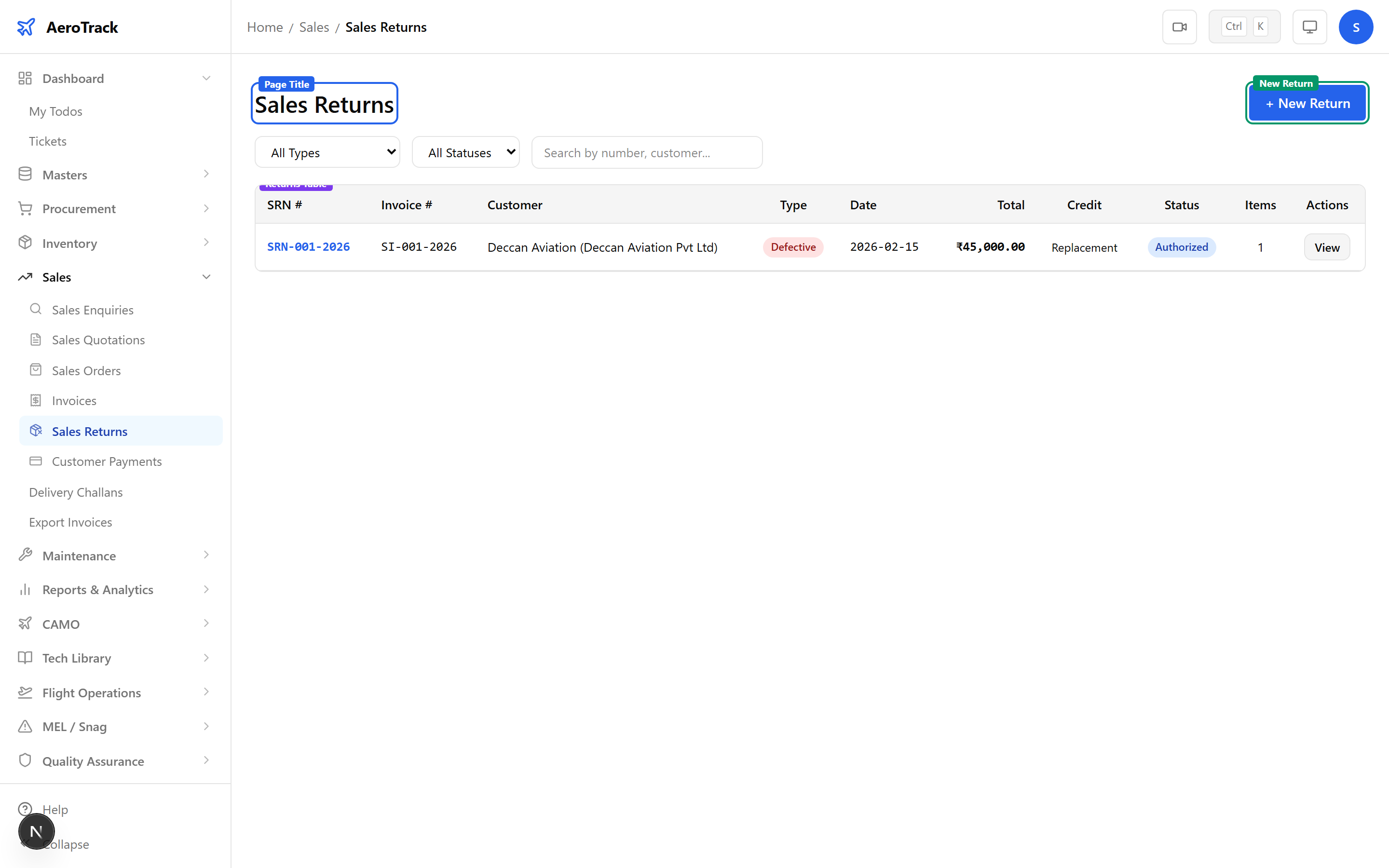
Navigate to Sales → Returns or go to /sales/returns.
2Filter & Columns
| Column | Description |
|---|---|
| SRN Number | Auto-generated return note number (links to detail). |
| Invoice | Linked sales invoice number. |
| SO Number | Sales order reference (if applicable). |
| Customer | Customer name snapshot. |
| Return Type | Badge: Defective, Damaged, Wrong Item, Not as Ordered, Customer Request. |
| Return Date | Date the return was initiated. |
| Total Amount | Return value with currency. |
| Items | Number of items being returned. |
| Status | Draft, Authorized, Received, Completed, or Cancelled. |
Create a Return
3Select Invoice
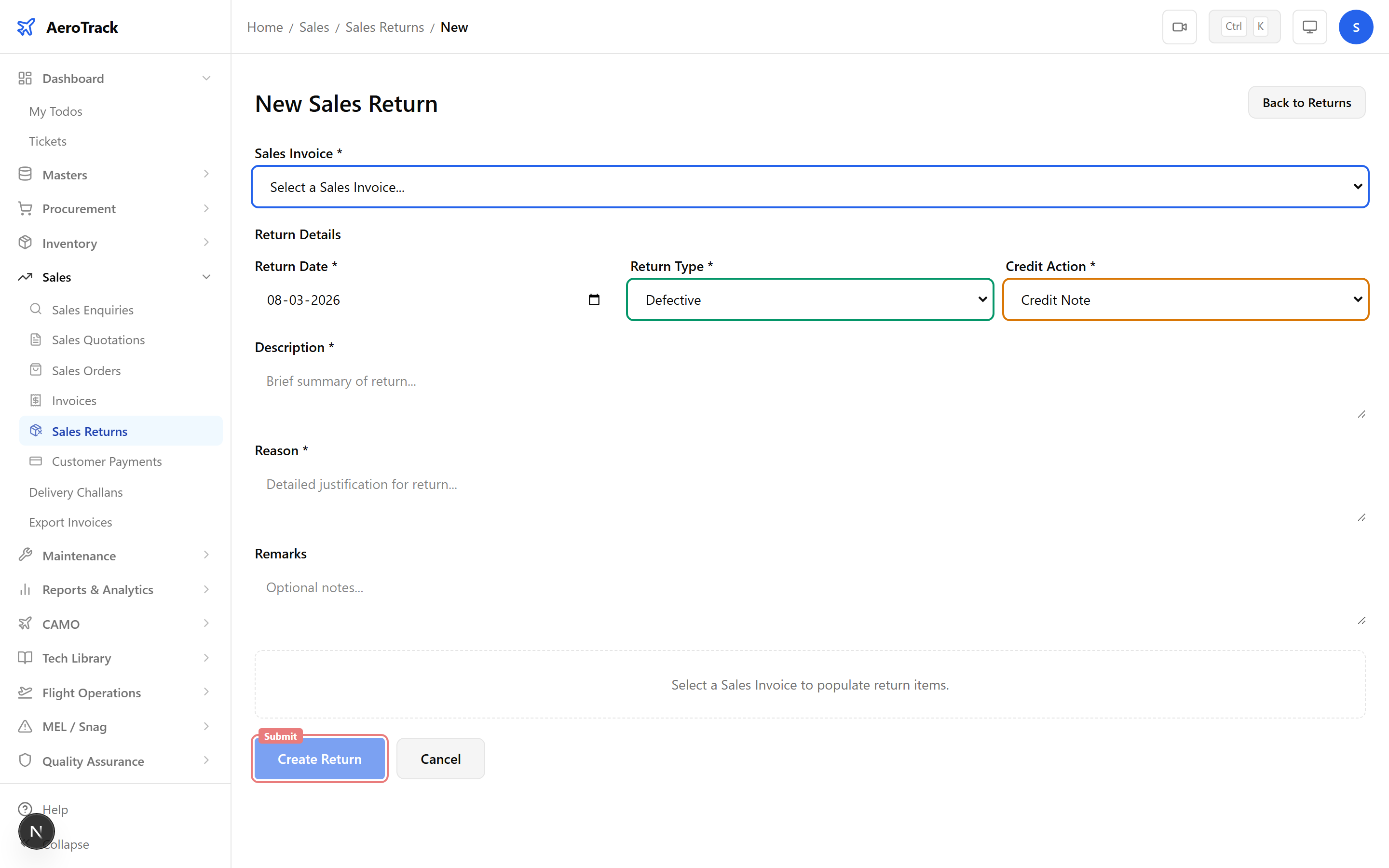
Click + New Return. Select the source Sales Invoice from the dropdown — this auto-loads all invoice line items and customer details.
4Return Details
| Field | Required | Description |
|---|---|---|
| Return Date | Yes | Date the return is initiated. |
| Return Type | Yes | Defective, Damaged, Wrong Item, Not as Ordered, or Customer Request. |
| Description | Yes | Summary of why the return is needed. |
| Reason | Yes | Detailed reason for the return. |
| Credit Action | Yes | Credit Note (default), Replacement, or Refund. |
| Remarks | No | Internal notes. |
5Return Items
The items table is pre-populated from the invoice. For each item being returned, adjust:
| Field | Description |
|---|---|
| Return Qty | Quantity being returned (defaults to original qty). |
| Unit Price | From invoice (for credit value calculation). |
| Line Total | Auto-calculated: return qty × unit price. |
| Condition | Defective, Damaged, Wrong Item, Excess, or Unopened. |
| Remarks | Per-item notes (optional). |
The Total Amount at the bottom auto-calculates as the sum of all line totals, giving you the return credit value.
6Submit
Click Create Return. The return note is created in Draft status with an auto-generated SRN number.
Workflow
7Status Flow
| Status | Meaning | Next |
|---|---|---|
| Draft | Return recorded, editable. | Authorize, Cancel |
| Authorized | Approved for physical receipt of returned goods. | Receive, Cancel |
| Received | Goods physically received back. | Complete |
| Completed | Return fully processed. Credit note / refund / replacement issued. Terminal. | — |
| Cancelled | Return withdrawn. Terminal. | — |
Editing is only allowed in Draft status. Authorization locks the return details.
8Cross-Links
| Action | Guide |
|---|---|
| View source invoice | Sales Invoices |
| Track customer enquiry | Sales Enquiries |
| Ship replacement parts | Delivery Challans |
| Check returned stock | Stock Overview |