Browse Invoices
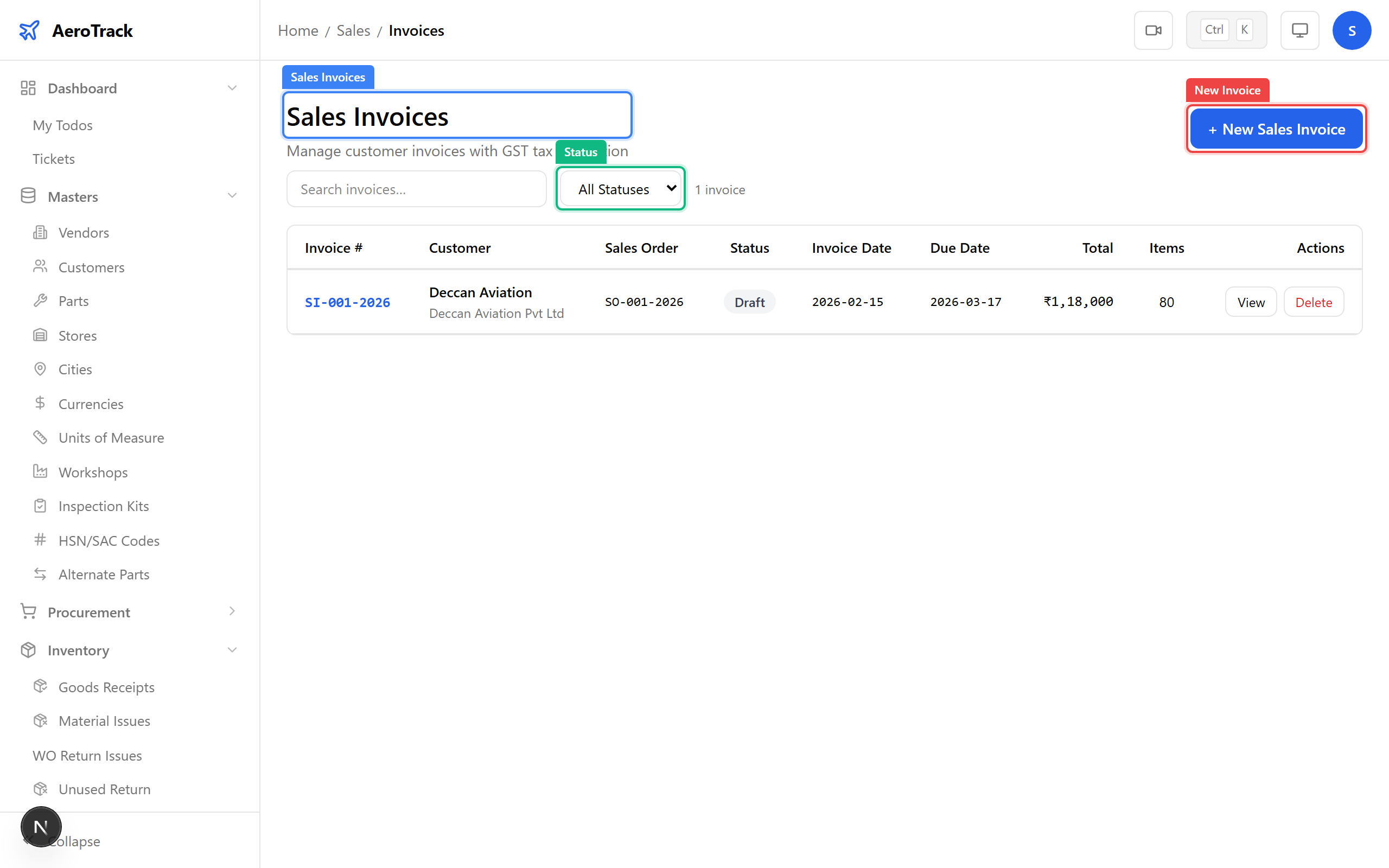
Navigate to Sales → Invoices. The list at
/sales/invoices shows all sales invoices. Use the
search bar and Status filter to find specific
invoices.
Each row shows the invoice number, customer, total amount (incl. tax), status, and date.
Create an Invoice
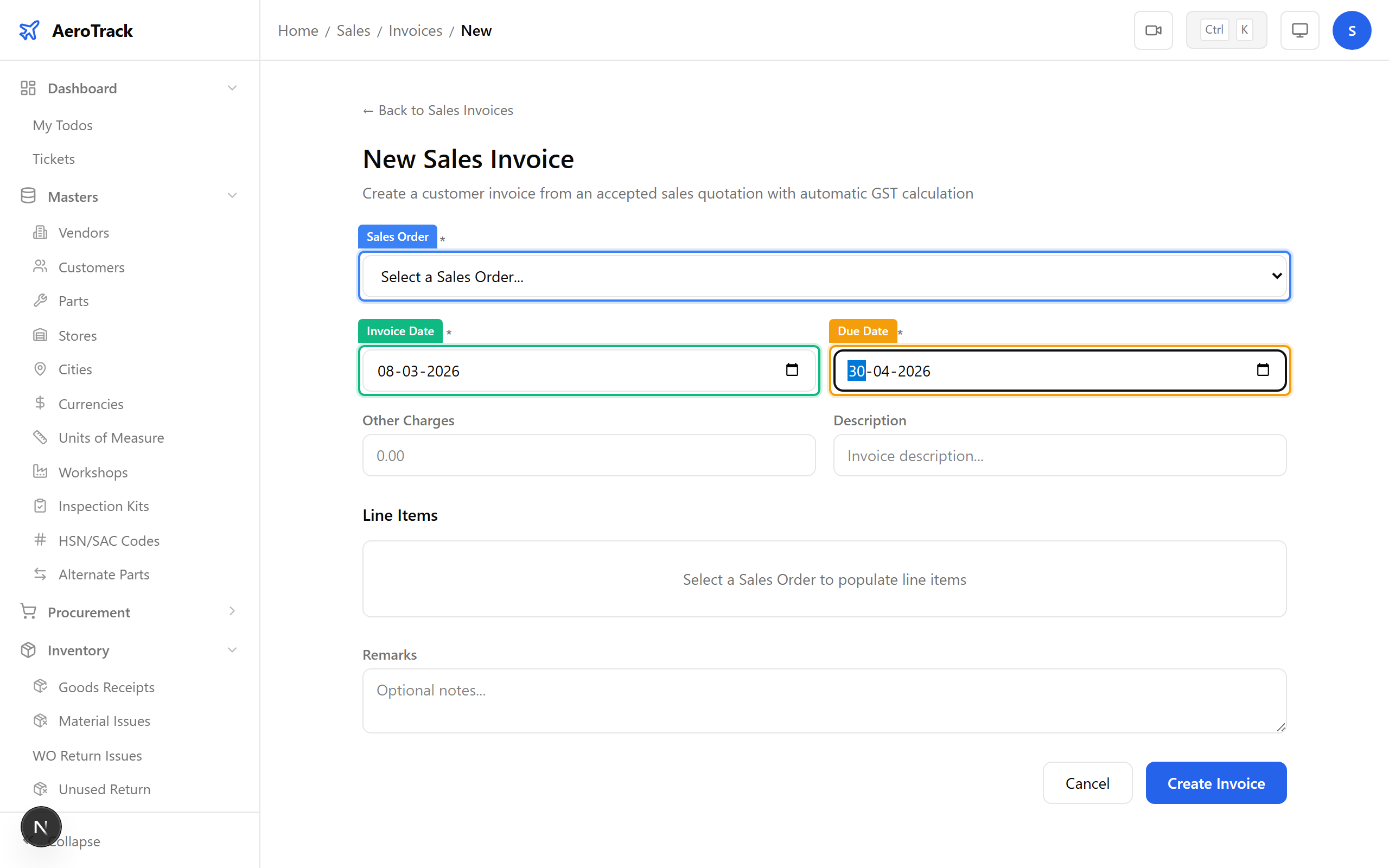
Click + New Invoice or navigate to
/sales/invoices/new. Select a Sales Order
to auto-fill customer and line items.
| Field | Required | Notes |
|---|---|---|
| Sales Order * | Yes | Link to the SO. Auto-fills customer and items. |
| Invoice Date | Auto | Defaults to today. |
| Due Date | No | Payment due date based on payment terms. |
| Other Charges | No | Additional charges (packing, handling, etc.). |
| Description | No | Invoice-level notes. |
| Remarks | No | Internal notes (not shown on printed invoice). |
Line items are pre-filled from the sales order. Adjust quantities for partial invoicing if needed.
The tax summary section shows:
| Row | Meaning |
|---|---|
| Subtotal | Sum of line item amounts. |
| CGST / SGST / IGST | GST breakdown (intra-state or inter-state). |
| Other Charges | Additional charges entered above. |
| Grand Total | Final invoice amount. |
Click Create to save the invoice in Draft status.
Invoice Detail & Workflow
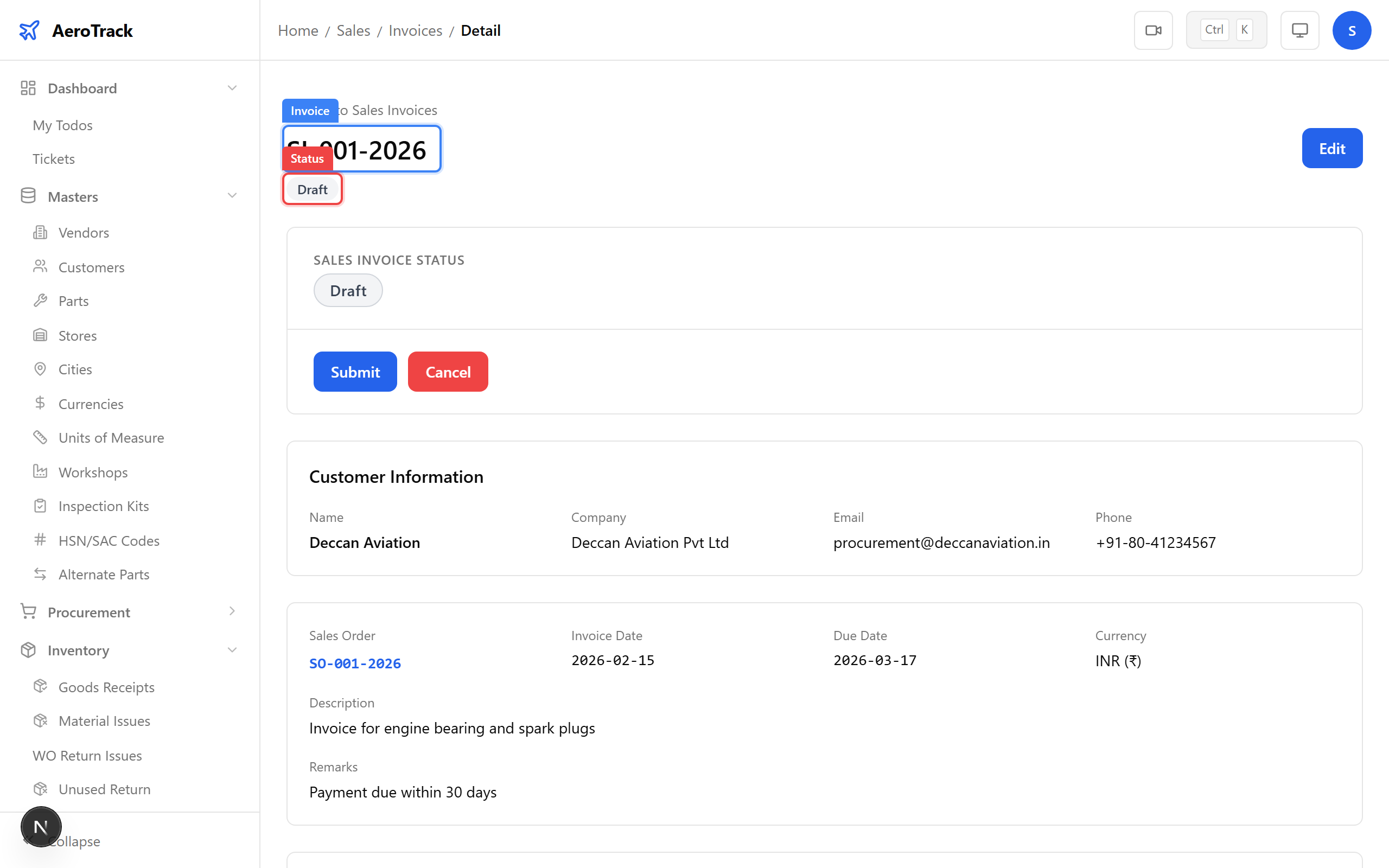
The invoice detail page shows the full invoice: customer info, linked SO, line items with tax, and the grand total.
The invoice detail includes a Delivery Challans section. Click + New Challan to create a delivery note for shipping items to the customer. Challans track carrier, tracking number, and delivery confirmation.
| Status | Meaning | Next Action |
|---|---|---|
| Draft | Created. Editable. | Submit for review. |
| Submitted | Sent for approval. Read-only. | Approve (manager/admin). |
| Approved | Ready for dispatch and payment collection. | Create Delivery Challan and collect payment. |
| Paid | Full payment received. | Archived. |
| Cancelled | Voided at any stage. | — |