Browse Stock
1Open Stock Overview
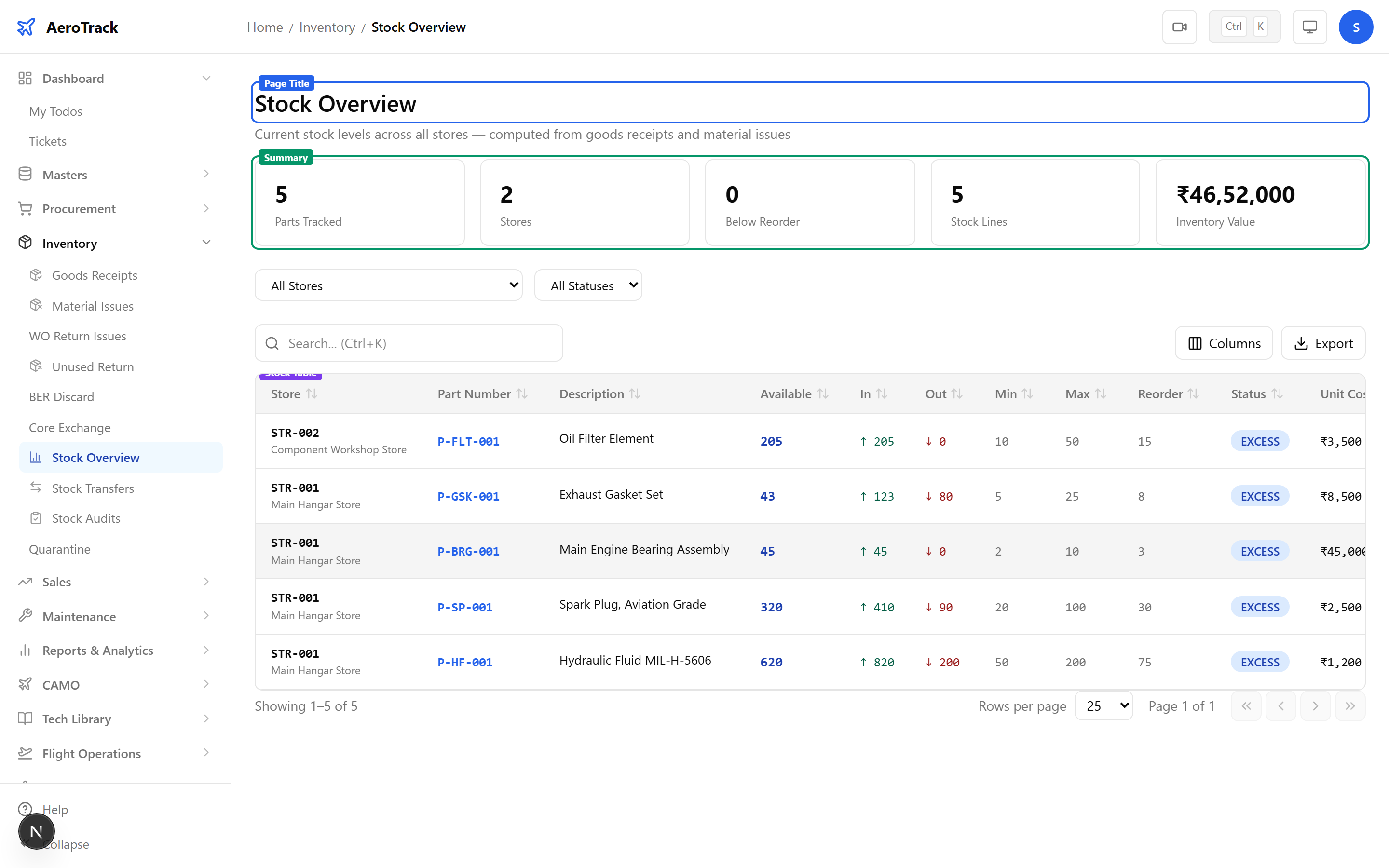
Navigate to Inventory → Stock Overview or go to /inventory/stock.
2Summary Cards
| Card | Description |
|---|---|
| Parts Tracked | Total unique parts with stock records. |
| Stores | Number of active stores/warehouses. |
| Below Reorder | Parts at or below reorder level (red if > 0). |
| Stock Lines | Total rows (part × store combinations). |
| Inventory Value | Total value of all stock (&rupee; formatted). |
3Filter & Columns
| Column | Description |
|---|---|
| Store | Store code (monospace) + name. |
| Part Number | Part number (monospace, linked to detail). |
| Description | Part description (truncated). |
| Available | Current balance (bold, colour-coded). |
| In (↑) | Total inbound quantity (green arrow). |
| Out (↓) | Total outbound quantity (red arrow). |
| Min / Max / Reorder | Level thresholds from part master. |
| Unit Cost | Cost per unit (&rupee;). |
| Total Value | Available × Unit Cost (&rupee;). |
| Status | Critical, Low, Normal, or Excess badge. |
Use the Store dropdown to filter by warehouse and the Status dropdown to show only critical or low-stock items.
Stock Detail
4Movement History
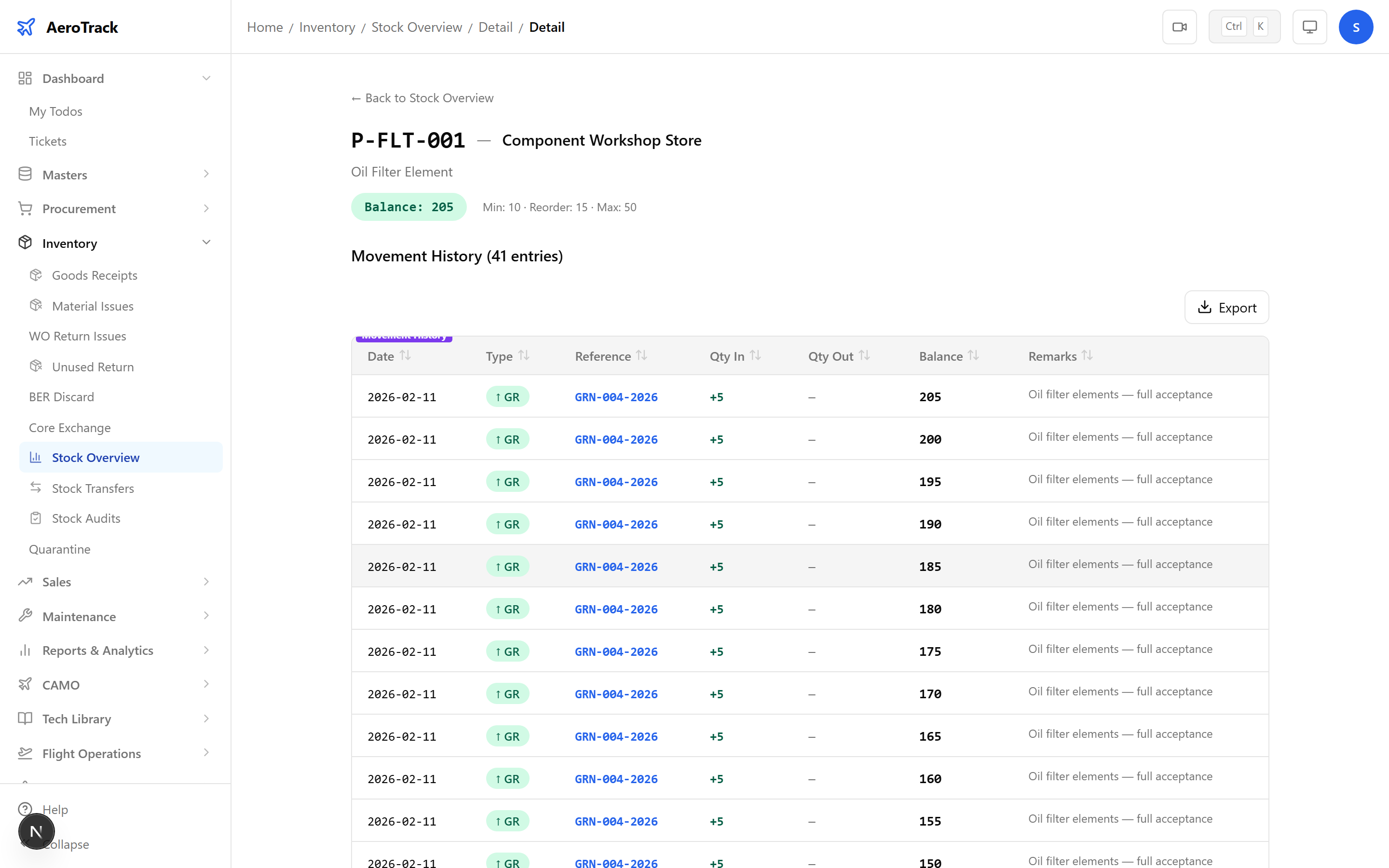
Click a part number to view the detailed stock movements (bin card). Each movement shows the source document and running balance.
| Column | Description |
|---|---|
| Date | Movement date. |
| Type | GR (receipt), MI (issue), ST_IN (transfer in), or ST_OUT (transfer out). |
| Ref Number | Source document number (linked). |
| Qty In | Inbound quantity (green). |
| Qty Out | Outbound quantity (red). |
| Unit Cost | Cost at time of movement. |
| Running Balance | Cumulative balance after this movement. |
5Running Balance
The running balance is calculated chronologically — each row shows the cumulative balance after that movement. Inbound movements add to the balance; outbound movements subtract. This is the digital equivalent of a physical bin card.
Stock Status
6Status Badges
| Status | Colour | Condition |
|---|---|---|
| Critical | Red | Available ≤ minimum level or ≤ 0. |
| Low | Amber | Available ≤ reorder level. |
| Normal | Green | Between minimum and maximum. |
| Excess | Blue | Available > maximum level. |
Critical and Low-status parts should be reordered promptly. Use the “Below Reorder” summary card to quickly identify parts needing attention.
7Cross-Links
| Action | Guide |
|---|---|
| Issue materials from stock | Material Issues |
| Receive goods into store | Goods Receipt |
| Transfer between stores | Stock Transfers |
| Audit physical stock | Stock Audits |
| Create purchase requisition | Part Request |