Browse Quotations
1Open Quotation List
Navigate to Sales → Quotations or go to /sales/quotations.
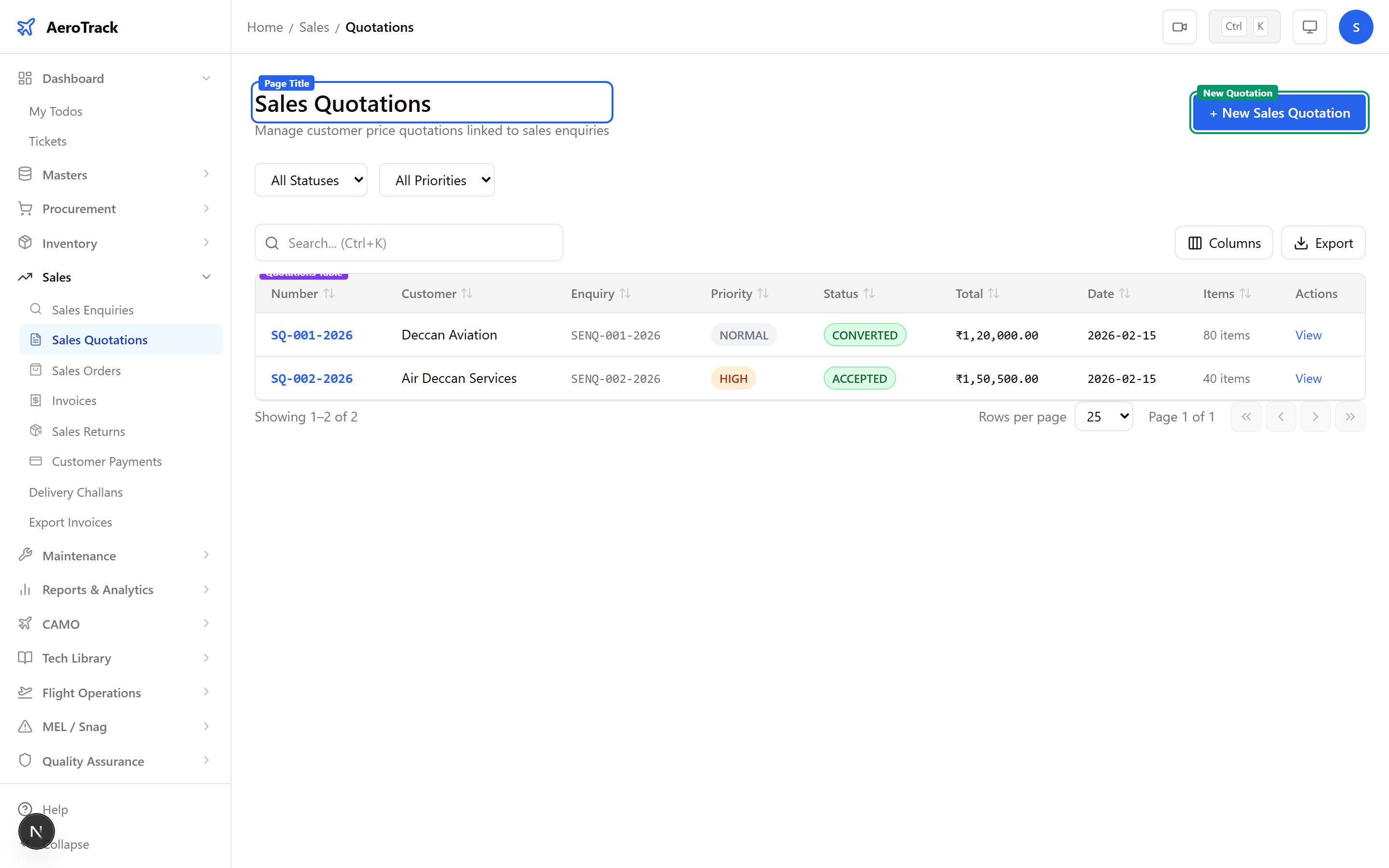
2Filter & Columns
| Column | Description |
|---|---|
| SQ Number | Auto-generated reference (links to detail). |
| Enquiry | Linked SENQ number. |
| Customer | Name snapshot from the enquiry. |
| Quotation Date | Date the quotation was prepared. |
| Validity Date | Expiry date (minimum 7 days after quotation date). |
| Amount | Total amount with currency symbol. |
| Items | Number of line items. |
| Status | Active, Accepted, Rejected, or Converted. |
Create a Quotation
3Select Enquiry
Click + New Quotation. Select a Draft enquiry from the dropdown — this auto-populates customer details and line items.
Only enquiries in Draft status with at least one line item appear in the dropdown. Each enquiry can have at most one quotation.
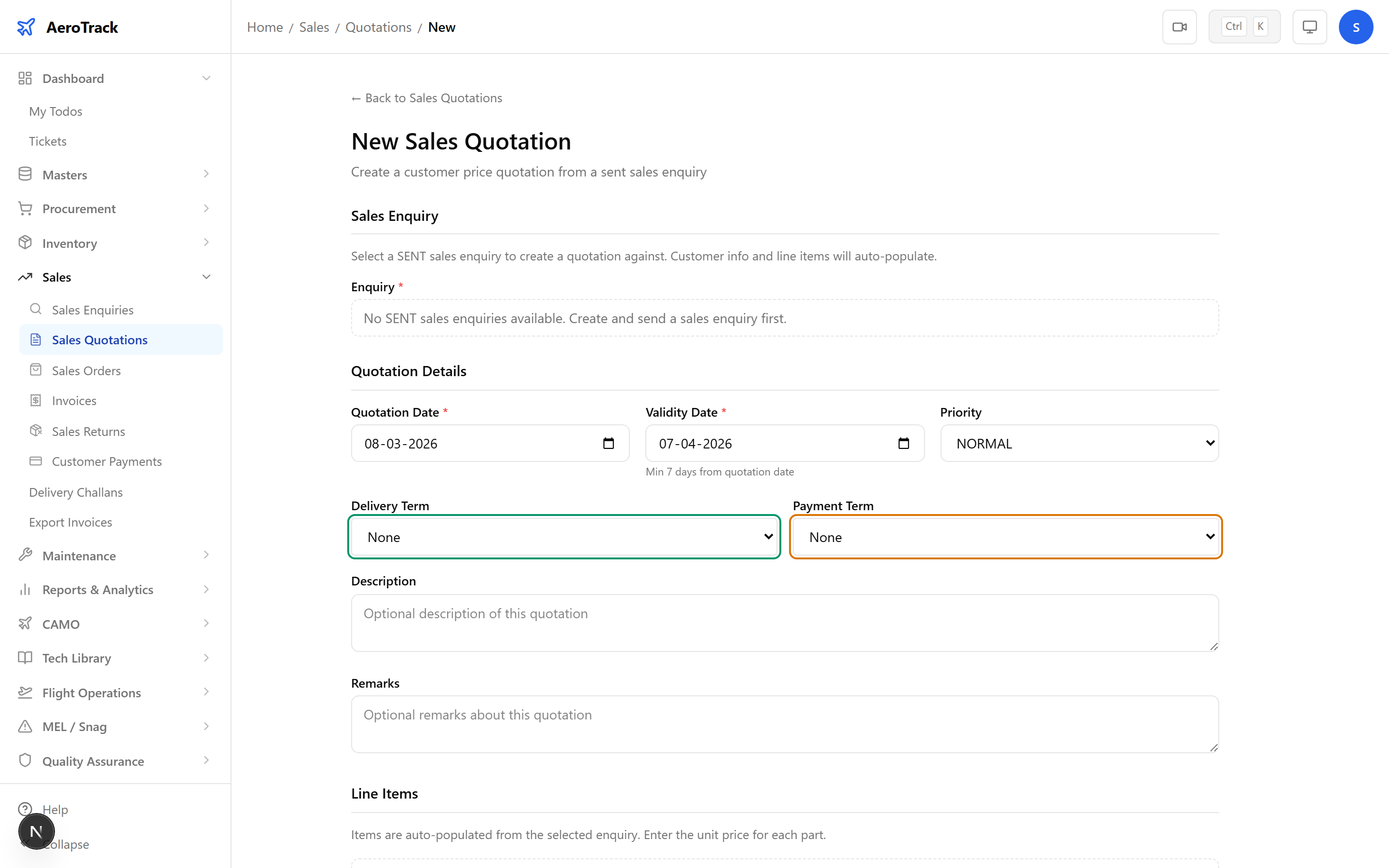
4Quotation Details
| Field | Required | Description |
|---|---|---|
| Quotation Date | Yes | Auto-fills today. |
| Validity Date | Yes | Auto-calculated 30 days from quotation date. Must be ≥ 7 days after. |
| Delivery Term | Yes | FOB, CIF, DDP, EXW, or FCA. |
| Payment Term | Yes | NET30, NET45, NET60, Advance, or COD. |
| Priority | Yes | High, Normal, or Low. |
| Description | No | Additional notes. |
| Remarks | No | Internal remarks. |
5Price Line Items
The items table is pre-populated from the enquiry. Enter a unit price for each line item — the line amount is auto-calculated (quantity × unit price).
| Field | Description |
|---|---|
| Part Number | Read-only, from enquiry. |
| Quantity | Read-only, from enquiry. |
| Unit Price | Enter price per unit (must be > 0). |
| Line Amount | Auto-calculated: qty × unit price. |
Below the items, enter:
| Field | Description |
|---|---|
| Tax | Tax amount (optional, numeric). |
| Shipping Cost | Freight / delivery charges (optional). |
| Total Amount | Auto-calculated: subtotal + tax + shipping. |
All unit prices must be greater than zero before submitting.
6Submit
Click Create Quotation. The quotation is created in Active status with an auto-generated SQ number.
Workflow
7Amendments
While Active, click Amend to create a price revision. Each amendment records:
| Field | Description |
|---|---|
| Amendment Number | Auto-incremented (1, 2, 3…). |
| Change Description | What changed and why. |
| Previous Amount | Total before amendment. |
| New Amount | Total after amendment. |
| Reason | Business reason for the revision. |
Amendment history is visible on the quotation detail page and provides a full audit trail of price changes.
8Status Flow
| Status | Meaning | Next |
|---|---|---|
| Active | Quotation sent, awaiting response. Editable & amendable. | Accepted, Rejected, Converted |
| Accepted | Customer accepted the quotation. | Converted |
| Rejected | Customer rejected. Terminal. | — |
| Converted | Converted to Sales Order. Terminal. | — |
Editing, amending, and deleting are only allowed in Active status.
9Cross-Links
| Action | Guide |
|---|---|
| Record customer enquiry | Sales Enquiries |
| Convert to sales order | Sales Orders |
| Generate invoice | Sales Invoices |
| Schedule delivery | Delivery Challans |