Browse Sales Orders
Navigate to Sales → Sales Orders in the
sidebar. The list loads at /sales/sales-orders showing
all orders sorted by date.
Each row shows the SO number, customer, total amount, status, priority, and order date.
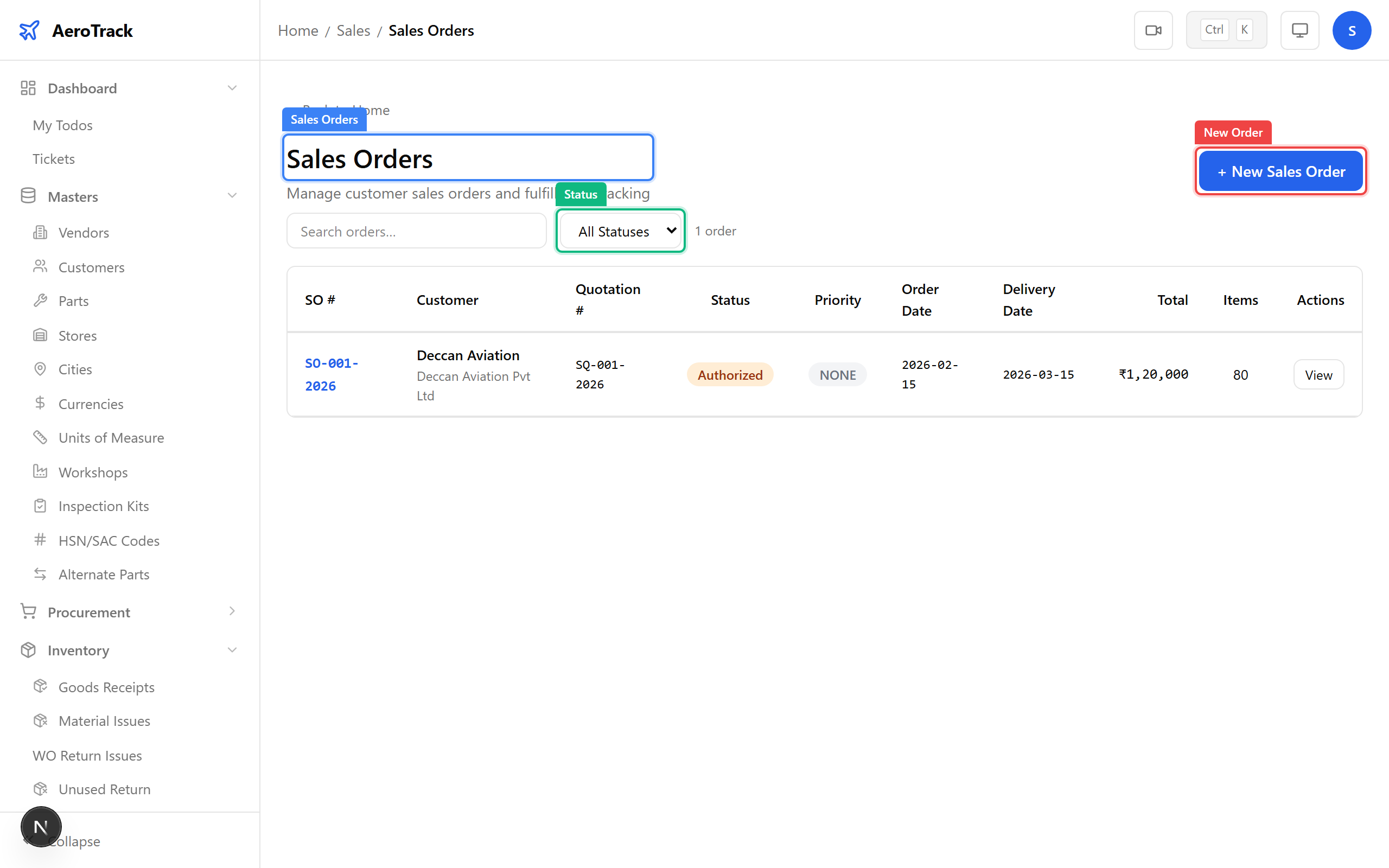
Use the search bar to find orders by number or customer name. The Status filter narrows by workflow stage: Opened, Authorized, Fulfilled, or Cancelled.
Create a Sales Order
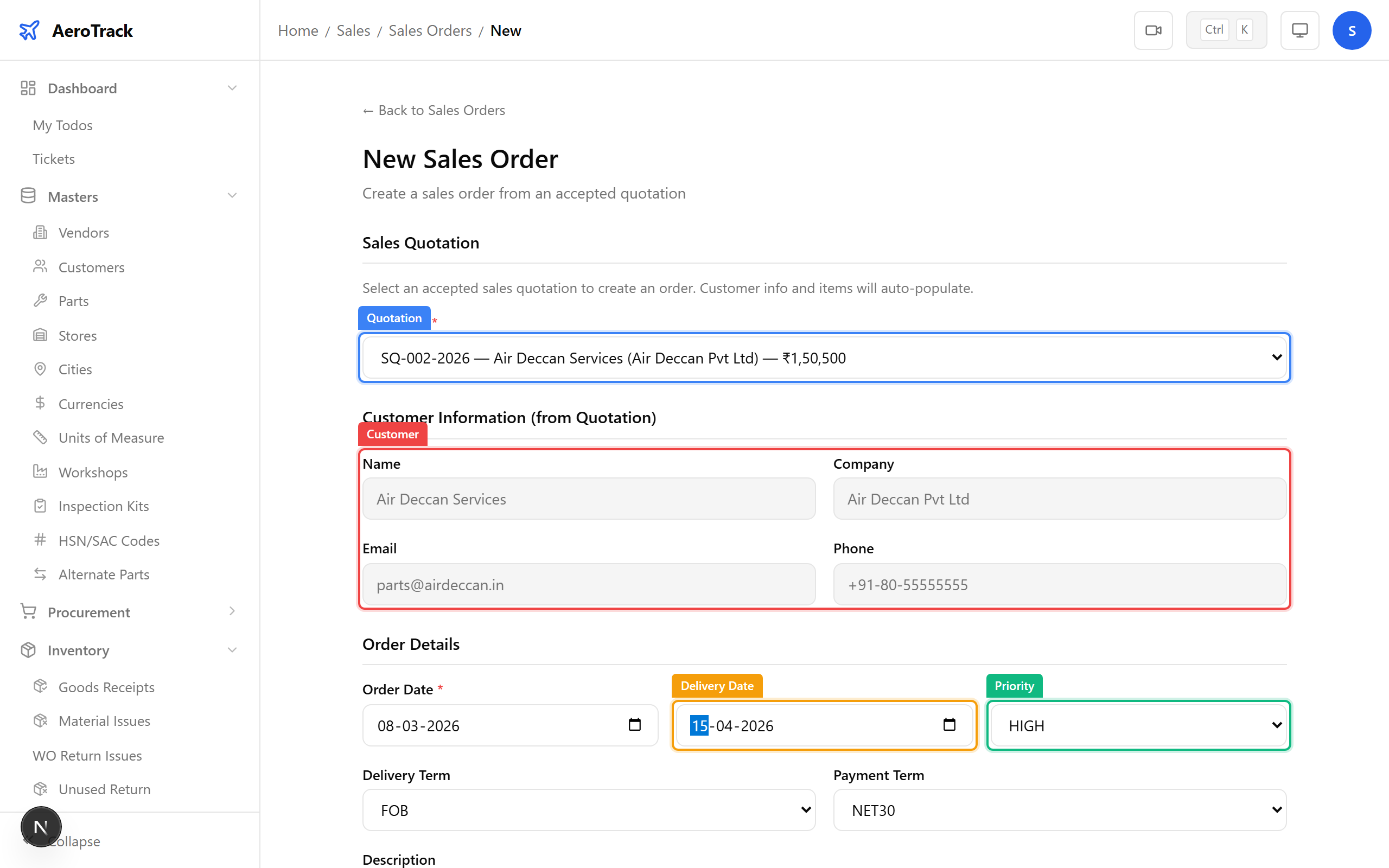
Click + New Order on the list page, or navigate to
/sales/sales-orders/new. If creating from an accepted
quotation, the form pre-fills customer and line items.
| Field | Required | Notes |
|---|---|---|
| Quotation | No | Link to an accepted quotation. Auto-fills customer & items. |
| Order Date | Auto | Defaults to today. |
| Delivery Date | No | Expected delivery date. |
| Priority | No | Low, Medium, High, or Critical. |
| Delivery Term | No | Ex-Works, FOB, CIF, etc. |
| Payment Term | No | Net 30, Net 60, Advance, etc. |
| Description | No | Order-level description or special instructions. |
Line items show part number, description, quantity, unit price, tax rate, and line total. Edit quantities and prices as needed.
The bottom of the form shows the tax computation:
| Row | Meaning |
|---|---|
| Subtotal | Sum of all line item amounts before tax. |
| Tax (GST) | Calculated from each line item’s tax rate. |
| Shipping | Optional shipping/freight charges. |
| Grand Total | Final amount payable by the customer. |
Click Create to save the order.
SO Detail & Workflow
The SO detail page shows the complete order with customer info, line items, tax summary, and the linked quotation (if any).
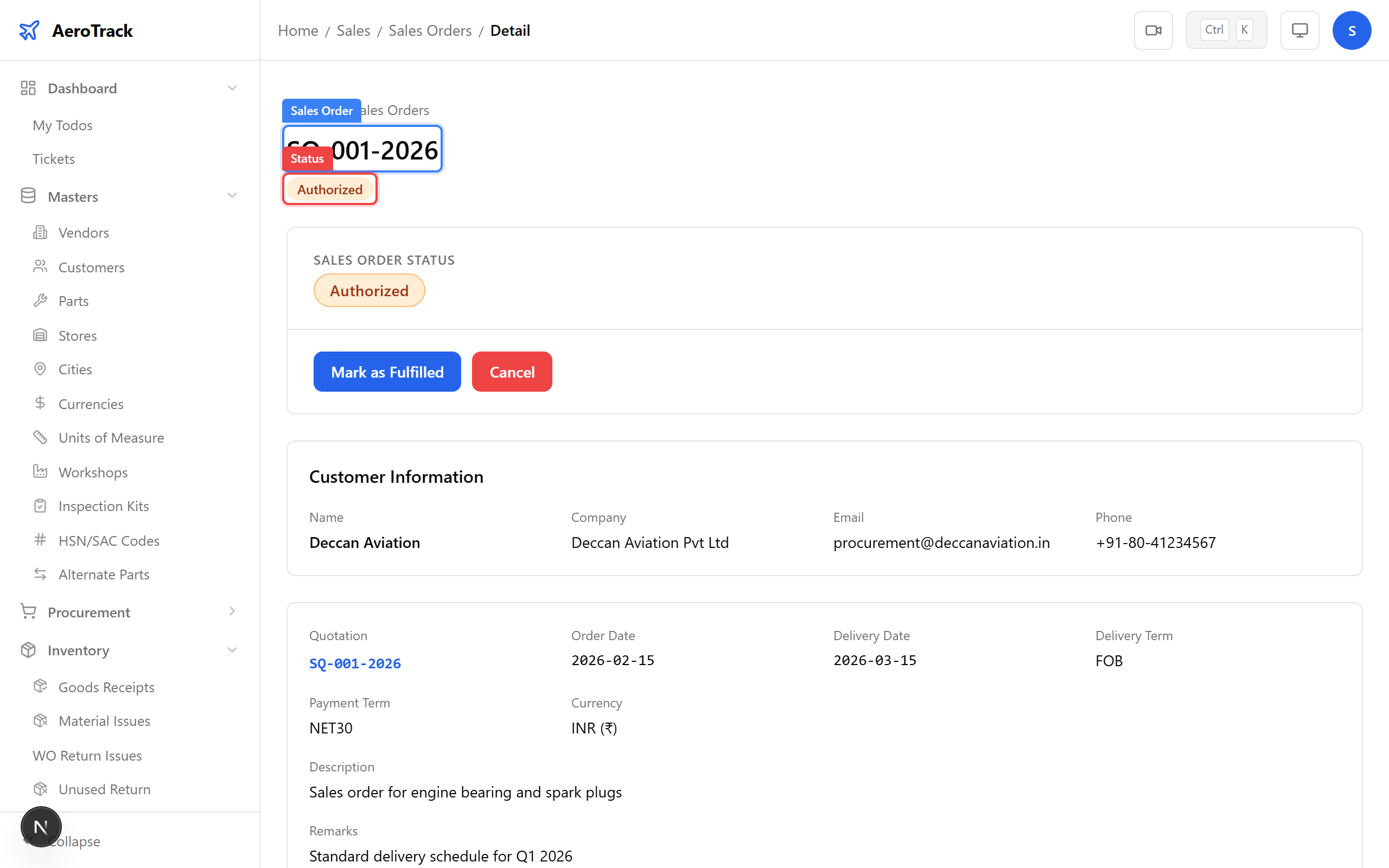
| Status | Meaning | Next Action |
|---|---|---|
| Opened | Newly created. Editable. | Authorize to confirm the order. |
| Authorized | Confirmed. Ready for invoicing. | Create a Sales Invoice. |
| Fulfilled | All items delivered and invoiced. | Record Customer Payment. |
| Cancelled | Order withdrawn. | — |