Browse Enquiries
1Open Enquiry List
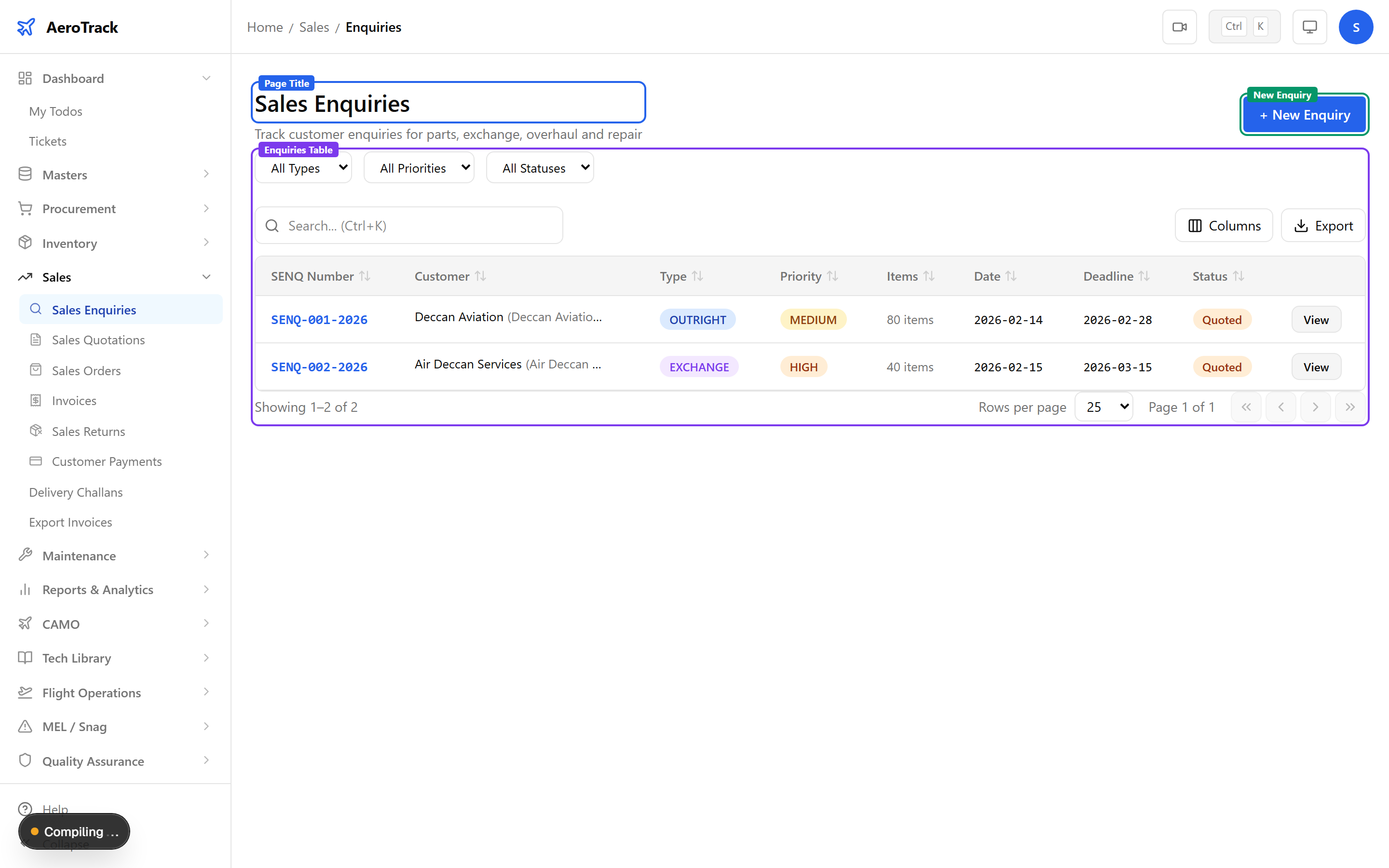
Navigate to Sales → Enquiries or go to /sales/enquiries. The list shows all sales enquiries with filterable columns.
2Filter & Columns
| Column | Description |
|---|---|
| SENQ Number | Auto-generated reference (links to detail). |
| Customer | Name with company in parentheses if provided. |
| Type | Badge: Outright (blue), Exchange (purple), Overhaul (amber), Repair (emerald). |
| Priority | None, Low, Medium, High, or AOG. |
| Items | Number of part line items. |
| Date | Enquiry date. |
| Deadline | Response deadline. |
| Status | Draft, Sent, Quoted, Closed, or Cancelled. |
Use the Type, Priority, and Status dropdowns above the table to filter. The search box matches customer name and SENQ number.
Create an Enquiry
3Customer Information
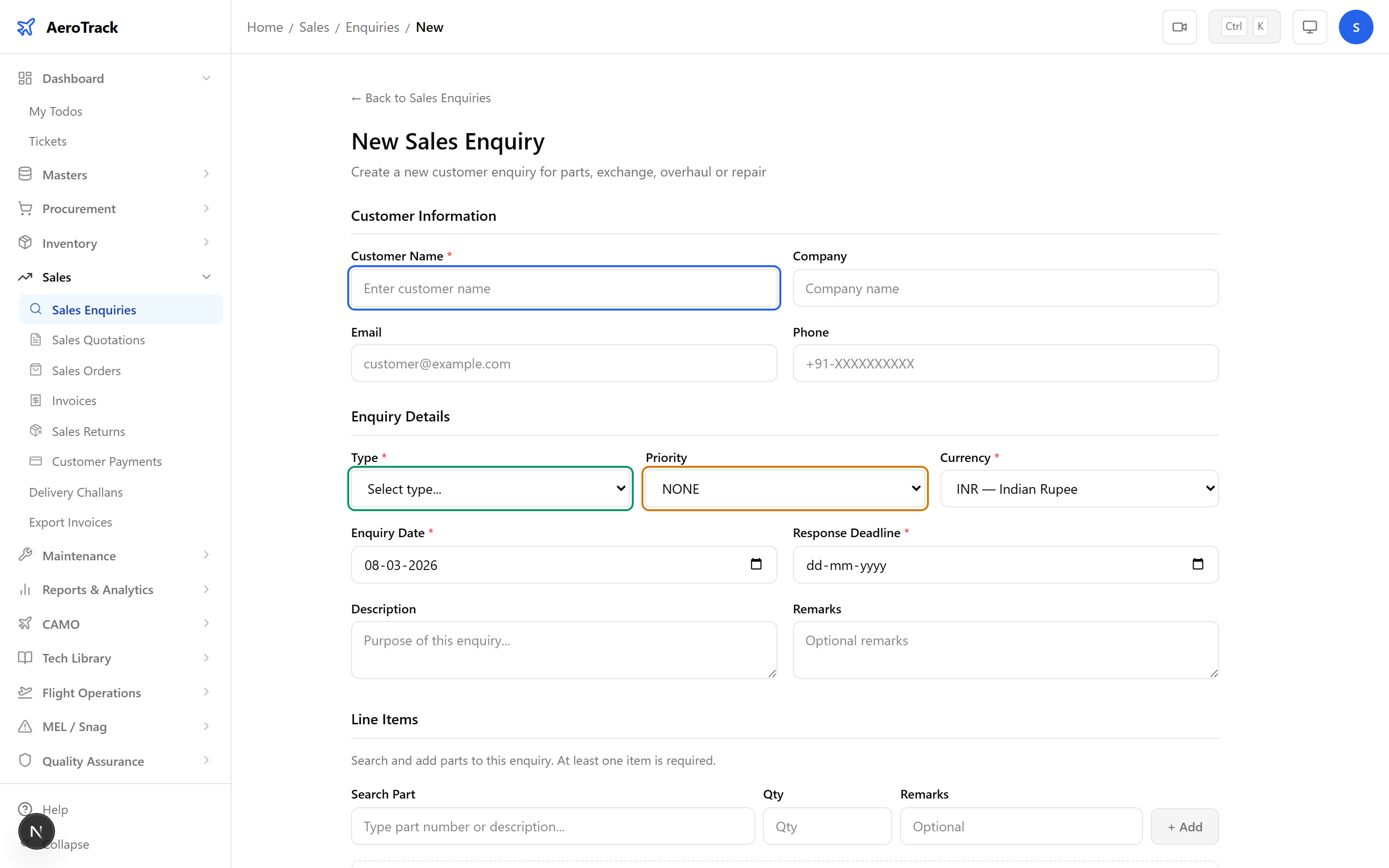
Click + New Enquiry to open /sales/enquiries/new.
| Field | Required | Description |
|---|---|---|
| Customer Name | Yes | Contact name for the enquiry. |
| Company | No | Customer’s organisation. |
| No | Contact email. | |
| Phone | No | Contact phone. |
4Enquiry Details
| Field | Required | Description |
|---|---|---|
| Type | Yes | Outright, Exchange, Overhaul, or Repair. |
| Priority | No | None (default), Low, Medium, High, or AOG. |
| Currency | Yes | Currency for pricing. |
| Enquiry Date | Yes | Date of enquiry (defaults to today). |
| Response Deadline | Yes | Target date for responding to the customer. |
| Description | No | Additional notes (max 1000 chars). |
| Remarks | No | Internal remarks (max 500 chars). |
5Line Items
Search for parts using the typeahead field. Select a part, enter the quantity, then click Add Item.
| Field | Description |
|---|---|
| Part Search | Typeahead — search by part number or description. Already-added parts are excluded. |
| Quantity | Required, minimum 1. |
| Remarks | Per-item notes (optional). |
At least one line item is required. Each item must have a part selected and a quantity ≥ 1.
6Submit
Click Create Enquiry to save. The enquiry is created in Draft status.
Draft enquiries can be freely edited or deleted. Once you advance to “Sent”, the enquiry is locked for editing.
Workflow
7Status Flow
| Status | Meaning | Next |
|---|---|---|
| Draft | Enquiry recorded, editable. | Sent, Quoted, Closed, Cancel |
| Sent | Enquiry sent to customer. | Quoted, Closed, Cancel |
| Quoted | Quotation prepared — can convert to Sales Quotation. | Sent (re-send), Closed, Cancel |
| Closed | Enquiry closed (won or lost). | Cancel |
| Cancelled | Enquiry withdrawn. Terminal. | — |
Editing and deleting are only allowed in Draft status.
8Cross-Links
| Action | Guide |
|---|---|
| Create quotation from enquiry | Sales Quotations |
| Convert quotation to order | Sales Orders |
| Generate invoice | Sales Invoices |
| Process customer return | Sales Returns |