Navigate to Sales in the sidebar. The landing page shows module cards — Enquiries, Quotations, Orders, Invoices, Returns, Challans, and Export Invoices.
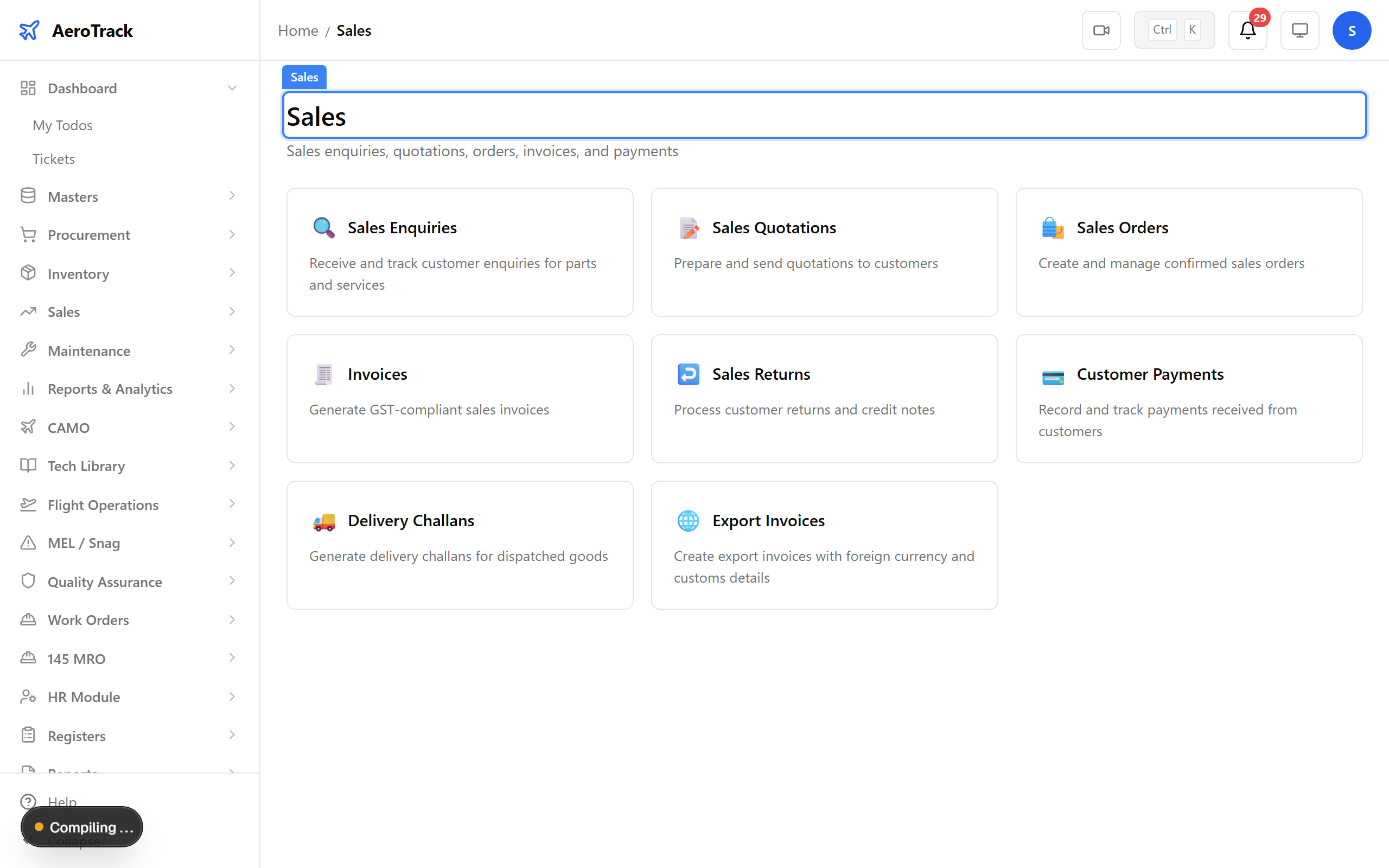
▲ Sales — manage customer orders from enquiry to delivery.
Navigate to Sales → Dashboard. Summary cards show open enquiries, pending orders, and revenue overview. Use this view to monitor the sales pipeline at a glance.
▲ Dashboard — open enquiries, pending orders, and revenue overview.
Navigate to Sales → Enquiries. All customer enquiries are listed with their reference number, customer, date, priority, and status. Click + New to record a new enquiry.
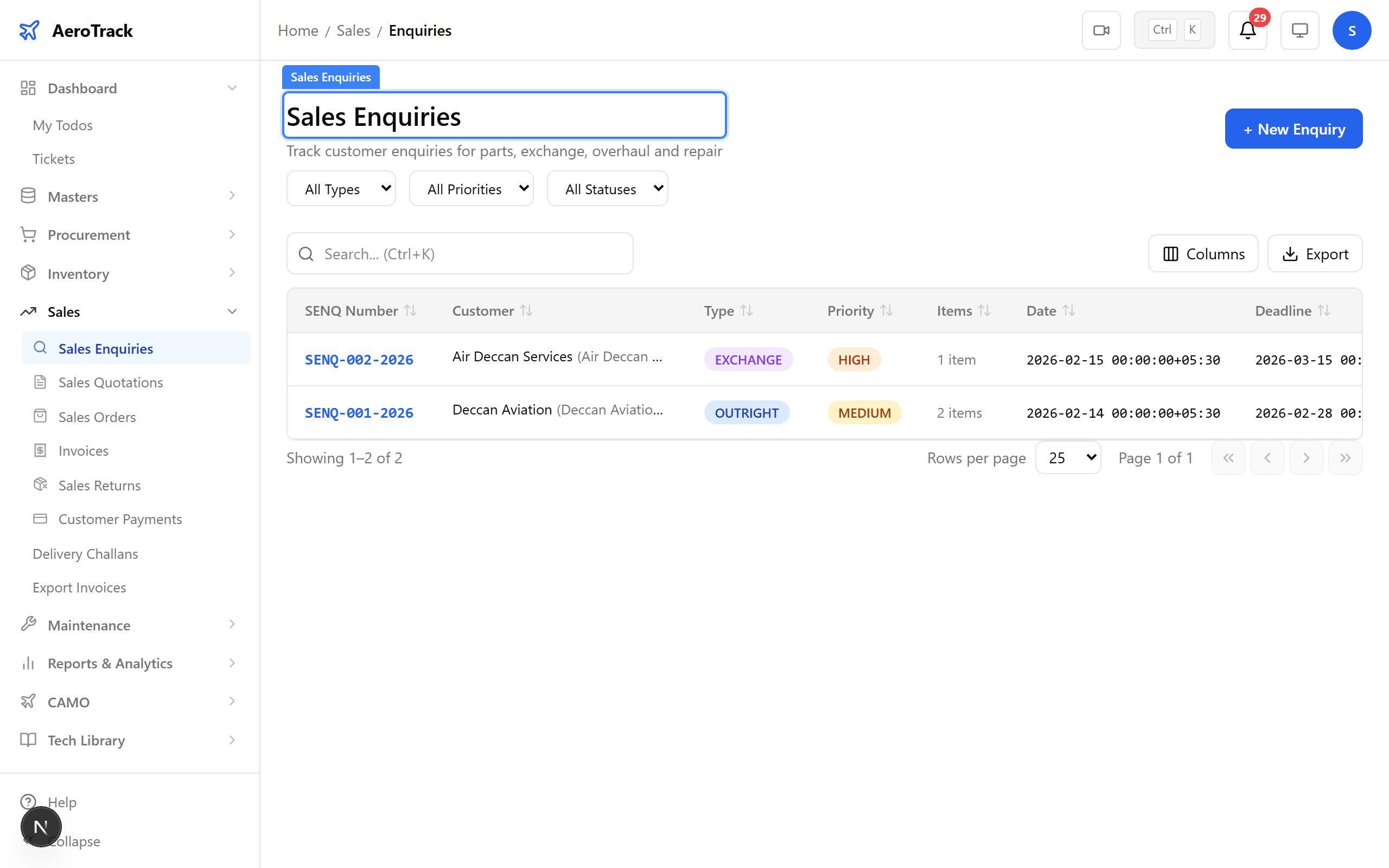
▲ Customer enquiries — incoming requests for parts and services.
Click + New. A helicopter operator needs tail rotor bearings for VT-ACG. Fill in the customer details, items requested, required date, and priority.
| Field | Purpose |
|---|---|
| Customer | The organisation making the enquiry |
| Contact Person | Primary contact at the customer’s end |
| Part Number | The specific part being requested |
| Description | Part description and specification |
| Quantity | Number of units requested |
| Required Date | When the customer needs the parts |
| Priority | Normal / High / Urgent |
| Notes | Additional context or special requirements |
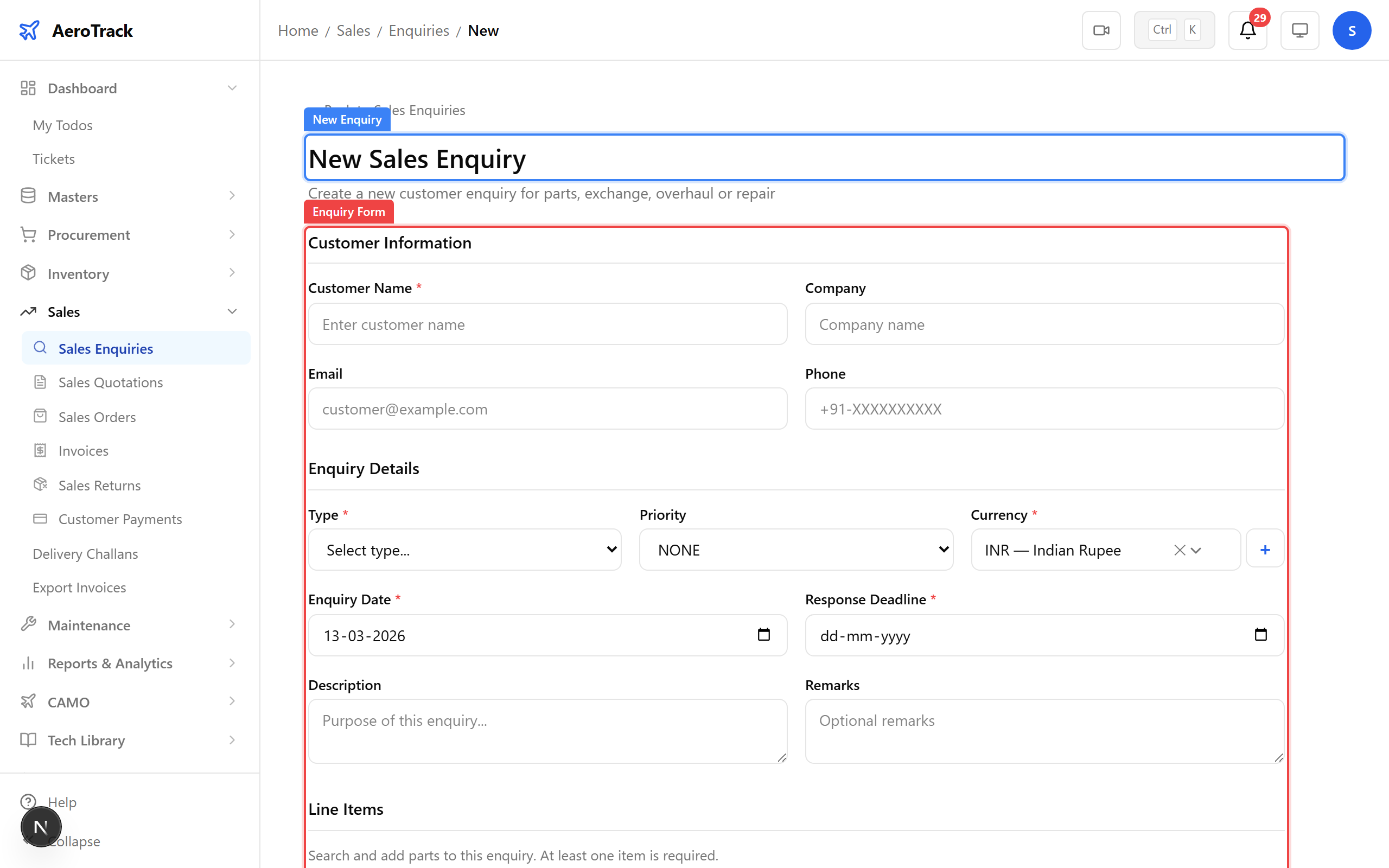
▲ Recording an enquiry — a helicopter operator needs tail rotor bearings.
After saving, the enquiry detail page shows the full request with a DRAFT status badge. The enquiry can be sent to the customer and progressed through SENT → QUOTED → CLOSED.
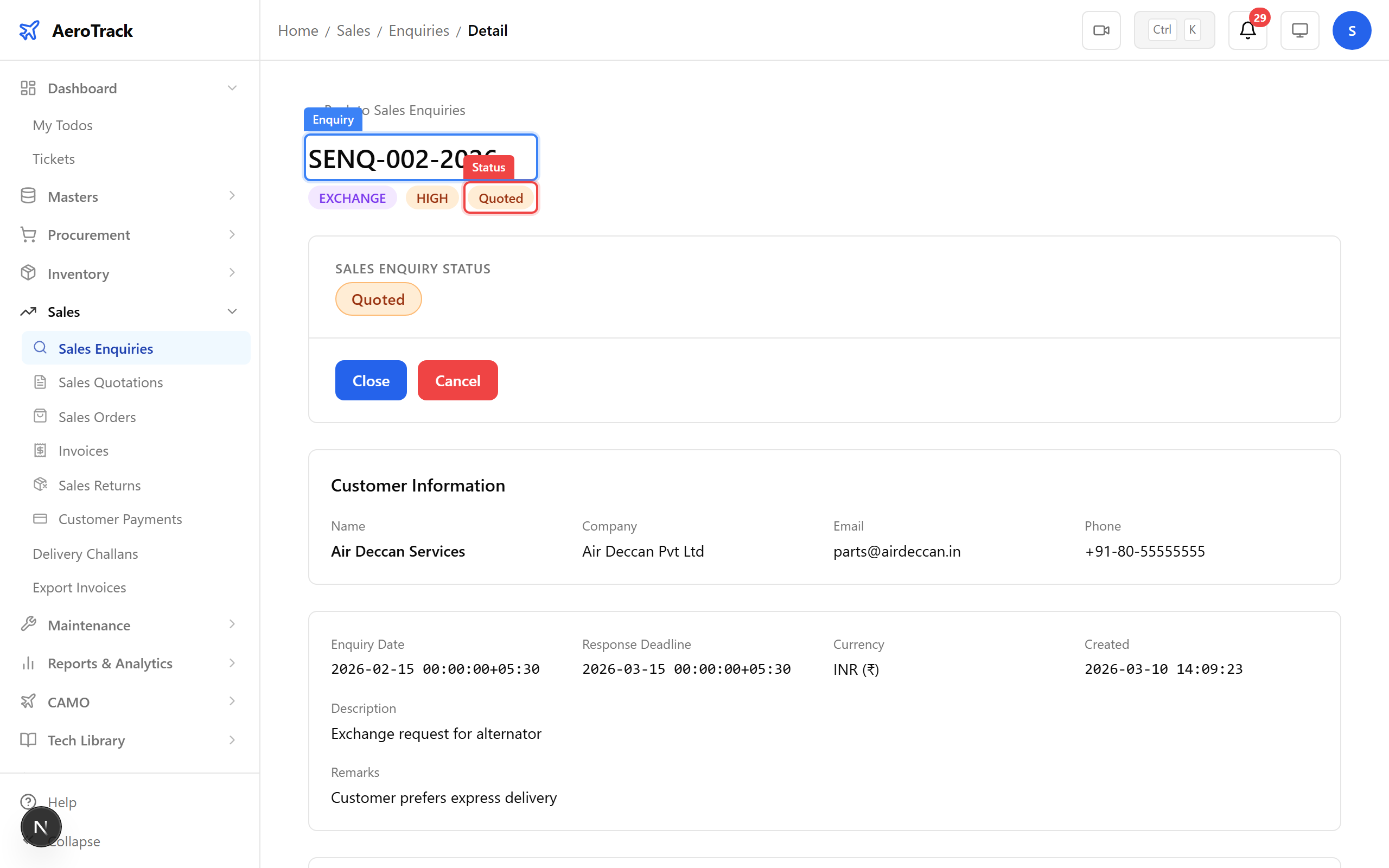
▲ Enquiry logged — ready to prepare a quotation.
Navigate to Sales → Quotations. All quotations are listed with their reference, customer, amount, validity, and status. Click + New to create a quotation.
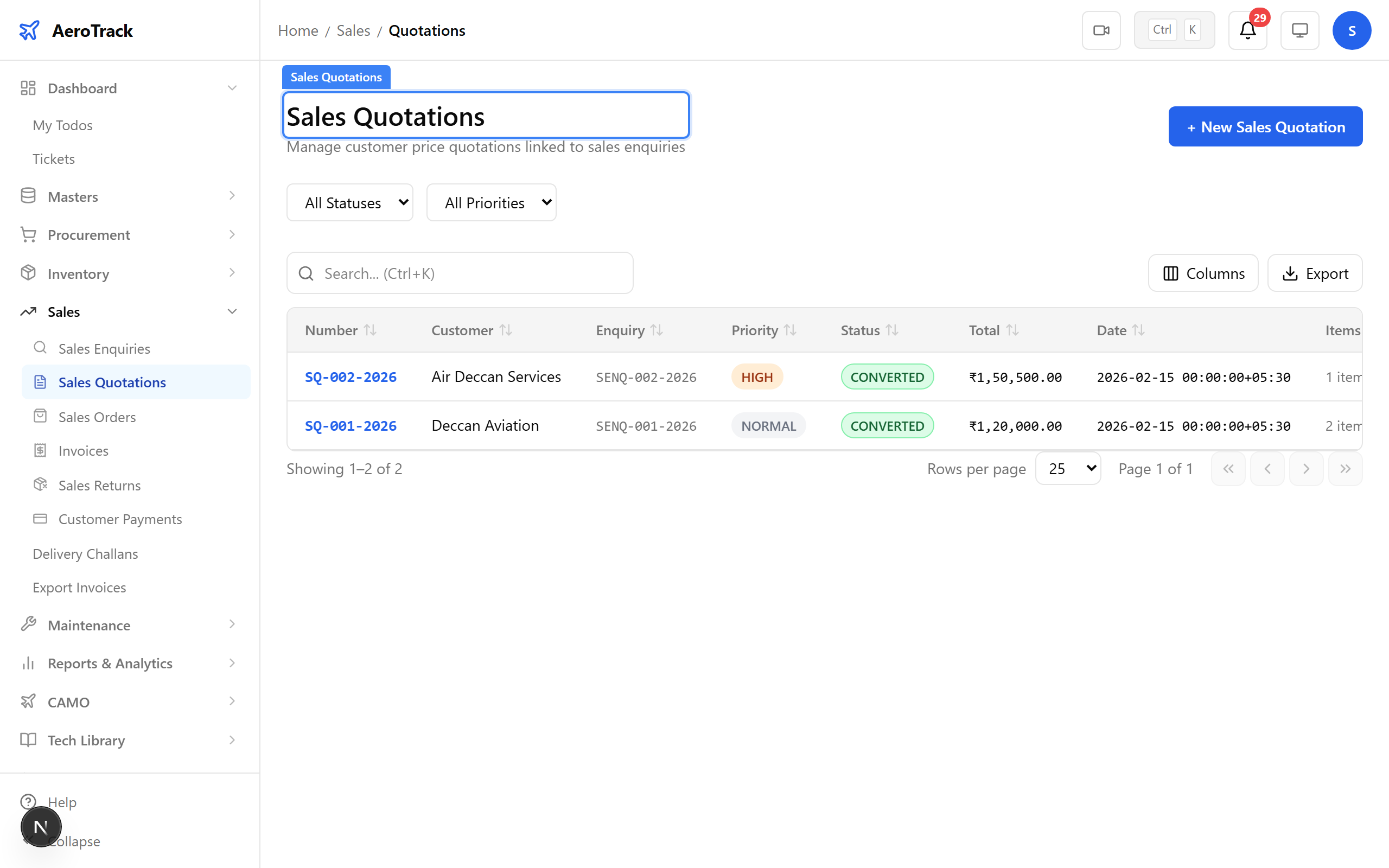
▲ Quotations — your price offers to customers.
Click + New. Link the quotation to the enquiry, specify the unit price, validity period, terms, and applicable tax. The quotation shows the line total and grand total automatically.
| Field | Purpose |
|---|---|
| Linked Enquiry | The customer enquiry this quotation responds to |
| Customer | Auto-filled from the linked enquiry |
| Items & Unit Price | Part, quantity, and price per unit |
| Validity Period | Number of days the quotation remains valid |
| Terms & Conditions | Payment, delivery, and warranty terms |
| Tax Rate | GST percentage applied to the total |
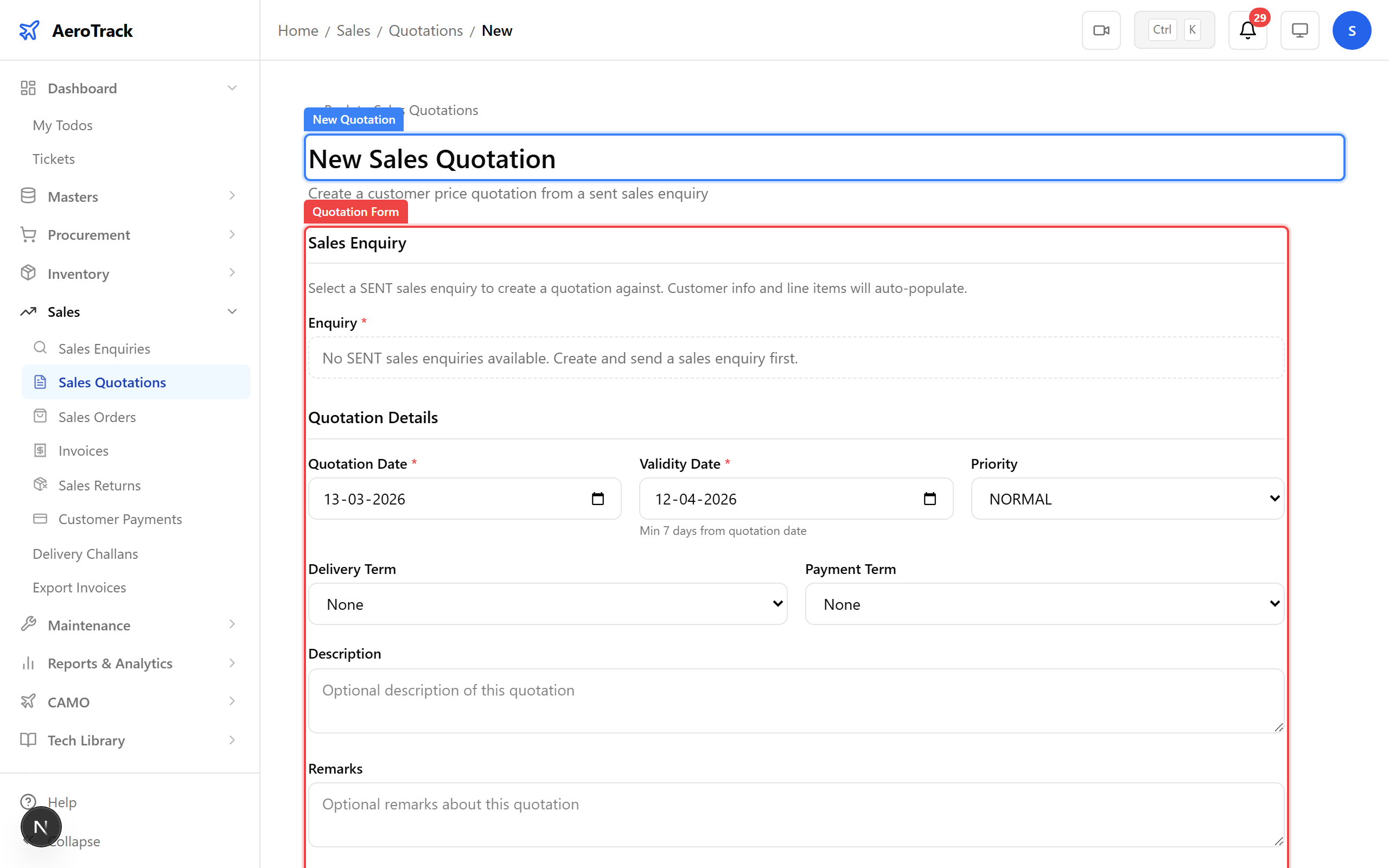
▲ Preparing the quotation — ₹18,000 per bearing, valid 30 days.
After saving, the quotation shows an ACTIVE status. The workflow progresses: ACTIVE → ACCEPTED (customer confirms) → CONVERTED (linked to a sales order). A rejected quotation moves to REJECTED.
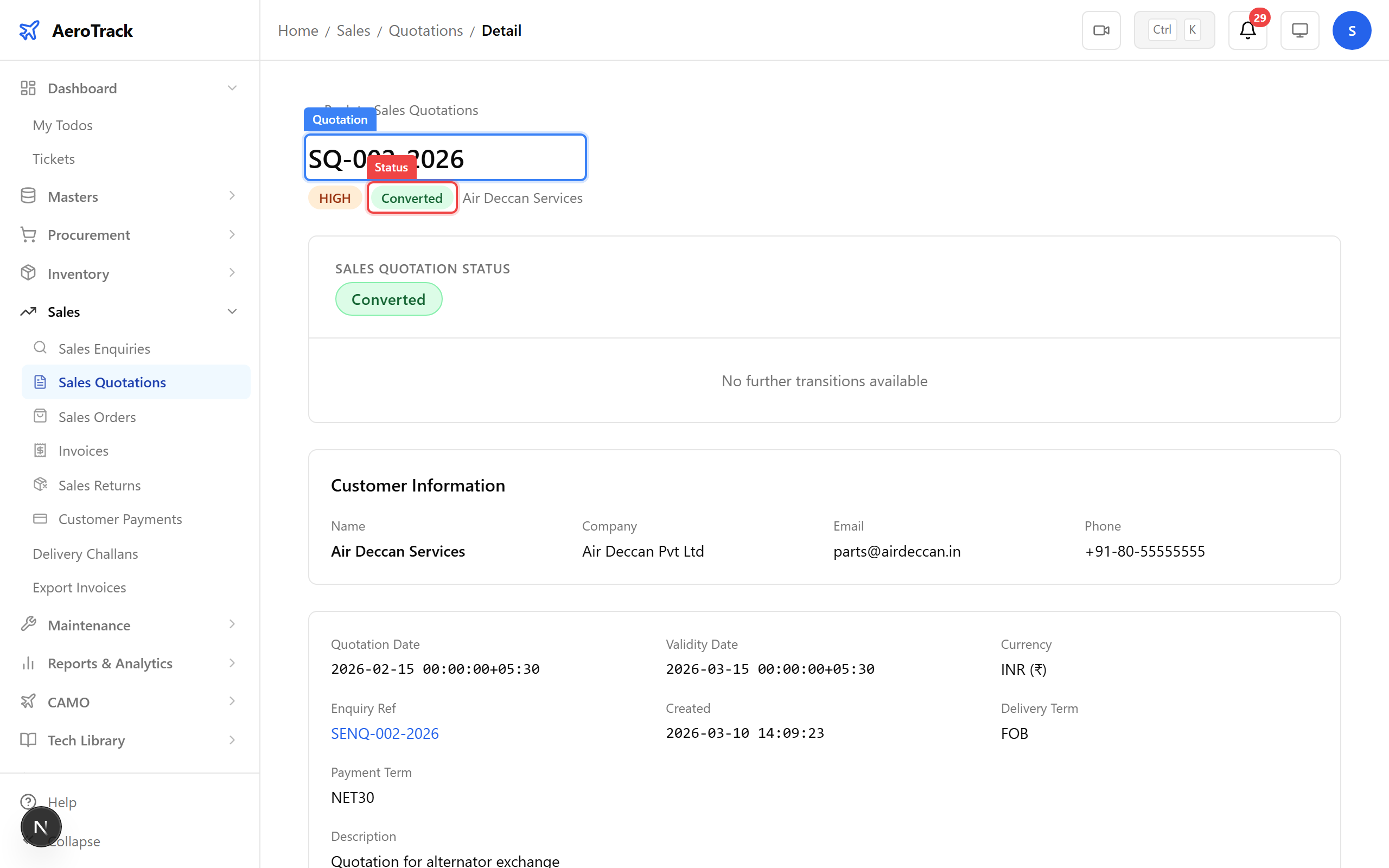
▲ Quotation sent — awaiting customer confirmation.
Navigate to Sales → Sales Orders. Confirmed customer purchases appear here with their reference, customer, amount, delivery date, and status.
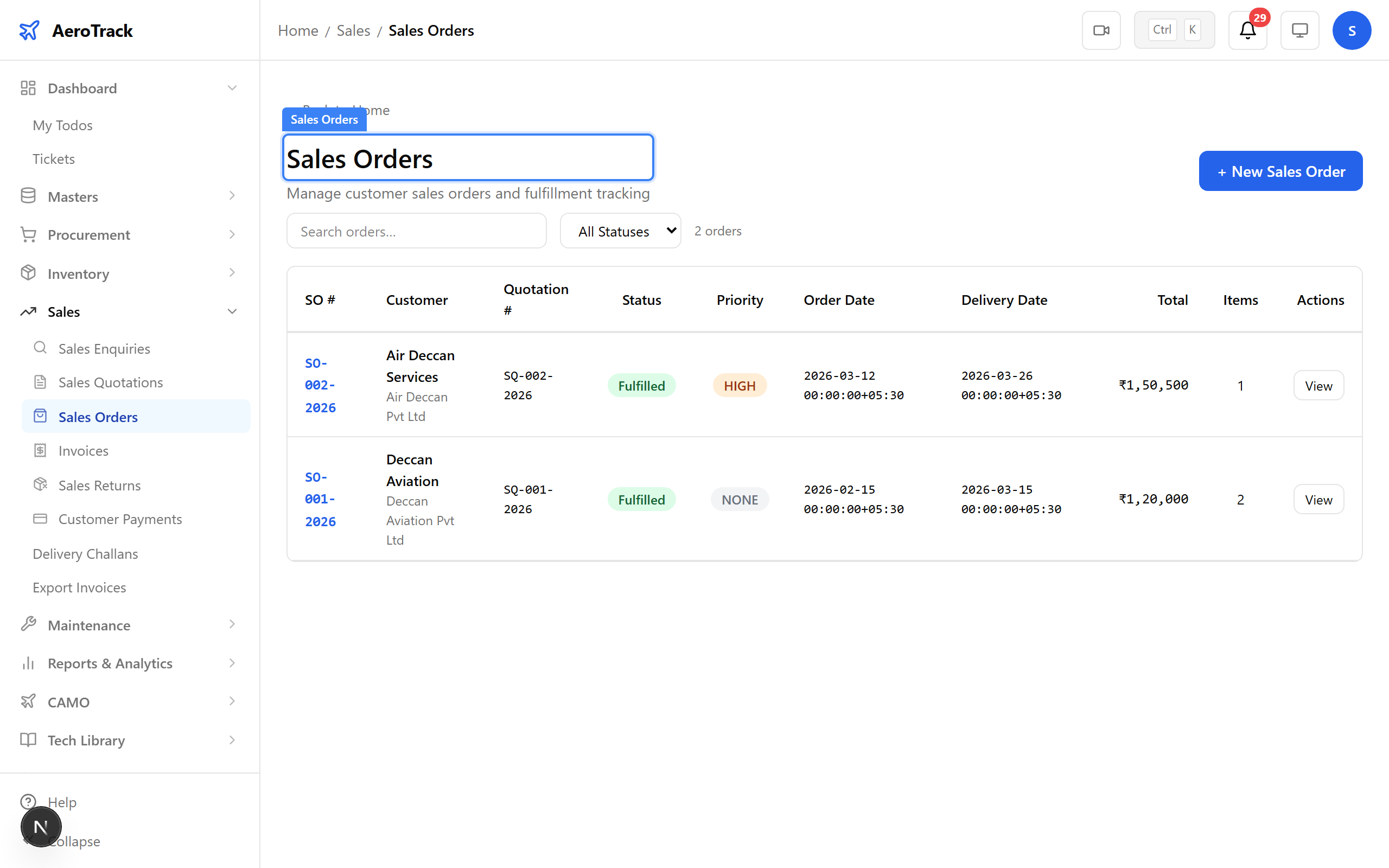
▲ Sales Orders — confirmed customer purchases.
Click + New. Link to the accepted quotation — items, quantities, and prices auto-populate. Set the delivery date and payment terms. This converts the quotation into a firm order.
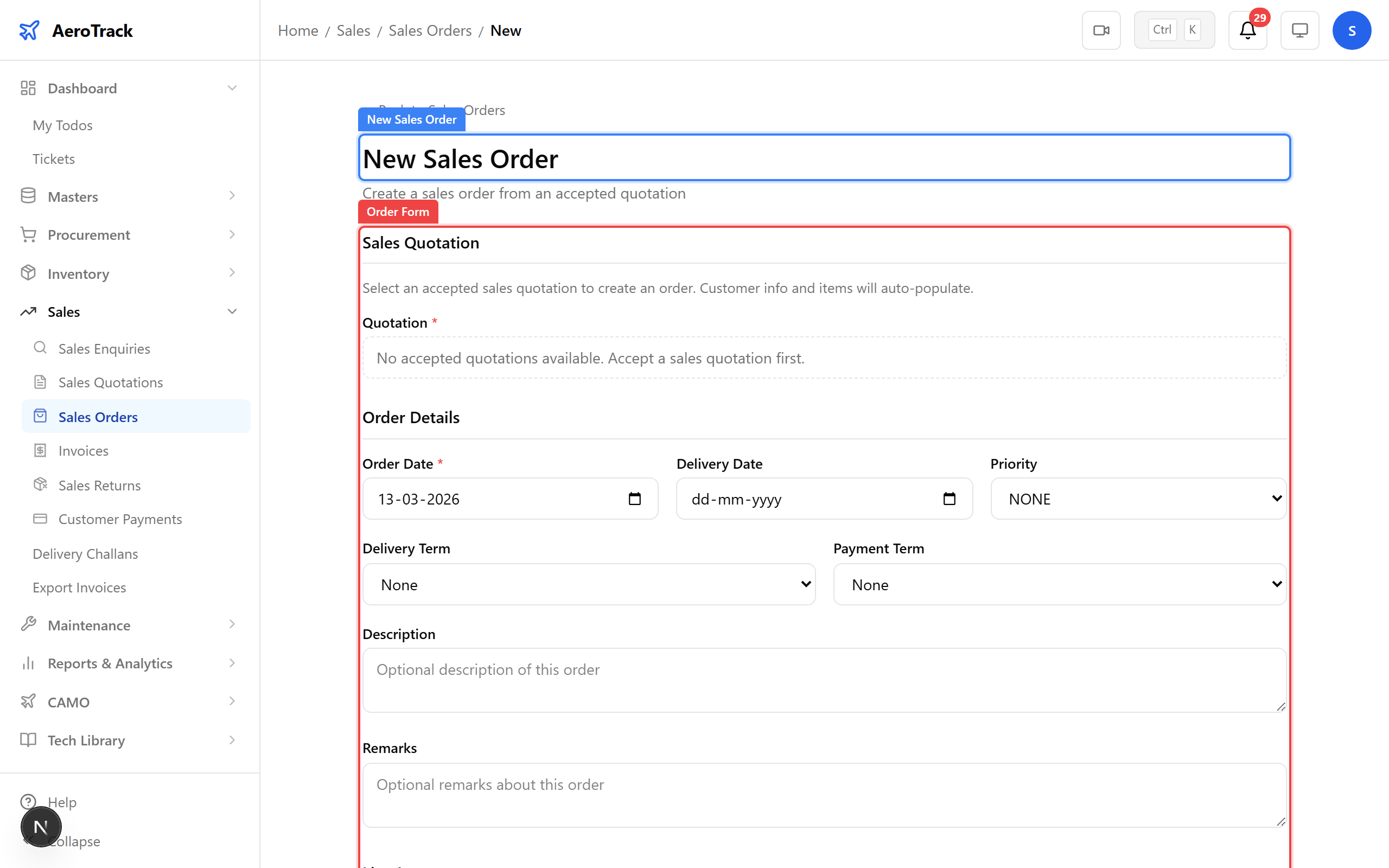
▲ Converting the accepted quotation into a sales order.
After saving, the order shows an OPENED status. The order progresses through OPENED → AUTHORIZED → FULFILLED as goods are dispatched and received by the customer.
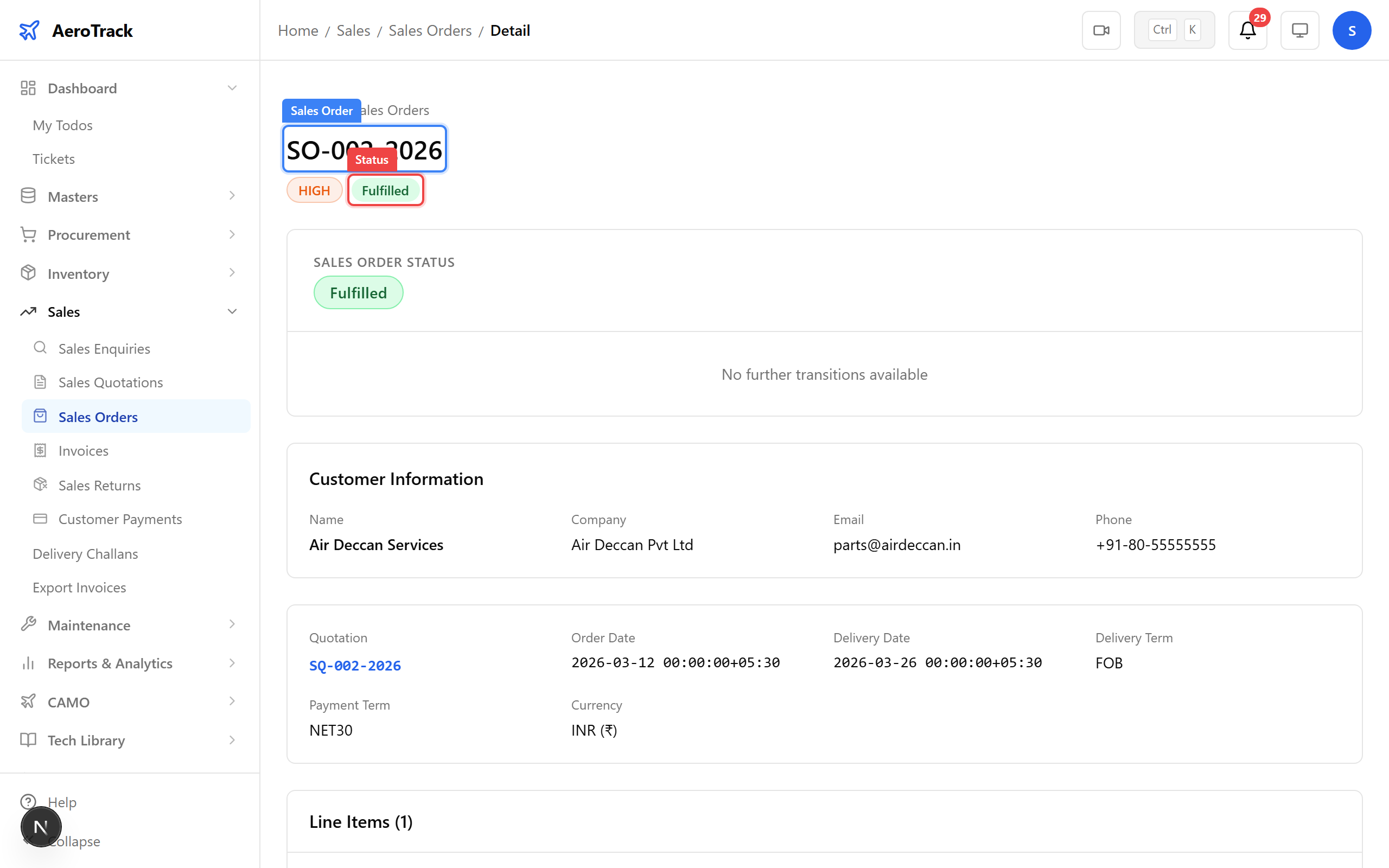
▲ Order confirmed — fulfilment begins.
Use the transition buttons to progress the order. Click Authorize to approve for dispatch, then Fulfil once goods are delivered. Each transition updates the status badge and unlocks the next step.
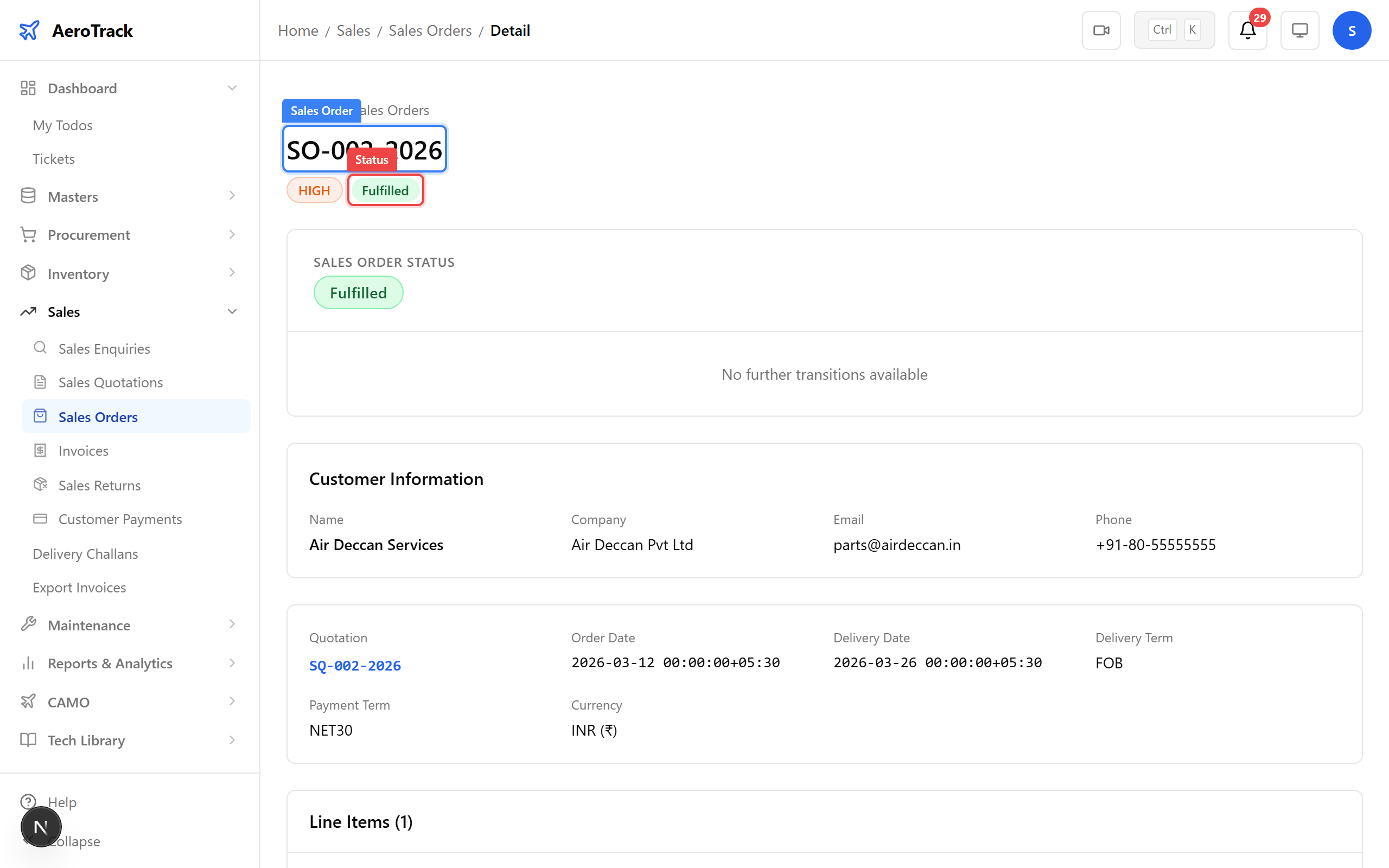
▲ Progressing the order through fulfilment stages.
Navigate to Sales → Invoices. All sales invoices are listed with their number, customer, amount, date, and payment status.
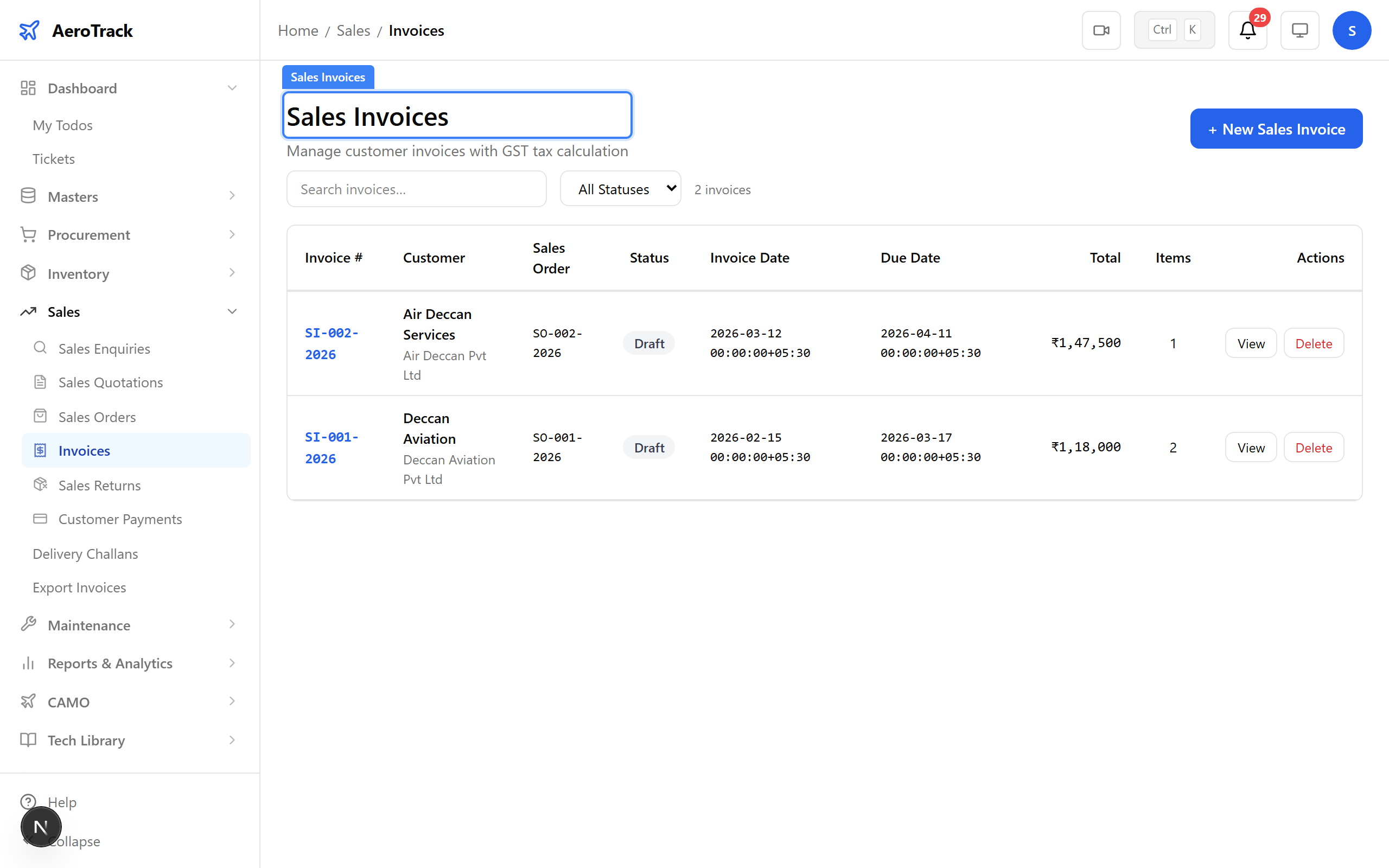
▲ Sales Invoices — billing customers for delivered goods.
Click + New. Link the invoice to the sales order. Line items, quantities, and amounts auto-populate. Set the invoice date and verify the tax calculation.
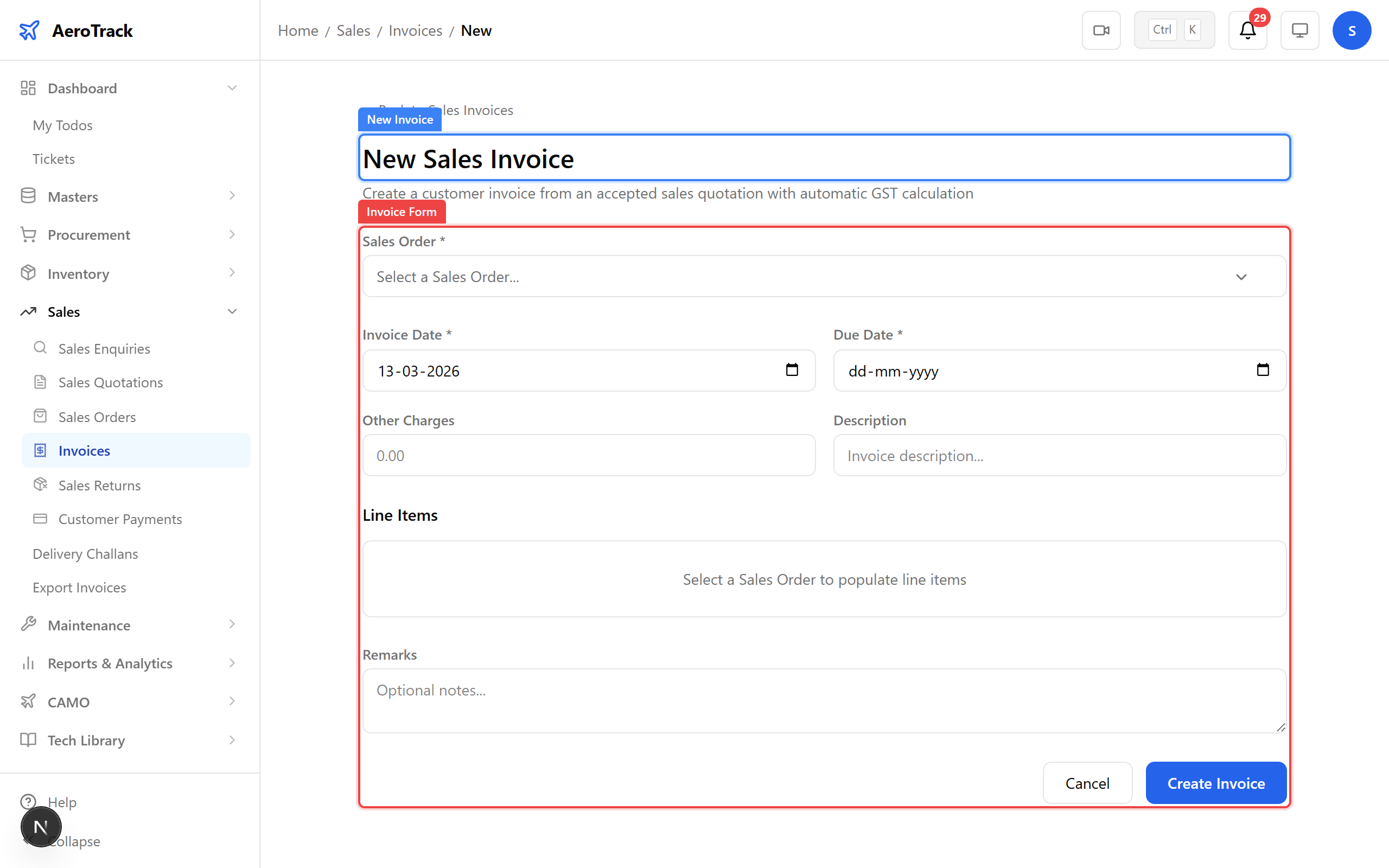
▲ Generating the invoice — ₹36,000 for 2 bearings plus GST.
After saving, the invoice shows a DRAFT status. The workflow progresses: DRAFT → SUBMITTED → APPROVED → PAID. Each step involves review and customer confirmation.
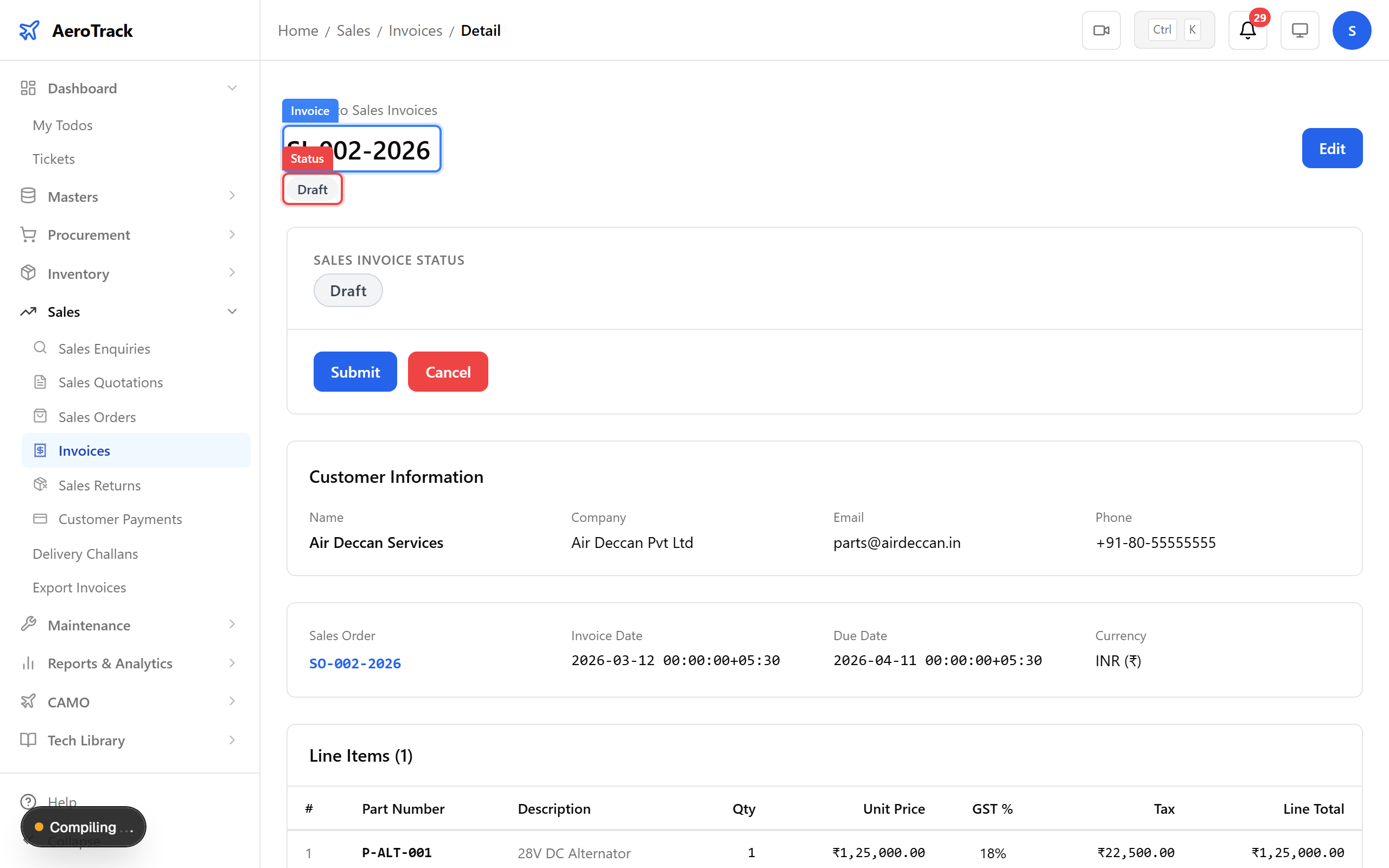
▲ Invoice raised — sent to the customer for payment.
Navigate to Sales → Delivery Challans. Challans document the physical dispatch of goods — each one links to a sales order and tracks dispatch status.
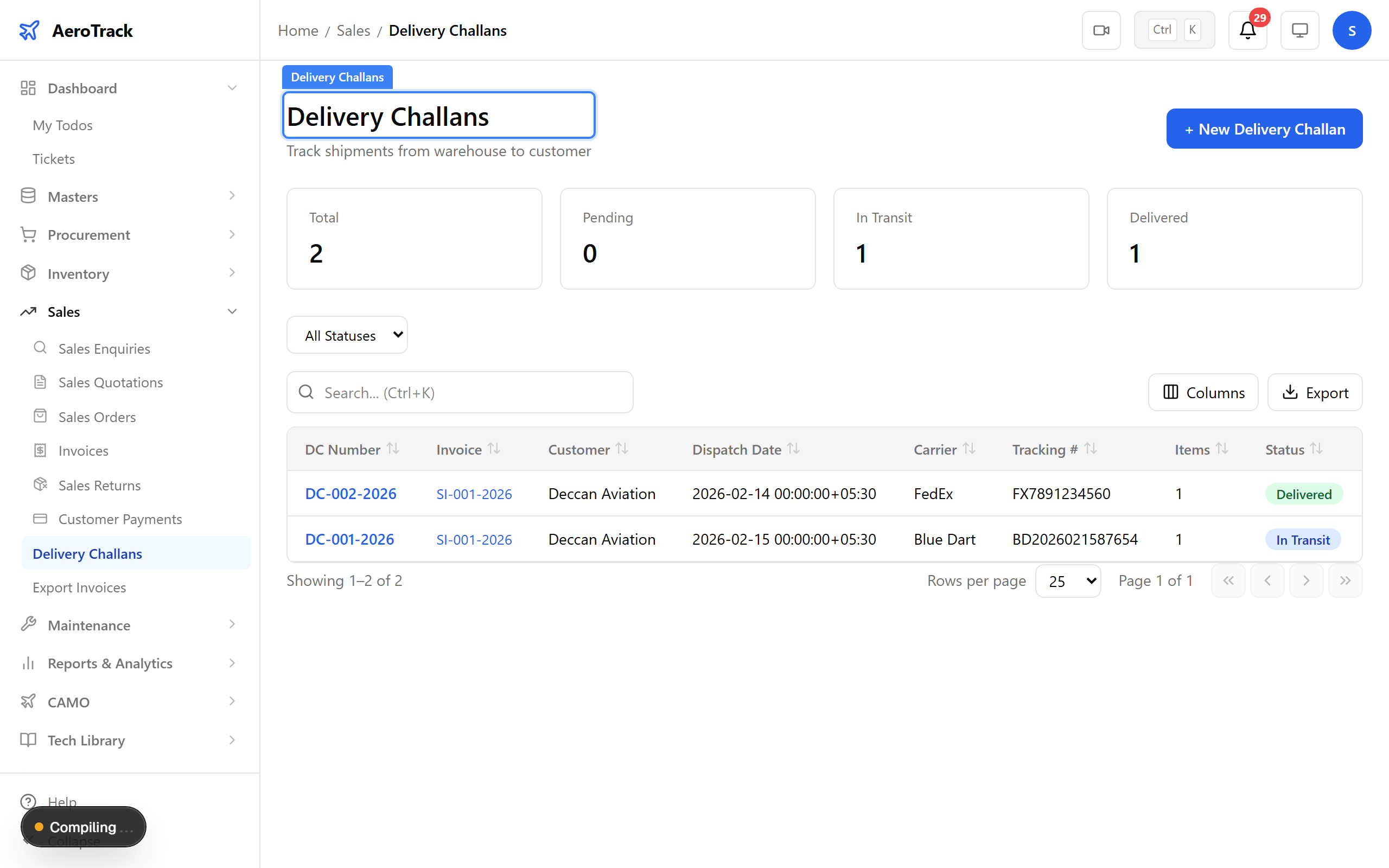
▲ Delivery Challans — documenting physical dispatch of goods.
Click + New. Link the challan to the sales order, specify the items being dispatched, the courier or vehicle details, and the dispatch date. The challan serves as proof of shipment.
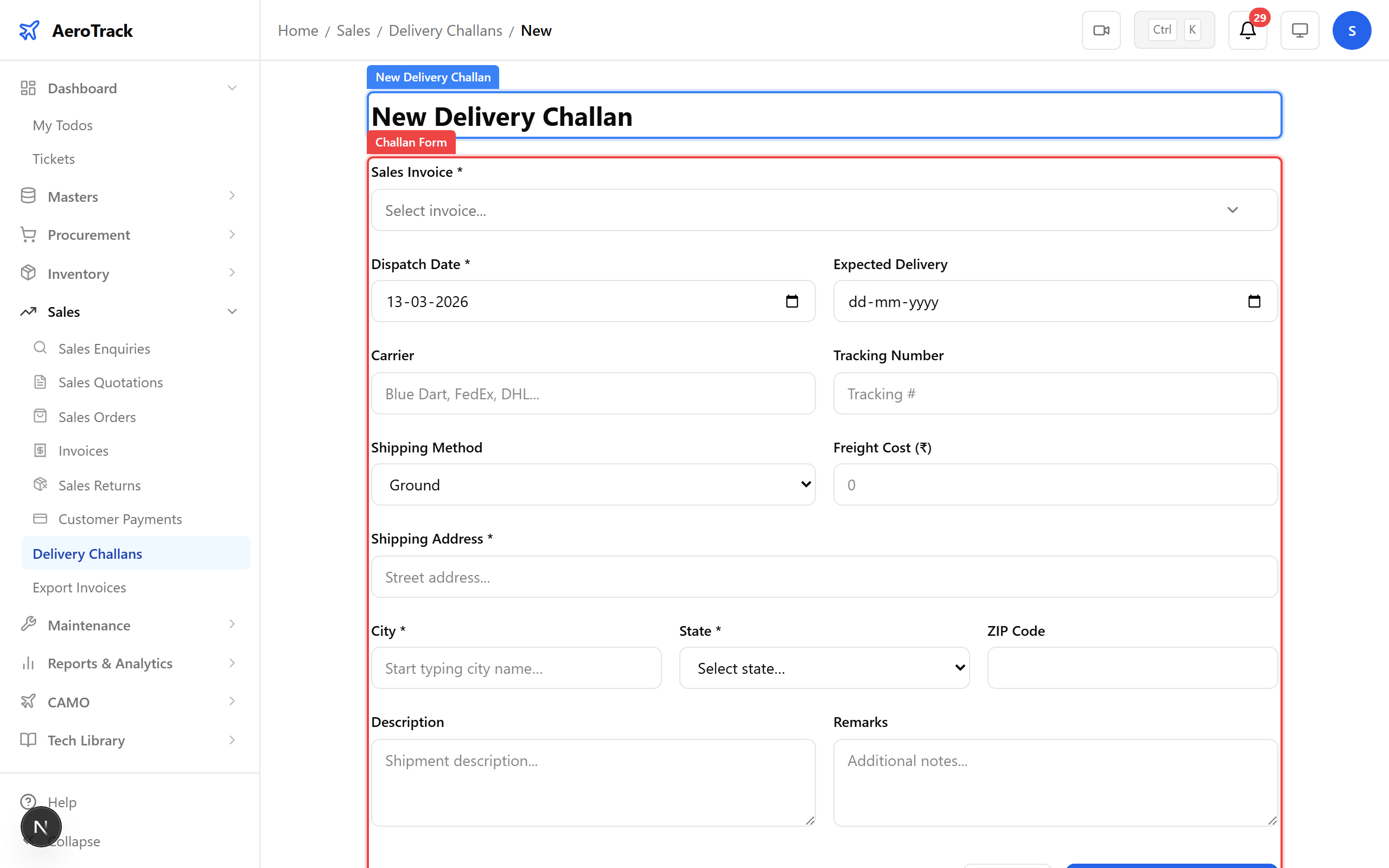
▲ Creating the delivery challan — bearings dispatched via courier.
After saving, the challan shows a PENDING status. The workflow progresses: PENDING → IN_TRANSIT → DELIVERED as the shipment moves from your warehouse to the customer.
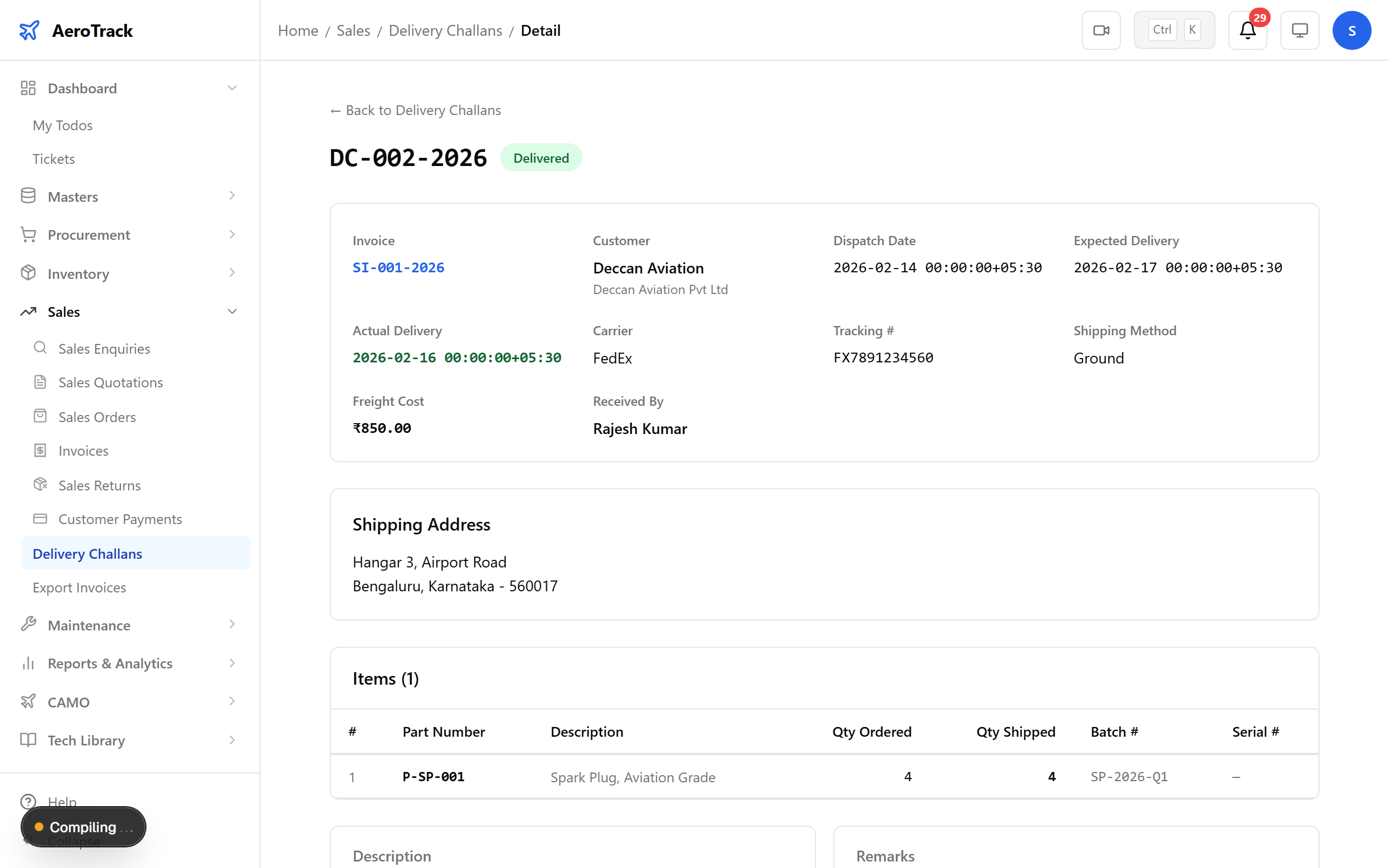
▲ Challan recorded — proof of dispatch for your records.
Navigate to Sales → Returns. Sales returns are tracked here — each return links to the original invoice or order and documents the reason for return.
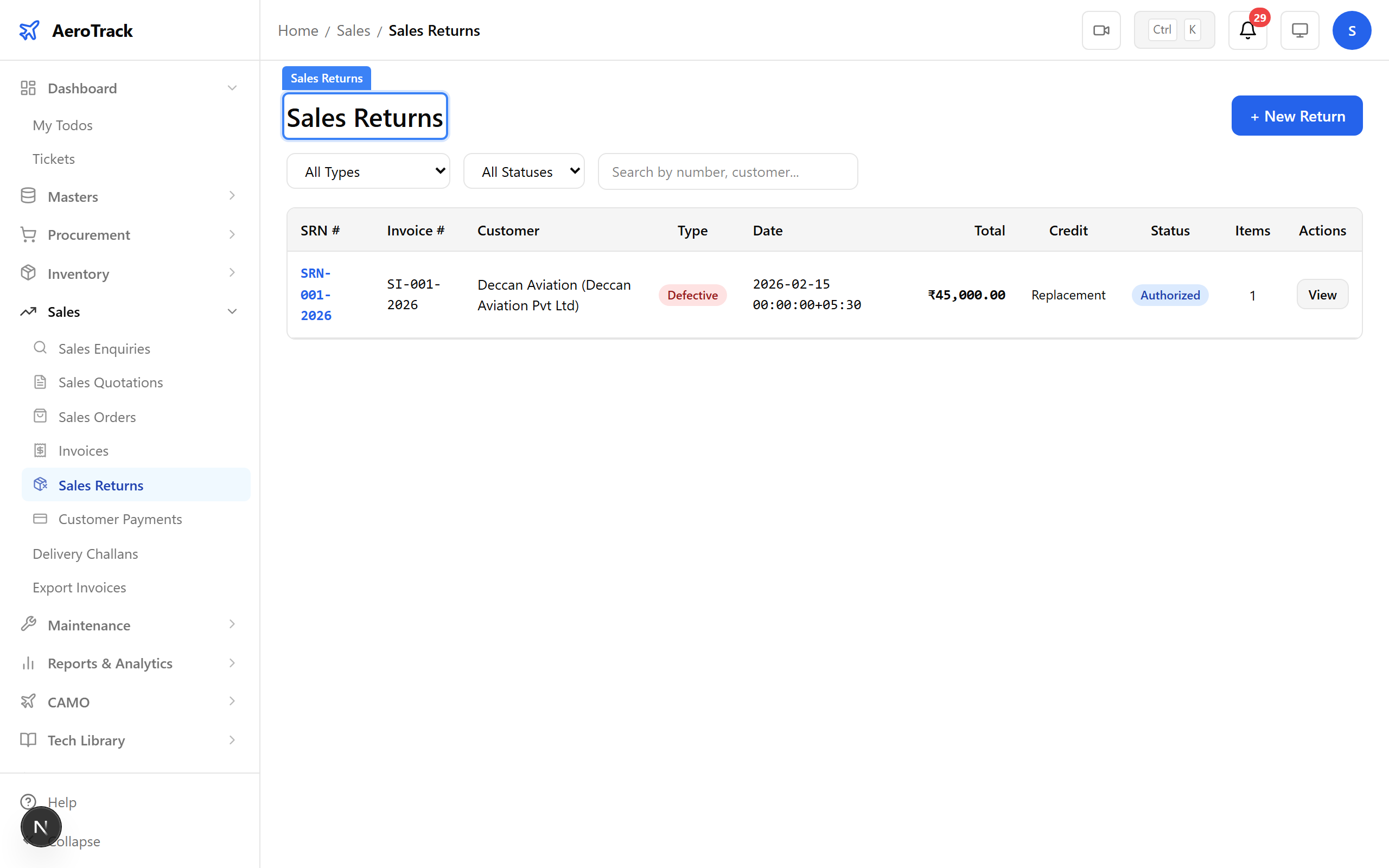
▲ Sales Returns — handling customer returns and credit notes.
Click + New. Link the return to the original invoice or order, specify the item and quantity being returned, and document the reason. The return follows: DRAFT → AUTHORIZED → RECEIVED → COMPLETED.
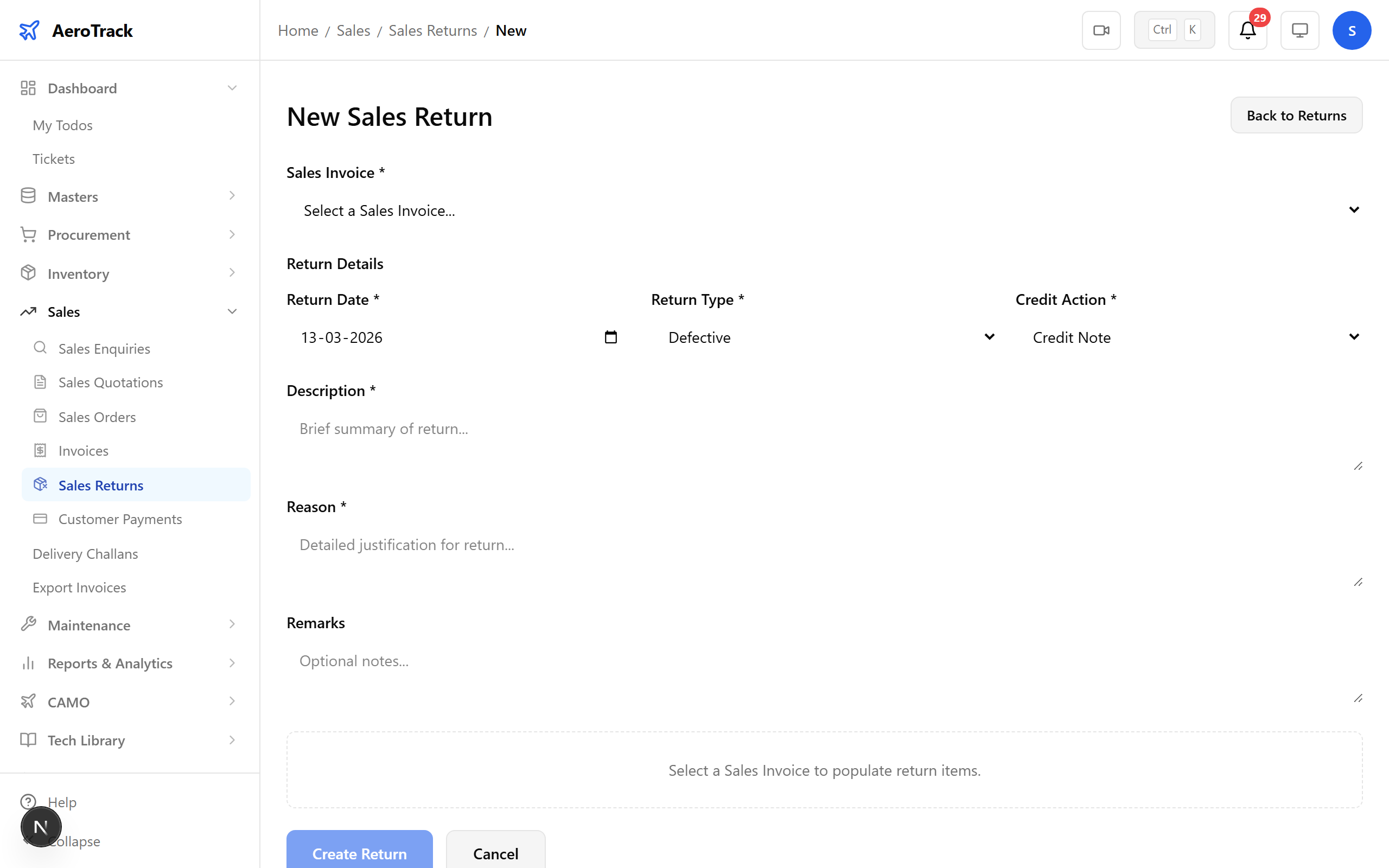
▲ Processing a return — customer received a damaged bearing.
Navigate to Sales → Export Invoices. Export invoices handle international customers with additional fields for shipping terms, port of loading, and customs documentation. The workflow follows: DRAFT → SUBMITTED → SENT → PAID.
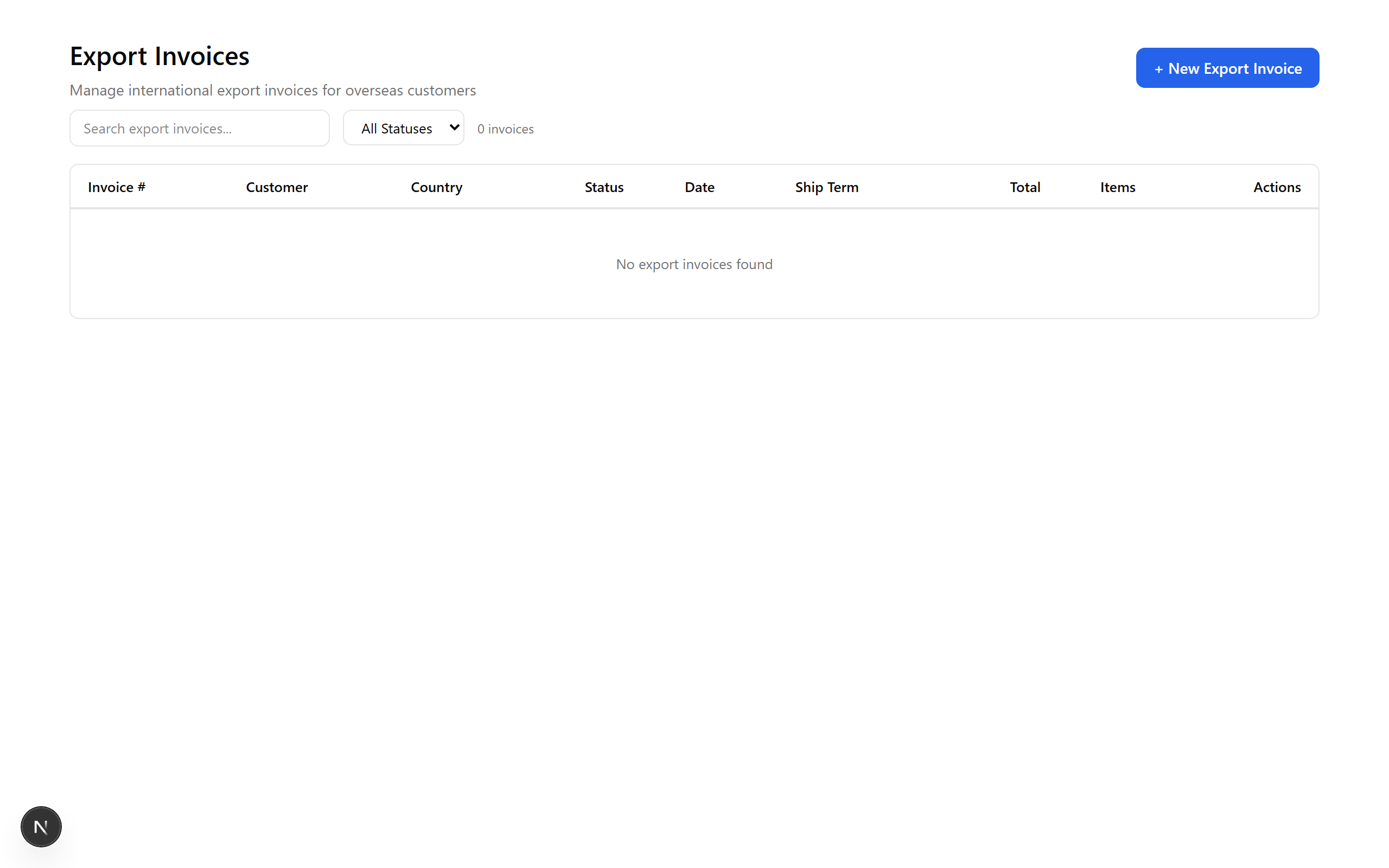
▲ Export Invoices — specialized invoicing for international customers.
The full sales cycle is complete: customer enquiry → quotation → sales order → invoice → delivery challan. Returns and export invoices handle edge cases. Every transaction is linked, creating a complete audit trail from first contact to final payment.
▲ The full sales cycle — from customer enquiry to invoice and delivery.