Navigate to Maintenance in the sidebar. The landing page shows module cards for Equipment Maintenance, Calibration Records, Tools Checkout/Checkin, Part Failures, Curdling, and Bench Check.
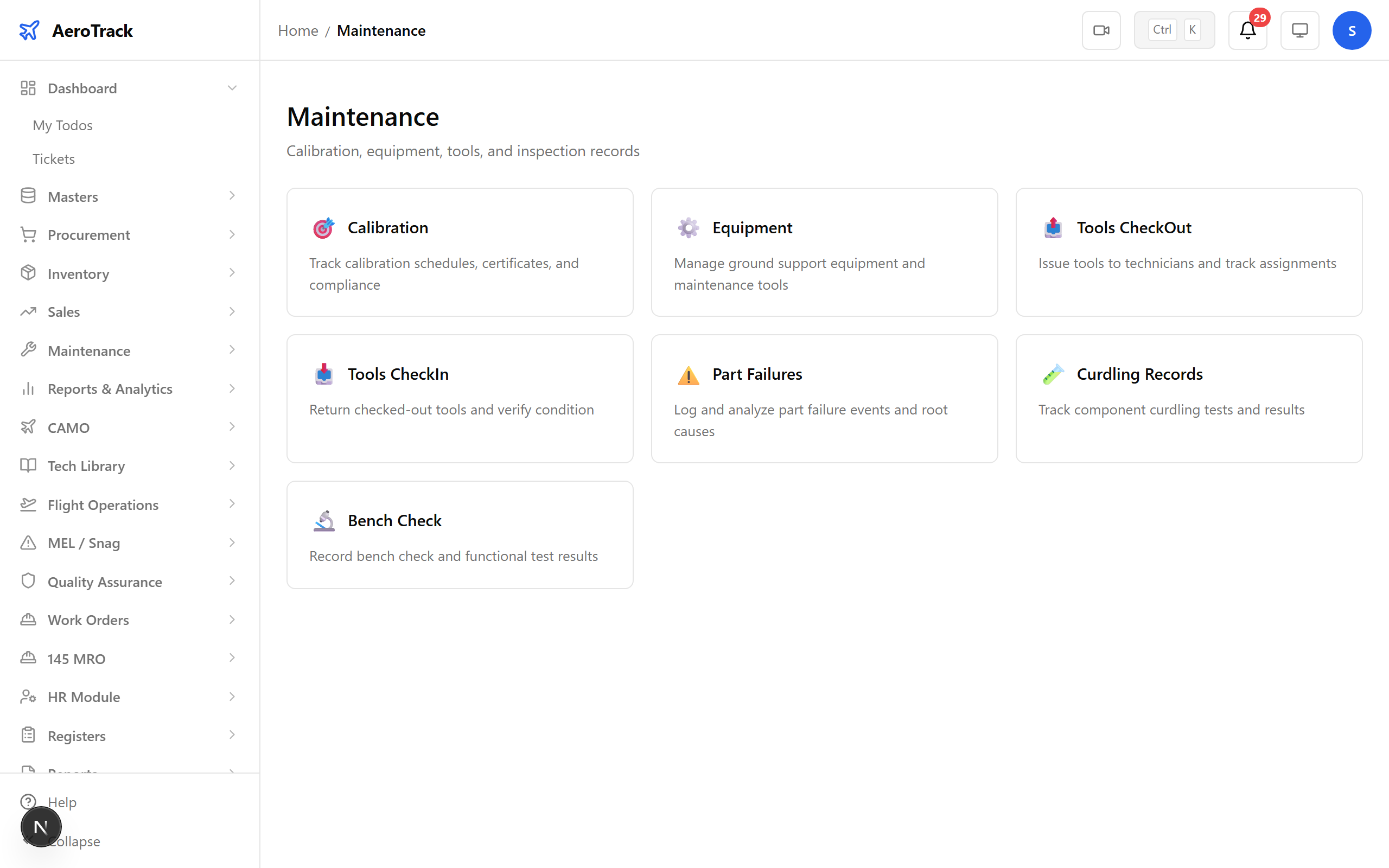
▲ Maintenance — manage tools, equipment, and workshop resources.
Navigate to Maintenance → Equipment. The status banner shows completed services, scheduled work, overdue items, and total cost. The table lists every service record with its due date and status.
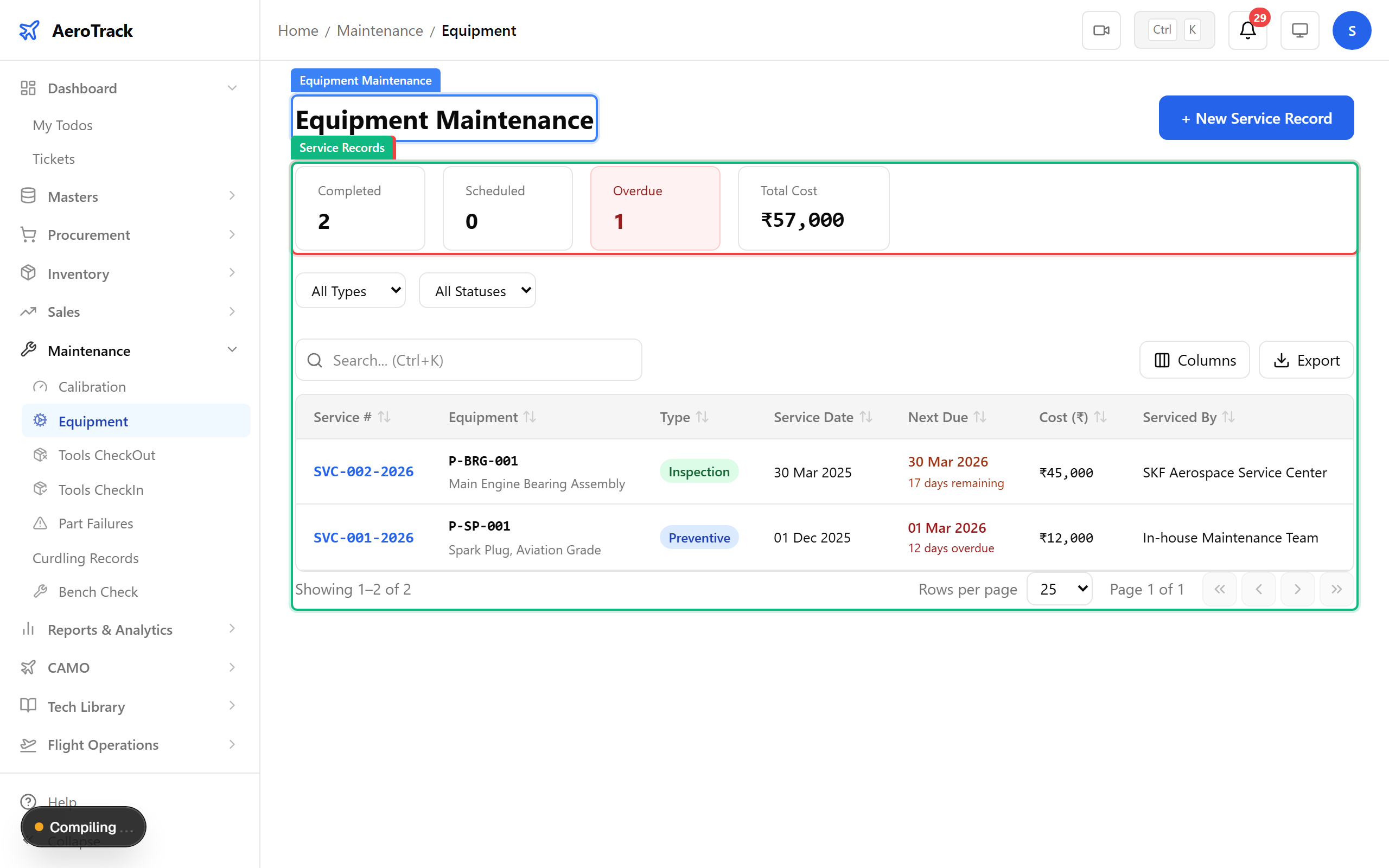
▲ Dashboard — tools checked out, calibration due, and equipment status.
The equipment maintenance list shows every service record — equipment name, service type, last service date, next due, and status. Filter by type or status to find items needing attention.
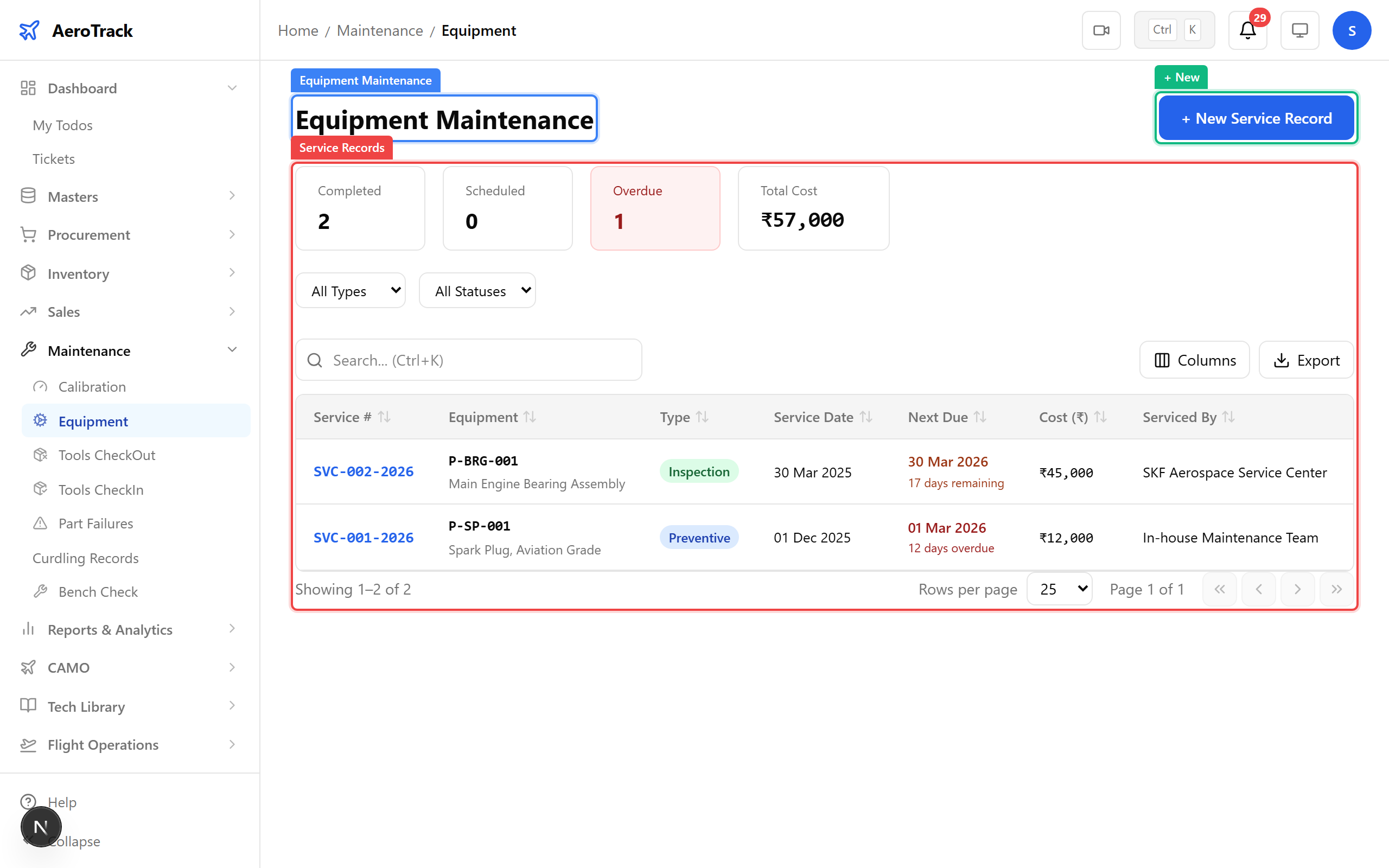
▲ Tools registry — every calibrated tool and piece of ground equipment tracked.
Click + New. Log a service event for the torque wrench — select the equipment, service type, dates, and workshop. Record findings, parts replaced, and cost.
| Field | Purpose |
|---|---|
| Equipment | Select from the equipment registry (torque wrench, multimeter, etc.) |
| Service Type | Routine / Preventive / Corrective / Calibration |
| Frequency | How often this service recurs (monthly, quarterly, annual) |
| Service Date | When the service was performed |
| Next Due | Auto-calculated or manual next service date |
| Workshop | Which workshop performed the work |
| Cost | Service cost for financial tracking |
| Findings / Parts | What was found during inspection, parts replaced |
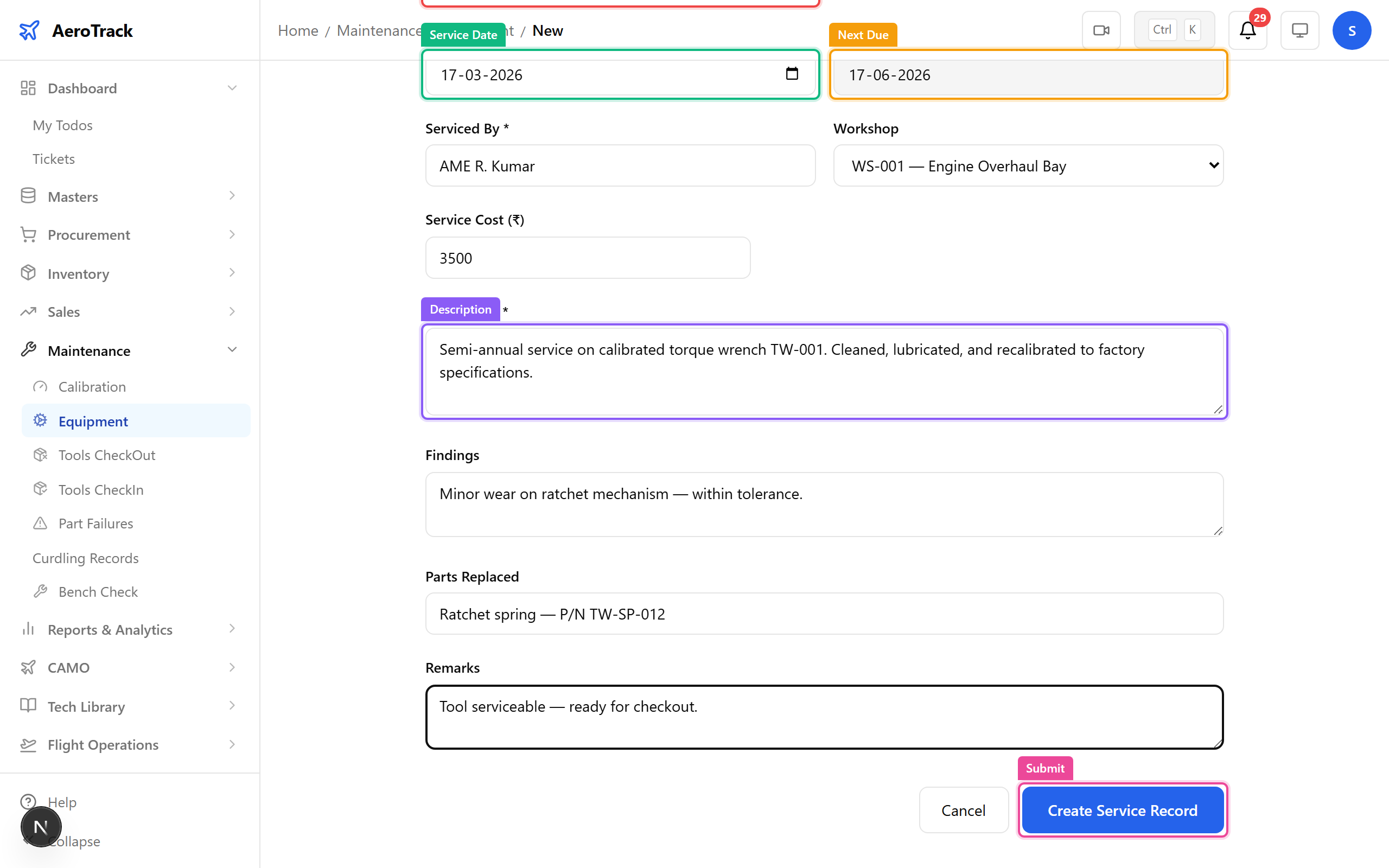
▲ Adding a torque wrench service record — calibration dates and assignment tracked.
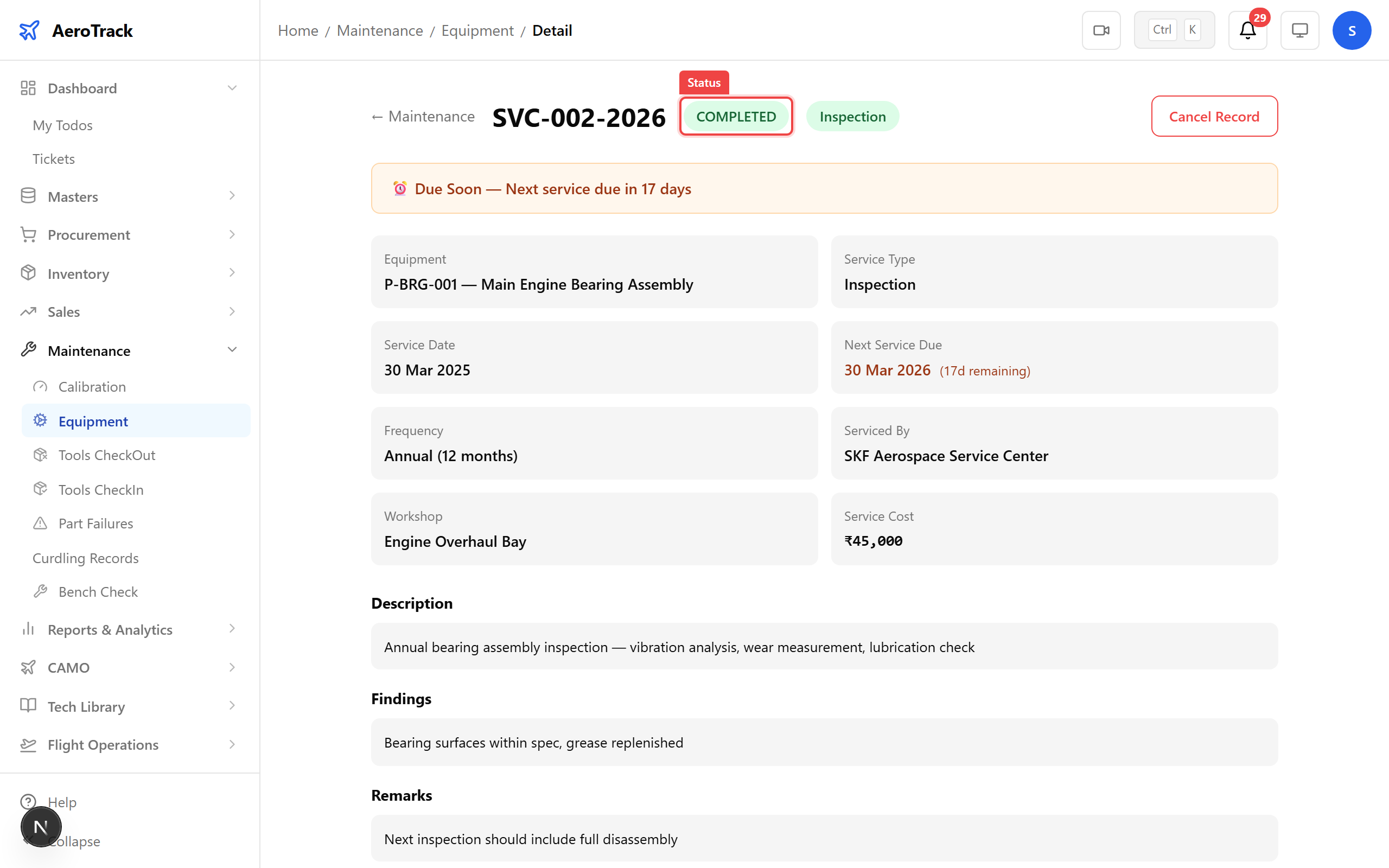
After saving, the detail page shows the service record with status, equipment details, dates, and cost breakdown. The status badge shows COMPLETED for finished services.
▲ Tool registered — ready for checkout.
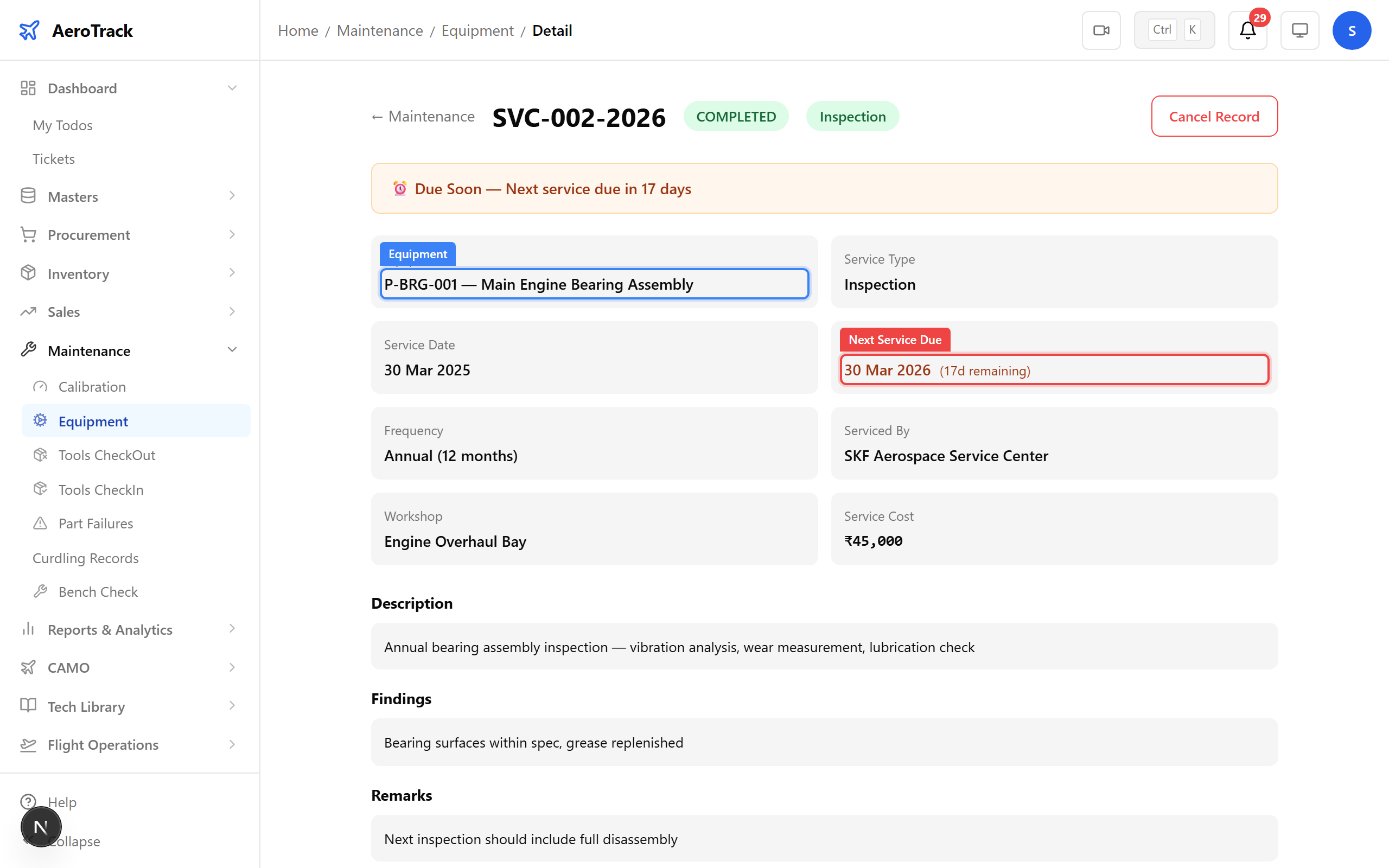
The detail view shows the full equipment profile — serial number, type, last service, next due date, and a complete service history. Upcoming due dates are flagged with a warning banner.
▲ Tool detail — serial number, calibration status, and complete checkout history.
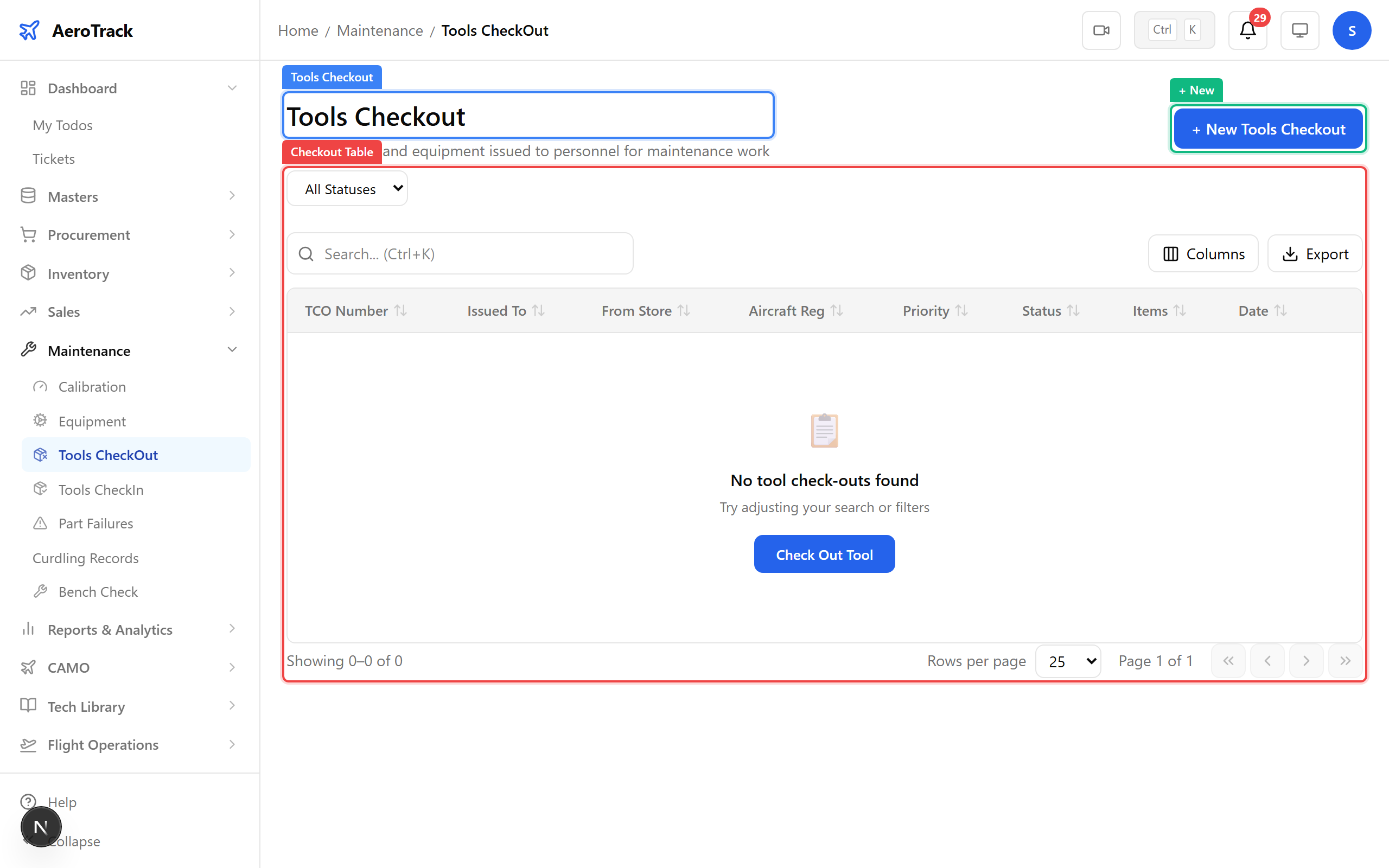
Navigate to Maintenance → Tools Checkout. The checkout list shows who has which tool, when it was issued, and when it’s expected back. Filter by status to see overdue items.
▲ Tool Checkouts — who has what and when it’s due back.
Click + New. Select the tool, enter who it’s being issued to, link it to the aircraft and work order, and set the checkout date.
| Field | Purpose |
|---|---|
| Issued To | Technician receiving the tool |
| Priority | Normal / Urgent — affects scheduling |
| Checkout Date | When the tool leaves stores |
| From Store | Storage location the tool is checked out from |
| Aircraft Reg | Aircraft the tool will be used on (VT-ACG) |
| Work Order Ref | Linked work order for traceability |
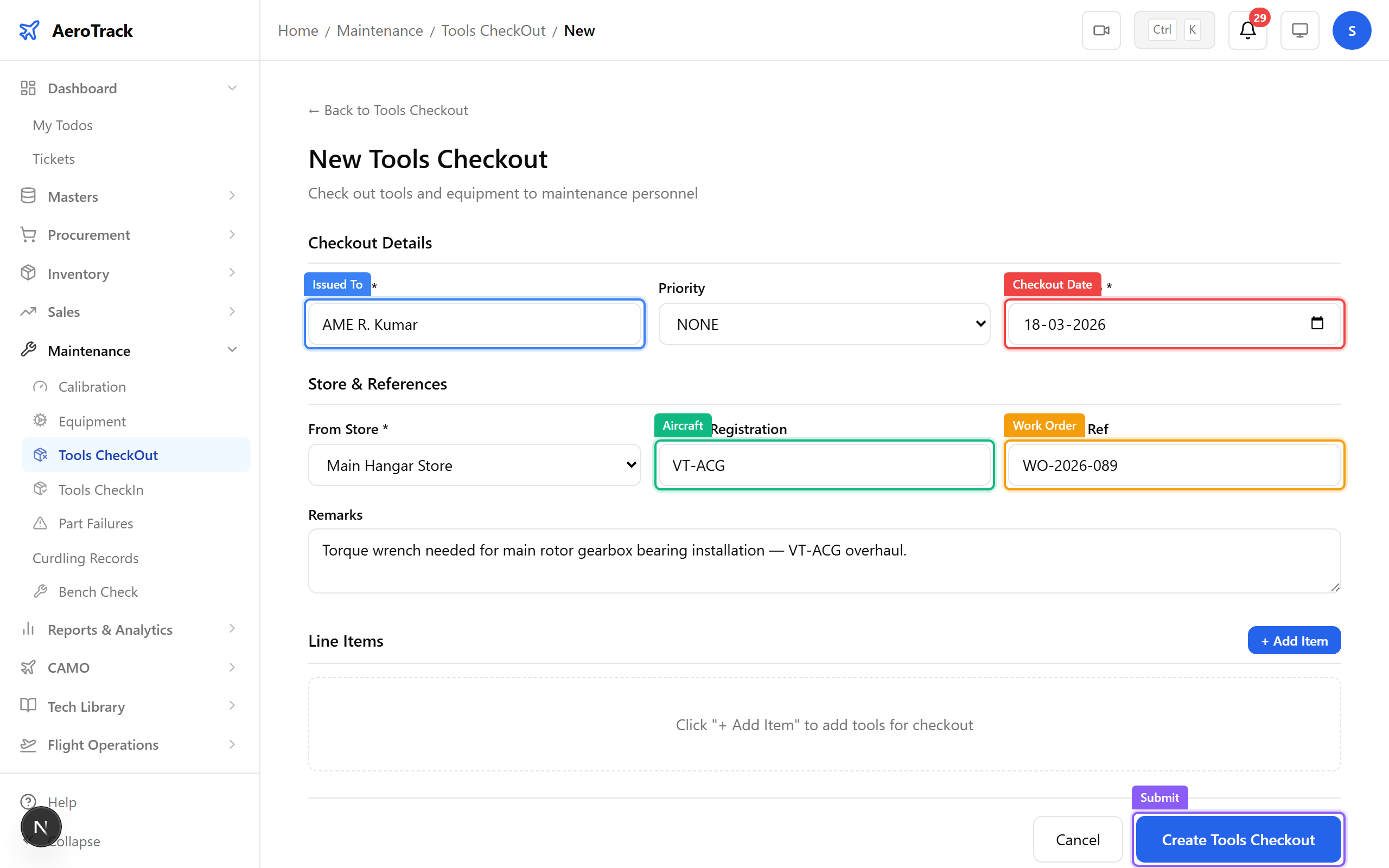
▲ Checking out the torque wrench for VT-ACG’s overhaul.
The checkout detail shows the tool, who has it, the linked work order, and status. The workflow: OPENED → ISSUED → RETURNED. Until returned, the tool shows as unavailable in the registry.
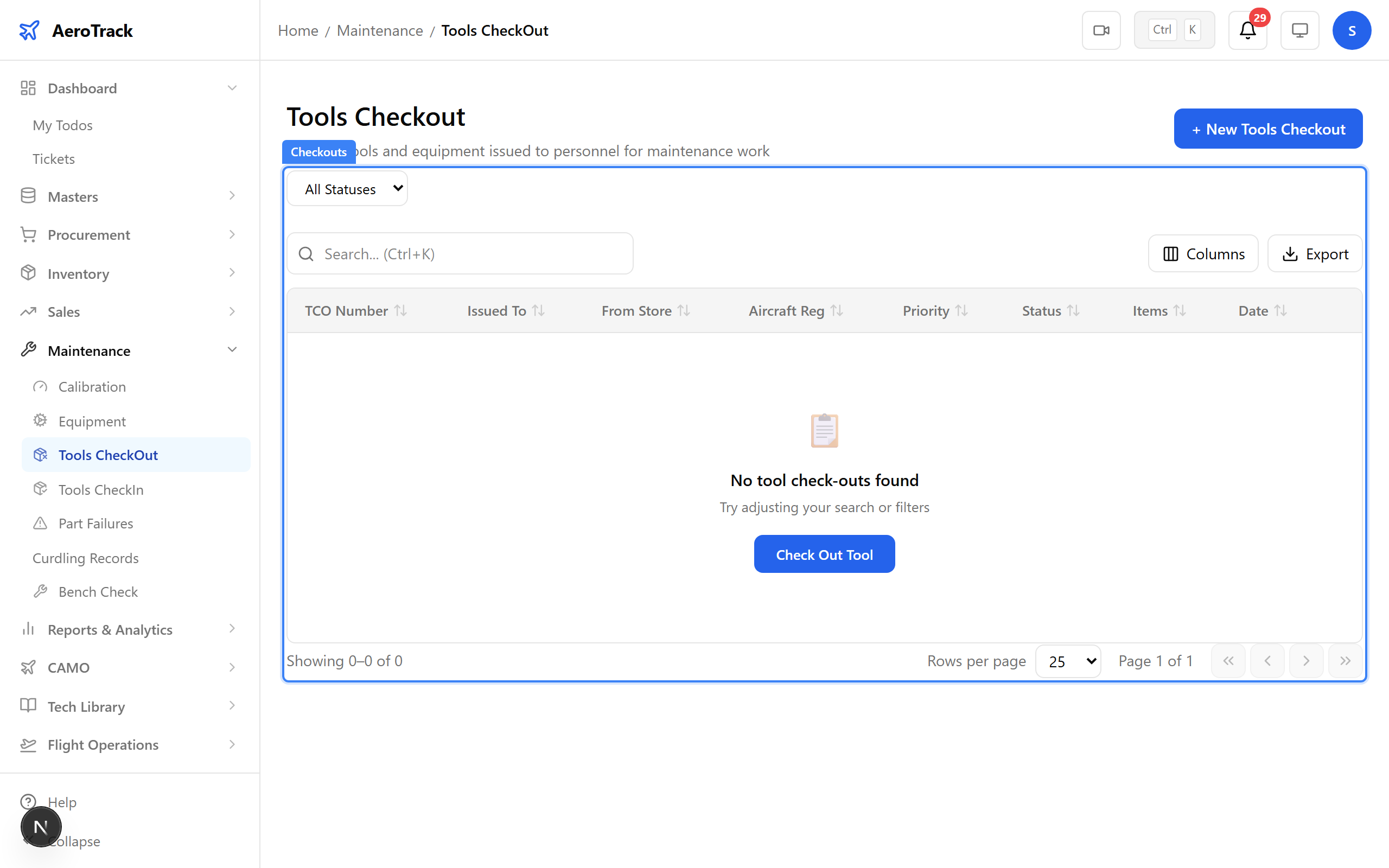
▲ Checkout recorded — the tool is now assigned to the technician.
Navigate to Maintenance → Tools Checkin. When a job is complete, the technician returns the tool. The checkin list records every return with its condition assessment.
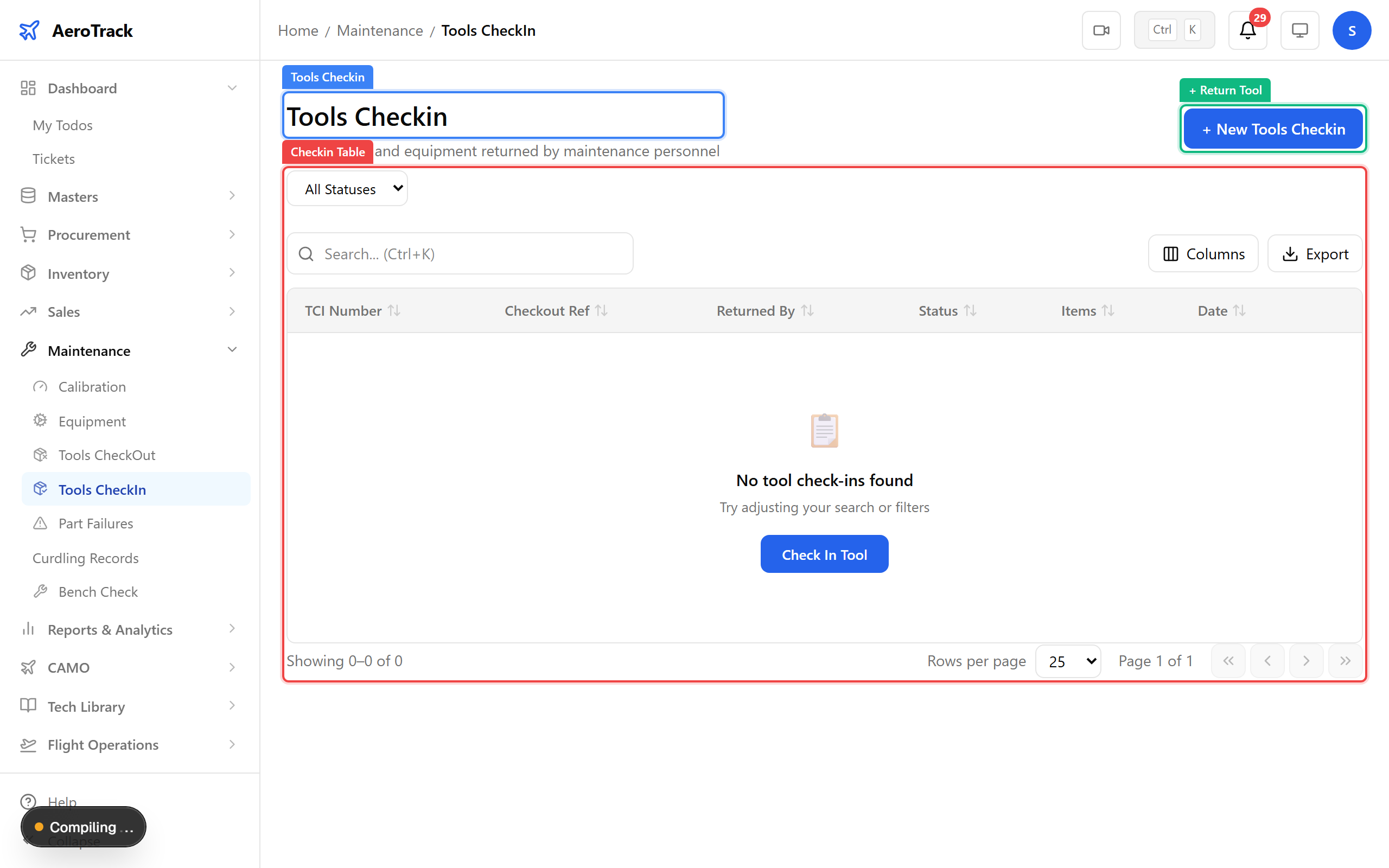
▲ Returning the tool after the job is complete.
Click + Return Tool. Select the checkout reference, enter who is returning it, the return date, and any condition notes. This creates a formal return record linked to the original checkout.
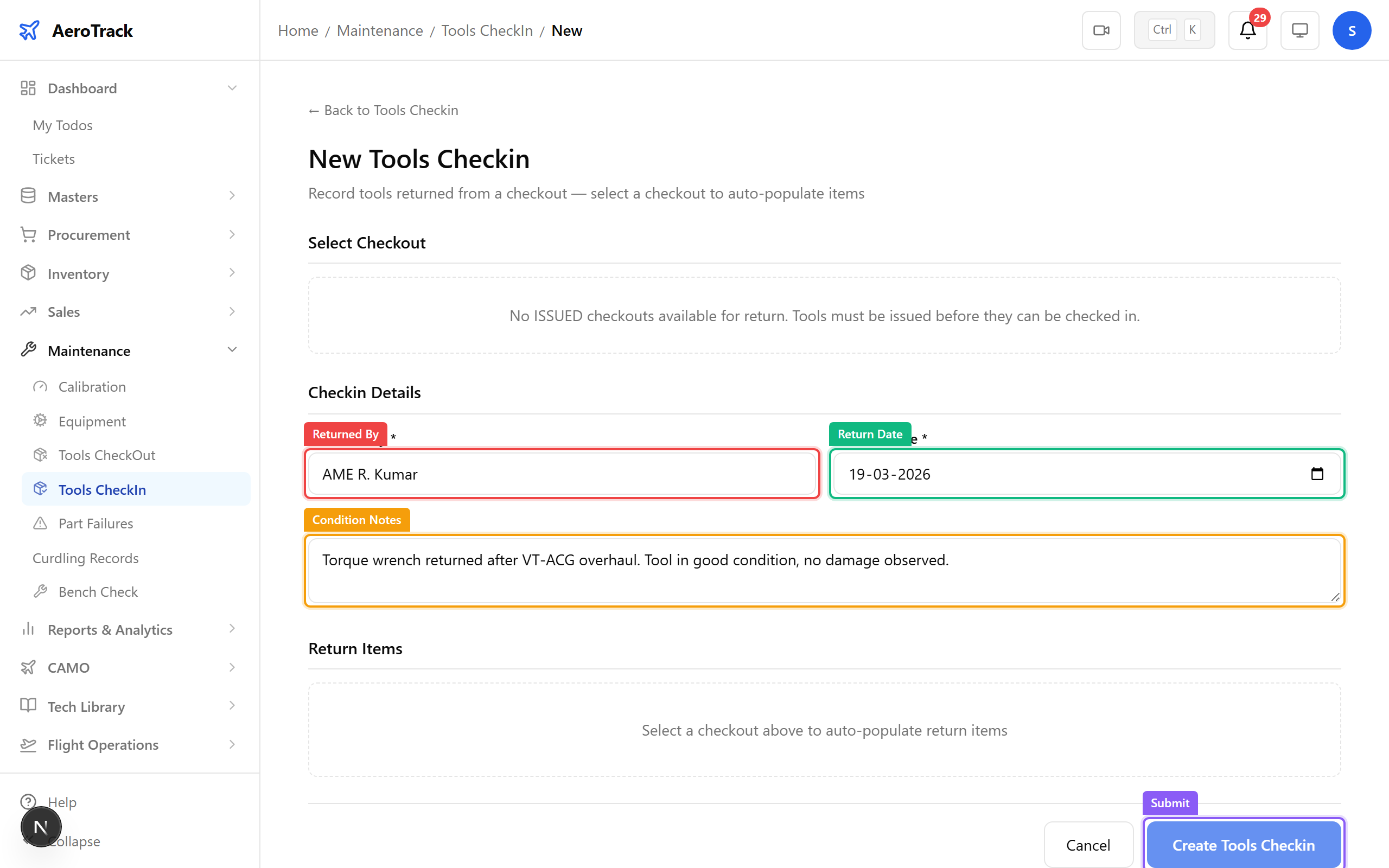
▲ Recording the return — noting the tool’s condition after use.
After the checkin is processed, the tool is back in the registry and available for the next job. The checkin workflow: OPENED → ACCEPTED. The checkout status updates to RETURNED.
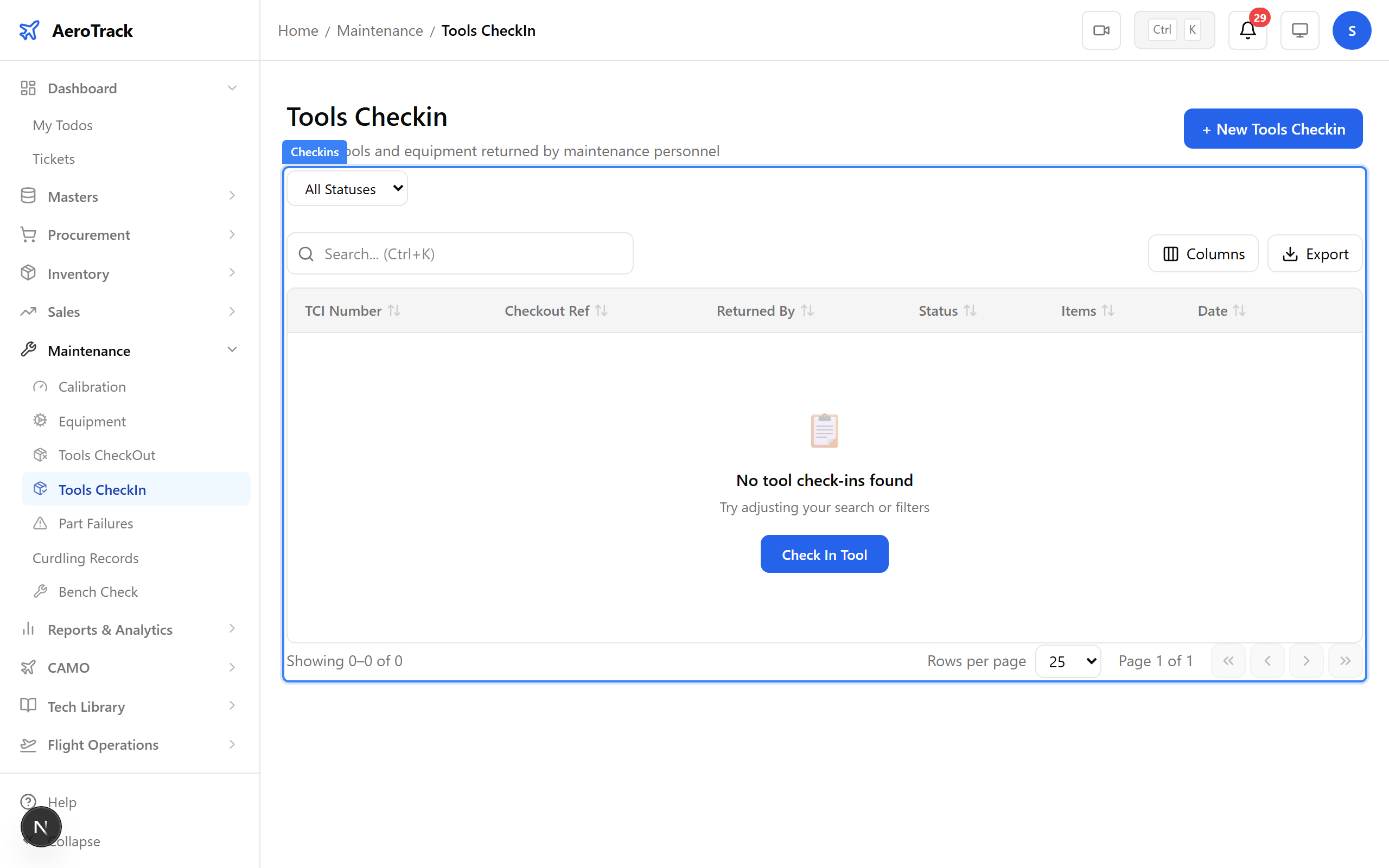
▲ Tool returned — back in the registry and available for the next job.
Navigate to Maintenance → Calibration. Every calibrated tool has a record showing the last calibration date, result (PASS/FAIL), certificate number, and next due date. The status banner shows active, overdue, and due-soon counts.
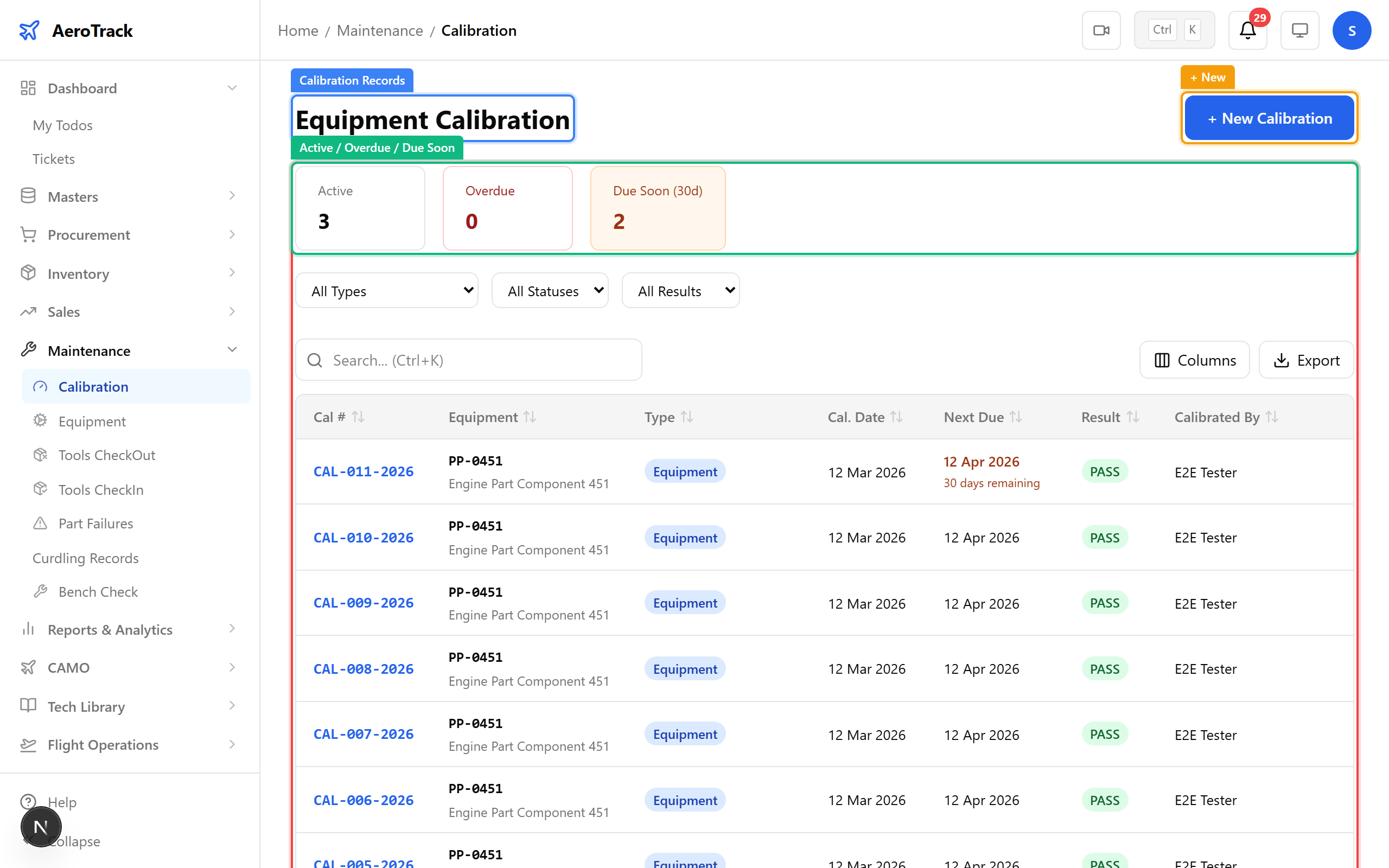
▲ Calibration tracking — never miss a calibration due date.
Click a calibration record to see its full detail — equipment, calibration lab, certificate number, standard used, result, and the next due date. A warning banner appears when calibration is approaching or overdue.
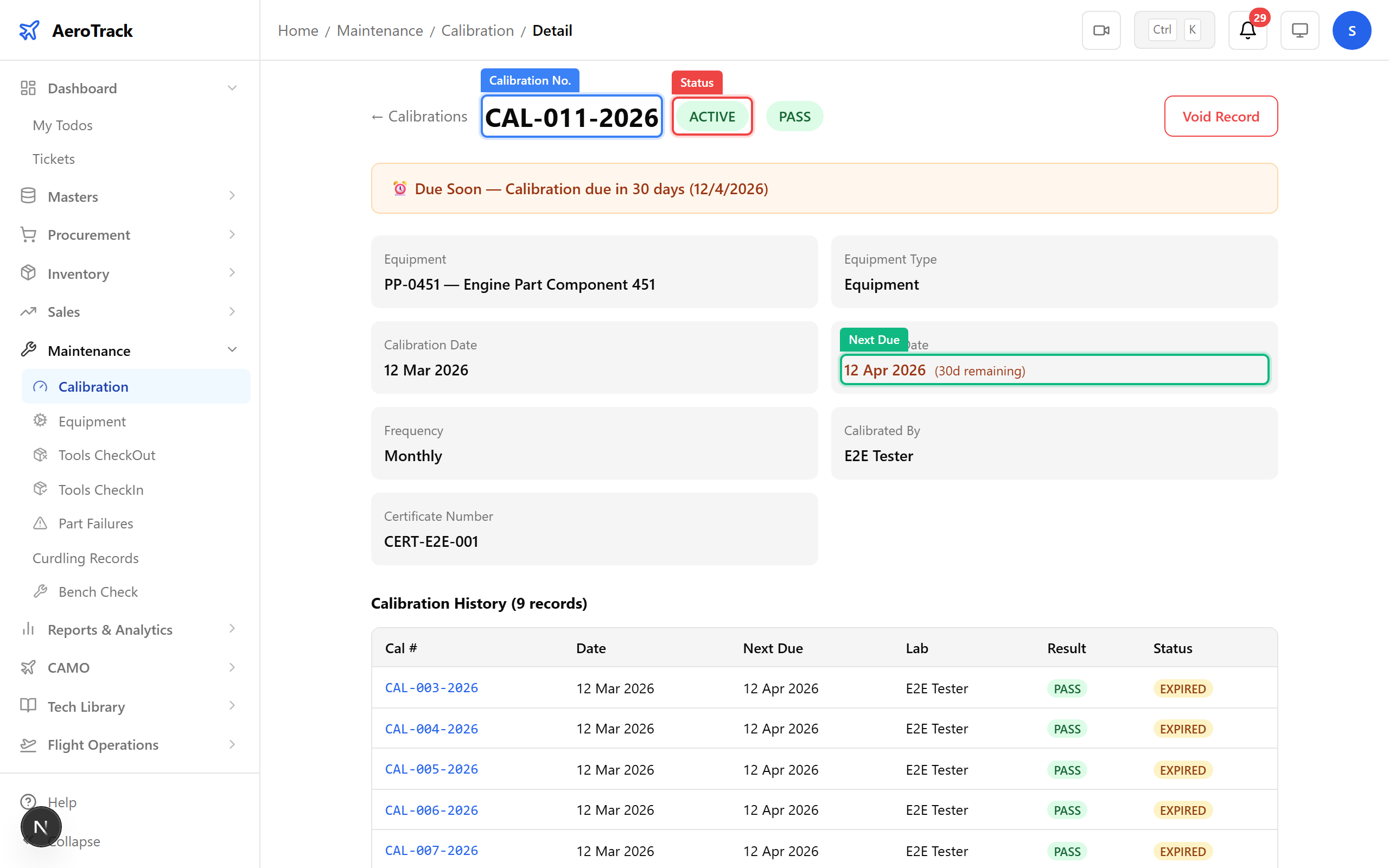
▲ Upcoming calibrations — tools flagged before they expire.
Navigate to Reports. Key maintenance reports include Calibration Due, Inspection Kit, Bench Check, and Part Reliability. These reports help ensure compliance with regulatory calibration requirements.
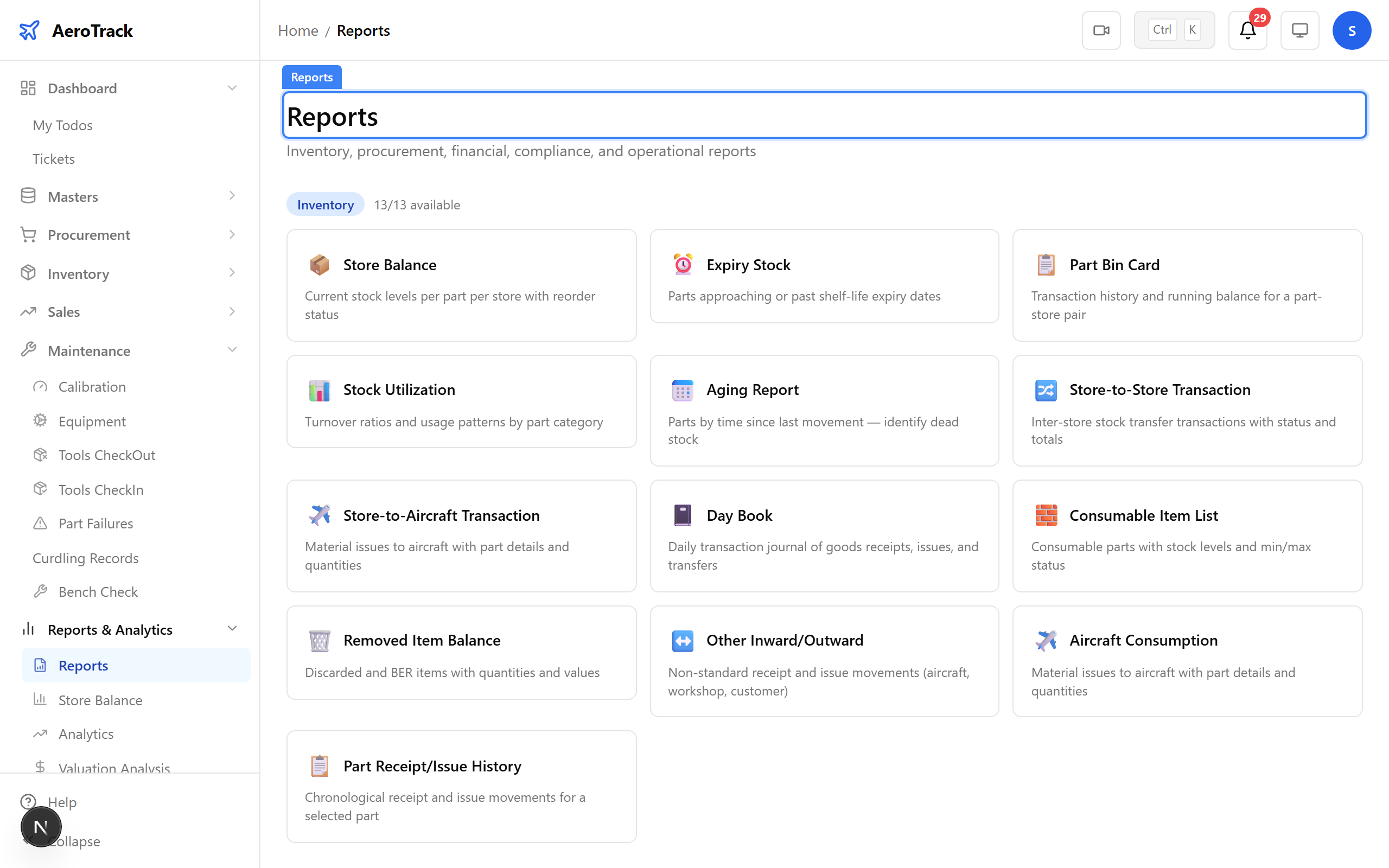
▲ Maintenance reports — tool utilisation, calibration compliance, and checkout history.
The full tool lifecycle is complete: Registered → Checked Out → Used → Returned → Calibration Tracked. Every tool movement is logged with traceability to the work order, technician, and aircraft — meeting aviation regulatory requirements for tooling control.
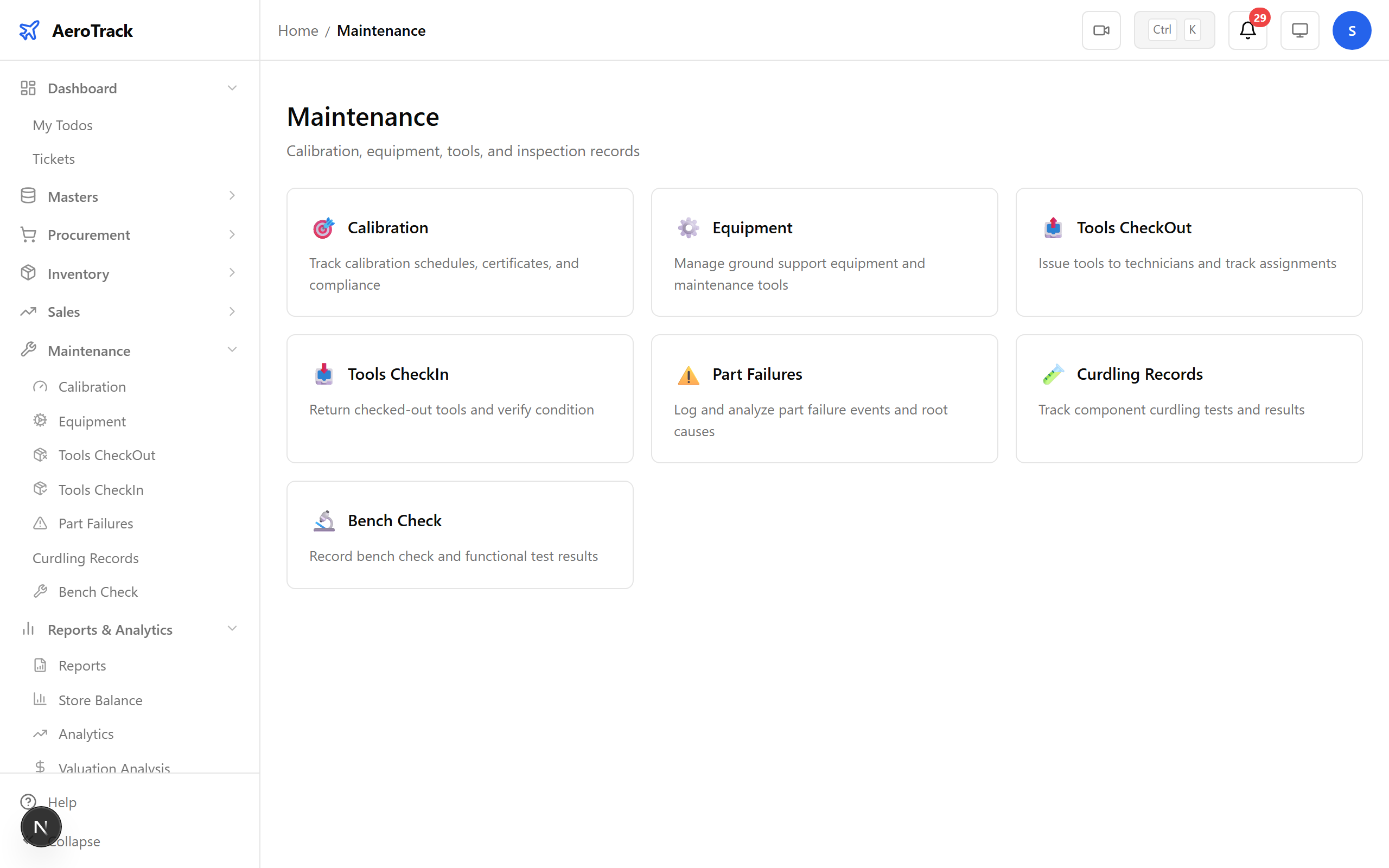
▲ The full tool lifecycle — registered, checked out, returned, and calibration-tracked.