Navigate to Inventory in the sidebar. The landing page shows module cards for Goods Receipts, Material Issues, Stock Overview, Transfers, Audits, Quarantine, and specialized sub-modules like WO Returns and Core Exchange.
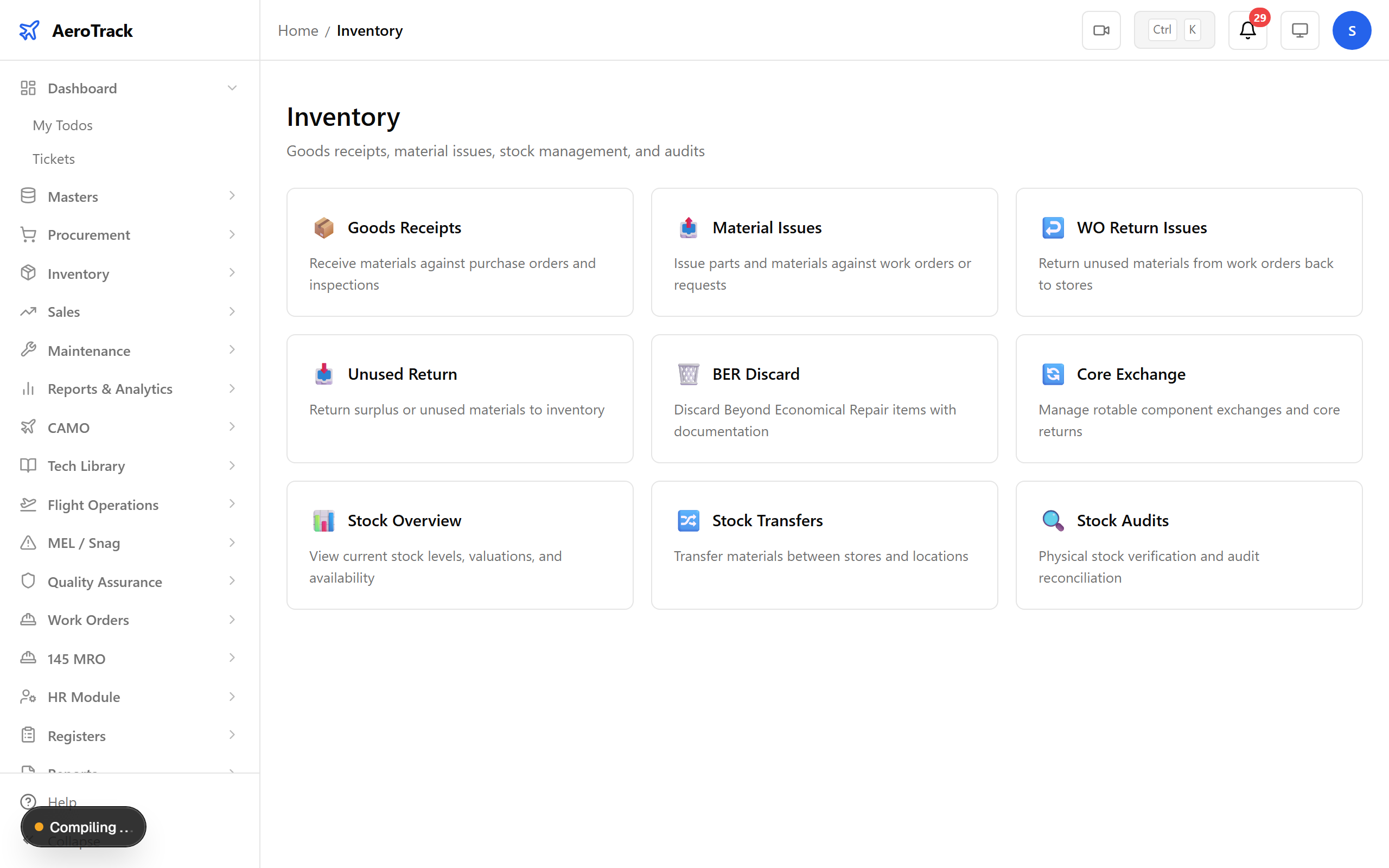
▲ Inventory & Stores — track every part from receiving dock to aircraft.
Navigate to Inventory → Stock. The stock overview shows every part across all storage locations with current quantities, conditions, and status indicators. Parts below minimum levels are flagged for reorder.
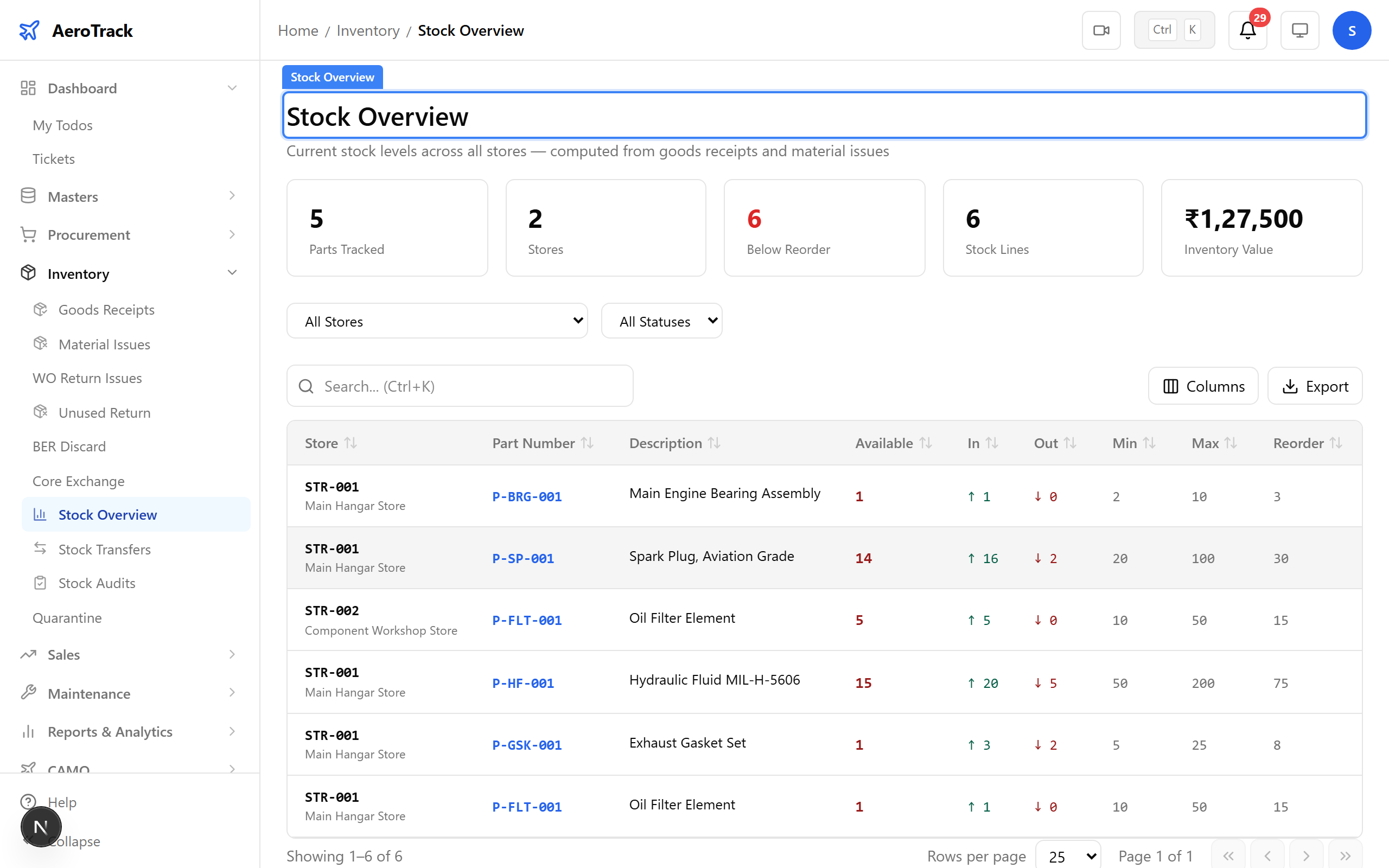
▲ Dashboard — stock levels, pending goods receipts, and reorder alerts.
Navigate to Inventory → Goods Receipts. Every incoming shipment is logged here as a GRN (Goods Receipt Note). Each row shows the GRN number, linked PO, vendor, receipt date, and inspection status.
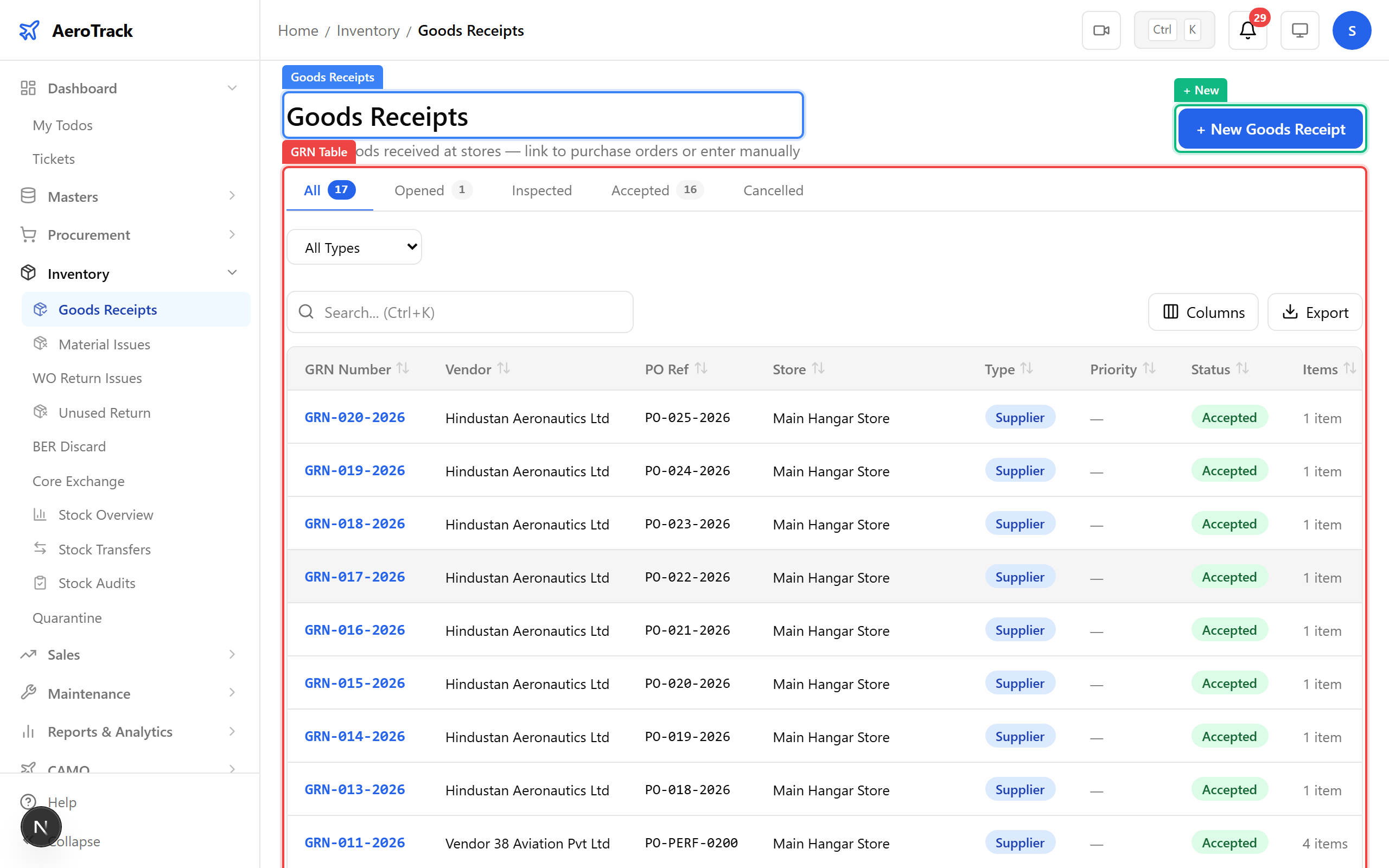
▲ Goods Receipts — logging incoming parts and materials.
Click + New. The bearings from HAL have arrived. Link the receipt to the PO, select the storage location, and log each item with quantity received, batch/serial number, and condition.
| Field | Purpose |
|---|---|
| Receipt Type | Standard / Return / Transfer — determines stock flow |
| Linked PO | Purchase order this receipt is against (auto-populates items) |
| Store Location | Where parts will be stored (Main Warehouse, Hangar, etc.) |
| Receipt Date | Physical date of delivery |
| Document Number | Vendor delivery challan or shipping reference |
| Qty Received | Actual quantity received per item (may differ from PO qty) |
| Priority | Urgent items get fast-tracked through inspection |
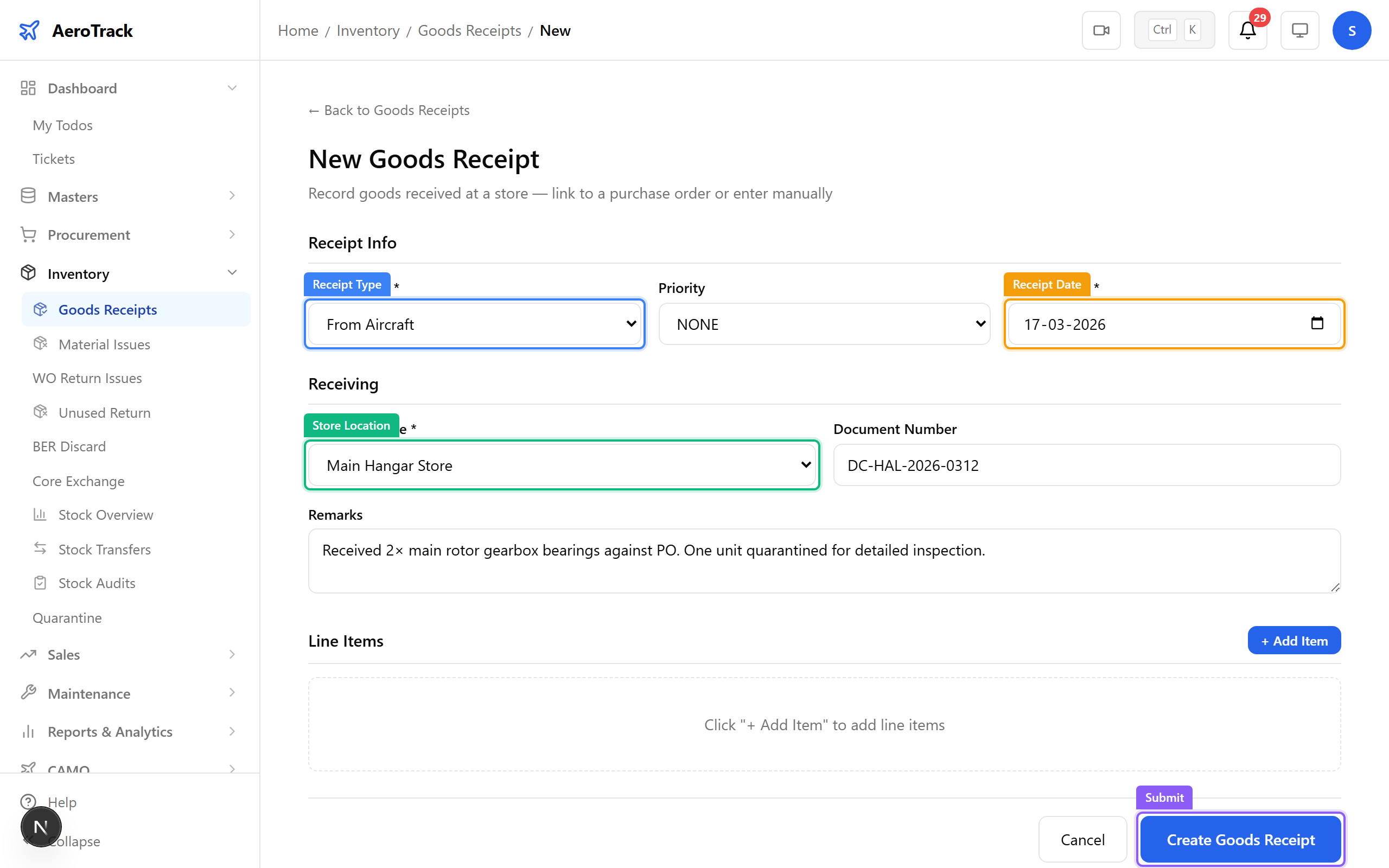
▲ Receiving the main rotor bearings — 2 units against PO, one sent to quarantine inspection.
After saving, the GRN detail page shows all received items with their inspection status. The workflow: OPENED → INSPECTED → ACCEPTED. Each item can be individually inspected — accepted as serviceable or quarantined for further checks.
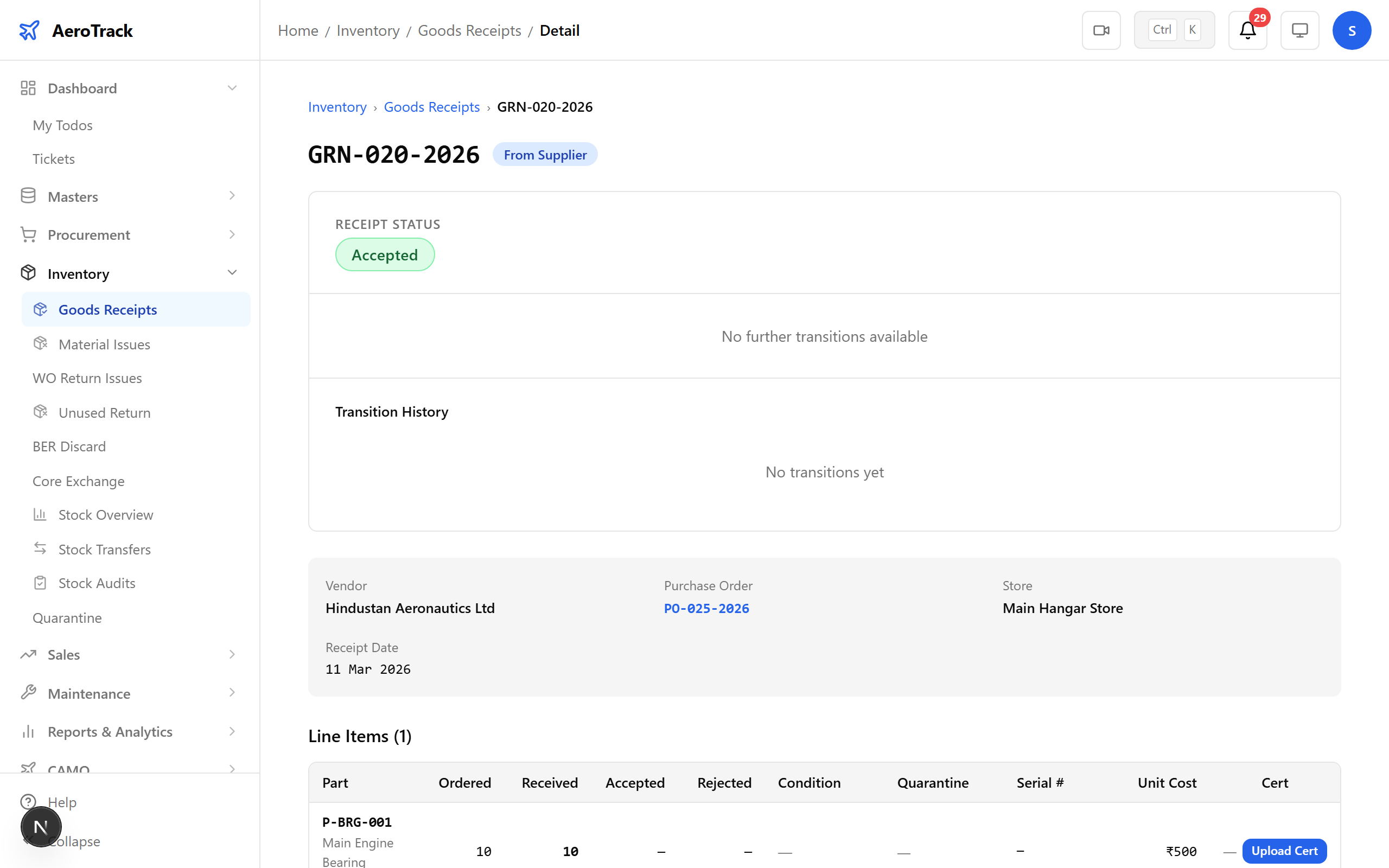
▲ Goods receipt recorded — stock levels updated automatically.
When a goods receipt is inspected, AeroTrack sends an in-app notification to the requesting team (admin, super_admin, store_manager). The bell icon in the header shows the unread count.
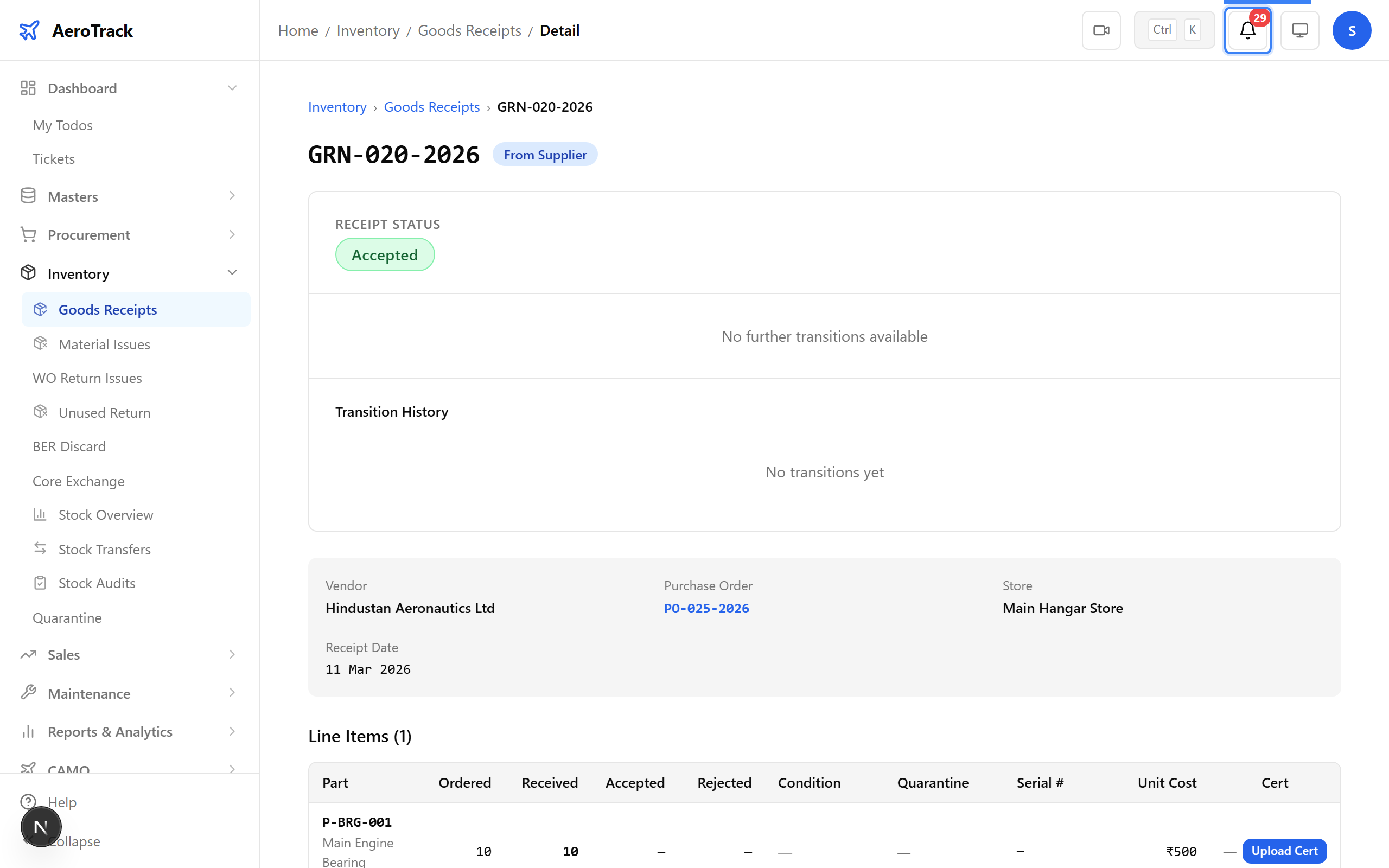
▲ Notification sent — the requesting team knows their parts have arrived.
Navigate to Inventory → Stock. The stock overview is a part × store matrix showing current quantities, available stock, and status. Green = healthy, yellow = below reorder point, red = zero or below minimum.
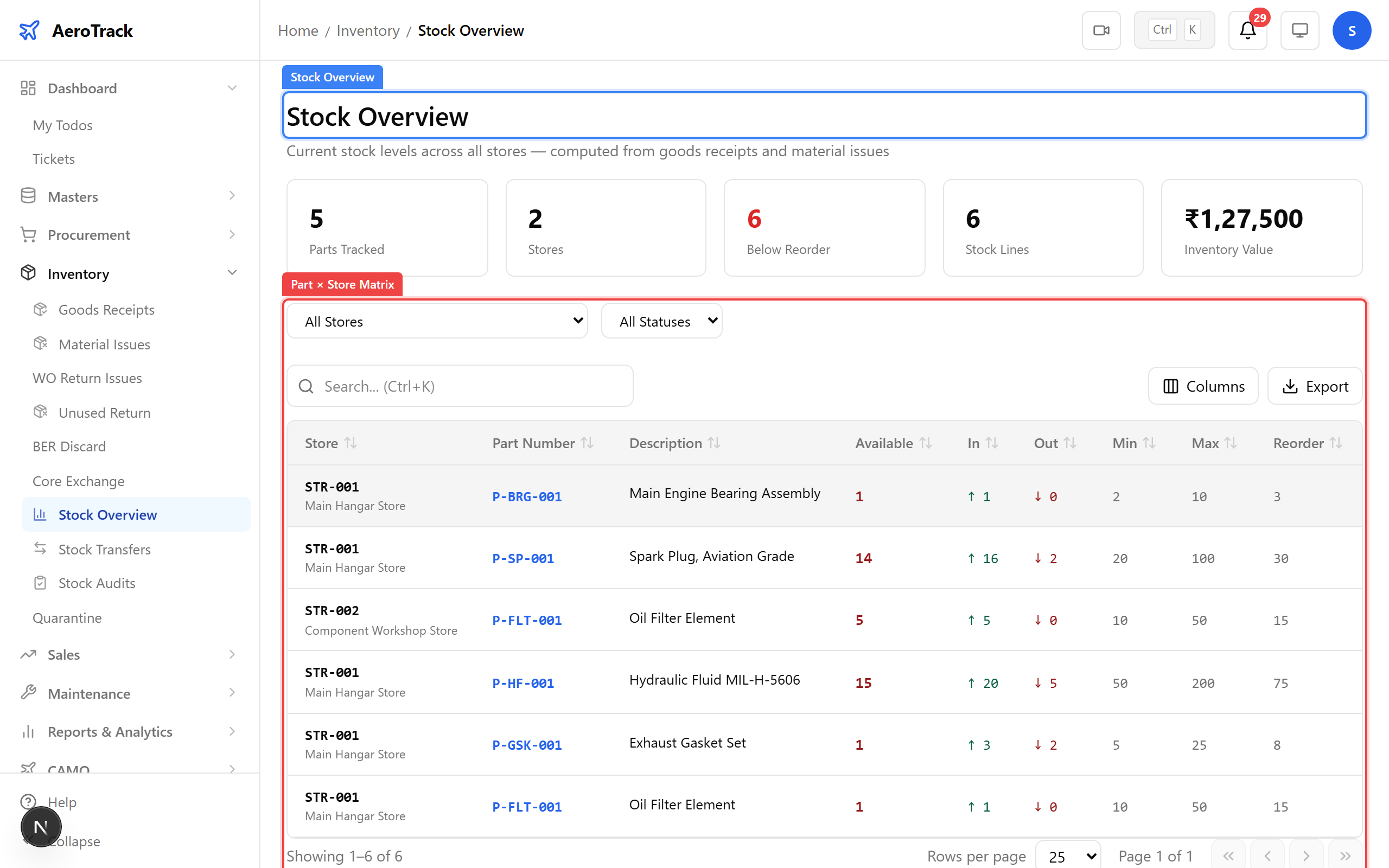
▲ Stock overview — every part, current quantity, location, and condition.
Click a part number to see its stock card. The detail page shows the current balance, and a complete movement history — every receipt, issue, transfer, and adjustment is logged with timestamps and references.
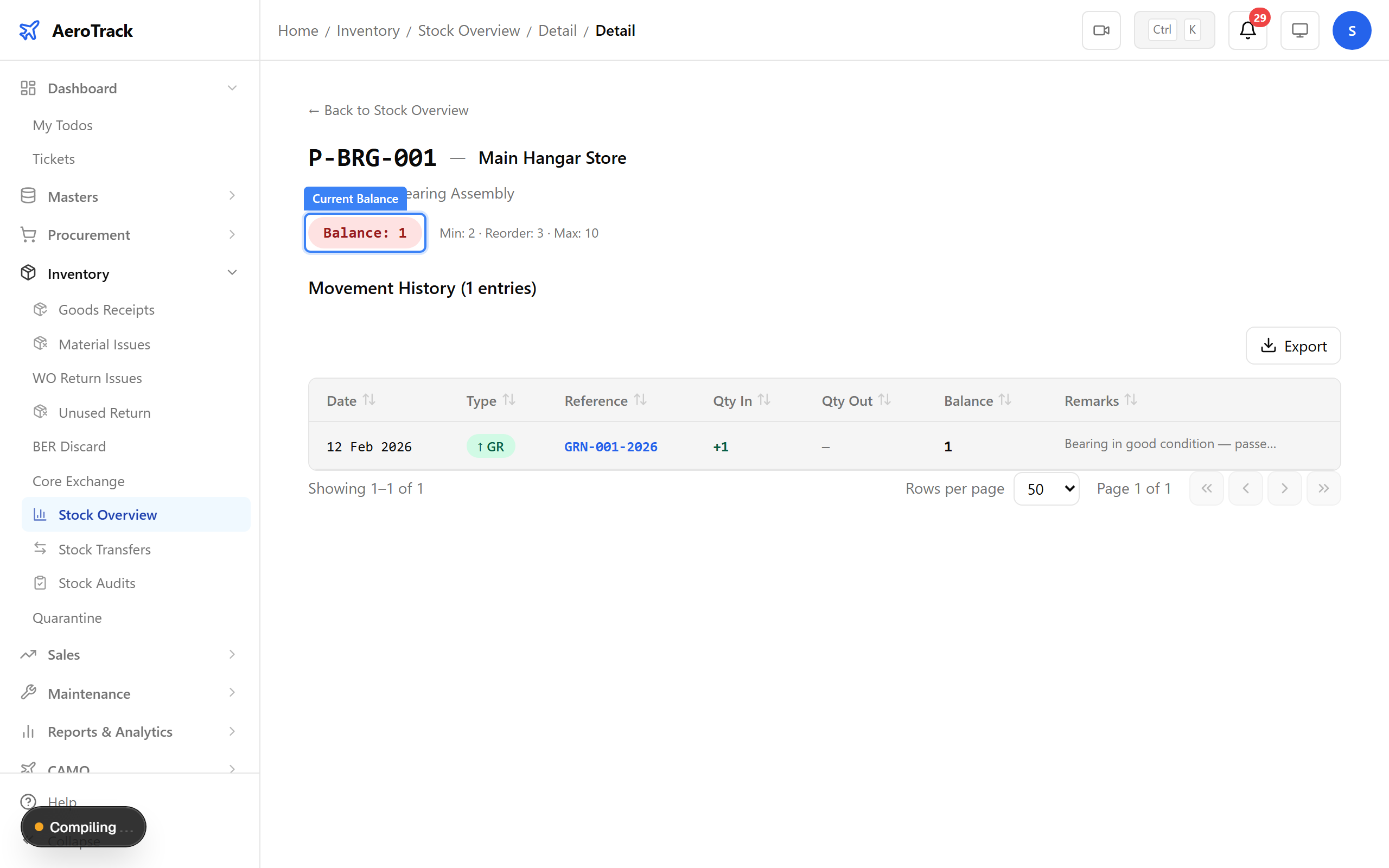
▲ Part detail — full traceability from receipt to issue.
Use the filter dropdowns to narrow stock by store location, status (healthy / low / zero), or search by part number or name. This helps quickly locate specific items across multiple storage locations.
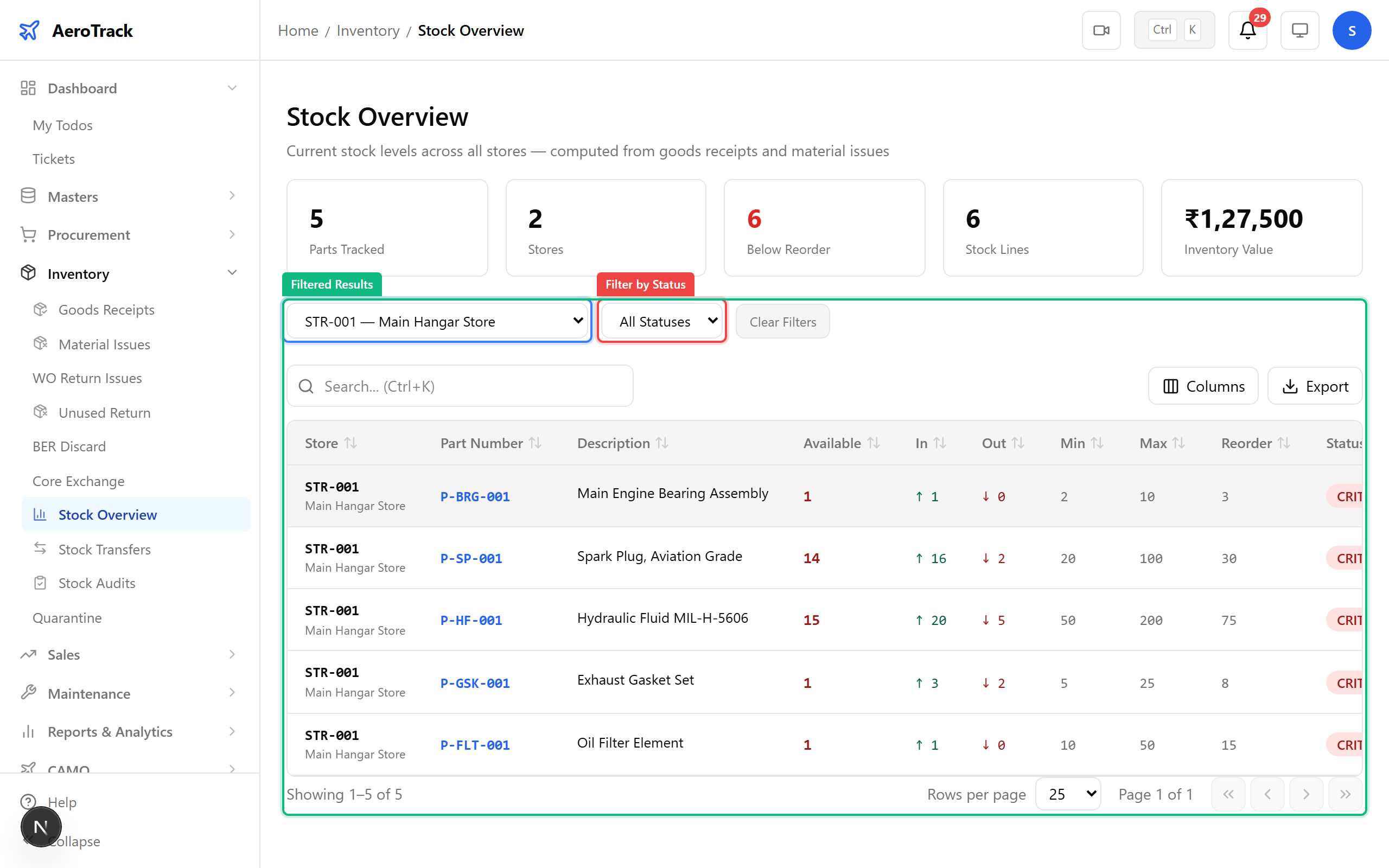
▲ Search and filter — find any part by number, name, or location.
Navigate to Inventory → Issues. Material issues track parts going out from stores — typically to maintenance work orders. Each issue shows the issue number, type, destination, and authorization status.
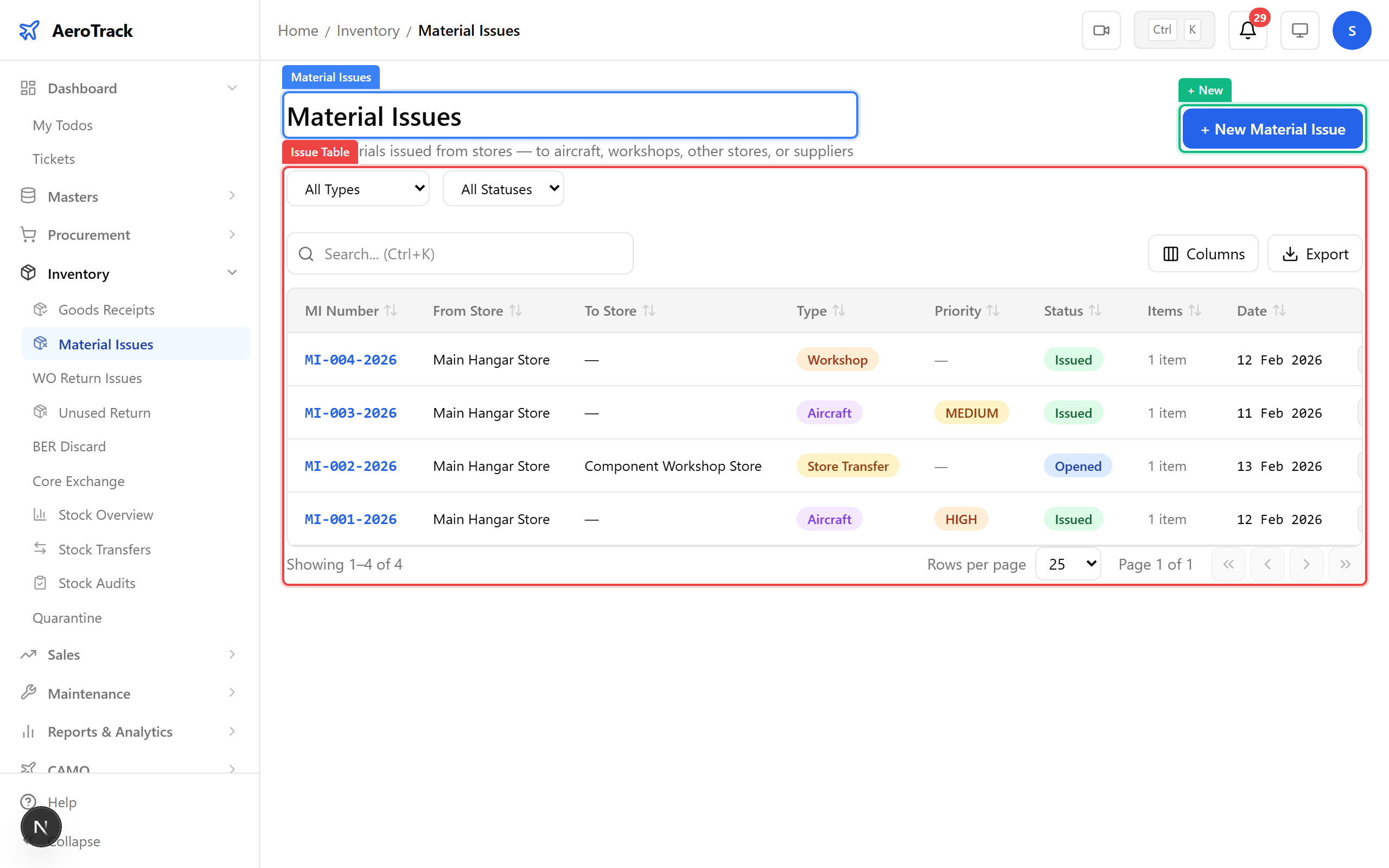
▲ Stock Issues — parts going out to maintenance work orders.
Click + New. Issue one bearing to the VT-ACG overhaul. Select the source store, add the part with quantity, and link to the work order for traceability.
| Field | Purpose |
|---|---|
| Issue Type | Standard / Work Order / Loan — determines authorization flow |
| Priority | Normal / Urgent — urgent issues bypass some checks |
| From Store | Source storage location |
| Issue Date | Date the parts leave stores |
| Part / Qty | Which part and how many units to issue |
| Remarks | WO reference, batch/serial traceability notes |
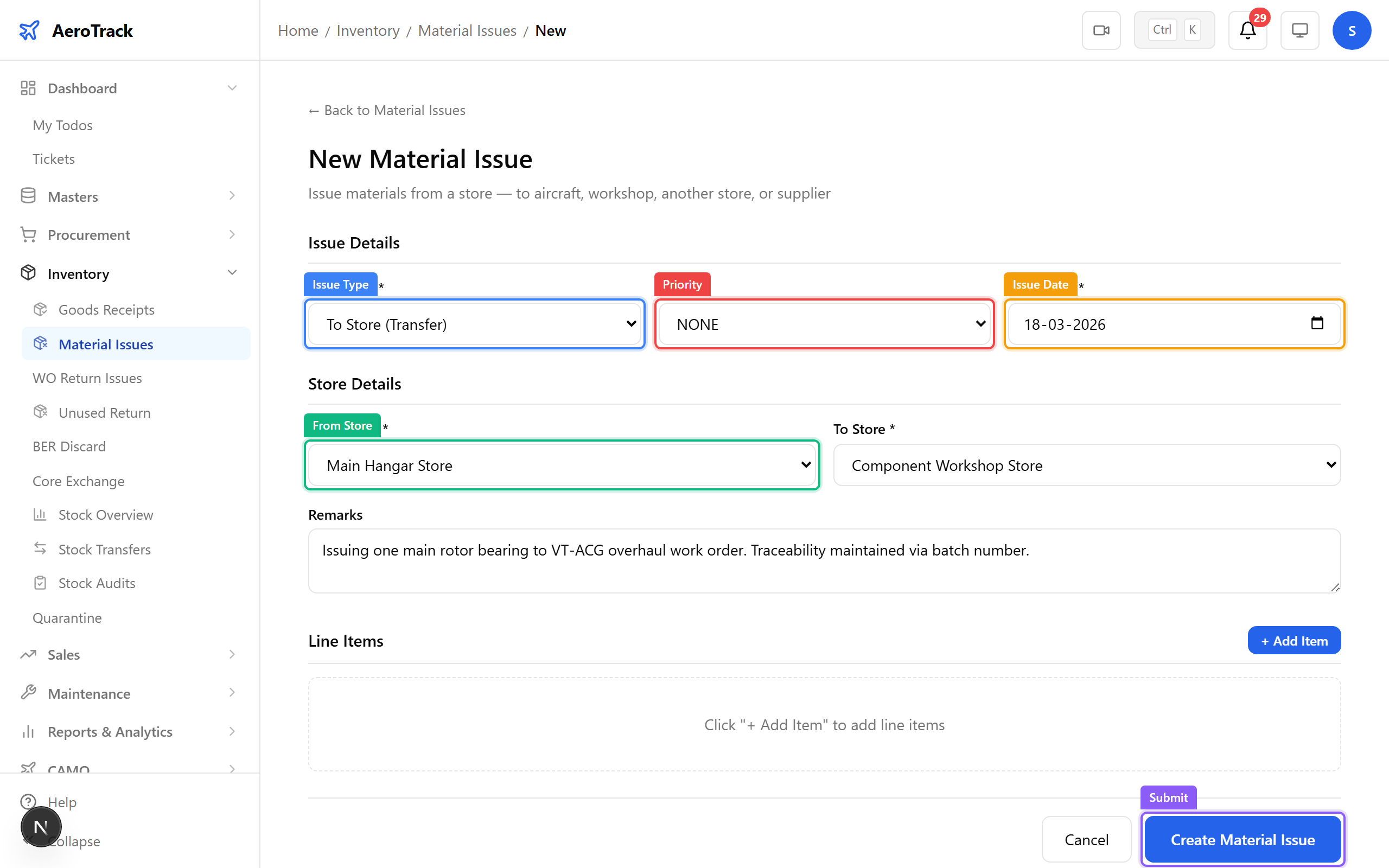
▲ Issuing one bearing to the overhaul work order — traceability maintained.
The issue detail page shows the issue number, items, source store, destination, and status. The workflow: OPENED → AUTHORIZED → ISSUED. Once authorized and issued, the stock is decremented and the work order’s material list is updated.
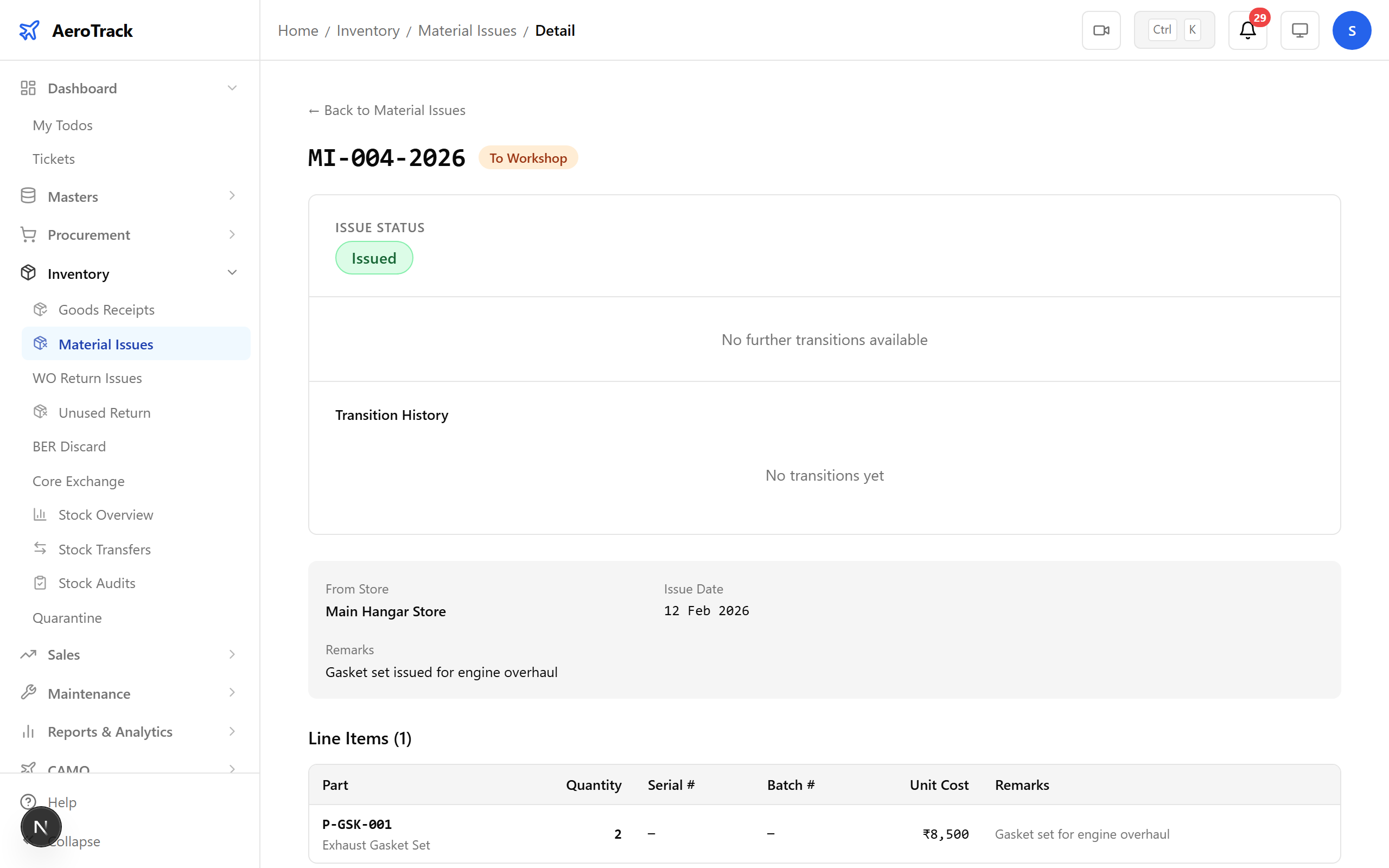
▲ Issue recorded — stock decremented, work order linked.
Navigate to Inventory → Transfers. Stock transfers move parts between storage locations without consuming them. Each transfer shows the from/to locations, reason, and transit status.
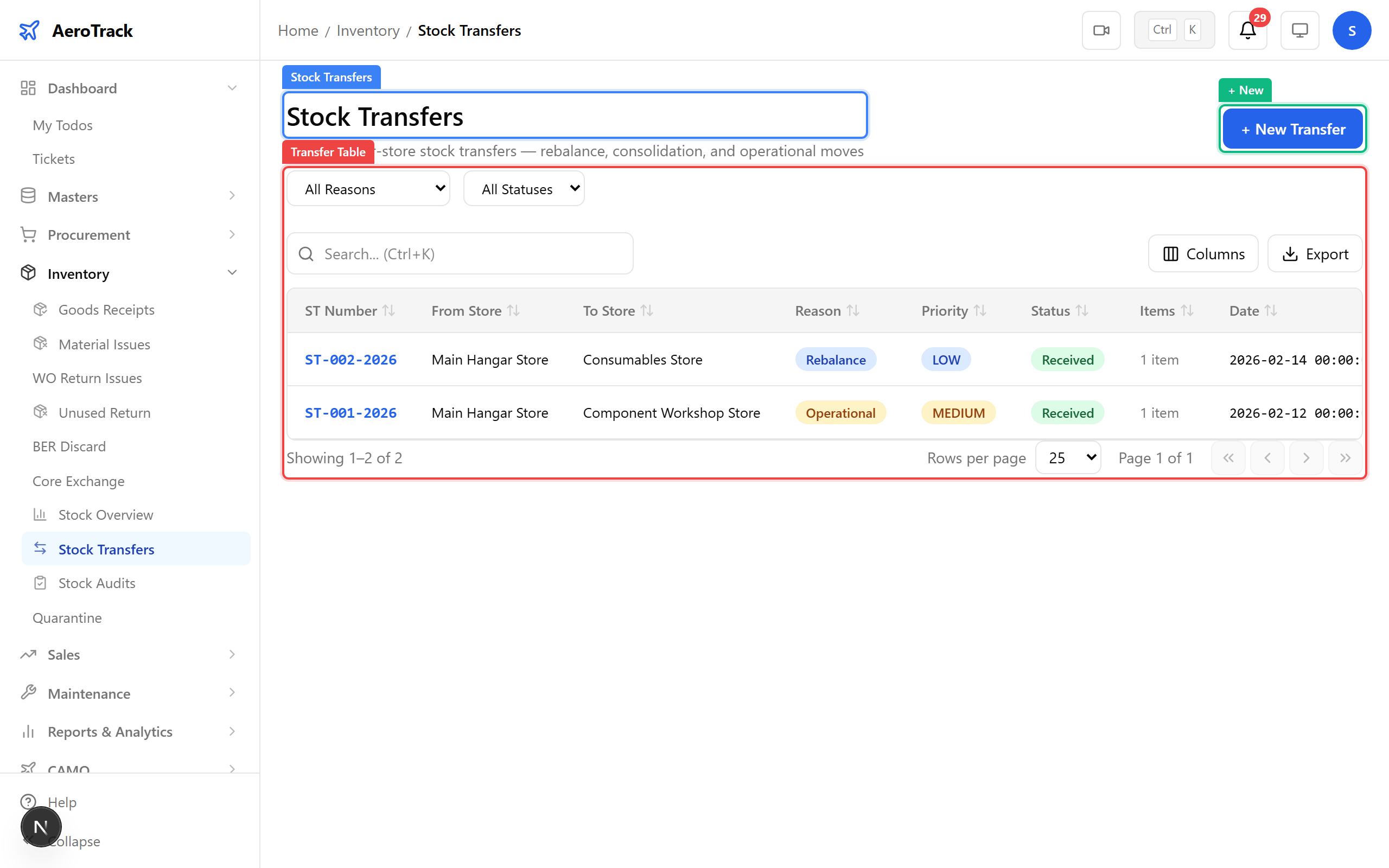
▲ Stock Transfers — moving parts between storage locations.
Click + New. Move the second bearing from the main stores to the hangar workshop for staging. Select from/to locations, add the part with quantity, and provide a reason.
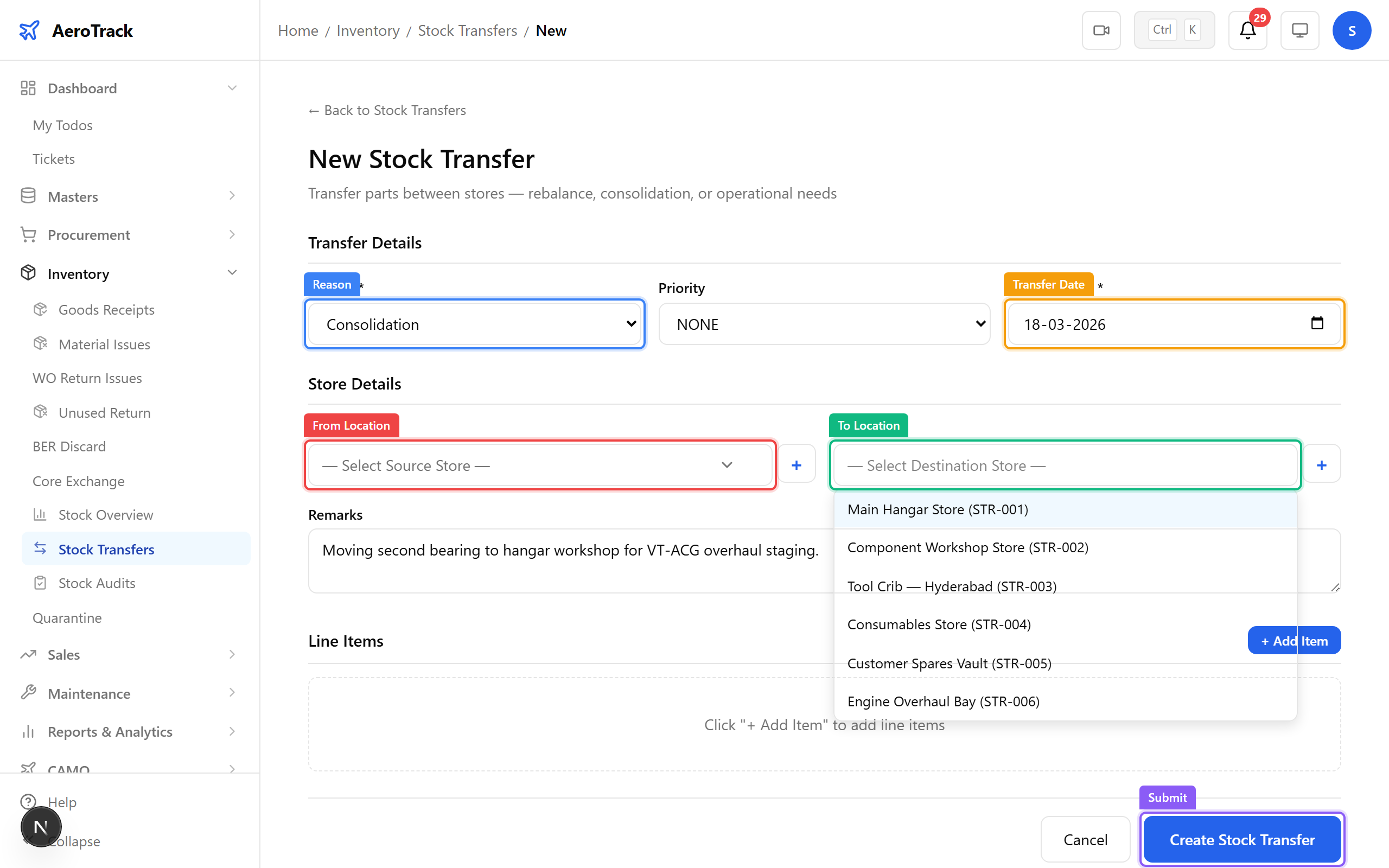
▲ Transferring the second bearing from main stores to the hangar workshop.
The transfer detail shows both locations, items, and status. The workflow: INITIATED → IN_TRANSIT → RECEIVED. Once received at the destination, both store balances are updated automatically.
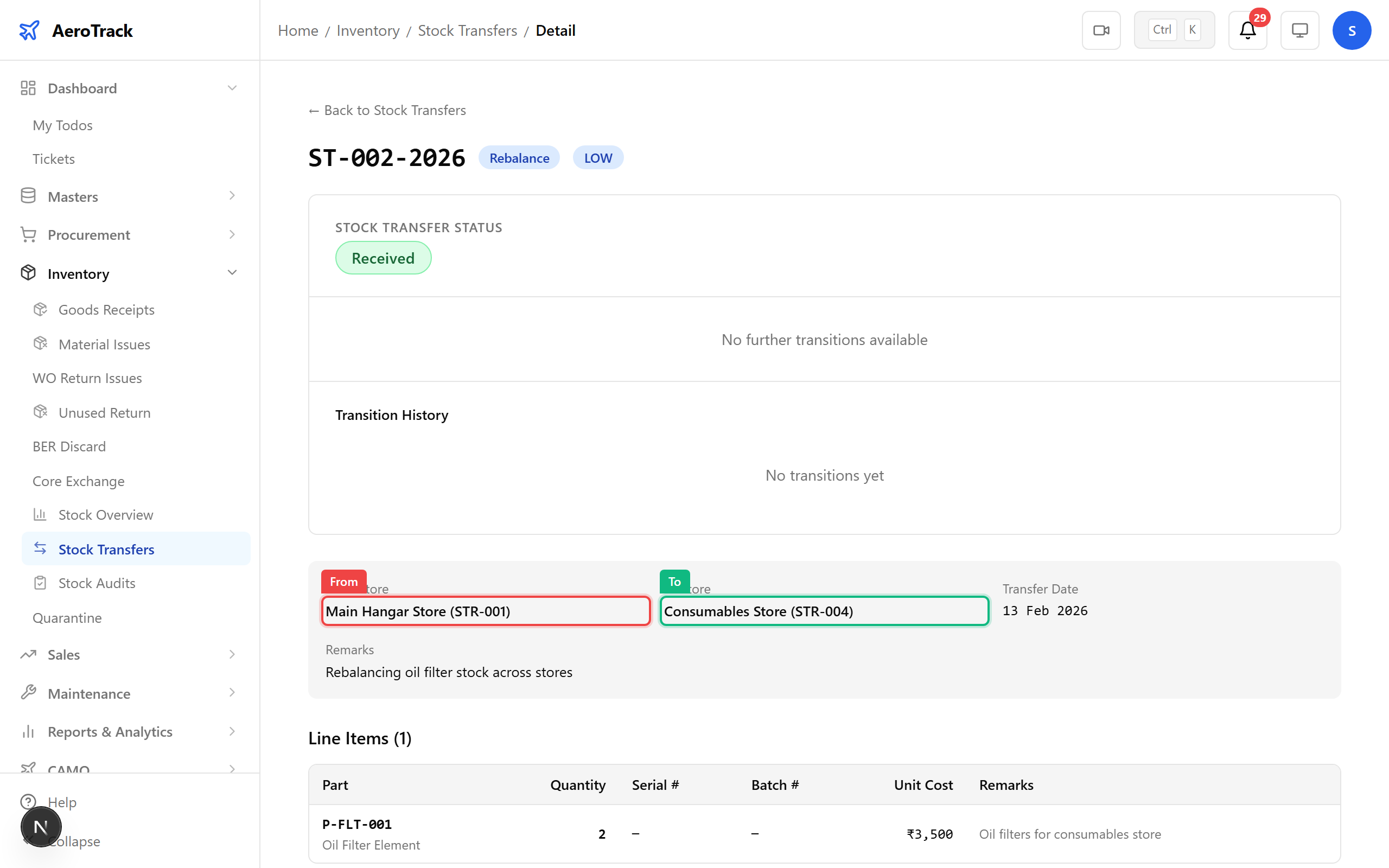
▲ Transfer completed — both locations updated.
Navigate to Inventory → Quarantine. Parts flagged during goods receipt inspection land here. Each item shows the receipt reference, part details, quarantine reason, and available actions (release or scrap).
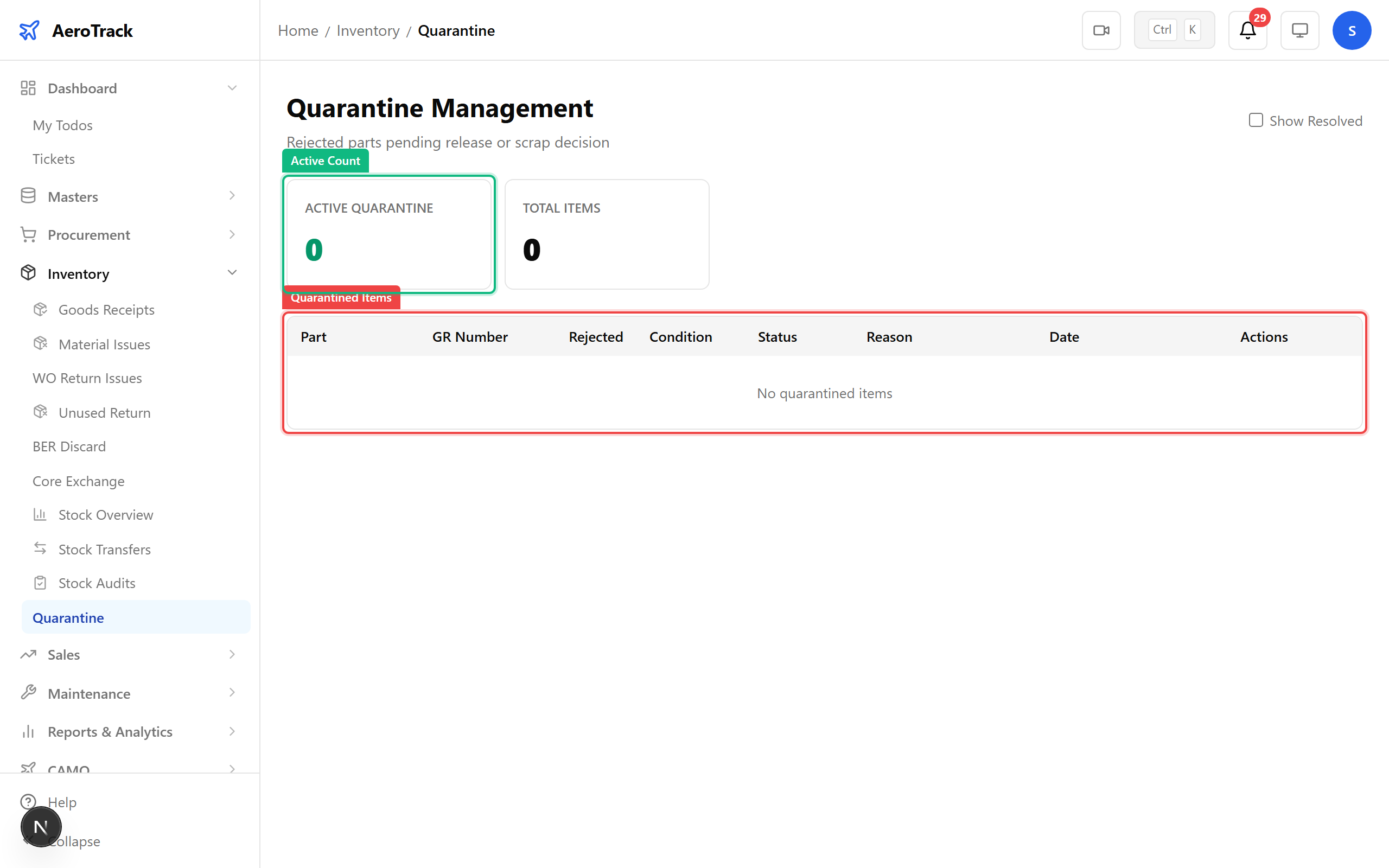
▲ Quarantine — parts awaiting inspection or deemed unserviceable.
After detailed inspection, a quarantined part can be Released (cleared as serviceable) or Scrapped (marked for disposal). Releasing moves the part back to available stock with a documented inspection trail.
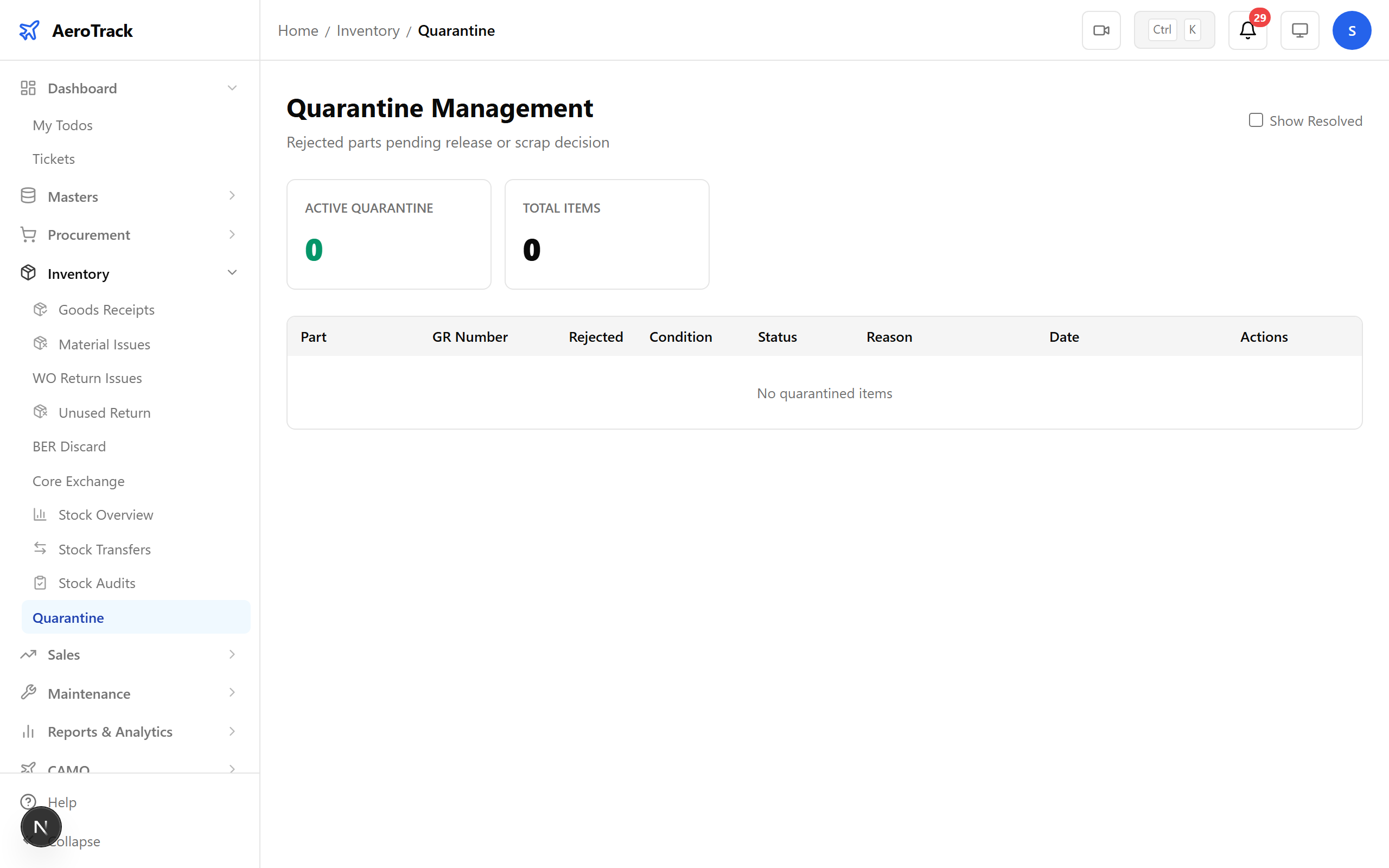
▲ Releasing from quarantine — part inspected and cleared as serviceable.
Navigate to Inventory → Audits. Stock audits verify that physical counts match system records. Each audit shows the store, type, date, status, and any variance found.
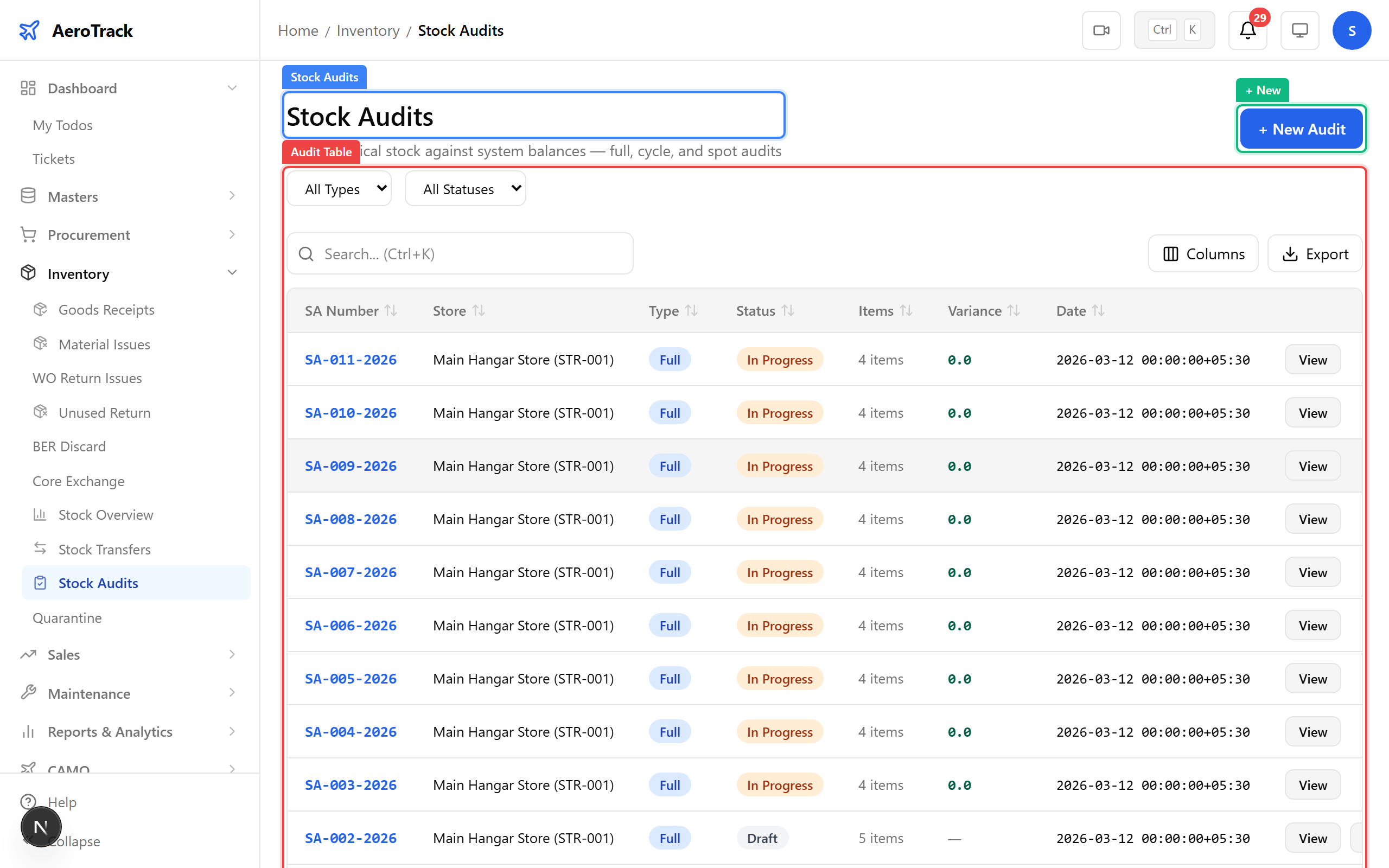
▲ Stock Audits — periodic verification of physical vs system quantities.
Click + New. Select the store to audit, the audit type (full / spot check / cycle count), and date. The system generates count lines for all parts in that location.
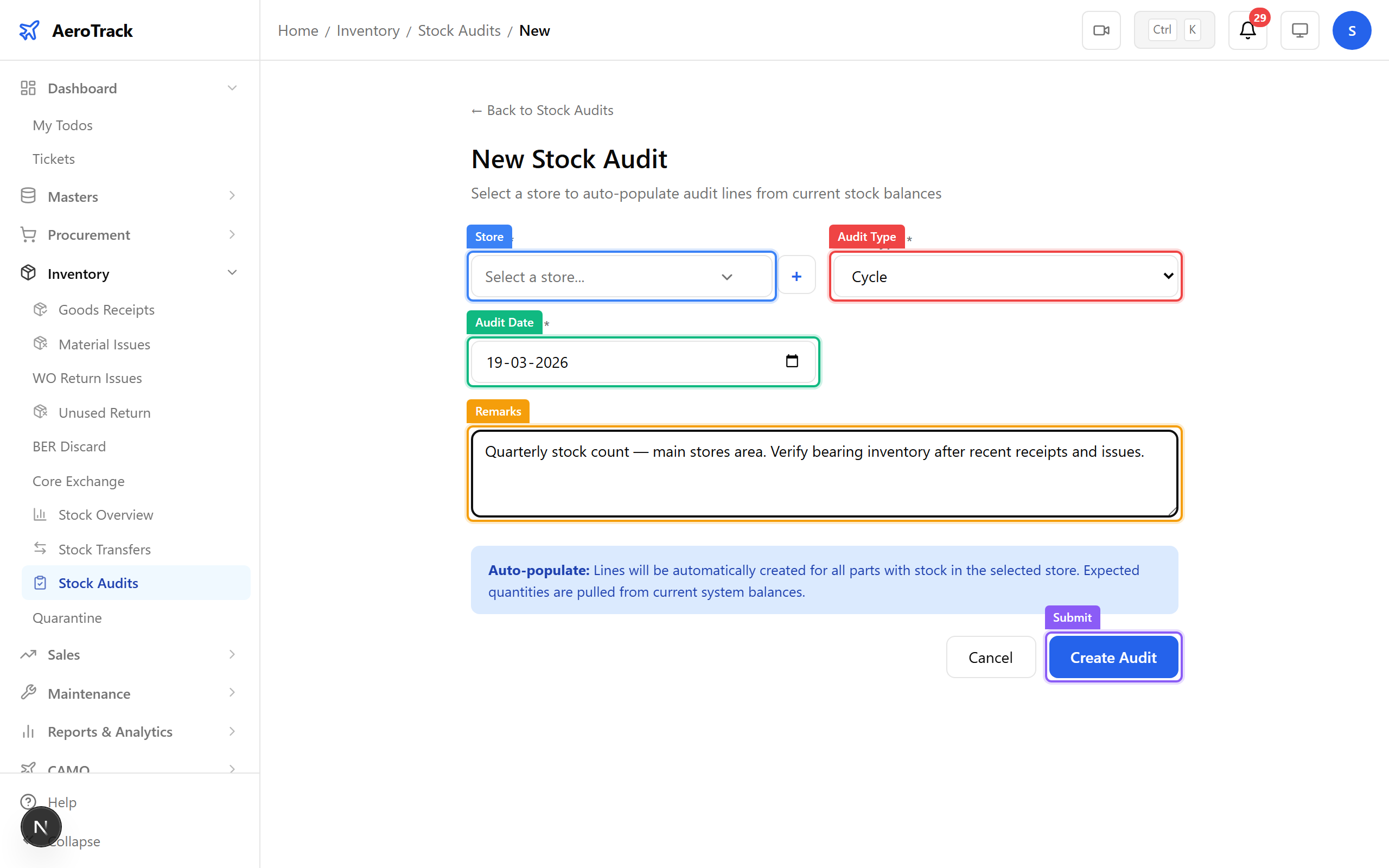
▲ Starting a stock count for the main stores area.
The audit detail page lists every part in the selected store with its system quantity. Enter the physical count for each line — variances are calculated automatically. The summary shows total lines counted, matches, and discrepancies. Workflow: DRAFT → IN_PROGRESS → COMPLETED.
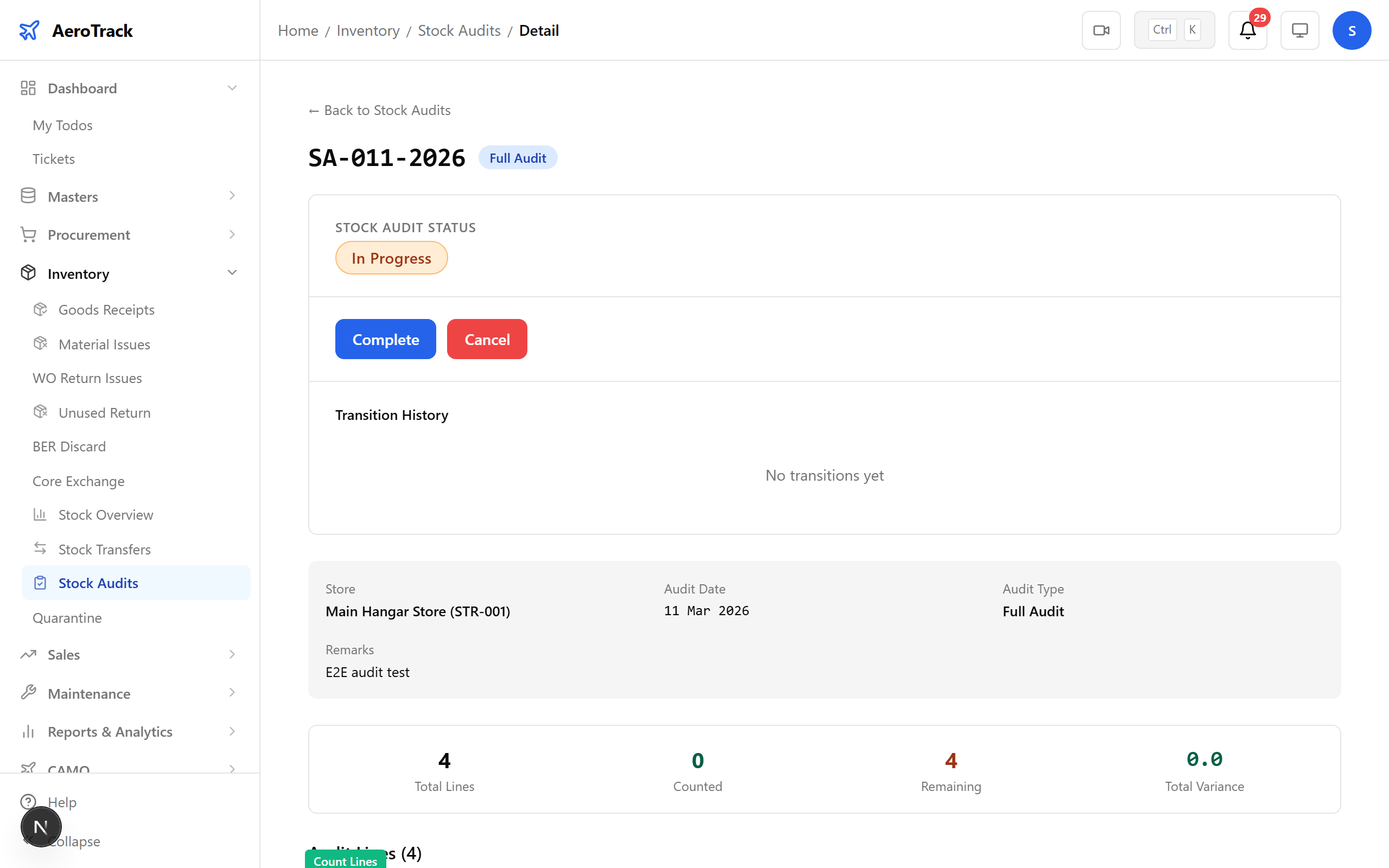
▲ Audit recorded — discrepancies flagged for investigation.
Navigate to Reports. Key inventory reports include Store Balance, GRN Summary, Part Bin Card, Stock Utilization, Consumption Report, and Expiry Stock. Each report can be filtered by date range, store, and part category.
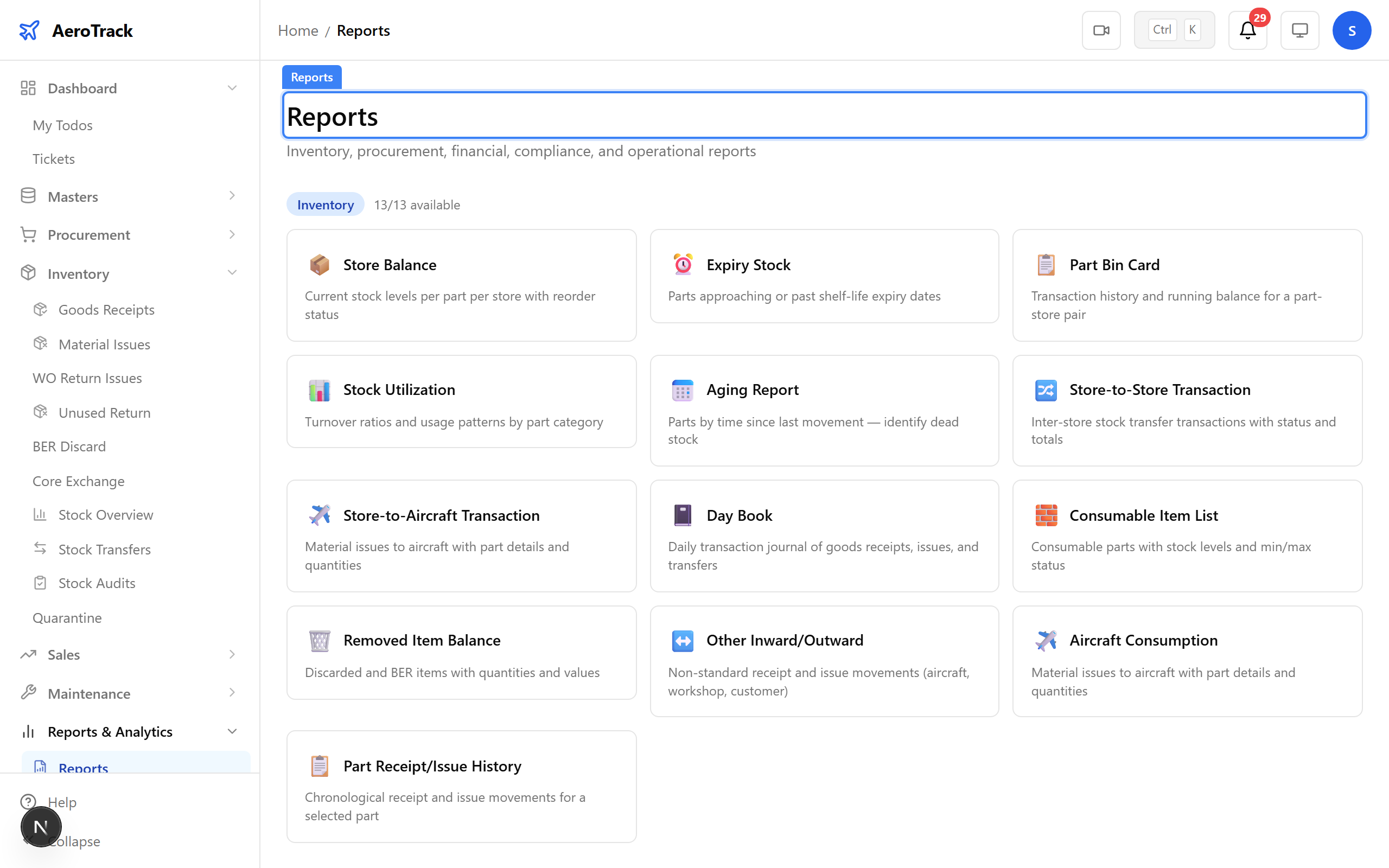
▲ Inventory reports — stock valuation, movement history, and reorder analysis.
Filter the stock overview by status to see parts below their minimum level. These items need reordering — the system flags them automatically based on min/max settings configured in the Part Master.
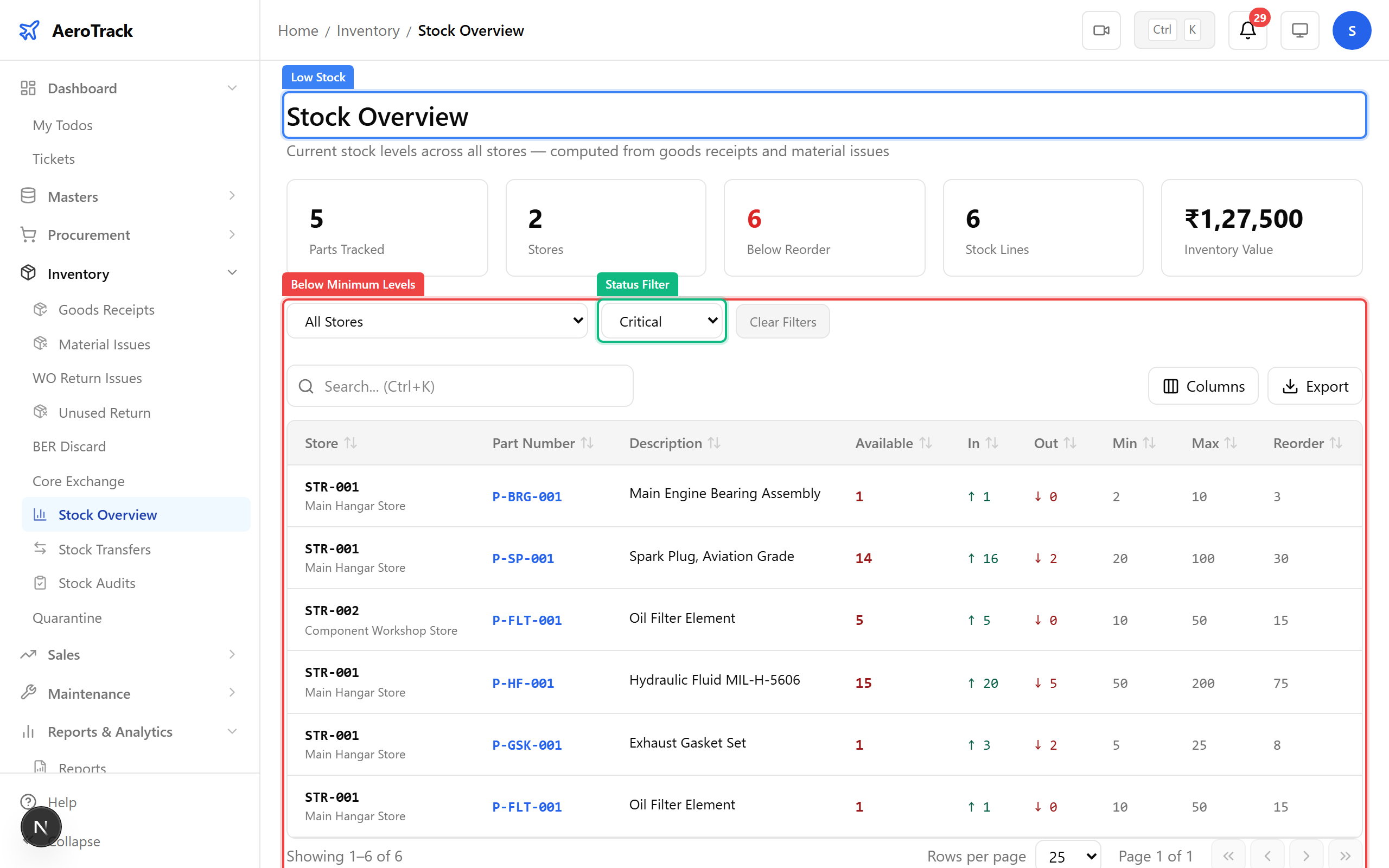
▲ Low stock alerts — automatic warnings when parts drop below minimum levels.
Return to a part’s stock card. The movement history shows the complete trail: received against PO, inspected, issued to work order, transferred between stores. Every transaction has a timestamp, reference number, and responsible user.
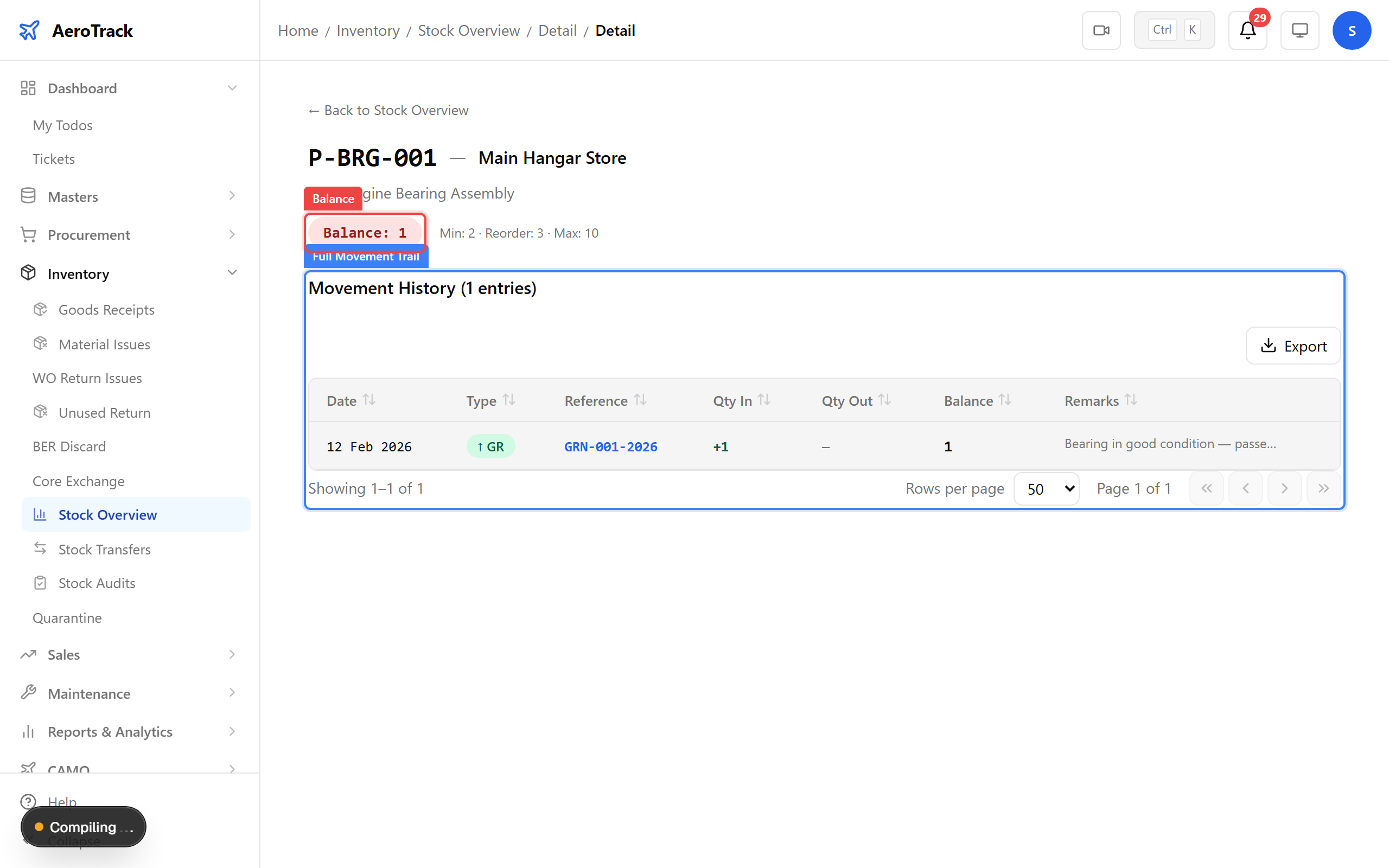
▲ Full traceability — every movement from dock to aircraft recorded.
The full inventory cycle is complete: Goods Receipt → Stock → Issue → Transfer → Audit. Every part movement is logged with full traceability, inspection history, and batch/serial tracking — meeting aviation regulatory requirements for material control.
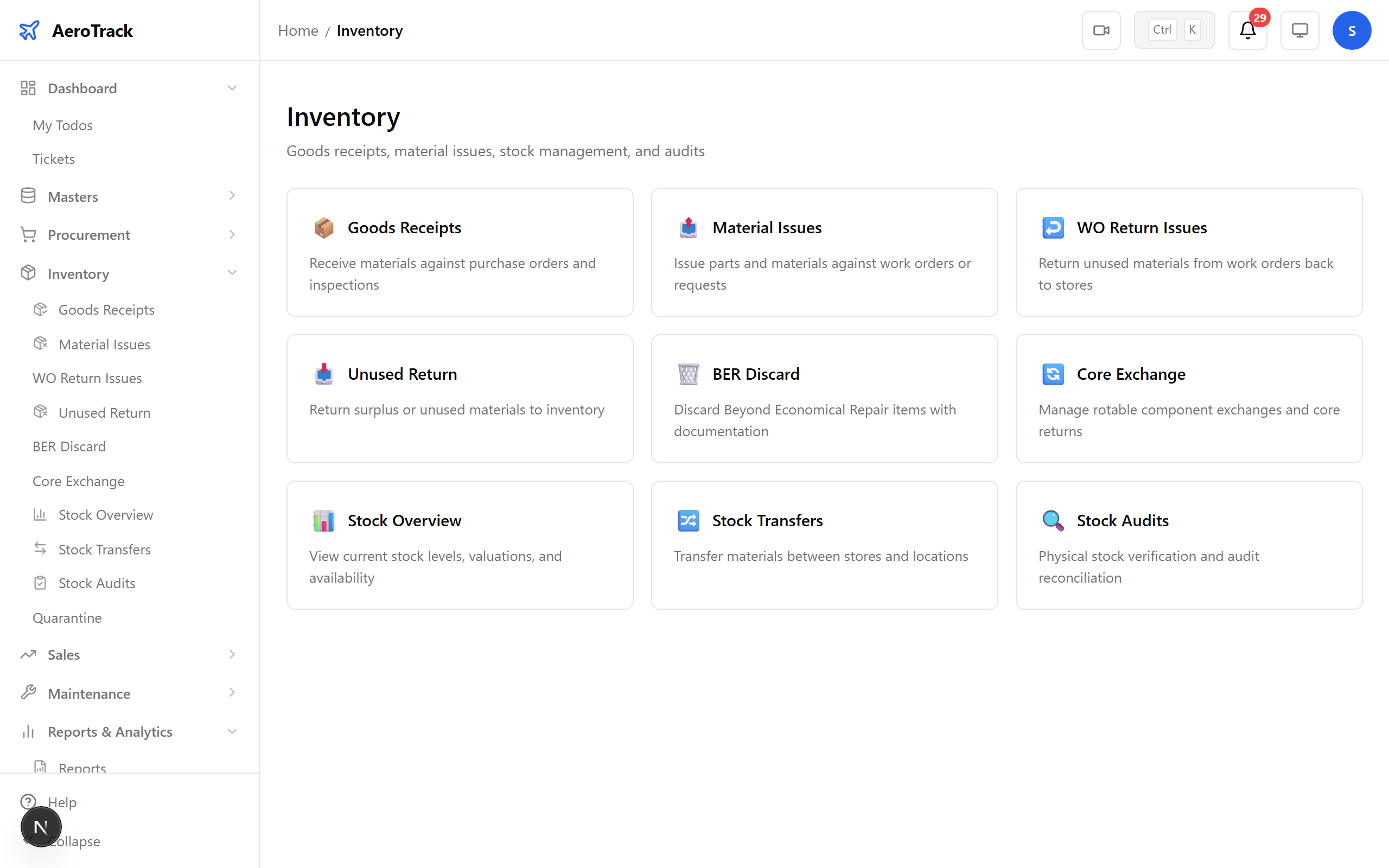
▲ The complete inventory cycle — received, stored, issued, audited.