Browse Challans
1Open Challan List
Navigate to Sales → Delivery Challans or go to /sales/delivery-challans.
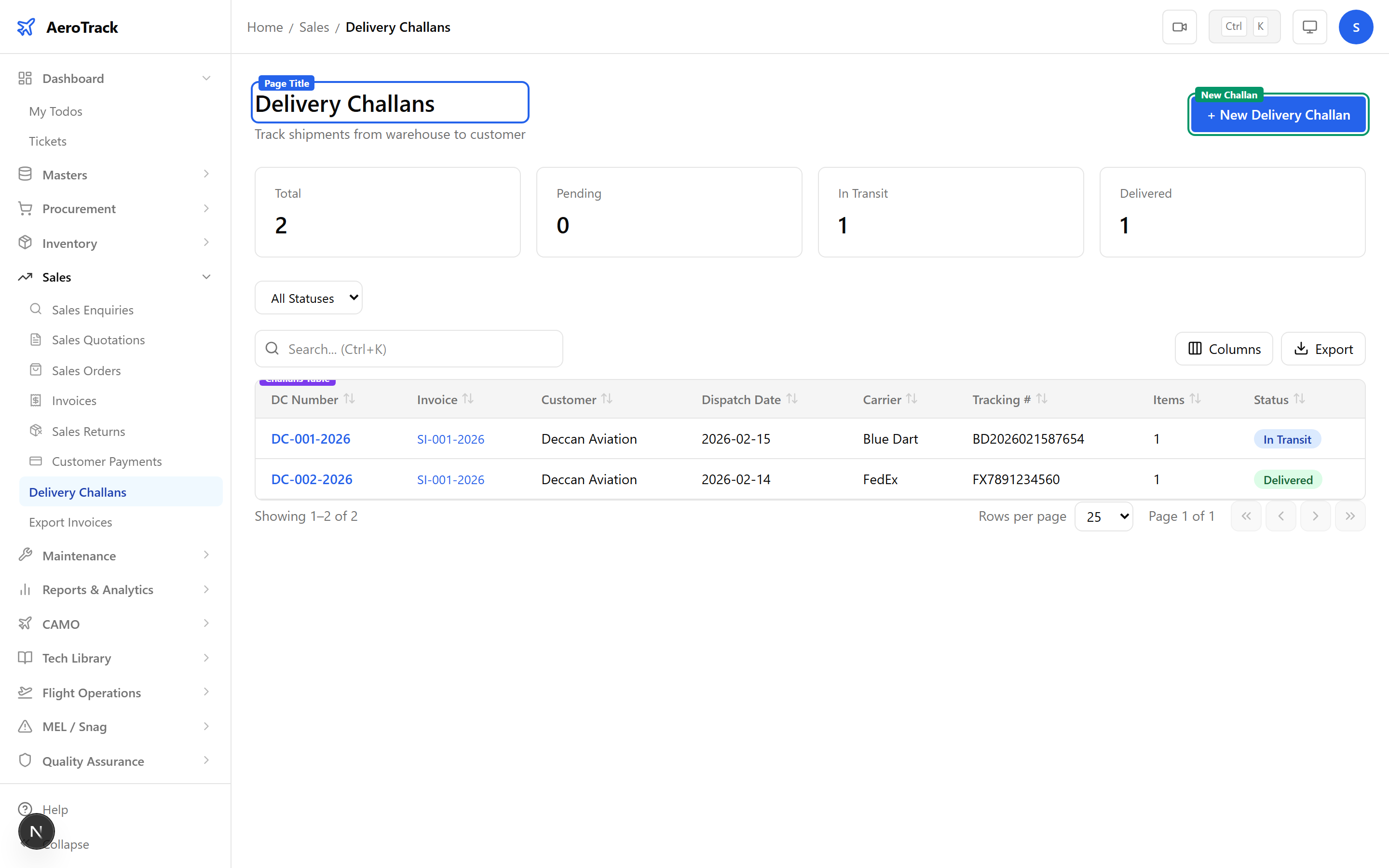
2Filter & Columns
| Column | Description |
|---|---|
| DC Number | Auto-generated challan number (links to detail). |
| Invoice | Linked sales invoice number. |
| Customer | Customer name snapshot. |
| Challan Date | Date the challan was created. |
| Expected Delivery | Target delivery date. |
| Shipping Method | Badge: Ground, Air, Sea, or Courier. |
| Tracking Number | Carrier tracking reference. |
| Items | Number of items being shipped. |
| Status | Pending, In Transit, Delivered, or Cancelled. |
Create a Challan
3Select Invoice
Click + New Challan. Select the source Sales Invoice from the dropdown — this auto-loads invoice items and customer details.
Invoices in Submitted or Approved status are available for challan creation.
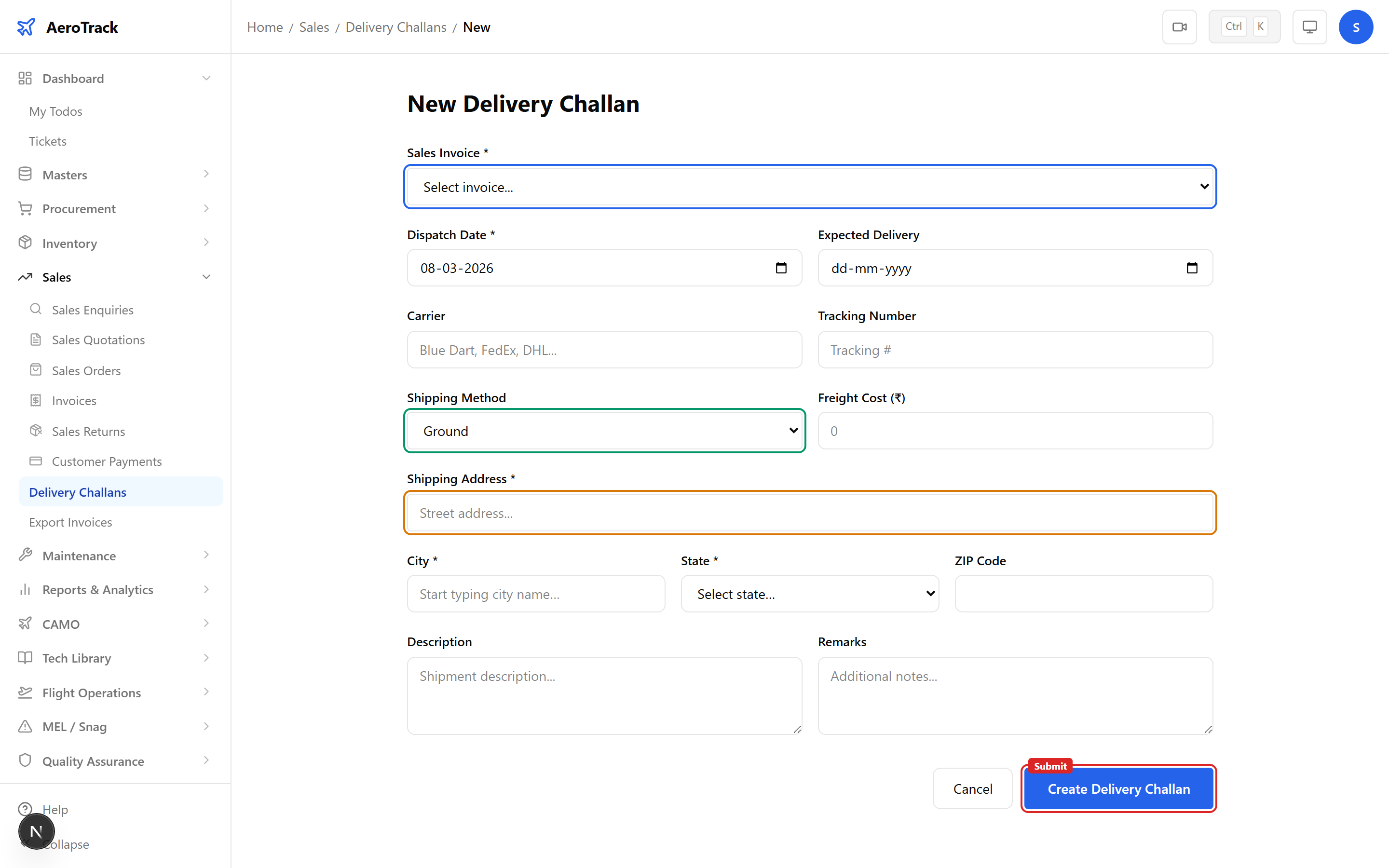
4Shipping Details
| Field | Required | Description |
|---|---|---|
| Challan Date | Yes | Defaults to today. |
| Expected Delivery | No | Target delivery date. |
| Carrier | No | Shipping company name. |
| Tracking Number | No | Carrier tracking reference. |
| Shipping Method | Yes | Ground (default), Air, Sea, or Courier. |
| Freight Cost | No | Shipping cost (numeric). |
| Description | No | Additional notes. |
| Remarks | No | Internal remarks. |
5Delivery Address
| Field | Required | Description |
|---|---|---|
| Address | Yes | Street address for delivery. |
| City | Yes | Typeahead city search with auto-complete. |
| State | Yes | Indian state (dropdown of all states). |
| ZIP Code | No | Postal code. |
6Shipped Items
Items are pre-populated from the invoice. For each item:
| Field | Description |
|---|---|
| Qty Ordered | Read-only, from invoice. |
| Qty Shipped | Number being shipped (defaults to ordered qty, can be adjusted for partial shipment). |
| Batch Number | Batch / lot reference (optional). |
| Serial Number | Part serial number (optional). |
| Remarks | Per-item notes. |
For partial shipments, reduce Qty Shipped below the ordered quantity. You can create additional challans for the remaining quantity later.
7Submit
Click Create Challan. The challan is created in Pending status with an auto-generated DC number.
Workflow
8Status Flow
| Status | Meaning | Next |
|---|---|---|
| Pending | Challan created, goods not yet dispatched. Editable. | In Transit, Cancel |
| In Transit | Goods dispatched, en route to customer. | Delivered |
| Delivered | Goods received by customer. Terminal. | — |
| Cancelled | Challan withdrawn. Terminal. | — |
Editing is only allowed in Pending status. Once dispatched (In Transit), the challan is locked.
When marking as Delivered, you can optionally record the actual delivery date and the name of the person who received the goods.
9Cross-Links
| Action | Guide |
|---|---|
| View source invoice | Sales Invoices |
| View source order | Sales Orders |
| Process customer return | Sales Returns |
| Issue parts from store | Material Issues |