Navigate to Quality in the sidebar. The landing page shows module cards — Audits, Findings, Compliance, and the Dashboard.
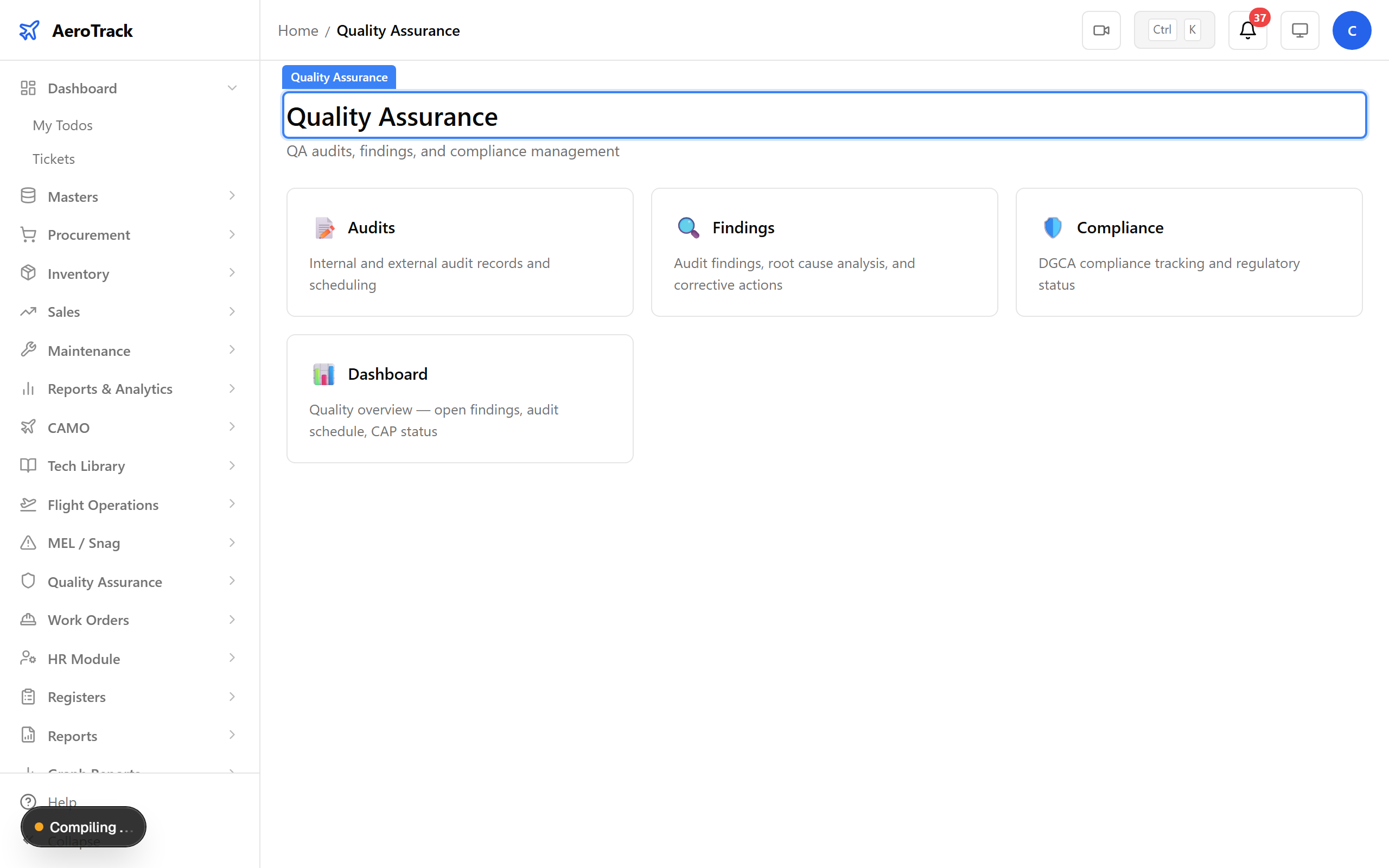
▲ Quality Assurance — audits, findings, and compliance tracking in one place.
Navigate to Quality → Dashboard. Summary cards show open audits, unresolved findings, compliance gaps, and recent activity. Red counts need immediate attention.
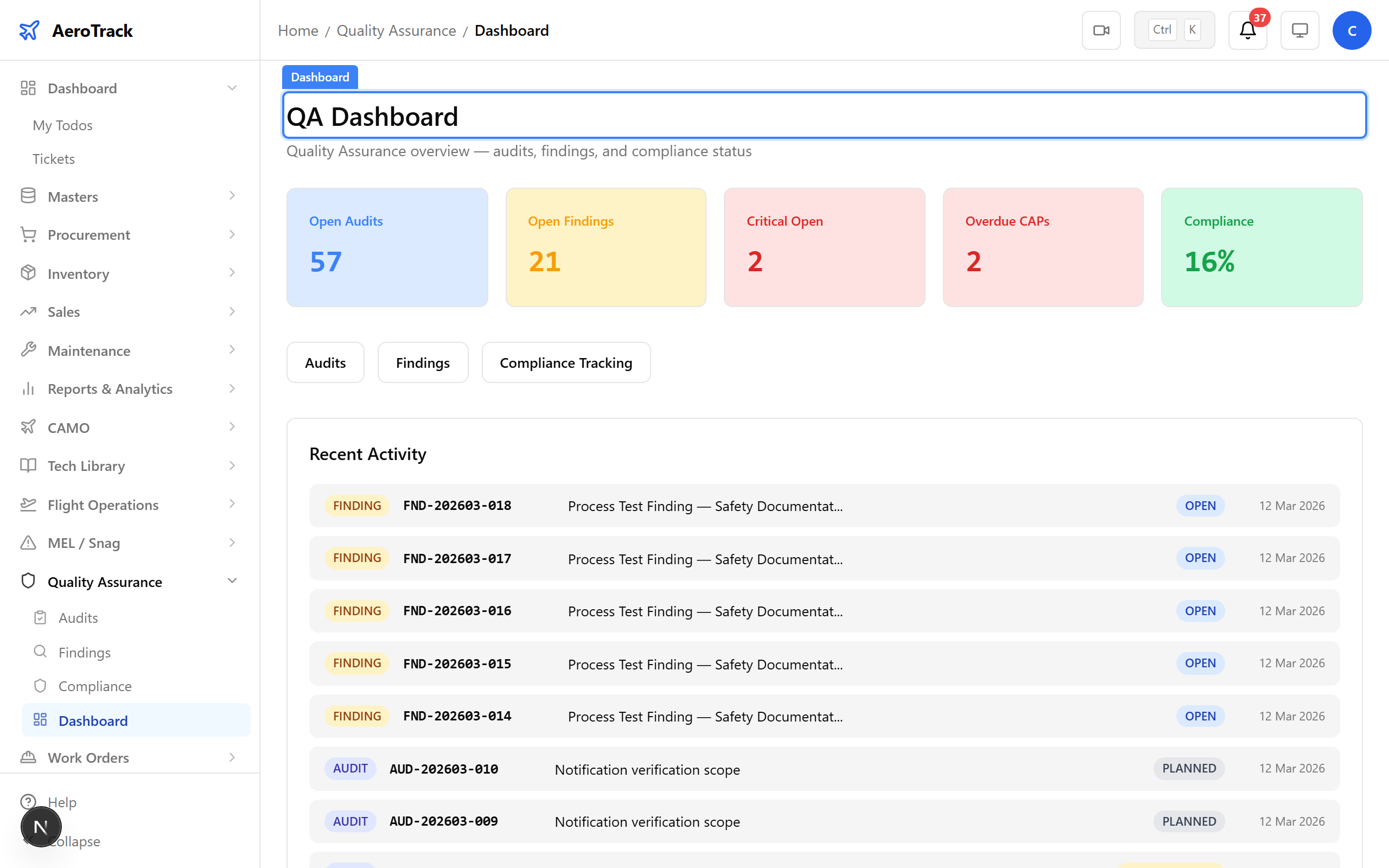
▲ Dashboard — open audits, unresolved findings, and compliance status at a glance.
Navigate to Quality → Audits. All quality audits are listed with their type, status, scheduled date, and auditor. Status colours: blue = planned, amber = in progress, green = closed.
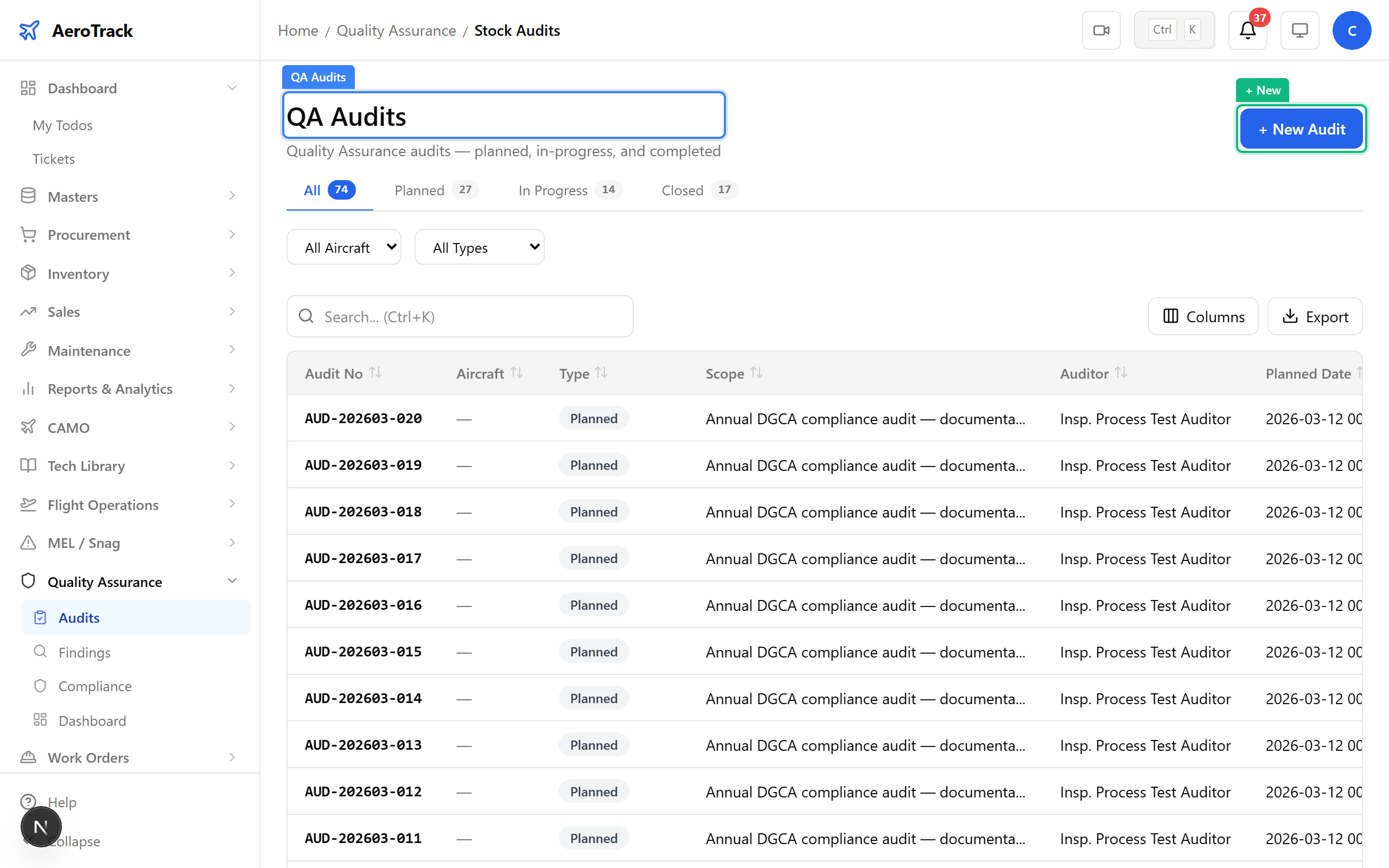
▲ All quality audits — scheduled, in progress, and completed.
Click + New. A Q1 fleet airworthiness review is due. Set the audit type, title, scope, scheduled date, auditor, and department. Link to a specific aircraft if the audit targets one registration.
| Field | Purpose |
|---|---|
| Audit Type | Internal / External / Regulatory / Surveillance |
| Title | Descriptive name for the audit |
| Scope | What the audit will cover — areas, processes, documents |
| Scheduled Date | When the audit is planned to begin |
| Auditor | Name of the lead auditor |
| Department | Department being audited |
| Aircraft | Specific aircraft, if applicable |
| Checklist Reference | DGCA/CAR checklist used as audit basis |
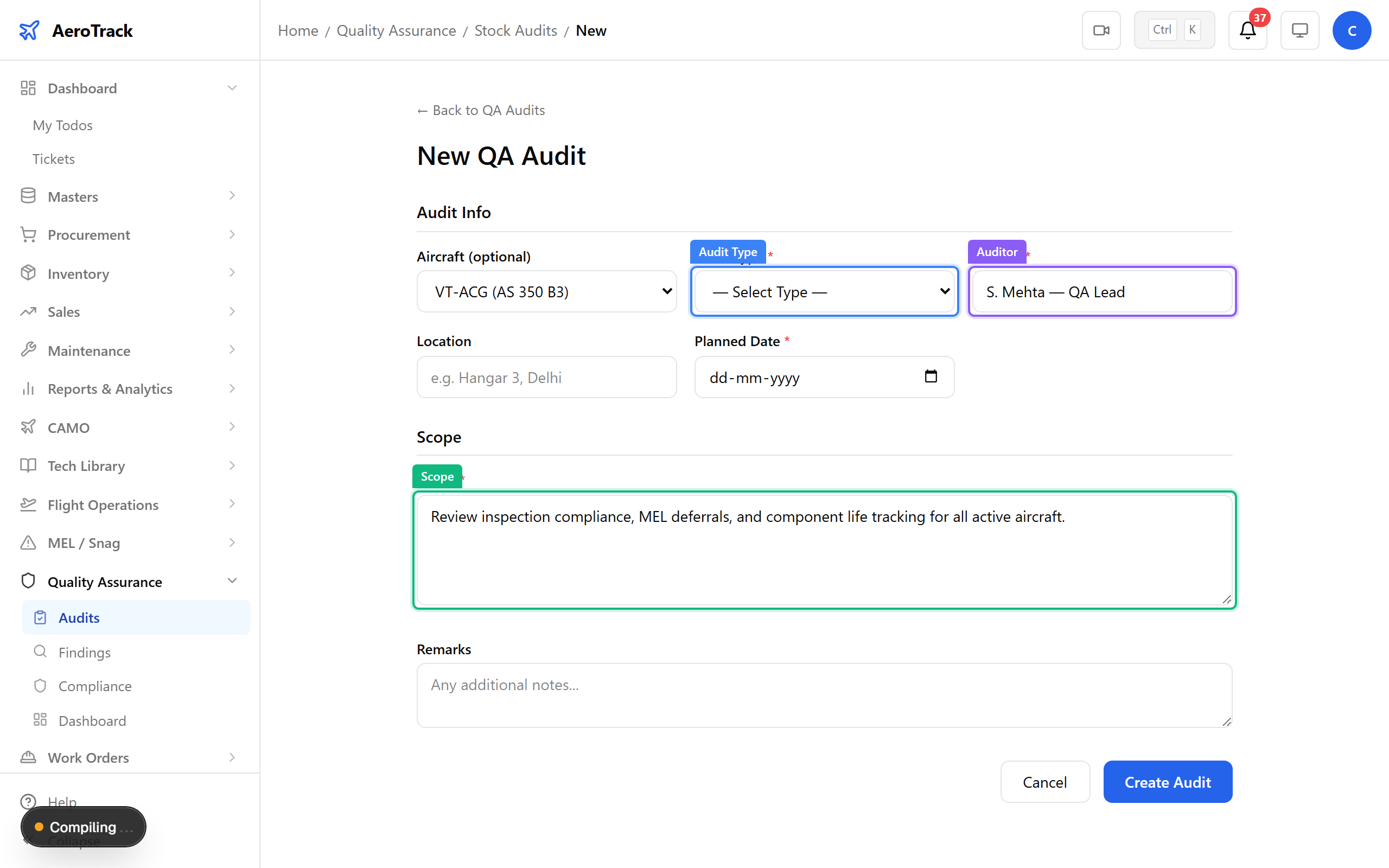
▲ Planning a scheduled internal audit for fleet airworthiness.
After saving, the audit detail page shows the full plan with a PLANNED status badge. The findings progress indicator (added in Sprint 21C) will show “0/0 resolved” until findings are raised.
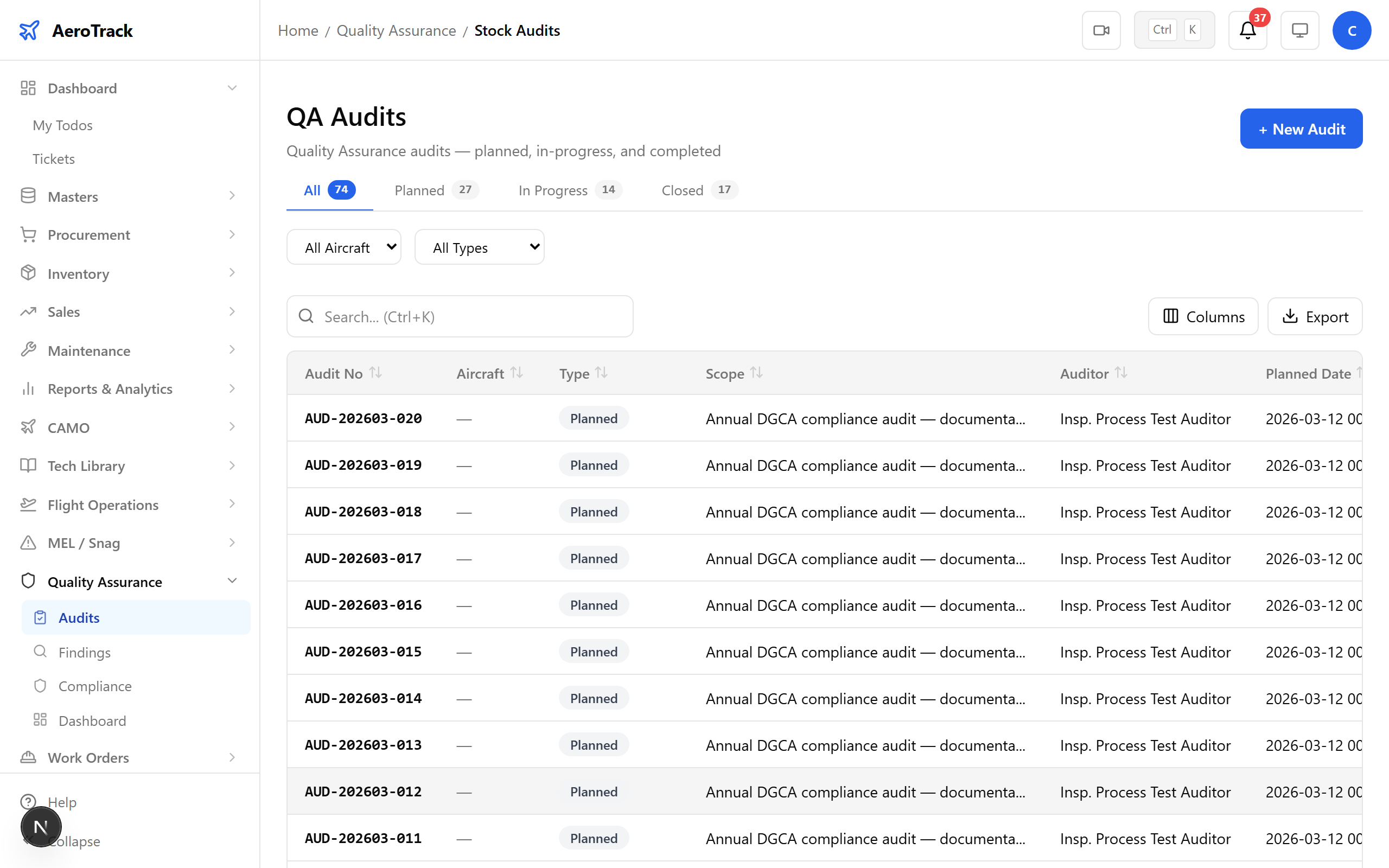
▲ Audit scheduled — ready to begin when the date arrives.
On the audit detail page, click Start to transition from PLANNED to IN_PROGRESS. The audit date has arrived and the field inspection begins.
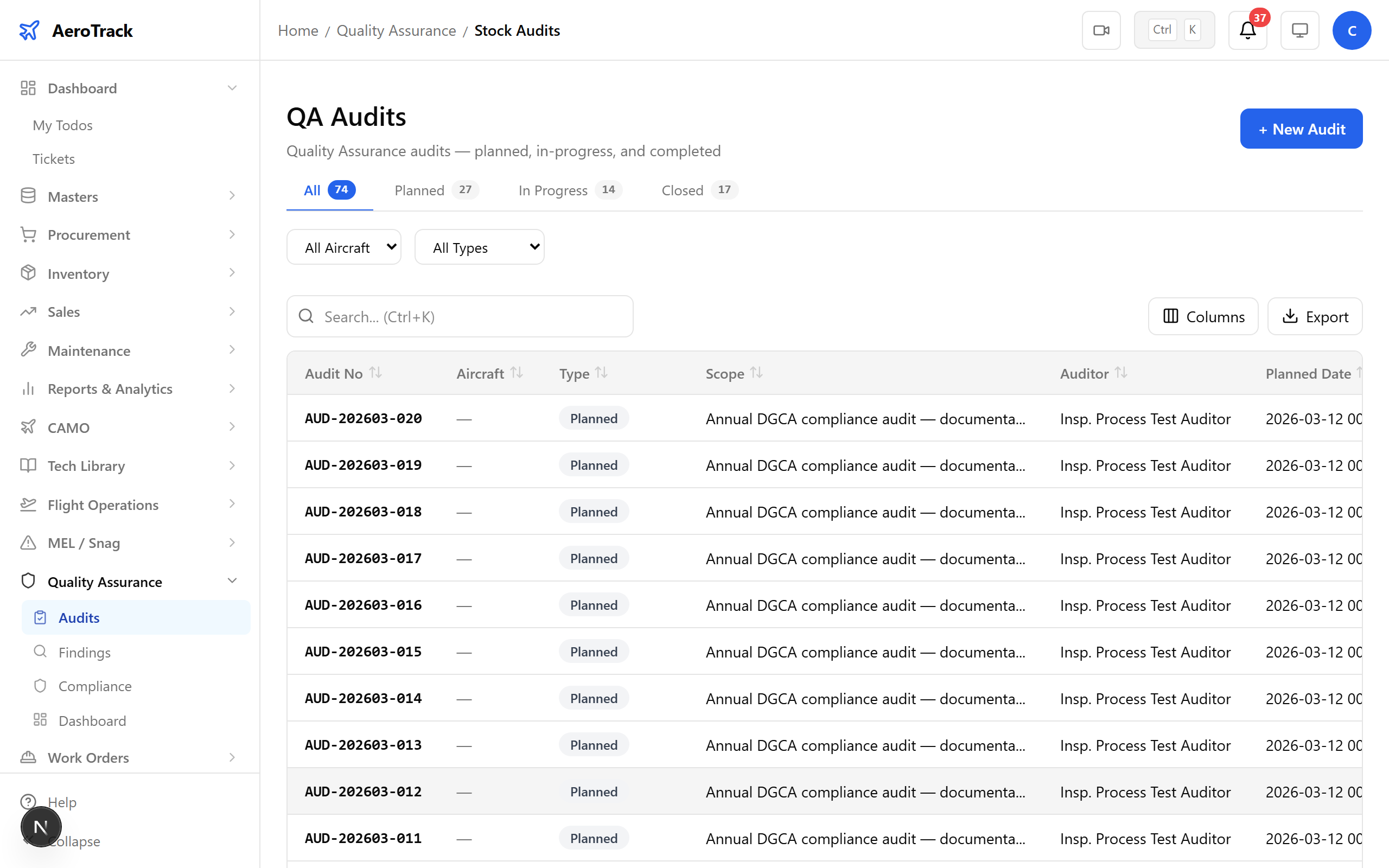
▲ Starting the audit — field inspection begins.
The status changes to IN_PROGRESS. As the auditor reviews documentation and inspects processes, observations and non-conformities are recorded as findings.
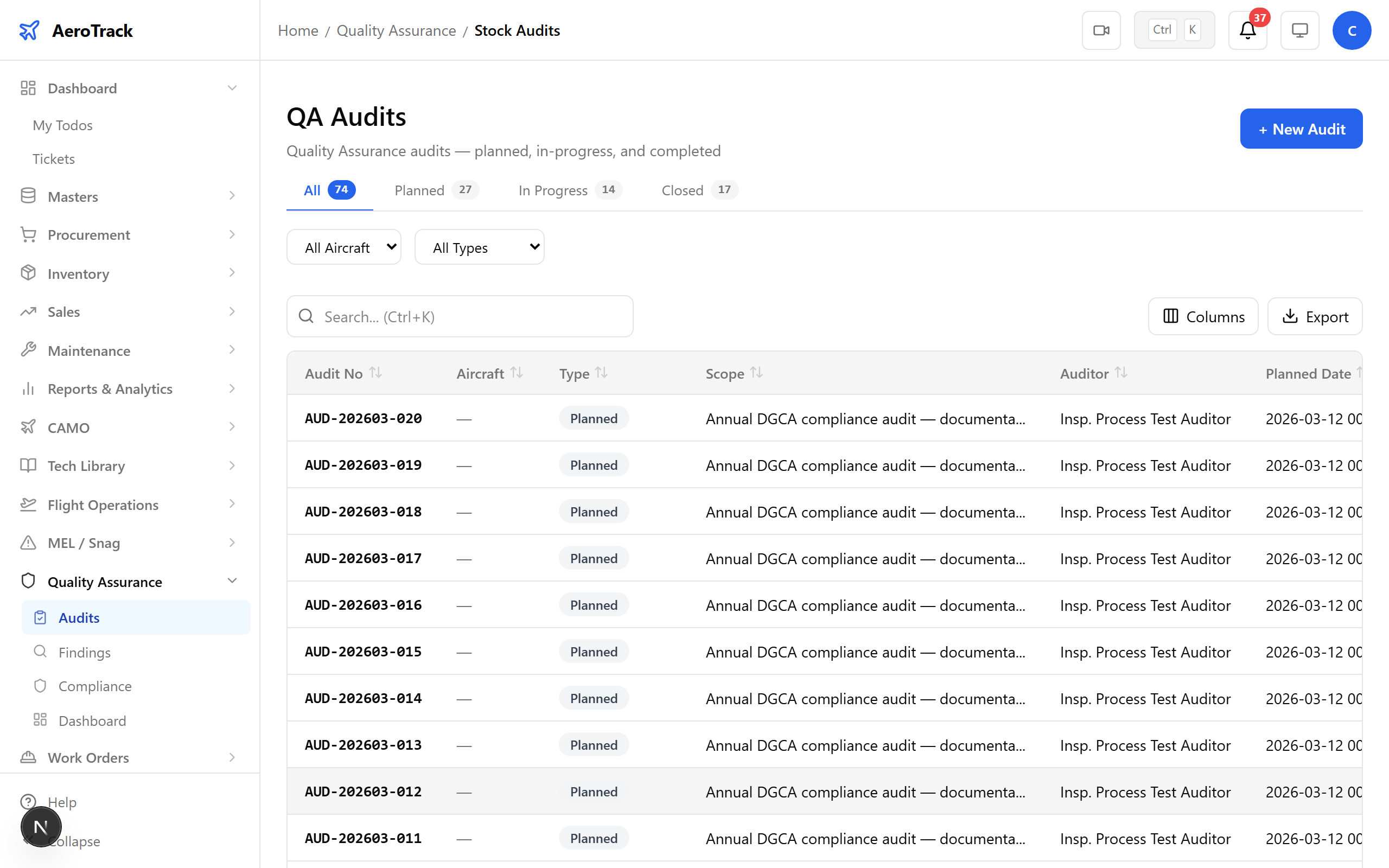
▲ Audit underway — document observations and raise findings as discovered.
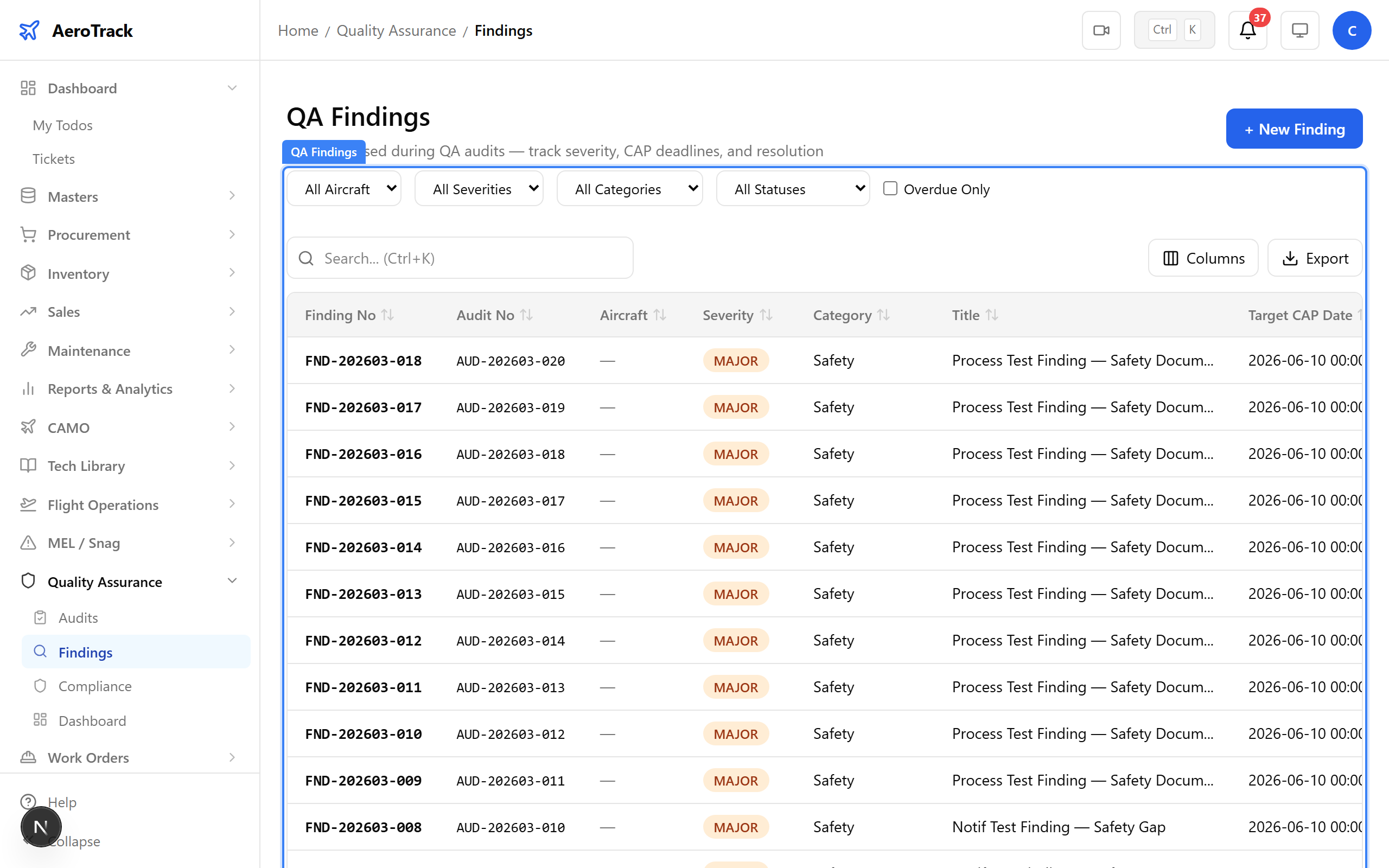
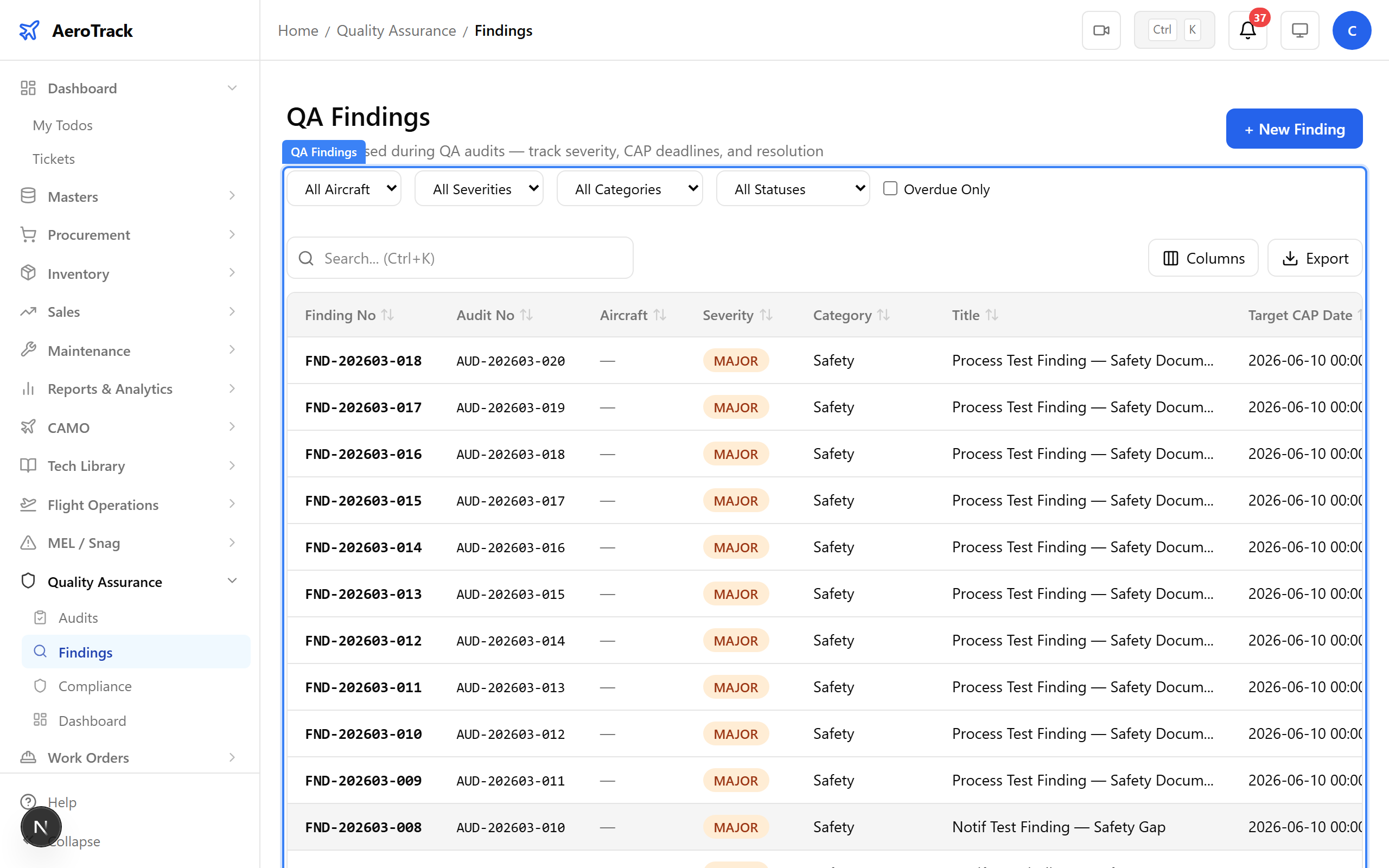
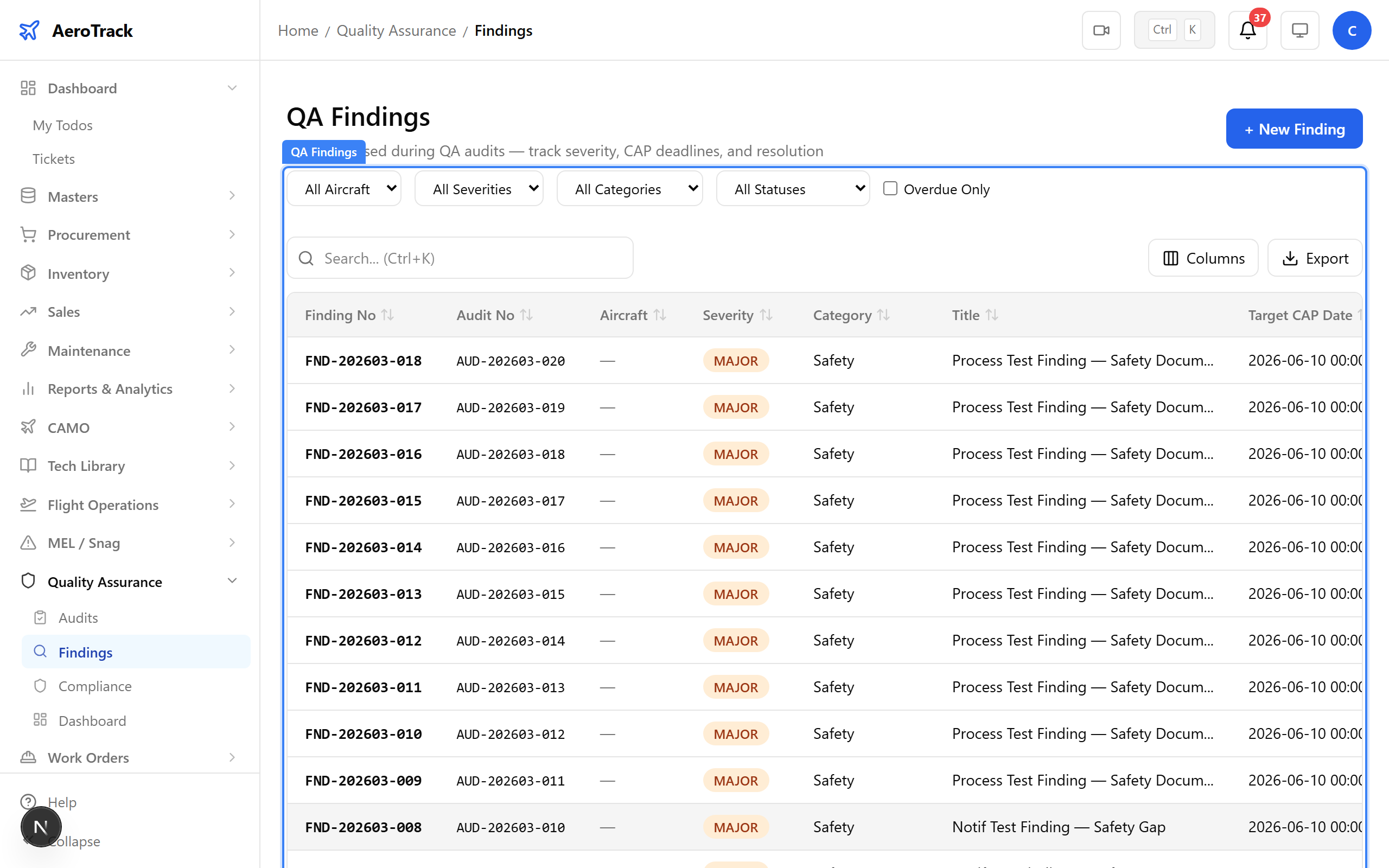
Navigate to Quality → Findings. All findings across all audits are listed here, with their type, severity, status, and linked audit. This is the central view for tracking corrective actions.
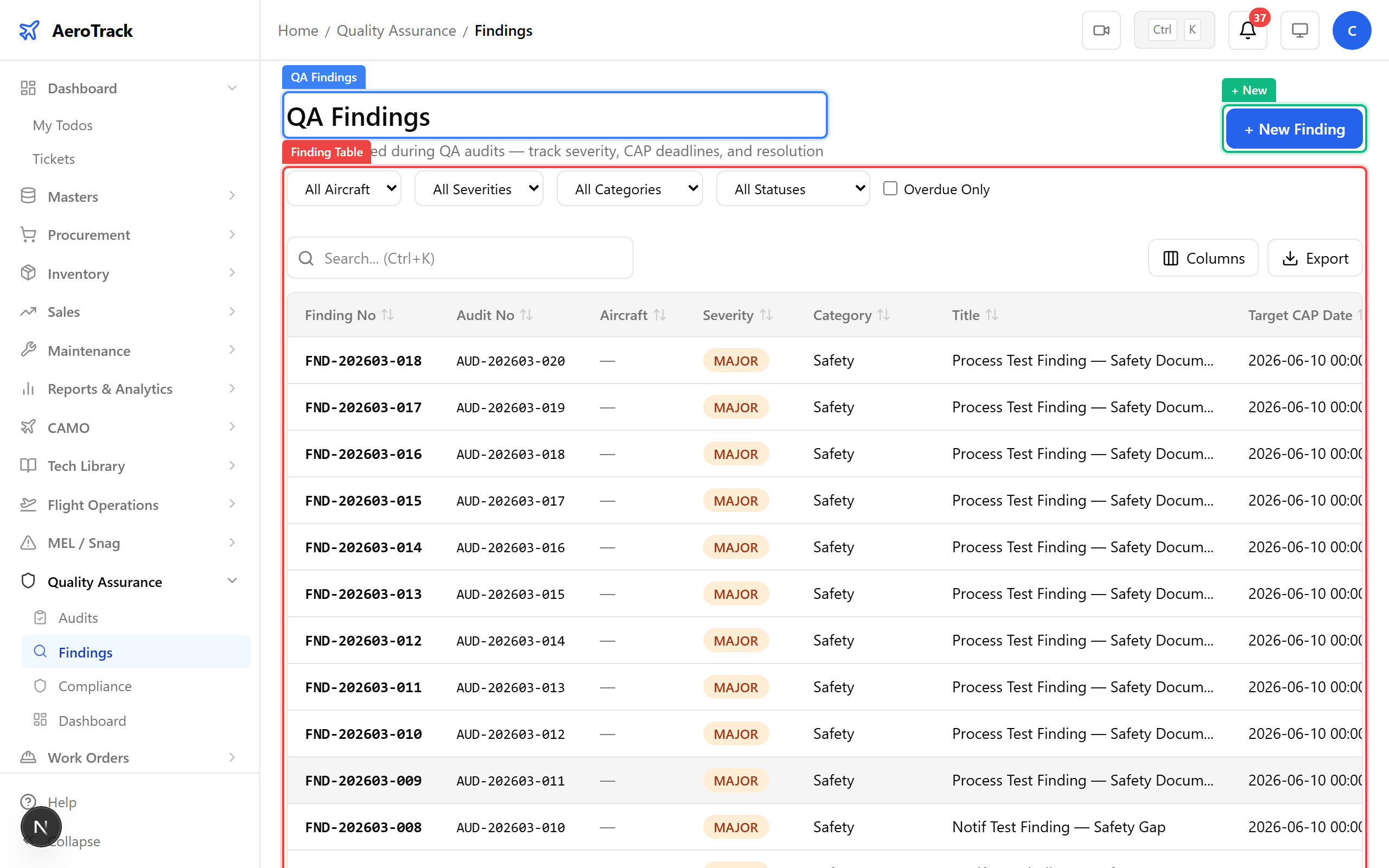
▲ All findings across audits — tracked from discovery to verified closure.
Click + New. During the airworthiness review, the auditor discovered that 500-hour inspection records for VT-ACG are missing from the system. This is a non-conformity with major severity.
| Field | Purpose |
|---|---|
| Linked Audit | Which audit raised this finding |
| Finding Type | Observation / Non-Conformity / Major Non-Conformity |
| Title | Brief description of the finding |
| Description | Detailed explanation of what was found |
| Severity | Minor / Major / Critical |
| Affected Area | Department or process area affected |
| Deadline | Date by which corrective action must be completed |
| Root Cause | Initial root cause analysis (expanded during CAP) |
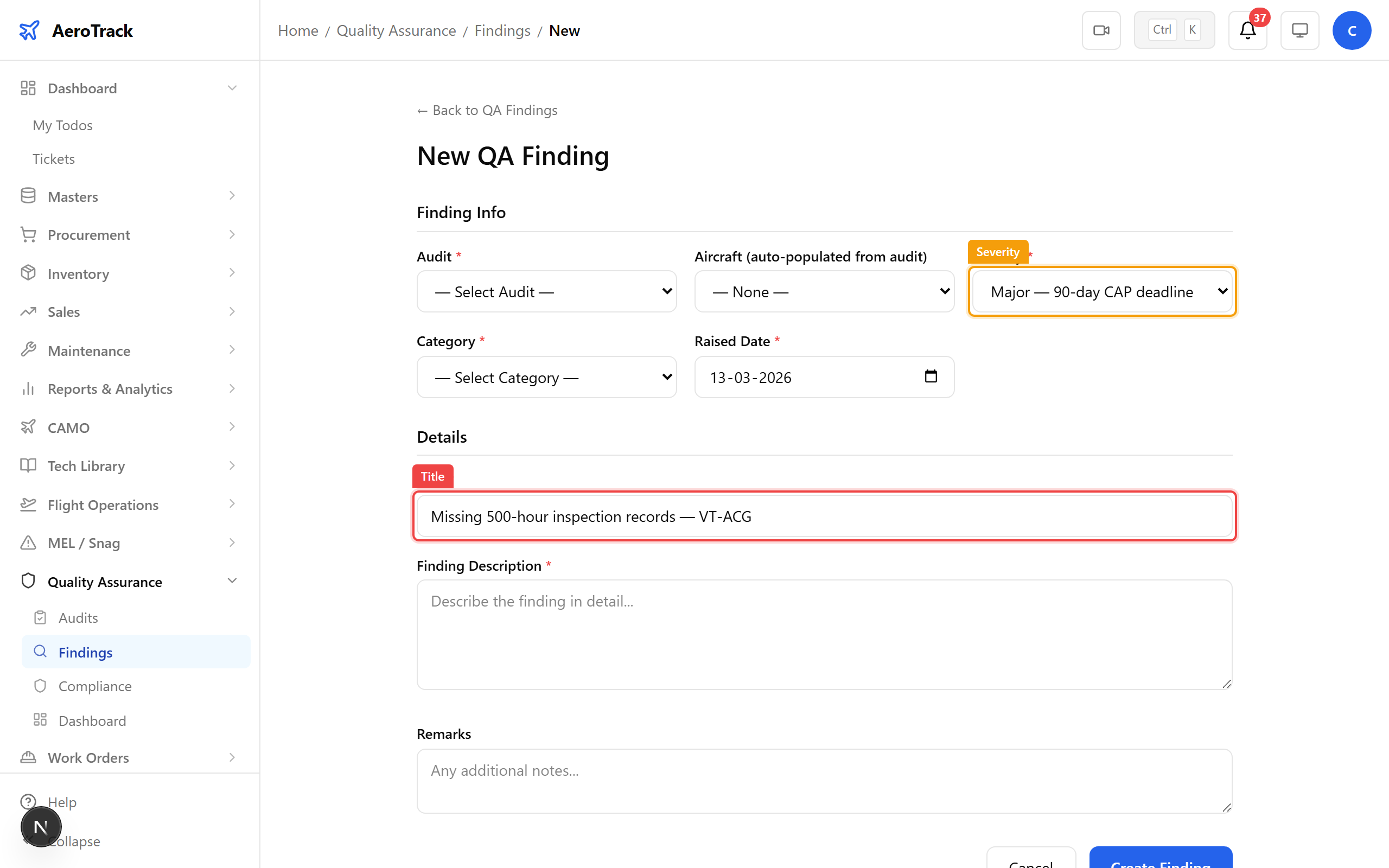
▲ Raising a non-conformity finding — missing inspection records for VT-ACG.
After saving, the finding detail page shows the full report with an OPEN status badge. A notification is automatically sent to the admin and responsible CAMO engineer.
▲ Finding raised and open — notification sent to responsible parties.
Click Under Review to transition the finding from OPEN to UNDER_REVIEW. This signals that the responsible team is assessing the issue and preparing a corrective action plan.
▲ Marking the finding for review — assessing the corrective action needed.
Click Submit CAP. A structured dialog requires four fields: root cause analysis, corrective action plan, target completion date, and responsible person. Both text fields require at least 20 characters — this ensures meaningful documentation, not one-word entries.
▲ Corrective Action Plan submitted — documenting the fix and preventive measures.
Log out of the CAMO engineer account and log in as admin@aerotrack.local. The admin has authority to verify corrective actions and close findings.
Check the notification bell. When a finding is raised, the system sends a finding_raised notification to the admin. The notification links directly to the finding detail page.
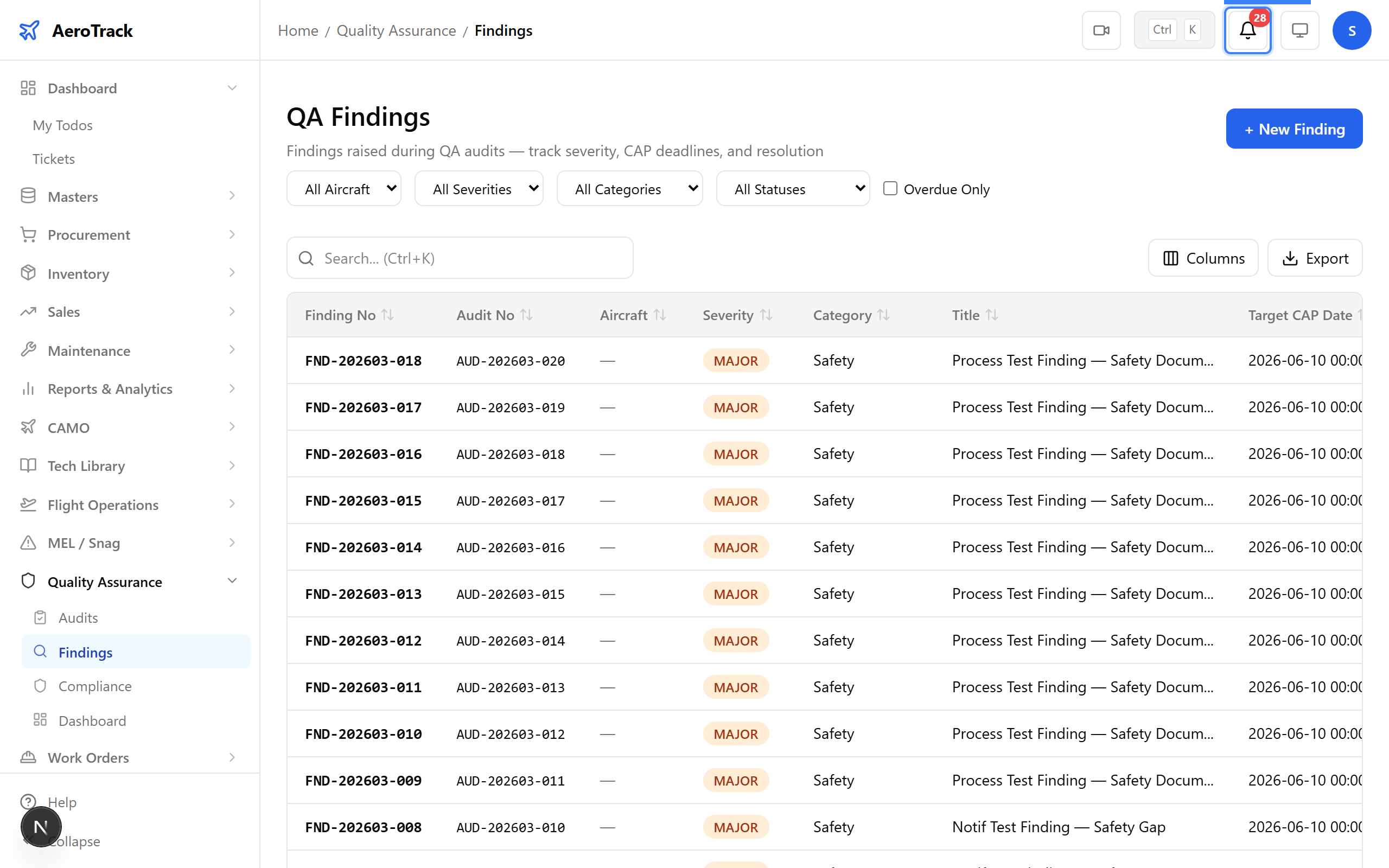
▲ Admin notified of the raised finding.
Navigate to the finding. Click Verify to confirm the corrective action was implemented, then Close to complete the finding lifecycle. The audit’s findings progress bar updates as findings are resolved.
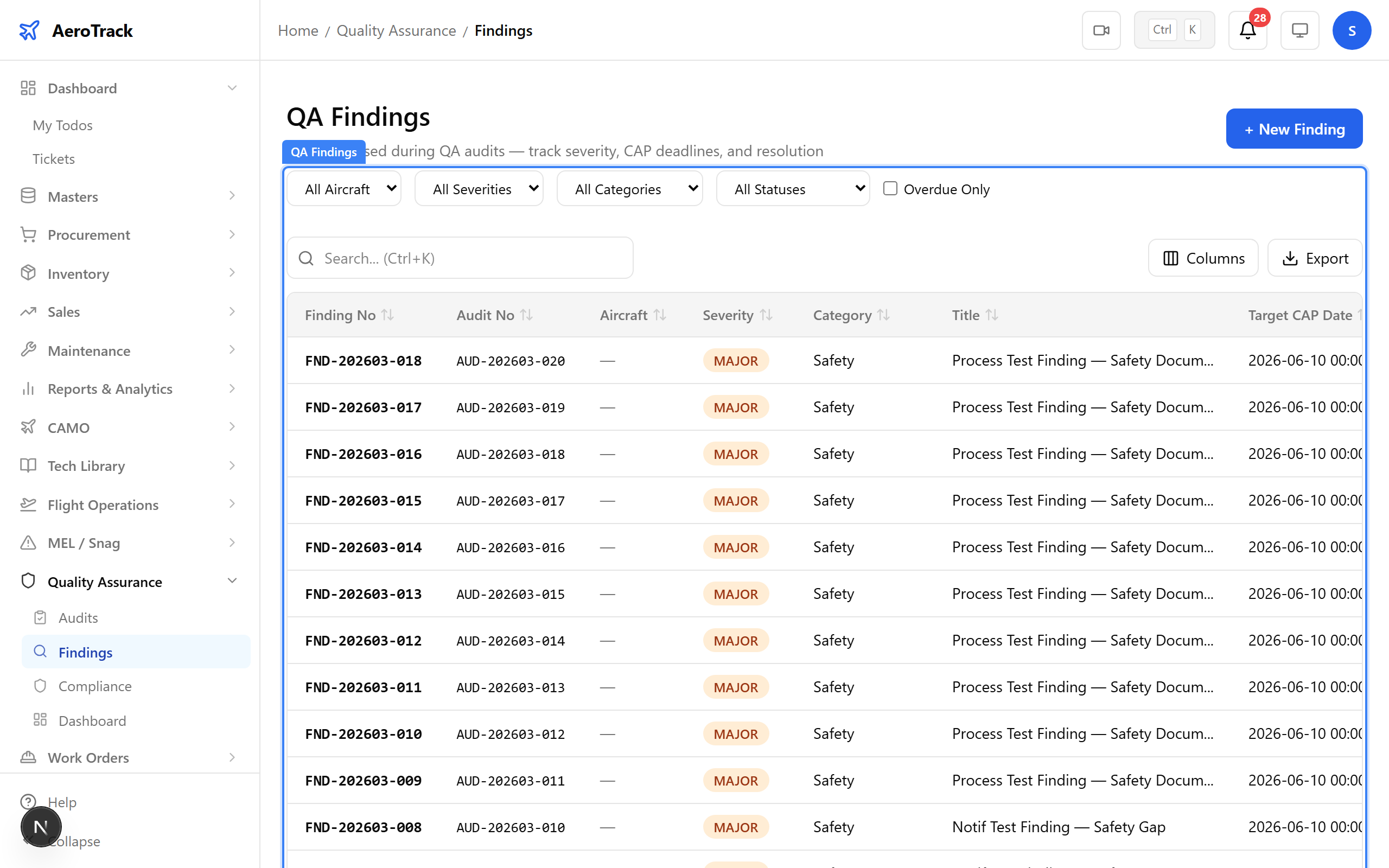
▲ Admin verifies the corrective action and closes the finding.
The finding now shows CLOSED. The full lifecycle is complete: finding raised → under review → CAP submitted → verified → closed. Once all findings on an audit are resolved, the audit itself can be closed.
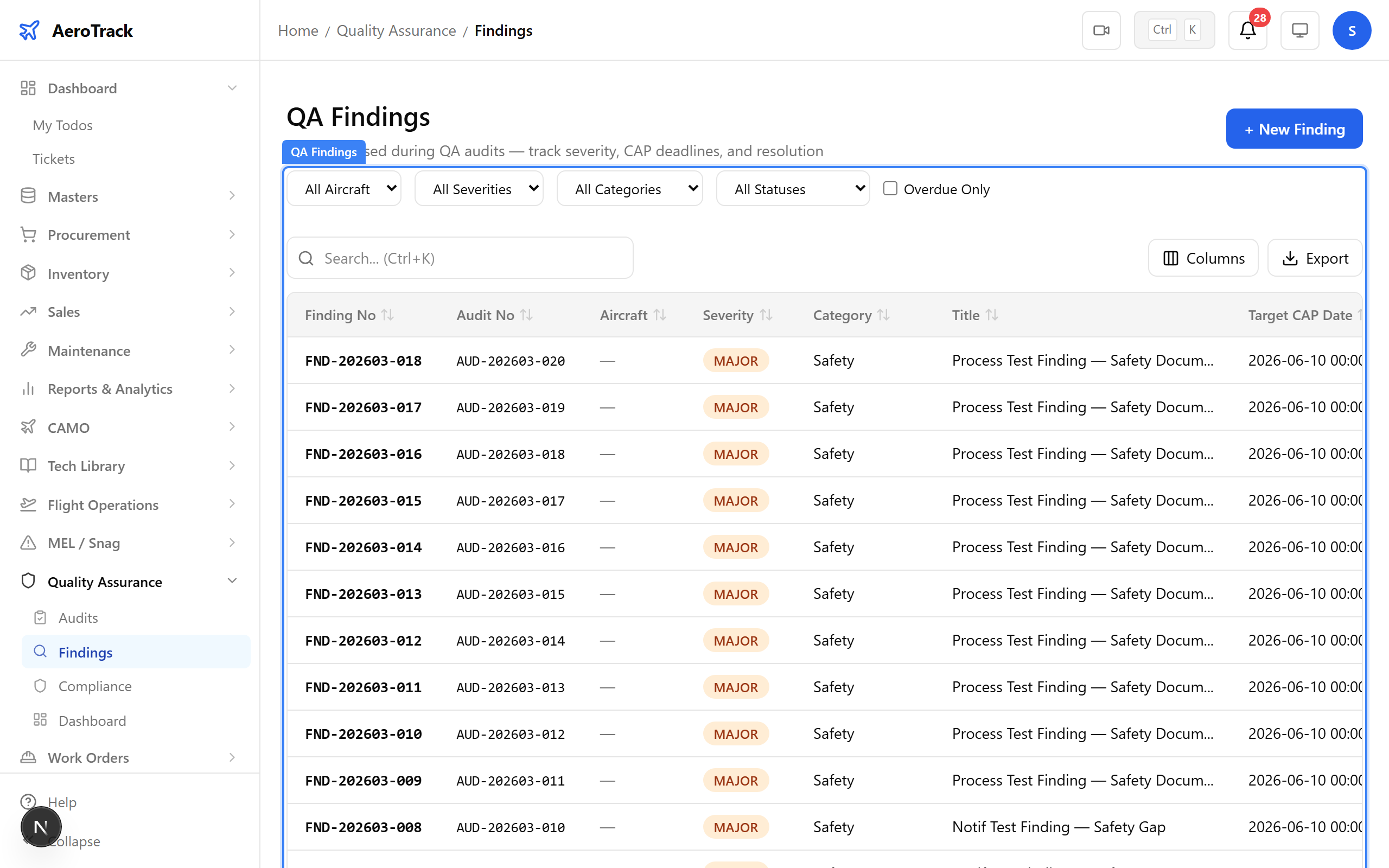
▲ Finding closed — corrective action verified and documented.
Navigate to Quality → Compliance. The compliance view maps regulatory requirements to audit evidence. Each item shows its status (completed, in progress, or pending) and links to the relevant audits and findings.

▲ Compliance tracking — regulatory requirements mapped to audit evidence.