Browse Payments
1Open Payment List
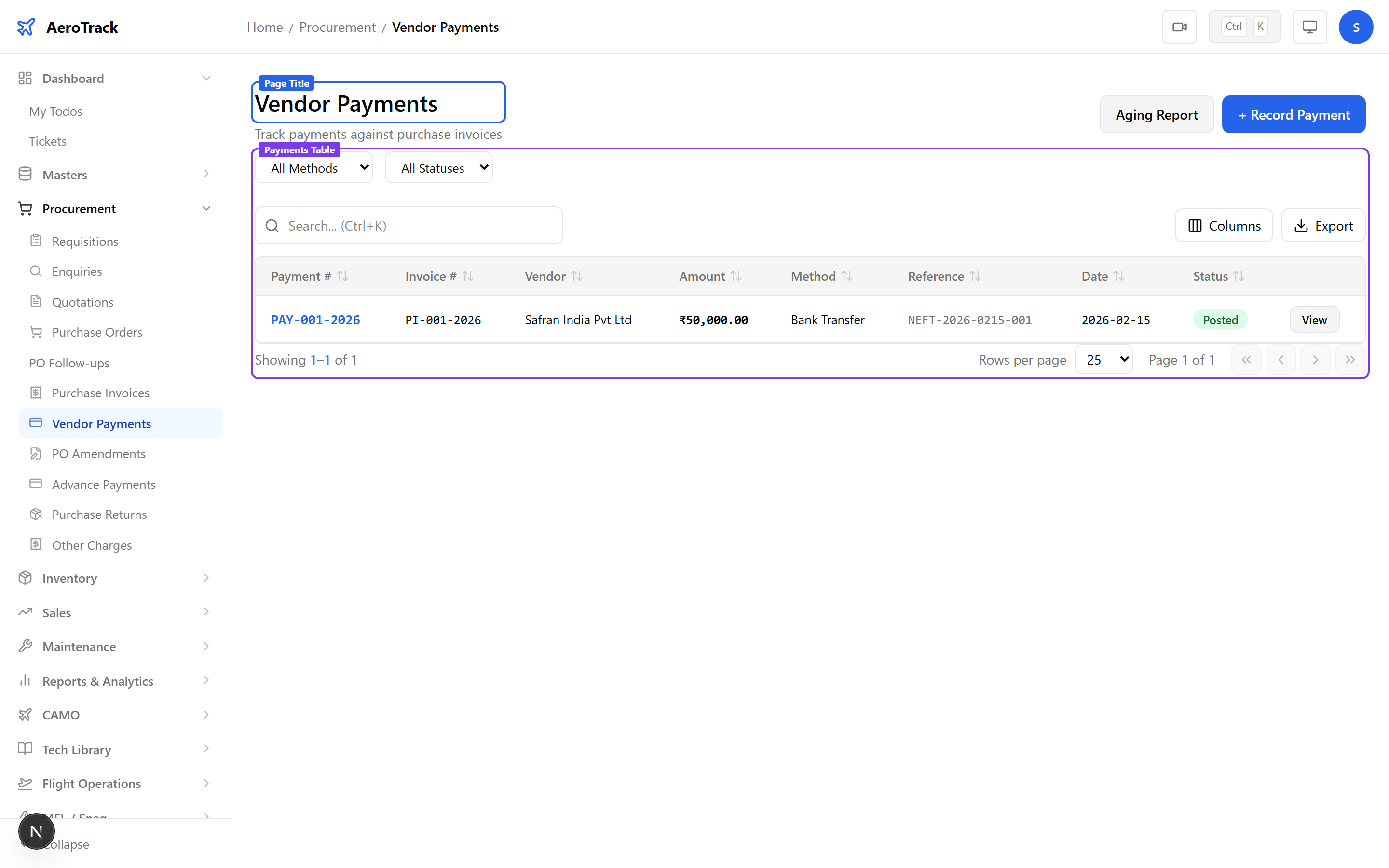
Navigate to Procurement → Payments or go to /procurement/payments.
2Filter & Columns
| Column | Description |
|---|---|
| Payment # | Auto-generated payment reference. |
| Invoice # | Linked purchase invoice. |
| Vendor | Supplier name (from invoice). |
| Amount | Payment amount recorded. |
| Method | Bank Transfer, Cheque, Cash, UPI, Card, or Other. |
| Status | Posted or Voided. |
| Date | Payment date. |
Record a Payment
3Select Invoice
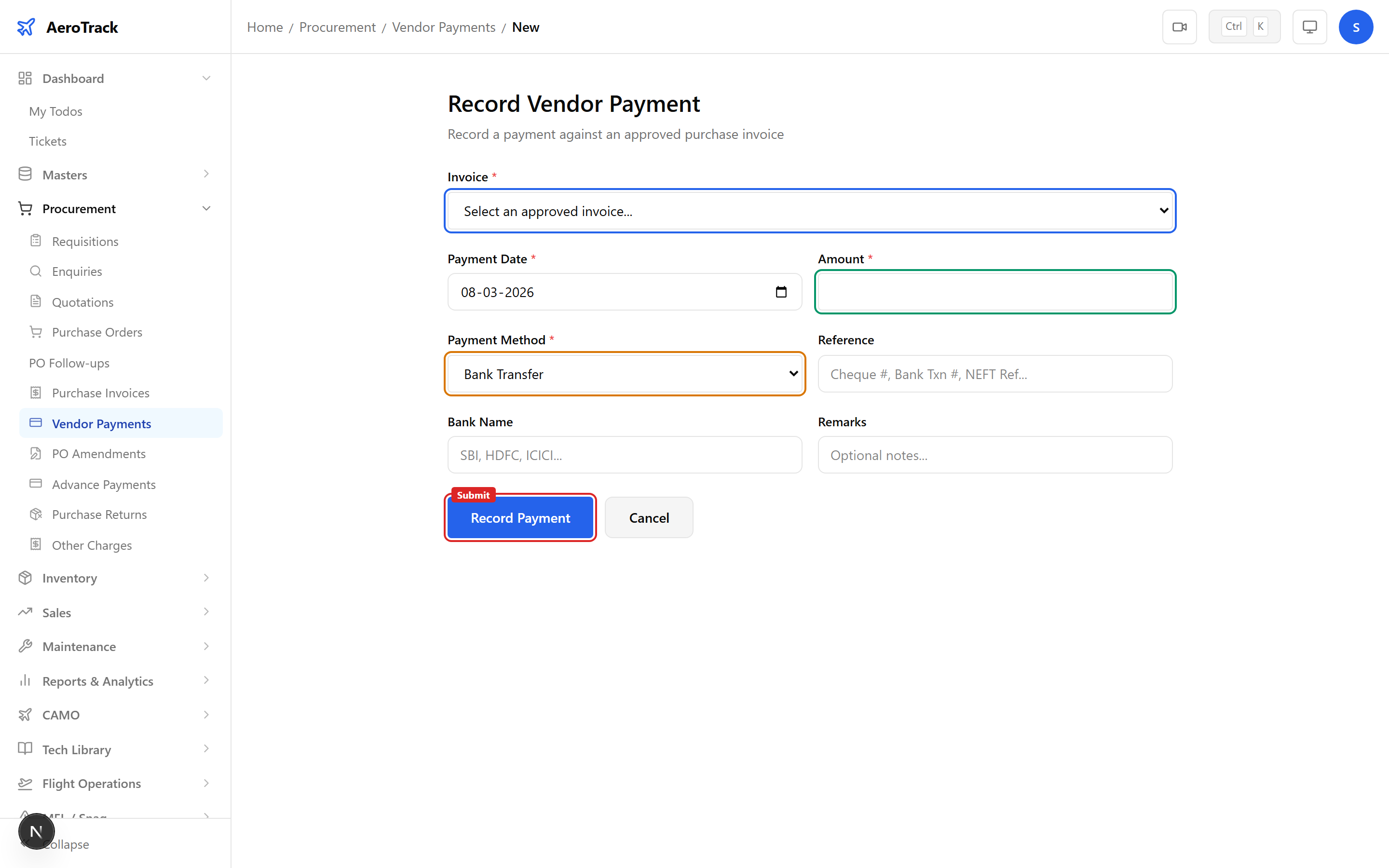
Click + New Payment at /procurement/payments/new. Select an approved invoice to see its outstanding balance.
| Field | Description |
|---|---|
| Invoice | Select from approved invoices with outstanding balance. |
| Vendor | Auto-displayed from the selected invoice (read-only). |
| Invoice Total | Grand total of the invoice (read-only). |
| Paid So Far | Sum of previous payments against this invoice. |
| Outstanding | Remaining balance (highlighted in amber if > 0). |
| Progress Bar | Visual indicator of payment completion percentage. |
The progress bar shows how much of the invoice total has been paid. It updates automatically as payments are recorded.
4Payment Details
| Field | Required | Description |
|---|---|---|
| Payment Date | Yes | Date the payment was made. |
| Payment Amount | Yes | Amount being paid (cannot exceed outstanding balance). |
| Payment Method | Yes | Bank Transfer, Cheque, Cash, UPI, Card, or Other. |
| Reference No. | No | Bank transaction ID, cheque number, or UPI reference. |
| Bank Name | No | Bank used for the transaction. |
| Remarks | No | Internal payment notes. |
Payment amount cannot exceed the outstanding balance. For partial payments, enter the partial amount — the remaining balance will be tracked automatically.
Workflow
5Payment Methods
| Method | Typical Use |
|---|---|
| Bank Transfer | NEFT / RTGS / IMPS transfers. |
| Cheque | Physical cheque — enter cheque number in Reference. |
| Cash | Cash payments — typically small amounts. |
| UPI | UPI payments — enter UPI transaction ID. |
| Card | Credit/debit card — enter last 4 digits in Reference. |
| Other | Any other method — describe in Remarks. |
6Status & Voiding
| Status | Meaning | Action |
|---|---|---|
| Posted | Payment recorded and applied to invoice balance. | Void |
| Voided | Payment reversed. Outstanding balance restored. | — |
Voiding a payment restores the outstanding balance on the invoice. This action cannot be undone — you would need to create a new payment to re-apply.
7Cross-Links
| Action | Guide |
|---|---|
| View the invoice | Purchase Invoice |
| View the purchase order | Purchase Orders |
| Record advance payment | Advance Payment |
| Track delivery follow-ups | PO Follow-ups |