Browse Follow-ups
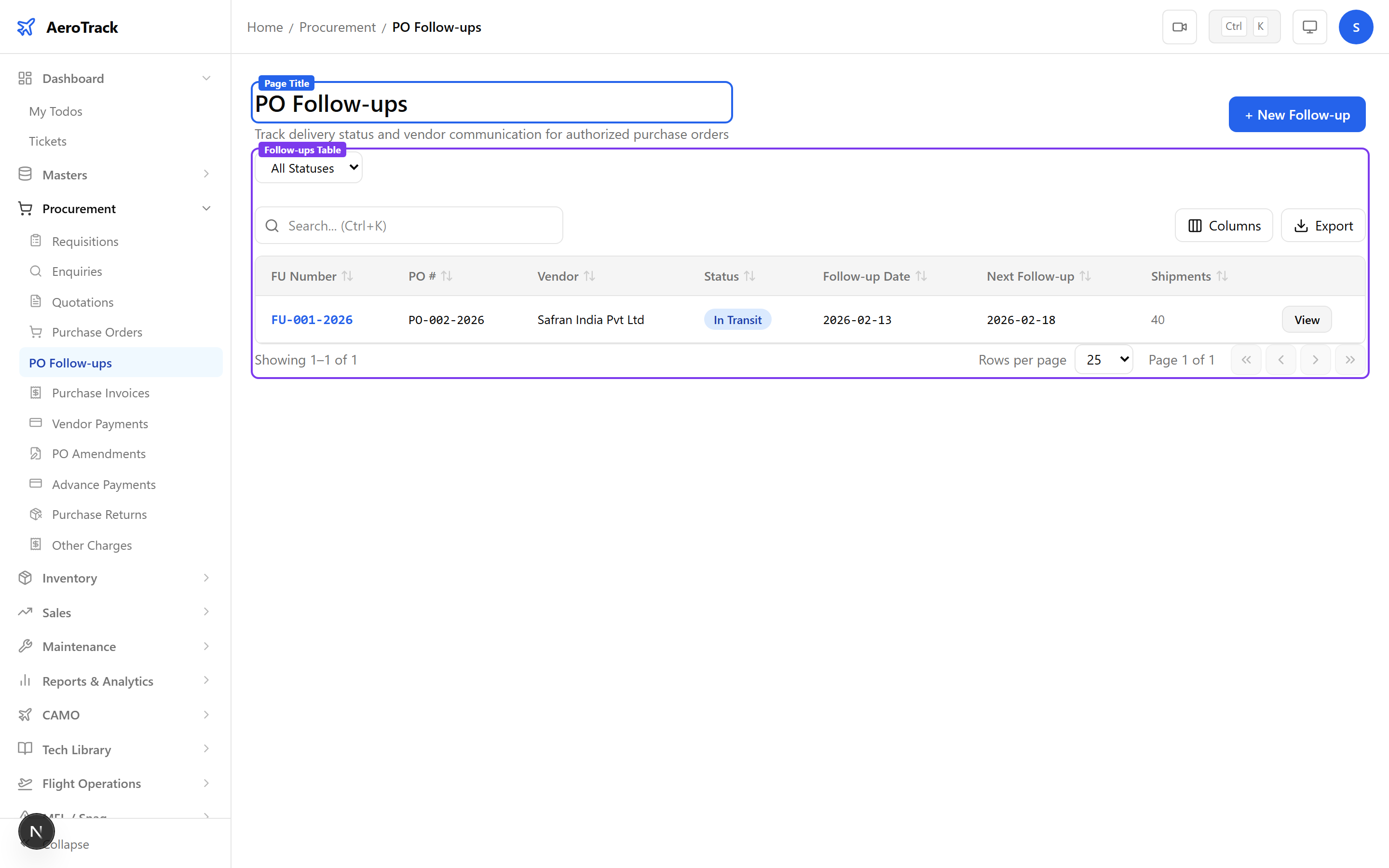
1Open Follow-up List
Navigate to Procurement → Follow-ups or go to /procurement/follow-ups.
2Filter & Columns
| Column | Description |
|---|---|
| FU Number | Auto-generated follow-up reference. |
| PO # | Linked purchase order number. |
| Vendor | Supplier name. |
| Status | Pending, In Transit, Partial, Delivered, or Delayed. |
| Follow-up Date | Date this follow-up was recorded. |
| Next Follow-up | Scheduled next contact date. |
Create a Follow-up
3Follow-up Form
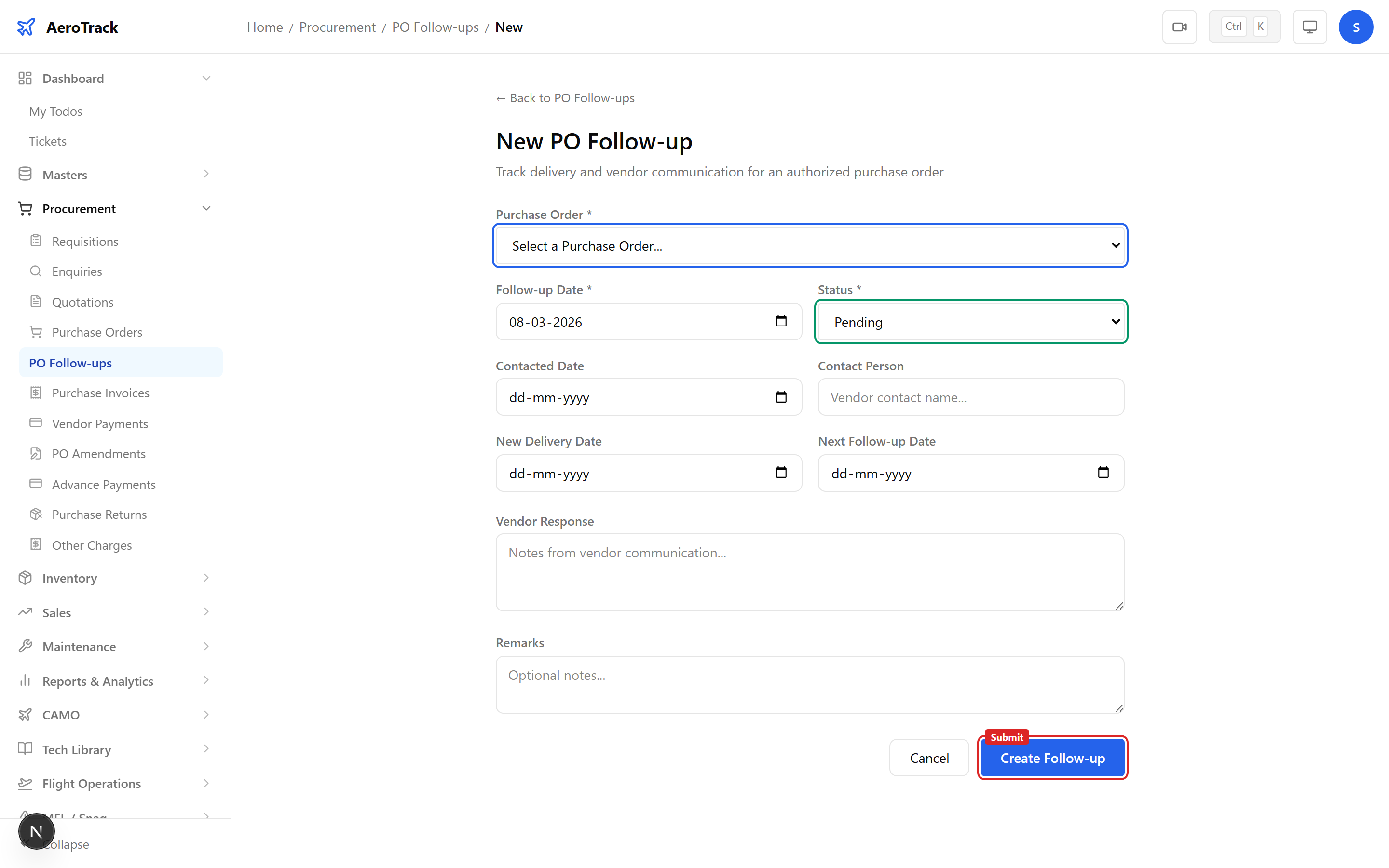
Click + New Follow-up at /procurement/follow-ups/new.
| Field | Required | Description |
|---|---|---|
| Purchase Order | Yes | Select the PO to follow up on. |
| Follow-up Date | Yes | Date of this follow-up (defaults to today). |
| Status | Yes | Pending, In Transit, Partial, Delivered, or Delayed. |
| Contacted Date | No | Date the vendor was contacted. |
| Contact Person | No | Name of vendor contact spoken to. |
| New Delivery Date | No | Revised expected delivery date. |
| Next Follow-up Date | No | When to follow up next. |
| Vendor Response | No | Summary of what the vendor communicated. |
| Remarks | No | Internal notes. |
4Status Tracking
Create multiple follow-ups for the same PO to build a communication trail. Each follow-up is a timestamped record of vendor interaction.
Related Actions
5Delivery Statuses
| Status | Colour | Meaning |
|---|---|---|
| Pending | Grey | Awaiting shipment from vendor. |
| In Transit | Blue | Goods shipped, en route. |
| Partial | Amber | Some items delivered, others pending. |
| Delivered | Green | All items received. |
| Delayed | Red | Delivery behind schedule. |
Only Pending follow-ups can be deleted. Track delivery delays diligently to ensure AOG parts arrive on time.
6Cross-Links
| Action | Guide |
|---|---|
| View the purchase order | Purchase Orders |
| Receive goods on arrival | Goods Receipts |
| Amend the PO | PO Amendment |