Browse Invoices
1Open Invoice List
Navigate to Procurement → Invoices or go to /procurement/invoices.
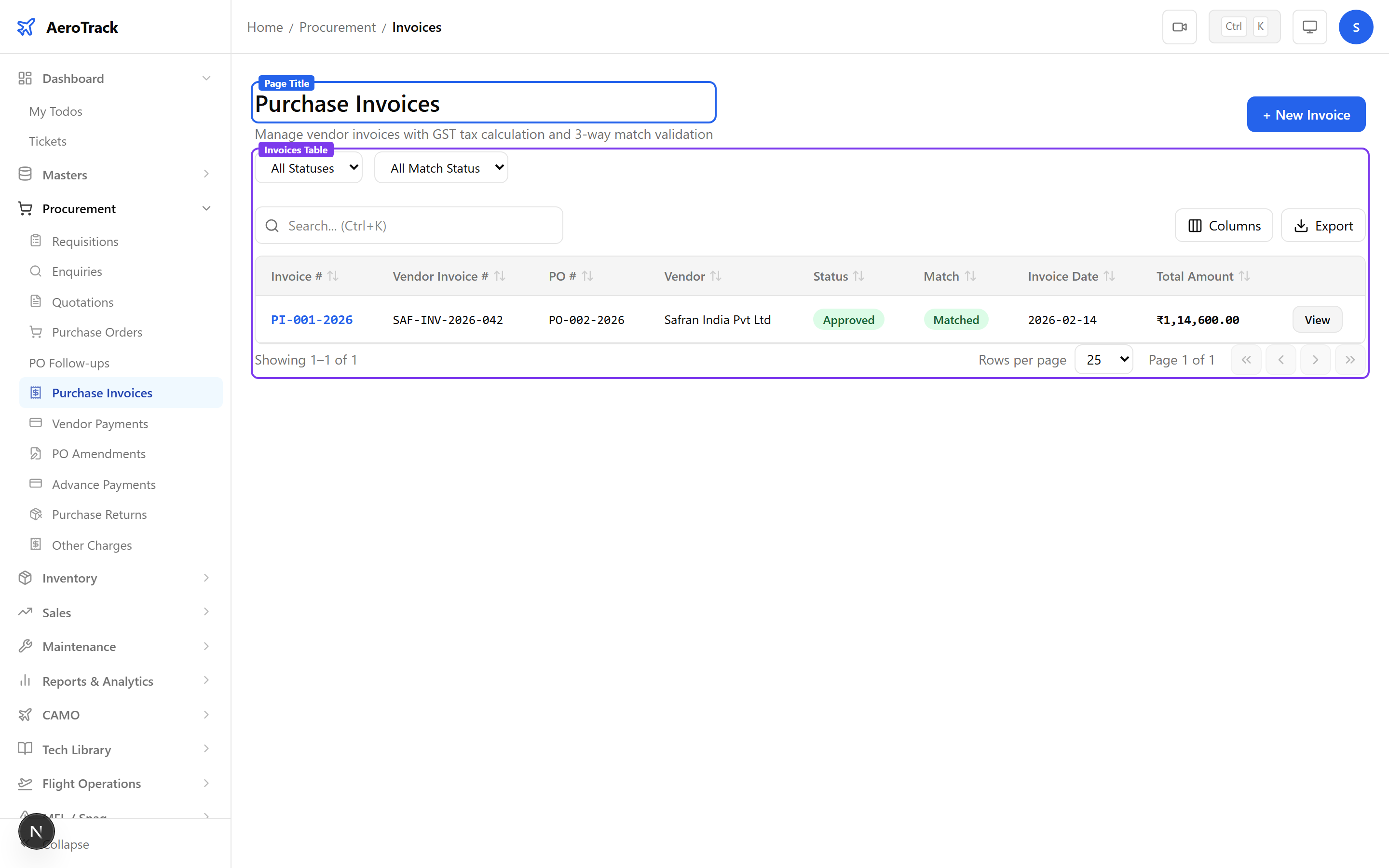
2Filter & Columns
| Column | Description |
|---|---|
| Invoice # | Auto-generated internal reference. |
| Vendor Invoice No. | Vendor’s own invoice number. |
| Vendor | Supplier name (auto-filled from PO). |
| PO # | Linked purchase order reference. |
| Status | Draft, Submitted, Approved, or Paid. |
| Match | 3-way match indicator (Matched / Mismatch). |
| Grand Total | Invoice total including taxes. |
Use the Status and Match filters to quickly find invoices that need attention — mismatched invoices require manual review before approval.
Create an Invoice
3Invoice Header
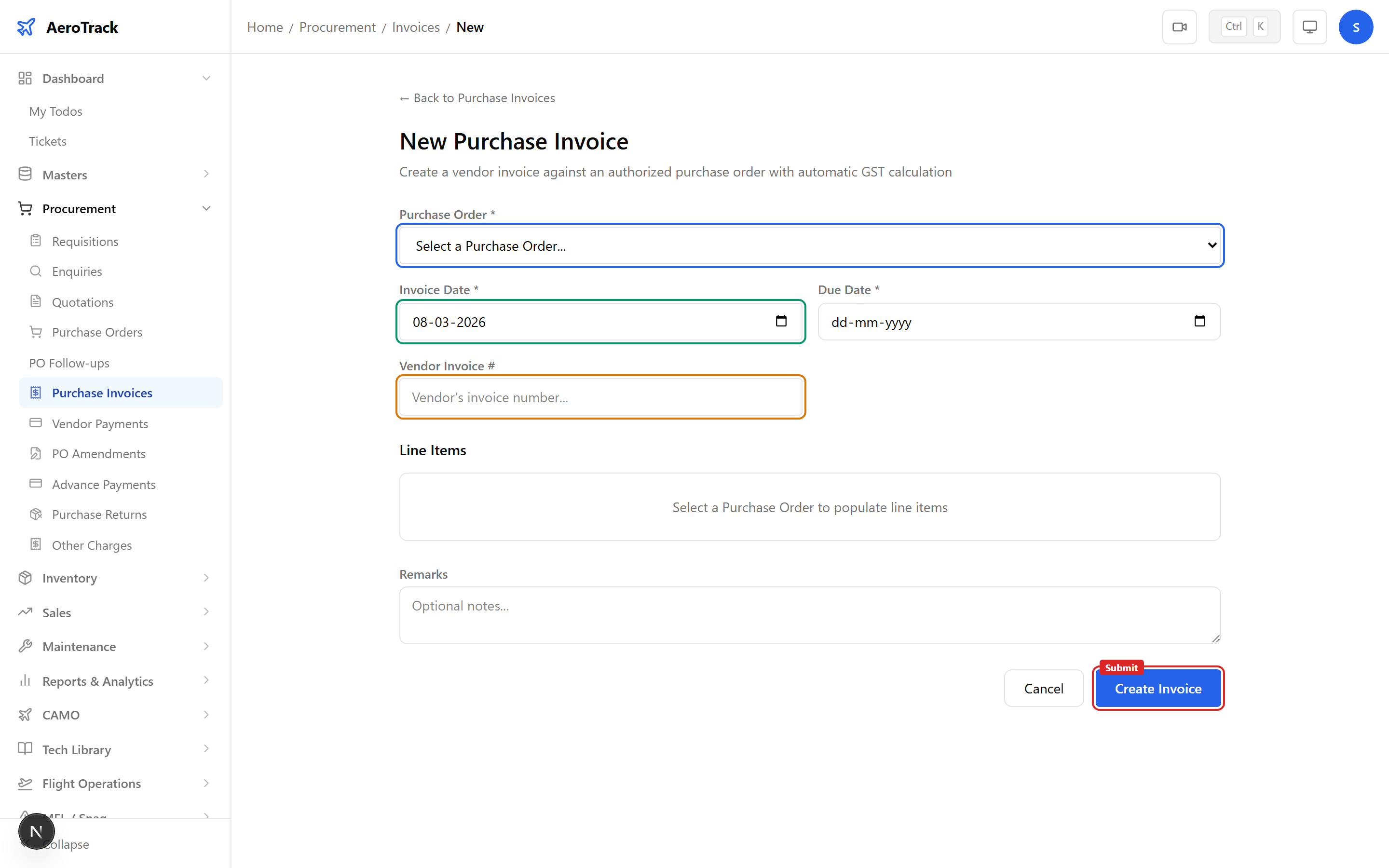
Click + New Invoice at /procurement/invoices/new. Select a purchase order to auto-populate vendor and line items.
| Field | Required | Description |
|---|---|---|
| Purchase Order | Yes | Select from authorized POs. Vendor and items load automatically. |
| Invoice Date | Yes | Date on the vendor’s invoice. |
| Due Date | Yes | Payment due date (auto-calculated from payment terms). |
| Vendor Invoice No. | Yes | The vendor’s own invoice reference number. |
| Remarks | No | Internal notes (max 500 chars). |
4Line Items & Pricing
Line items are auto-loaded from the selected PO. Verify or adjust the Quantity and Unit Price for each item.
| Column | Editable | Description |
|---|---|---|
| Part | No | Part number and name from PO. |
| PO Qty | No | Quantity ordered on the PO (reference). |
| Invoice Qty | Yes | Quantity being invoiced (may differ for partial invoices). |
| Unit Price | Yes | Price per unit on the vendor invoice. |
| Amount | No | Qty × Unit Price (auto-calculated). |
If the invoice quantity or price differs from the PO, the 3-way match indicator will flag a Mismatch. Review carefully before submitting.
5Tax & Total
| Field | Description |
|---|---|
| Subtotal | Sum of all line amounts (auto-calculated, read-only). |
| CGST | Central GST — auto-calculated at 9% from HSN/SAC codes. |
| SGST | State GST — auto-calculated at 9% (intra-state). |
| IGST | Integrated GST — 18% for inter-state transactions. |
| Grand Total | Subtotal + applicable GST (auto-calculated, highlighted). |
GST rates default to 18% (9% CGST + 9% SGST for intra-state, or 18% IGST for inter-state). Tax is determined by the HSN/SAC code on each part.
Workflow
6Approval Flow
| Status | Meaning | Next |
|---|---|---|
| Draft | Invoice created, under preparation. | Submit → Submitted |
| Submitted | Sent for approval review. | Approve → Approved |
| Approved | Invoice verified, ready for payment. | Pay → Paid |
| Paid | Payment recorded against this invoice. | — |
Only Draft invoices can be edited or deleted. Once submitted, the invoice is locked for the approval chain.
73-Way Matching
The system automatically performs 3-way matching between the Purchase Order, Goods Receipt, and Invoice:
| Check | Compares | Result |
|---|---|---|
| Quantity Match | PO qty vs GR qty vs Invoice qty | Matched / Mismatch |
| Price Match | PO unit price vs Invoice unit price | Matched / Mismatch |
| Overall | Both checks | Green badge if all match |
A green Matched badge means quantities and prices align across all three documents. Mismatches are flagged in amber for manual review.
8Cross-Links
| Action | Guide |
|---|---|
| View the purchase order | Purchase Orders |
| Record goods receipt | Goods Receipts |
| Record vendor payment | Vendor Payment |
| Track delivery follow-ups | PO Follow-ups |