Browse Amendments
1Open Amendment List
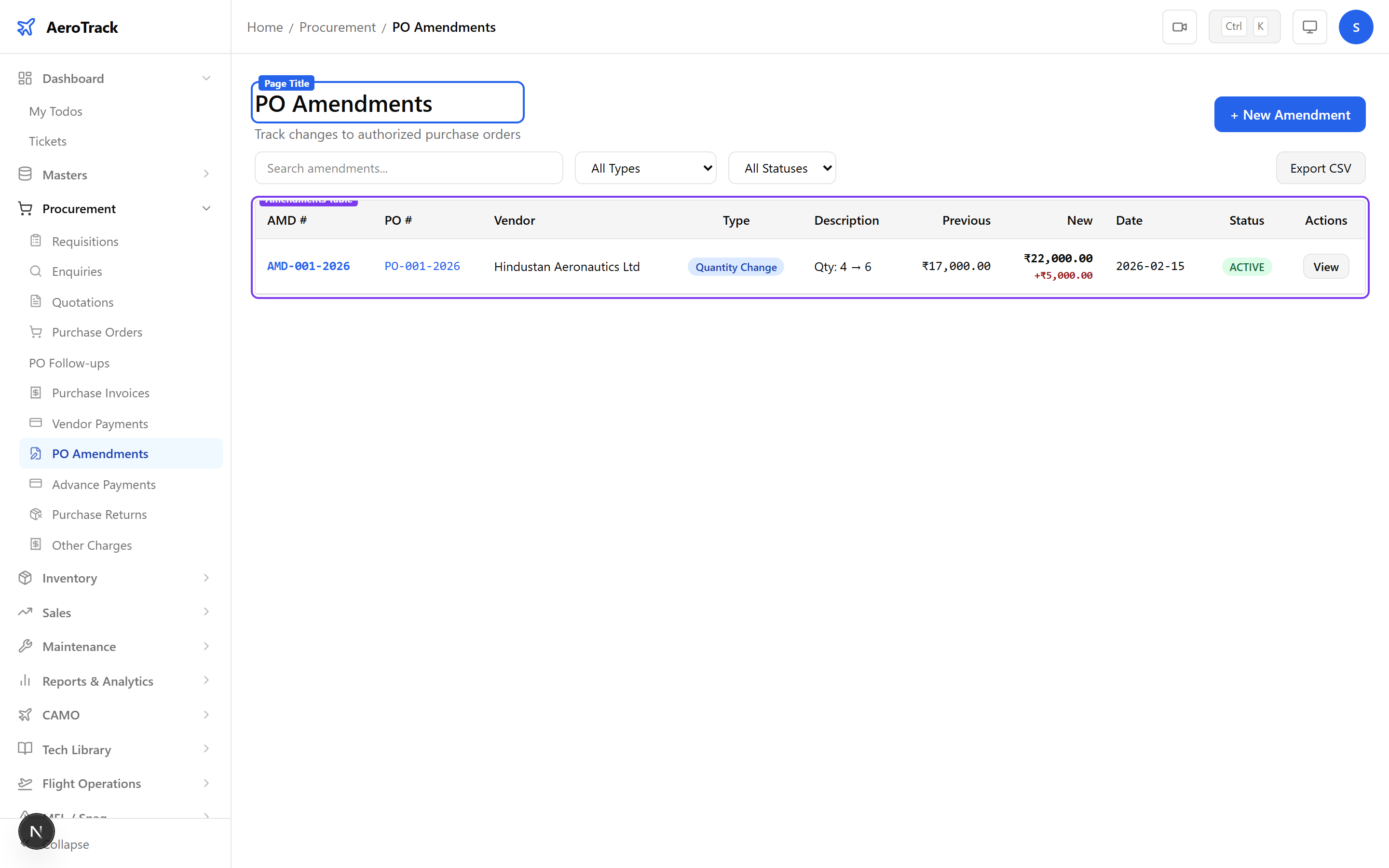
Navigate to Procurement → Amendments or go to /procurement/amendments.
2Filter & Columns
| Column | Description |
|---|---|
| Amendment # | Auto-generated amendment reference. |
| PO # | Linked purchase order number. |
| Type | Auto-detected: Quantity Change, Price Change, or Both. |
| Status | Active or Cancelled. |
| Original Total | PO total before amendment. |
| New Total | PO total after amendment. |
| Difference | Net change amount (+ or −). |
Create an Amendment
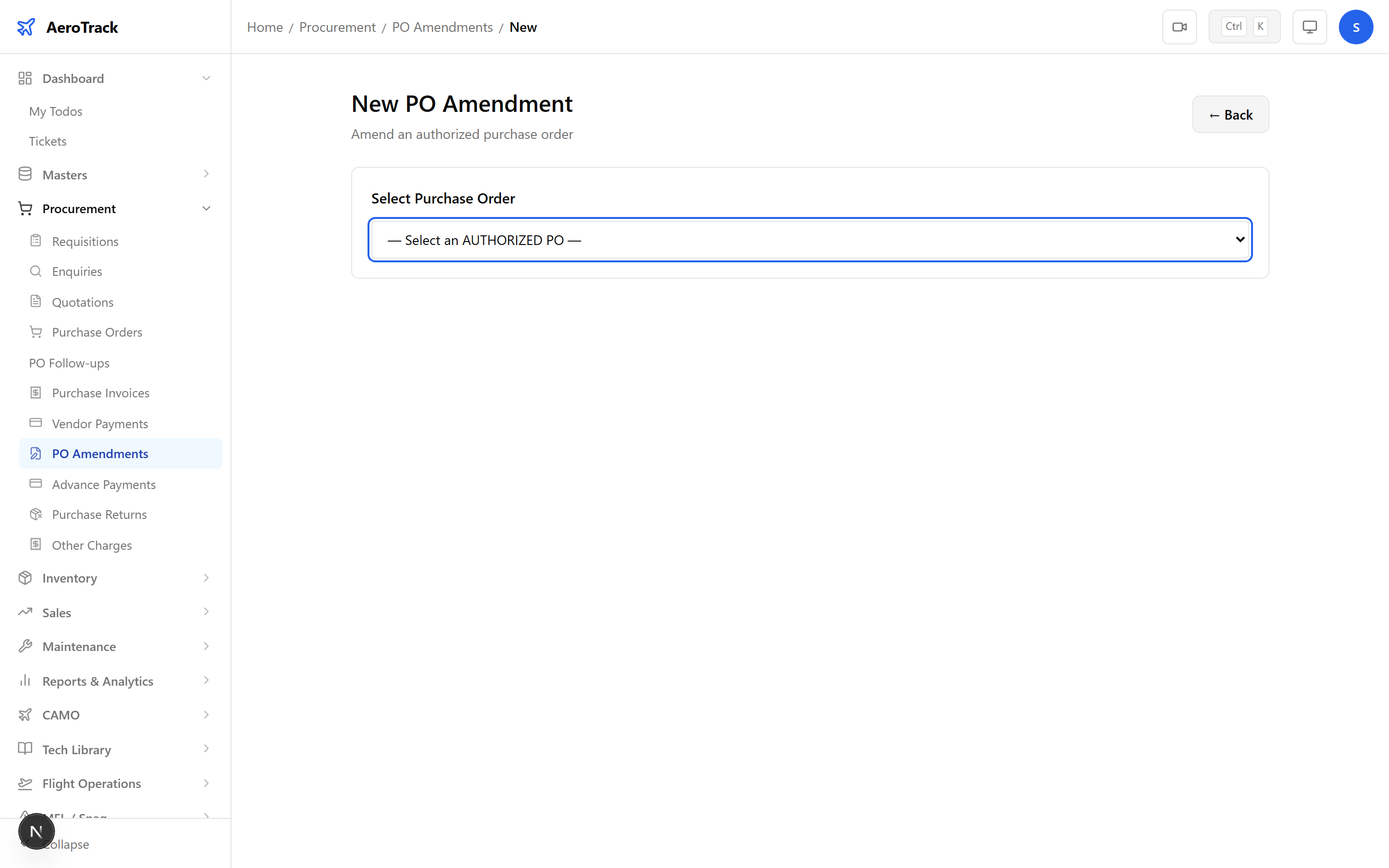
3Select PO
Click + New Amendment at /procurement/amendments/new. Select an authorized PO to load its line items.
| Field | Required | Description |
|---|---|---|
| Purchase Order | Yes | Select from authorized POs. Items load automatically. |
| Amendment Date | Yes | Date of the amendment (defaults to today). |
| Reason | Yes | Explanation for the amendment (required for audit trail). |
Only authorized POs can be amended. The original PO remains unchanged — amendments create a separate record of what changed.
4Modify Line Items
The PO’s line items are displayed in an editable table. Change quantities or prices as needed, or remove items entirely.
| Column | Editable | Description |
|---|---|---|
| Part | No | Part number and name from PO. |
| Original Qty | No | Quantity on the original PO (reference). |
| New Qty | Yes | Amended quantity. Leave unchanged if no qty change. |
| Original Price | No | Unit price on the original PO (reference). |
| New Price | Yes | Amended unit price. Leave unchanged if no price change. |
| Remove | — | Click to remove the item from the amended PO. Removed items show with strikethrough. |
Removed items are shown with a strikethrough in the amendment summary. This does not delete the item from the original PO — it records the removal as part of the amendment.
5Review & Submit
| Summary Field | Description |
|---|---|
| Original Total | PO total before changes. |
| New Total | PO total after changes. |
| Difference | Net change amount, highlighted green (decrease) or red (increase). |
| Type | Auto-detected: Quantity Change, Price Change, or Both. |
The amendment type is auto-detected based on which fields you changed. You don’t need to select it manually.
Workflow
6Amendment Types
| Type | Trigger | Example |
|---|---|---|
| Quantity Change | Only quantities modified. | Order 10 → 15 units. |
| Price Change | Only prices modified. | Unit price $100 → $95. |
| Both | Both quantities and prices changed. | Qty and price both revised. |
Only Active amendments can be cancelled. Active amendments update the effective PO totals used in invoicing and 3-way matching.
7Cross-Links
| Action | Guide |
|---|---|
| View the purchase order | Purchase Orders |
| Record vendor invoice | Purchase Invoice |
| Track delivery follow-ups | PO Follow-ups |
| View goods receipt | Goods Receipts |