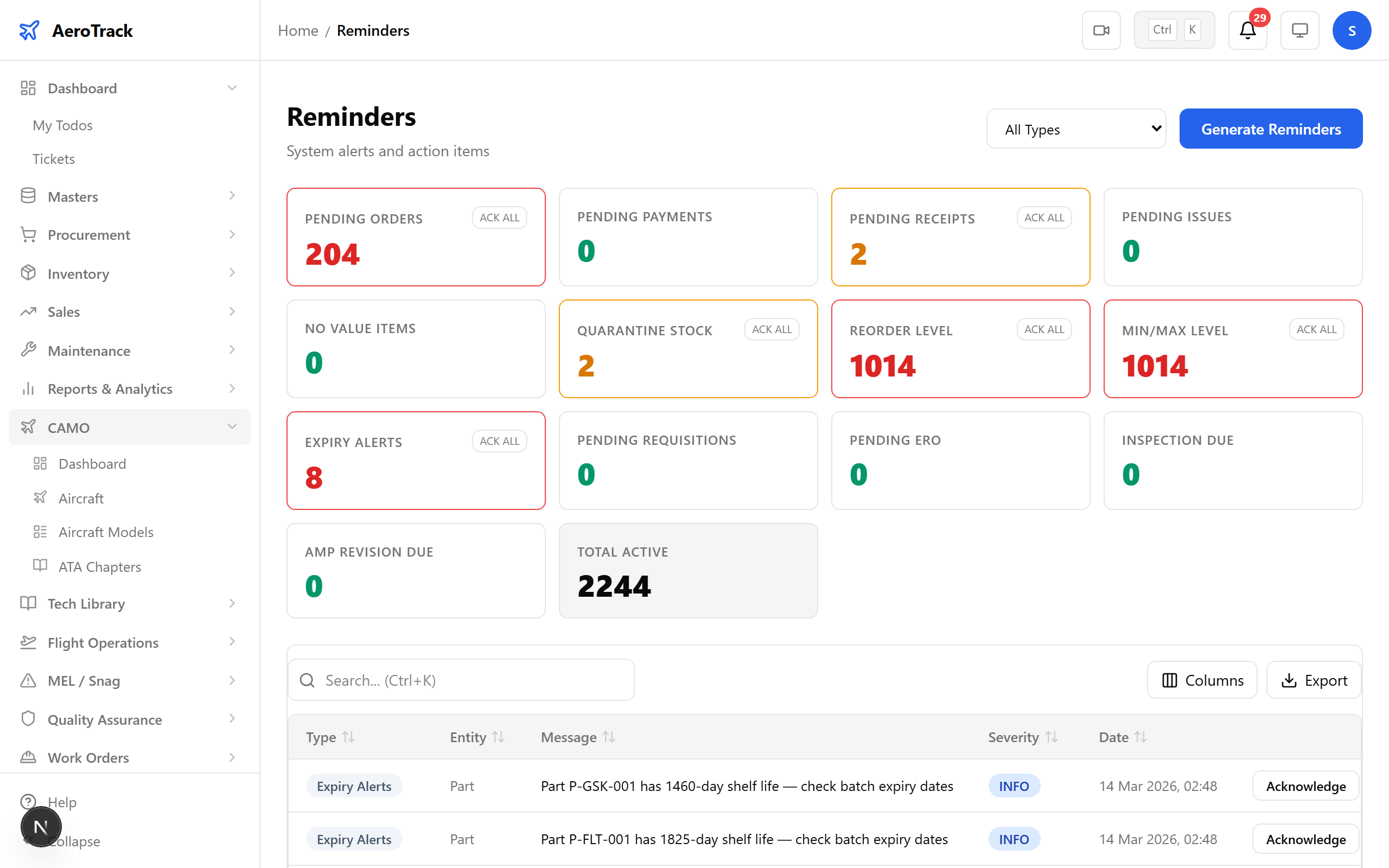
Step 1 — The Notification Bell
The notification bell sits in the header on every page. A red badge shows your unread count. You never have to navigate somewhere to check — alerts come to you.
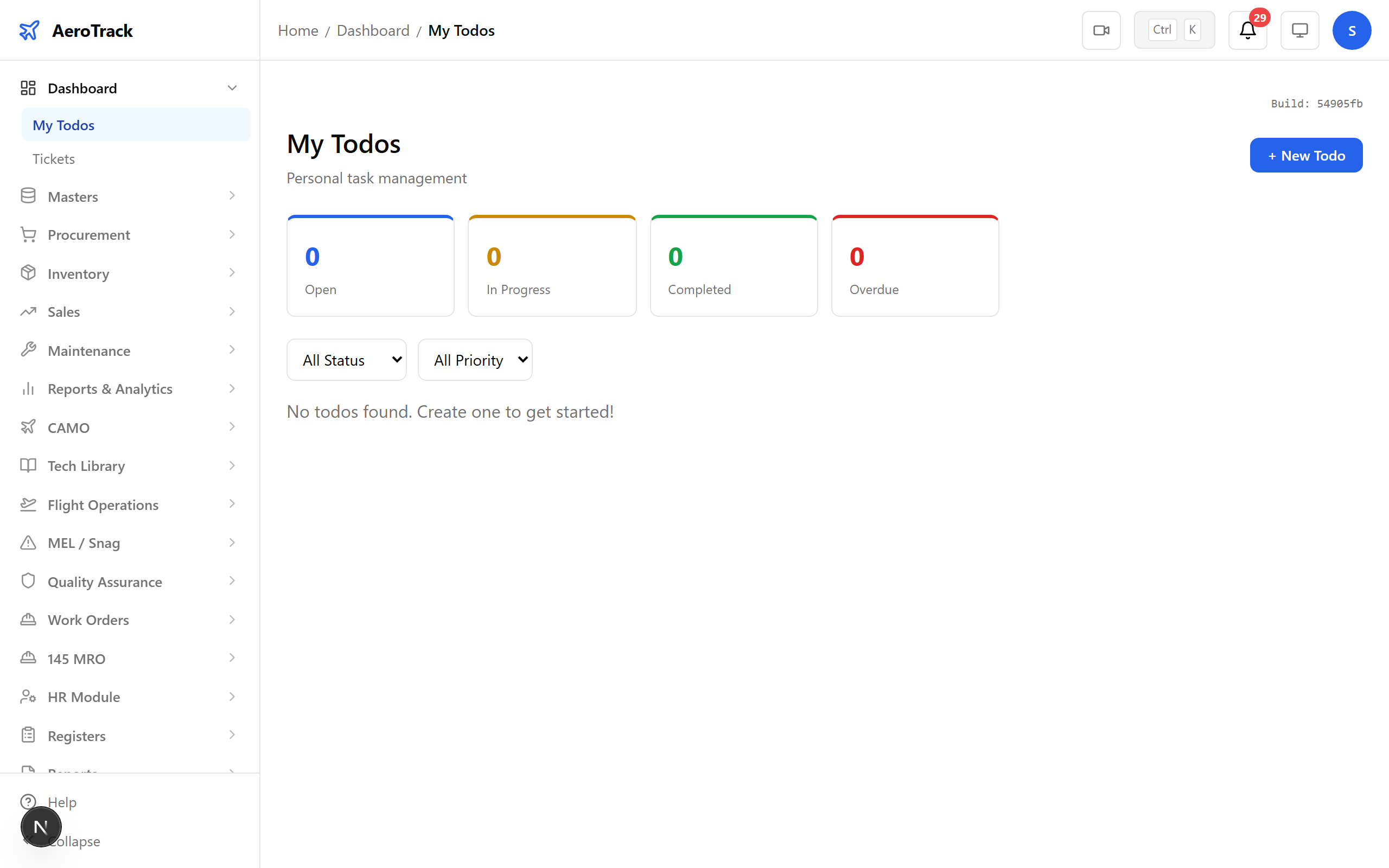
Step 2 — Notification Dropdown
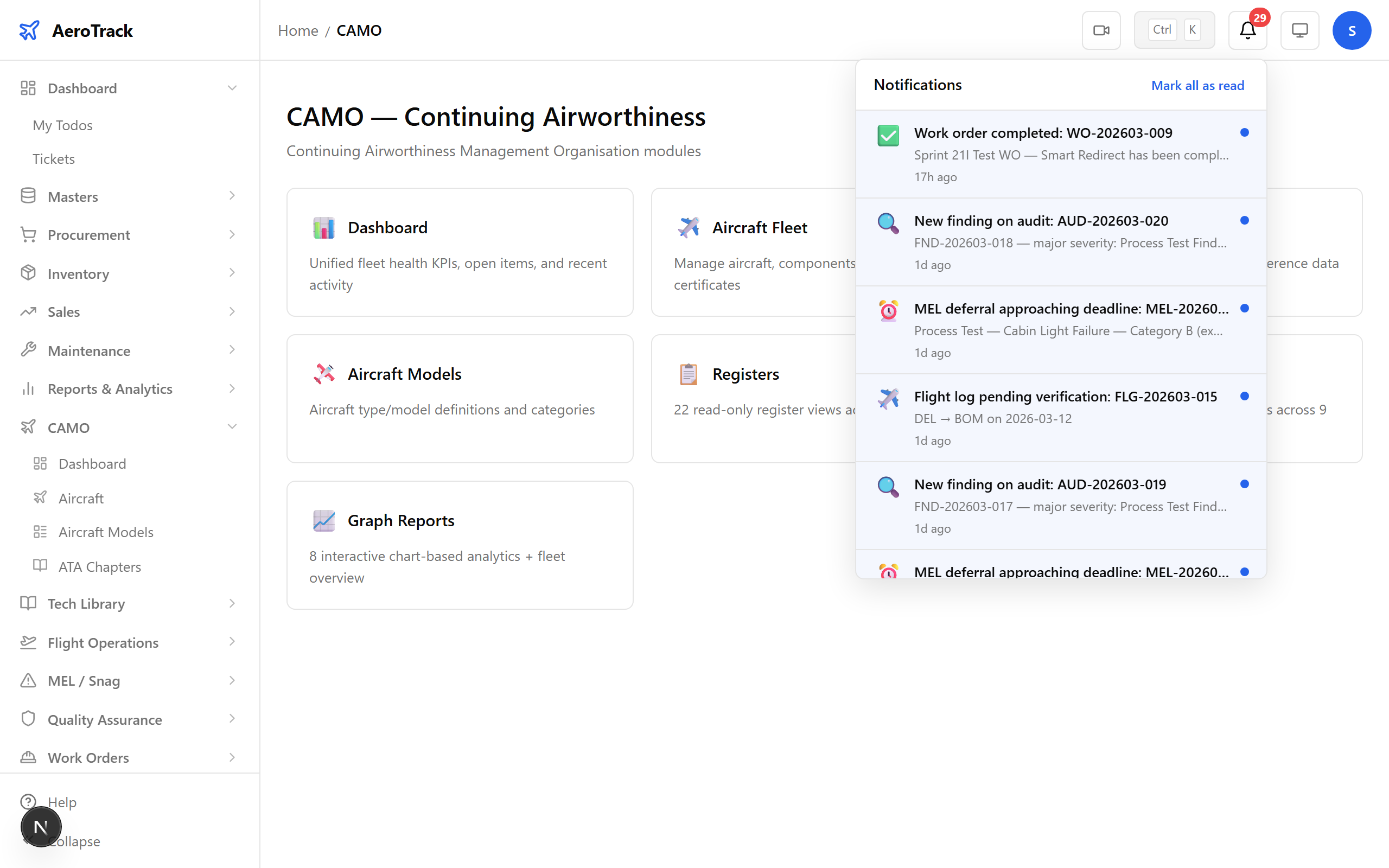
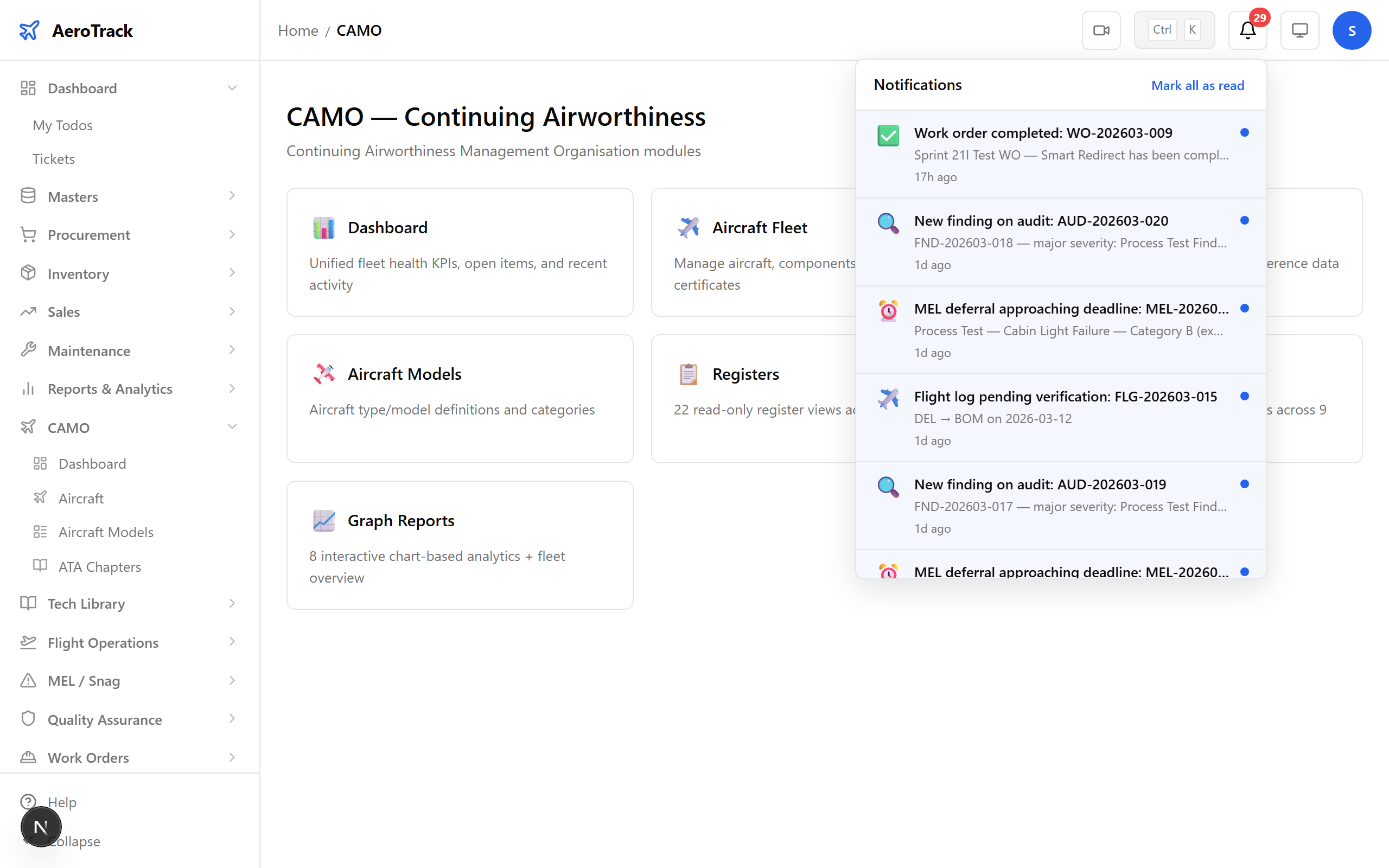
Click the bell to open the notification panel. It shows your most recent notifications with type, timestamp, and a direct link to the relevant item. Click any notification to jump straight to it.
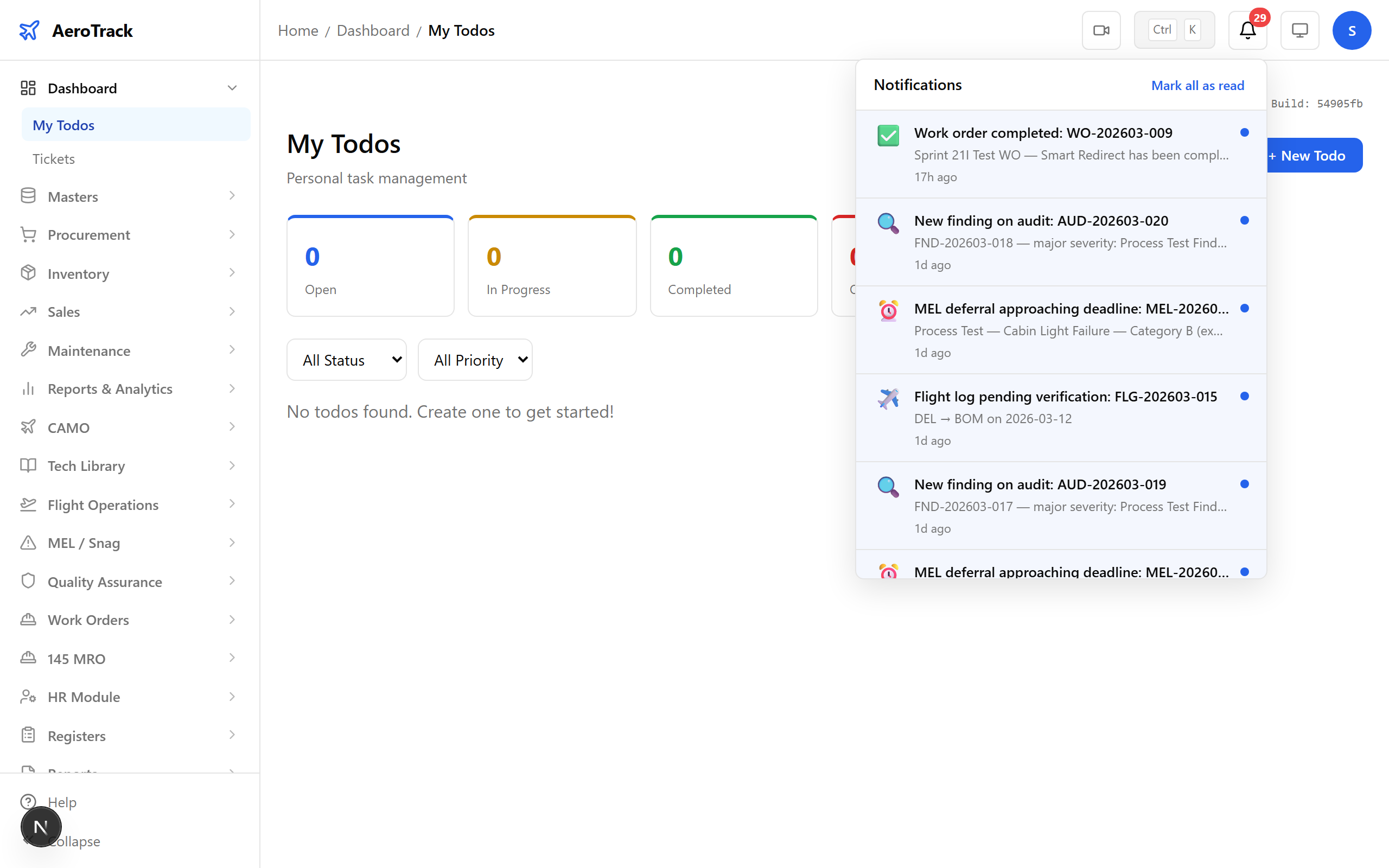
Tip: Use “Mark all read” to clear the badge after you’ve reviewed everything.
Step 3 — Full Notification List
For a complete view, open the full notifications page. Filter by type, search by keyword, and see read/unread status for every alert.
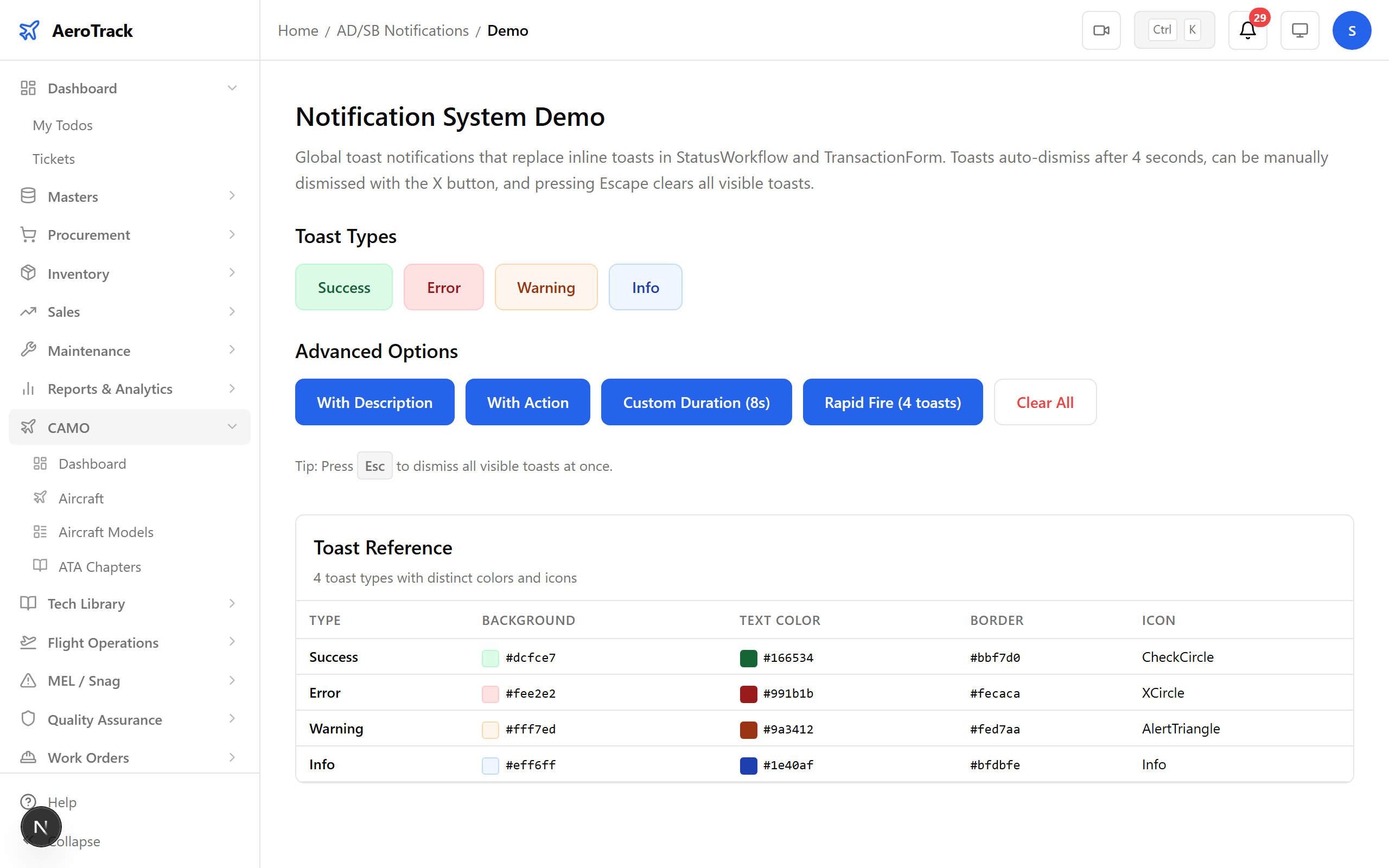
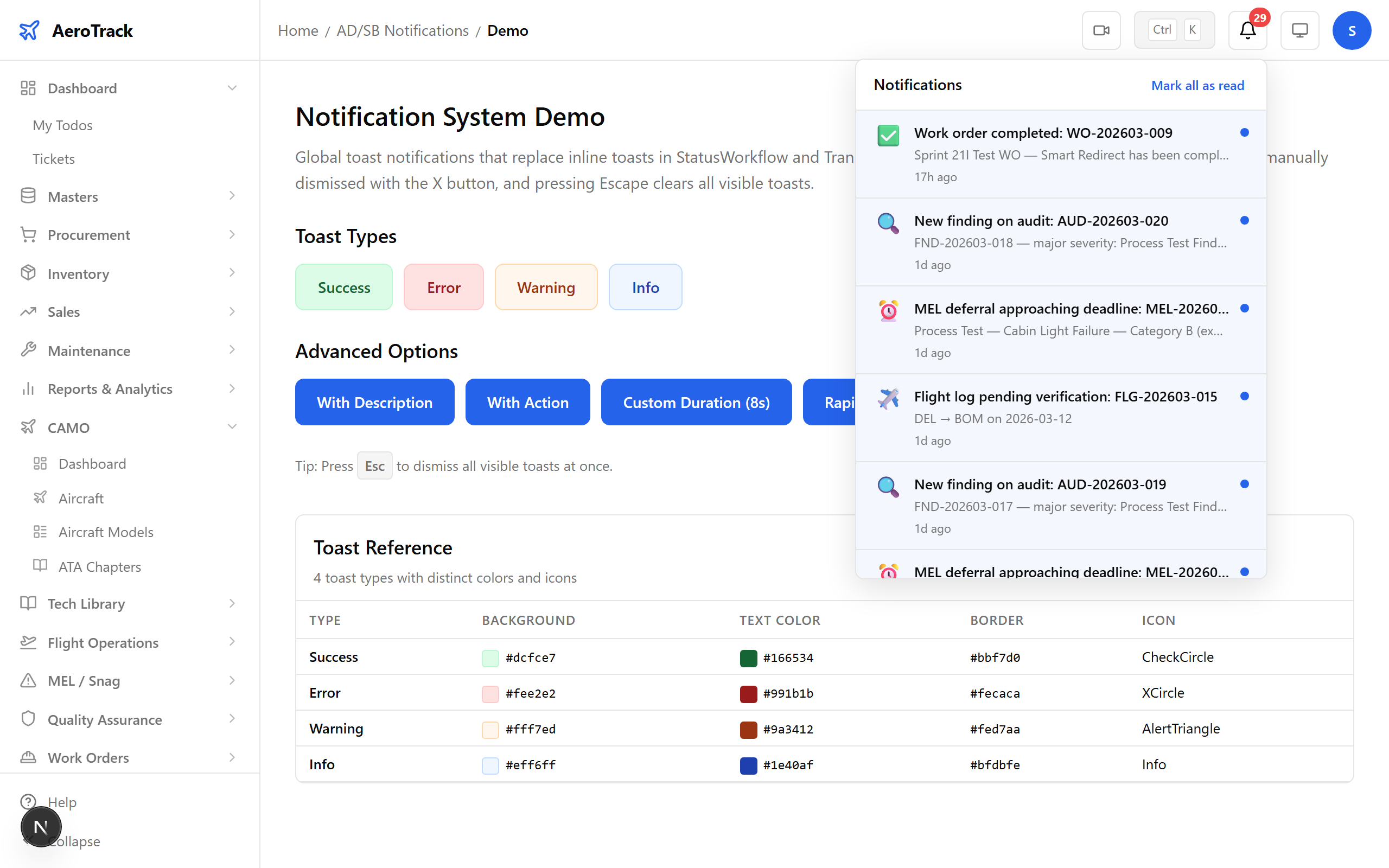
Step 4 — Trigger #1: Work Order Received
When CAMO sends a work order to the MRO-145 shop
(status → RECEIVED_145), the
MRO engineer gets an instant notification:
“New work order received: WO-2026-089”
Step 5 — Trigger #2: Work Order Rejected
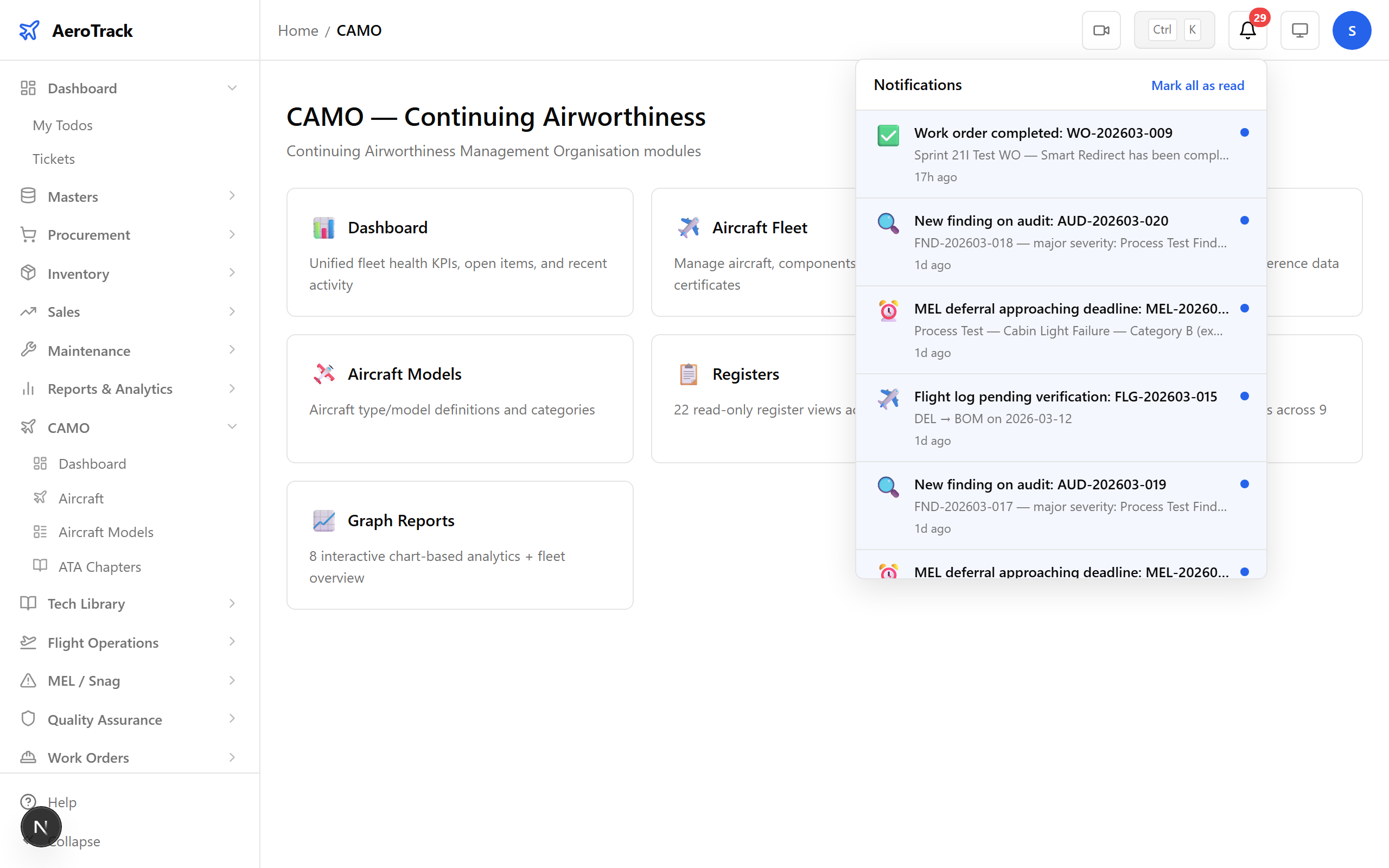
If MRO rejects a work order
(status → REJECTED_145), the
CAMO engineer and admin are notified
to review and resubmit.
Step 6 — Trigger #3: Work Order Completed
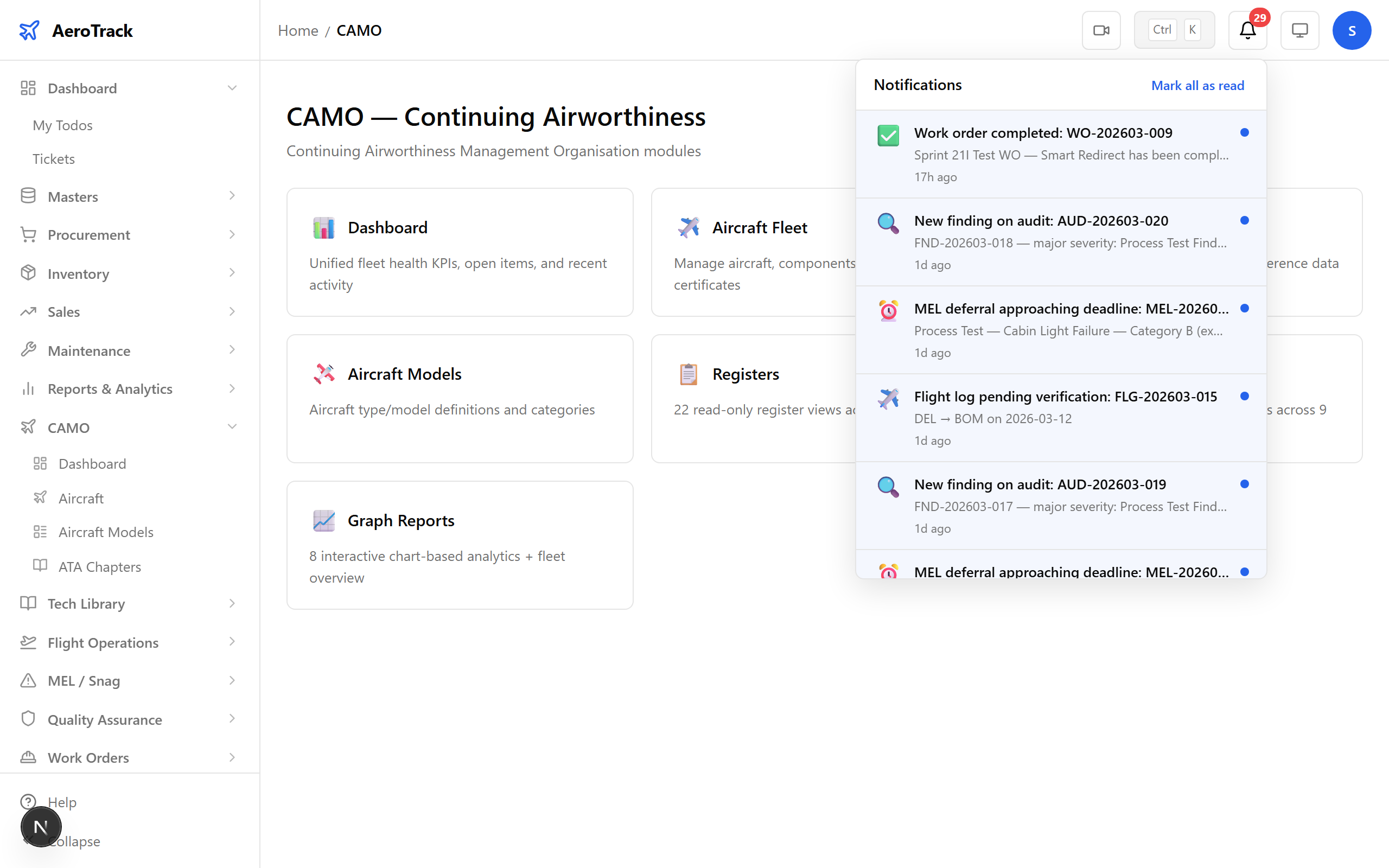
When MRO marks a work order as COMPLETED, the
CAMO engineer and admin know
it’s ready for review and closure.
Step 7 — Trigger #4: Flight Log Pending
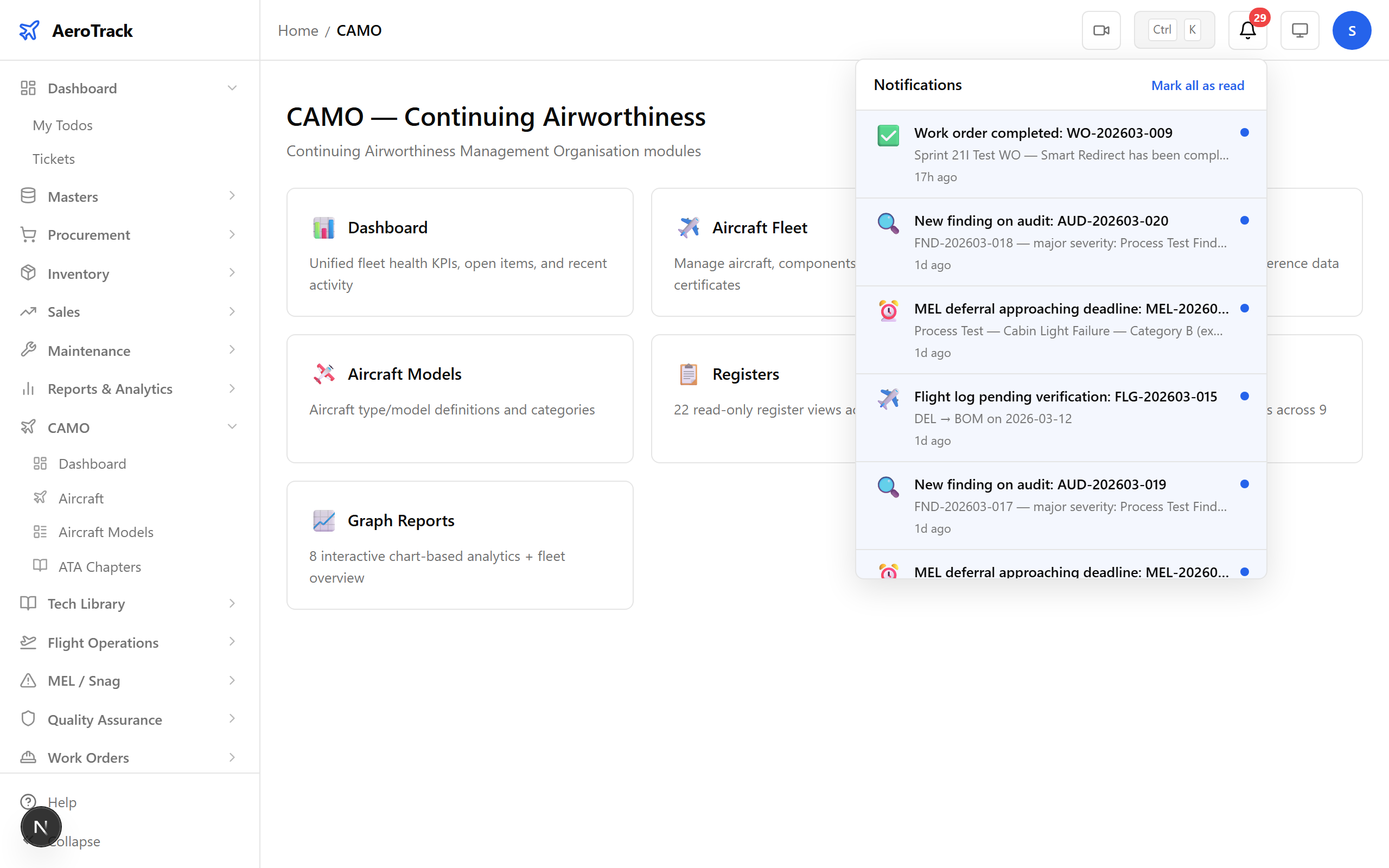
A submitted flight log triggers a notification to admin and super_admin for verification and approval.
Step 8 — Trigger #5: Finding Raised
When Quality Assurance raises a new finding, the CAMO engineer and admin are alerted with the severity and finding number.
Step 9 — Trigger #6: MEL Deadline Approaching
When a deferred MEL item approaches its rectification deadline, admin and super_admin are warned with the MEL category and expiry date.
Step 10 — Trigger #7: Goods Receipt Ready
After goods receipt inspection, admin, super_admin, and store manager are notified that items are ready for putaway.
All 7 Notification Triggers
| # | Trigger | Type Key | Sender Action | Receivers |
|---|---|---|---|---|
| 1 | WO Received | wo_received |
CAMO sends WO to MRO | MRO Engineer |
| 2 | WO Rejected | wo_rejected |
MRO rejects WO | CAMO Engineer, Admin |
| 3 | WO Completed | wo_completed |
MRO completes WO | CAMO Engineer, Admin |
| 4 | Flight Log Pending | flight_log_pending |
Flight log submitted | Admin, Super Admin |
| 5 | Finding Raised | finding_raised |
QA creates finding | CAMO Engineer, Admin |
| 6 | MEL Deadline | mel_deadline |
MEL item deferred | Admin, Super Admin |
| 7 | GR Ready | gr_ready |
GR inspected | Admin, Super Admin, Store Manager |
Step 11 — Reminders Dashboard
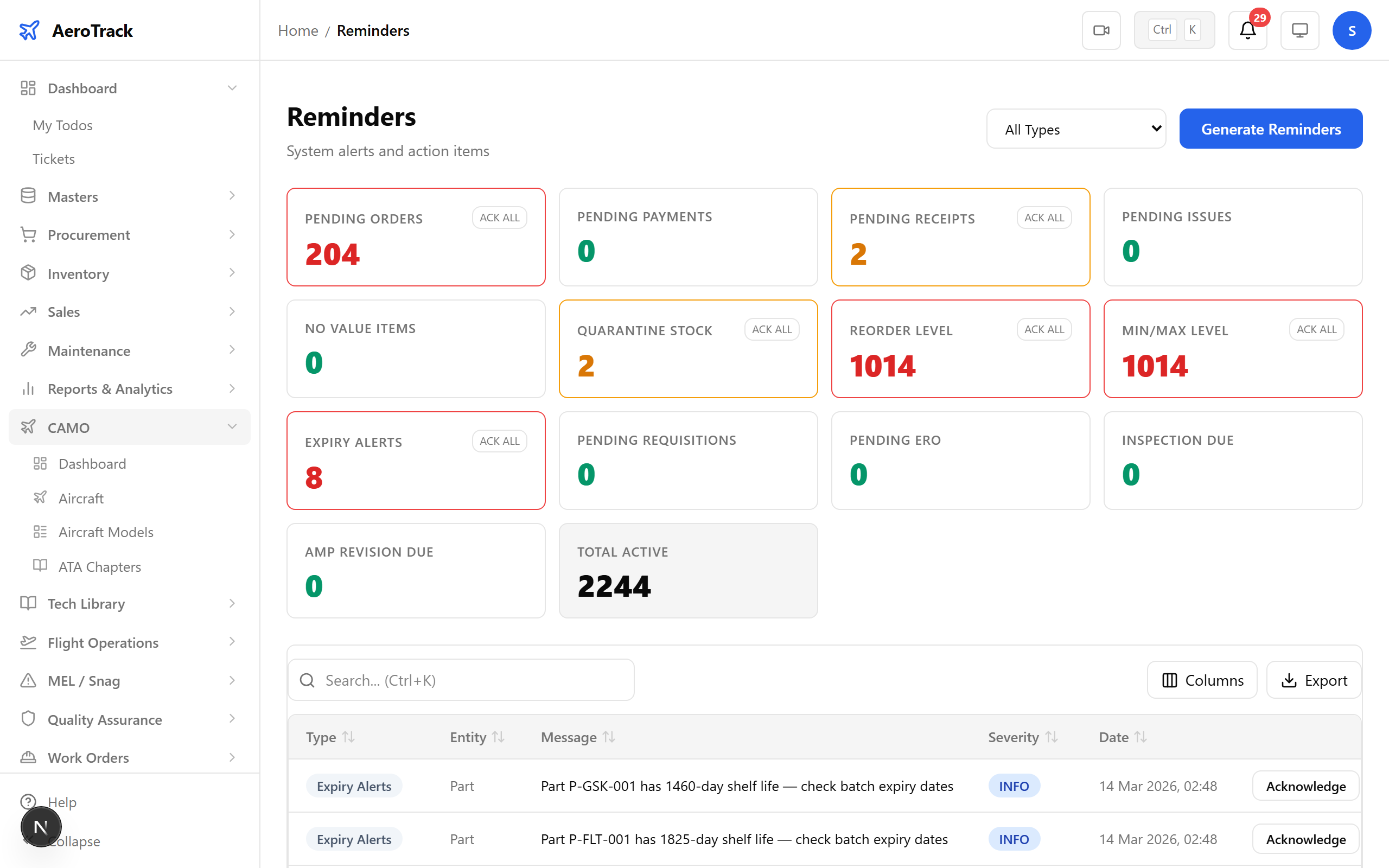
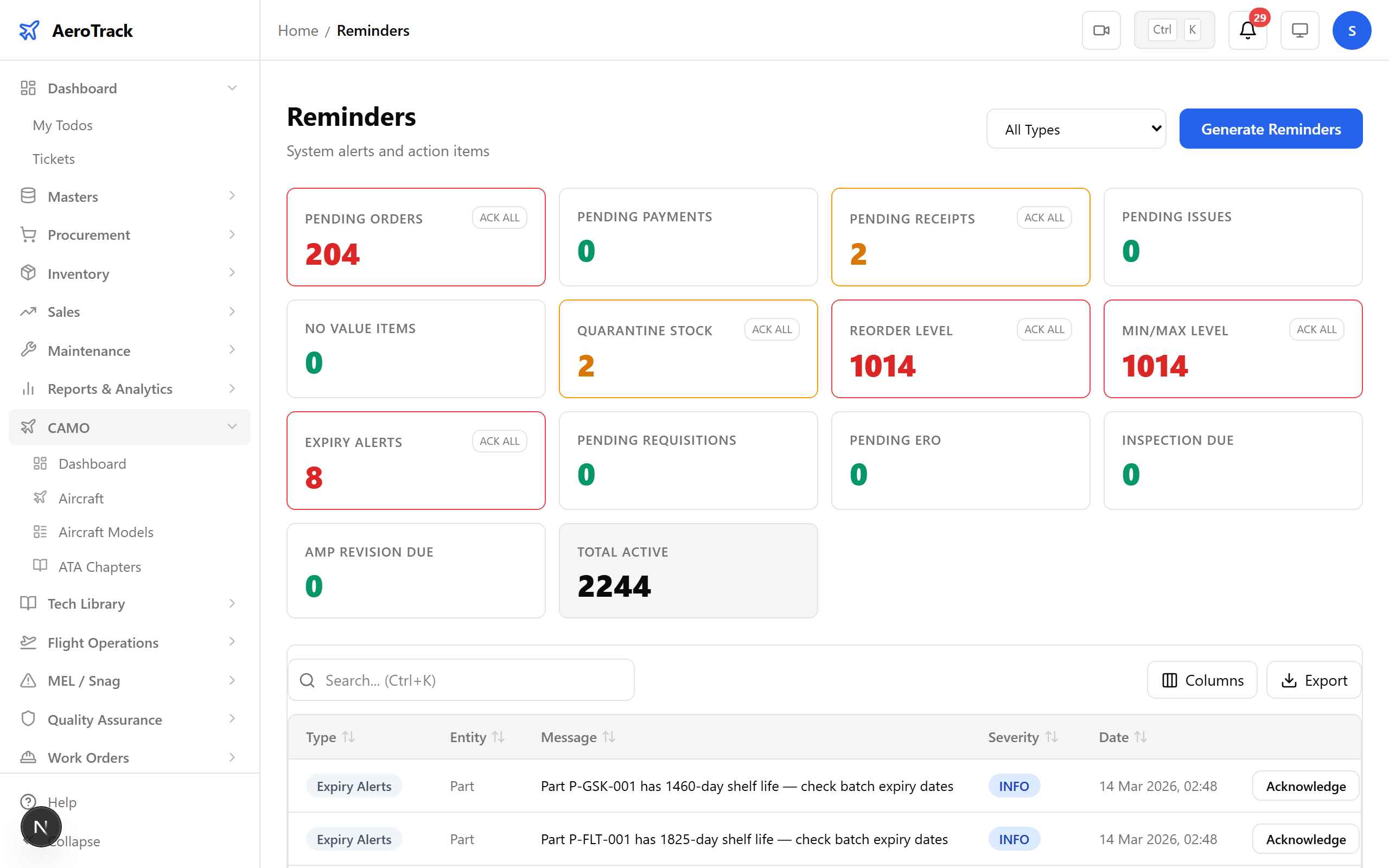
Navigate to Reminders. The unified dashboard shows all reminder types with counts — pending orders, expiry alerts, inspection due dates, and more.
Step 12 — Reminder Types
Each reminder type is colour-coded and shows the current count. Categories include procurement (pending orders, payments, receipts), inventory (reorder levels, quarantine, expiry), and compliance (inspections, AMP revisions, certificate expiry).
Step 13 — Active Reminders
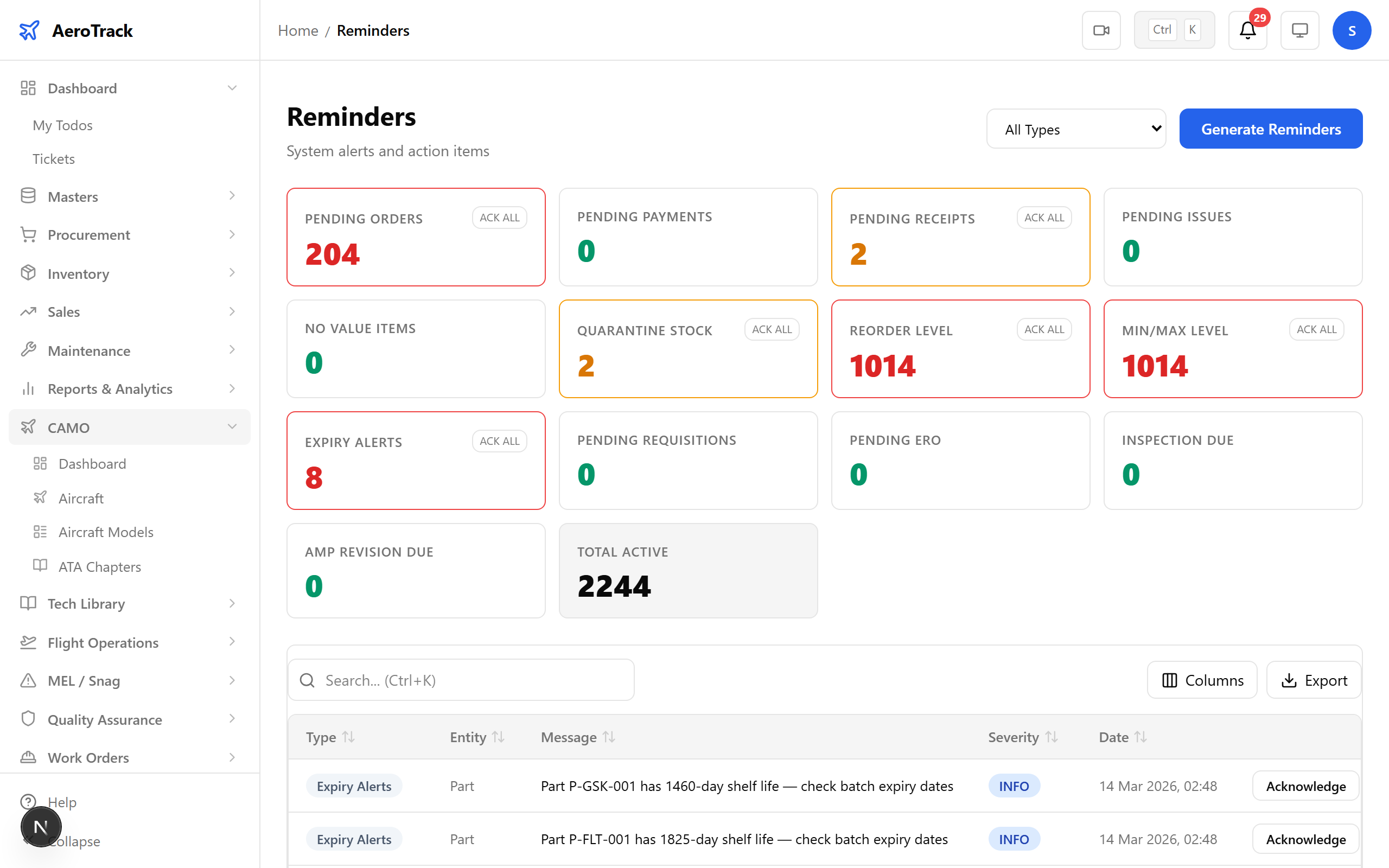
Click any reminder type to see its active items — the specific parts expiring, orders pending, or inspections due. Each item links to the relevant record for action.
Step 14 — Complete
Notifications and reminders work together to keep your operation running smoothly. Notifications alert you to events in real time — 7 triggers covering work orders, flight logs, quality findings, MEL deadlines, and goods receipts. Reminders catch everything else — expiring licences, overdue calibrations, low stock, and upcoming inspections. Nothing falls through the cracks.