Browse Checkouts
1Open Checkout List
Navigate to Maintenance → Tools Checkout or go to /maintenance/tools-checkout.
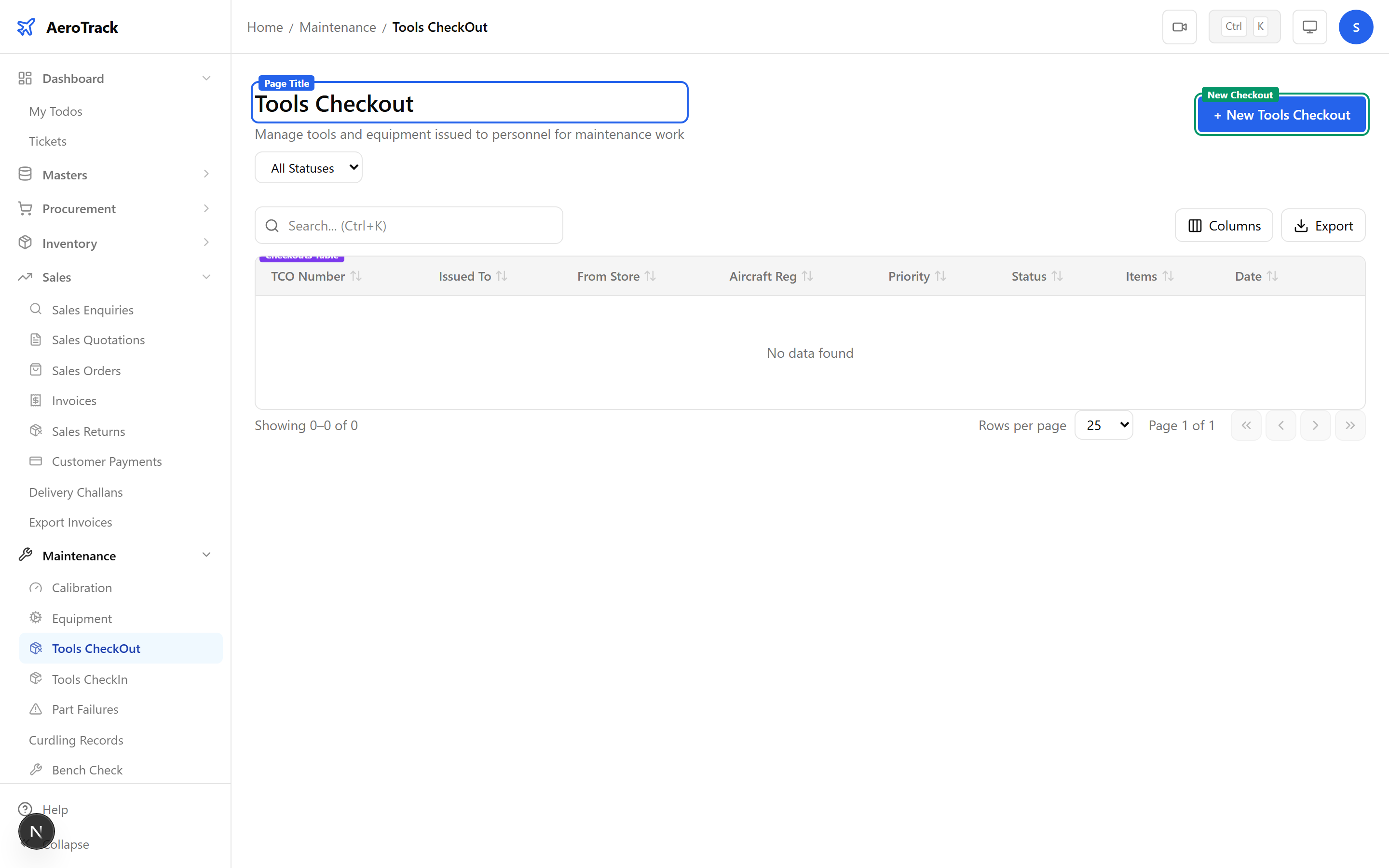
2Filter & Columns
| Column | Description |
|---|---|
| TCO Number | Auto-generated checkout reference (links to detail). |
| Issued To | Name of the person who received the tools. |
| From Store | Tool store/crib from which tools were issued. |
| Aircraft | Aircraft registration (optional). |
| Work Order | Associated WO reference (optional). |
| Date | Checkout date. |
| Priority | None, Low, Medium, High, or AOG. |
| Items | Number of tools checked out. |
| Status | Opened, Issued, Returned, or Cancelled. |
Filter by Status to see all currently-issued tools that have not yet been returned.
Create a Checkout
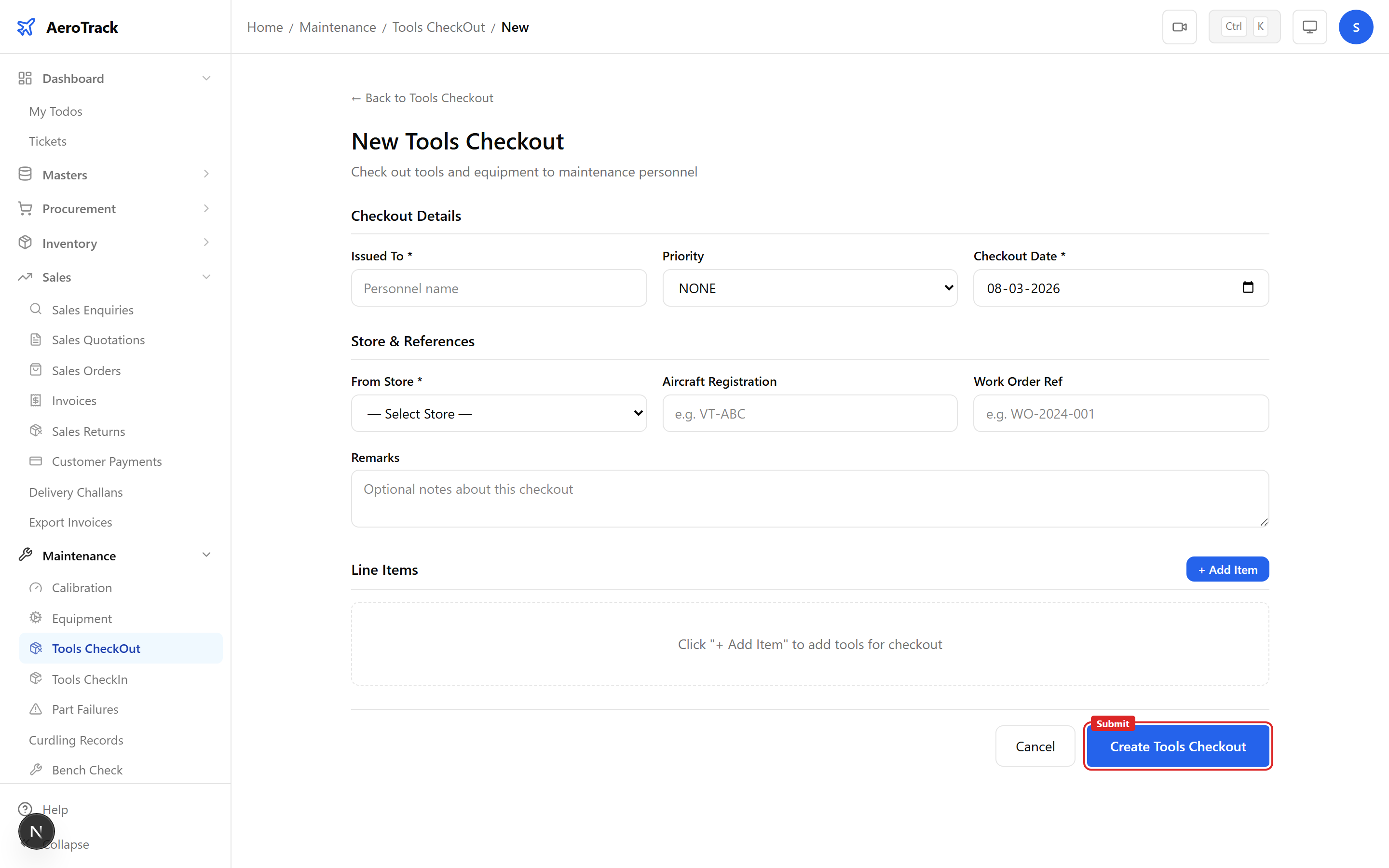
3Checkout Header
Click + New Checkout to open /maintenance/tools-checkout/new.
| Field | Required | Description |
|---|---|---|
| Checkout Date | Yes | Defaults to today. |
| Issued To | Yes | Name of the engineer/technician. |
| From Store | Yes | Tool store/crib (dropdown). |
| Aircraft Reg | No | Aircraft registration (e.g. VT-ABC) for which tools are needed. |
| Work Order Ref | No | Work order number the tools are needed for. |
| Priority | No | None (default), Low, Medium, High, or AOG. |
| Remarks | No | Additional notes. |
4Add Tool Items
Search for tools using the part typeahead, then add each tool with its details.
| Field | Required | Description |
|---|---|---|
| Part (Tool) | Yes | Typeahead search for the tool by part number. |
| Serial Number | No | Tool serial number for tracking. |
| Quantity | Yes | Number of units (minimum 1). |
| Condition | Yes | Good (default), Fair, or Damaged. |
| Remarks | No | Per-item notes. |
At least one tool item is required. Record the condition at checkout so any damage on return can be attributed correctly.
5Submit
Click Create Checkout. The checkout is created in Opened status with an auto-generated TCO number.
Workflow
6Status Flow
| Status | Meaning | Next |
|---|---|---|
| Opened | Checkout requested, tools not yet issued. Editable. | Issue, Cancel |
| Issued | Tools physically handed over to the engineer. | Return |
| Returned | All tools returned to the tool store. Terminal. | — |
| Cancelled | Checkout cancelled. Terminal. | — |
Editing is only allowed in Opened status. Track the condition on return — tools returned in Damaged condition should be flagged for repair or replacement.
7Conditions
| Condition | Meaning |
|---|---|
| Good | Tool is in serviceable condition, ready for use. |
| Fair | Tool is usable but showing wear — consider scheduling maintenance. |
| Damaged | Tool is damaged and may need repair, recalibration, or replacement. |
Compare checkout condition vs return condition to identify tools that were damaged during use. This helps track tool life and plan replacements.
8Cross-Links
| Action | Guide |
|---|---|
| Track calibration status | Calibration |
| Manage equipment | Equipment Maintenance |
| Record part failures | Part Failures |
| View stores | Stores Master |