Browse Transfers
1Open Transfer List
Navigate to Inventory → Stock Transfers or go to /inventory/transfers.
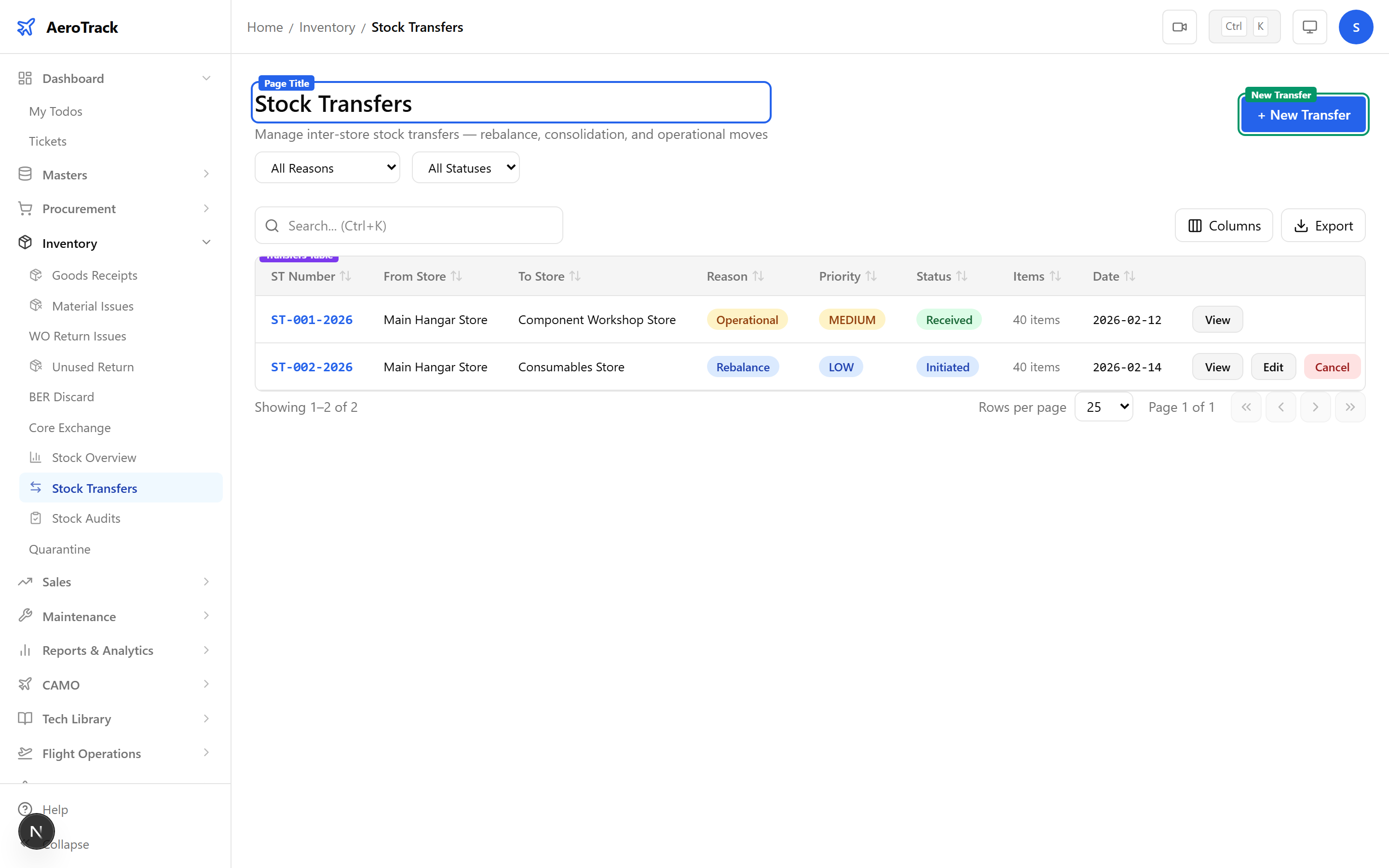
2Filter & Columns
| Column | Description |
|---|---|
| ST Number | Auto-generated transfer reference. |
| From Store | Source store (name + code). |
| To Store | Destination store (name + code). |
| Reason | Rebalance, Consolidation, Customer Request, or Operational. |
| Priority | None, Low, Medium, High, or AOG. |
| Status | Initiated, In Transit, Received, or Cancelled. |
| Items | Number of line items. |
| Date | Transfer date. |
Create a Transfer
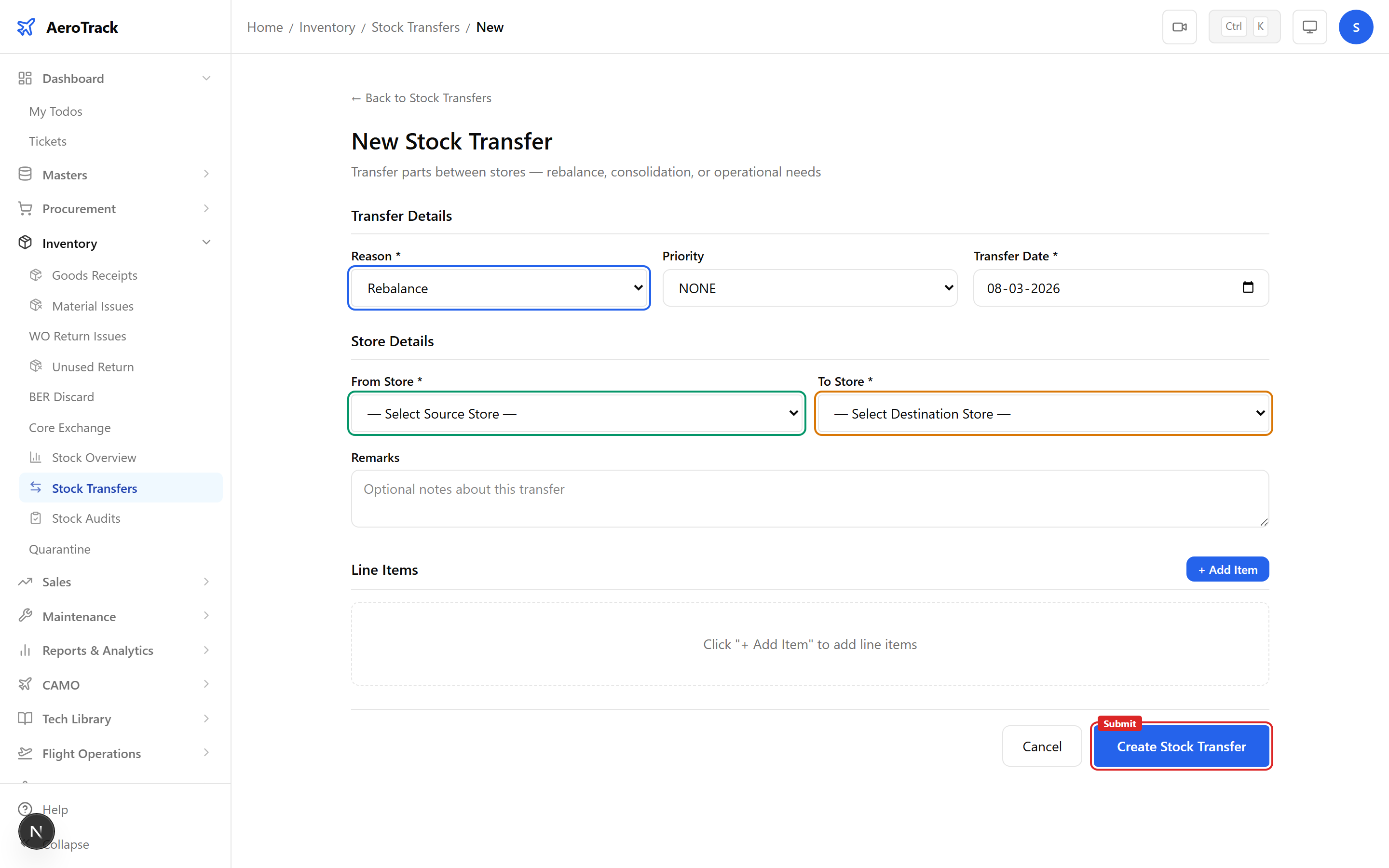
3Transfer Header
Click + New Transfer at /inventory/transfers/new.
| Field | Required | Description |
|---|---|---|
| Reason | Yes | Rebalance, Consolidation, Customer Request, or Operational. |
| Priority | No | None (default), Low, Medium, High, or AOG. |
| Transfer Date | Yes | Date of transfer (defaults to today). |
| From Store | Yes | Select source store. |
| To Store | Yes | Select destination store (filtered to exclude source). |
| Remarks | No | Additional notes. |
4Add Line Items
Click Add Item and search for parts to transfer. Enter quantity, serial number, and batch number for each item.
| Field | Description |
|---|---|
| Part Number | Typeahead search by part number or description. |
| Quantity | Units to transfer (min 0.01). |
| Serial Number | Serialised tracking (optional). |
| Batch Number | Batch/lot reference (optional). |
| Unit Cost | Cost per unit (optional). |
| Remarks | Per-item notes. |
Source and destination stores must be different. At least one line item is required with a valid part and quantity.
Workflow
5Transfer Reasons
| Reason | Colour | Use Case |
|---|---|---|
| Rebalance | Blue | Redistribute stock for optimal availability. |
| Consolidation | Purple | Merge stock from multiple locations. |
| Customer Request | Green | Fulfil a customer-specific requirement. |
| Operational | Amber | Day-to-day operational transfers. |
6Status Flow
| Status | Colour | Meaning | Next |
|---|---|---|---|
| Initiated | Blue | Transfer created, awaiting dispatch. | Mark In Transit |
| In Transit | Orange | Items dispatched, en route. | Mark Received |
| Received | Green | Items received at destination. Terminal. | — |
| Cancelled | Red | Transfer cancelled. Terminal. | — |
Only Initiated transfers can be edited or cancelled. Once in transit, the transfer is locked.
7Cross-Links
| Action | Guide |
|---|---|
| Issue materials from store | Material Issues |
| Check stock levels | Stock Overview |
| Audit stock counts | Stock Audits |
| Receive goods into store | Goods Receipt |