Browse Audits
1Open Audit List
Navigate to Inventory → Stock Audits or go to /inventory/audits.
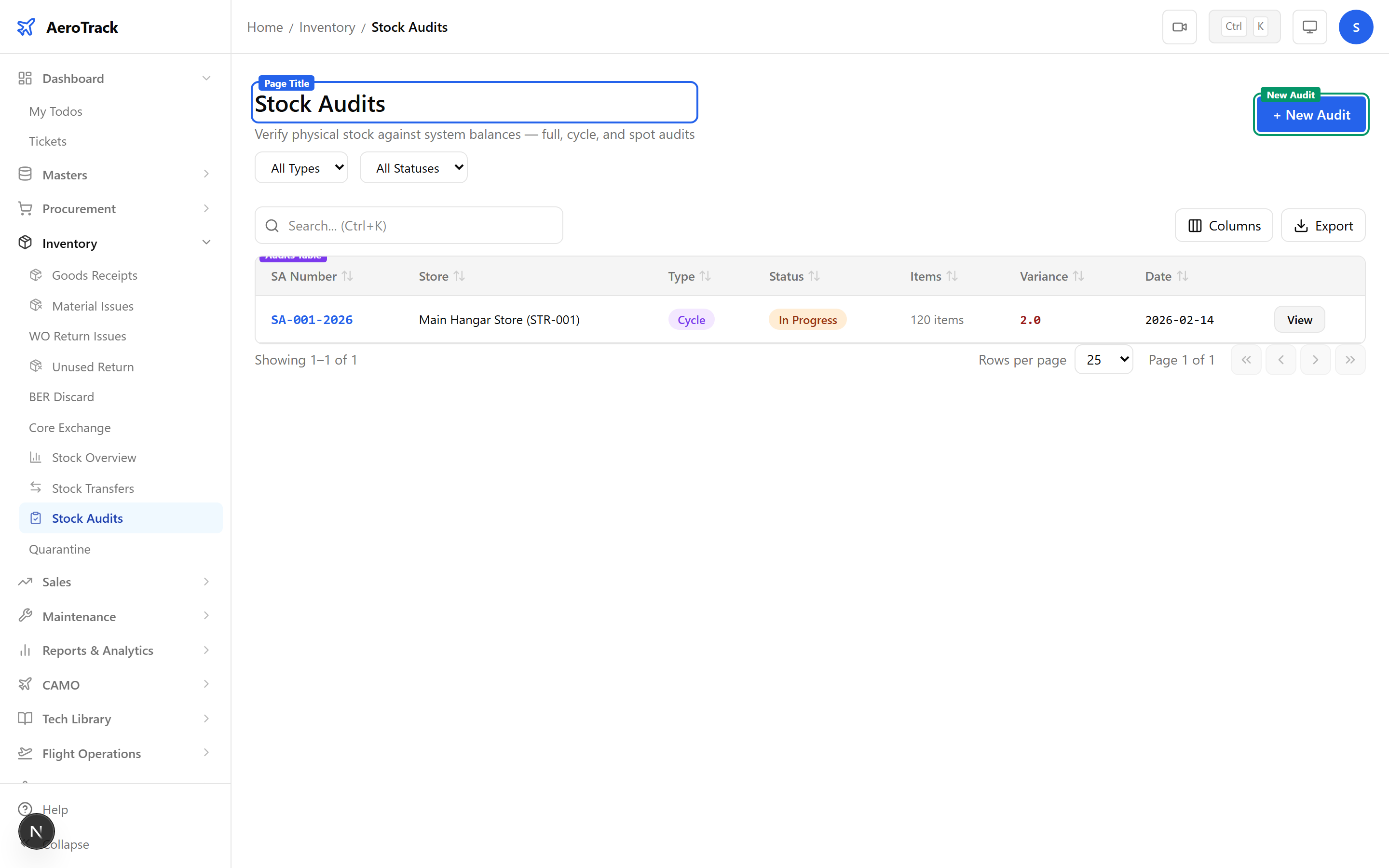
2Filter & Columns
| Column | Description |
|---|---|
| SA Number | Auto-generated audit reference. |
| Store | Store being audited (name + code). |
| Type | Full, Cycle, or Spot — colour-coded badge. |
| Status | Draft, In Progress, Completed, or Cancelled. |
| Lines | Number of parts counted. |
| Variance | Total variance percentage. |
| Date | Audit date. |
Create an Audit
3Audit Header
Click + New Audit at /inventory/audits/new.
| Field | Required | Description |
|---|---|---|
| Store | Yes | Select the store to audit. |
| Audit Type | Yes | Full Inventory Count, Cycle Count, or Spot Check. |
| Audit Date | Yes | Date of the physical count (defaults to today). |
| Remarks | No | Notes about this audit. |
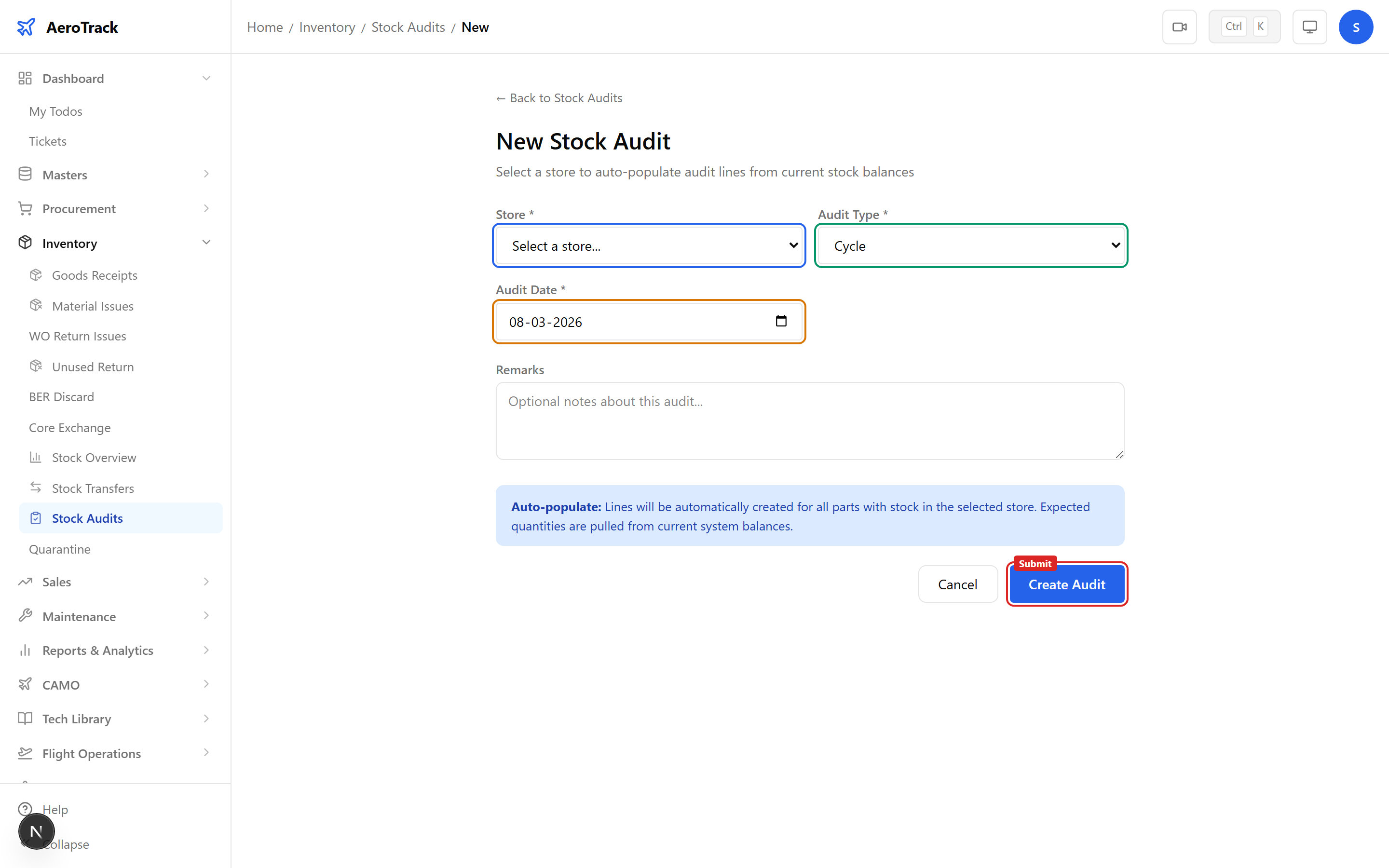
4Auto-populated Lines
When you create an audit, the system automatically generates lines for every part with stock in the selected store. Expected quantities are pulled from current system balances (receipts minus issues). You do not need to add lines manually.
Count & Review
5Enter Counted Quantities
Open the audit detail page and transition to In Progress. Enter the physically counted quantity for each part directly in the table.
| Column | Editable | Description |
|---|---|---|
| Part Number | No | Part number and description. |
| Expected Qty | No | System balance (read-only). |
| Counted Qty | Yes | Enter the physical count here. |
| Variance | No | Counted − Expected (auto-calculated). |
| Variance % | No | Percentage difference (auto-calculated). |
| Remarks | Yes | Notes per line (e.g. “found in wrong bin”). |
Counted quantities can only be entered when the audit is In Progress. Variance is colour-coded: red for shortages (negative), green for overages (positive).
6Variance Analysis
| Audit Type | Colour | Scope |
|---|---|---|
| Full | Blue | Every part in the store — complete inventory count. |
| Cycle | Purple | Selected category or bin range — rotational count. |
| Spot | Amber | Random sample — quick verification. |
After completing counts, the total variance shows at the header level. Use this data to investigate discrepancies and adjust stock records where needed.
Workflow
7Status Flow
| Status | Colour | Meaning | Next |
|---|---|---|---|
| Draft | Grey | Audit created, not yet started. | Start → In Progress |
| In Progress | Orange | Counting underway — enter counted quantities. | Complete |
| Completed | Green | Count finalised, variance locked. Terminal. | — |
| Cancelled | Red | Audit abandoned. Terminal. | — |
Only Draft audits can be edited or cancelled. Once completed, the audit record and variance data are locked for compliance.
8Cross-Links
| Action | Guide |
|---|---|
| Check current stock levels | Stock Overview |
| Transfer stock between stores | Stock Transfers |
| Issue materials | Material Issues |
| Receive goods | Goods Receipt |