Browse Issues
1Open Issue List
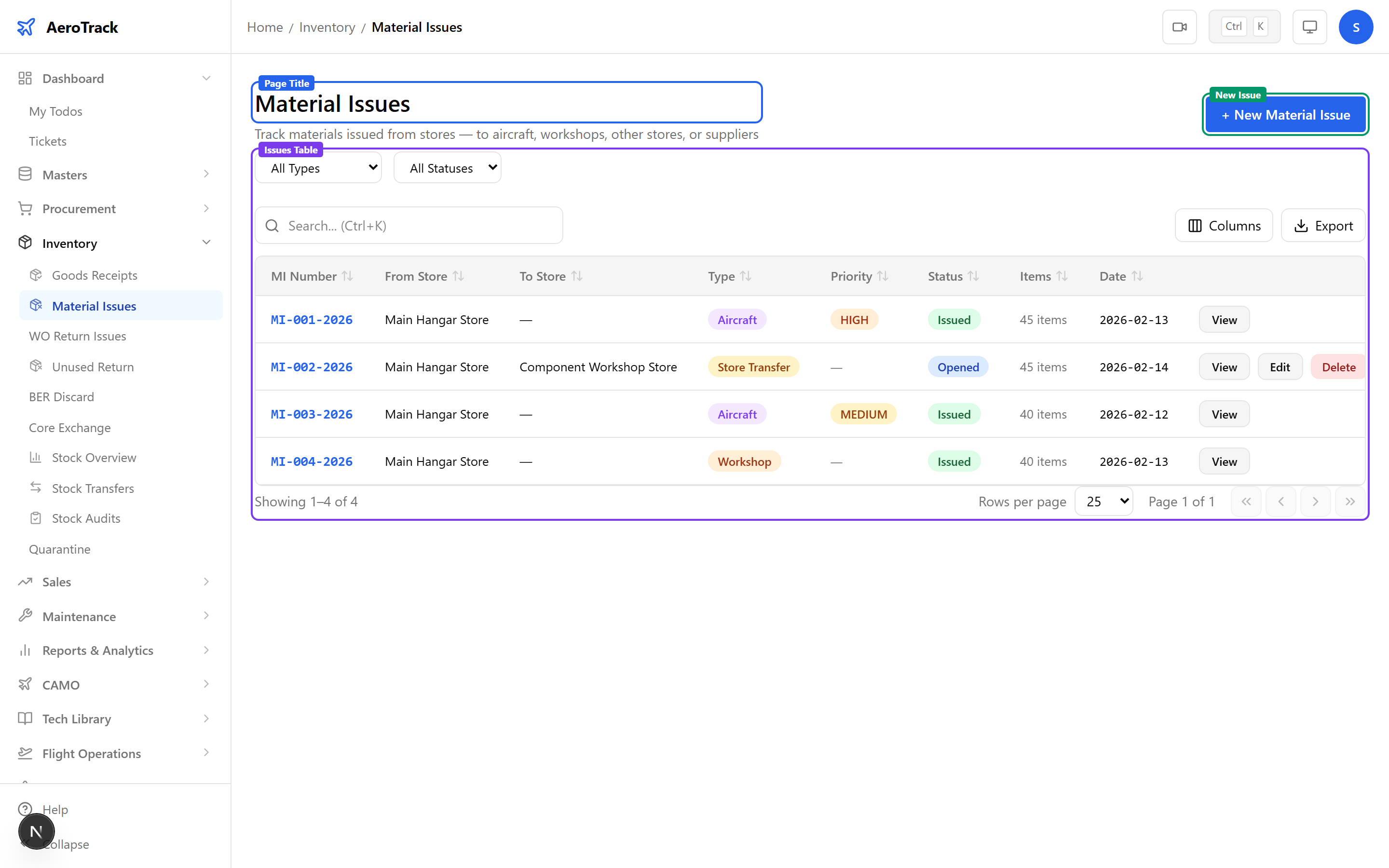
Navigate to Inventory → Material Issues or go to /inventory/issues.
2Filter & Columns
| Column | Description |
|---|---|
| MI Number | Auto-generated issue reference (monospace). |
| From Store | Source store/warehouse. |
| To Store | Destination store (for store transfers only). |
| Type | Colour-coded badge — Aircraft, Store, Supplier, Discard, etc. |
| Priority | None, Low, Medium, High, or AOG. |
| Status | Opened, Authorized, Issued, or Cancelled. |
| Items | Number of line items. |
| Date | Issue date. |
Use the Type and Status filter dropdowns above the table to narrow results. Specialised sub-pages for WO Returns, Unused Returns, BER Discard, and Core Exchange are available from the sidebar.
Create an Issue
3Issue Header
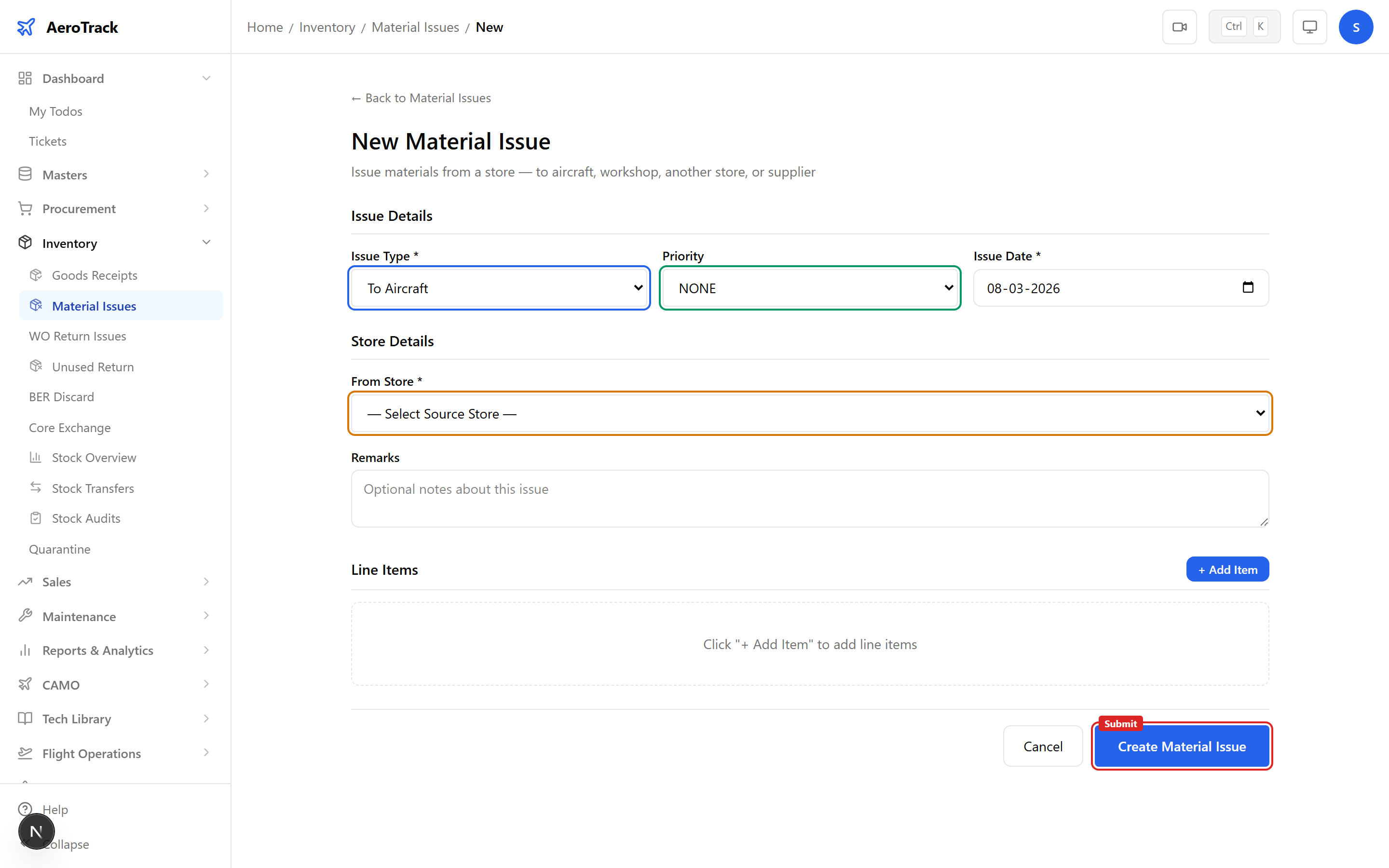
Click + New Material Issue at /inventory/issues/new.
| Field | Required | Description |
|---|---|---|
| Issue Type | Yes | Aircraft, Store Transfer, Supplier, Discard, Customer, Workshop, WO Return, Unused Return, BER Discard, or Core Exchange. |
| Priority | No | None (default), Low, Medium, High, or AOG. |
| Issue Date | Yes | Date of issue (defaults to today). |
| From Store | Yes | Select the source store. |
| To Store | Conditional | Required only when Issue Type is “Store Transfer”. Must differ from source. |
| Remarks | No | Internal notes. |
4Add Line Items
Click Add Item to add a blank line, then search for a part using the typeahead field.
| Field | Description |
|---|---|
| Part Number | Typeahead search by part number or description. |
| Quantity | Number of units to issue (min 0.01). |
| Serial Number | Serialised part tracking (optional). |
| Batch Number | Batch/lot number (optional). |
| Unit Cost | Cost per unit (optional, for value tracking). |
| Work Order Ref | WO reference (used for WO Return type). |
| Return Reason | Reason text (used for Unused Return and BER types). |
| Core Unit Ref | Core serial reference (used for Core Exchange type). |
| Remarks | Per-item notes. |
At least one line item is required. Each item must have a part selected and a quantity greater than zero.
5Submit
After saving, the issue is created in Opened status. Use the workflow buttons on the detail page to advance through Authorized → Issued.
Workflow
6Issue Types
| Type | Colour | Purpose |
|---|---|---|
| To Aircraft | Purple | Issue parts for aircraft fitment. |
| To Store | Amber | Inter-store transfer. |
| To Supplier | Blue | Return to vendor. |
| To Discard | Red | Scrap / dispose. |
| To Customer | Green | Customer shipment. |
| To Workshop | Orange | Send for repair. |
| WO Return | Indigo | Return from work order. |
| Unused Return | Pink | Return surplus materials. |
| BER Discard | Rose | Beyond economical repair. |
| Core Exchange | Teal | Rotable core swap. |
7Status Flow
| Status | Colour | Meaning | Next |
|---|---|---|---|
| Opened | Blue | Issue created, pending authorization. | Authorize |
| Authorized | Orange | Approved, ready for physical issue. | Issue |
| Issued | Green | Parts physically issued. Terminal. | — |
| Cancelled | Red | Issue withdrawn. Terminal. | — |
Only Opened issues can be edited or deleted. Once authorized, the issue is locked.
8Cross-Links
| Action | Guide |
|---|---|
| Receive goods into store | Goods Receipt |
| Transfer between stores | Stock Transfers |
| Check stock levels | Stock Overview |
| Return from work order | WO Return Issues |
| Discard BER items | BER / Discard |