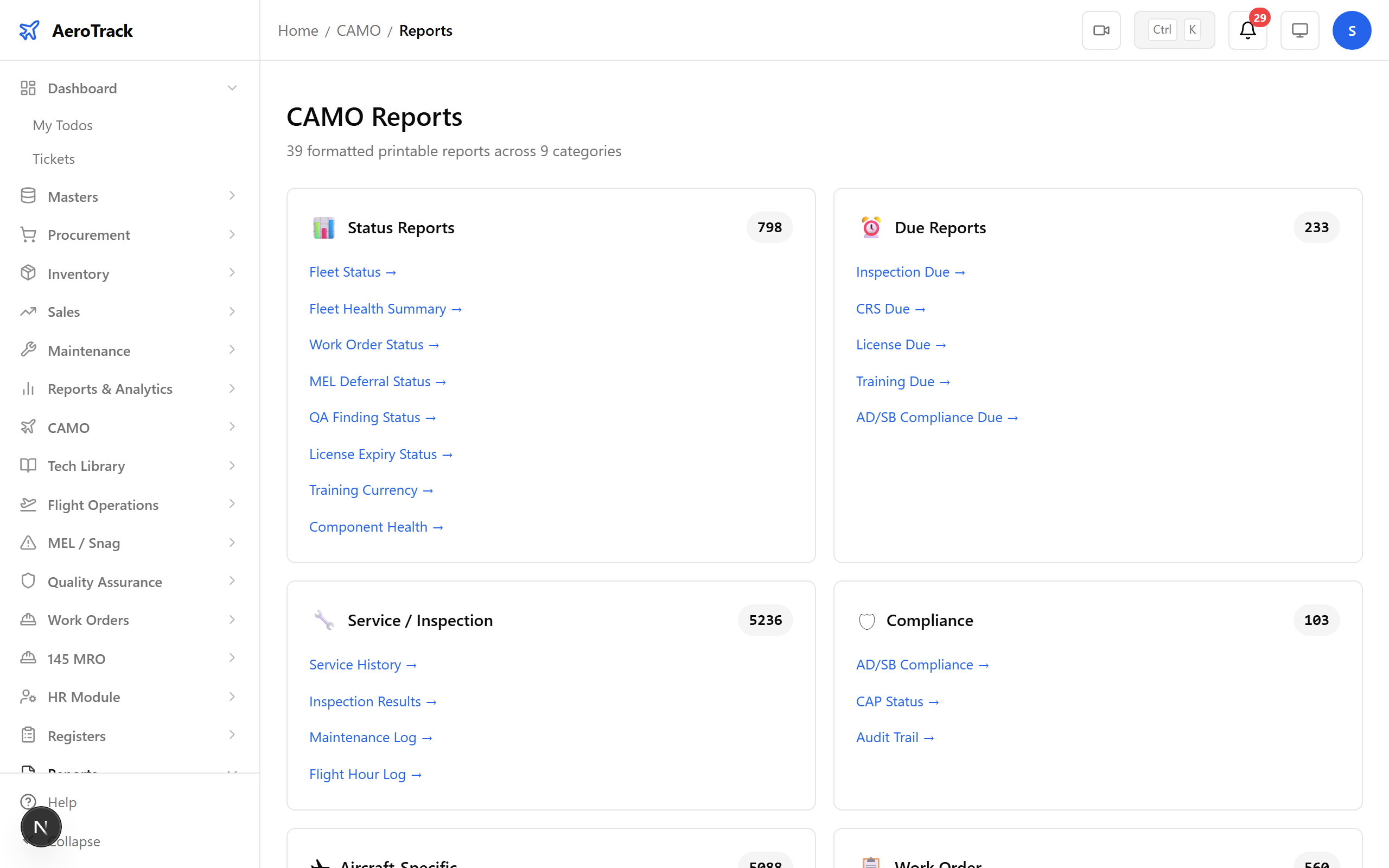
Step 1 — The CAMO Reports Hub
Navigate to CAMO → Reports. The reports index displays all 39 reports grouped into 9 categories — Fleet, Work Orders, MEL & Defects, Quality, Inspections, AD/SB, Components, Flight Ops, and HR.
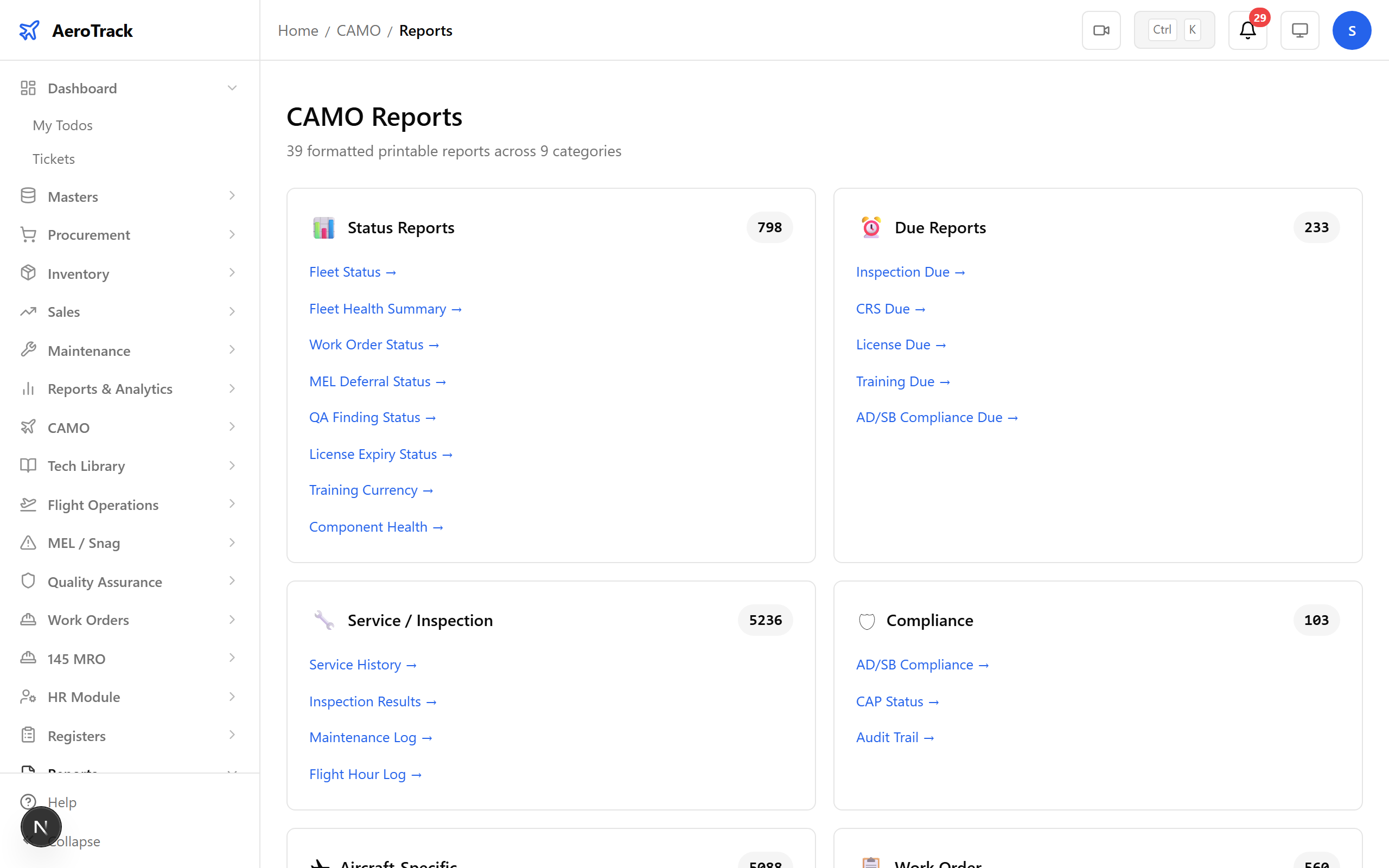
Tip: Bookmark this page. Every CAMO report is accessible from here — no hunting through menus.
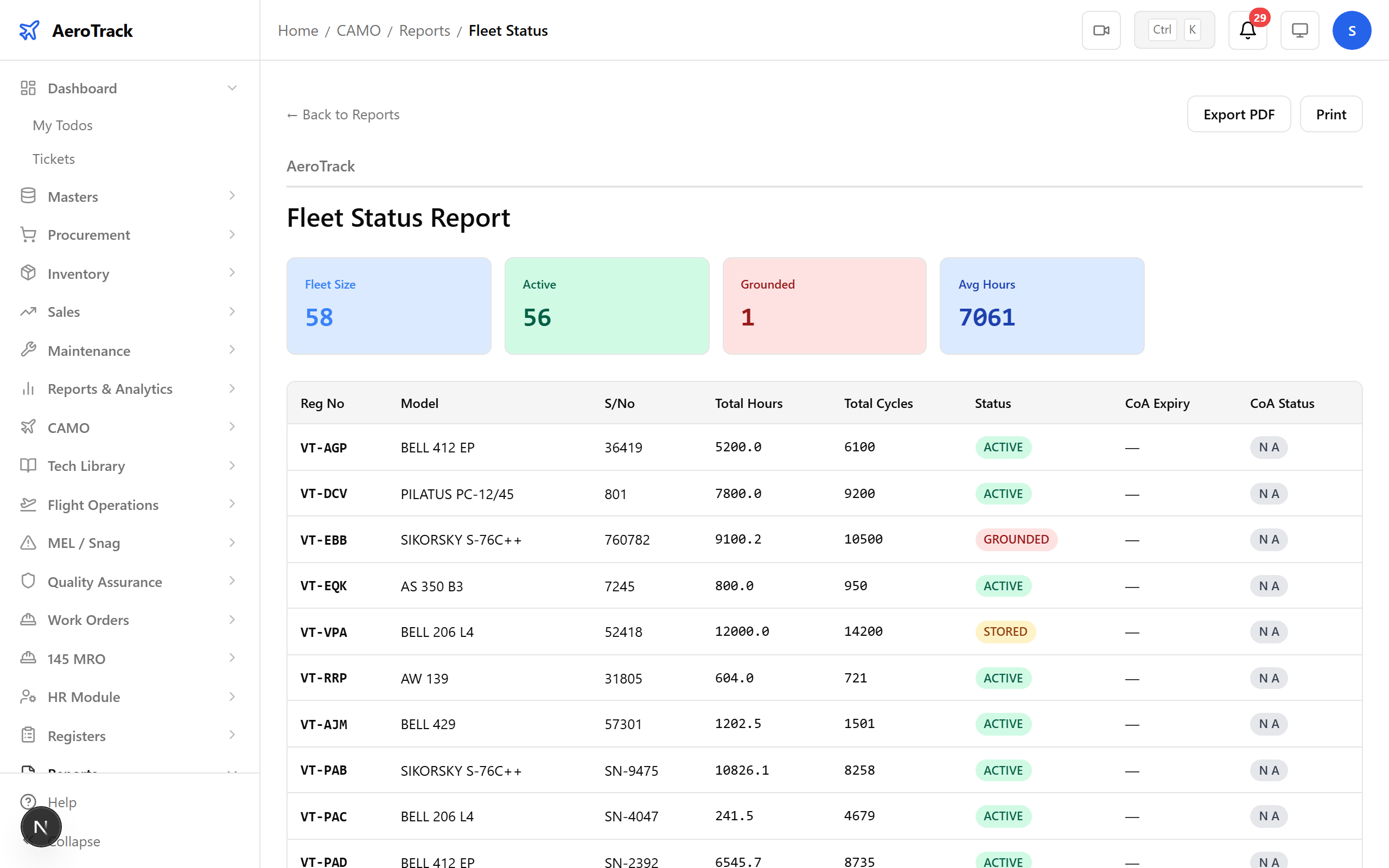
Step 2 — Fleet Status Report
The Fleet Status report is the most commonly used. It shows the current airworthiness status of every aircraft — active, grounded, in-maintenance, or AOG.
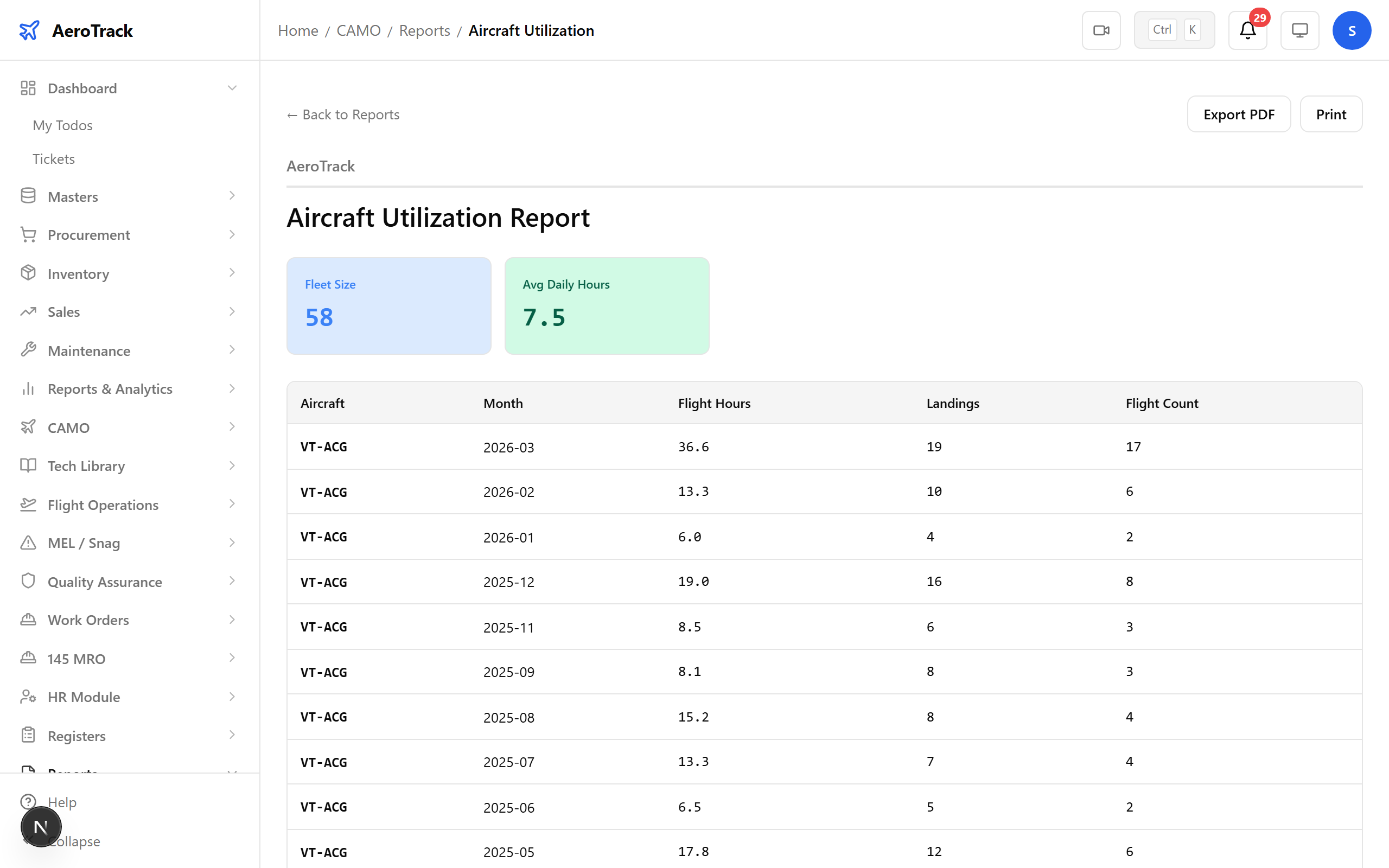
Step 3 — Utilization & Filters
The Aircraft Utilization report shows flight hours and cycles across the fleet. Use the filter panel to narrow by aircraft, date range, and task type.
Tip: Every report supports filters. Narrow your view before exporting to keep PDFs focused.
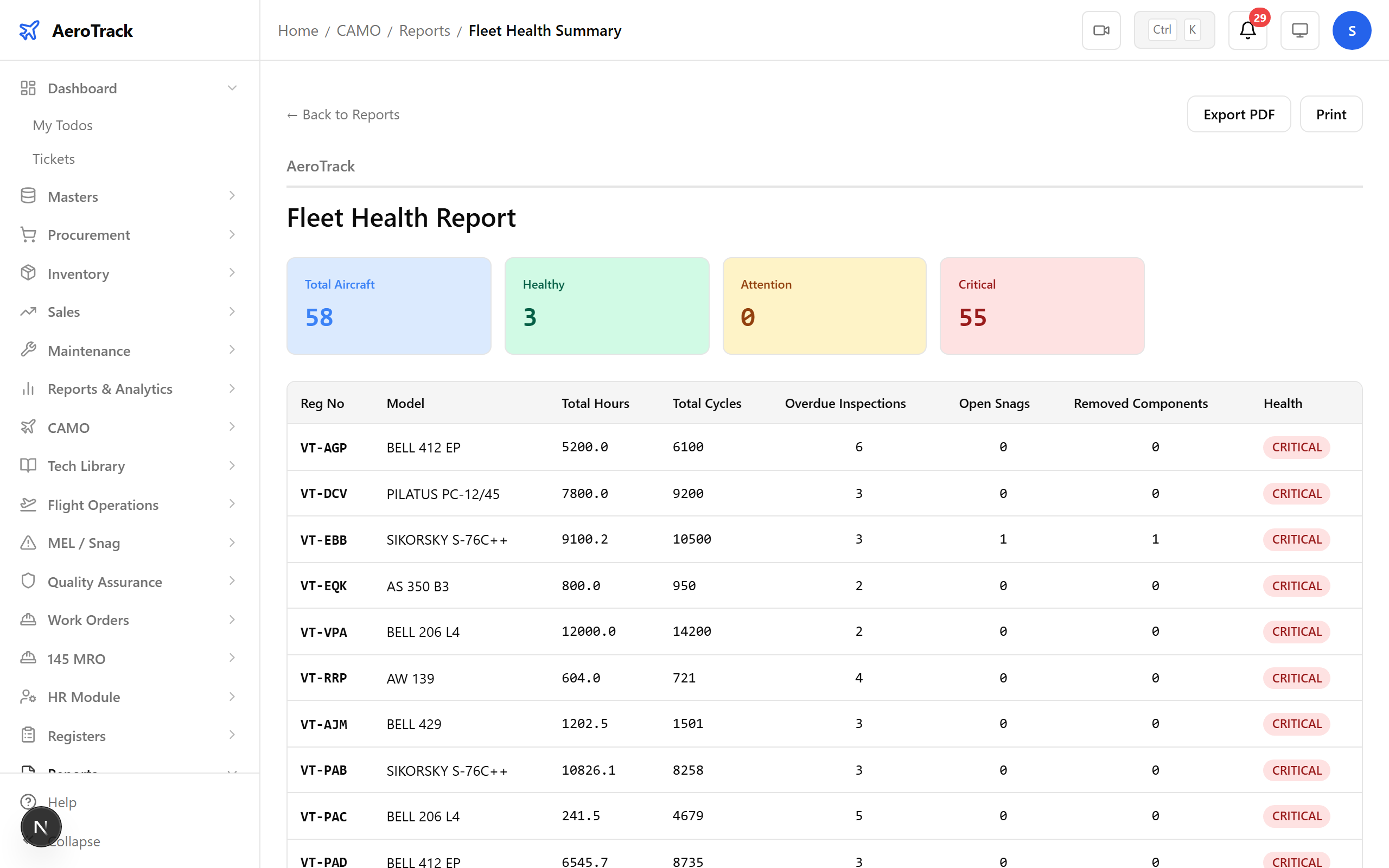
Step 4 — Fleet Health Summary
The Fleet Health summary gives a high-level view of fleet condition — aggregating maintenance status, component health, and upcoming due items into a single report.
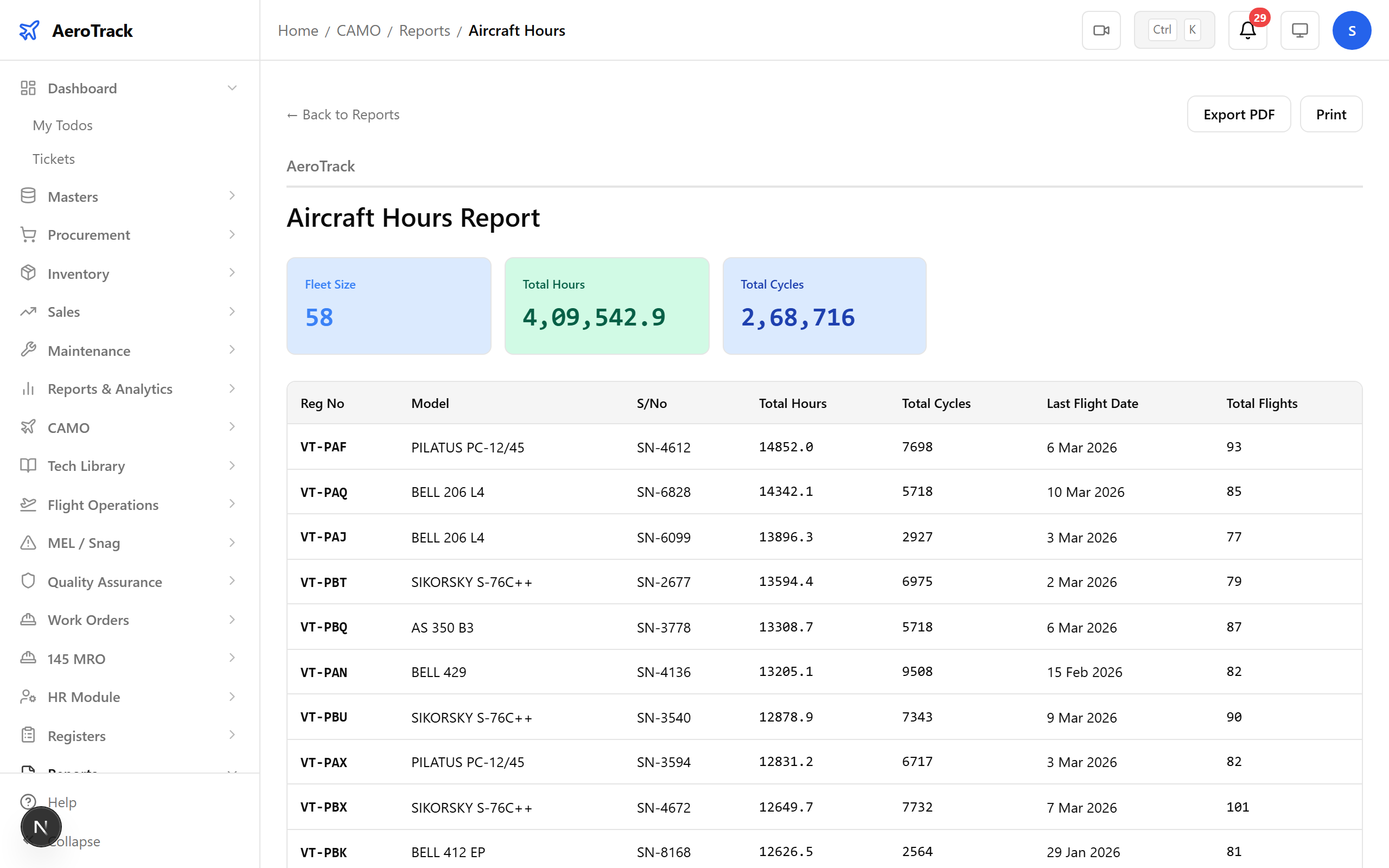
Step 5 — Aircraft Hours & Cycles
The Aircraft Hours report tracks utilisation — total hours, cycles, and landings for each aircraft over a given period.
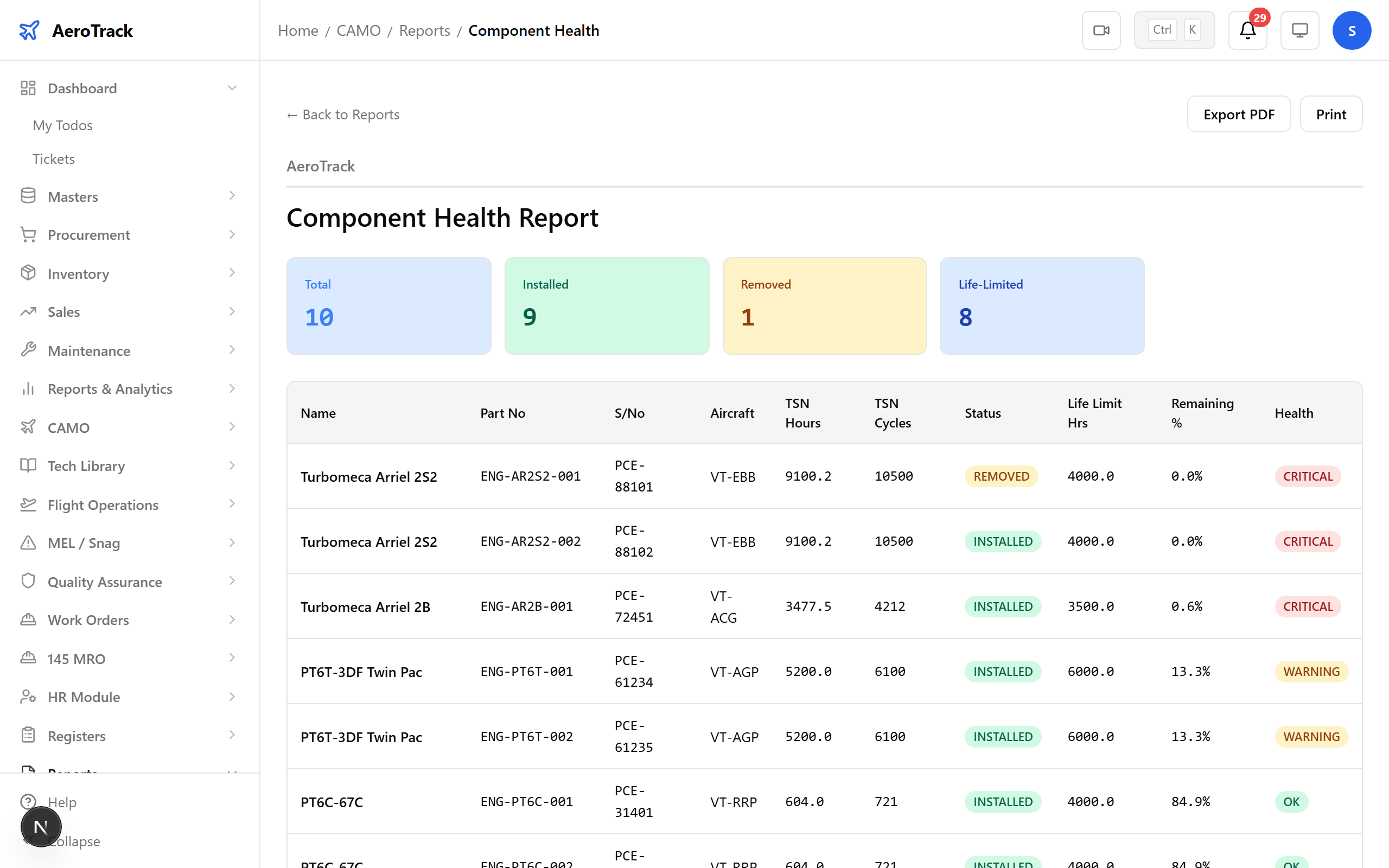
Step 6 — Component Health
The Component Health report shows life remaining, TBO tracking, and installed position for every tracked component in the fleet.
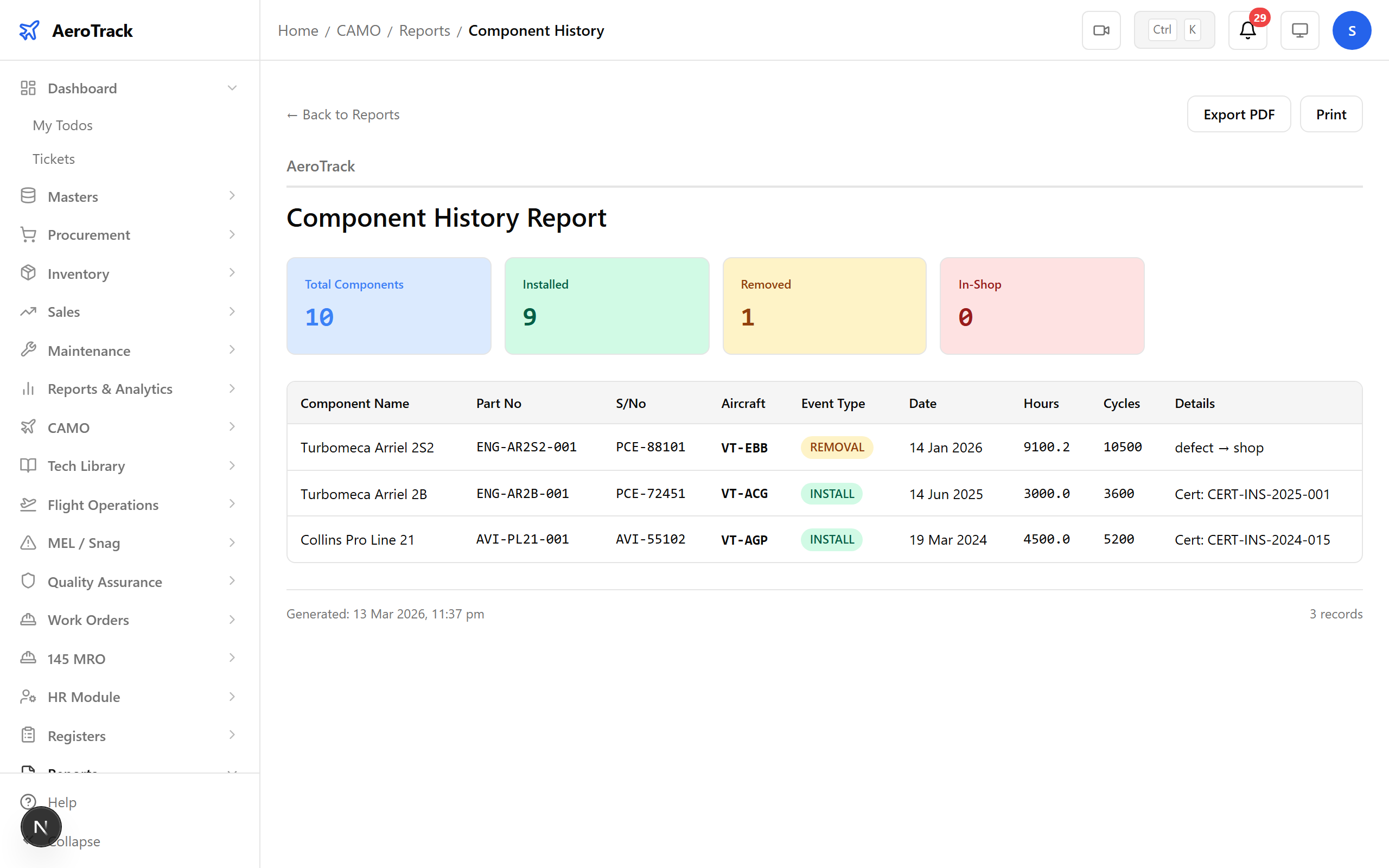
Step 7 — Component History
The Component History report tracks installation, removal, and overhaul events — essential for life-limited and hard-time parts.
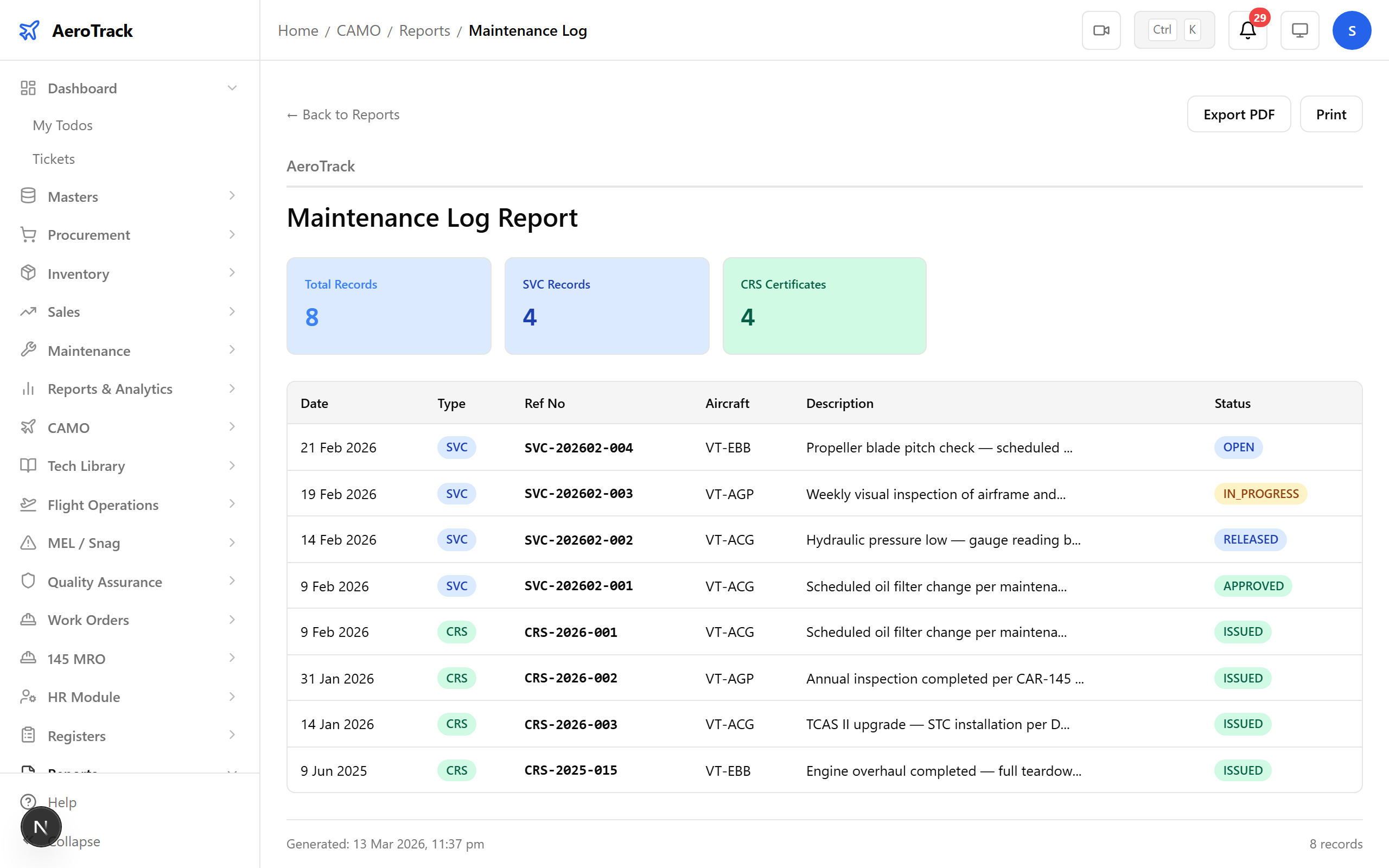
Step 8 — Maintenance Log
The Maintenance Log lists all maintenance actions performed across the fleet — scheduled checks, unscheduled repairs, and component changes.
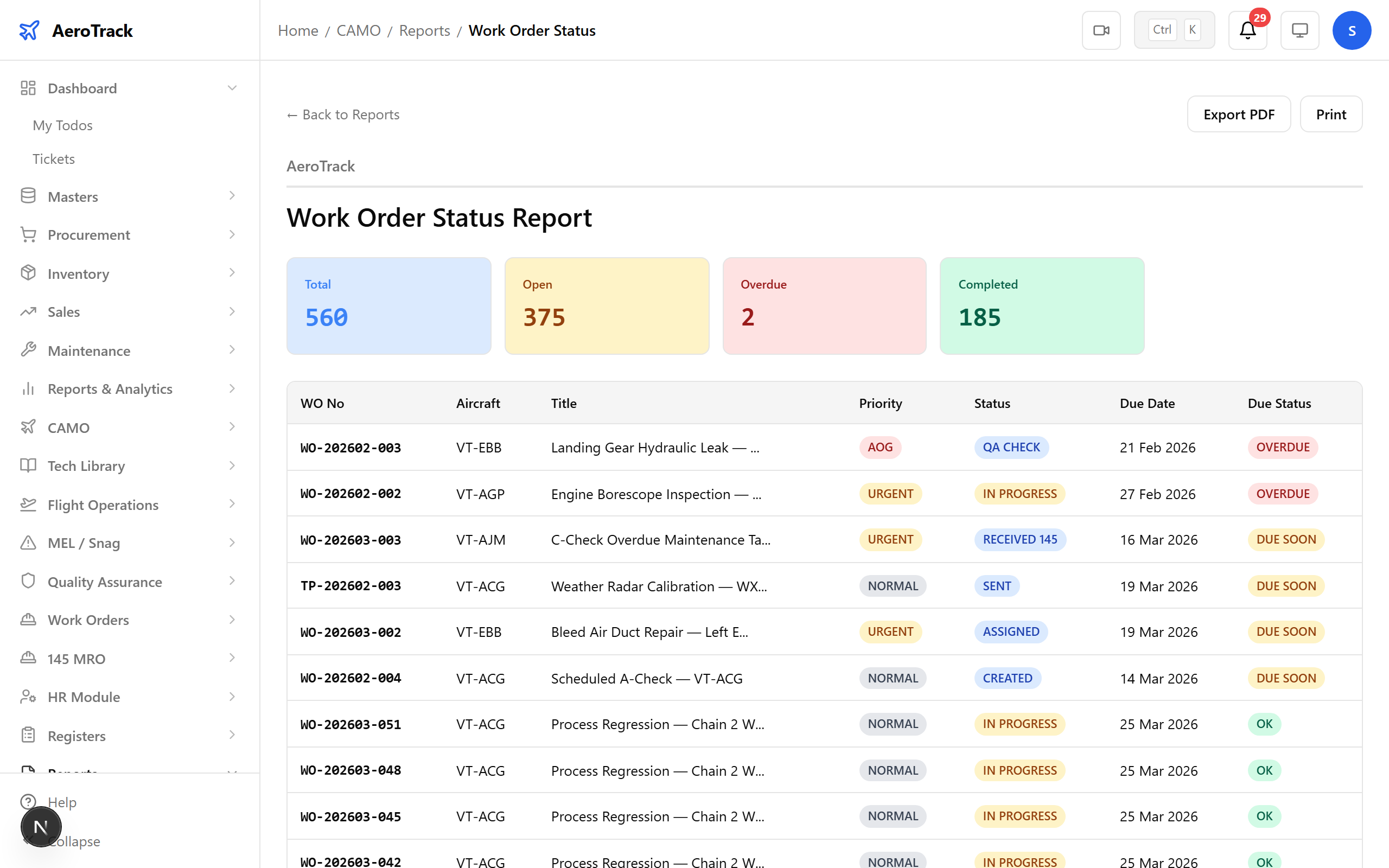
Step 9 — Work Order Status
The WO Status report shows open, in-progress, and completed work orders by period — giving a clear picture of maintenance throughput.
Step 10 — AD/SB Compliance
The AD/SB Compliance report tracks Airworthiness Directive and Service Bulletin status — which are complied, which are pending, and which are due.
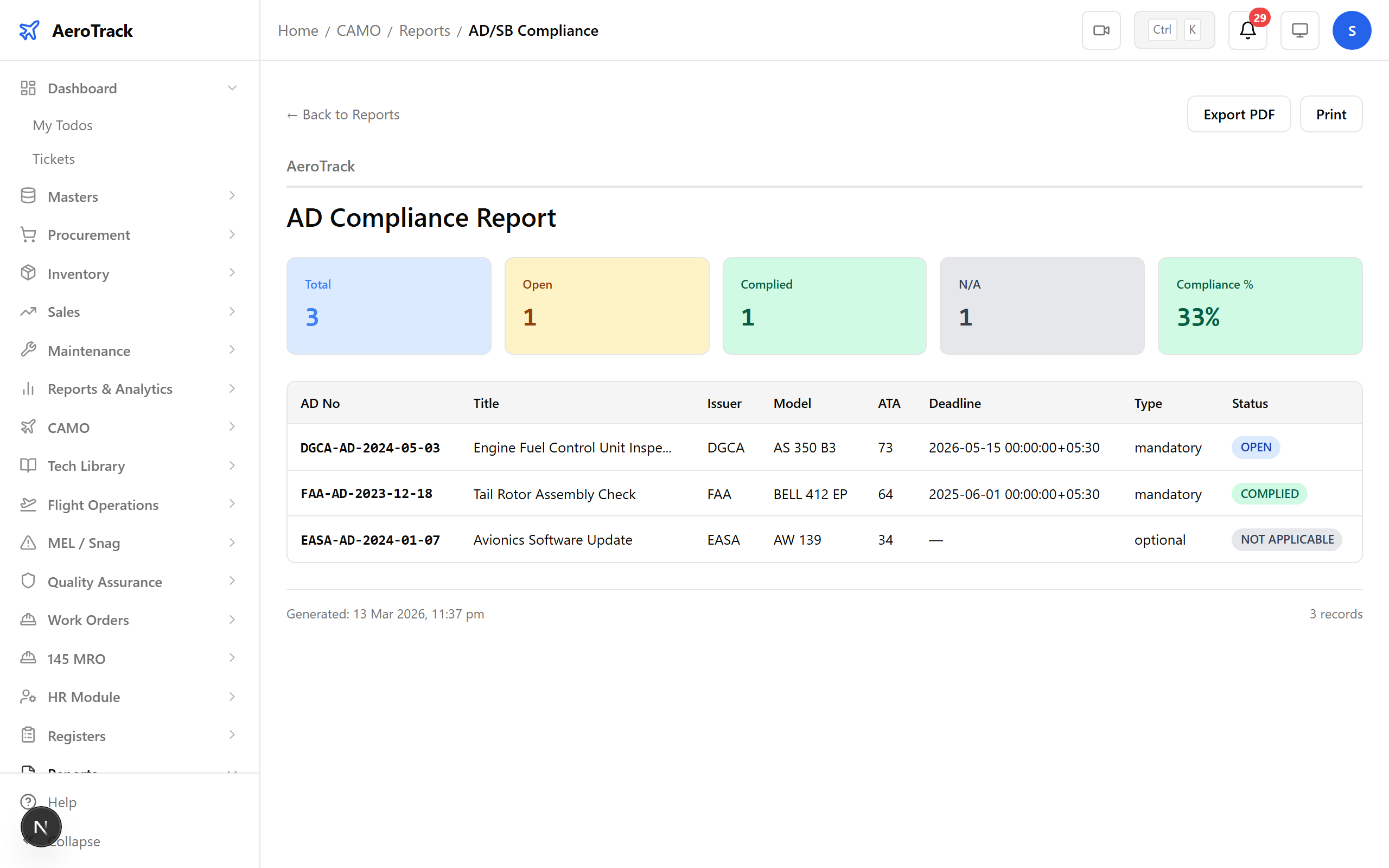
Regulatory note: This is a critical report for DGCA audits. Export it regularly and keep it in your compliance file.
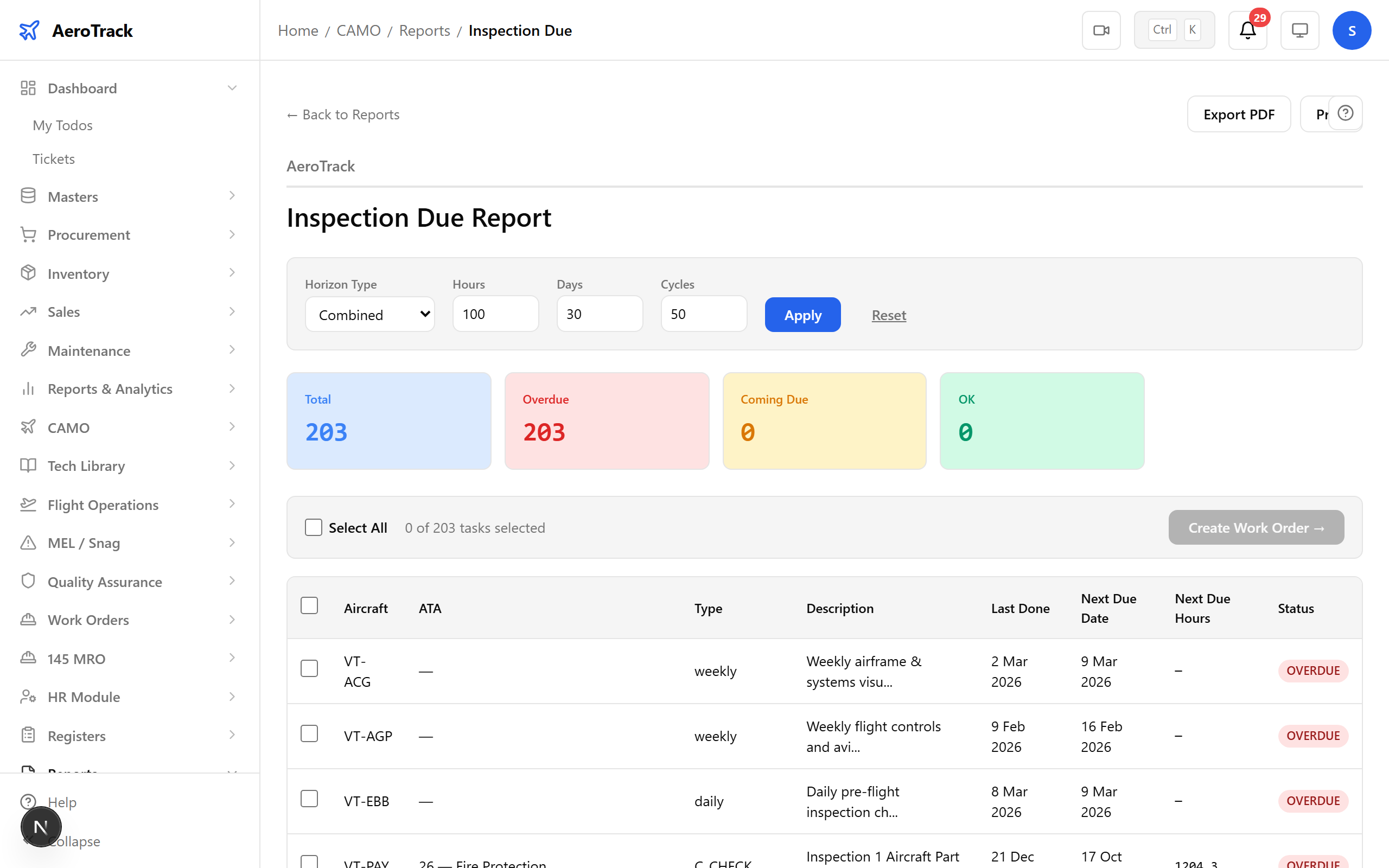
Step 11 — Inspection Due
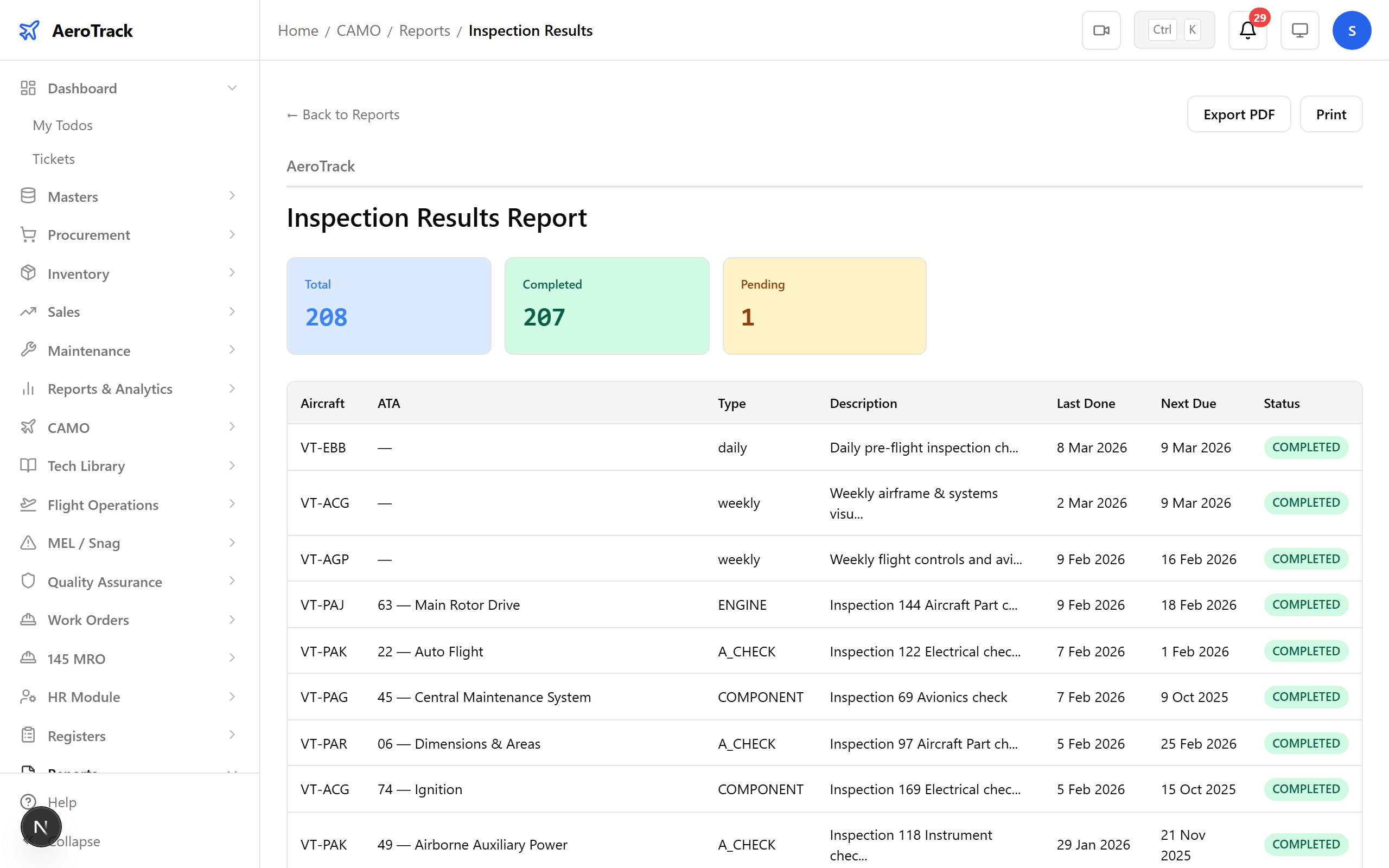
The Inspection Due report lists all inspections approaching their due date — based on hours, cycles, or calendar time.
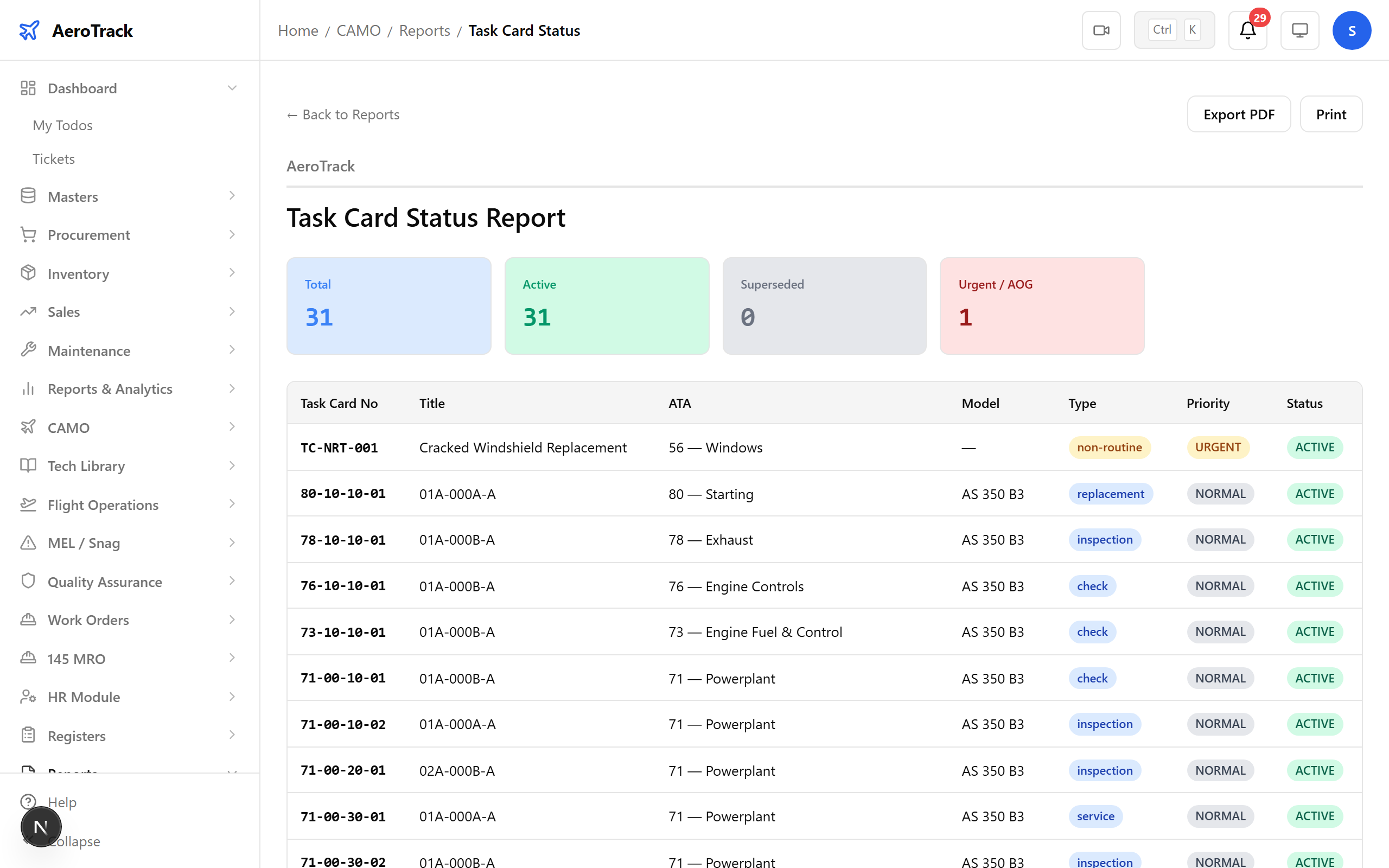
Step 12 — Task Card Status
The Task Card Status report shows individual task completion status across the AMP — which tasks are done, which are pending, and when each is next due.
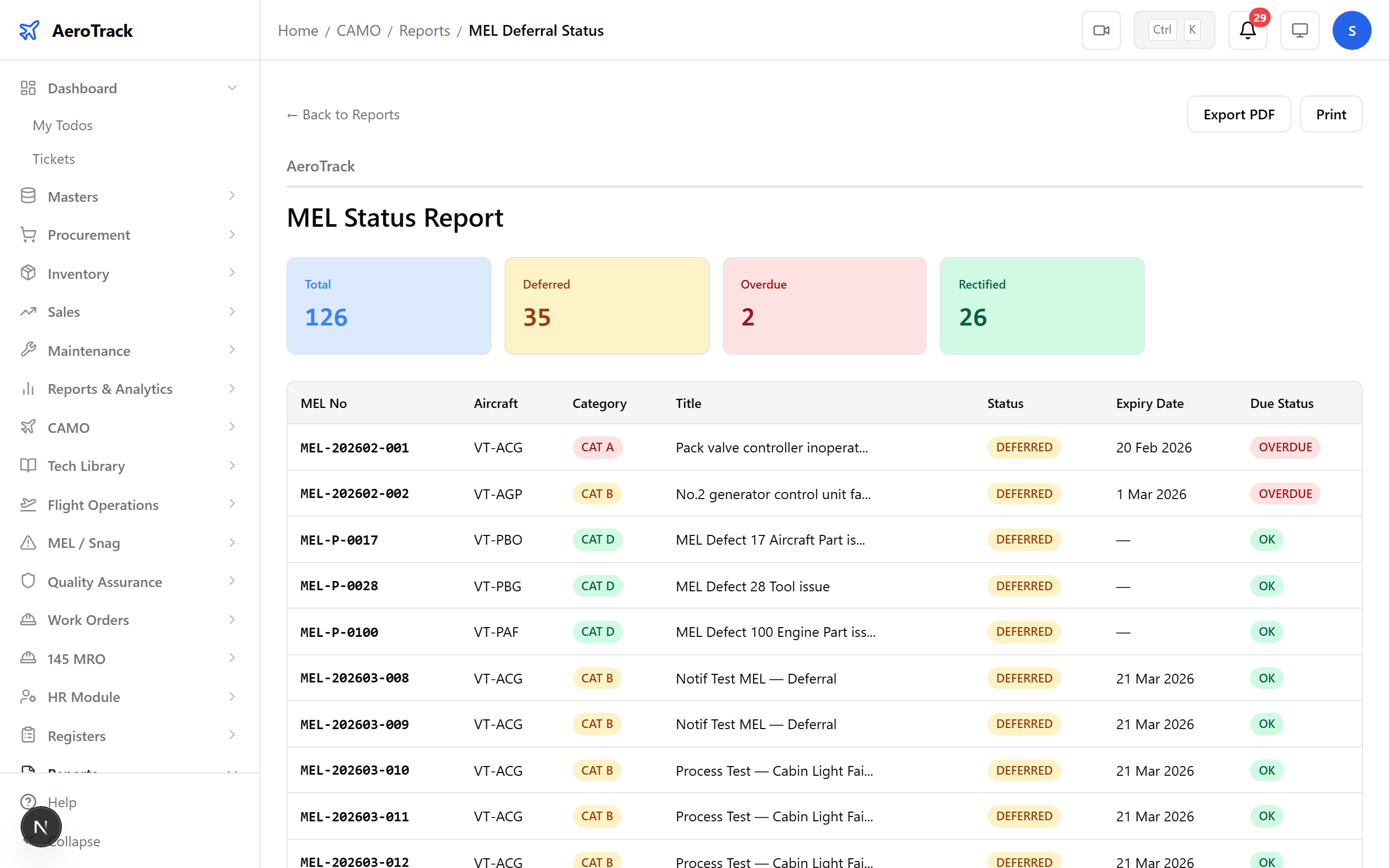
Step 13 — MEL Status
The MEL Status report tracks all open, deferred, and closed Minimum Equipment List items with deadline tracking and category classification.
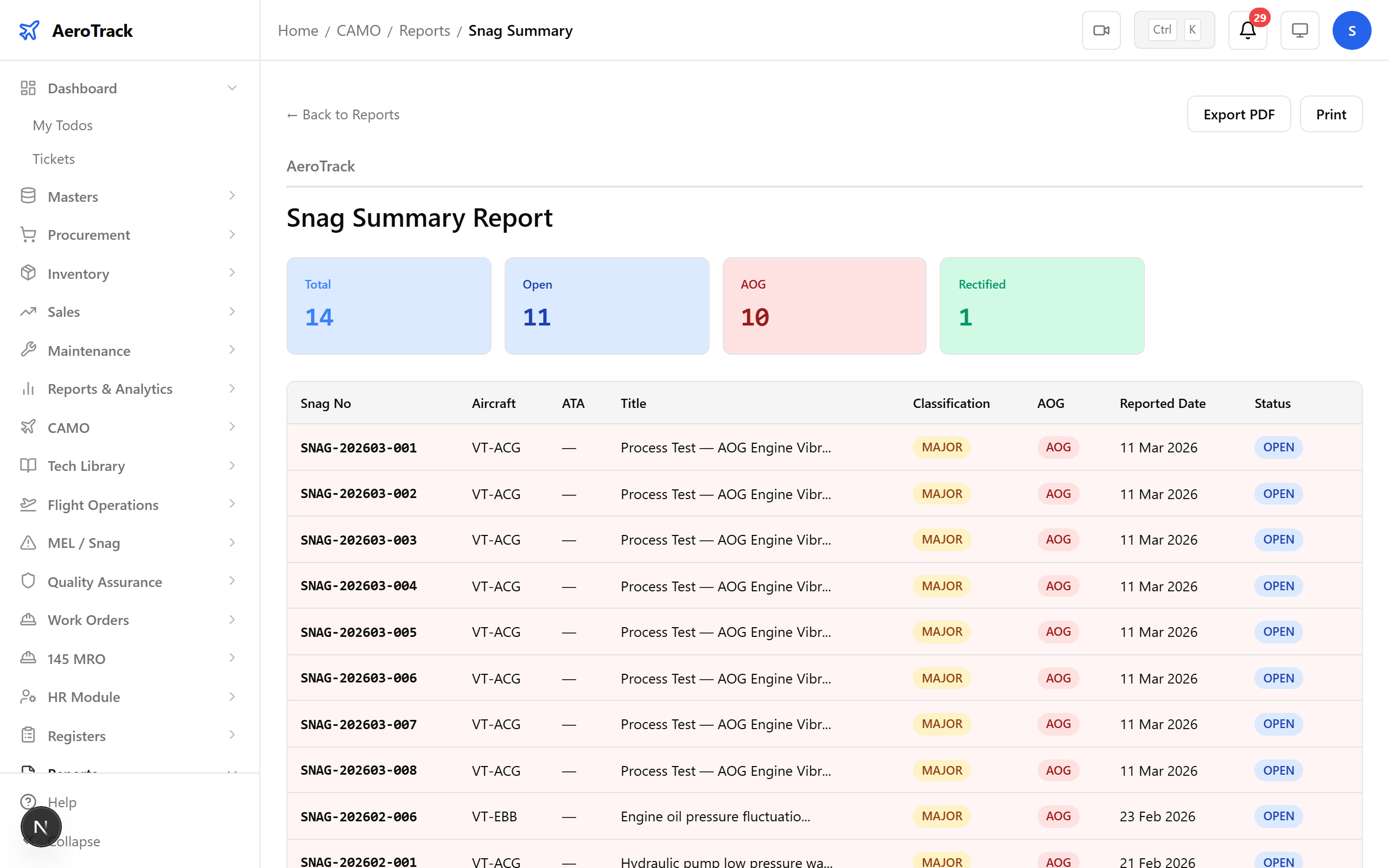
Step 14 — Snag/Defect Summary
The Snag Summary report shows defect trends, repeat defects, and resolution times — helping identify reliability issues before they become safety concerns.
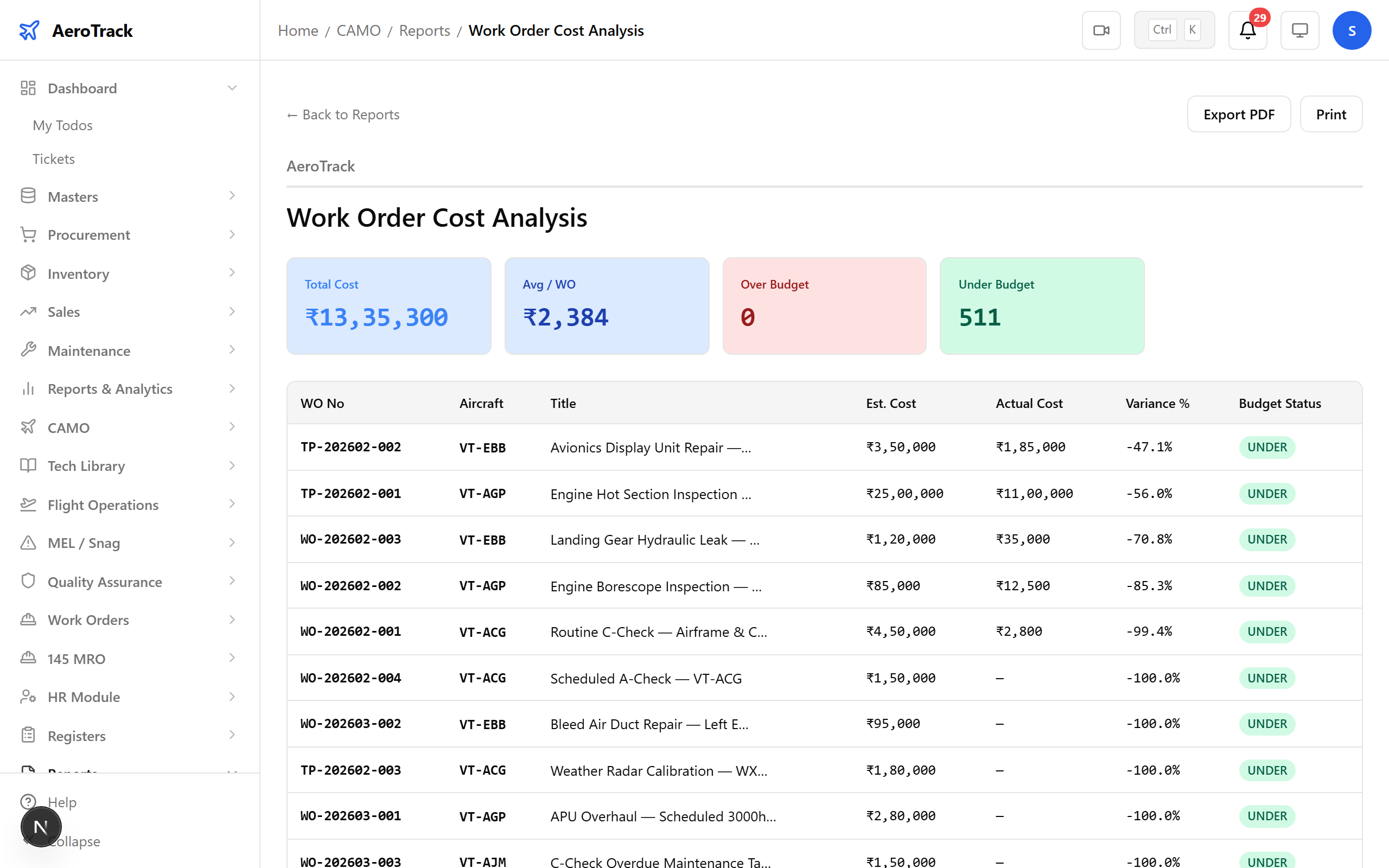
Step 15 — WO Cost Analysis
The WO Cost Analysis report breaks down maintenance spending by work order, aircraft, and cost category — giving the CAMO office visibility into procurement costs.
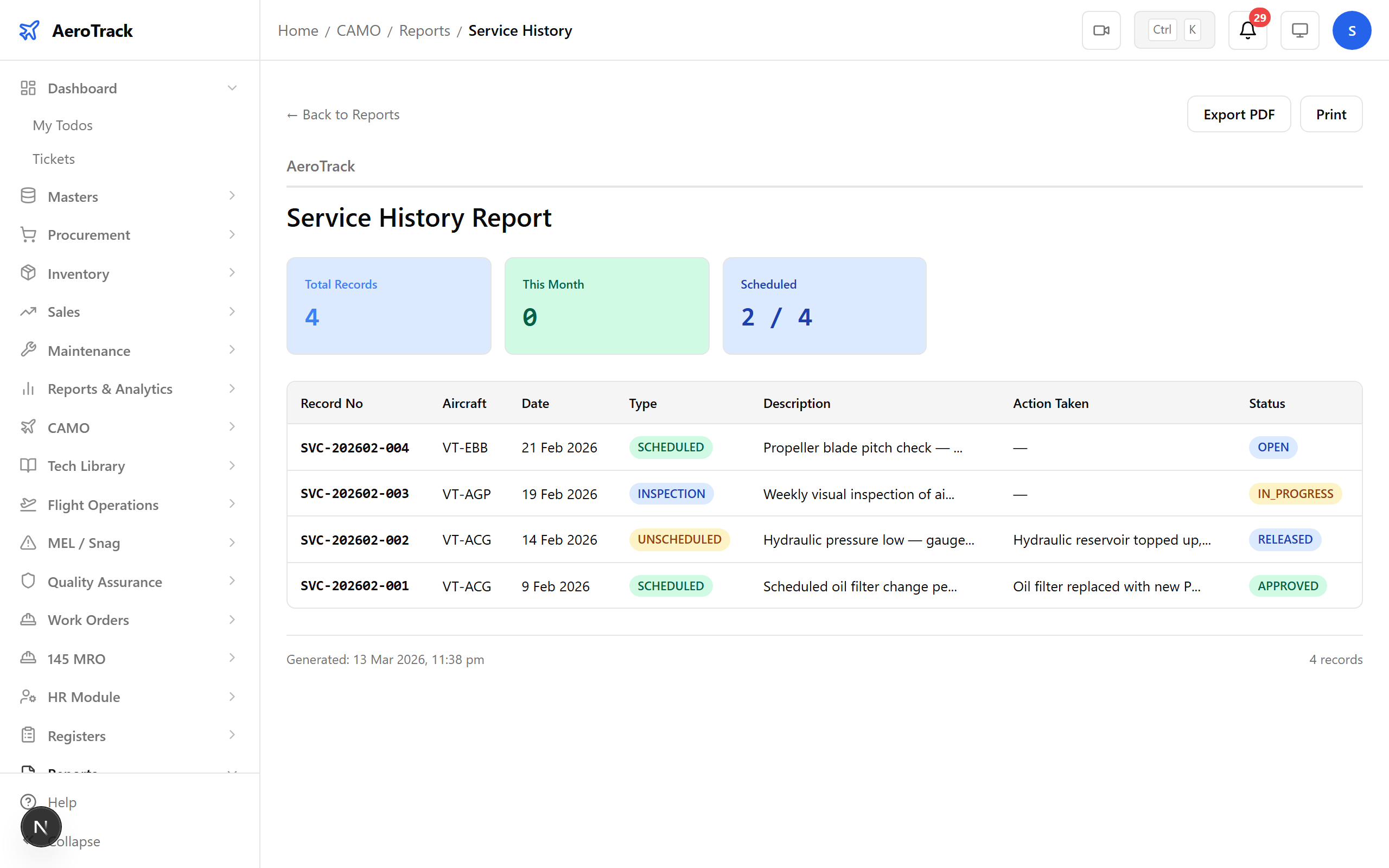
Step 16 — Service History
The Service History report shows a complete record of services performed — useful for tracking part consumption, movement history, and reorder triggers.
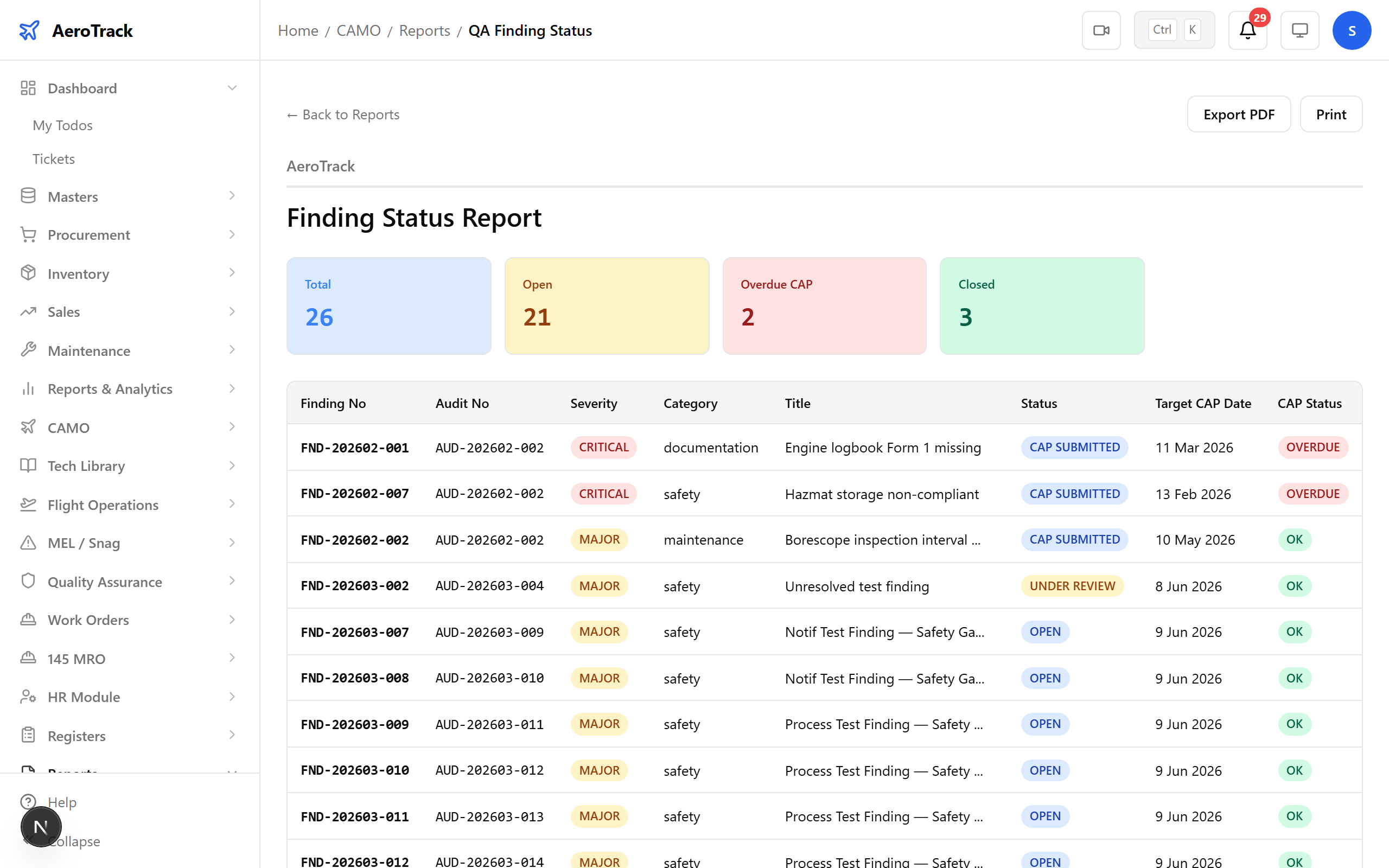
Step 17 — Finding Status
The Finding Status report lists all QA findings, CAP status, and compliance trends from internal and external audits.
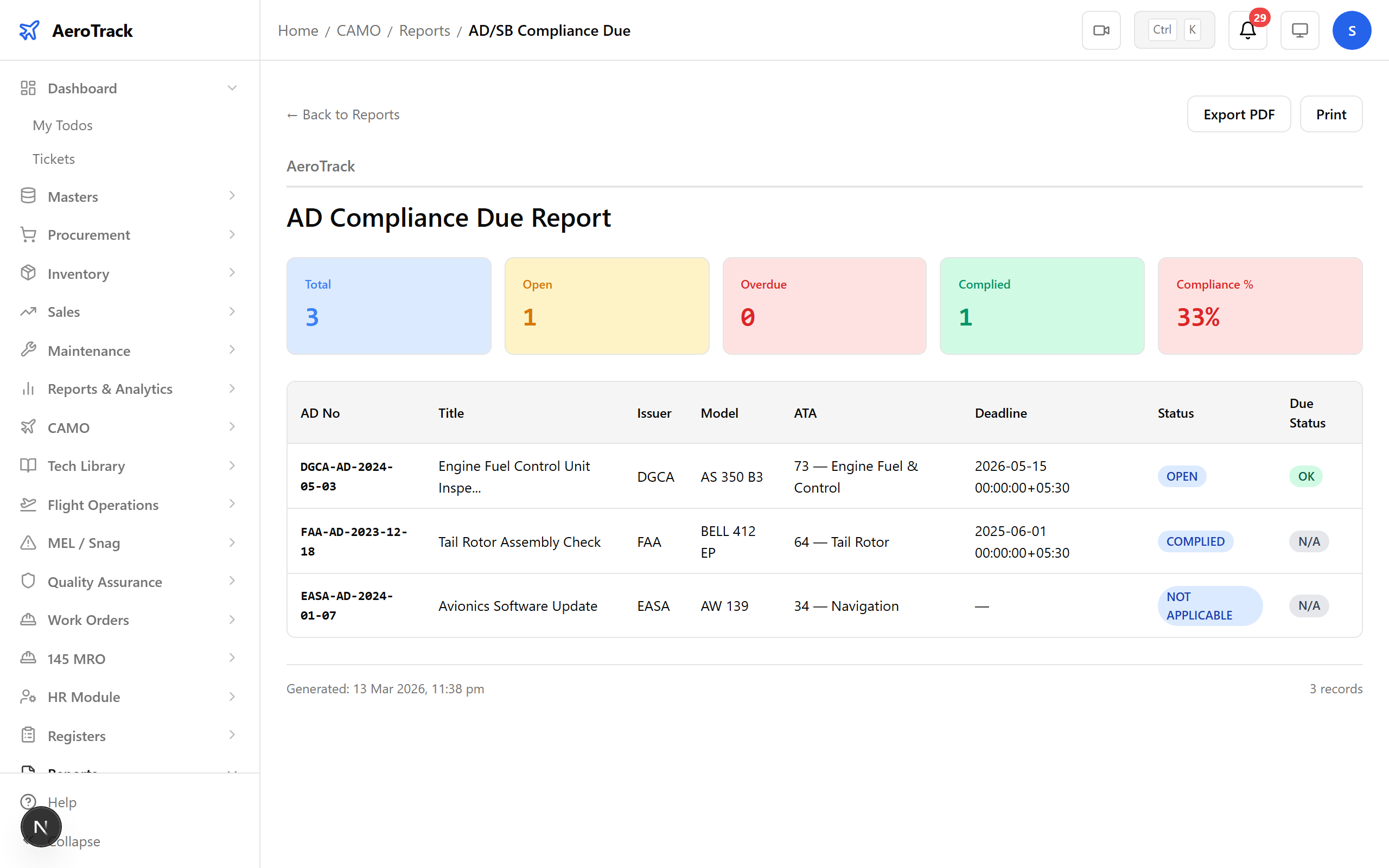
Step 18 — AD Compliance Due
The AD Compliance Due report focuses specifically on directives approaching their compliance deadline — a must-have for pre-audit preparation.
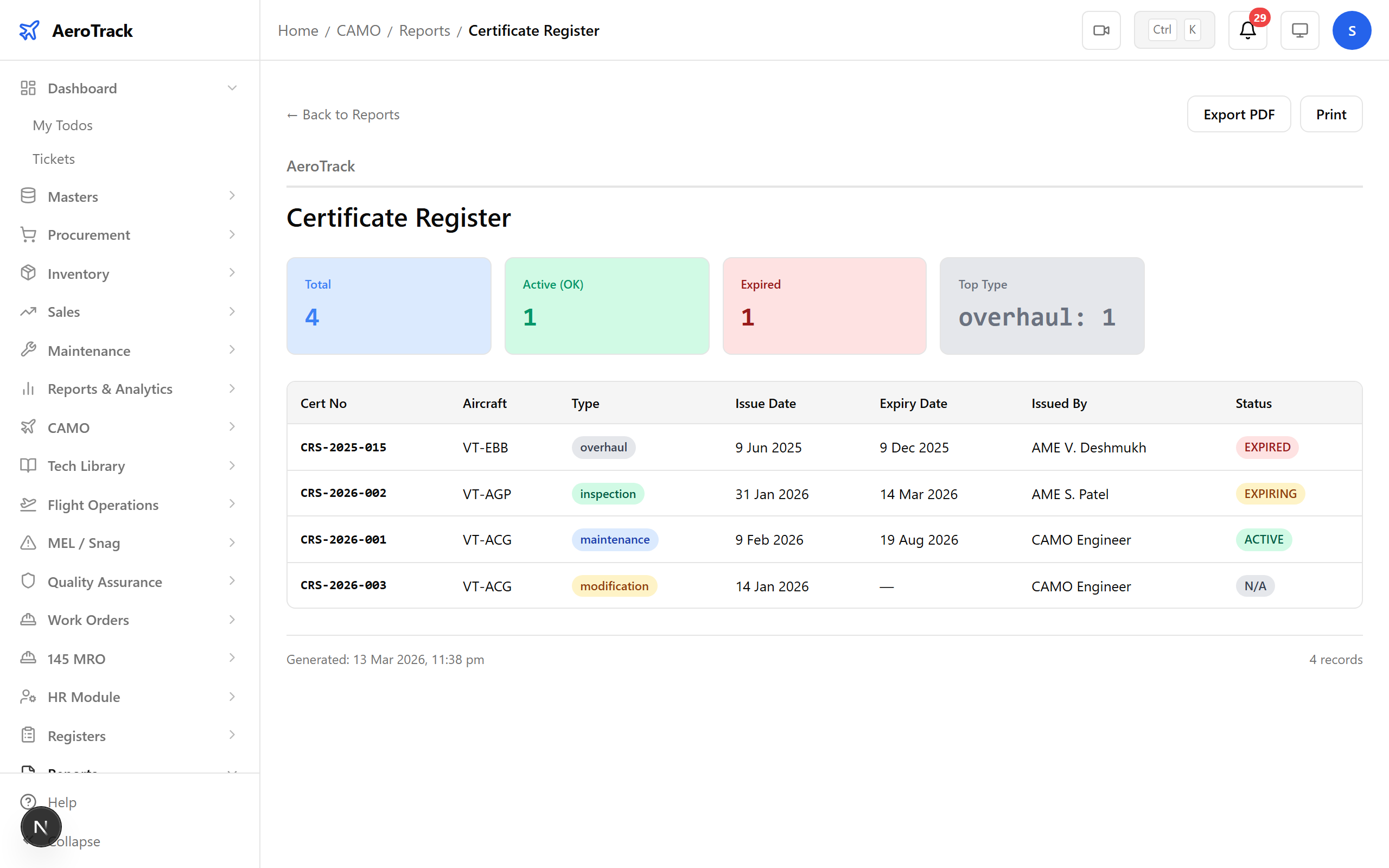
Step 19 — Certificate Register
The Certificate Register tracks type certificates, CofAs, and regulatory documentation status across the fleet.
Step 20 — Filter Controls
Every report supports filters. Narrow by aircraft registration, date range, status, task type, or component — then generate the report to see only what matters.
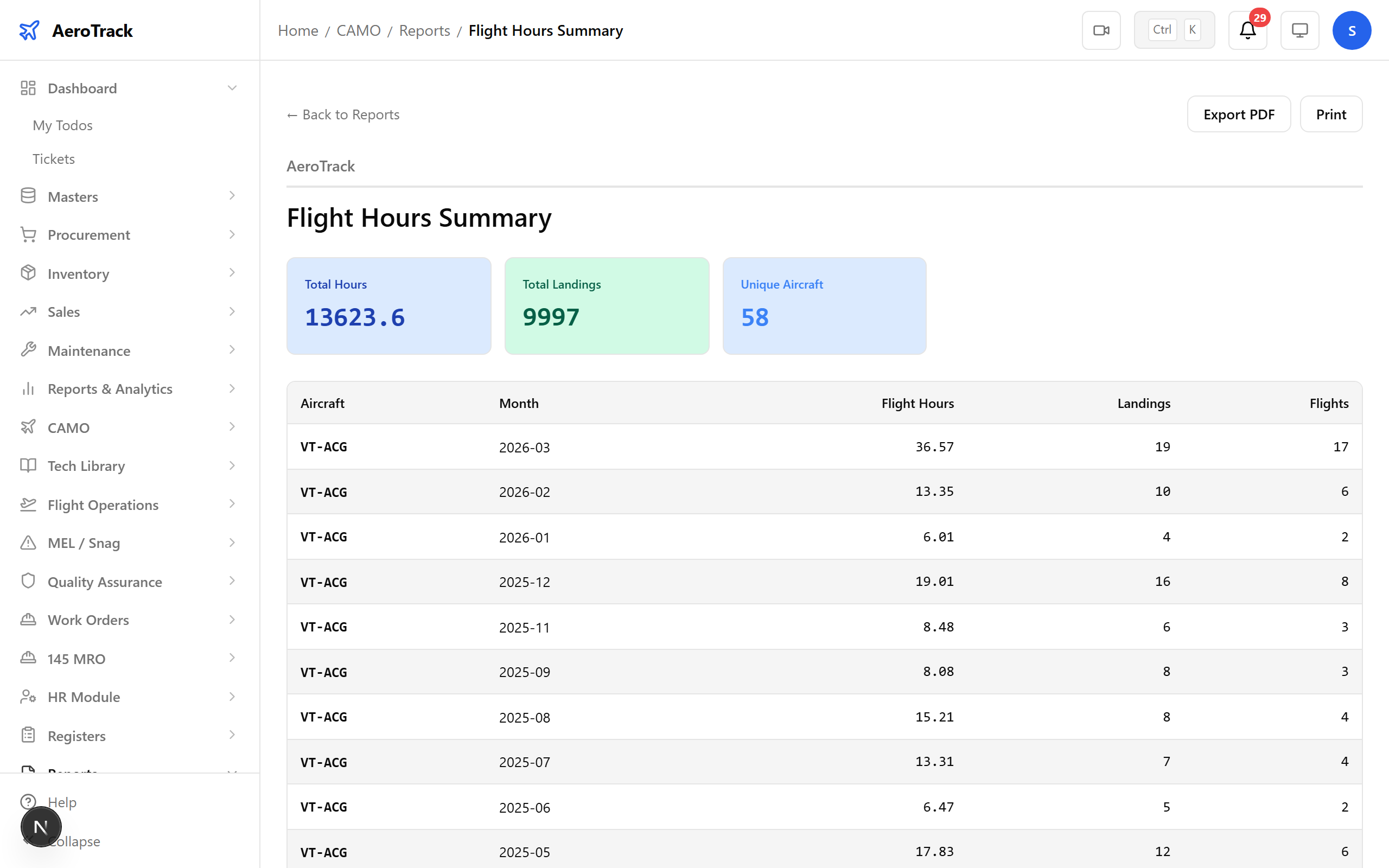
Step 21 — PDF Export
Click Export or PDF on any report to download it for regulatory submission, offline review, or filing.
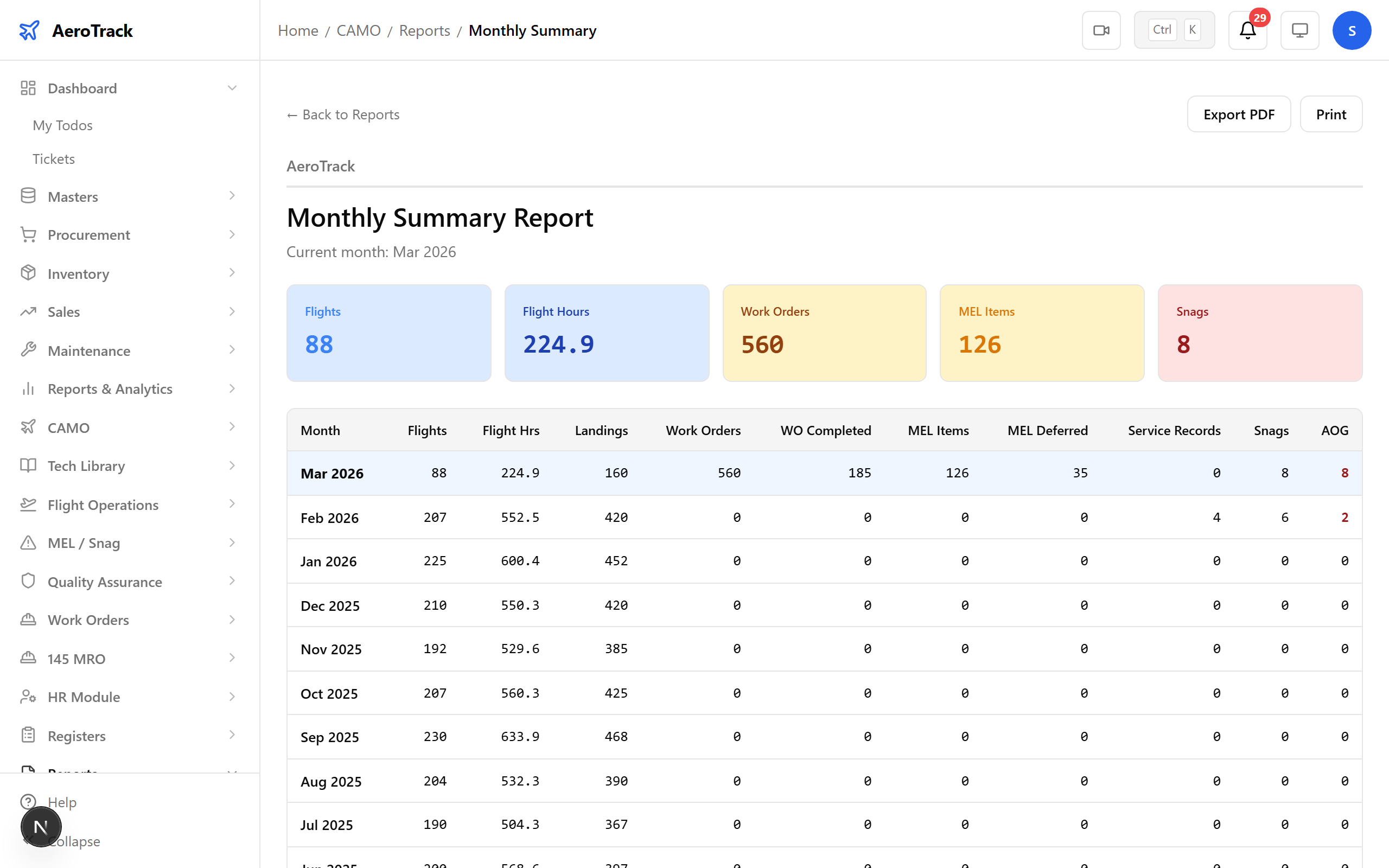
Tip: Apply filters first, then export. The PDF includes only the filtered data, keeping your documents focused.
Step 22 — Print-Ready View
Reports are formatted for print — clean layouts, proper headers, and regulatory-friendly formatting designed for filing.
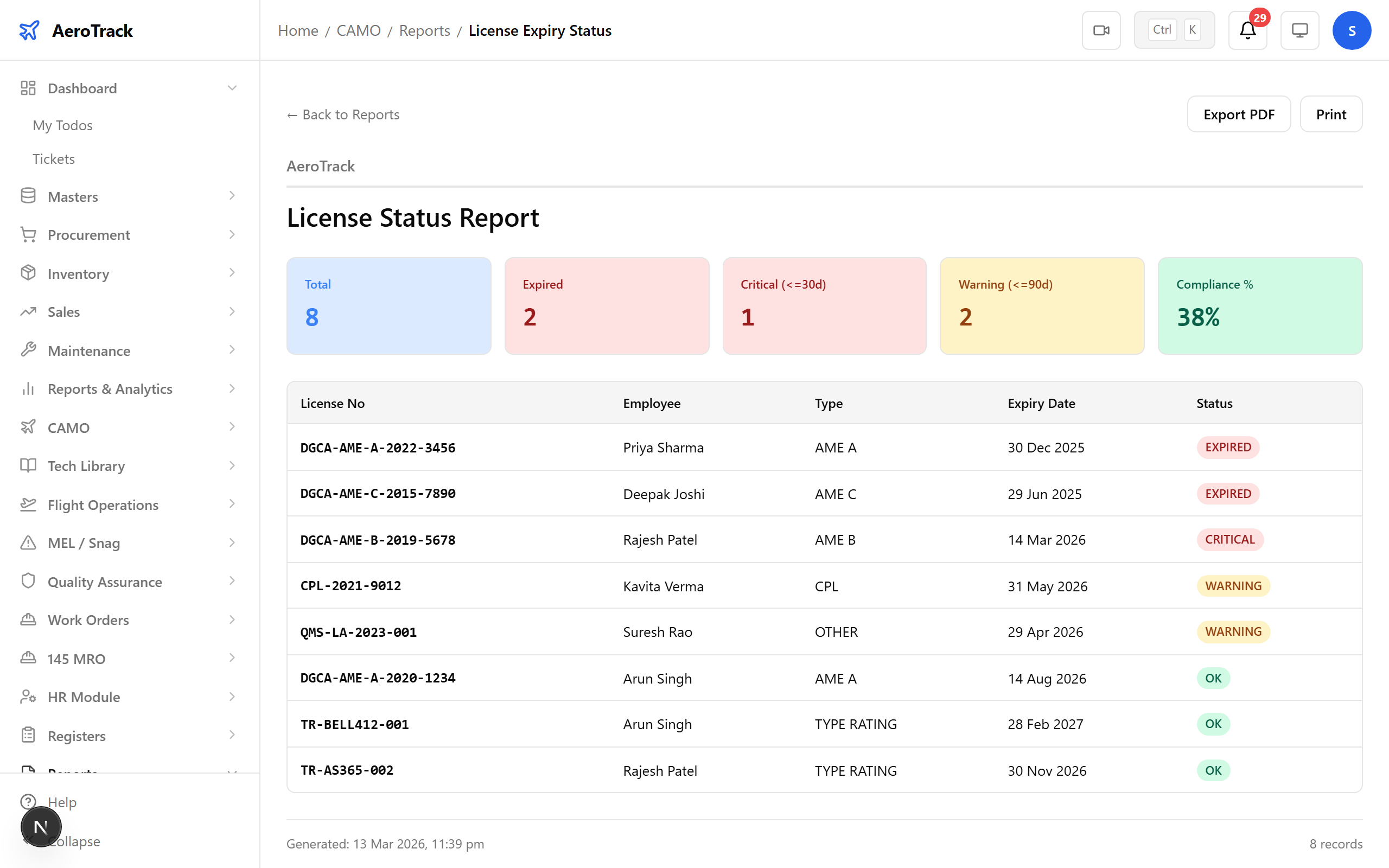
Step 23 — HR & Licensing Reports
The License Status report tracks all personnel licenses, ratings, and expiry dates — one of 7 HR-related reports available (including training status, qualifications, and employee roster).
Step 24 — Flight Ops Reports
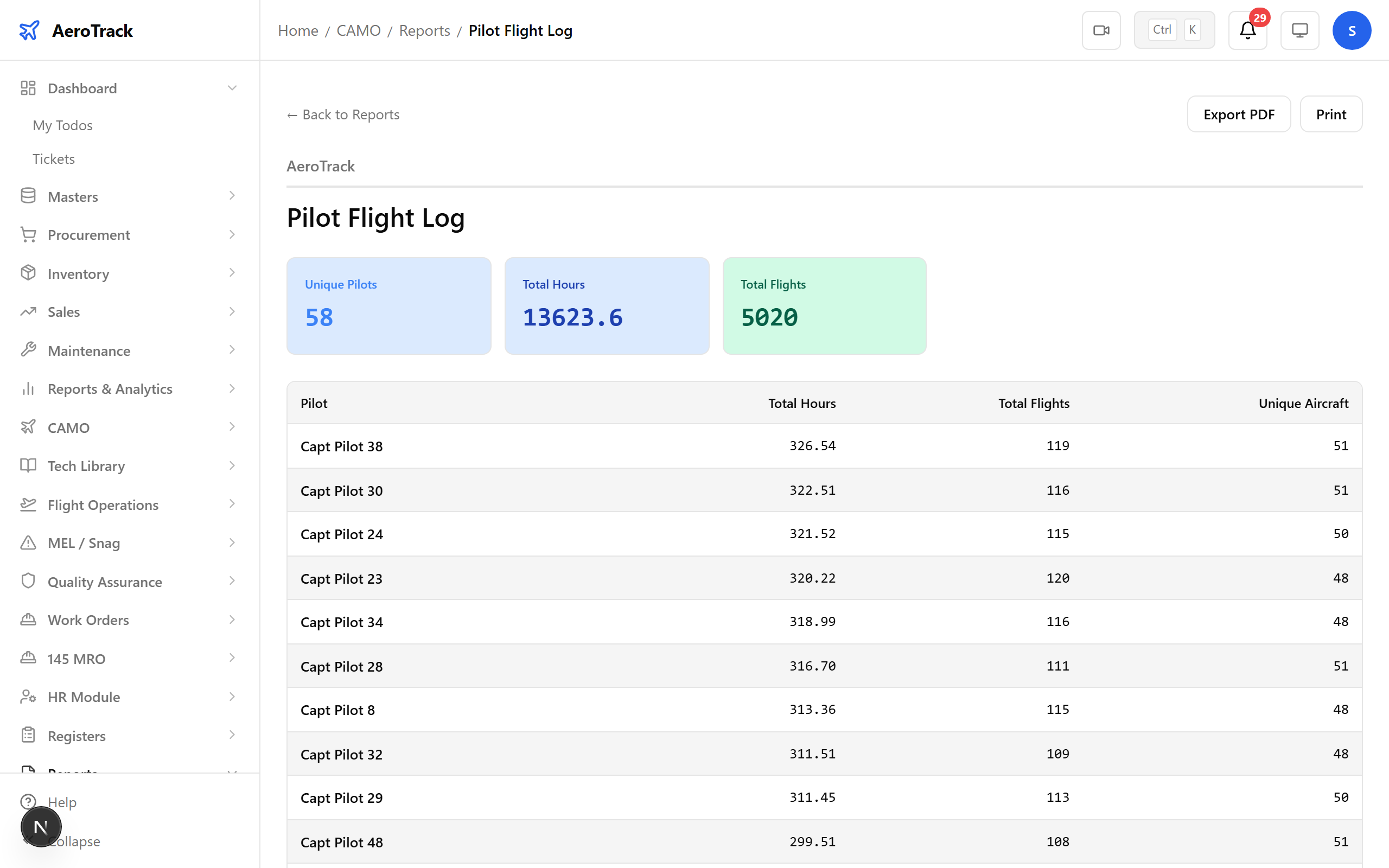
The Pilot Flight Log report tracks flight data by pilot — one of 5 Flight Ops reports covering hours, fuel consumption, and monthly summaries.
Step 25 — Reports Complete
That covers all 9 categories across 39 CAMO reports. From fleet status to regulatory compliance, every report your CAMO office needs is accessible from one hub — filterable, exportable, and always up to date.