Generate PDF
1
Open Work Order
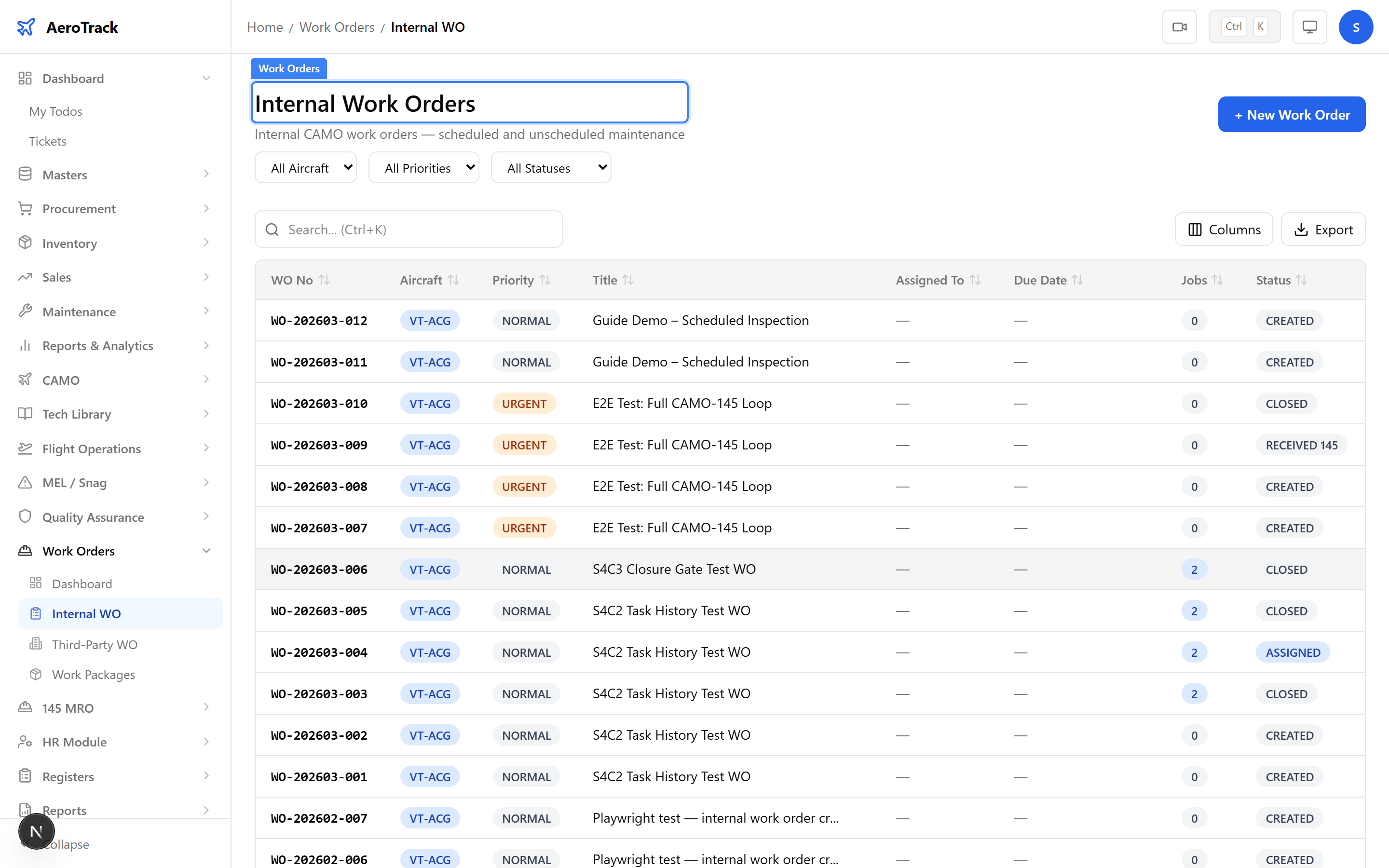
Navigate to any work order detail page at
/work-orders/internal/{id}. The PDF button is
available at any workflow stage — you can generate a PDF
even while the WO is still in progress.
2
Click Generate PDF
Click the PDF button in the work order header. The system renders a print-optimised layout and triggers a browser download of the PDF file.
The PDF uses the
html2pdf.js library for client-side generation. No server round-trip is required — the PDF is created instantly in your browser.PDF Contents
3
Header Section
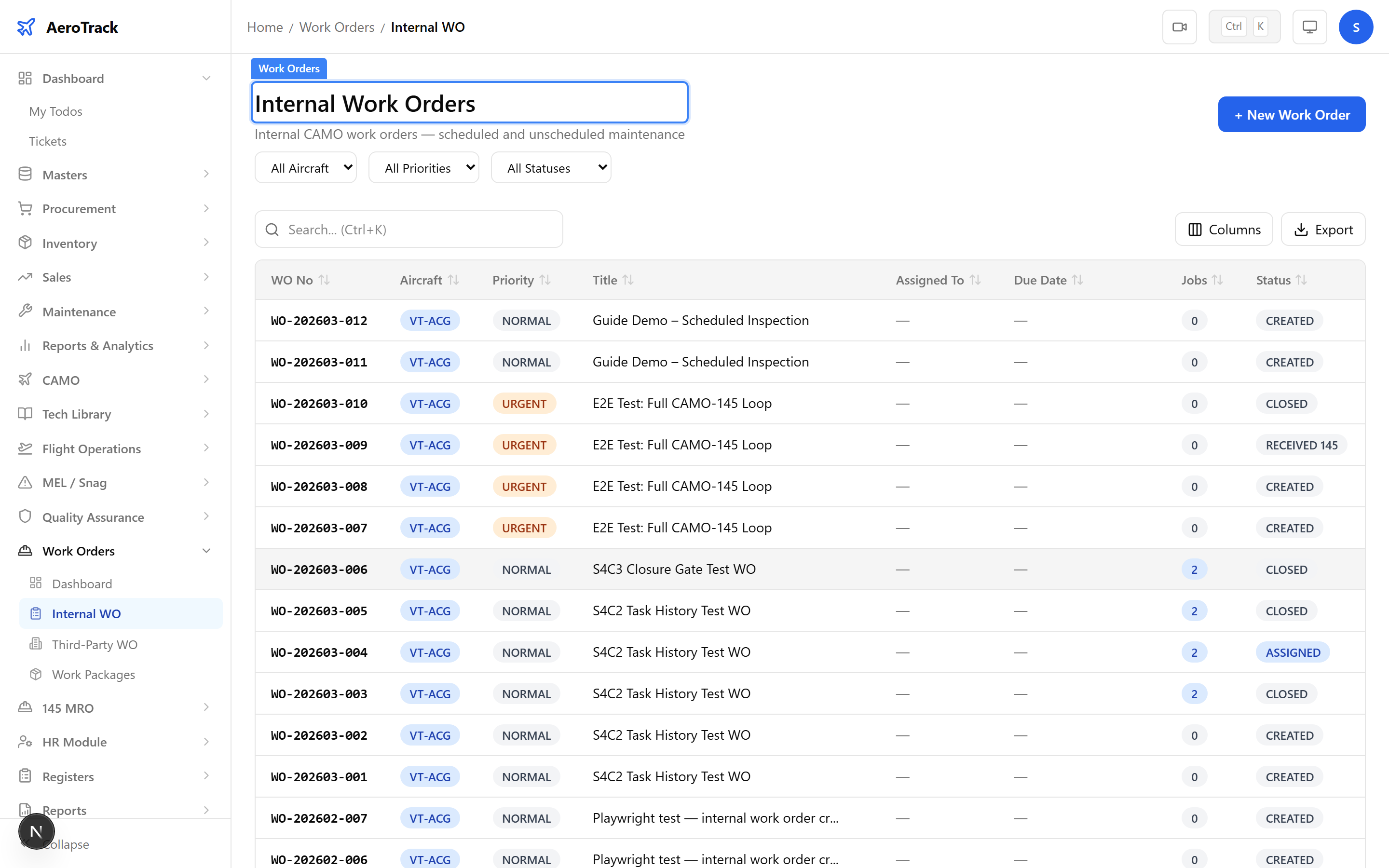
The PDF header includes your organisation’s branding and the work order summary:
| Field | Source |
|---|---|
| Organisation Name | From Organisation Settings. |
| WO Number | Auto-generated reference. |
| Aircraft | Registration mark. |
| Title | Work order description. |
| Priority | Normal / Urgent / AOG. |
| Status | Current workflow state. |
| Due Date | Target completion date. |
4
Jobs & Materials
The PDF body contains two tables:
| Section | Contents |
|---|---|
| Jobs | Job number, description, task card reference, status, and sign-off fields. |
| Materials | Part number, description, quantity, unit cost, and line total. |
The materials table includes a running total at the bottom. This matches the cost tracking in the online Work Order Materials view.
5
Sign-Off Section
The PDF footer includes a sign-off block with spaces for:
| Field | Purpose |
|---|---|
| Performed By | Name and licence number of the engineer who performed the work. |
| Inspected By | QA inspector who verified the work. |
| Approved By | CAMO engineer or manager who authorised the release. |
| Date | Date of each signature. |
The PDF is a record document. For DGCA compliance, ensure the physical copy is signed by licensed AME personnel and filed with the aircraft technical records.