Work Order Overview
1
Open a Work Order
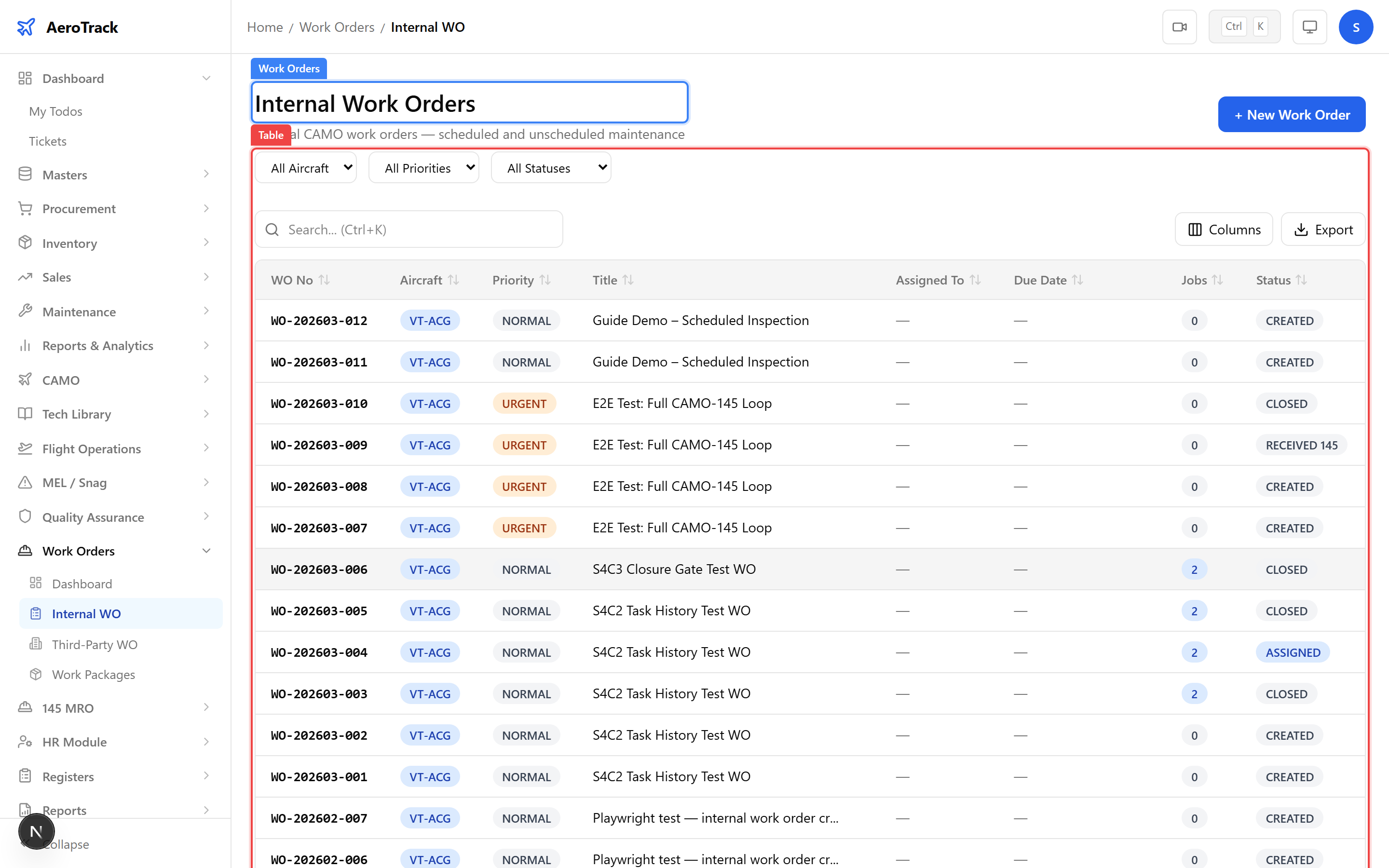
Click any work order row in the Work Order List
or navigate directly to /work-orders/internal/{id}.
The detail page shows the complete work order with header, jobs,
materials, and workflow action buttons.
2
Header & Workflow
| Field | Description |
|---|---|
| WO Number | Auto-generated work order reference. |
| Aircraft | Registration of the aircraft this WO applies to. |
| Title | Brief description of the maintenance work. |
| Priority | Normal, Urgent, or AOG (Aircraft on Ground). |
| Status | Current workflow state (Created, Assigned, In Progress, QA Check, Completed, Closed). |
| Due Date | Target completion date. |
| Assigned To | Engineer or team responsible for execution. |
| Estimated Hours | Planned labour hours. |
| Estimated Cost | Planned cost for the work order. |
The status badge is colour-coded: blue for Created/Assigned, amber for In Progress, green for Completed/Closed, and red for Cancelled.
Jobs Section
3
Job Cards
The Jobs section lists individual task cards associated with this work order. Each job has its own status and can be signed off independently.
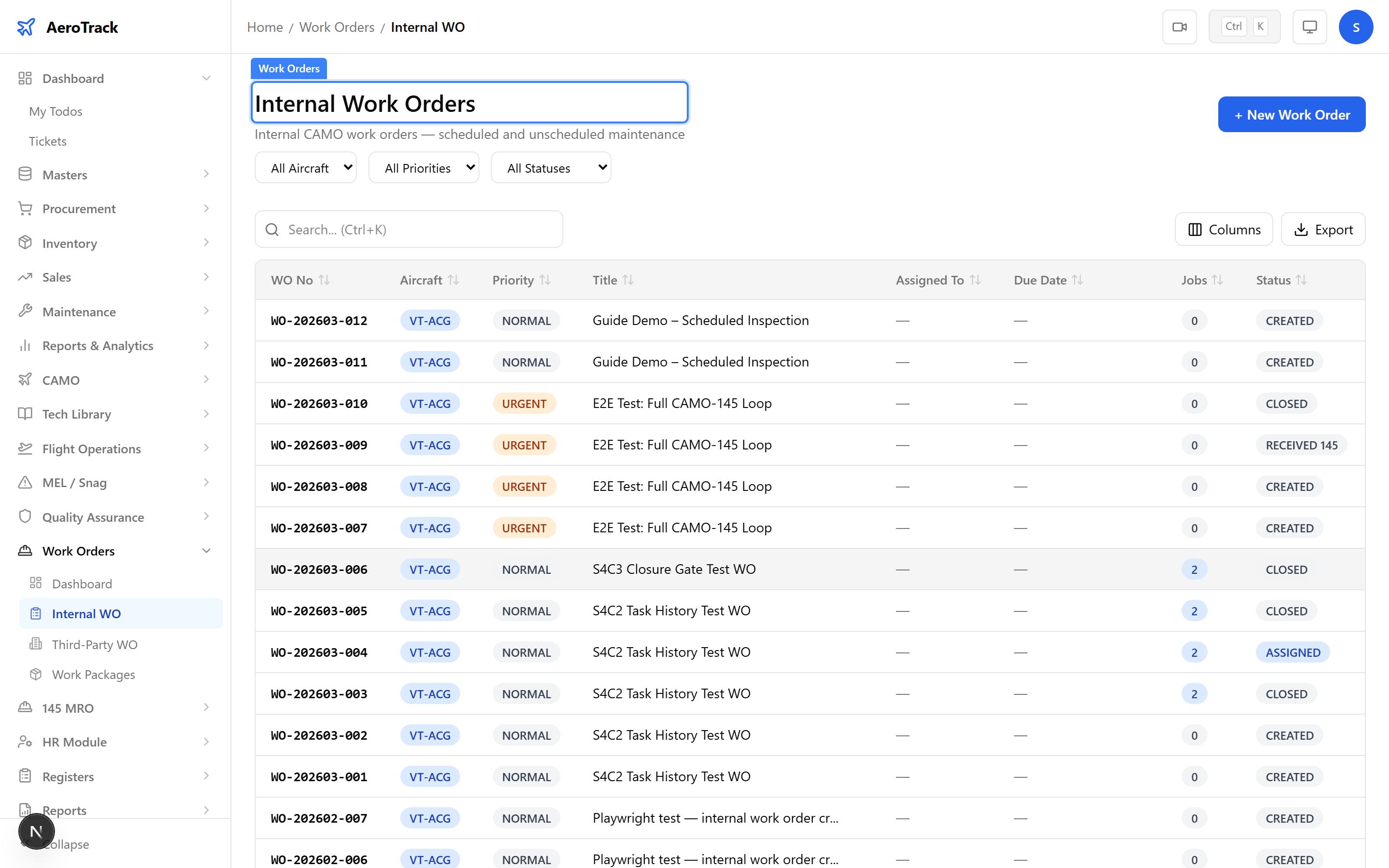
| Column | Description |
|---|---|
| Job Number | Sequential job number within this WO. |
| Description | What work is to be performed. |
| Task Card | Linked task card reference (if applicable). |
| Status | Pending, In Progress, Completed, Signed Off, or Deferred. |
4
Job Status Workflow
| Status | Meaning | Next Step |
|---|---|---|
| Pending | Job not yet started. | Start work → In Progress. |
| In Progress | Work is underway. | Complete → Completed. |
| Completed | Work finished, awaiting sign-off. | Sign off → Signed Off. |
| Signed Off | AME has signed the job card. | — |
| Deferred | Job deferred to a future WO. | — |
All jobs must be Signed Off or Deferred before the work order can be closed. See Close a Work Order for the closure gate checks.
Materials Section
5
Material Lines
The Materials section tracks parts and consumables used during the work order. Each material line records:
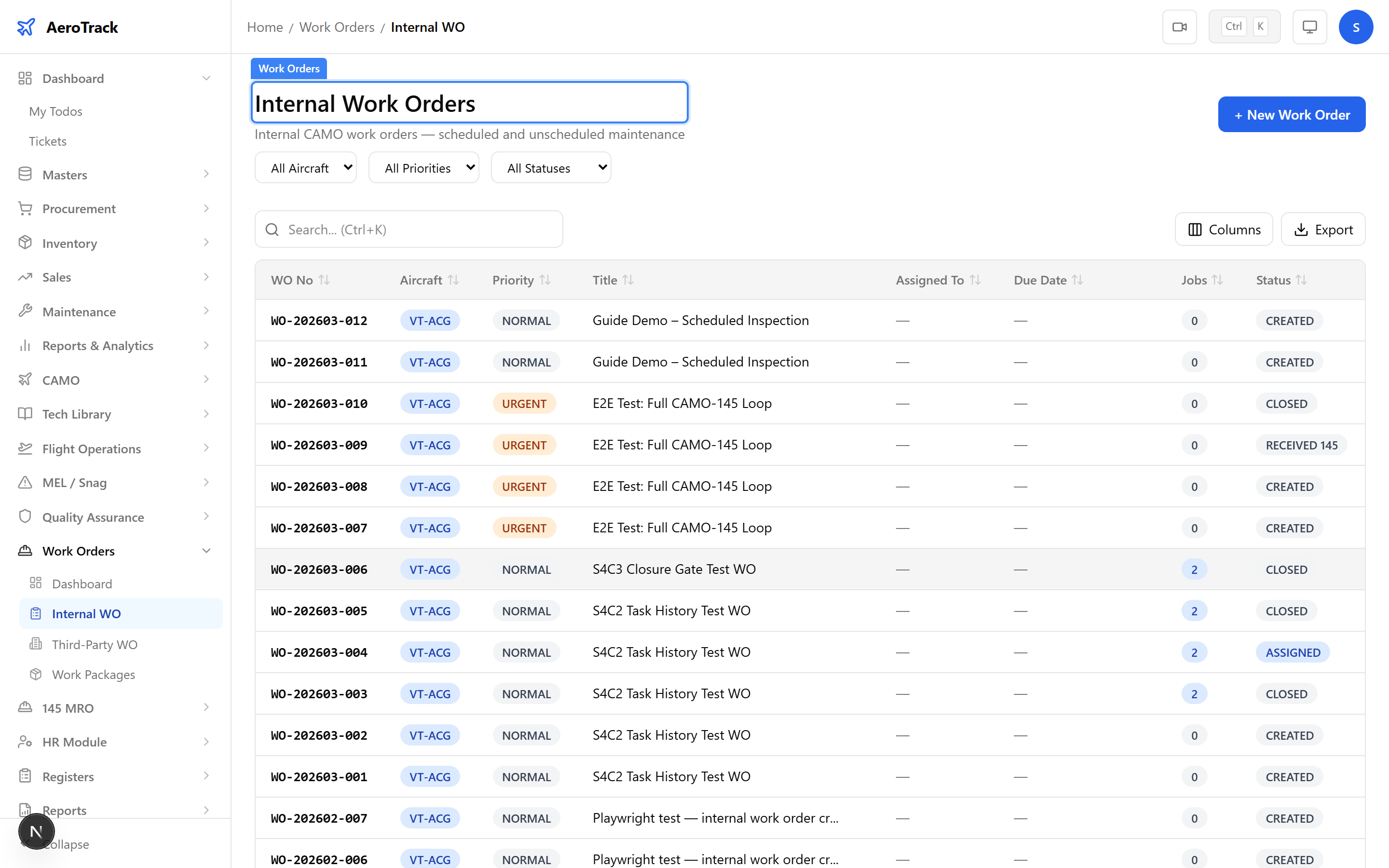
| Column | Description |
|---|---|
| Part Number | Part used from inventory. |
| Description | Part name or description. |
| Quantity | Amount consumed. |
| Unit Cost | Cost per unit at time of issue. |
| Total | Line total (quantity × unit cost). |
Materials are linked to inventory issues. Adding a material line triggers a stock deduction from the selected store. See Work Order Materials for the full parts management guide.
Workflow Actions
6
Advance the Work Order
Use the workflow action buttons at the top of the detail page to advance the work order through its lifecycle:
| Action | From | To |
|---|---|---|
| Assign | Created | Assigned |
| Start Work | Assigned | In Progress |
| Submit for QA | In Progress | QA Check |
| Complete | QA Check | Completed |
| Close | Completed | Closed |
| Cancel | Any (except Closed) | Cancelled |
The Close action triggers a closure gate that checks all jobs are signed off, all defects are resolved, and optional file attachments are uploaded. See Close a Work Order.
7
Cross-Links
| Action | Guide |
|---|---|
| Create a new work order | Create Work Order |
| Close a work order (gate checks) | Close Work Order |
| Manage materials & parts | Work Order Materials |
| Generate PDF work pack | Work Order PDF |
| Browse all work orders | Work Order Lists |
| MRO-145 job sign-off | Job Sign-Off |