Understand Special Tasks
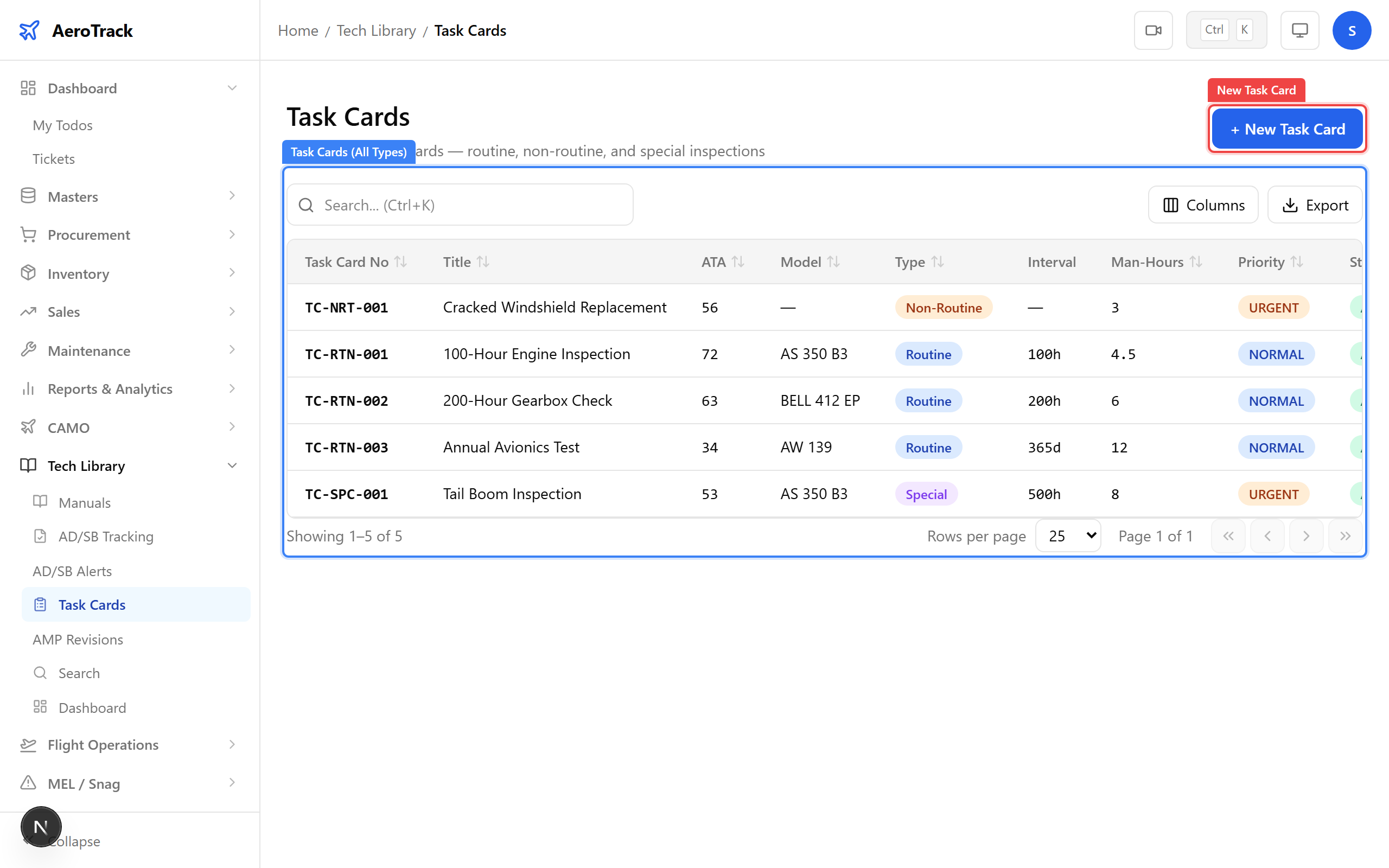
AeroTrack supports three task card types. Use Special for tasks outside the routine maintenance programme:
| Type | Use For |
|---|---|
| Routine | Scheduled maintenance per the AMP — recurring inspections at fixed intervals. |
| Non-Routine | Condition-based tasks triggered by defects, snags, or findings during inspections. |
| Special | STC compliance tasks, one-time AD inspections, modification-related checks, DGCA-mandated special inspections. |
Navigate to Tech Library → Task Cards. Special task cards appear in the list with a Special type badge, making them easy to distinguish from routine and non-routine cards.
Use the search bar to filter by task card number or title. For
STC-related cards, adopt a naming convention like
STC-{number} (e.g. STC-SA4015) so they
can be quickly found.
Create a Special Task Card
Click + New Task Card to open the form at
/tech-library/task-cards/new. Set the
Task Type dropdown to Special.
Enter a task card number that identifies the STC or AD reference
(e.g. STC-SA4015-01) and a descriptive title
(e.g. “Post-mod inspection per STC SA4015”).
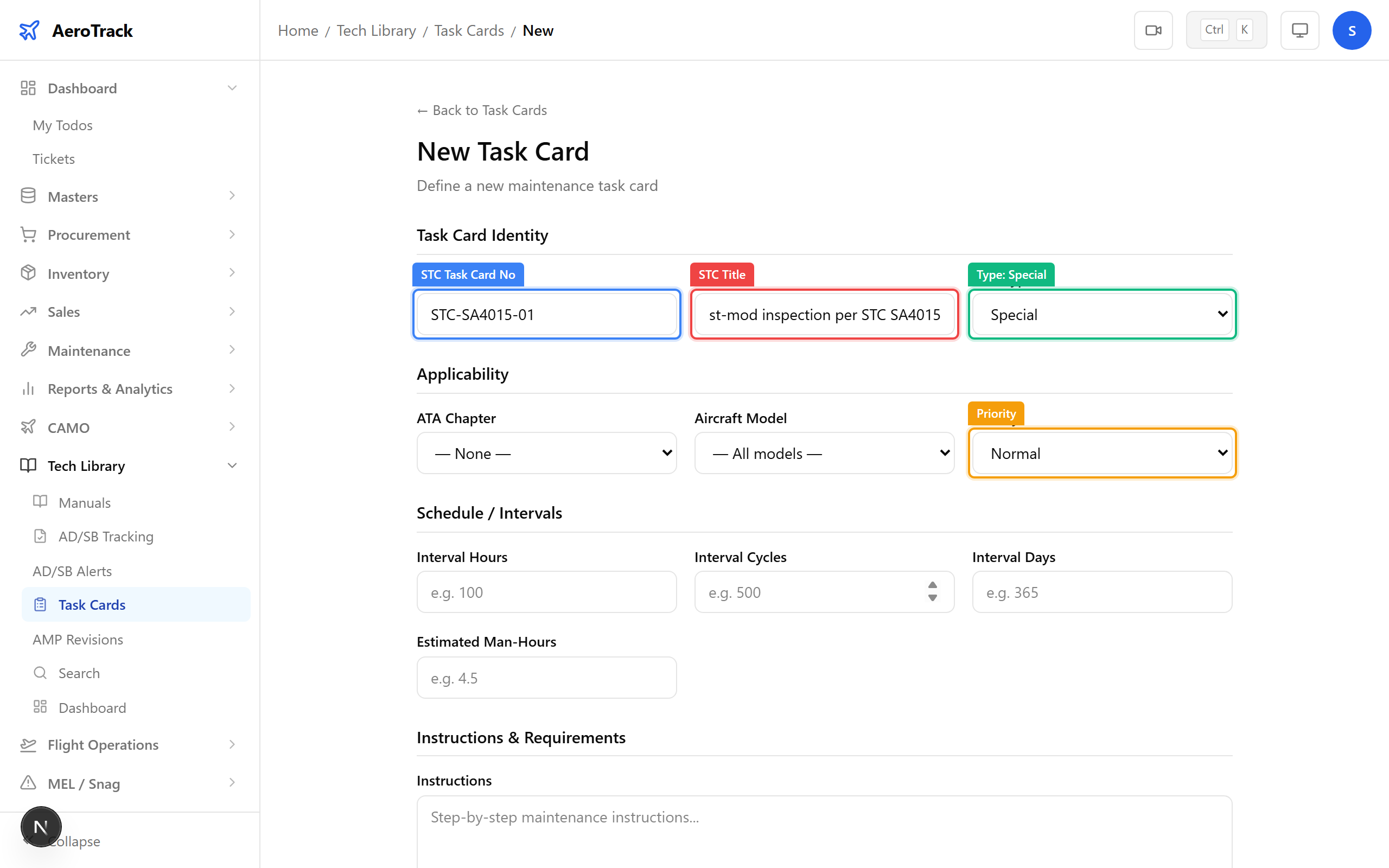
Complete the remaining fields relevant to the STC requirement:
| Field | STC Guidance |
|---|---|
| ATA Chapter | Select the ATA chapter affected by the STC modification. |
| Aircraft Model | Select the model the STC applies to. |
| Priority | Set to High or Critical for safety-related STCs. |
| Interval Hours / Cycles / Days | Enter the repetition intervals specified in the STC documentation. Leave blank for one-time inspections. |
| Instructions | Copy the inspection procedure from the STC document or reference its section number. |
| Tools / Parts | List any STC-specific tooling or parts required. |
After creating the task card, link it to your compliance workflow:
- AD/SB Tracking: If the STC relates to an Airworthiness Directive, create or link the AD entry in AD/SB Monitoring.
- Inspection Schedules: Create an inspection schedule for the aircraft referencing this task card so it appears in the Inspection Due Report.
- Work Orders: When the task is due, create a work order and add a job referencing this task card number.