Browse ATA Chapters
Navigate to CAMO → ATA Chapters in the sidebar.
The list loads at /camo/ata-chapters showing all
registered ATA chapters ordered by chapter number.
AeroTrack comes pre-seeded with the standard ATA 100 chapters (01–99). You can add custom chapters or sub-chapters as needed for your fleet.
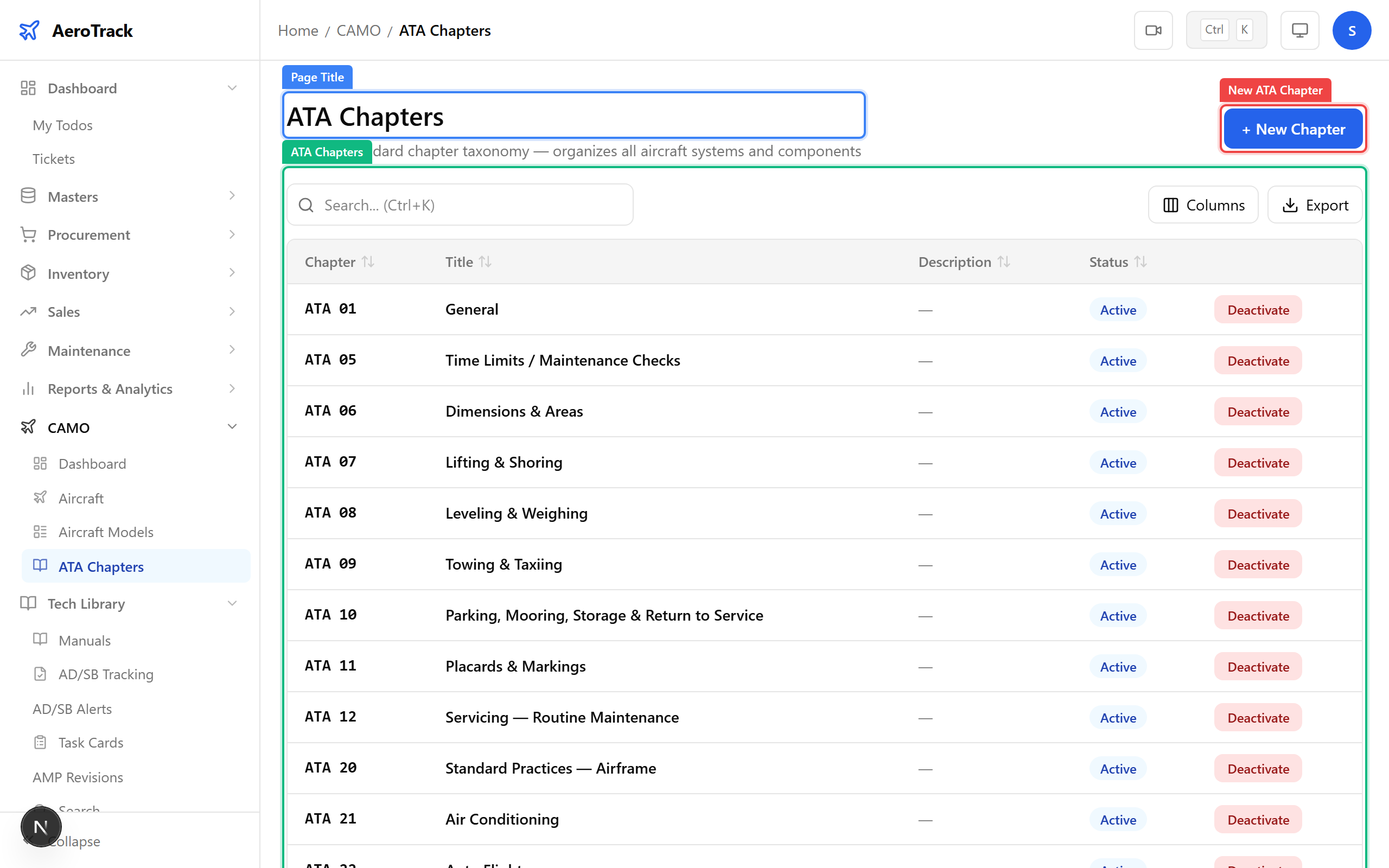
Each row represents an ATA chapter:
| Column | Meaning |
|---|---|
| Chapter No | Two-digit ATA chapter number (e.g. 05, 24, 73). |
| Title | Standard ATA chapter title (e.g. “Time Limits / Maintenance Checks”). |
| Description | Brief description of the systems covered by this chapter. |
Create an ATA Chapter
Click + New ATA Chapter at the top-right of the
list. The form opens at /camo/ata-chapters/new.
Complete the chapter information:
| Field | Required | Notes |
|---|---|---|
| Chapter No * | Yes | ATA chapter number. Use standard two-digit codes (e.g. 73 for Engine Fuel and Control). Sub-chapters can use dash notation (e.g. 73-20). |
| Title * | Yes | Chapter title as per ATA 100 specification. |
| Description | No | Optional description of the systems and components covered. |
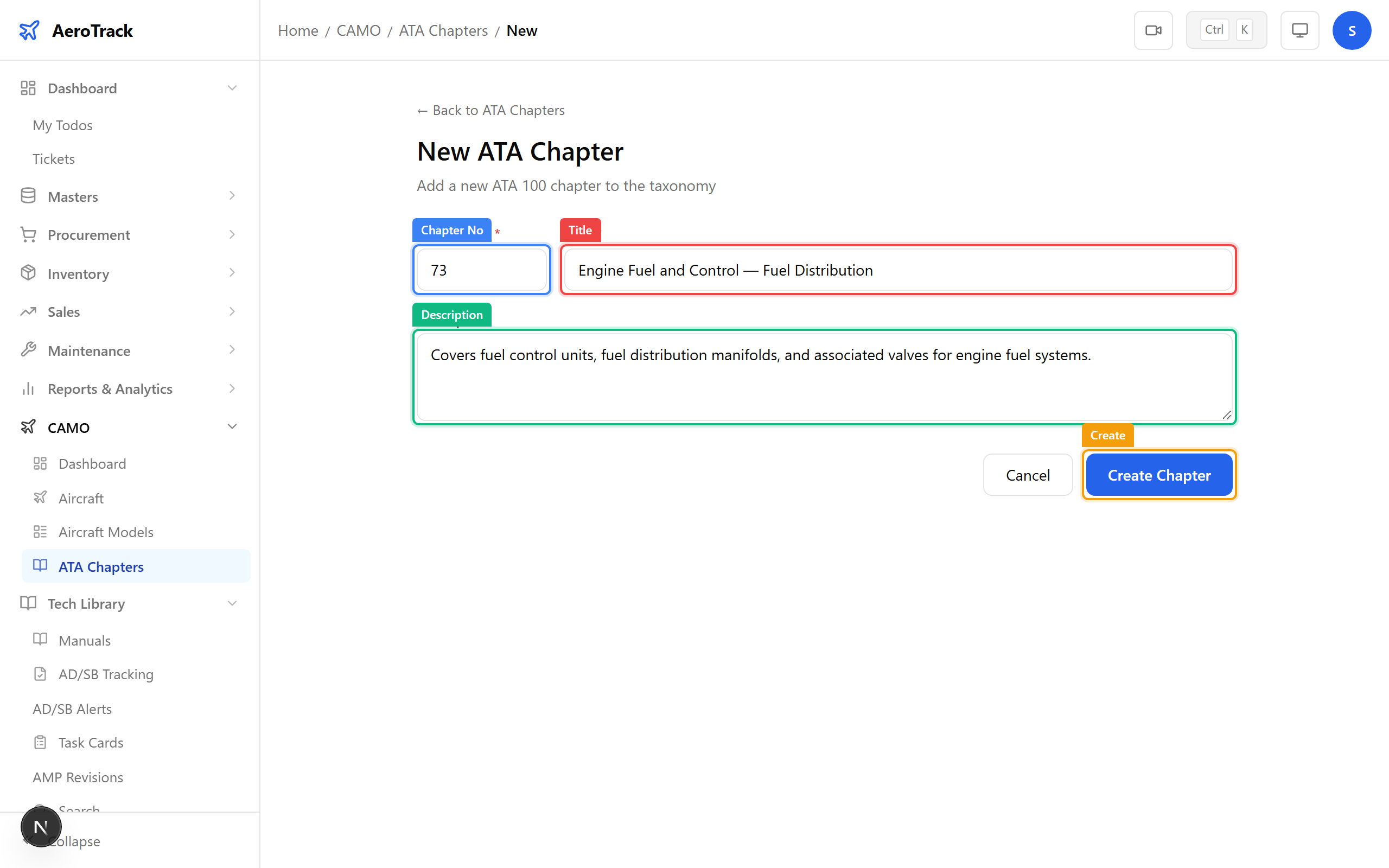
Click Create ATA Chapter. The chapter is added to the system and becomes available in all ATA chapter dropdowns across the application.