Browse Findings
Navigate to Quality → Findings. The list at
/quality/findings shows all findings with their
number, aircraft, severity, category, title, and status.
Overdue findings are marked with a red Overdue badge. Click any row to open the finding detail.
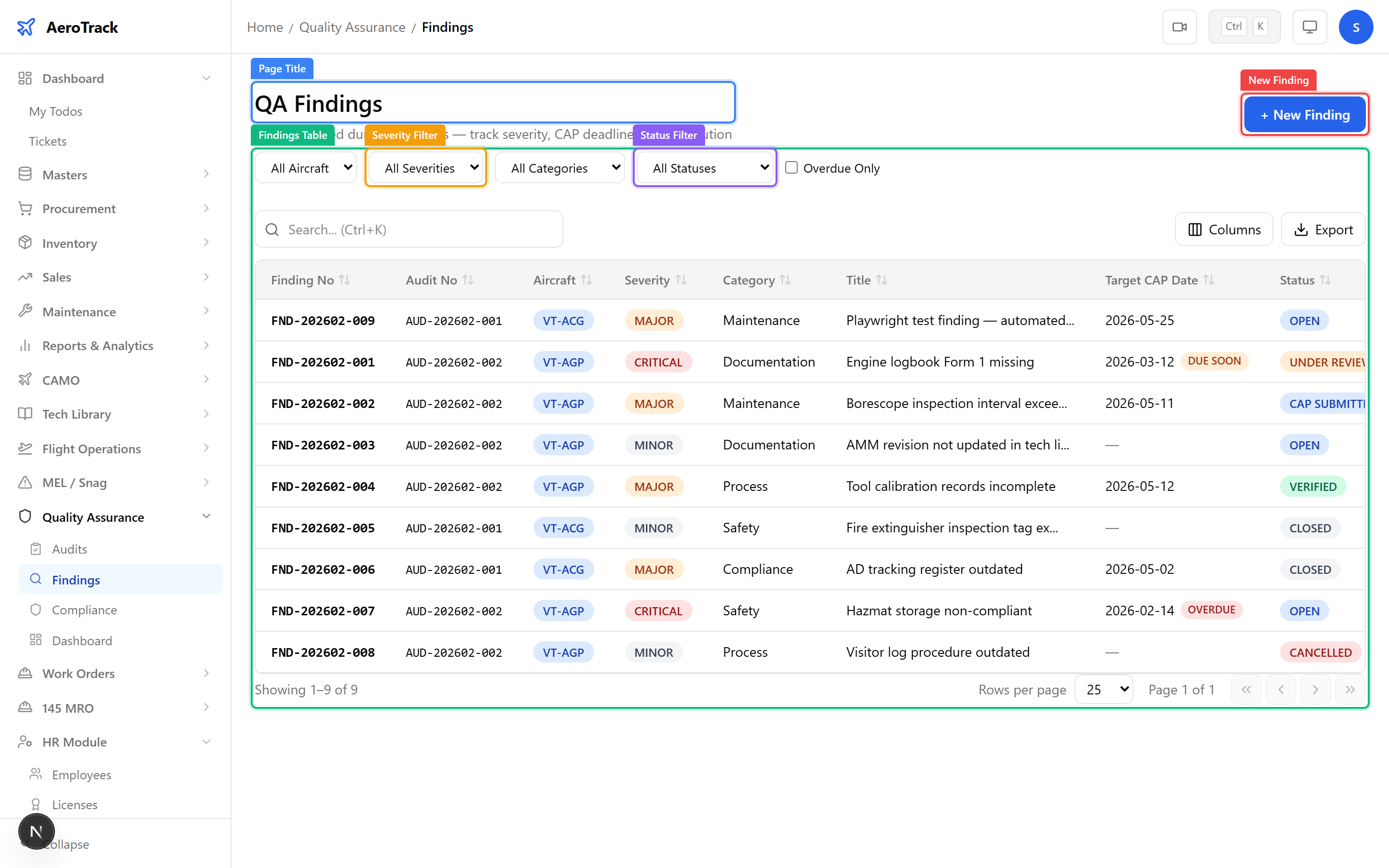
Use the Aircraft, Severity (Level 1 / Level 2 / Observation), Category, and Status filters. Toggle Overdue Only to see just the overdue items.
Raise a Finding
Click + New Finding on the findings list, or click Raise Finding from an audit detail page to link the finding to a specific audit.
| Field | Required | Notes |
|---|---|---|
| Linked Audit | No | Select the audit this finding was raised during. Auto-filled when raised from audit detail. |
| Aircraft | No | The aircraft involved (if applicable). |
| Severity * | Yes | Level 1 (critical — 21 days to respond), Level 2 (major — 90 days), or Observation (advisory). |
| Category * | Yes | Regulatory, Procedural, Documentation, Training, or Technical. |
| Raised Date * | Yes | When the finding was identified. |
| Title * | Yes | Short description of the finding. |
| Description * | Yes | Detailed narrative of the non-conformity, root cause, and evidence. |
| Remarks | No | Internal notes or reference numbers. |
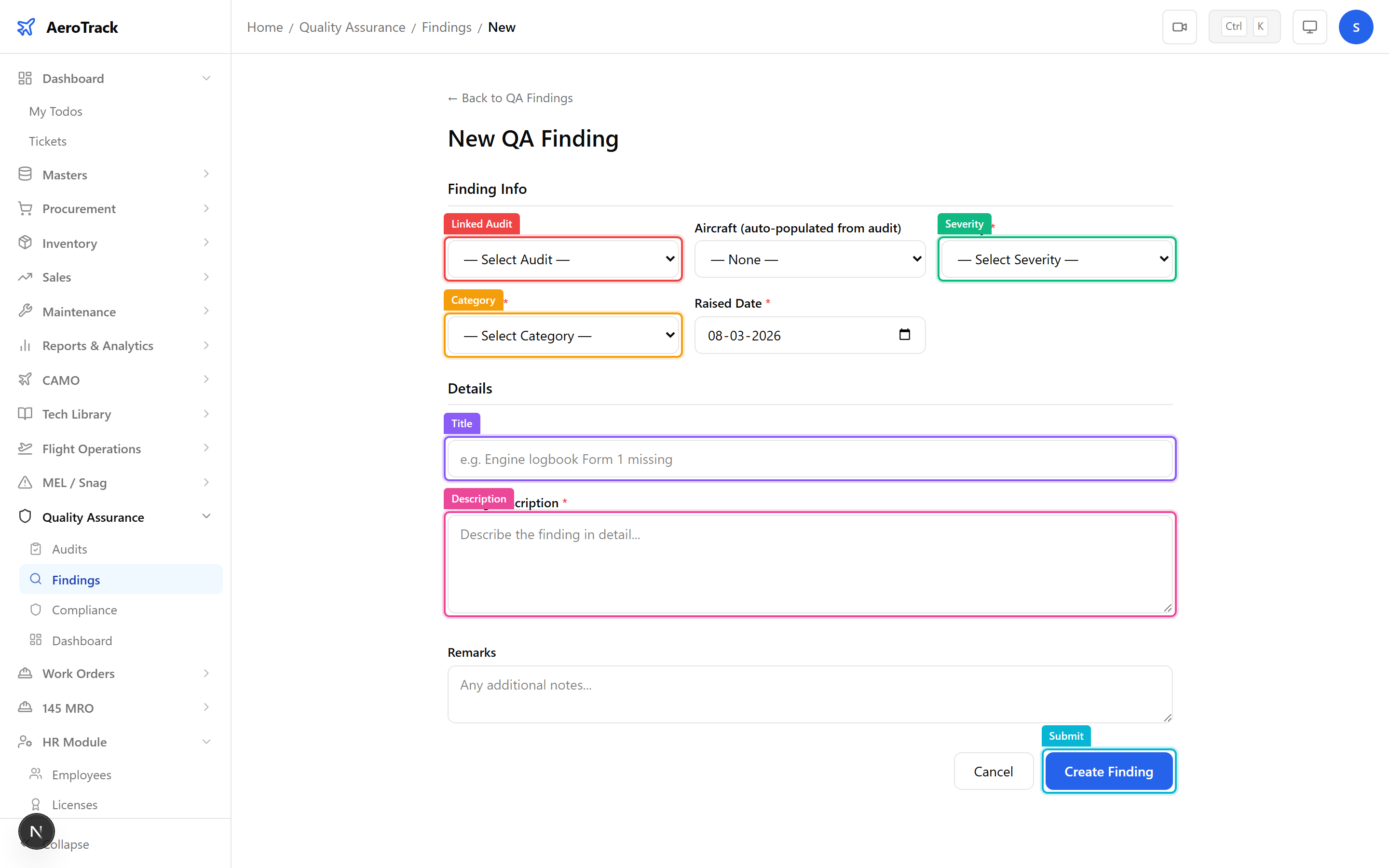
Click Create to save the finding in Open status. The system starts tracking the CAP response deadline based on the severity level.
Finding Detail & Workflow
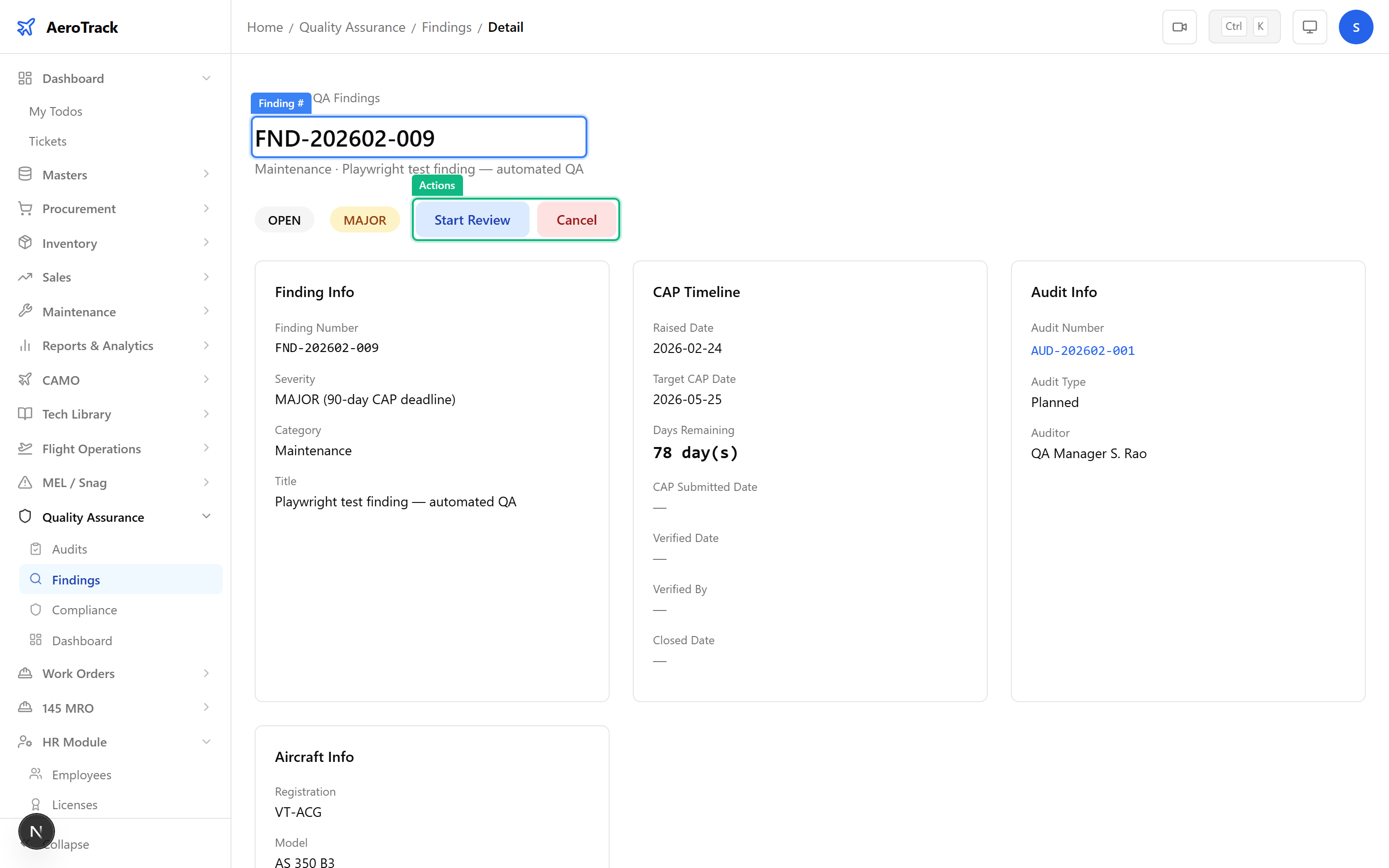
The finding detail page shows the full finding narrative, severity and category, linked audit, and a Compliance Items section for tracking corrective actions.
Use the workflow action buttons to transition the finding through its lifecycle stages.
| Status | Meaning | Next Action |
|---|---|---|
| Open | Finding raised. Awaiting response. | Assign for review. |
| Under Review | Root cause analysis underway. | Submit Corrective Action Plan. |
| CAP Submitted | CAP documented. Pending verification. | Verify corrective actions are effective. |
| Verified | CAP actions confirmed effective. | Close the finding. |
| Closed | Finding resolved. Read-only. | — |
| Cancelled | Finding withdrawn (e.g. duplicate). | — |
Compliance Tracking
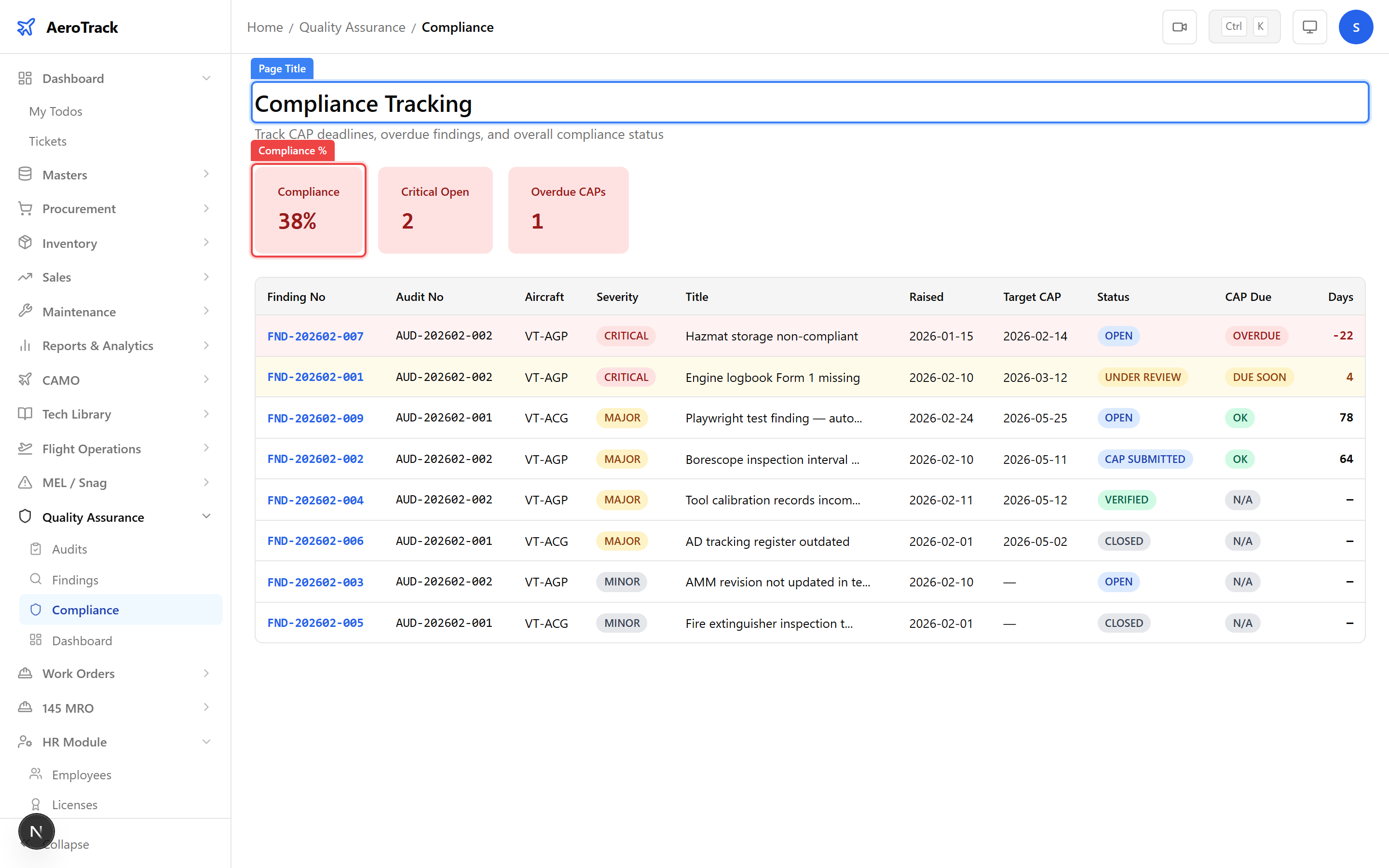
Navigate to Quality → Compliance
(/quality/compliance). This page shows the overall
compliance percentage and tracks all compliance items across
all findings.