QA Dashboard
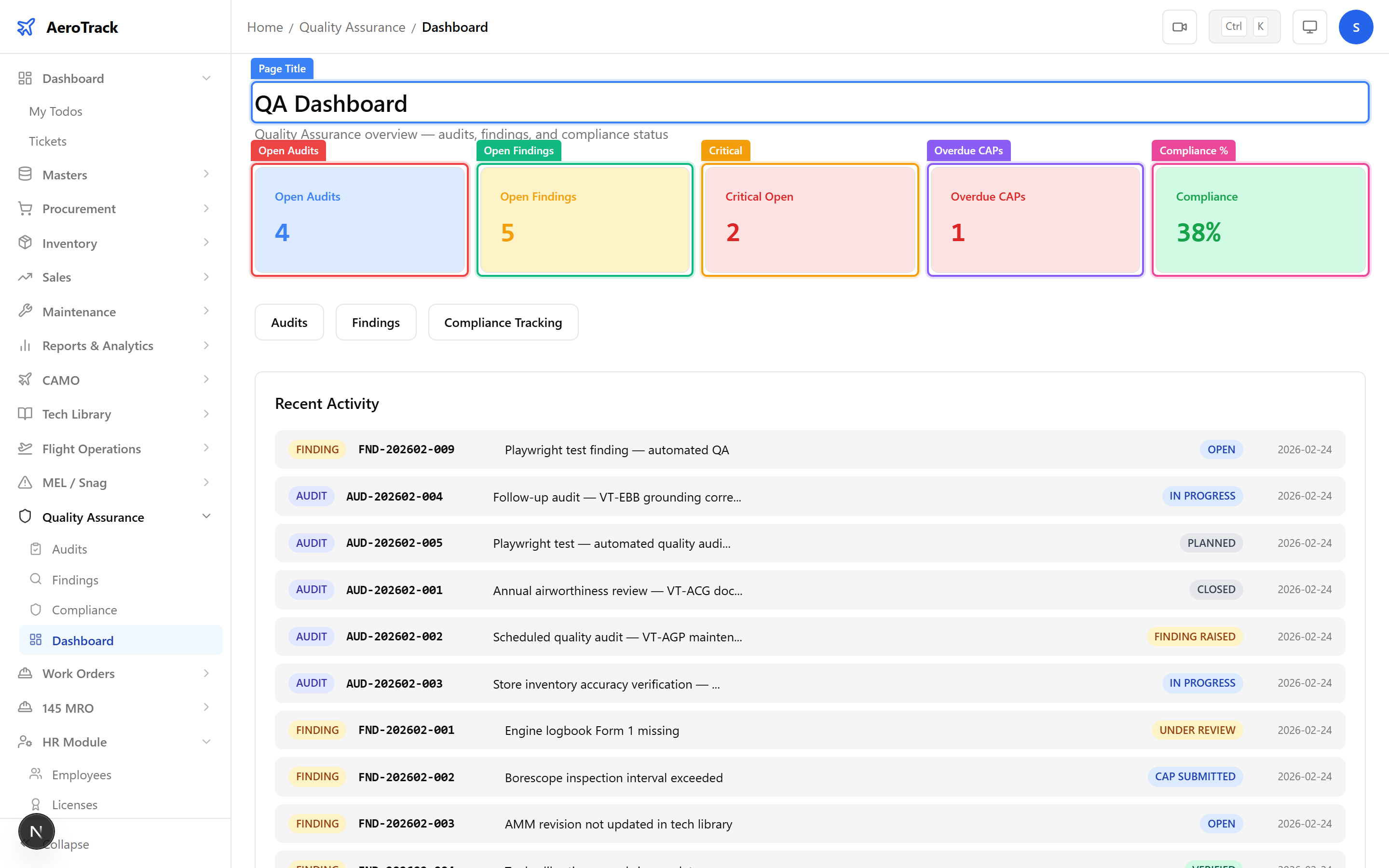
Navigate to Quality → Dashboard. The page at
/quality/dashboard shows KPI cards for open audits,
open findings, critical findings, overdue CAPs, and overall
compliance percentage.
Browse Audits
Navigate to Quality → Audits. The list at
/quality/audits shows all audits with their number,
aircraft, audit type, auditor, planned date, and status.
Click any row to open the audit detail page. Click + New Audit to plan a new one.
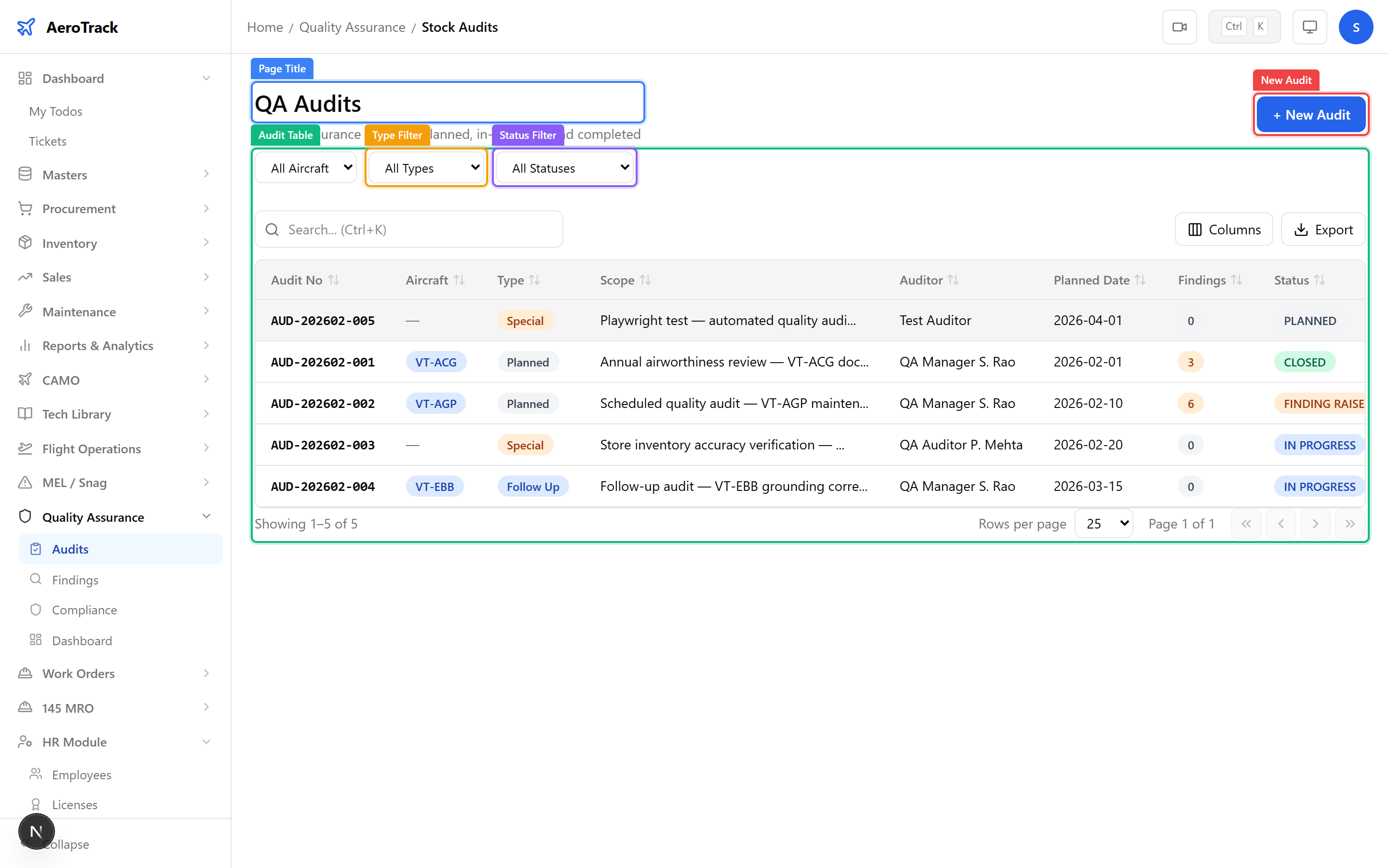
Use the Aircraft, Type (Internal, External, DGCA, Supplier), and Status filters to narrow results. The search bar works on audit number and auditor name.
Create an Audit
Click + New Audit or navigate to
/quality/audits/new.
| Field | Required | Notes |
|---|---|---|
| Aircraft | No | Select an aircraft if this is an aircraft-specific audit. |
| Audit Type * | Yes | Internal, External, DGCA, or Supplier audit. |
| Auditor * | Yes | Name of the lead auditor. |
| Location | No | Where the audit will be conducted. |
| Planned Date * | Yes | Scheduled date for the audit. |
| Scope | No | Description of what will be audited (systems, processes, areas). |
| Remarks | No | Internal notes or references. |
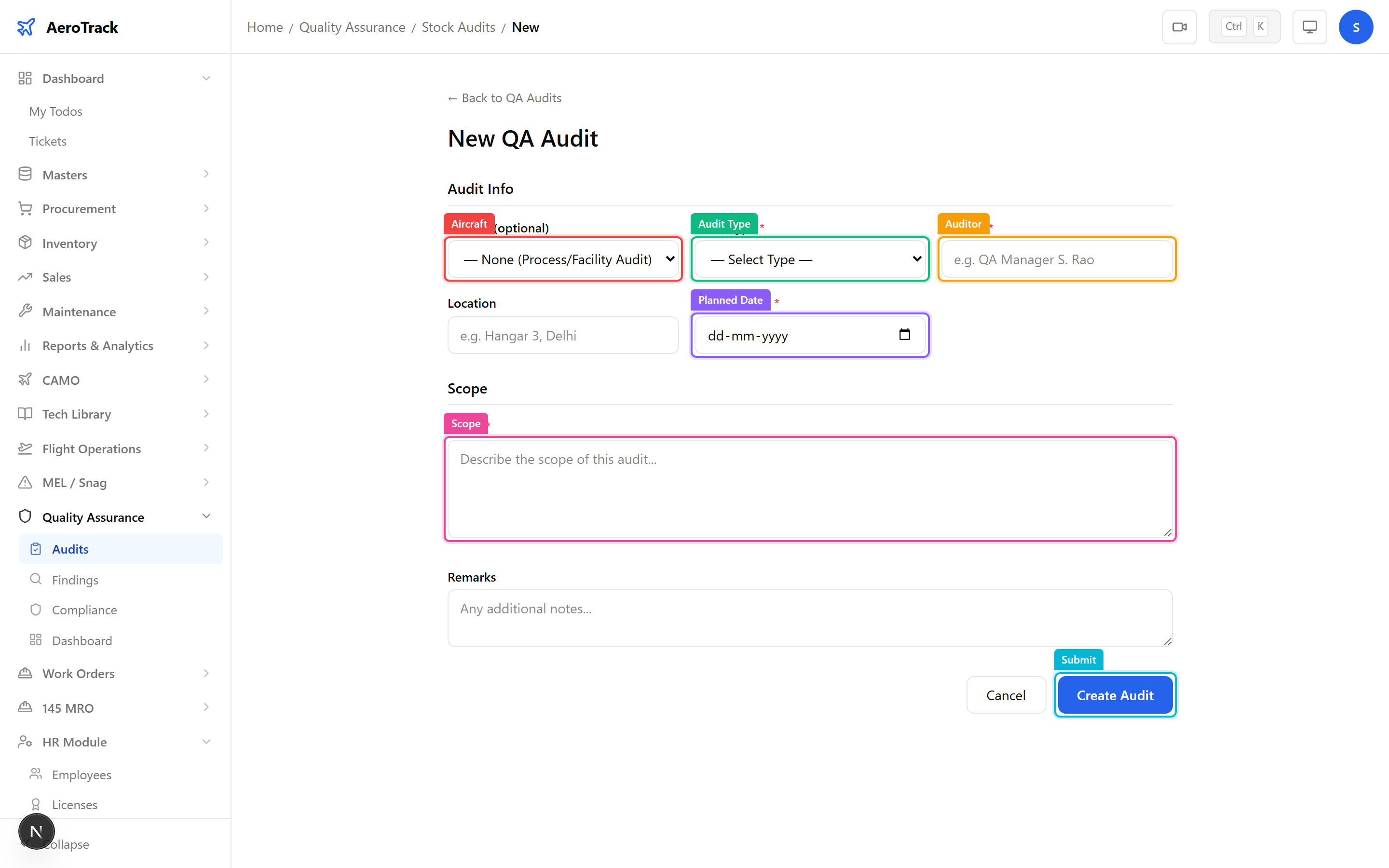
Click Create to save the audit in Planned status. Transition it to In Progress when the audit begins.
Audit Detail & Workflow
The audit detail page shows the audit header, current status, and a Findings section listing all findings raised during this audit.
Click Raise Finding to log a new finding directly from the audit page. The finding will be linked to this audit automatically. See the Findings & Compliance guide for details.
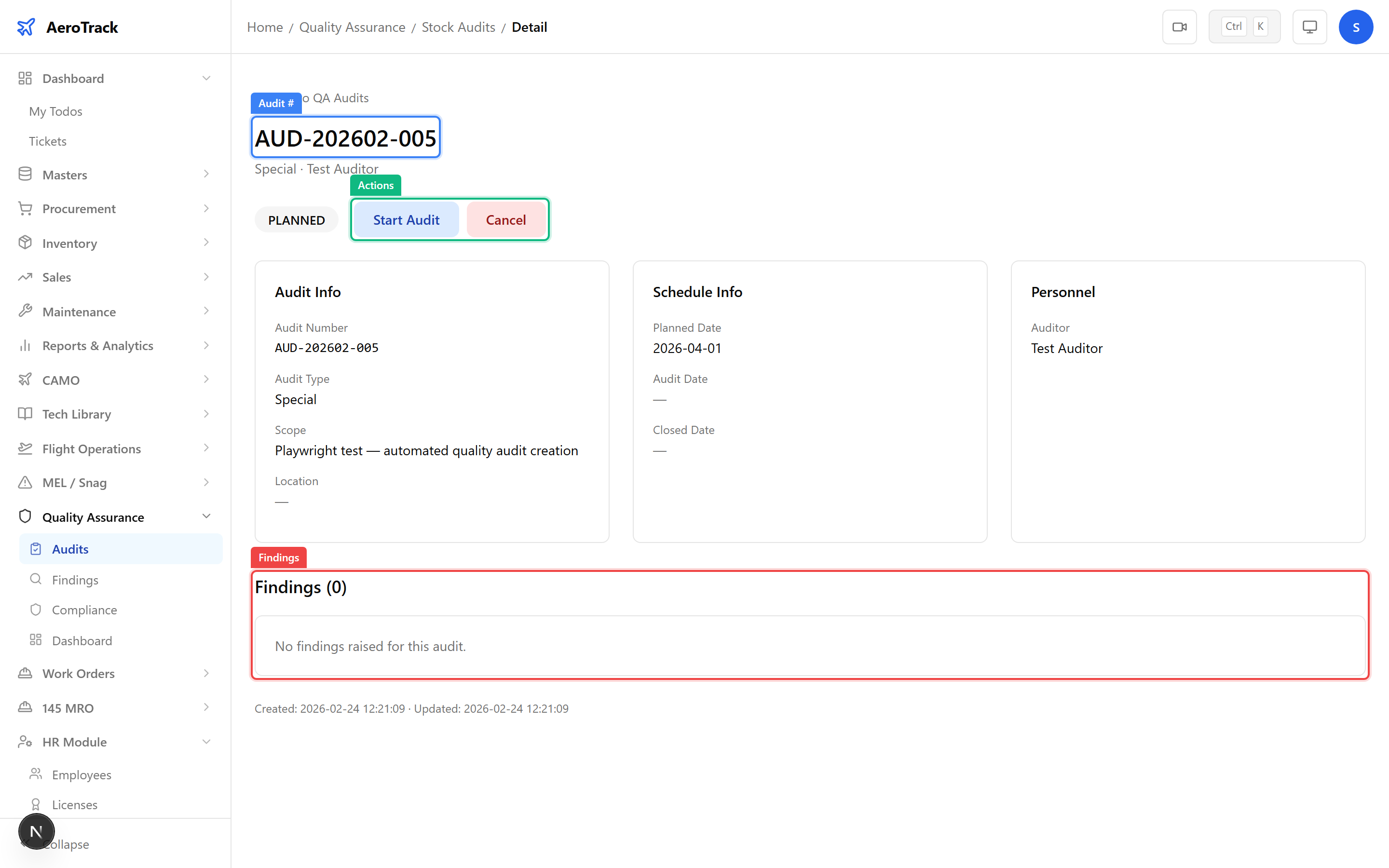
| Status | Meaning | Next Action |
|---|---|---|
| Planned | Audit scheduled. Editable. | Start the audit. |
| In Progress | Audit underway. Can raise findings. | Raise findings or close. |
| Finding Raised | Findings documented. Pending resolution. | Close after all findings addressed. |
| Closed | Audit complete. Read-only. | — |
| Cancelled | Audit withdrawn. | — |