Browse Quotations
1Open Quotation List
Navigate to Procurement → Quotations or go to /procurement/quotations.
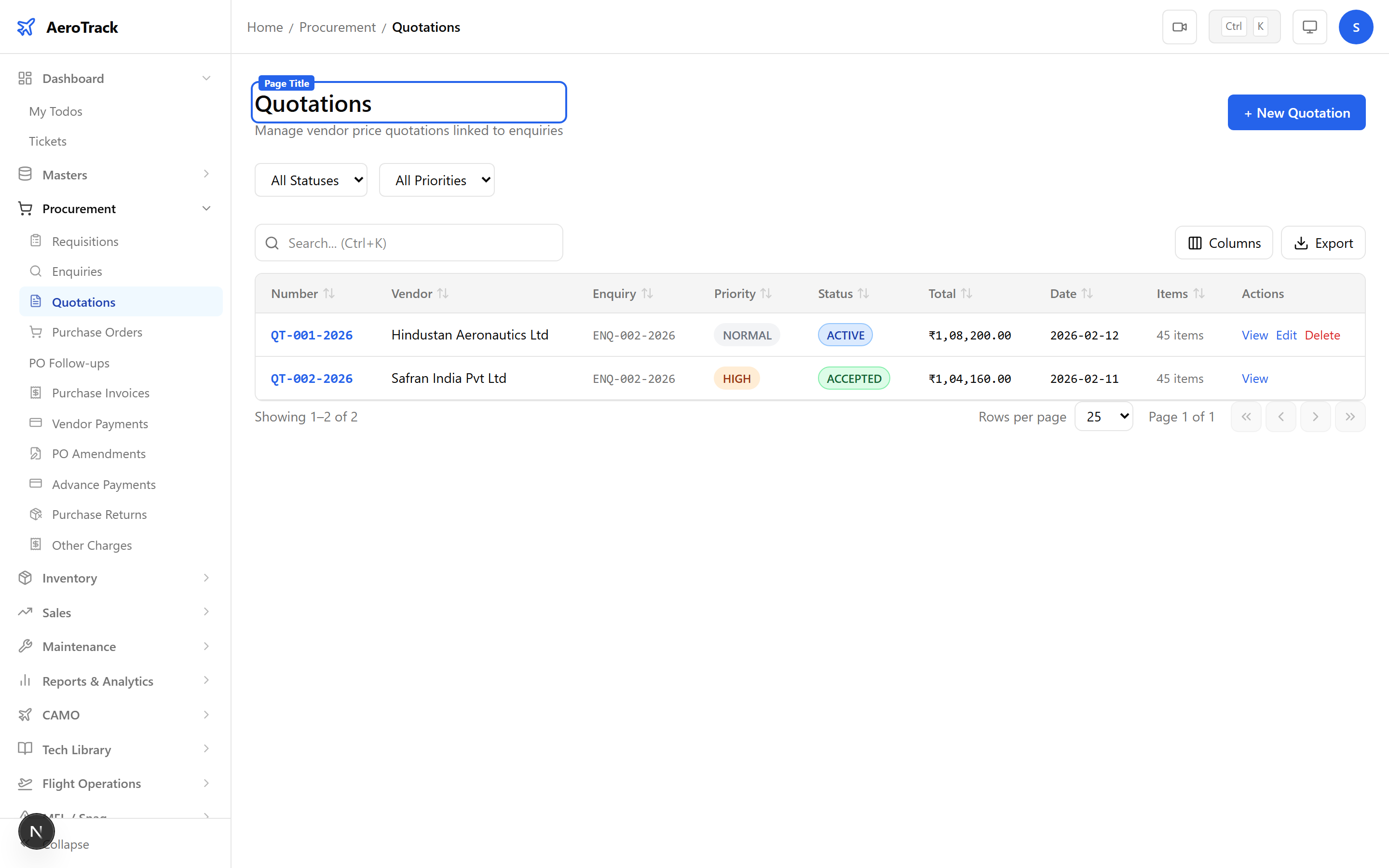
2Filter & Columns
| Column | Description |
|---|---|
| Number | Auto-generated quotation reference. |
| Vendor | Quoting vendor name. |
| Enquiry | Linked enquiry reference. |
| Priority | High, Normal, or Low. |
| Status | Active, Accepted, Rejected, or Converted. |
| Total | Quoted total amount. |
Create a Quotation
3Link to Enquiry
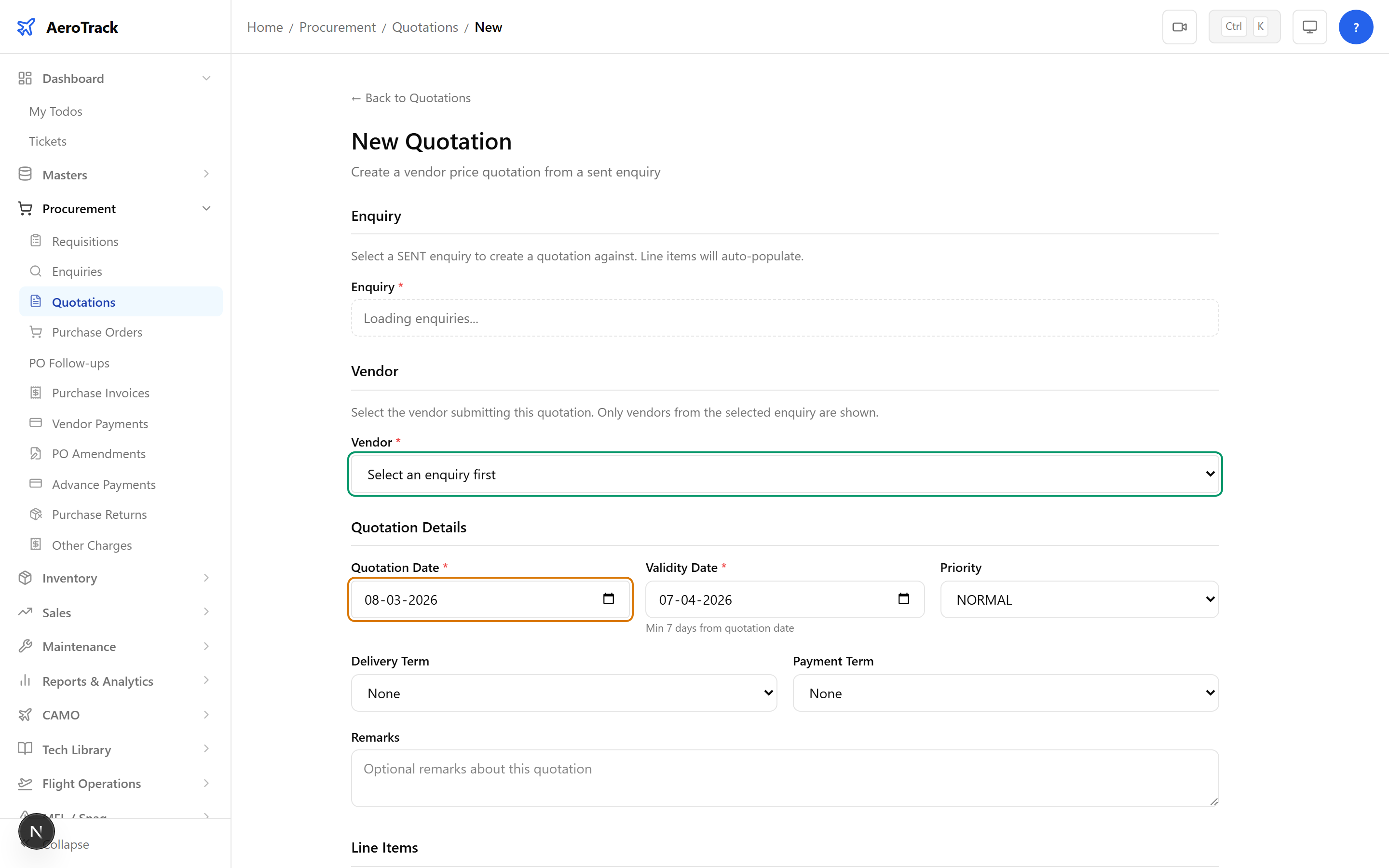
Click + New Quotation at /procurement/quotations/new. Select the source enquiry and vendor:
| Field | Required | Description |
|---|---|---|
| Enquiry | Yes | Select from SENT enquiries. Shows item and vendor counts. |
| Vendor | Yes | Auto-populated from enquiry vendors. Shows “already quoted” if pending. |
| Quotation Date | Yes | Date the vendor quoted. |
| Validity Date | Yes | Quote valid until (minimum 7 days after quotation date). |
| Priority | No | High, Normal, or Low. |
| Delivery Term | No | FOB, CIF, DDP, EXW, or FCA. |
| Payment Term | No | NET30, NET45, NET60, Advance, or COD. |
4Enter Pricing
Line items are auto-populated from the enquiry. Enter the Unit Price for each line. The line amount is calculated automatically (Qty × Unit Price).
All unit prices must be greater than zero. The line amounts update in real time as you type prices.
5Tax & Total
| Field | Description |
|---|---|
| Subtotal | Sum of all line amounts (auto-calculated, read-only). |
| Tax | Tax amount (editable, optional). |
| Shipping Cost | Freight / shipping charges (editable, optional). |
| Total | Subtotal + Tax + Shipping (auto-calculated, highlighted). |
Workflow
6Accept & Convert
| Status | Meaning | Next |
|---|---|---|
| Active | Quotation recorded, under review. | Accept / Reject |
| Accepted | Vendor selected as winner. | Convert to PO |
| Rejected | Quotation declined. Terminal. | — |
| Converted | Purchase Order created from this quote. | — |
Only Active quotations can be edited or deleted. Once accepted, the quotation can be converted into a Purchase Order with line items and pricing carried over.
7Cross-Links
| Action | Guide |
|---|---|
| Create an enquiry first | Purchase Enquiry |
| Convert to purchase order | Purchase Orders |
| Track delivery follow-ups | PO Follow-ups |