Browse Enquiries
1Open Enquiry List
Navigate to Procurement → Enquiries or go to /procurement/enquiries. The list shows all purchase enquiries with their number, vendors, type, priority, status, and item count.
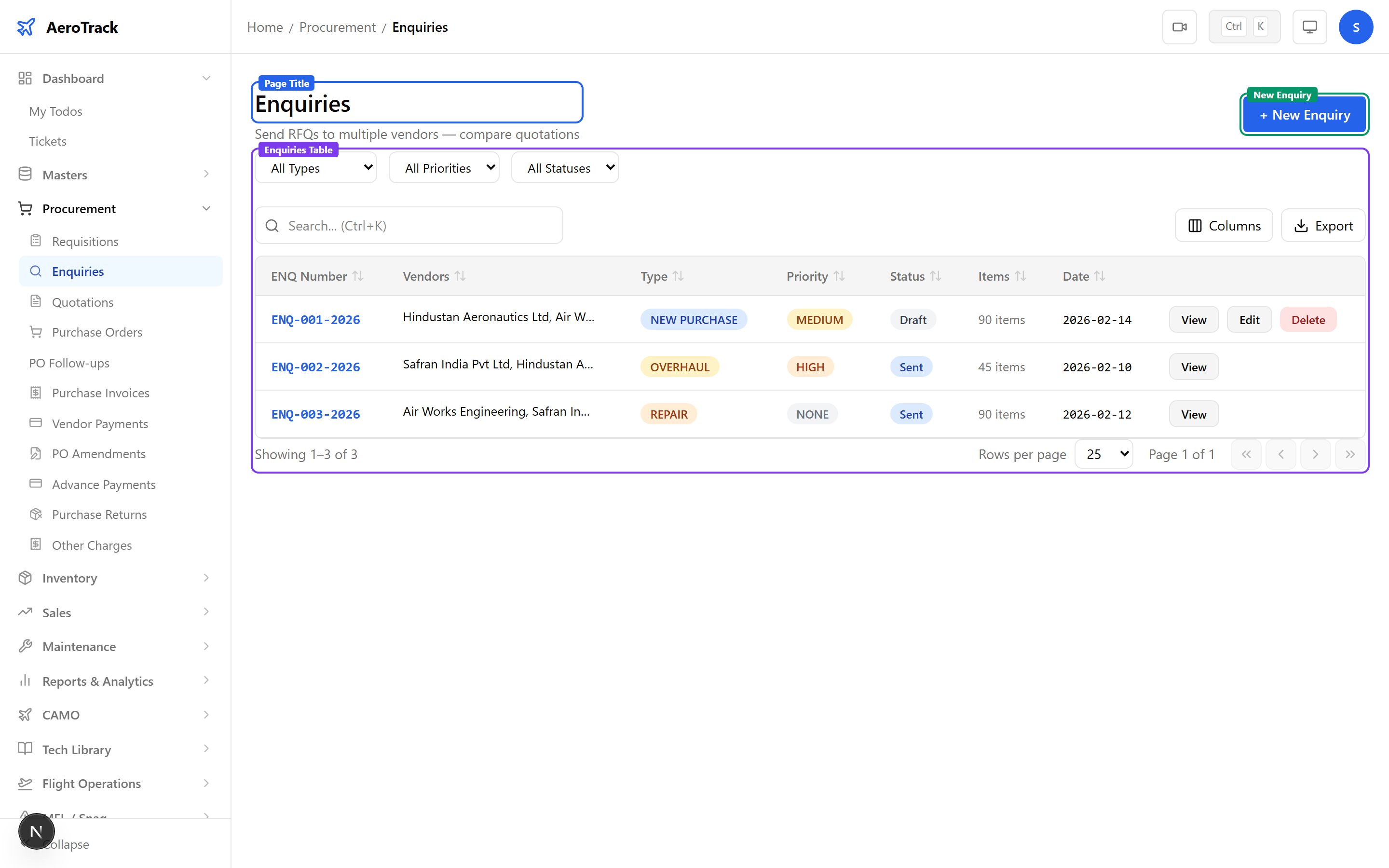
2Filter & Columns
| Filter | Description |
|---|---|
| Type | New Purchase, Exchange, Overhaul, or Repair. |
| Priority | None, Low, Medium, High, or AOG. |
| Status | Draft, Sent, Closed, or Cancelled. |
Create an Enquiry
3Enquiry Header
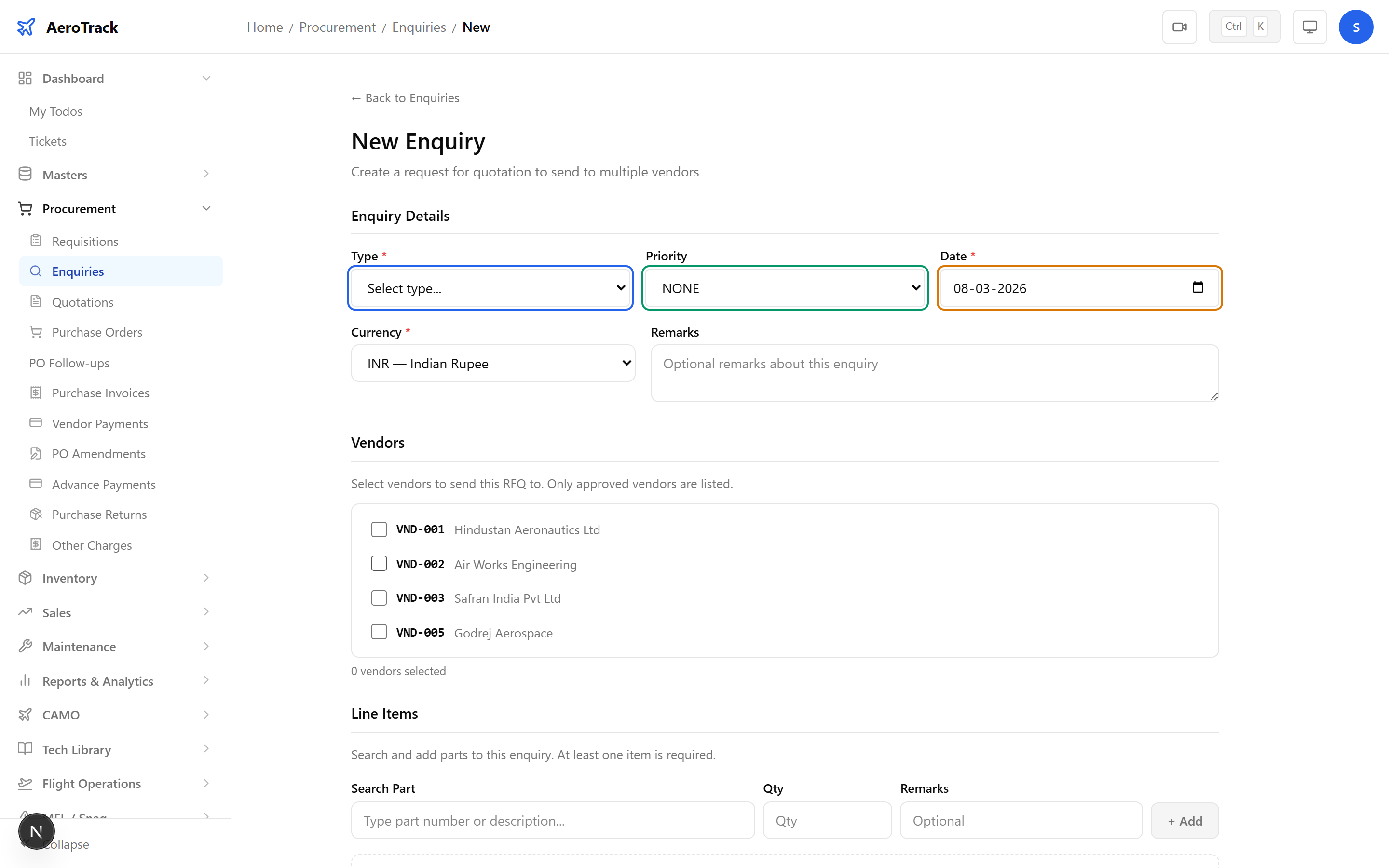
Click + New Enquiry to open the form at /procurement/enquiries/new.
| Field | Required | Description |
|---|---|---|
| Type | Yes | New Purchase, Exchange, Overhaul, or Repair. |
| Priority | No | None (default), Low, Medium, High, or AOG. |
| Date | Yes | Enquiry date (defaults to today). |
| Currency | Yes | Defaults to INR. |
| Remarks | No | Additional notes (max 500 chars). |
4Select Vendors
Tick one or more vendors from the checkbox list. At least one vendor must be selected. Only approved vendors are shown.
You can send the same enquiry to multiple vendors at once. Each selected vendor will receive the same set of line items for quoting.
5Add Line Items
Use the Part Search field to find parts from the catalogue. Select a part, enter the required quantity, and click Add Item.
| Field | Description |
|---|---|
| Part Search | Typeahead search by part number or name (300ms debounce). |
| Quantity | Number of units required (minimum 1). |
| Remarks | Per-item notes (optional). |
Each part can only be added once per enquiry. Remove a line item using the delete button in the row to re-add it with different details.
Workflow
6Status Flow
| Status | Meaning | Next |
|---|---|---|
| Draft | Enquiry created, not yet sent. | Send → Sent |
| Sent | RFQ sent to vendors. | Close → Closed |
| Closed | Responses received, enquiry complete. | — |
| Cancelled | Enquiry withdrawn. | — |
Only Draft enquiries can be edited or deleted. Once sent, the enquiry is locked for vendor response tracking.
7Cross-Links
| Action | Guide |
|---|---|
| Record vendor quotation | Purchase Quotation |
| Create purchase order | Purchase Orders |
| Manage vendors | Supplier Management |
| Browse parts catalogue | Parts Catalogue |