Browse Goods Receipts
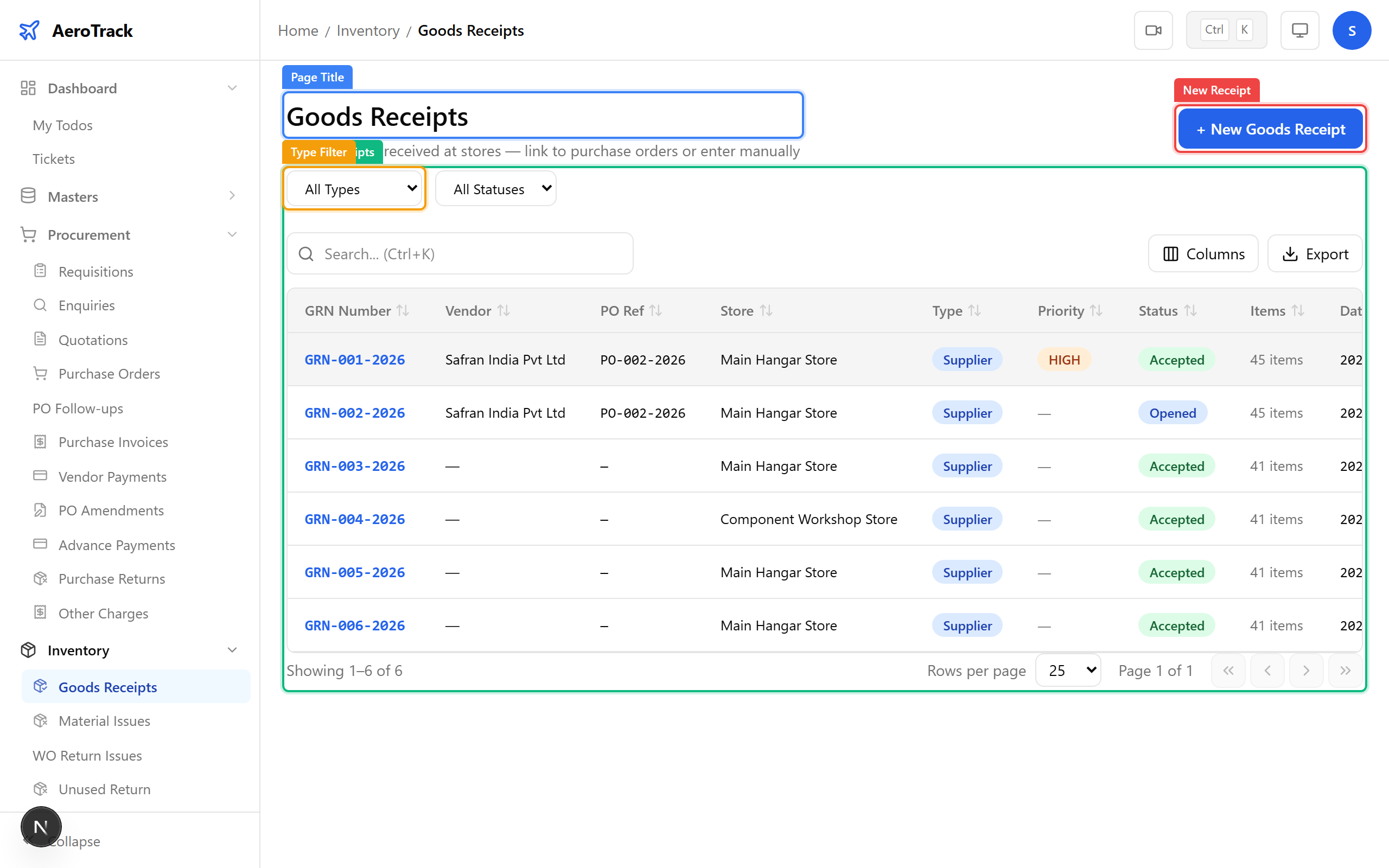
Navigate to Inventory → Goods Receipts in the
sidebar. The list loads at /inventory/receipts showing
all receipts by date.
Each row shows the GR number, receipt type, associated PO number, store, status, and date. Use the Type and Status filters to narrow results.
Create a Goods Receipt
Click + New Receipt on the list page, or navigate to
/inventory/receipts/new.
| Field | Required | Notes |
|---|---|---|
| Receipt Type * | Yes | From Supplier (linked to PO), Return from Workshop, or Direct Receipt. |
| Priority | No | Low, Medium, High, or Critical. |
| Receipt Date | Auto | Date of physical receipt (defaults to today). |
| Purchase Order | Conditional | Required when type is From Supplier. Select the PO to auto-load line items. |
| Receiving Store * | Yes | Which store will receive the goods. |
| Document Number | No | Vendor’s delivery note or challan number. |
| Remarks | No | Internal notes about the shipment. |
When linked to a PO, line items are auto-populated from the order. Enter the Received Qty for each line (may differ from ordered qty for partial deliveries).
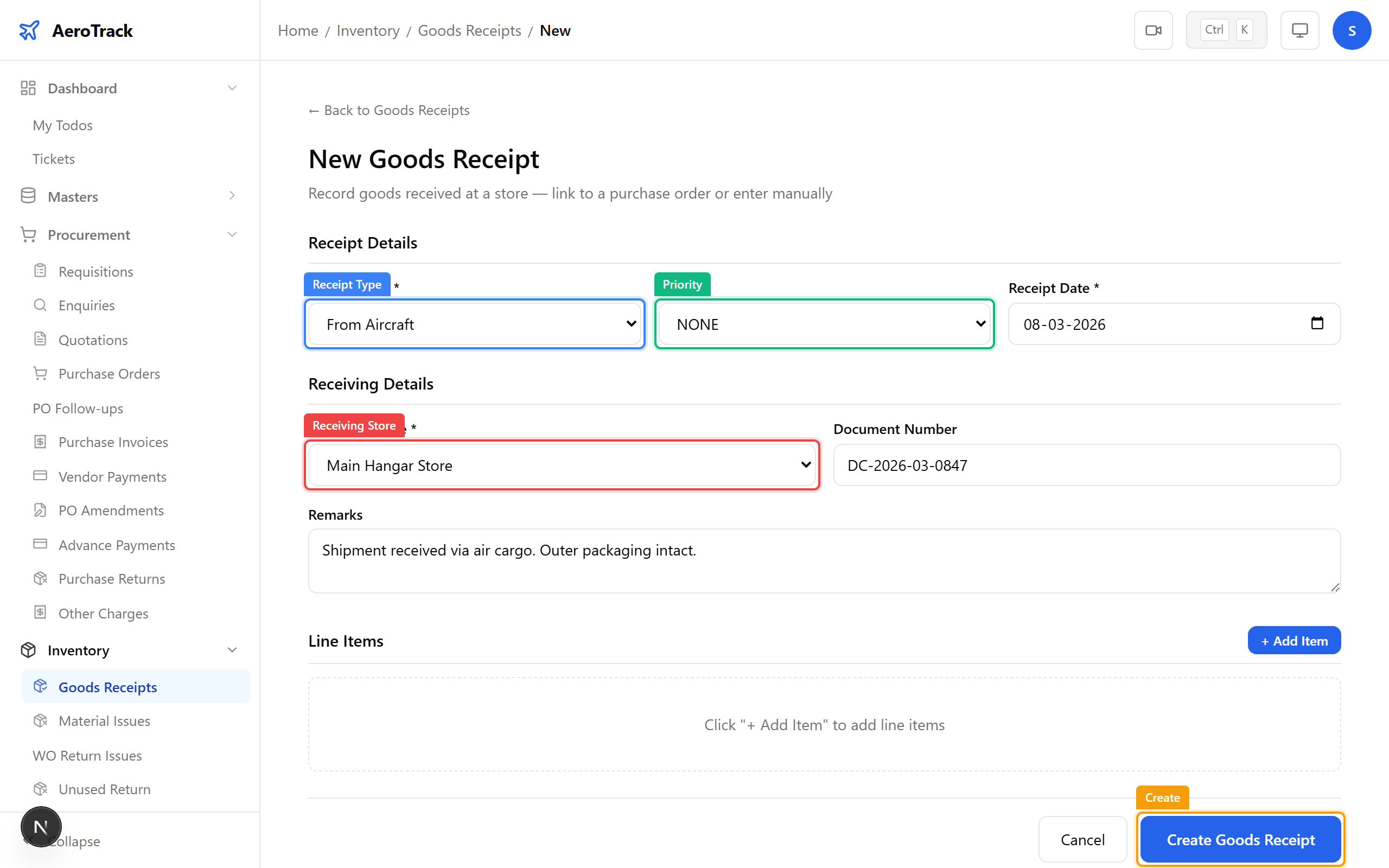
Click Create to save the GR in Opened status. The receipt is now ready for inspection.
Inspect & Accept
Click any row in the GR list to open the detail page. The detail shows the receipt header, all line items with quantities, and the inspection status.
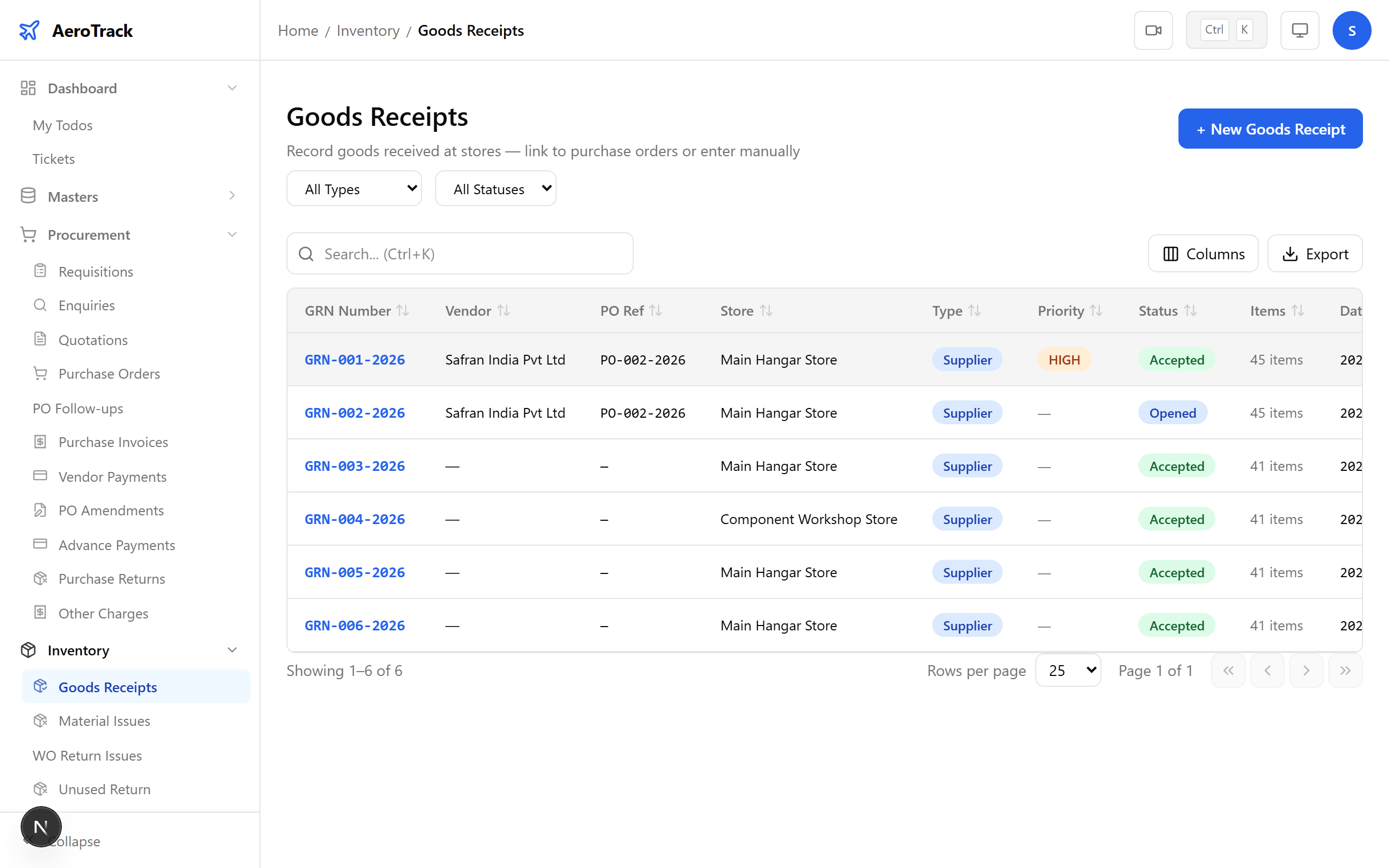
Click Start Inspection to enter inspection mode. For each line item, record:
| Field | Notes |
|---|---|
| Accepted Qty | Number of items that pass inspection. |
| Rejected Qty | Number of items that fail inspection. |
| Condition | Serviceable, Unserviceable, or Quarantine. |
| Quarantine Reason | Required when condition is Quarantine. |
Click Confirm Inspection to finalize. Accepted items are added to store stock. Quarantined items appear in the Quarantine register.
After acceptance, upload release certificates (EASA Form 1, FAA 8130, CoC, etc.) for each line item. Click the Upload button next to any line item to attach a certificate file.