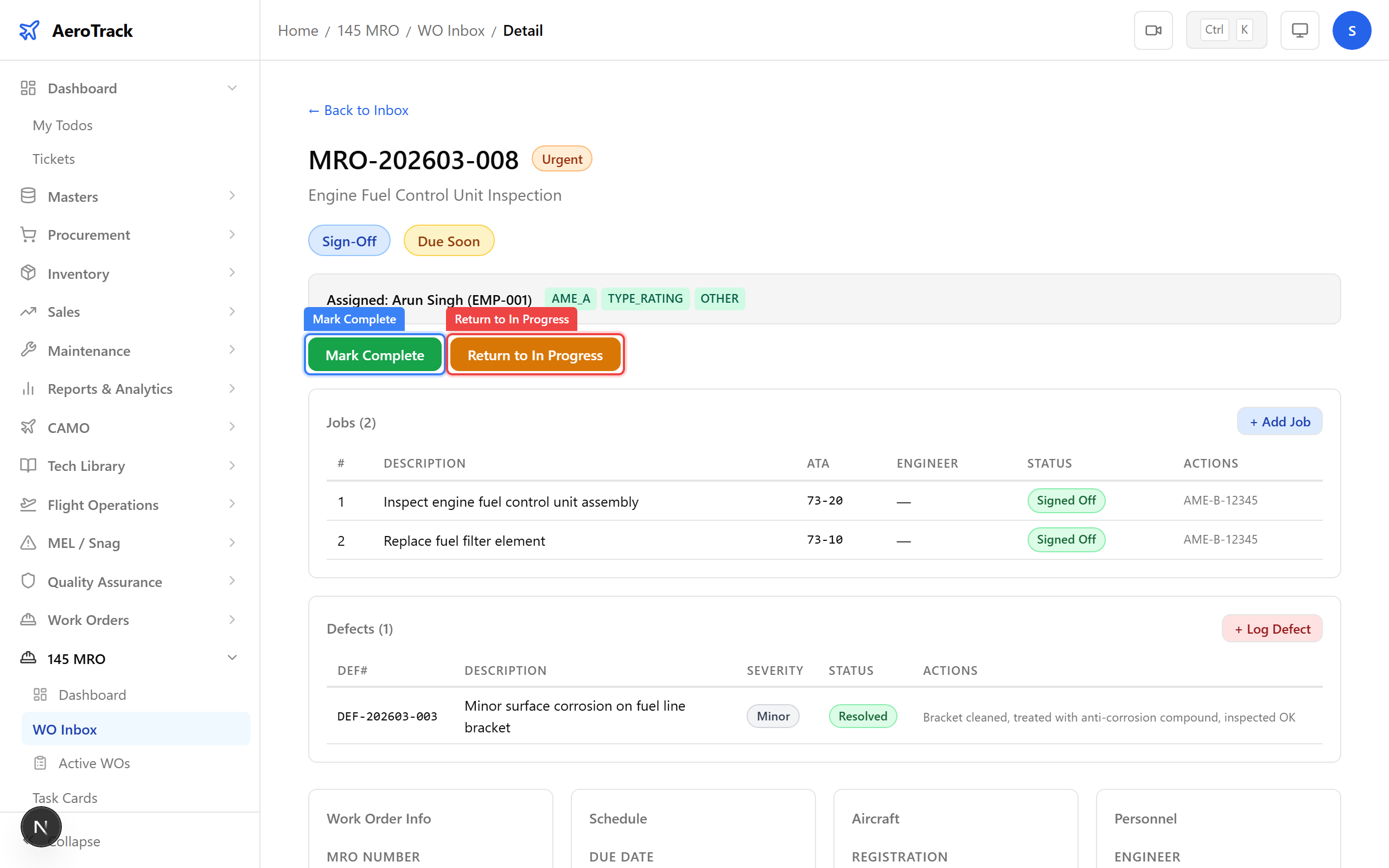
Mark Complete
Open the work order detail page. Review the Jobs section to confirm all jobs have reached SIGNED OFF status (or have been deferred).
When all non-deferred jobs are signed off and there are no open defects, the work order automatically transitions from IN PROGRESS to SIGN OFF status.
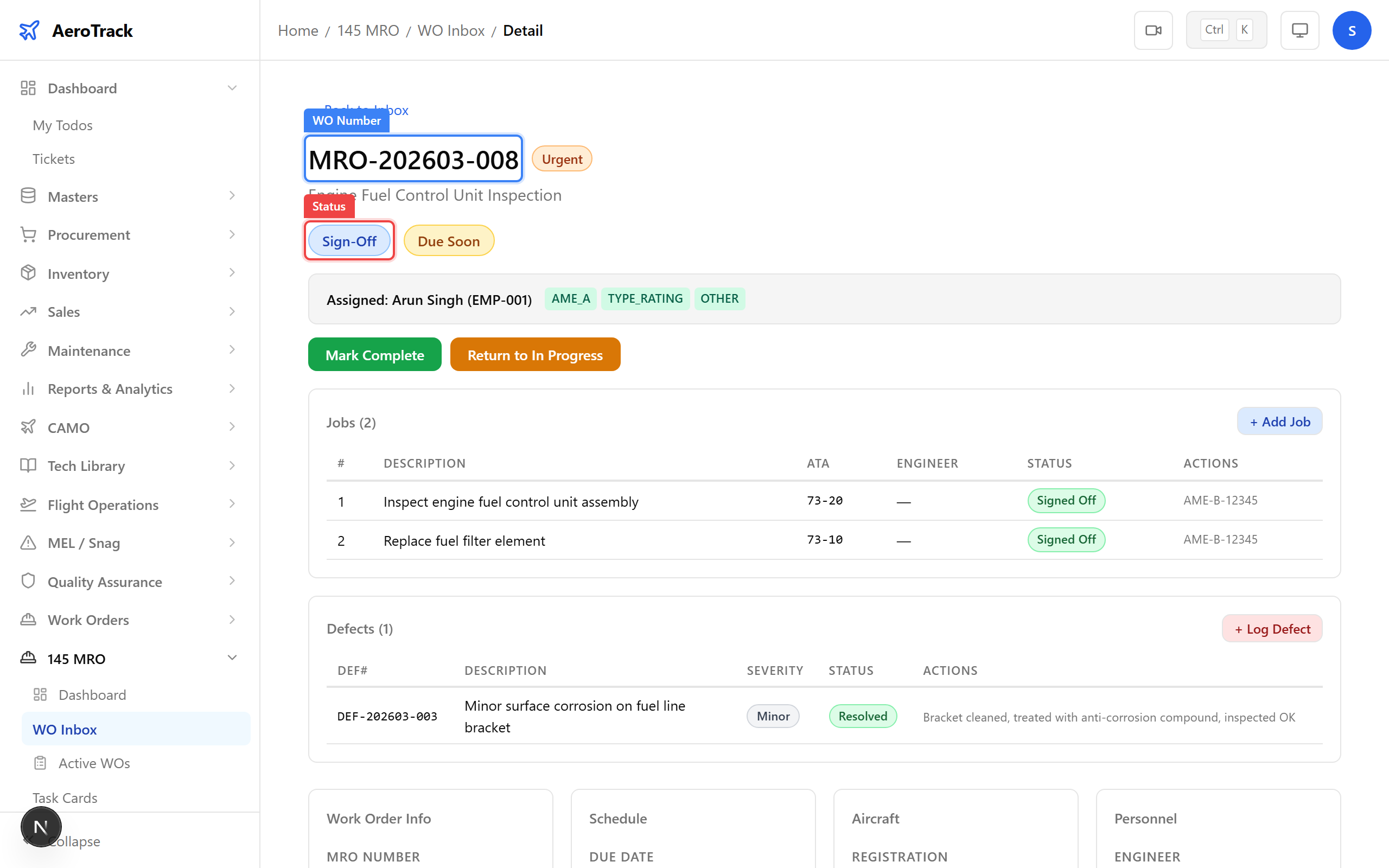
Navigate to 145 MRO → Sign-Off for a
consolidated view of all work orders pending sign-off.
The page at /mro145/sign-off lists WOs in
SIGN OFF and COMPLETED statuses.
Click a row to open the work order detail and proceed with completion and closure.
On the WO detail page in SIGN OFF status, click the Mark Complete button. The work order transitions to COMPLETED status.
A success toast appears: “Work order marked complete”. The Close Work Order button now becomes available.
Close the Work Order
Before the work order can be closed, the system verifies these conditions:
- All non-deferred jobs are SIGNED OFF
- Zero open defects remain
- Work order is in COMPLETED status
If any gate fails, the Close Work Order button is disabled and the unmet conditions are listed.
Click Close Work Order. A dialog appears with two fields:
| Field | Required | Notes |
|---|---|---|
| Closure Notes | No | Summary of work performed, any observations or follow-up actions. |
| Work Package File | No | Upload the completed work package documentation (.pdf, .jpg, .jpeg, .png, .docx). |
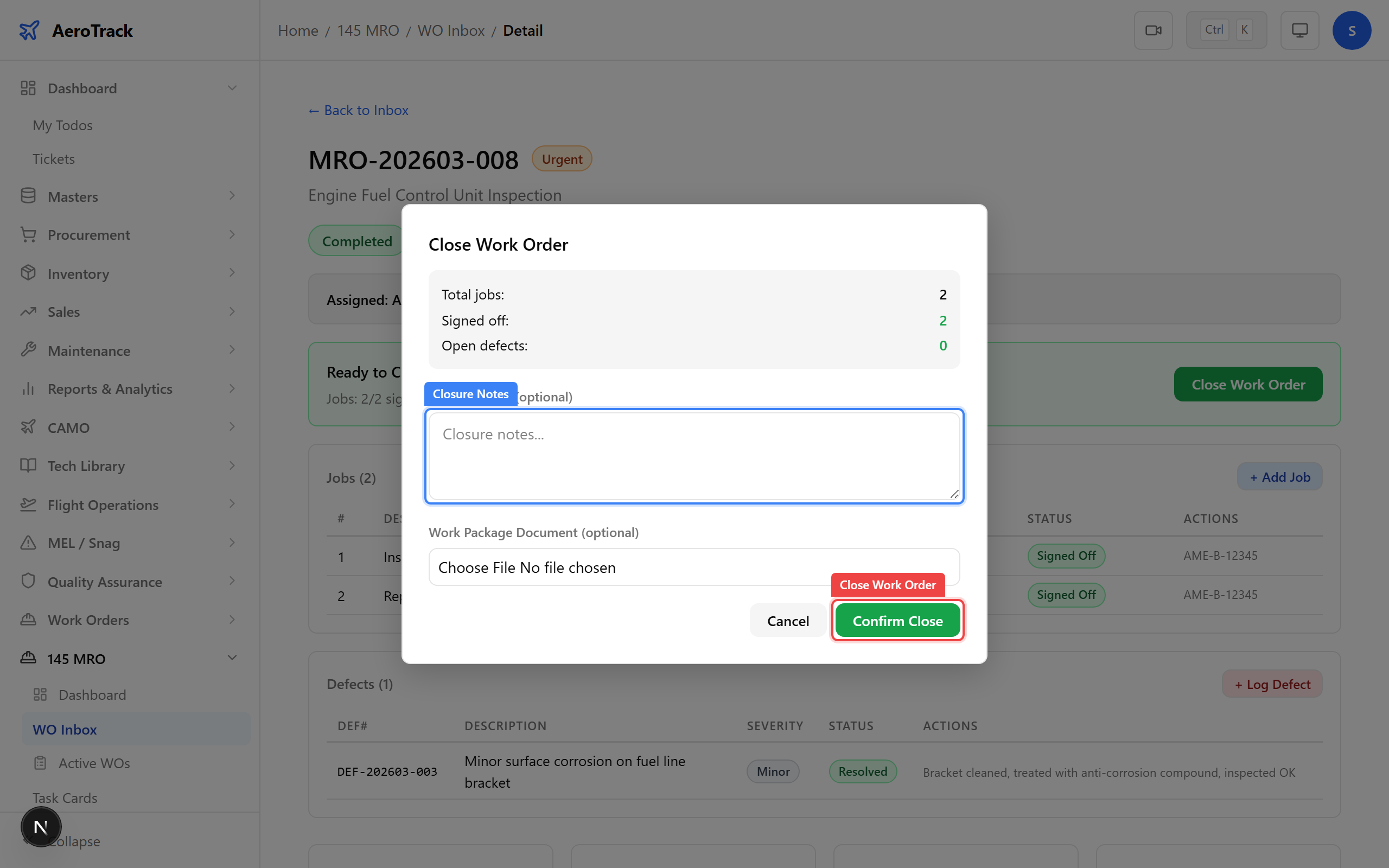
Click Close Work Order in the dialog to finalise. The work order status changes to CLOSED.
A success toast appears: “Work order closed”.
When a work order is closed, the system automatically:
- If linked to a CAMO work order, updates the CAMO WO status to CLOSED.
- If jobs are linked to inspection schedules, creates task history entries and recalculates next-due dates.
- Records the closure timestamp, notes, and who closed it.
- Logs the action in the audit trail for regulatory compliance.
The closed work order remains visible on the detail page with a CLOSED status badge and the closure section showing notes and timestamps.