Browse Requisitions
Navigate to Procurement → Requisitions in the
sidebar. The list loads at /procurement/requisitions
showing all purchase requests ordered by creation date (newest first).
Each row shows the requisition number, type, priority, status, required date, total value, and the requester.
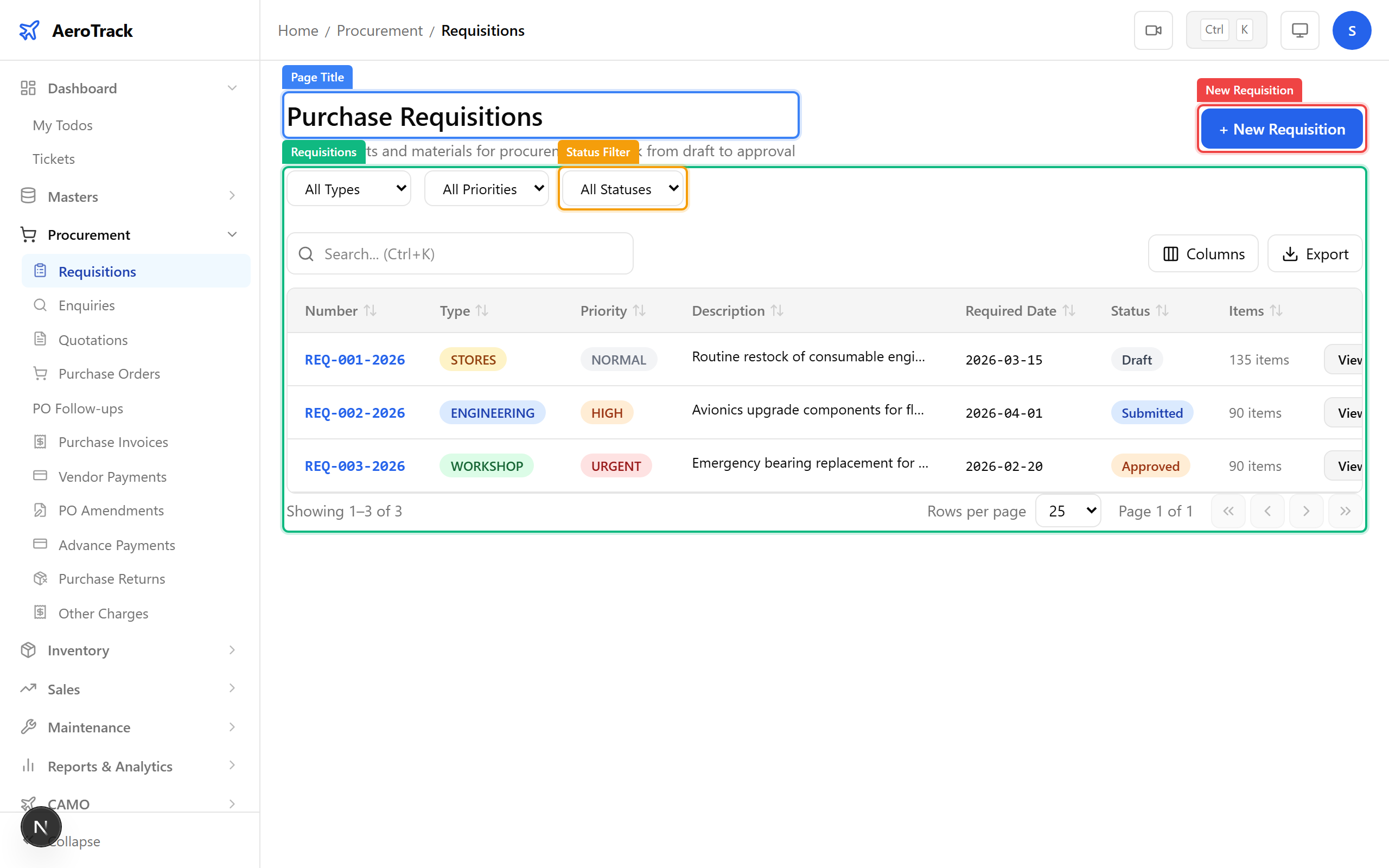
Use the filter dropdowns at the top of the list:
| Filter | Options |
|---|---|
| Type | Standard, Urgent, Stock Replenishment. |
| Priority | Low, Medium, High, Critical. |
| Status | Draft, Submitted, Approved, Converted, Cancelled. |
Click any row to open the requisition detail page. Click + New Requisition to create a new one.
Create a Requisition
Click + New Requisition on the list page, or navigate
directly to /procurement/requisitions/new. The form opens
with header fields and an empty line-items section.
Complete the requisition header:
| Field | Required | Notes |
|---|---|---|
| Type * | Yes | Standard, Urgent, or Stock Replenishment. |
| Priority * | Yes | Low, Medium, High, or Critical. |
| Required Date | No | When the parts are needed by. |
| Description | No | Brief justification for the request. |
| Budget | No | Estimated budget for this requisition. |
| Remarks | No | Internal notes for reviewers. |
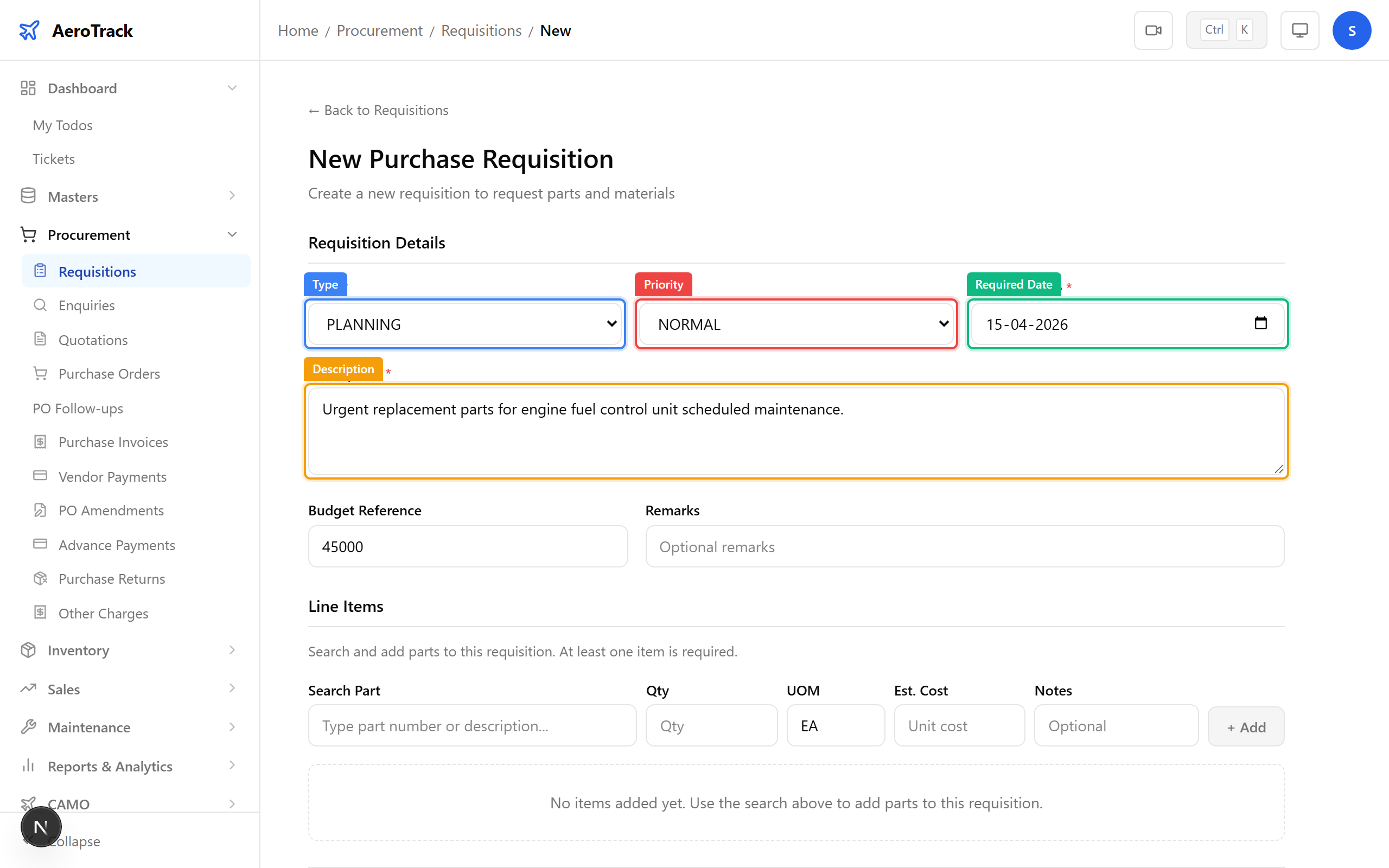
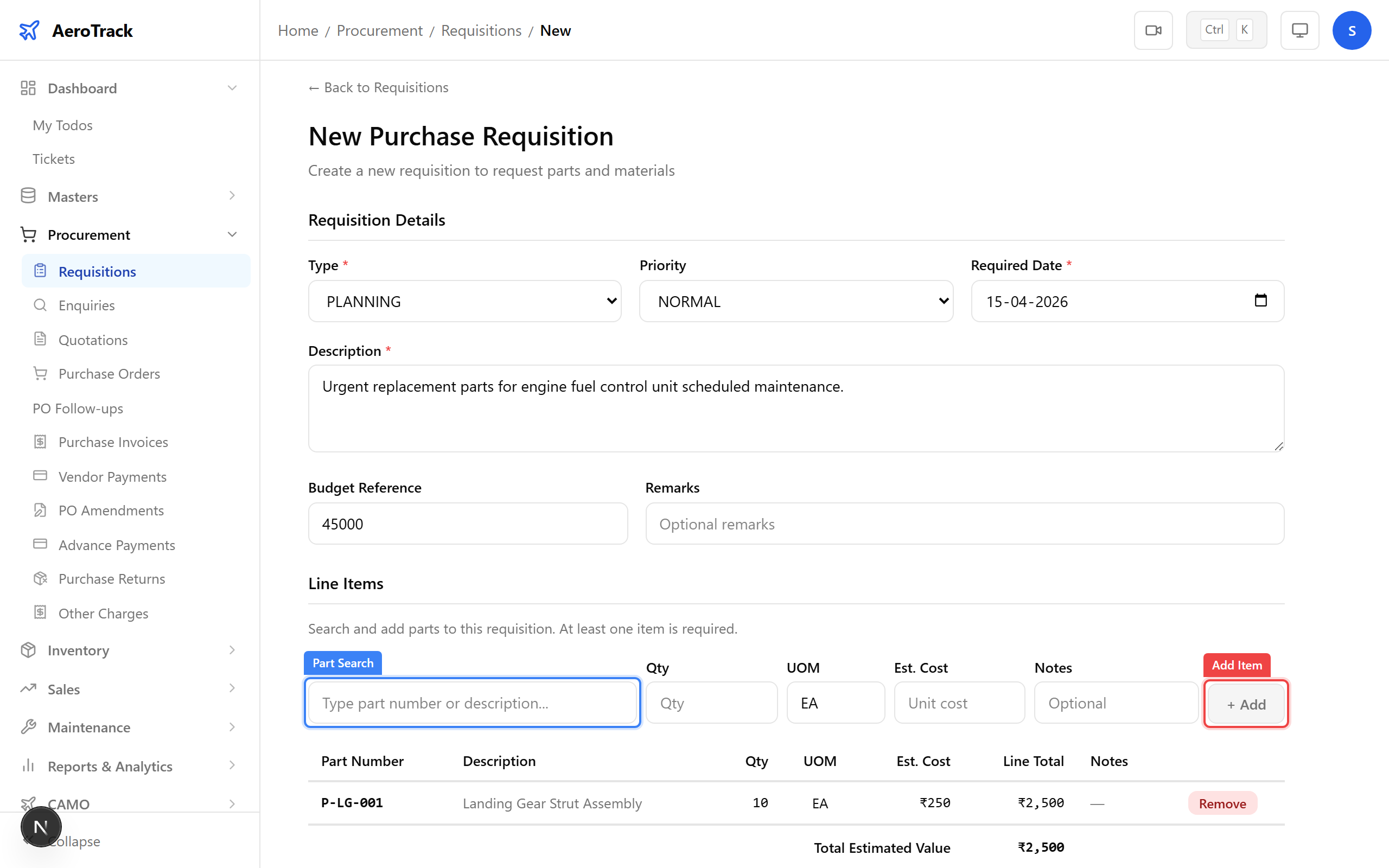
Search for parts using the Part Search field. As you type a part number or description, matching parts appear in a dropdown. Select a part to add it as a line item.
| Line Field | Notes |
|---|---|
| Part | Auto-filled from the search selection. |
| Quantity * | Number of units needed. |
| UOM | Unit of measure (auto-filled from part master). |
| Est. Cost | Estimated cost per unit. |
| Notes | Per-line remarks (reason, urgency, etc.). |
Click Add Item to append the line. Repeat for each part needed. The Running Total updates automatically.
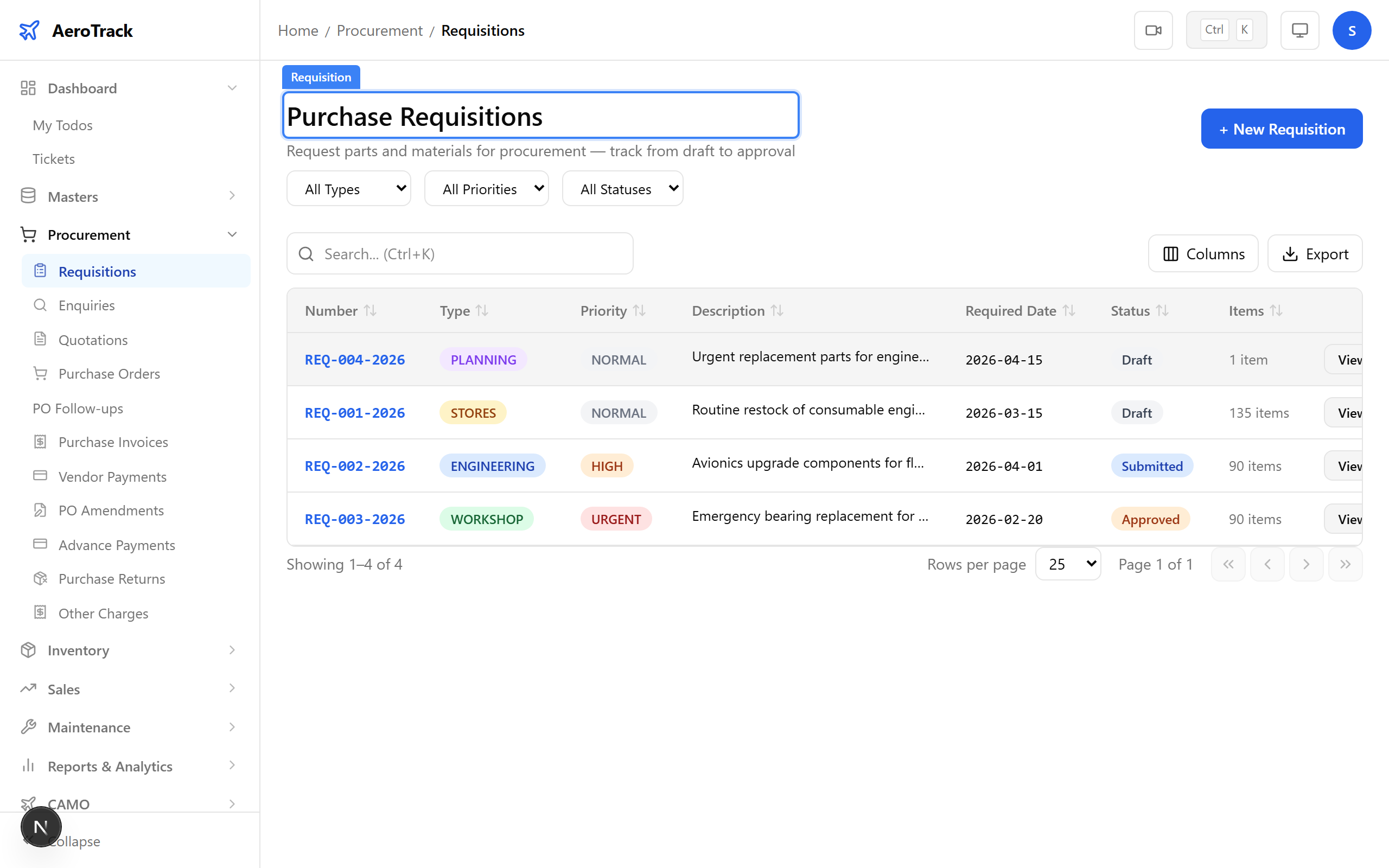
Click Create to save the requisition. It is created in Draft status. From the detail page, submit it for approval using the workflow button.
Workflow & Approval
Requisitions follow this workflow:
| Status | Meaning | Who |
|---|---|---|
| Draft | Initial state. Can be edited freely. | Creator |
| Submitted | Sent for approval. Read-only. | Creator |
| Approved | Approved by manager/admin. Ready for conversion. | Manager / Admin |
| Converted | Converted into a Purchase Order. | Procurement Officer |
| Cancelled | Rejected or withdrawn at any stage. | Any authorized user |