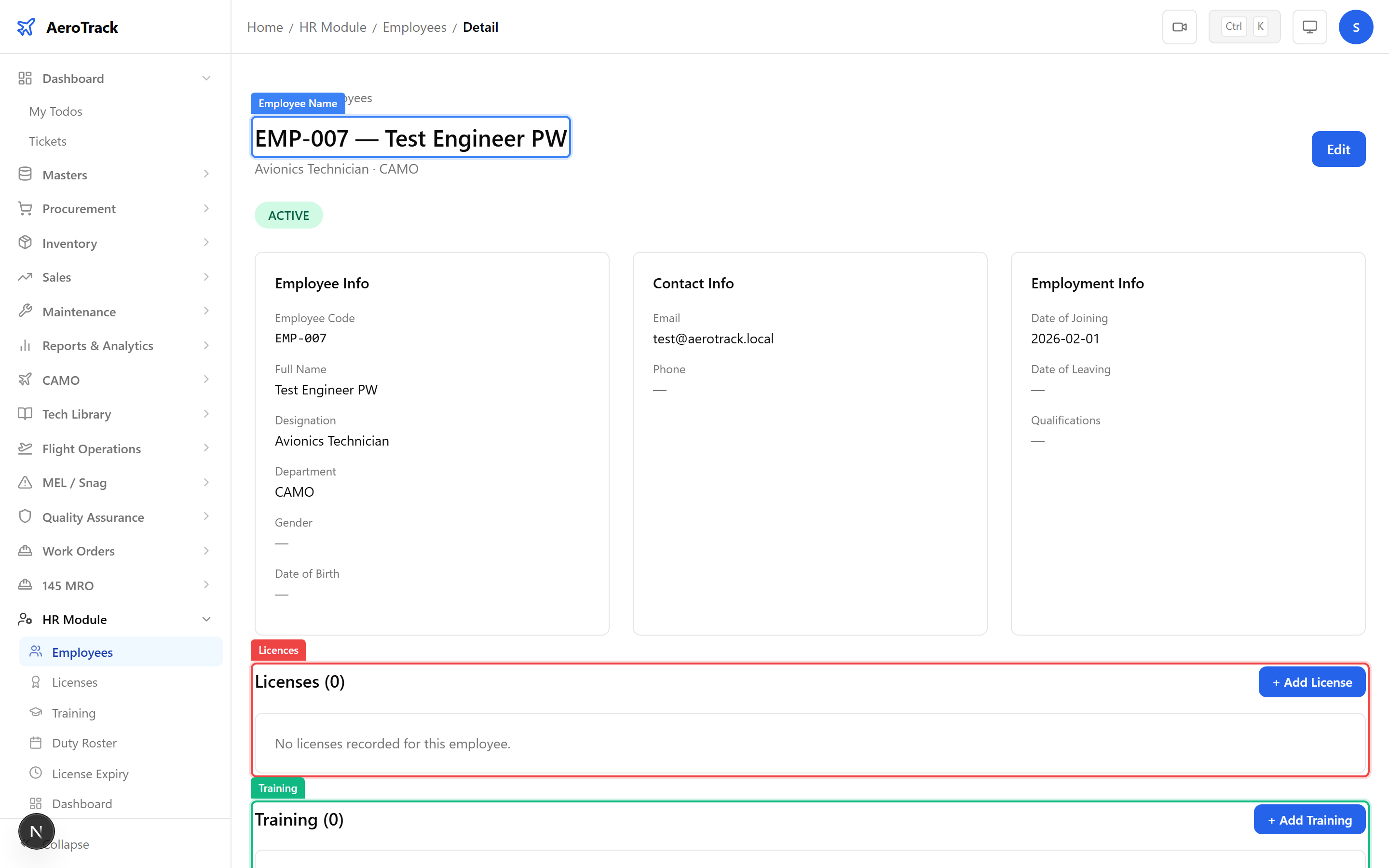
HR Dashboard
Navigate to HR → Dashboard in the sidebar.
The dashboard at /hr/dashboard shows KPI cards for
total employees, active employees, active licences, expiring
licences, overdue training, and licence compliance percentage.
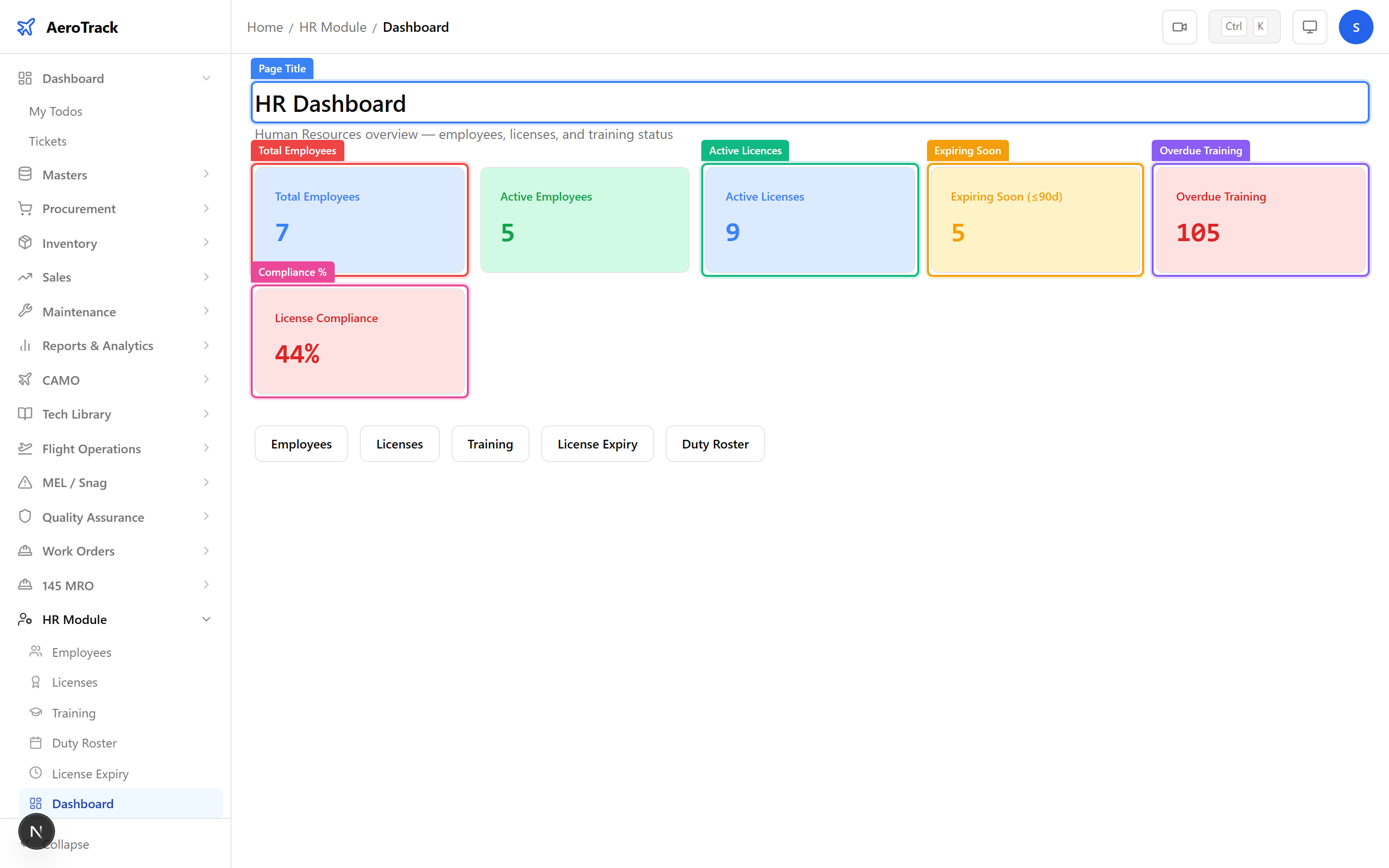
Browse Employees
Navigate to HR → Employees. The list at
/hr/employees shows all registered employees with
their name, designation, department, and status.
Click any row to open the employee detail page. Click + New Employee to register a new one.
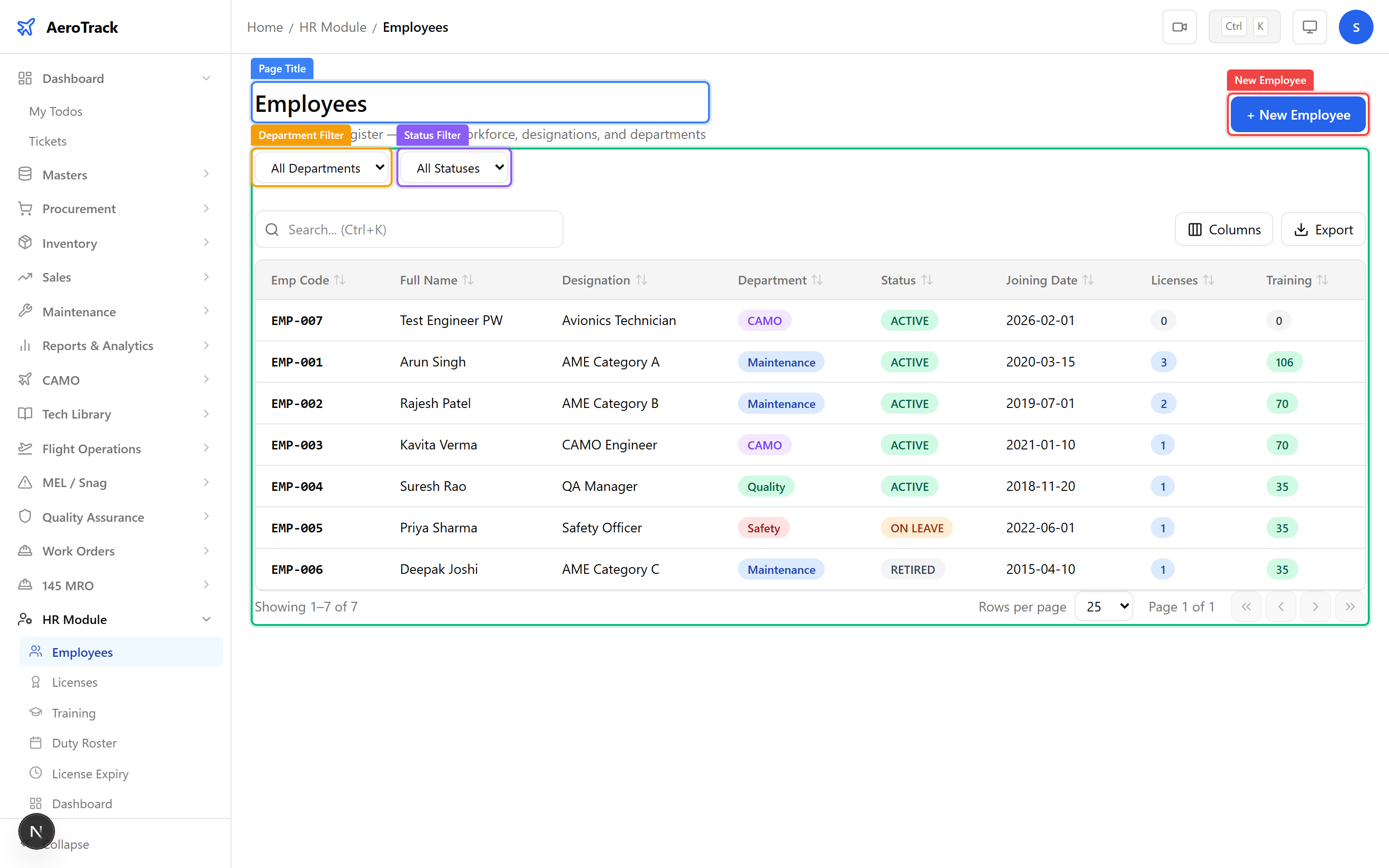
Use the search bar to find employees by name or designation. Apply the Department and Status filters to narrow the list.
Register an Employee
Click + New Employee or navigate to
/hr/employees/new.
| Field | Required | Notes |
|---|---|---|
| Full Name * | Yes | Employee’s legal name. |
| Designation * | Yes | Job title (e.g. AME, QA Inspector). |
| Department * | Yes | Engineering, Quality, Planning, Stores, Admin. |
| Gender | No | Male, Female, Other. |
| Date of Birth | No | For age-based compliance checks. |
| No | Work email address. | |
| Phone | No | Contact number. |
| Date of Joining * | Yes | Employment start date. |
| Qualifications | No | Educational and professional qualifications. |
| Remarks | No | Internal notes about the employee. |
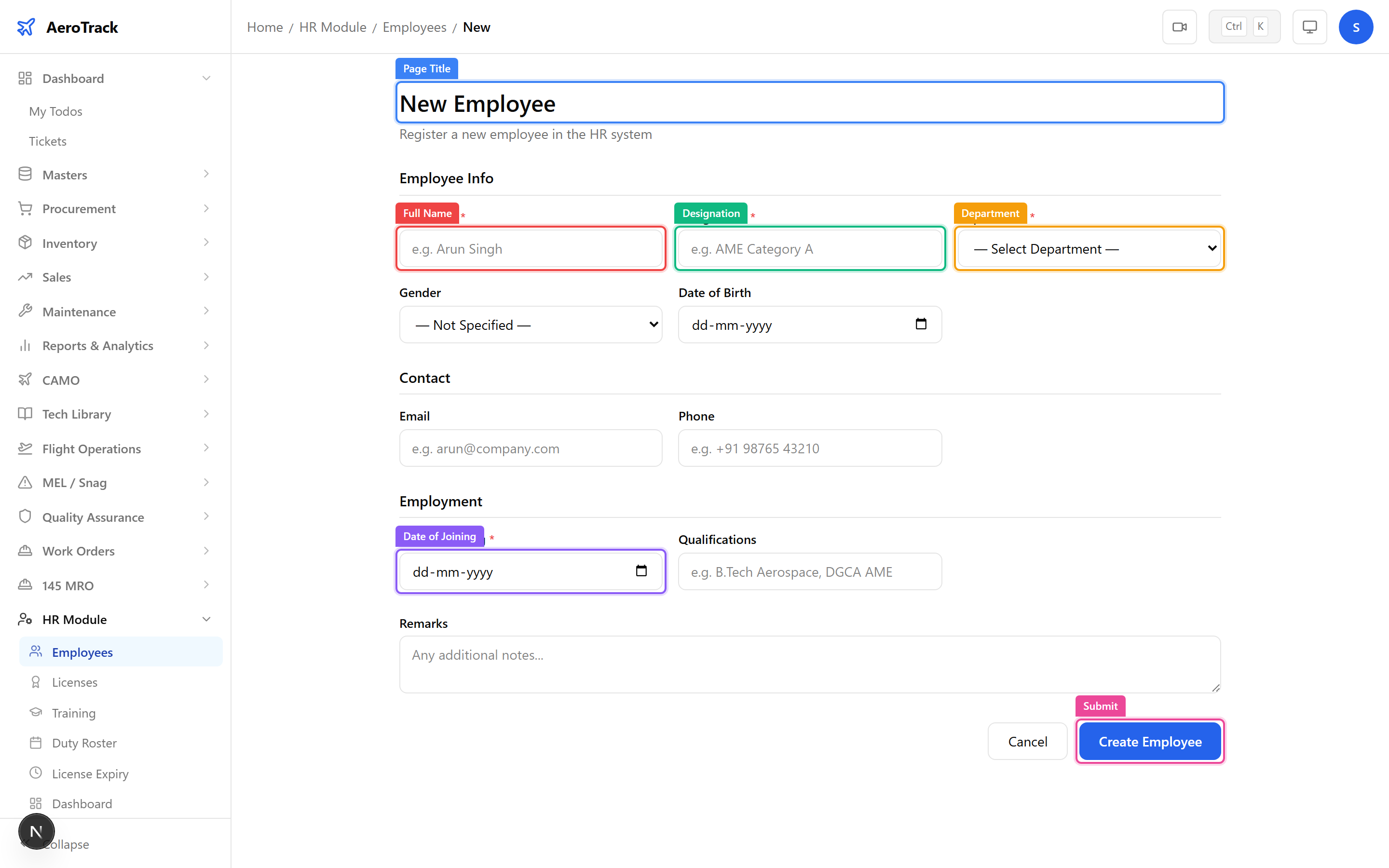
Click Create to register the employee. Once created, the employee is available for licence assignment and training records.
Employee Detail
The employee detail page shows personal information, department, qualifications, and two related sections:
| Section | Content |
|---|---|
| Licences | All licences assigned to this employee with type, number, expiry, and status. |
| Training | All training records with course name, completion date, and validity. |