Browse Flight Logs
Navigate to Flight Operations → Flight Log Book
in the sidebar. The list loads at /flight-ops/log-book
showing all flight log entries ordered by date (newest first).
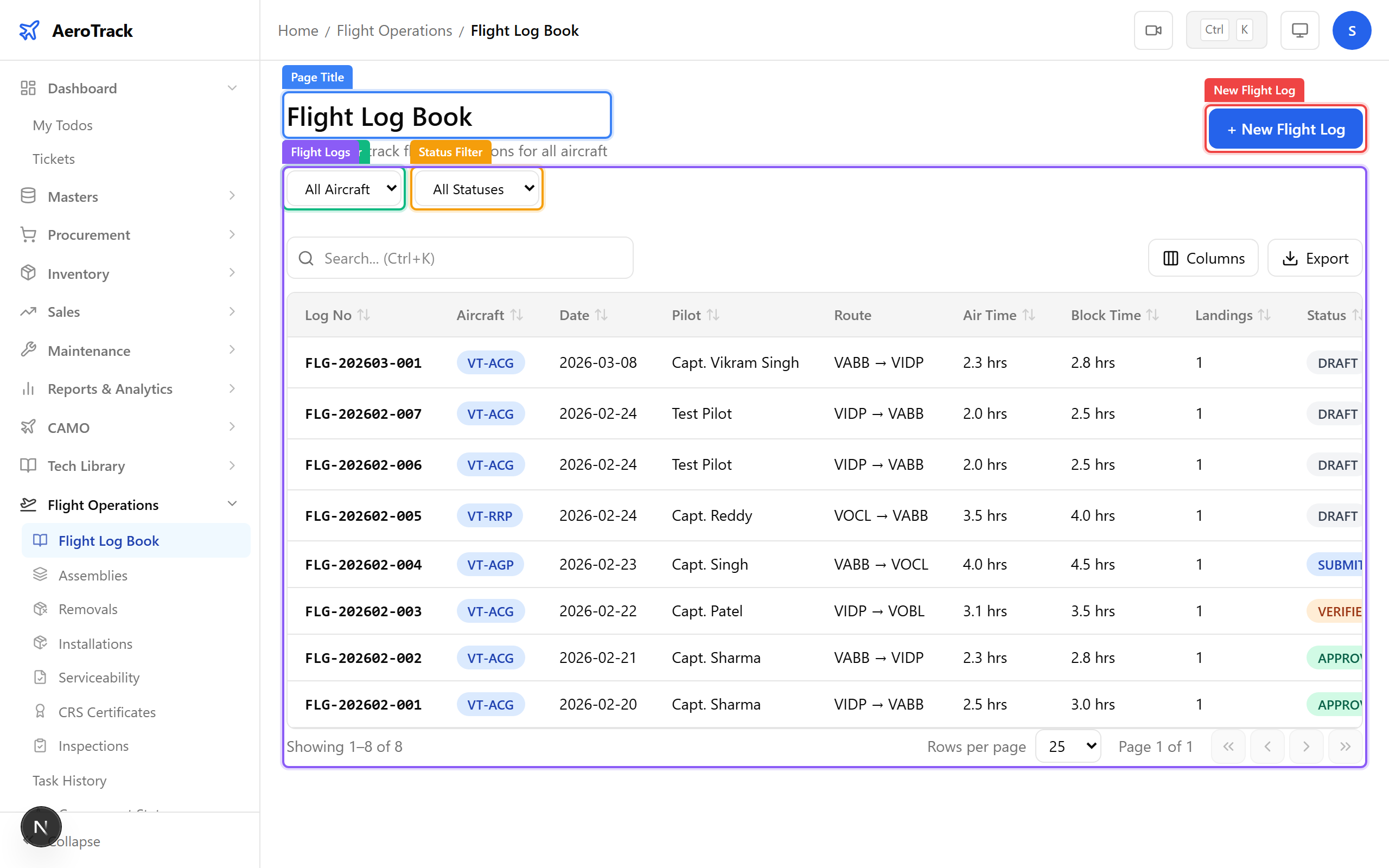
The table columns are:
| Column | Meaning |
|---|---|
| Log No | Auto-generated identifier (e.g. FLG-202603-001). |
| Aircraft | Registration number badge (e.g. VT-ACG). |
| Date | Flight date. |
| Pilot | Pilot in command name. |
| Route | Departure → Arrival (ICAO codes). |
| Air Time | Takeoff to landing, in decimal hours. |
| Block Time | Blocks off to blocks on, in decimal hours. |
| Landings | Number of landings. |
| Status | DRAFT · SUBMITTED · VERIFIED · APPROVED · AMENDED · CANCELLED |
Use the Aircraft and Status dropdowns to filter entries. Click any row to open its detail page.
Create a Flight Log
Click + New Flight Log at the top-right of the list.
The form opens at /flight-ops/log-book/new.
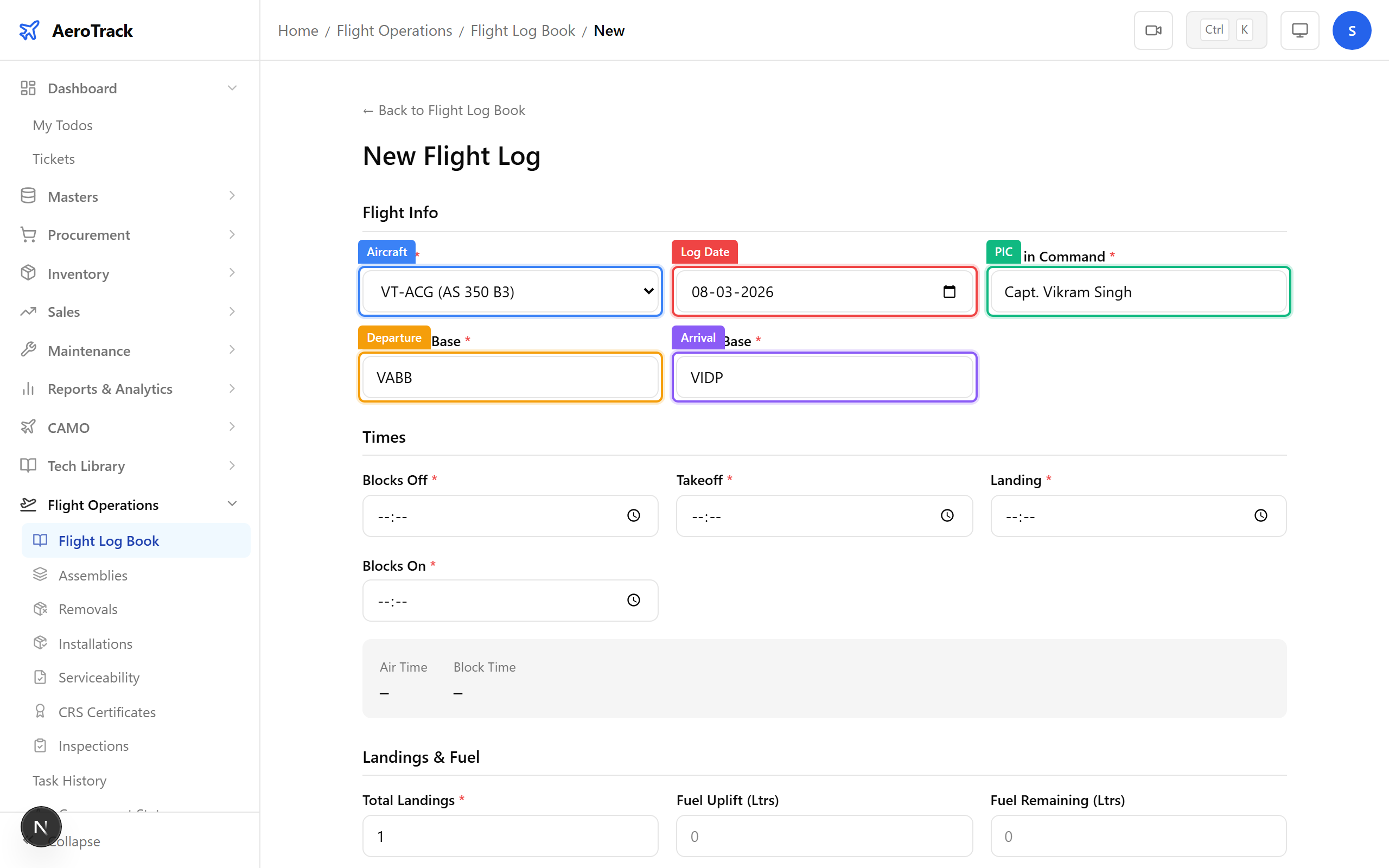
Complete the Flight Info section:
| Field | Required | Notes |
|---|---|---|
| Aircraft * | Yes | Dropdown of active aircraft with registration number and model. |
| Log Date * | Yes | Date of the flight. Defaults to today. |
| Pilot in Command * | Yes | Name of the PIC, max 100 characters. |
| Departure Base * | Yes | ICAO code (auto-uppercased), e.g. VABB. |
| Arrival Base * | Yes | ICAO code, e.g. VIDP. |
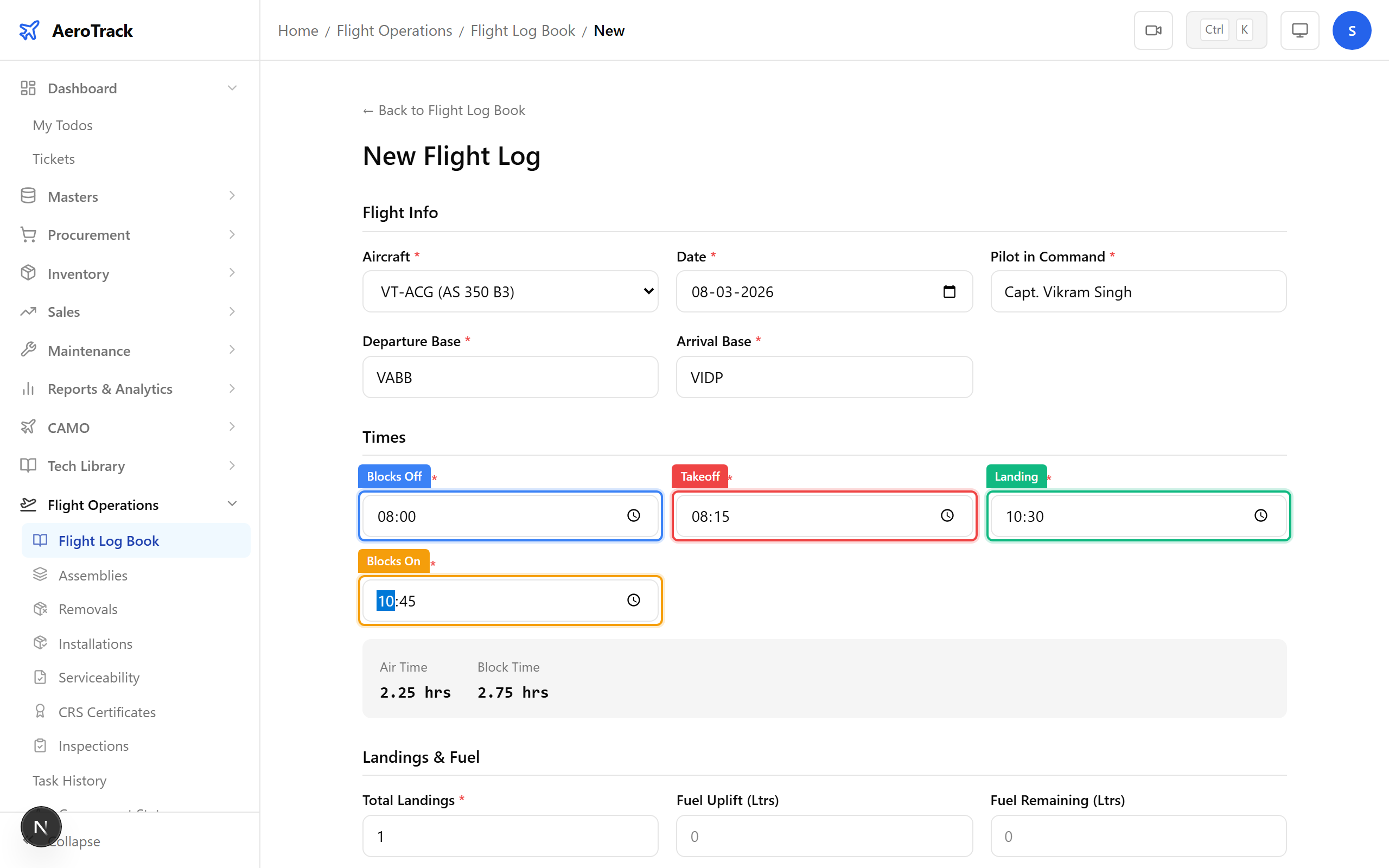
Complete the Times section using HH:MM
format:
| Field | Required | Notes |
|---|---|---|
| Blocks Off * | Yes | Time the aircraft leaves the parking stand. |
| Takeoff * | Yes | Wheels off. Must be after Blocks Off. |
| Landing * | Yes | Wheels on. Must be after Takeoff. |
| Blocks On * | Yes | Time the aircraft reaches the parking stand. Must be after Landing. |
Air Time (takeoff to landing) and Block Time (blocks off to blocks on) are calculated automatically and displayed below the time fields.
Complete the Landings & Fuel section:
| Field | Required | Notes |
|---|---|---|
| Total Landings * | Yes | Number of landings (default 1, min 1). |
| Fuel Uplift (L) | No | Fuel added in litres. |
| Fuel Remaining (L) | No | Fuel remaining after flight. |
| Oil Uplift (L) | No | Oil added in litres. |
| Oil Remaining (L) | No | Oil remaining after flight. |
Optionally add Remarks (max 500 chars) at the bottom of the form.
Click Create Flight Log. The system validates
time sequencing, generates a log number (e.g. FLG-202603-001),
and saves with status DRAFT.
A success toast appears and you are redirected to the flight log list.
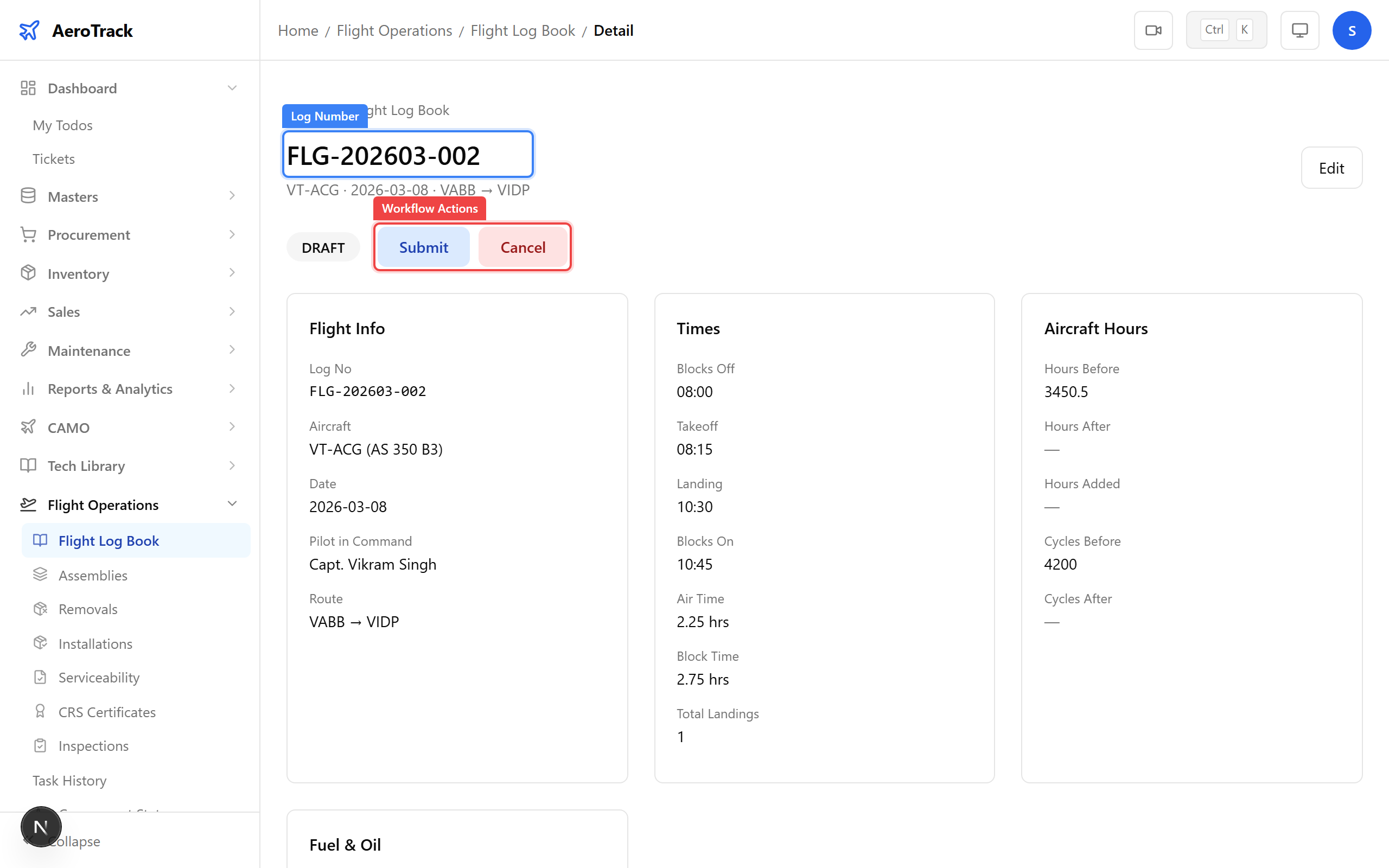
Workflow
Click a flight log row to open the detail page. Use the workflow action buttons to progress the log:
| Current | Actions |
|---|---|
| DRAFT | Submit or Cancel |
| SUBMITTED | Verify or Cancel |
| VERIFIED | Approve or Cancel |
| APPROVED | Amend (admin only) |
When a flight log is Approved, the system automatically updates:
- Aircraft totals: totalHours += airTime, totalCycles += totalLandings.
- Installed components: TSN hours/cycles and TSO hours/cycles incremented.
- Audit trail: logged for the aircraft and each affected component.