View Inspection Detail
Click any inspection row in the Inspections Matrix
to open the detail page at /flight-ops/inspections/{id}.
The page displays all inspection information in a card-based layout
with a prominent due-status badge at the top.
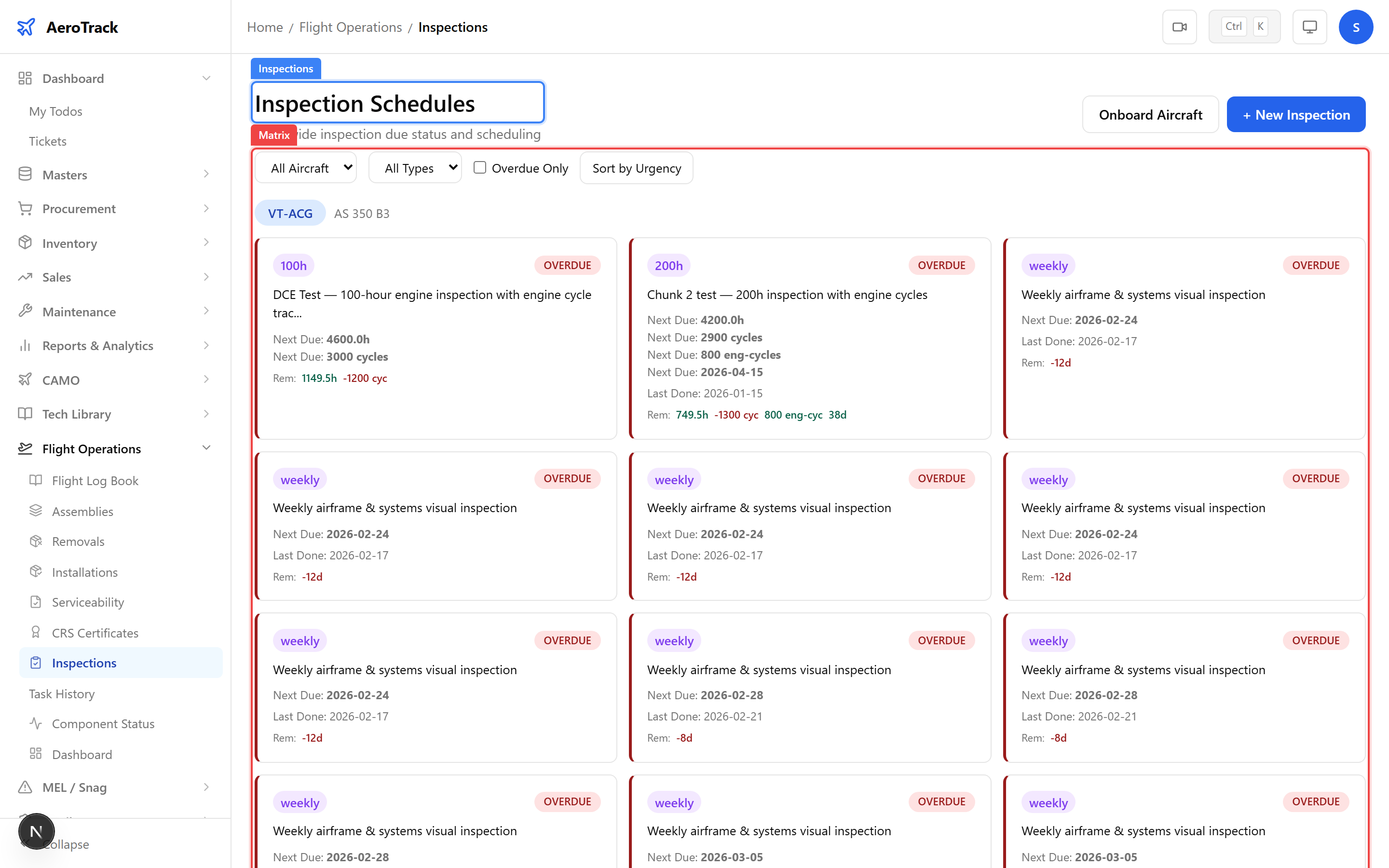
The detail page displays information across six cards:
| Card | Fields |
|---|---|
| Inspection Info | Type, description, ATA chapter, performed by. |
| Aircraft Info | Registration, model, current hours, current cycles. |
| Intervals | Hours interval, cycles interval, engine cycles interval, days interval. |
| Last Done | Date, hours, cycles, engine cycles at last performance. |
| Next Due | Date, hours, cycles, engine cycles when next due. |
| Remaining | Hours, cycles, engine cycles, calendar days remaining with percentage bars. |
The Remaining card shows each dimension tracked for this inspection, with colour-coded status indicators:
| Dimension | Example | Shows |
|---|---|---|
| Hours | 245.5h (40.9%) | Flight hours remaining until due. |
| Cycles | 180 cycles (36.0%) | Landing cycles remaining. |
| Engine Cycles | 500 eng-cycles (50.0%) | Engine cycles remaining. |
| Calendar | 45 days (25.0%) | Calendar days remaining. |
Actions
Scroll to the Mark as Done section at the bottom of the detail page. Fill in the completion data:
| Field | Description |
|---|---|
| Done Date | Date the inspection was completed. |
| Done Hours | Aircraft total hours at completion (pre-filled with current). |
| Done Cycles | Aircraft total cycles at completion (pre-filled with current). |
| Done Engine Cycles | Engine cycles at completion (only shown if tracked). |
| Performed By | Name of the engineer or organisation. |
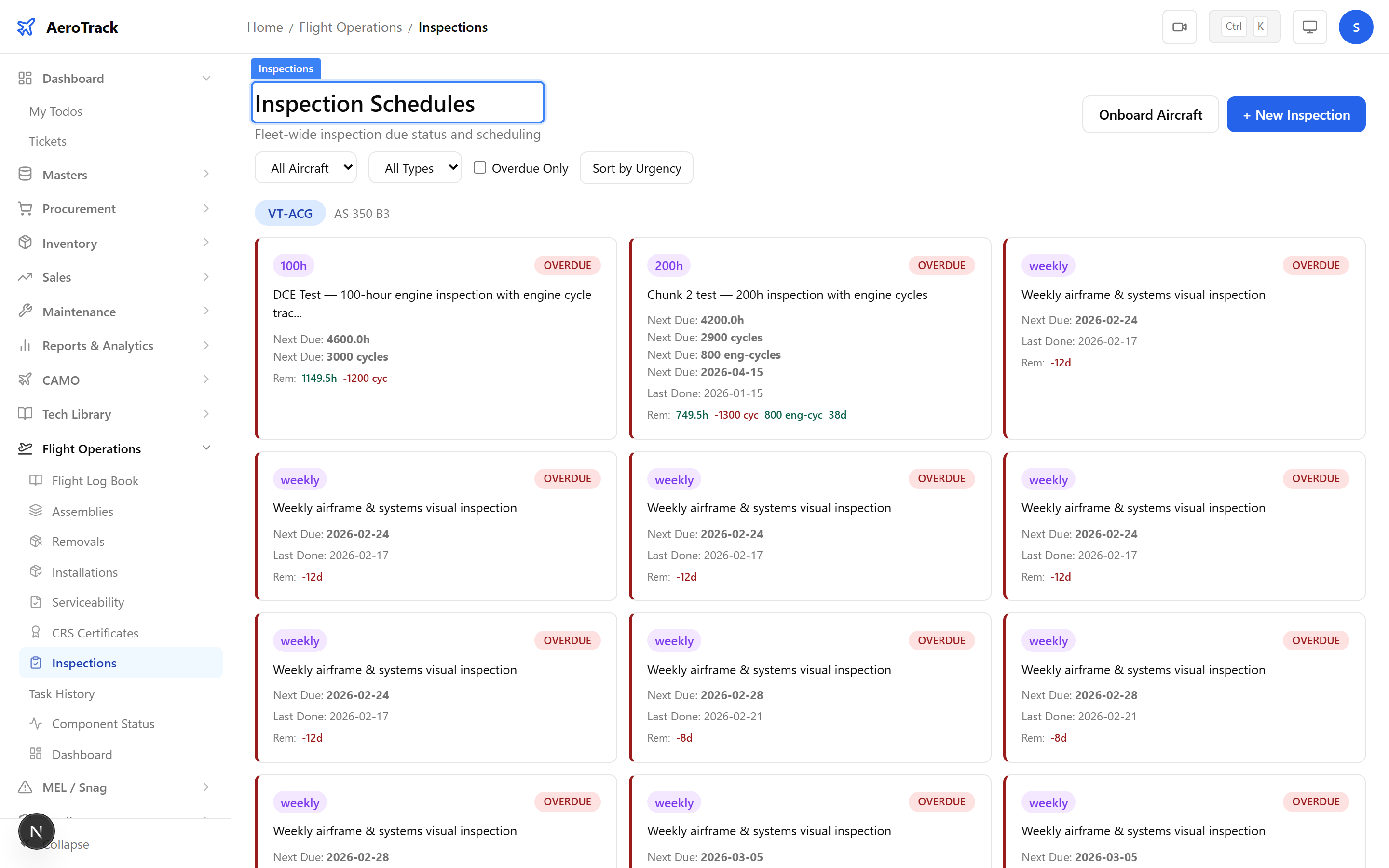
Click Mark Done to record the completion. The system will automatically:
- Update Last Done values to the entered data
- Recalculate Next Due values based on the interval
- Create a Task History record
- Reset the due status to OK
Click the Edit button in the header to modify the
inspection’s intervals, description, or other fields at
/flight-ops/inspections/{id}/edit.
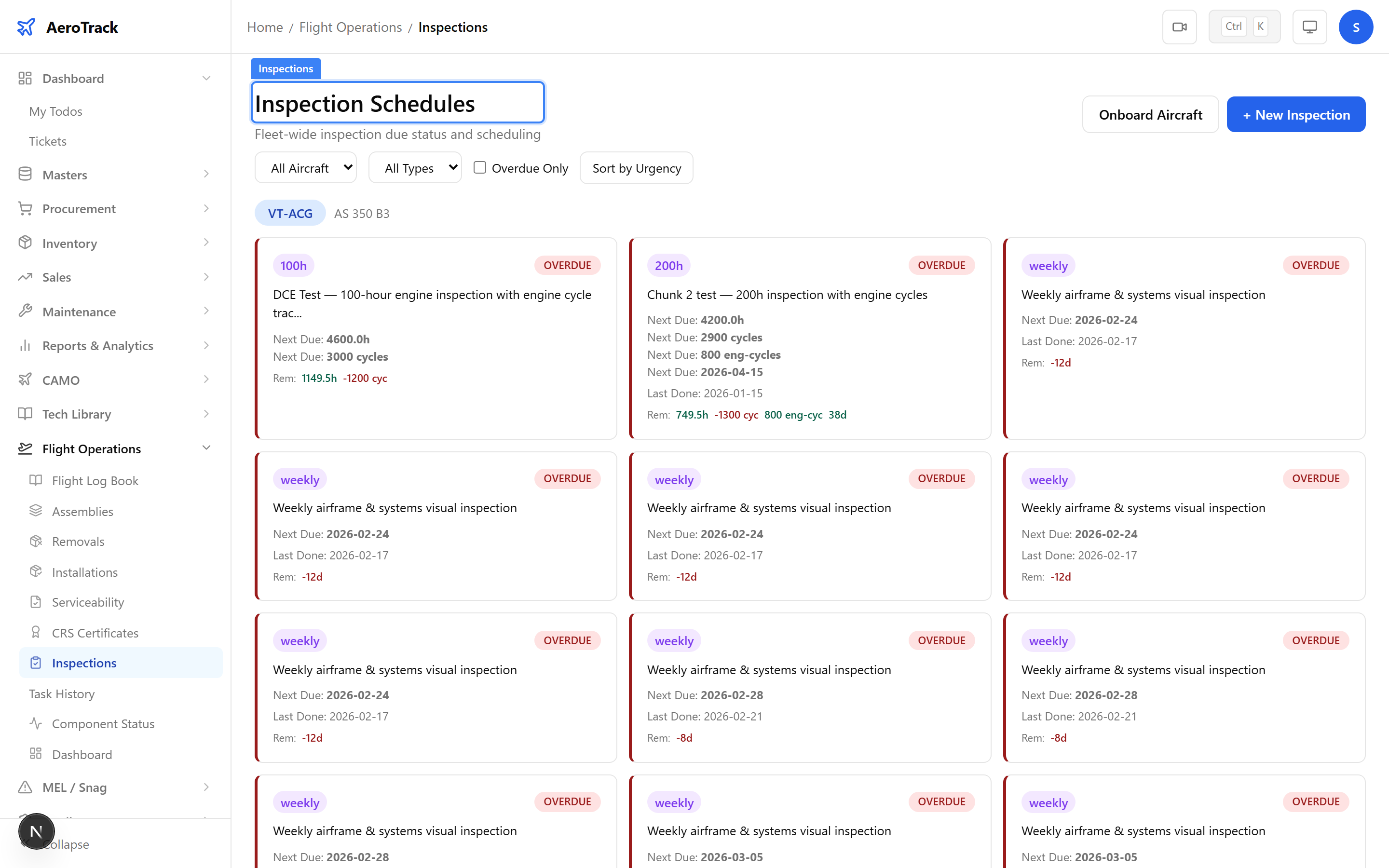
Admins see a Deactivate button next to the Edit button. Deactivating an inspection removes it from the active matrix but preserves all historical data and task history records.
| Action | Role | Effect |
|---|---|---|
| Edit (intervals/description) | camo_engineer, admin | Updates the inspection configuration. |
| Edit (lastDone baseline) | admin only | Modifies the baseline and triggers recalculation. |
| Deactivate | admin only | Soft-deletes the inspection from active schedules. |
At the bottom of the detail page, click the View Task History for {regNo} link to navigate to the Task History page, pre-filtered to this aircraft. The history shows every time this inspection was marked as done, with the hours, cycles, and date recorded at each performance.